AUX unit operation &AUX jack
By connecting a commercial audio pro-
duct to the vehicle, such as portable audio
player, you can hear its sound via thevehicle ’s speaker.
Connect the portable audio player and
push the “AUX ”button.
For the audio input jack, a stereo mini pin
plug (3.5ø) can be connected. For detailed
information, see the owner ’s manual of the
portable audio player. &
AUX inputs selection button
Press the “AUX ”button when the auxiliary
audio input is off to turn on the auxiliary
audio input. NOTE . The output sound of the portable
audio player is not loud, and the sound
via the vehicle ’s speakers that are
connected to the vehicle audio set is
very small. If you turn up the volume of
the audio set, the volume becomes
louder. However, when you change
the player to the other portable audio
player, the sound may become a lot
louder. Turn down the volume when
you change between them.. In some cases, when the sound
volume of the portable audio player is low, the sound becomes bad when you
turn up the volume of the vehicle audio
system. In this case, adjust the sound
volume of the portable audio player..
In some cases, noise occurs be-
cause of a bad connection between the
portable player of the vehicle audio
system or for the player. Audio
5-25
5-26Audio
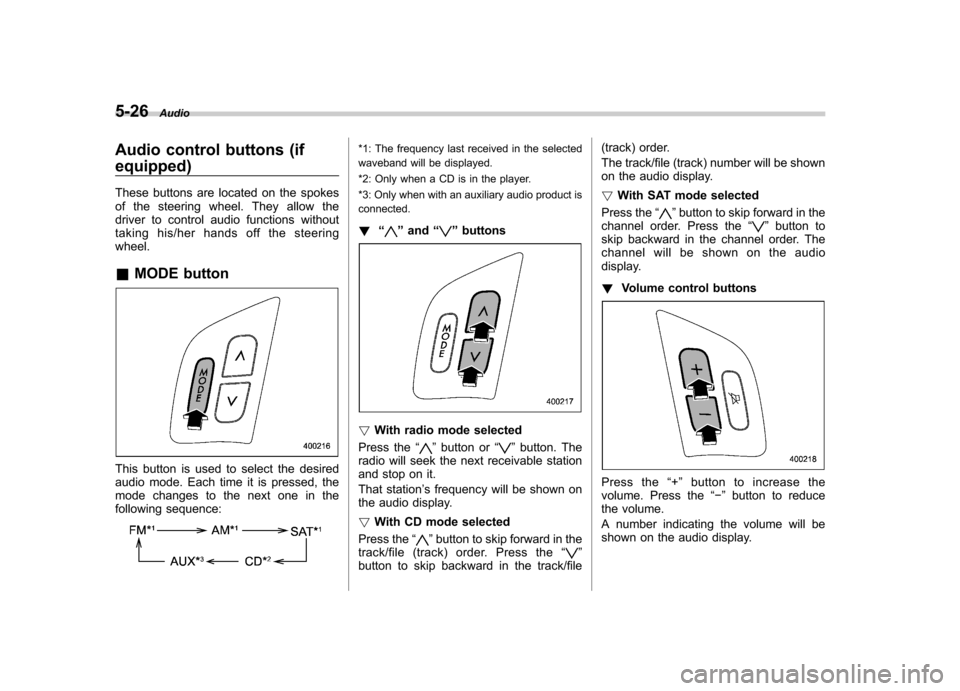
Audio control buttons (if equipped)
These buttons are located on the spokes
of the steering wheel. They allow the
driver to control audio functions without
taking his/her hands off the steeringwheel. &MODE button
This button is used to select the desired
audio mode. Each time it is pressed, the
mode changes to the next one in the
following sequence:
*1: The frequency last received in the selected
waveband will be displayed.
*2: Only when a CD is in the player.
*3: Only when with an auxiliary audio product is
connected. ! “
”and “”buttons
! With radio mode selected
Press the “
”button or “”button. The
radio will seek the next receivable station
and stop on it.
That station ’s frequency will be shown on
the audio display. ! With CD mode selected
Press the “
”button to skip forward in the
track/file (track) order. Press the “”
button to skip backward in the track/file (track) order.
The track/file (track) number will be shown
on the audio display. !
With SAT mode selected
Press the “
”button to skip forward in the
channel order. Press the “”button to
skip backward in the channel order. The
channel will be shown on the audio
display. ! Volume control buttons
Press the “+ ” button to increase the
volume. Press the “ ” button to reduce
the volume.
A number indicating the volume will be
shown on the audio display.