lock SUBARU OUTBACK 2012 5.G Owners Manual
[x] Cancel search | Manufacturer: SUBARU, Model Year: 2012, Model line: OUTBACK, Model: SUBARU OUTBACK 2012 5.GPages: 474, PDF Size: 17.45 MB
Page 220 of 474

When connecting iPod®(type B audio):
When connecting iPod®(type C audio):
NOTE .The “FOLDER RDM ”(type B audio)/
“ Folder ”(type C audio) indication re-
fers to the random playback in the
folders. It randomly repeats all of the
tracks in the folder.. The “ALL RDM ”(type B audio)/ “All ”
(type C audio) indication refers to the
random playback on the entire USB
storage device. It randomly repeats all
of the tracks on the USB storage device.. The “ALBUM RDM ”(type B audio)/
“ Album ”(type C audio) indication re-
fers to the shuffle playback of the
album. It sequentially plays back all of
the tracks on the album.. The “SONG RDM ”(type B audio)/
“ Track ”(type C audio) indication refers
to the shuffle playback on the entireiPod
®. It randomly repeats all of the tracks on the iPod
®.
. When an iPod®is connected, the
files are played back at random by the
shuffle function of the iPod
®. There-
fore, iPod®operation may be different
depending on the model of the con-
nected iPod
®. Visit the Apple Inc.
website for details.. When an audiobook or a podcast is
playing, the mode does not change
even if you press the random button.
To cancel the random playback mode,
press the random button and select
CANCEL. The “RDM ”indication will turn
off, and the normal playback mode willresume. & SCAN (only when connecting
USB storage device)
Scan is operated in the same way as for a
CD. For details, refer to “Scan ”F 5-28.
NOTE
When an iPod
®is connected, you
cannot select the SCAN mode. &
Selecting category (only
when connecting iPod
®)
! Type B audio
“ LIST ”button
“TUNE ”dial
When the “LIST ”button is pressed briefly,
the iPod®menu is displayed.
Each time you turn the “TUNE ”dial clock-
wise, the displayed category changes in
the following sequence. Each time you
turn the dial counterclockwise, the dis-
played category changes in the oppositesequence. Audio
5-37
– CONTINUED –
Page 227 of 474

5-44Audio
NOTE . The Bluetooth
®audio function may
not operate properly under the follow-
ing conditions.
–The device is turned off.
– The battery of the device has run
down. – The device is not connected to
the system.– The device is behind the seat or
in the glove box.– A metal material is covering or
touching the device.
. Depending on the type of device that
is used, operation and sound volume
may be different from normal use of
those devices. . The sound quality may degrade due
to the influence of the device that is
connected to the system or the circum-
stances of the Bluetooth network. . When another Bluetooth
®device is
simultaneously connected, noise may
be heard. & Media format
Bluetooth
®audio devices cannot be
connected if they are not compatible with
the following Bluetooth
®profiles.
. A2DP (Advanced Audio Distribution
Profile) .
AVRCP (Audio/Video Remote Control
Profile)
& Setting Bluetooth
®audio
(type B audio)
1. Select “BT-A SETUP ”by pressing the
“ MENU ”button.
2. Perform the following procedure by
operating the “TUNE ”dial while “BT-A ”is
displayed.
NOTE
You cannot set Bluetooth
®audio while
driving. ! Registering (pairing) device
NOTE
Only one device can be registered.
1. Select the “PAIR AUDIO ”menu.
– If a device is already registered,
“ MEMORY FULL ”is displayed and the
mode changes to the Bluetooth
®
audio setting mode.
2. After the passkey is shown on the
display, input the passkey into the device. –If the registering procedure is fin-
ished, “PAIRED ”and the name of the
device are displayed. – If the registering procedure was not
successful, “FAILED ”is displayed. After the name of the device or
“FAILED ”
is displayed, the mode changes to the Bluetooth
®audio setting mode.
NOTE
After the ignition switch is turned to the “ LOCK ”position, the registered device
is not automatically connected to the
system even if the ignition switch is
turned to the “Acc ”or “ON ”position.
! Selecting device
1. Select the “SELECT AUDIO ”menu.
– If no devices are registered,
“ EMPTY ”is displayed and the mode
changes to the Bluetooth
®audio
setting mode.
2. Select the “CONFIRM ”menu.
– Then the name of the selected
device is displayed. – If the device is connected, “SE-
LECTED ”is displayed and the mode
changes to the Bluetooth
®audio
setting mode.– If the device cannot be connected,
“ FAILED ”is displayed and the select-
ing procedure was not successful.
! Setting passkey
1. Select the “SET PASSKEY ”menu.
– After the currently set passkey is
displayed, a new passkey can be
Page 228 of 474
entered.
2. Input the new passkey (a 4 - 8 digit
number) by operating the “TUNE ”dial.
3. Select the “CONFIRM ”menu.
– The new passkey is displayed, the
passkey is changed and the mode
changes to the Bluetooth
®audio
setting mode.
! Deleting device
1. Select the “DELETE AUDIO ”menu.
– If no devices are registered,
“ EMPTY ”is displayed and the mode
changes to the Bluetooth
®audio
setting mode.
2. Select the “CONFIRM ”menu.
–“ DELETED ”is displayed and the
mode changes to the Bluetooth
®
audio setting mode.
& Setting Bluetooth
®audio
(type C audio)
1. Press the
button to select the
“ BT Audio ”mode.
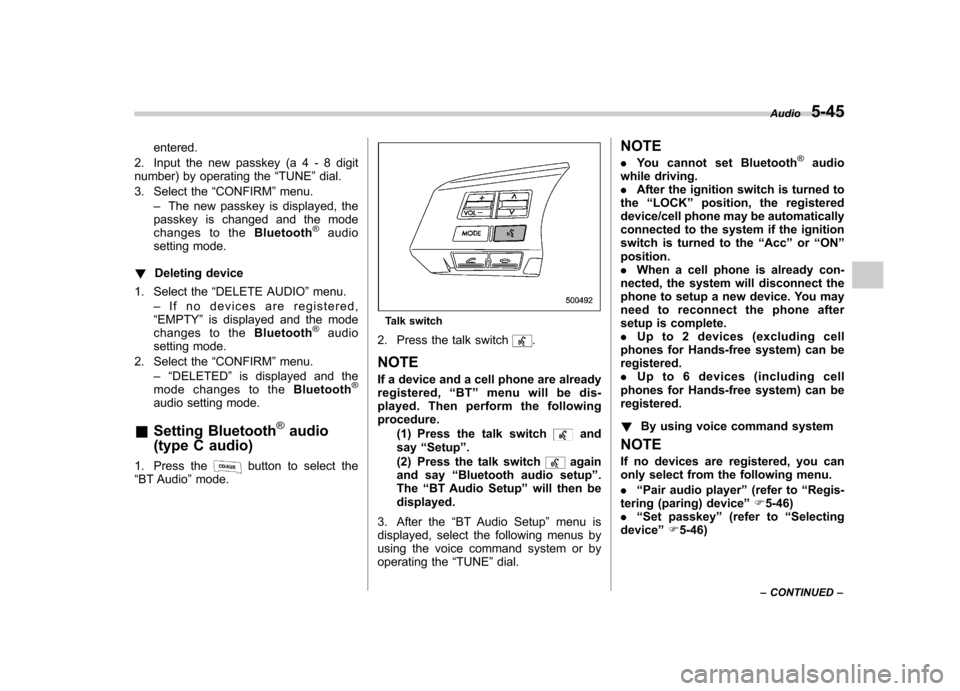
Talk switch
2. Press the talk switch
.
NOTE
If a device and a cell phone are already
registered, “BT ”menu will be dis-
played. Then perform the followingprocedure.
(1) Press the talk switch
and
say “Setup ”.
(2) Press the talk switch
again
and say “Bluetooth audio setup ”.
The “BT Audio Setup ”will then be
displayed.
3. After the “BT Audio Setup ”menu is
displayed, select the following menus by
using the voice command system or by
operating the “TUNE ”dial. NOTE .
You cannot set Bluetooth
®audio
while driving. . After the ignition switch is turned to
the “LOCK ”position, the registered
device/cell phone may be automatically
connected to the system if the ignition
switch is turned to the “Acc ”or “ON ”
position.. When a cell phone is already con-
nected, the system will disconnect the
phone to setup a new device. You may
need to reconnect the phone after
setup is complete.. Up to 2 devices (excluding cell
phones for Hands-free system) can beregistered.. Up to 6 devices (including cell
phones for Hands-free system) can beregistered. ! By using voice command system
NOTE
If no devices are registered, you can
only select from the following menu. . “Pair audio player ”(refer to “Regis-
tering (paring) device ”F 5-46)
. “Set passkey ”(refer to “Selecting
device ”F 5-46) Audio
5-45
– CONTINUED –
Page 232 of 474

Hands-free system (if equipped) NOTE .For models with the genuine
SUBARU navigation system, refer to
the Owner ’s Manual supplement for the
navigation system.. When selling your vehicle, make
sure that you initialize the Hands-free
system to prevent personal data from
being improperly accessed.
The Hands-free system operates while the
ignition switch is in the “Acc ”or “ON ”
position.
& Tips for the Hands-free sys- tem
! Bluetooth
®
It is possible to connect a cell phone to the
in-vehicle equipment through the Blue-
tooth
®format (wireless) to make a phone
call from the in-vehicle equipment or take
an incoming phone call.
Since the Bluetooth
®format is wireless, a
connection between the in-vehicle equip-
ment and the cell phone can be made
without placing them in close vicinity of
each other. The cell phone can be used
with it left in the breast pocket or bag. NOTE .
The Hands-free system may not
operate properly under the following conditions.
–The cell phone is turned off.
– The cell phone is not in the
phone call area. – The battery of the cell phone has
run down.– The cell phone is not connected
to the Hands-free system.– The cell phone is behind the seat
or in the glove box.– A metal material covers or
touches the cell phone.
. Depending on the type of cell phone
that is used, the screen on the cell
phone may remain illuminated while
the ignition switch is in the “ON ”
position. If this occurs, turn the illumi-
nation off by adjusting the cell phonesettings. . Depending on the setting of the cell
phone, the dial lock function may be
activated after making a call. Deacti-
vate the automatic dial lock function of
the cell phone before using the Hands-
free system. . Depending on the type of cell phone
that is used, operation and the sound
volume may be different from those of
cell phones currently used. .
When the ignition switch is turned to
the “LOCK ”position during a call, the
call may be disconnected or continued
on the cell phone depending on the
type of cell phone that is used. Note
that operation of the cell phone may be
necessary if the call is continued on the
cell phone. . Do not speak at the same time as the
other party during a call. If you and the
party speak at the same time, it may be
difficult for the other party to hear your
voice and vice versa. This is normal. . The receiver sound volume should
be set as low as possible. Otherwise,
the party you are calling may notice an
undesirable echo sound. . Speak clearly and loudly.
. Your voice may be difficult to be
heard by the party under the following conditions.
–Driving on a rough road.
– Driving at a high speed.
– Driving with a window open.
– When air from the ventilator
blows directly towards the micro-phone. – When the sound coming from the
ventilator is loud.– When the cell phone is too close
to the microphone. Audio
5-49
– CONTINUED –
Page 239 of 474

5-56Audio
First menu Second menu Third menu Details Page
SETUP SECURITY SET PIN Setting a PIN code 5-67
PHBK LOCK
*1Locking the phonebook 5-67
PHBK UNLOCK*1Unlocking the phonebook 5-68
GO BACK
PHONE SETUP PAIR PHONE Registering a new cell phone
*25-53
SELECT PHONE Selecting a cell phone to be used 5-68
CHANGE NAME Changing the registered name of the cell phone 5-68
LIST PHONES Showing the list of the registered cell phones 5-69
SET PASSKEY Changing the pass key 5-69
DELETE Deleting the registered cell phone 5-69
GO BACK
SYSTEM SETUP GUIDANCE VOL Setting the volume of the voice guidance 5-70
INITIALIZE Initialization 5-70
SEL LANGUAGE Selecting the language (using the Hands-free system) 5-70
GO BACK
GO BACK —
*1: If a PIN code is not registered, the menu described in the chart is not available.
*2: Up to 5 cell phones can be registered.
Page 241 of 474

5-58Audio
First menu Second menu Third menu Details
Page
Setup Security*1Set PIN Setting a PIN code 5-67
Phonebook Lock Locking the phonebook 5-67
Phonebook Unlock Unlocking the phonebook 5-68
Go Back
Phone setup Pair Phone Registering a new cell phone
*35-53
Select Phone*1Selecting a cell phone to be used 5-68
Change Phone Name
*1Changing the registered name of the cell phone 5-68
List Phones
*1Showing the list of the registered cell phones 5-69
Set Passkey Changing the pass key 5-69
Delete Phone
*1Deleting the registered cell phone 5-69
Handsfree Power*1Turning the Hands-free power ON/OFF 5-69
Go Back
BT Audio Setup
*1Pair Audio Players Registering an audio player (device)*35-47
Select Audio Player*2Selecting the registered audio player (device) 5-47
Change Name*2Changing the name of the registered audio player (device) 5-47
List Audio Players*2Speaking the names of the registered audio players (devices) 5-47
Set Passkey Setting a new passkey for the registered audio player (device) 5-48
Delete Audio Player
*2Deleting the registered audio player (device) 5-48
Go Back
*1: If a cell phone is not registered, the menu described in the chart is not indicated.
*2: If a device is not registered, the menu described in the chart is not indicated.
*3: Up to 6 cell phones and Bluetooth
®audio devices can be registered.
Page 243 of 474
5-60Audio
!Voice command system
NOTE
Pressthetalkswitch
and say
“ Help ”to listen to the help guidance.
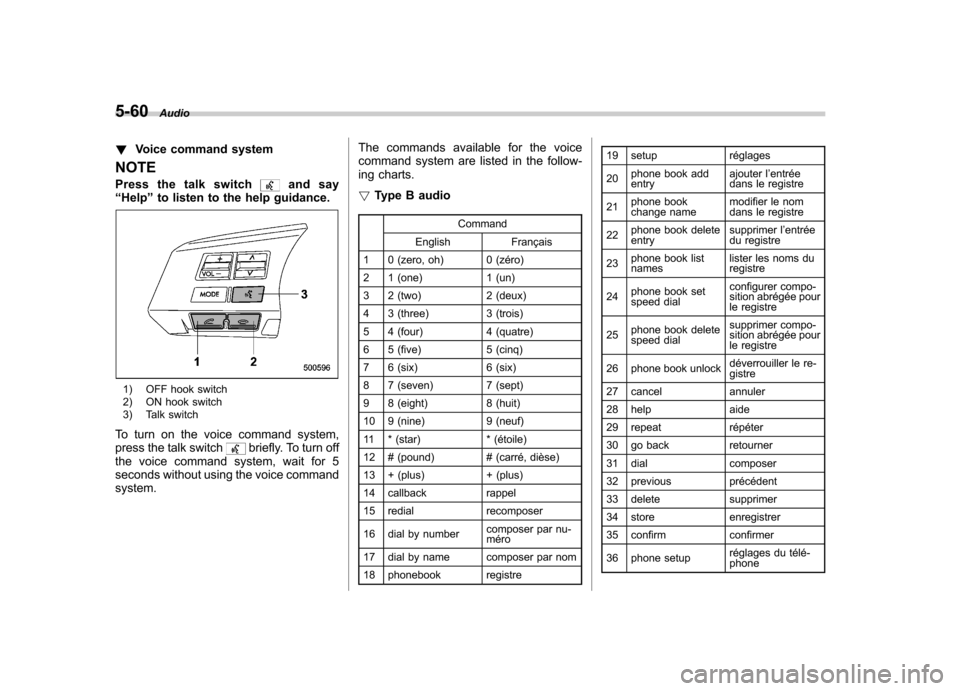
1) OFF hook switch
2) ON hook switch
3) Talk switch
To turn on the voice command system,
press the talk switch
briefly. To turn off
the voice command system, wait for 5
seconds without using the voice commandsystem. The commands available for the voice
command system are listed in the follow-
ing charts. !
Type B audio
Command
English Français
1 0 (zero, oh) 0 (zéro)
2 1 (one) 1 (un)
3 2 (two) 2 (deux)
4 3 (three) 3 (trois)
5 4 (four) 4 (quatre)
6 5 (five) 5 (cinq)
7 6 (six) 6 (six)
8 7 (seven) 7 (sept)
9 8 (eight) 8 (huit)
10 9 (nine) 9 (neuf)
11 * (star) * (étoile)
12 # (pound) # (carré, dièse)
13 + (plus) + (plus)
14 callback rappel
15 redial recomposer
16 dial by number composer par nu- méro
17 dial by name composer par nom
18 phonebook registre 19 setup réglages 20
phone book add entry ajouter l
’entrée
dans le registre
21 phone book
change name modifier le nom
dans le registre
22 phone book deleteentry supprimer l
’entrée
du registre
23 phone book listnames lister les noms duregistre
24 phone book set
speed dial configurer compo-
sition abrégée pour
le registre
25 phone book delete
speed dial supprimer compo-
sition abrégée pour
le registre
26 phone book unlock déverrouiller le re-gistre
27 cancel annuler
28 help aide
29 repeat répéter
30 go back retourner
31 dial composer
32 previous précédent
33 delete supprimer
34 store enregistrer
35 confirm confirmer
36 phone setup réglages du télé- phone
Page 244 of 474

37 security sécurité
38 pair phonejumeler le télé- phone
39 change name modifier le nom
40 select phone sélectionner le tél- éphone
41 list phones lister les télé-phones
42 set pass key configurer le
passe-partout
43 add entry ajouter l ’entrée
44 delete entry supprimer l ’entrée
45 delete speed dial supprimer compo-
sition abrégée
46 by voice vocalement
47 by phone par téléphone
48 call history historique d ’appels
49 set speed dial configurer compo-
sition abrégée
50 incoming entrant
51 outgoing sortant
52 list names lister les noms
53 set PIN configurer NIP
54 phone book lock verrouiller le regis- tre!
Type C audio
Command
English Français
1 0 (zero, oh) 0 (zéro)
2 1 (one) 1 (un)
3 2 (two) 2 (deux)
4 3 (three) 3 (trois)
5 4 (four) 4 (quatre)
6 5 (five) 5 (cinq)
7 6 (six) 6 (six)
8 7 (seven) 7 (sept)
9 8 (eight) 8 (huit)
10 9 (nine) 9 (neuf)
11 * (star) * (étoile)
12 # (pound) # (dièse)
13 + (plus) + (plus)
14 add entry ajouter entrée 15 Bluetooth Audio setup configuration
Audio Bluetooth
16 BT-A setup configuration
Audio Bluetooth
17 BT-Audio setup configuration
Audio Bluetooth
18 by phone par téléphone
19 by voice par la voix 20 call history
historique des ap- pels
21 call transfer transfert d ’appel
22 callback rappel automatique
23 cancel annuler
24 change name changer nom
25 confirm valider
26 delete supprimer
27 delete audio supprimer audio
28 delete audio player supprimer lecteur audio
29 delete entry supprimer entrée
30 delete phone supprimer télé- phone
31 delete speed dial supprimer compo-
sition rapide
32 dial composer
33 dial by name composer par nom
34 dial by number composer par nu- méro
35 from audio depuis audio
36 from car depuis voiture
37 go back retour
38 hands free power alimentation mains libres
39 help aide
40 incoming appel d ’arrivée
Audio
5-61
– CONTINUED –
Page 245 of 474

5-62Audio
41 internal audio audio interne
42 list audio players lister lecteurs audio
43 list names lister noms
44 list phones lister téléphones
45 mute sourdine
46 next suivant
47 outgoing appel de départ
48 pair audio player jumeler lecteur audio
49 pair phone jumeler téléphone 50 phone book add entry annuaire ajouterentrée
51 phone book
change name annuaire changernom
52 phone book deleteentry annuaire suppri-
mer entrée
53 phone book listnames annuaire listernoms
54 phone book lock annuaire bloquer 55 phone book set
speed dial annuaire définir
composition rapide
56 phone book unlock annuaire déblo-quer
57 phone only téléphone unique-ment
58 phone setup configuration télé-phone59 phonebook annuaire 60
phonebook delete
speed dial annuaire suppri-
mer compositionrapide
61 previous précédent
62 redial recomposer
63 repeat répéter
64 security sécurité
65 select audio player sélectionner lec-
teur audio
66 select phone sélectionner télé-phone
67 send envoyer
68 set pass key définir mot de passe
69 set PIN définir NIP
70 set speed dial définir composition rapide
71 setup configurer
72 store enregistrer
73 turn on activer
74 turn off désactiver
! Updating phonebook data
NOTE . The maximum number of phone-
book entries that can be registered in the phonebook is 50 (type B audio)/20
(type C audio)..
After registering phonebook data,
you can add a phone number to the
speed dial memory. For details, refer to“ Registering speed dial ”F 5-64.
! Registering by voice
1. Select the “BY VOICE ”menu.
2. Press the talk switch
.
3. Say the phone number to be regis- tered.
4. Select the “CONFIRM ”menu.
5. Perform either of the following proce- dures. –Select the “RECORD NAME ”menu
by operating the “TUNE ”dial.
– Press the talk switch
.
6. Say the name (voice tag) to be registered.
7. Select the “CONFIRM ”menu.
– The phone number is then regis-
tered and “STORED ”(type B audio)/
“ Phone number stored. ”(type C audio)
is displayed.
! Registering by phone
1. Select the “BY PHONE ”menu.
2. Select the “CONFIRM ”(type B audio)/
“ Confirm Transfer phonebook entry? ”
(type C audio) menu.
Page 250 of 474
To put an incoming call on hold(only if
the cell phone has this function): Press the
ON hook switch
briefly.
To decline an incoming call (only if the
cell phone has this function): Press and
hold the ON hook switch
.
! Ending a call
Press the ON hook switch
.
! Volume control
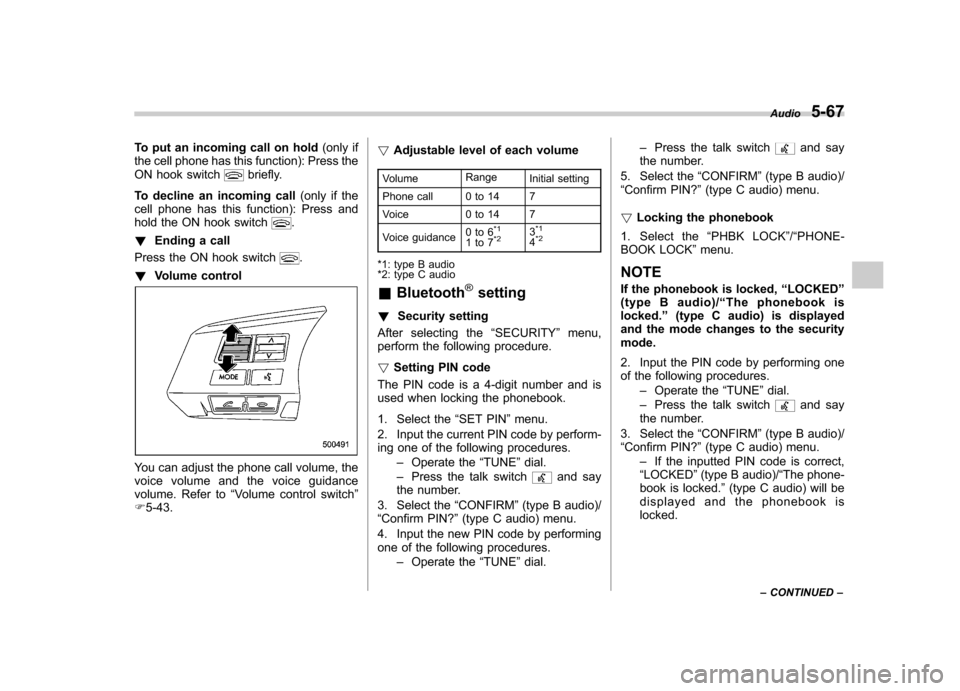
You can adjust the phone call volume, the
voice volume and the voice guidance
volume. Refer to “Volume control switch ”
F 5-43. !
Adjustable level of each volume
Volume Range
Initial setting
Phone call 0 to 14 7
Voice 0 to 14 7
Voice guidance 0to6
*1
1to7*23*1
4*2
*1: type B audio
*2: type C audio &
Bluetooth
®setting
! Security setting
After selecting the “SECURITY ”menu,
perform the following procedure. ! Setting PIN code
The PIN code is a 4-digit number and is
used when locking the phonebook.
1. Select the “SET PIN ”menu.
2. Input the current PIN code by perform-
ing one of the following procedures. –Operate the “TUNE ”dial.
– Press the talk switch
and say
the number.
3. Select the “CONFIRM ”(type B audio)/
“ Confirm PIN? ”(type C audio) menu.
4. Input the new PIN code by performing
one of the following procedures. –Operate the “TUNE ”dial. –
Press the talk switch
and say
the number.
5. Select the “CONFIRM ”(type B audio)/
“ Confirm PIN? ”(type C audio) menu.
! Locking the phonebook
1. Select the “PHBK LOCK ”/“ PHONE-
BOOK LOCK ”menu.
NOTE
If the phonebook is locked, “LOCKED ”
(type B audio)/ “The phonebook is
locked. ”(type C audio) is displayed
and the mode changes to the security mode.
2. Input the PIN code by performing one
of the following procedures.
–Operate the “TUNE ”dial.
– Press the talk switch
and say
the number.
3. Select the “CONFIRM ”(type B audio)/
“ Confirm PIN? ”(type C audio) menu.
– If the inputted PIN code is correct,
“ LOCKED ”(type B audio)/ “The phone-
book is locked. ”(type C audio) will be
displayed and the phonebook is locked. Audio
5-67
– CONTINUED –