buttons SUBARU OUTBACK 2012 5.G User Guide
[x] Cancel search | Manufacturer: SUBARU, Model Year: 2012, Model line: OUTBACK, Model: SUBARU OUTBACK 2012 5.GPages: 474, PDF Size: 17.45 MB
Page 167 of 474
3-48Instruments and controls
NOTE
Some gate operators and garage door
openers may require you to replace
this programming step 4 with proce-
dures in “Programming for entrance
gates and garage door openers inCanada ”F 3-49.
5. Hold down both buttons until theHomeLink
®indicator light flashes, first
slowly then rapidly. When the indicator
light flashes rapidly, both buttons may be
released. (The rapidly flashing light indi-
cates successful programming of the new
frequency signal.)
6. Press and hold the programmed but-
ton and check the HomeLink
®indicator
light. If the indicator light stays on con-
tinuously, your garage door should acti-
vate and the programming is completed.
If the indicator light flashes rapidly for 2
seconds and then stays on continuously,
your garage door opener may be pro-
tected by a rolling code feature. In this
case you need to perform the additional
steps that are described in “Programming
rolling-code-protected garage door open-
ers in the U.S.A. ”F 3-48. !
Programming rolling-code-protected
garage door openers in the U.S.A.
If your garage door opener has a rolling
code feature, program the HomeLink
®Wireless Control System for it by following
steps 1 through 5 in “Garage door opener
programming in the U.S.A. ”F 3-47. Then
continue with the following steps. NOTE
The assistance of a second person
may make the programming quicker
and easier.
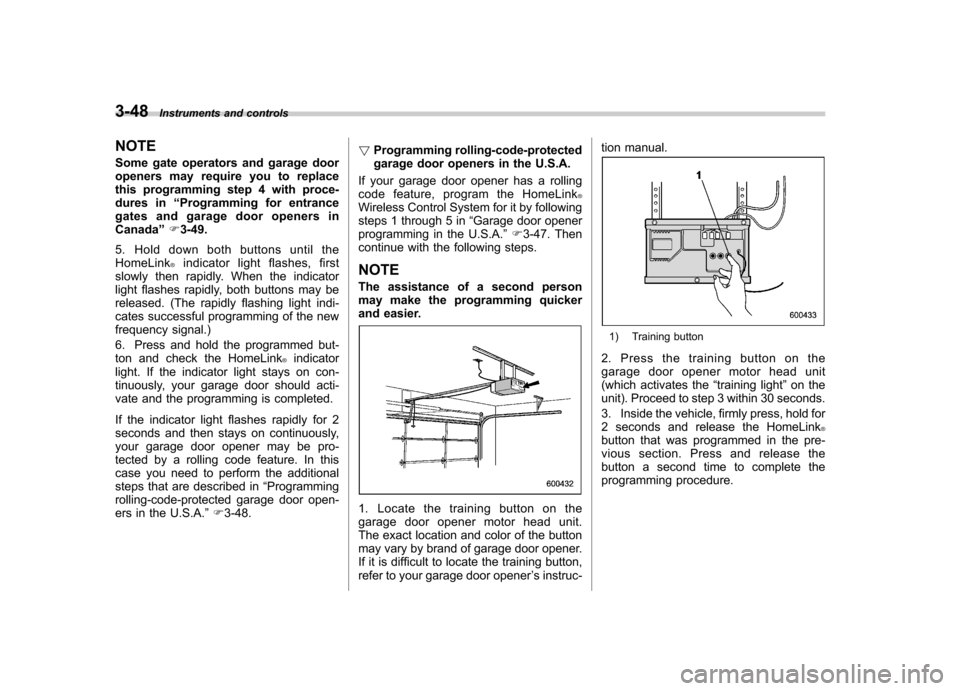
1. Locate the training button on the
garage door opener motor head unit.
The exact location and color of the button
may vary by brand of garage door opener.
If it is difficult to locate the training button,
refer to your garage door opener ’s instruc- tion manual.
1) Training button
2. Press the training button on the
garage door opener motor head unit
(which activates the “training light ”on the
unit). Proceed to step 3 within 30 seconds.
3. Inside the vehicle, firmly press, hold for
2 seconds and release the HomeLink
®button that was programmed in the pre-
vious section. Press and release the
button a second time to complete the
programming procedure.
Page 168 of 474
NOTE
Some garage door openers may re-
quire you to do the above press-hold-
release sequence a third time to com-
plete the programming.
4. The garage door opener should now
recognize the HomeLink
®Wireless Control
System and your garage door opener
should activate when the HomeLink
®button is pressed. ! Programming for entrance gates and
garage door openers in Canada
1. Unplug the motor of the entrance gate
or garage door opener from the outlet. NOTE
If any of the HomeLink
®buttons are
already programmed for other devices,
skip step 2 because it clears the
memory of all three buttons.
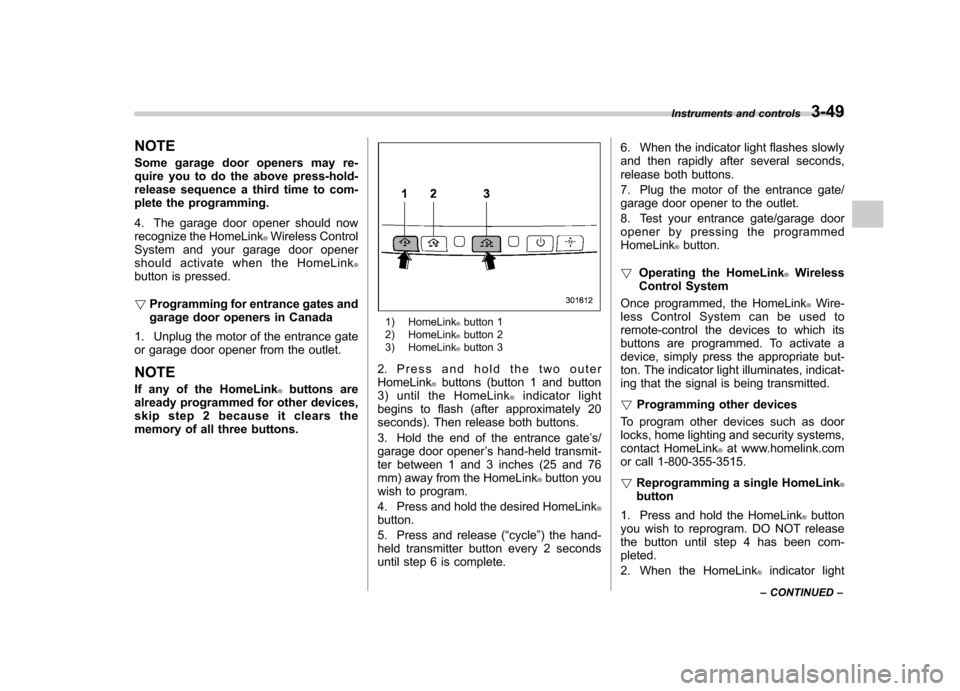
1) HomeLink®button 1
2) HomeLink®button 2
3) HomeLink®button 3
2. Press and hold the two outer HomeLink
®buttons (button 1 and button
3) until the HomeLink®indicator light
begins to flash (after approximately 20
seconds). Then release both buttons.
3. Hold the end of the entrance gate ’s/
garage door opener ’s hand-held transmit-
ter between 1 and 3 inches (25 and 76
mm) away from the HomeLink
®button you
wish to program.
4. Press and hold the desired HomeLink
®button.
5. Press and release ( “cycle ”) the hand-
held transmitter button every 2 seconds
until step 6 is complete. 6. When the indicator light flashes slowly
and then rapidly after several seconds,
release both buttons.
7. Plug the motor of the entrance gate/
garage door opener to the outlet.
8. Test your entrance gate/garage door
opener by pressing the programmedHomeLink
®button.
! Operating the HomeLink
®Wireless
Control System
Once programmed, the HomeLink
®Wire-
less Control System can be used to
remote-control the devices to which its
buttons are programmed. To activate a
device, simply press the appropriate but-
ton. The indicator light illuminates, indicat-
ing that the signal is being transmitted. ! Programming other devices
To program other devices such as door
locks, home lighting and security systems,
contact HomeLink
®at www.homelink.com
or call 1-800-355-3515. ! Reprogramming a single HomeLink
®button
1. Press and hold the HomeLink
®button
you wish to reprogram. DO NOT release
the button until step 4 has been com-pleted.
2. When the HomeLink
®indicator light
Instruments and controls
3-49
– CONTINUED –
Page 169 of 474
3-50Instruments and controls
begins to flash slowly (after approximately
20 seconds), position the hand-held trans-
mitter of the device between 1 to 3 inches
(25 to 76 mm) away from the HomeLink
®button you wish to program.
3. Press and hold the hand-held trans-
mitter button. The HomeLink
®indicator
light will flash, first slowly and then rapidly.
4. When the indicator light begins to flash
rapidly, release both buttons.
The programming for the previous device
is now erased and the new device can be
operated by pressing the HomeLink
®button. ! Erasing HomeLink
®button memory
NOTE . Performing this procedure erases
the memory of all the preprogrammed
buttons simultaneously. The memory
of individual buttons cannot be erased.. It is recommended that upon the
sale of the vehicle, the memory of all
programmed HomeLink
®buttons be
erased for security purposes.
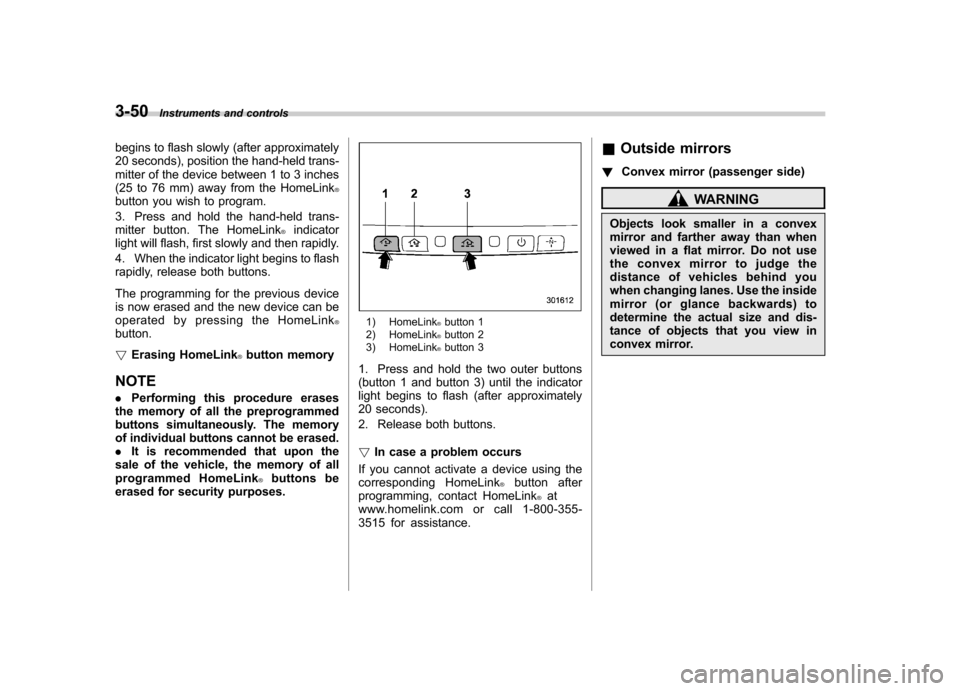
1) HomeLink®button 1
2) HomeLink®button 2
3) HomeLink®button 3
1. Press and hold the two outer buttons
(button 1 and button 3) until the indicator
light begins to flash (after approximately
20 seconds).
2. Release both buttons. ! In case a problem occurs
If you cannot activate a device using the
corresponding HomeLink
®button after
programming, contact HomeLink®at
www.homelink.com or call 1-800-355-
3515 for assistance. &
Outside mirrors
! Convex mirror (passenger side)
WARNING
Objects look smaller in a convex
mirror and farther away than when
viewed in a flat mirror. Do not use
the convex mirror to judge the
distance of vehicles behind you
when changing lanes. Use the inside
mirror (or glance backwards) to
determine the actual size and dis-
tance of objects that you view in
convex mirror.
Page 174 of 474

Climate control panel &Type A1) Fan speed control dial (Refer to “Fan
speed control ”F 4-7.)
2) Temperature control dial (Refer to “Tem-
perature control ”F 4-7.)
3) Airflow control buttons (Refer to “Airflow
mode selection ”F 4-6.)
4) Air conditioner button (Refer to “Air
conditioner control ”F 4-7.)
5) Air inlet selection button (Refer to “Air
inlet selection ”F 4-7.)
6) Rear window defogger button (Refer to “Defogger and deicer ”F 3-34.)
Climate control
4-3
– CONTINUED –
Page 176 of 474
Automatic climate control
system (type B) NOTE .Operate the automatic climate con-
trol system when the engine is running. . The blower fan rotates at a low
speed when the engine coolant tem-
perature is low.. For efficient defogging or dehumidi-
fying in cold weather, press the “A/C ”
button.
When the automatic climate control mode
is selected, the following items are auto-
matically controlled. . Outlet air temperature
. Fan speed
. Airflow distribution
. Air inlet control
. Air conditioner compressor operation
To activate this mode, perform the follow-
ing procedure.
1. Set the preferred temperature using
the temperature control button.
2. Press the “AUTO ”button. The FULL
AUTO mode is selected and the “FULL
AUTO ”indicator light on the display
illuminates. NOTE .
When the “DUAL ”button is pressed,
separate temperature settings for the driver ’s side and passenger ’s side can
be enabled (DUAL mode). To cancel the
DUAL mode, press the “DUAL ”button
again. The temperature setting for thepassenger ’s side becomes the same as
the setting for the driver ’s side.
. If you operate any of the buttons on
the control panel other than the “OFF ”
button, rear window defogger button
and temperature control buttons during
FULL AUTO mode operation, the“ FULL ”indicator light on the control
panel will turn off and the “AUTO ”
indicator light will remain illuminated.
You can then manually control the
system as desired. To change the
system back to the FULL AUTO mode,
press the “AUTO ”button.
3. To turn off the climate control system,
press the “OFF ”button. &
Temperature sensors
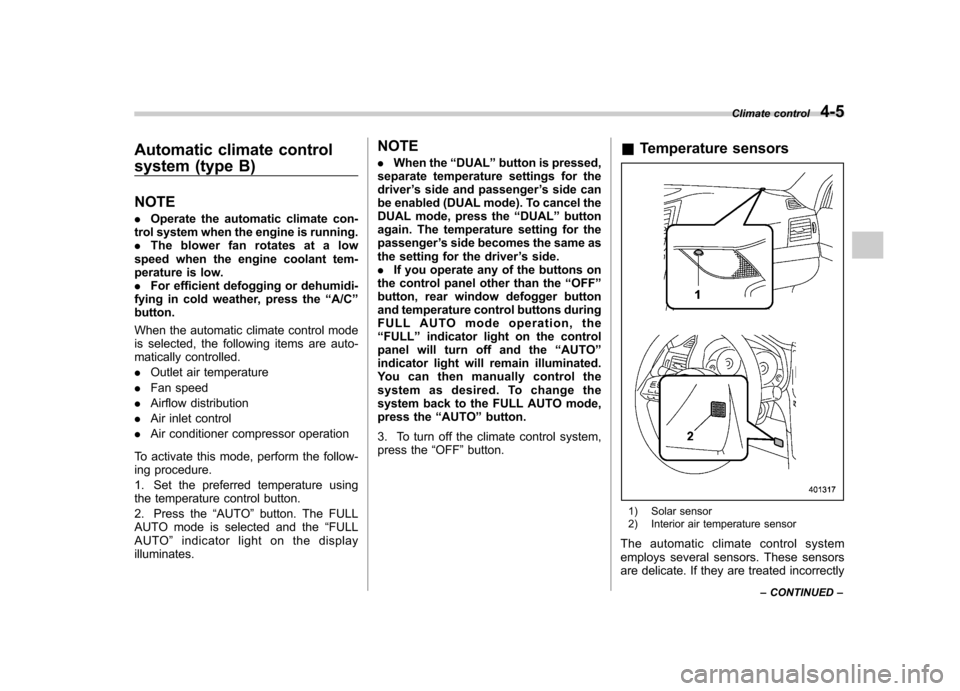
1) Solar sensor
2) Interior air temperature sensor
The automatic climate control system
employs several sensors. These sensors
are delicate. If they are treated incorrectly Climate control
4-5
– CONTINUED –
Page 178 of 474

both side windows to prevent fogging.)
(Heat-def): Windshield defroster outlets,
foot outlets and both side outlets of the
instrument panel
(Defrost): Windshield defroster outlets and
both side outlets of the instrument panel&
Temperature control
! Type A
Turn the temperature control dial over a
range from the blue side (cool) to red side
(warm) to regulate the temperature of
airflow from the air outlets. ! Type B
To increase the temperature setting, press the “
”side of the temperature control
button. To decrease the temperature
setting, press the “
”side of the tempera-
ture control button.
Each temperature setting is shown on the
display. When “LO ”is shown, the system
provides maximum cooling performance.When “HI ”is shown, the system provides
maximum heating performance.
NOTE
When the “DUAL ”button is pressed,
separate temperature settings for the driver ’s side and passenger ’s side can
be enabled (DUAL mode). To cancel the
DUAL mode, press the “DUAL ”button
again. The temperature setting for thepassenger ’s side becomes the same as
the setting for the driver ’s side.
& Fan speed control
The fan operates only when the ignition switch is in the
“ON ”position. Select the
preferred fan speed by turning the fan
speed control dial (type A), or by pressing
the fan speed control buttons (type B).
& Air conditioner control
The air conditioner operates only when
the engine is running.
Press the air conditioner button while the
fan is in operation to turn on the air
conditioner. When the air conditioner is
on, the indicator light on the air conditioner
button (type A)/ “A/C ”indicator light (type
B) illuminates.
To turn off the air conditioner, press the
button again. The indicator light will turnoff. NOTE
For efficient defogging or dehumidify-
ing in cold weather, turn on the air
conditioner. & Air inlet selection
Select the air inlet by pressing the air inlet
selection button.
ON position (recirculation) : Interior air is
recirculated inside the vehicle. Press the
air inlet selection button to the ON position
for fast cooling with the air conditioner or
when driving on a dusty road. When the Climate control
4-7
– CONTINUED –
Page 185 of 474

AudioSelecting category (only when connectingiPod
®) ................................................................. 5-37
Display selection (type B audio) ............................. 5-39
Folder selection (only when connecting USB storage device) ................................................... 5-39
Selection from list (only when connecting USB storage device) (type C audio) ............................. 5-39
Setting the playing speed (only when the audiobook is playing) (type C audio) .................... 5-39
When the following messages are displayed . ......... 5-39
Audio control buttons ........................................... 5-41
MODE button ........................................................ 5-41
“
” and “”switch .............................................. 5-42
Volume control switch ........................................... 5-43 MUTE button (if equipped)
.................................... 5-43
Bluetooth
®audio (type B and C audio) ................5-43
Media format ........................................................ 5-44
Setting Bluetooth
®audio (type B audio) ................ 5-44
Setting Bluetooth®audio (type C audio) ................ 5-45
Bluetooth®audio operation ................................... 5-48
Hands-free system (if equipped) ..........................5-49
Tips for the Hands-free system ............................. 5-49
Certification for the Hands-free system .................. 5-50
Safety precautions ................................................ 5-52
Using the Hands-free system ................................ 5-52
Bluetooth
®setting ................................................ 5-67
Page 201 of 474

5-18Audio
&Station preset
! How to preset stations
1. Select the preferred reception mode.
2. Select the preferred station.
3. Press and hold one of the preset
buttons (from
to) to store the
frequency. If the button is pressed briefly,
the preceding selection will remain in the
memory.
NOTE . Up to six stations for each reception
mode may be preset. . If the connection between the radio
and battery is broken for any reason
such as vehicle maintenance or radio
removal, all stations stored in the
preset buttons are cleared. If this
occurs, it is necessary to reset the
preset buttons.. If a cell phone is placed near the
radio, it may cause the radio to emit
noise when a phone call is received.
This noise does not indicate a radiomalfunction.. For type C audio, if you press and
hold a preset button while receiving a
broadcasting station with SPS (Supple-
mental Program Service), the station
will be stored in the memory for that preset button. !
Selecting preset stations
1. Select the preferred reception mode.
2. Press the preferred preset button (from
to) briefly.
NOTE
For type C audio, if the preset button
which stores a broadcasting station
with SPS (Supplemental Program Ser-
vice) while the HD Radio OFF mode isselected, “No digital data available ”will
be displayed and the volume will be
reduced to zero. ! Auto-store
Auto-store button:
Type A audio
Type B audio
Type C audio
Using the Auto-store function, you can
automatically store 6 stations on the current waveband by pressing and holding
the Auto-store button. Use Auto-store to
quickly find the strongest stations, for
example when traveling through different
reception areas. NOTE .
When you use Auto-store, the new
stations replace any stations pre-
viously stored.. Interrupting Auto-store: If you acci-
dentally press the Auto-store button,
you can cancel the Auto-store function
before it has been completed as fol-lows.
–Switch to the other source mode.
– Switch to the other band.
– Press the Auto-store button.
– Press the “SCAN ”button (type A
and B audio). – Press the “SEEK ”button.
– Press any of the preset buttons.
– Turn the “TUNE ”dial.
– Turn off the audio system.
– Turn off the ignition switch.
. When you use the Auto-store func-
tion while selecting the FM mode, even
if you have selected the FM1 or FM2
station, the new stations are stored in
the FM3 (type A and C audio)/FM-AS
(type B audio) station memory. . For type B audio, when you use the
Page 202 of 474

Auto-store function while selecting the
AM mode, even if you have selected the“AM ”station, the new stations are
stored in the AM-AS station memory. . If it is only possible to receive less
than 6 stations, the available stations
are stored from preset 1 in order by
frequency and the unused preset but-
tons are not registered to a station. . For type A and C audio, the pre-
viously registered station memories of
the unused preset buttons are cleared. . For type B audio, the previously
registered station memories of the
unused preset buttons are not cleared. . If no stations can be received, the
previously stored stations are not re- placed. . After pressing the Auto-store but-
ton, if more than 1 station is stored, the
radio receives the station stored in
preset 1. . After pressing the Auto-store but-
ton, if no stations are stored, the radio
receives the band and station that the
radio received before pressing thebutton. Satellite radio operation (if equipped)
To receive satellite radio, it is necessary to
install the SUBARU genuine satellite
receiver for some models, and to enter
into a contract with a satellite radio
network service such as
“Sirius XM
TM
satellite radio ”(for U.S.A. only). For de-
tails, please contact your SUBARU dealer. & Sirius XM
TMSatellite Radio
Activation (for U.S.A. only)
Models with Sirius XM
TMare eligible for a
3-month complimentary subscription to
the Sirius XM
TMSatellite Radio service.
! Activation process
If you would like to activate your Satellite
Radio online, please visit
http://www.sir-iusxm.com/activationhelp and follow the
step-by-step instructions for easy activa- tion. & Satellite radio reception
Satellite radio signals are best received in
areas with a clear view of the open sky. In
areas where there are tall buildings, trees,
tunnels or other structures that may
obstruct the signal of the satellites, there
may be signal interruptions. Other circum- stances that may result in signal loss
include driving near a wall, steep cliff, hill
or driving on the lower level of a multi-
tiered road or inside of a parking garage.
To help reduce this condition, satellite
radio providers have installed ground-
based repeaters in heavily populated
areas. However, you may still experience
reception problems in some areas. !
Sirius XM
TMsatellite radio reception
tips (for U.S.A. only —if equipped)
The Sirius XM
TMsatellite radio receiver
that is fitted to your vehicle receives the
necessary signals from two specially
designated satellites that are in a geosta-
tionary orbit over the equator. One satellite
covers the east coast and the other covers
the west coast. Both of them direct their
signals north. These signals are then
relayed throughout the radio reception
area by a network of ground repeater
stations. The satellite radio signals are
transmitted as “line of sight ”signals. The
line of sight signals can be blocked by
objects such as buildings, but the network
of repeater stations allows signal cover-
age within urban areas such as cities.
You may experience problems in receiving
Sirius XM
TMsatellite radio signals in the
following situations. Audio
5-19
– CONTINUED –
Page 204 of 474

&Channel and category selec- tion
! Channel selection by operating the dial
“ TUNE ”dial:
Type A audio
Type B audio
Type C audio
Turn the “TUNE ”dial clockwise to select
the next channel and turn the “TUNE ”dial
counterclockwise to select the previous channel. !
Channel selection by pressing the
button (type A audio)
When in the SAT mode, briefly press the “SEEK ”button “”or “”to select the
channel. !
Skip channel selection (type A and
B audio)
When in the SAT mode, press and hold
the following buttons to change to the
channel selection mode.
Type A audio:
1) Change the channel up by 10 channels
2) Change the channel down by 10 chan- nels
Type B audio:
Change the channel
up by 10 channels
Change the channel
down by 10 channels
Audio 5-21
– CONTINUED –