AUX SUBARU OUTBACK 2012 5.G Owners Manual
[x] Cancel search | Manufacturer: SUBARU, Model Year: 2012, Model line: OUTBACK, Model: SUBARU OUTBACK 2012 5.GPages: 474, PDF Size: 17.45 MB
Page 184 of 474
Antenna system...................................................... 5-3
Printed antenna ...................................................... 5-3
FM reception .......................................................... 5-3
Installation of accessories ...................................... 5-3
Audio set ................................................................. 5-4
Type A audio set (if equipped) ................................ 5-5
Type B audio set (if equipped) ................................ 5-6
Type C audio set (if equipped) ................................ 5-7
Power and audio controls ...................................... 5-8
Power switch and volume control ........................... 5-8
Sound controls and audio settings ......................... 5-8
Adjustable level of each mode ............................... 5-11
FM/AM radio operation ......................................... 5-12
FM selection (type A and B audio) ......................... 5-12
AM selection (type A and B audio) ......................... 5-12
FM/AM selection (type C audio) ............................. 5-12
Tuning .................................................................. 5-12
HD Radio
®Technology (Digital AM and FM Radio)
(type C audio) ..................................................... 5-15
RDS text display ................................................... 5-17
Station preset ....................................................... 5-18
Satellite radio operation (if equipped) ................. 5-19
Sirius XM Satellite Radio Activation (for U.S.A. only) ................................................................... 5-19
Satellite radio reception ......................................... 5-19
Displaying satellite radio ID of tuner ...................... 5-20
Band selection ...................................................... 5-20
Channel and category selection ............................. 5-21
Channel preset ...................................................... 5-22
When the following messages are displayed (type C audio) ..................................................... 5-22 CD player operation
..............................................5-23
Play file ................................................................ 5-23
How to insert a CD ............................................... 5-24
How to play back a CD ......................................... 5-24
To select a track from the beginning ..................... 5-24
Fast-forwarding and rewinding . ............................. 5-25
Repeating ............................................................. 5-26
Random playback ................................................. 5-27
Scan .................................................................... 5-28
Display selection (type A and B audio) .................. 5-28
Folder selection .................................................... 5-28
How to eject a CD from the player ......................... 5-29
When the following messages are displayed. . ........ 5-29
Auxiliary input jack ................................................5-30
Precautions to observe when handling a compact disc .......................................................5-31
USB storage device / iPod
®operations
(type B and C audio) ..........................................5-33
Play file ................................................................ 5-33
Connectable USB storage device .......................... 5-33
Connectable iPod
®models .................................... 5-33
Connecting USB storage device / iPod®................ 5-34
How to play back .................................................. 5-35
To select a track from the beginning ..................... 5-35
To select a chapter from the beginning when connecting iPod
®................................................ 5-35
Fast-forwarding and rewinding . ............................. 5-35
Repeating ............................................................. 5-36
Random playback ................................................. 5-36
SCAN (only when connecting USB storage device) ............................................................... 5-37 Audio
5
Page 188 of 474

&Type A audio set (if equipped)The audio set will operate only when the
ignition switch is in the “Acc ”or “ON ”
position. . Power and sound controls: refer to
page 5-8. Radio operation: refer to page 5-12
. Satellite radio operation (if equipped):
refer to page 5-19. CD (compact disc) player operation:
refer to page 5-23. Auxiliary input jack: refer to page 5-30 Audio
5-5
– CONTINUED –
Page 189 of 474

5-6Audio
& Type B audio set (if equipped)
The audio set will operate only when the
ignition switch is in the “Acc ”or “ON ”
position. . Power and audio controls: refer to page
5-8. Radio operation: refer to page 5-12
. Satellite radio operation (if equipped):
refer to page 5-19. CD (compact disc) player operation:
refer to page 5-23. Auxiliary input jack: refer to page 5-30
. USB storage device/iPod
®operation:
refer to page 5-33. Bluetooth
®audio: refer to page 5-43
. Hands-free system: refer to page 5-49
Page 190 of 474

&Type C audio set (if equipped)The audio set will operate only when the
ignition switch is in the “Acc ”or “ON ”
position. . Power and audio controls: refer to page
5-8. Radio operation: refer to page 5-12
. Satellite radio operation (if equipped):
refer to page 5-19. CD (compact disc) player operation:
refer to page 5-23. Auxiliary input jack: refer to page 5-30
. USB storage device/iPod
®operation:
refer to page 5-33. Bluetooth
®audio: refer to page 5-43
. Hands-free system: refer to page 5-49
NOTE
HD Radio Technology should be in-
cluded as a feature in the type C audio. Audio
5-7
Page 193 of 474

5-10Audio
Page Menu
1 Screen OFF BassMiddle
Treble Fader
2 BalanceSVC
AUX Vol. Brightness Contrast
3 HD
3. Press the “SETTING ”dial to enter the
selected menu.
4. Choose the preferred settings for the
selected menu by turning the “SETTING ”
dial.
5. Press the “SETTING ”dial.
NOTE . Press the
button to return to
the last mode. . The screen will turn off if you enter
the “Screen OFF ”menu.
. The screen will be displayed if you
perform either of the following proce-
dures after turning the screen off in the “
Screen OFF ”menu.
– Shifting the shift lever/select le-
ver into the “R ” position
– Pressing the “SETTING ”dial
– Pressing the “FM/AM ”button
– Pressing the “CD/AUX ”button
– Pressing the “SAT ”button
– Pressing the talk switch
–Pressing the OFF hook switch
. If a phone call is received on a cell
phone that is connected to the Hands-
free system, the audio screen will bedisplayed.
Page 194 of 474

&Adjustable level of each mode
Mode Range of levels (displayed)Initial setting Turn counterclockwise Turn clockwise
Volume Volume control 0 to 40 15 (type A and B audio)/16
(type C)For less volume For more volume
AUX volume control* (type
A and B audio) 0 to 40 15 For less volume For more volume
AUX volume control (type Caudio) LOW, MID, HIGH MID From HIGH to MID, MID to
LOW, LOW to HIGHFrom LOW to MID, MID to
HIGH, HIGH to LOW
Tone and balance Bass control 8 to +8 0 For less bass sound For more bass sound
Midrange control 8 to +8 0 For less midrange sound For more midrange sound
Treble control 8 to +8 0 For less treble sound For more treble sound
Fader R9 to F9 0 Front attenuated Rear attenuated
Balance L9 to R9 0 Right channel attenuated Left channel attenuated
Other settings SPEED VOLUME OFF to 2 OFF For less auto volume change For more auto volume change
CS Auto (type A audio) OFF to 2 OFF From 2 to 1, 1 to OFF From OFF to 1, 1 to 2
POSITION (type A audio) ALL, FR, FL ALL From FL to FR, FR to ALL From ALL to FR, FR to FL
SRS Sound (type B audio) OFF to ON OFF OFF ON
Beep (type B audio) OFF to ON ON OFF ON
Brightness (type C audio) 8 to +8 0 For less brightness For more brightness
Contrast (type C audio) 8 to +8 0 For less contrast For more contrast
HD Radio (type C audio) OFF to ON ON OFF ON
*For type A audio, only when an AUX audio product is connected. Audio
5-11
Page 207 of 474

5-24Audio
MP3: .Based on MPEG 1, 2 and 2.5 Layer 3
(type A and B audio). Based on MPEG 1, 2 and 2.5 Layer 2
and 3 (type C audio). Sampling rate (kHz): 48, 44.1, 32, 24,
22.05, 16, 12, 11.025, 8. Bit rate (kbps): 8 to 320 (type A and B
audio). Bit rate (kbps): 32 to 320 (type C audio)
. Supports variable bit rates
WMA (type B audio):. Based on Windows Media Audio 9
. Sampling rate (kHz): 48, 44.1, 32
. Bit rate (kbps): 32 to 192
WMA (type C audio): . Based on Windows Media Audio 7, 8
and 9 . Sampling rate (kHz): 48, 44.1, 32
. Bit rate (kbps): 32 to 192
AAC (type B audio):. Based on MPEG4 AAC
. Sampling rate (kHz): 48, 44.1, 32, 24,
22.05, 16, 12, 11.025, 8. Bit rate (kbps): 24 to 320
. Number of channels: 1 to 2ch AAC (type C audio):.
Based on MPEG2 AAC and MPEG4
AAC. Sampling rate (kHz): 48, 44.1, 32, 24,
22.05, 16, 12, 11.025, 8. Bit rate (kbps): 24 to 320
. Number of channels: 1 to 2ch
& How to insert a CD
While the ignition switch is in the “Acc ”or
“ ON ”position, hold a disc with a finger in
the center hole while gripping the edge of
the disc, then insert it in to the slot (with
the label side up) and the player will
automatically pull the disc into position.
NOTE
DO NOT INSERT TWO DISCS INTO THE
DISC INSERTION SLOT AT A TIME. & How to play back a CD
! When there is no CD inserted
Insert a CD by referring to “How to insert a
CD ”F 5-24.
When a CD is loaded, the player will start
playback of the CD, beginning with the
first track. !
When CD is in the player (type A)
When the
button is pressed, the
player will start playback. ! When CD is in the player (type B
and C)
Type B audio
Type C audio
Each brief press of the “CD/AUX ”button
changes the modes in the following sequence.
*: For type B audio, “BT-A ”is displayed.
When the CD mode is selected, the player
will start playback. & To select a track from the beginning
NOTE
With an MP3, WMA or AAC: . Skipping past the last track/file will
take you back to the first track/file in
the folder.
Page 211 of 474

5-28Audio
&Scan
Type A audio
Type B audio
Type C audio
The scan mode lets you listen to the first
10 seconds of each track/file in succes-
sion. Press the “SCAN ”button to start
scanning upward beginning with the track/
file(s) following the currently selected one.
After all track/file(s) in the disk/folder have
been scanned, normal playback will be
resumed. To cancel the scan mode, pressthe “SCAN ”button again.
NOTE
The scan mode will be cancelled if you
perform any of the following steps. . Press the “RPT/RDM ”button (type A
and B audio). . Press the “RPT ”button (type C
audio).. Press the “RDM ”button (type C
audio). .
Turn the “TUNE ”dial.
. Press the “
”or “”side of the
“ FOLDER ”button (type A and B audio).
. Press the “
”button.
. Press the “”or “”side of the
“ SEEK ”button.
. Select the radio or AUX mode.
. Turn off the power of the audio
equipment. . Turn the ignition switch to the
“ LOCK ”position.
& Display selection (type A and
B audio)
Type A audio
Type B audio
If you press the “TEXT ”button during
playback, the indication will change to the
next one in the following sequence.
For CD-DA:
For MP3/WMA/AAC:
! Page (track/folder title) scroll
If you press and hold the “TEXT ”button
while displaying the title (name), the title
will be scrolled so you can see all of it. NOTE
The display is designed to show titles
for up to 30 characters. & Folder selection
NOTE . Selecting folders in this way is
possible only within a single disc. . Only MP3/WMA/AAC folders are re-
cognized when an attempt to select the
next or previous folder is made. If no
appropriate folder exists on the disc,
performing the following procedures
starts playback beginning with the firsttrack/file.
–Press the “
”or “”side of the
“ FOLDER ”button (type A and B
audio). – Tu r n t h e “TUNE ”dial (type C
audio).
Page 213 of 474
5-30Audio
your SUBARU dealer. !When “No audio file ”is displayed
(type C audio)
Press the
button to eject the disc.
This message appears when a CD has
been loaded that does not contain any
playable files. Insert a CD that contains
playable files. Auxiliary input jack
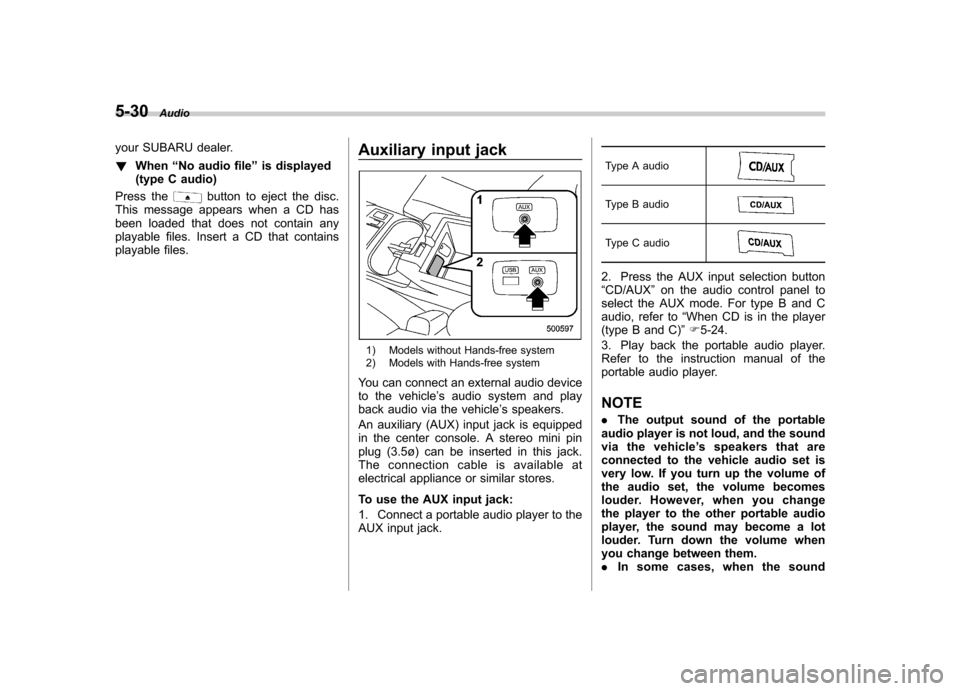
1) Models without Hands-free system
2) Models with Hands-free system
You can connect an external audio device
to the vehicle ’s audio system and play
back audio via the vehicle ’s speakers.
An auxiliary (AUX) input jack is equipped
in the center console. A stereo mini pin
plug (3.5ø) can be inserted in this jack.
The connection cable is available at
electrical appliance or similar stores.
To use the AUX input jack:
1. Connect a portable audio player to the
AUX input jack. Type A audio
Type B audio
Type C audio
2. Press the AUX input selection button “
CD/AUX ”on the audio control panel to
select the AUX mode. For type B and C
audio, refer to “When CD is in the player
(type B and C) ”F 5-24.
3. Play back the portable audio player.
Refer to the instruction manual of the
portable audio player. NOTE . The output sound of the portable
audio player is not loud, and the sound
via the vehicle ’s speakers that are
connected to the vehicle audio set is
very low. If you turn up the volume of
the audio set, the volume becomes
louder. However, when you change
the player to the other portable audio
player, the sound may become a lot
louder. Turn down the volume when
you change between them.. In some cases, when the sound
Page 224 of 474
Audio control buttons NOTE
For models with the genuine SUBARU
navigation system, refer to the Owner’s
Manual supplement for the navigationsystem.
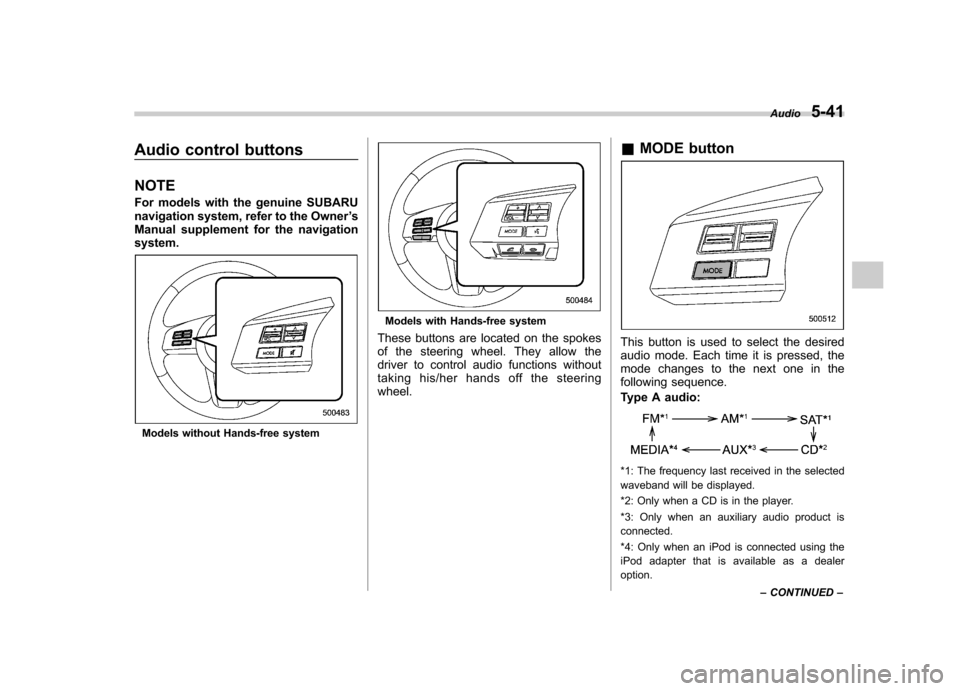
Models without Hands-free system
Models with Hands-free system
These buttons are located on the spokes
of the steering wheel. They allow the
driver to control audio functions without
taking his/her hands off the steeringwheel. &
MODE button
This button is used to select the desired
audio mode. Each time it is pressed, the
mode changes to the next one in the
following sequence.
Type A audio:
*1: The frequency last received in the selected
waveband will be displayed.
*2: Only when a CD is in the player.
*3: Only when an auxiliary audio product is connected.
*4: Only when an iPod is connected using the
iPod adapter that is available as a dealer option. Audio
5-41
– CONTINUED –