USB SUBARU OUTBACK 2017 6.G User Guide
[x] Cancel search | Manufacturer: SUBARU, Model Year: 2017, Model line: OUTBACK, Model: SUBARU OUTBACK 2017 6.GPages: 610, PDF Size: 10.28 MB
Page 299 of 610
Audio/Audio set
provider for additional information.
.Ability of this product to access
connected content is subject to change
without notice and could be affected by
any of the following: compatibility
issues with future firmware versions
of the smartphone; compatibility is-
sues with future versions of the con-
nected content application(s) for the
smartphone; changes to or disconti-
nuation of the connected content ap-
plication(s) or service by its provider.
. Communication and phone call
charges for smartphones should be
paid by the wireless subscriber.
. If you lose the data in a smartphone
or other device while using it with the
system, no compensation will be given
for the lost data.
. Fuji Heavy Industries makes no
guarantee regarding the content pro-
vided by aha.
. aha may not work due to factors on
smartphones, smartphone applications
or stations. Fuji Heavy Industries is not
responsible for it. !
About the supported devices
This system supports the following de-
vices.
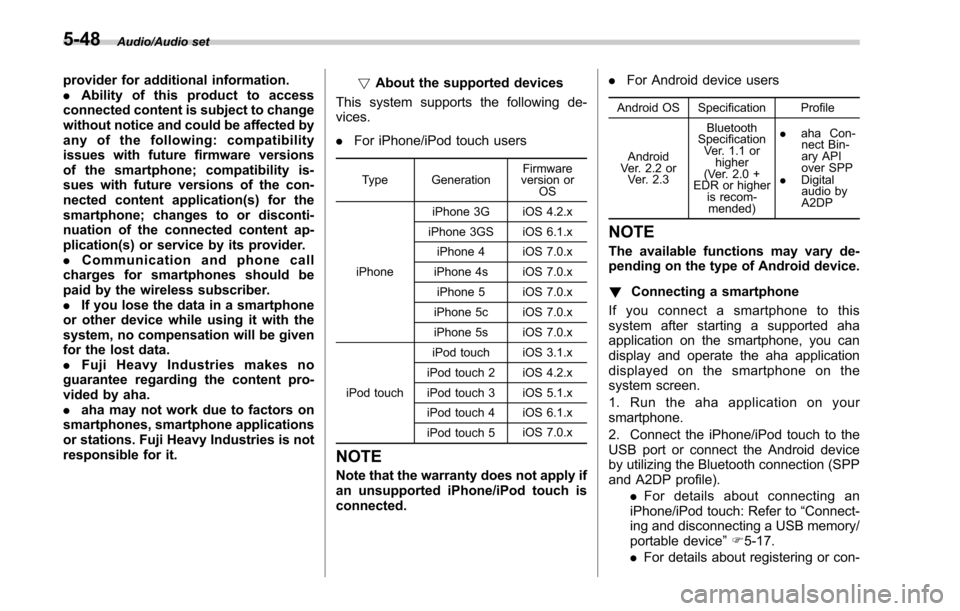
. For iPhone/iPod touch users
Type Generation Firmware
version or OS
iPhone iPhone 3G iOS 4.2.x
iPhone 3GS iOS 6.1.x iPhone 4 iOS 7.0.x
iPhone 4s iOS 7.0.x iPhone 5 iOS 7.0.x
iPhone 5c iOS 7.0.x
iPhone 5s iOS 7.0.x
iPod touch iPod touch iOS 3.1.x
iPod touch 2 iOS 4.2.x
iPod touch 3 iOS 5.1.x
iPod touch 4 iOS 6.1.x
iPod touch 5 iOS 7.0.x
NOTE
Note that the warranty does not apply if
an unsupported iPhone/iPod touch is
connected. .
For Android device users
Android OS Specification Profile
Android
Ver. 2.2 or
Ver. 2.3 Bluetooth
Specification
Ver. 1.1 or higher
(Ver. 2.0 +
EDR or higher is recom-
mended) .
aha Con-
nect Bin-
ary API
over SPP
. Digital
audio by
A2DP
NOTE
The available functions may vary de-
pending on the type of Android device.
! Connecting a smartphone
If you connect a smartphone to this
system after starting a supported aha
application on the smartphone, you can
display and operate the aha application
displayed on the smartphone on the
system screen.
1. Run the aha application on your
smartphone.
2. Connect the iPhone/iPod touch to the
USB port or connect the Android device
by utilizing the Bluetooth connection (SPP
and A2DP profile). .For details about connecting an
iPhone/iPod touch: Refer to “Connect-
ing and disconnecting a USB memory/
portable device ”F 5-17.
. For details about registering or con-
5-48
Page 301 of 610
Audio/Audio set
&Pandora®(if equipped)
Pandora is an application for a smart-
phone. This can automatically select and
play recommended tracks.
By rating the track currently playing, tracks
that better match your preference will be
recommended.
In order to connect to this system, use a
USB port for an iPhone or iPod touch and
Bluetooth for Android devices.
Depending on differences between mod-
els or software version etc., some models
might be incompatible with this system.
This function is not available if the
Pandora application has not been in-
stalled on the smartphone.
WARNING
Do not operate the player ’s controls
or connect the smartphone while
driving. Doing so may result in loss
of control of your vehicle and cause
an accident or serious injury.
CAUTION
. Do not leave your smartphone in
the car. In particular, high tem- peratures inside the vehicle may
damage the smartphone.
. Do not push down on or apply
unnecessary pressure to the
smartphone while it is connected
as this may damage the smart-
phone or its terminal.
. Do not insert foreign objects into
the port as this may damage the
smartphone or its terminal.
NOTE
Follow the specific operation proce-
dures for the smartphone application.
5-50
Page 302 of 610
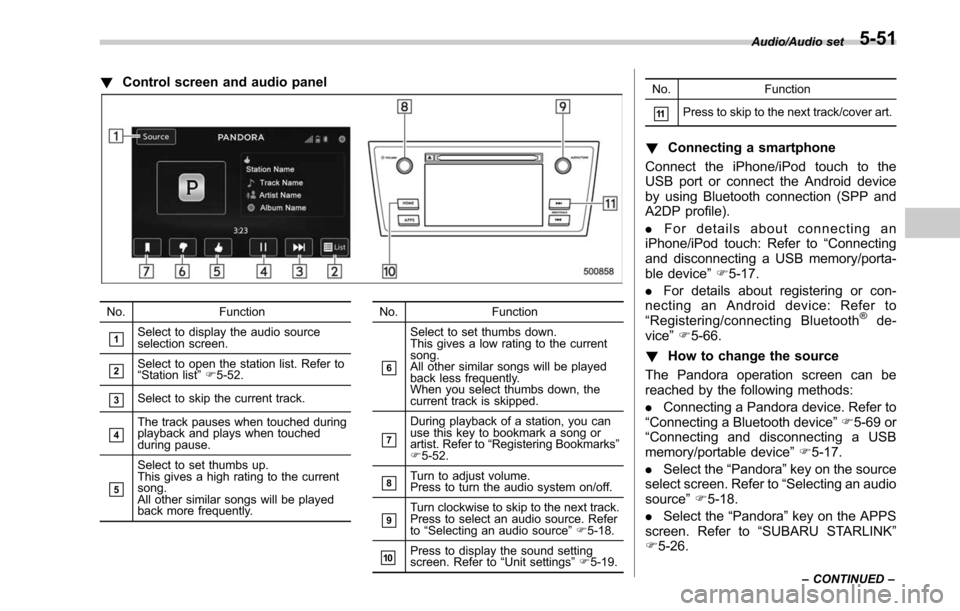
!Control screen and audio panel
No. Function
&1Select to display the audio source
selection screen.
&2Select to open the station list. Refer to
“Station list ”F 5-52.
&3Select to skip the current track.
&4The track pauses when touched during
playback and plays when touched
during pause.
&5
Select to set thumbs up.
This gives a high rating to the current
song.
All other similar songs will be played
back more frequently. No. Function
&6
Select to set thumbs down.
This gives a low rating to the current
song.
All other similar songs will be played
back less frequently.
When you select thumbs down, the
current track is skipped.
&7
During playback of a station, you can
use this key to bookmark a song or
artist. Refer to
“Registering Bookmarks ”
F 5-52.
&8Turn to adjust volume.
Press to turn the audio system on/off.
&9Turn clockwise to skip to the next track.
Press to select an audio source. Refer
to “Selecting an audio source ”F 5-18.
&10Press to display the sound setting
screen. Refer to “Unit settings ”F 5-19. No. Function
&11Press to skip to the next track/cover art.
!
Connecting a smartphone
Connect the iPhone/iPod touch to the
USB port or connect the Android device
by using Bluetooth connection (SPP and
A2DP profile).
. For details about connecting an
iPhone/iPod touch: Refer to “Connecting
and disconnecting a USB memory/porta-
ble device ”F 5-17.
. For details about registering or con-
necting an Android device: Refer to
“ Registering/connecting Bluetooth
®de-
vice” F5-66.
! How to change the source
The Pandora operation screen can be
reached by the following methods:
. Connecting a Pandora device. Refer to
“Connecting a Bluetooth device ”F 5-69 or
“ Connecting and disconnecting a USB
memory/portable device ”F 5-17.
. Select the “Pandora”key on the source
select screen. Refer to “Selecting an audio
source” F5-18.
. Select the “Pandora”key on the APPS
screen. Refer to “SUBARU STARLINK ”
F 5-26.
Audio/Audio set
–CONTINUED –5-51
Page 306 of 610
&USB memory
Audio files on the USB memory can be
played.
WARNING
Do not operate the player ’s controls
or connect the USB memory while
driving. Doing so may result in
losing control of your vehicle and
cause an accident or serious injury.
CAUTION
. Do not leave your USB memory
in the car. In particular, high
temperatures inside the vehicle
may damage the USB memory.
. Do not push down on or apply
unnecessary pressure to the
USB memory while it is con-
nected as this may damage the
portable player or its terminal.
. Do not insert foreign objects into
the port as this may damage the
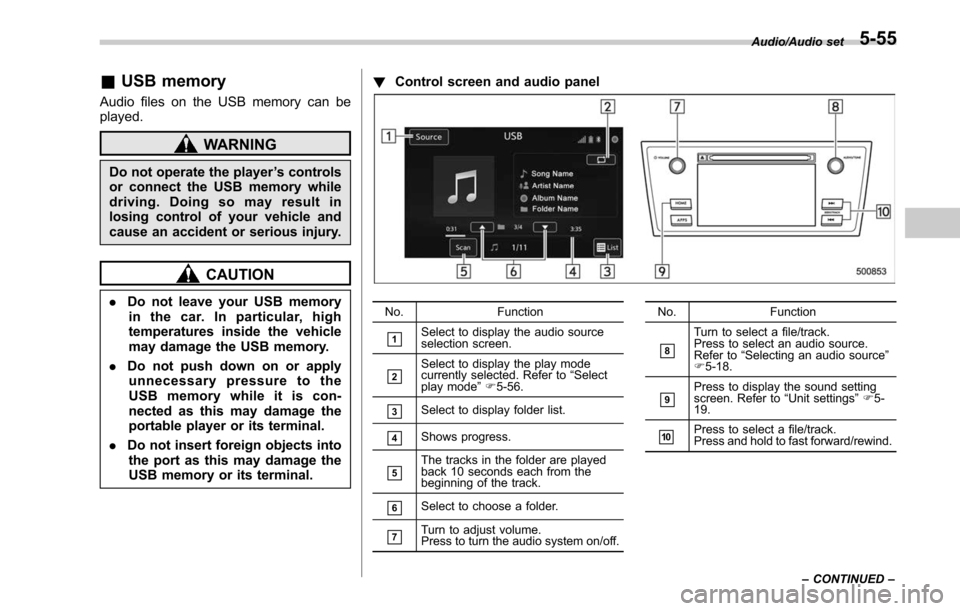
USB memory or its terminal. !
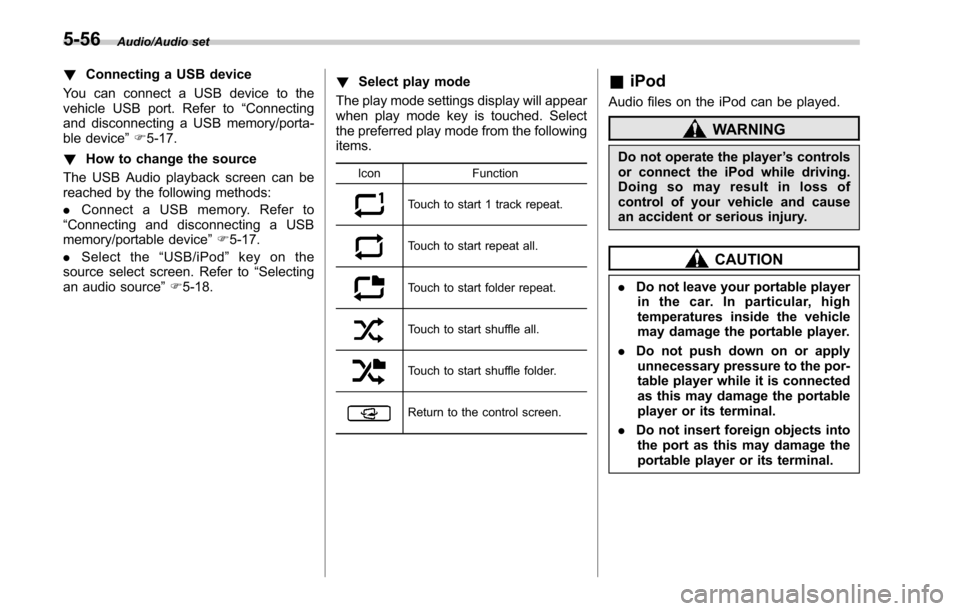
Control screen and audio panelNo. Function
&1Select to display the audio source
selection screen.
&2Select to display the play mode
currently selected. Refer to “Select
play mode ”F 5-56.
&3Select to display folder list.
&4Shows progress.
&5The tracks in the folder are played
back 10 seconds each from the
beginning of the track.
&6Select to choose a folder.
&7Turn to adjust volume.
Press to turn the audio system on/off. No.
Function
&8
Turn to select a file/track.
Press to select an audio source.
Refer to“Selecting an audio source ”
F 5-18.
&9Press to display the sound setting
screen. Refer to “Unit settings ”F 5-
19.
&10Press to select a file/track.
Press and hold to fast forward/rewind. Audio/Audio set
–CONTINUED –
5-55
Page 307 of 610
Audio/Audio set
!Connecting a USB device
You can connect a USB device to the
vehicle USB port. Refer to “Connecting
and disconnecting a USB memory/porta-
ble device ”F 5-17.
! How to change the source
The USB Audio playback screen can be
reached by the following methods:
. Connect a USB memory. Refer to
“ Connecting and disconnecting a USB
memory/portable device ”F 5-17.
. Select the “USB/iPod ”key on the
source select screen. Refer to “Selecting
an audio source” F5-18. !
Select play mode
The play mode settings display will appear
when play mode key is touched. Select
the preferred play mode from the following
items.
Icon Function
Touch to start 1 track repeat.
Touch to start repeat all.
Touch to start folder repeat.
Touch to start shuffle all.
Touch to start shuffle folder.
Return to the control screen.
&iPod
Audio files on the iPod can be played.
WARNING
Do not operate the player ’s controls
or connect the iPod while driving.
Doing so may result in loss of
control of your vehicle and cause
an accident or serious injury.
CAUTION
. Do not leave your portable player
in the car. In particular, high
temperatures inside the vehicle
may damage the portable player.
. Do not push down on or apply
unnecessary pressure to the por-
table player while it is connected
as this may damage the portable
player or its terminal.
. Do not insert foreign objects into
the port as this may damage the
portable player or its terminal.
5-56
Page 308 of 610
!Control screen and audio panel
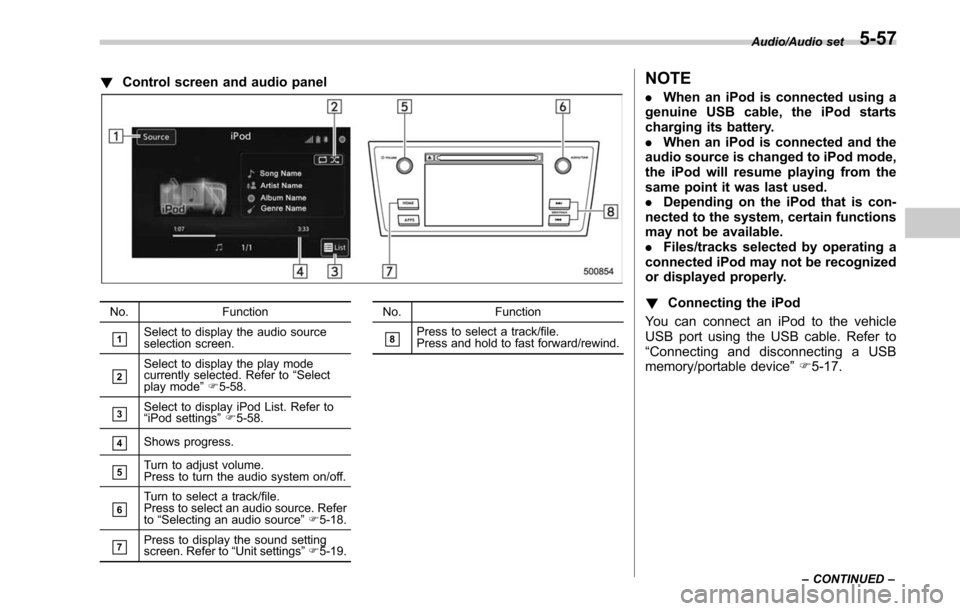
No. Function
&1Select to display the audio source
selection screen.
&2Select to display the play mode
currently selected. Refer to “Select
play mode ”F 5-58.
&3Select to display iPod List. Refer to
“iPod settings ”F 5-58.
&4Shows progress.
&5Turn to adjust volume.
Press to turn the audio system on/off.
&6Turn to select a track/file.
Press to select an audio source. Refer
to “Selecting an audio source ”F 5-18.
&7Press to display the sound setting
screen. Refer to “Unit settings ”F 5-19. No. Function
&8Press to select a track/file.
Press and hold to fast forward/rewind.
NOTE
.
When an iPod is connected using a
genuine USB cable, the iPod starts
charging its battery.
. When an iPod is connected and the
audio source is changed to iPod mode,
the iPod will resume playing from the
same point it was last used.
. Depending on the iPod that is con-
nected to the system, certain functions
may not be available.
. Files/tracks selected by operating a
connected iPod may not be recognized
or displayed properly.
! Connecting the iPod
You can connect an iPod to the vehicle
USB port using the USB cable. Refer to
“ Connecting and disconnecting a USB
memory/portable device ”F 5-17.
Audio/Audio set
–CONTINUED –5-57
Page 309 of 610
Audio/Audio set
!How to change the source
TheiPodoperationscreencanbe
reached by the following methods:
. Connect an iPod. Refer to “Connecting
and disconnecting a USB memory/porta-
ble device ”F 5-17.
. Select the “USB/iPod ”key on the
source select screen. Refer to “Selecting
an audio source” F5-18.
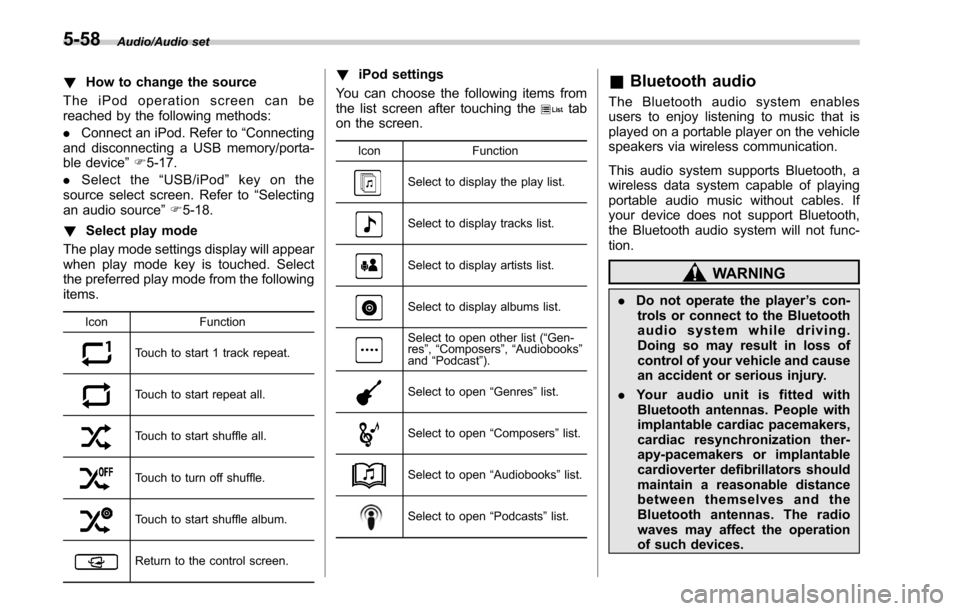
! Select play mode
The play mode settings display will appear
when play mode key is touched. Select
the preferred play mode from the following
items.
Icon Function
Touch to start 1 track repeat.
Touch to start repeat all.
Touch to start shuffle all.
Touch to turn off shuffle.
Touch to start shuffle album.
Return to the control screen.
!iPod settings
You can choose the following items from
the list screen after touching the
tab
on the screen.
Icon Function
Select to display the play list.
Select to display tracks list.
Select to display artists list.
Select to display albums list.
Select to open other list ( “Gen-
res ”, “Composers ”, “Audiobooks ”
and “Podcast ”).
Select to open “Genres ”list.
Select to open “Composers ”list.
Select to open “Audiobooks ”list.
Select to open “Podcasts ”list.
& Bluetooth audio
The Bluetooth audio system enables
users to enjoy listening to music that is
played on a portable player on the vehicle
speakers via wireless communication.
This audio system supports Bluetooth, a
wireless data system capable of playing
portable audio music without cables. If
your device does not support Bluetooth,
the Bluetooth audio system will not func-
tion.
WARNING
. Do not operate the player ’s con-
trols or connect to the Bluetooth
audio system while driving.
Doing so may result in loss of
control of your vehicle and cause
an accident or serious injury.
. Your audio unit is fitted with
Bluetooth antennas. People with
implantable cardiac pacemakers,
cardiac resynchronization ther-
apy-pacemakers or implantable
cardioverter defibrillators should
maintain a reasonable distance
between themselves and the
Bluetooth antennas. The radio
waves may affect the operation
of such devices.
5-58
Page 313 of 610
Audio/Audio set
!Control screen and audio panel
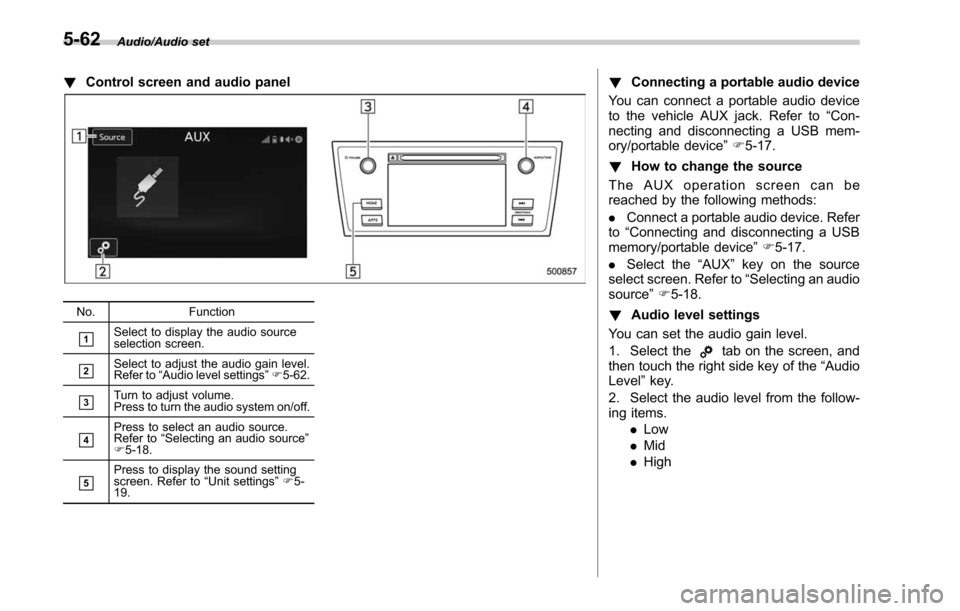
No. Function
&1Select to display the audio source
selection screen.
&2Select to adjust the audio gain level.
Refer to“Audio level settings ”F 5-62.
&3Turn to adjust volume.
Press to turn the audio system on/off.
&4Press to select an audio source.
Refer to “Selecting an audio source ”
F 5-18.
&5Press to display the sound setting
screen. Refer to “Unit settings ”F 5-
19.
! Connecting a portable audio device
You can connect a portable audio device
to the vehicle AUX jack. Refer to “Con-
necting and disconnecting a USB mem-
ory/portable device ”F 5-17.
! How to change the source
The AUX operation screen can be
reached by the following methods:
. Connect a portable audio device. Refer
to “Connecting and disconnecting a USB
memory/portable device ”F 5-17.
. Select the “AUX”key on the source
select screen. Refer to “Selecting an audio
source” F5-18.
! Audio level settings
You can set the audio gain level.
1. Select the
tab on the screen, and
then touch the right side key of the “Audio
Level ”key.
2. Select the audio level from the follow-
ing items. .Low
. Mid
. High
5-62
Page 315 of 610
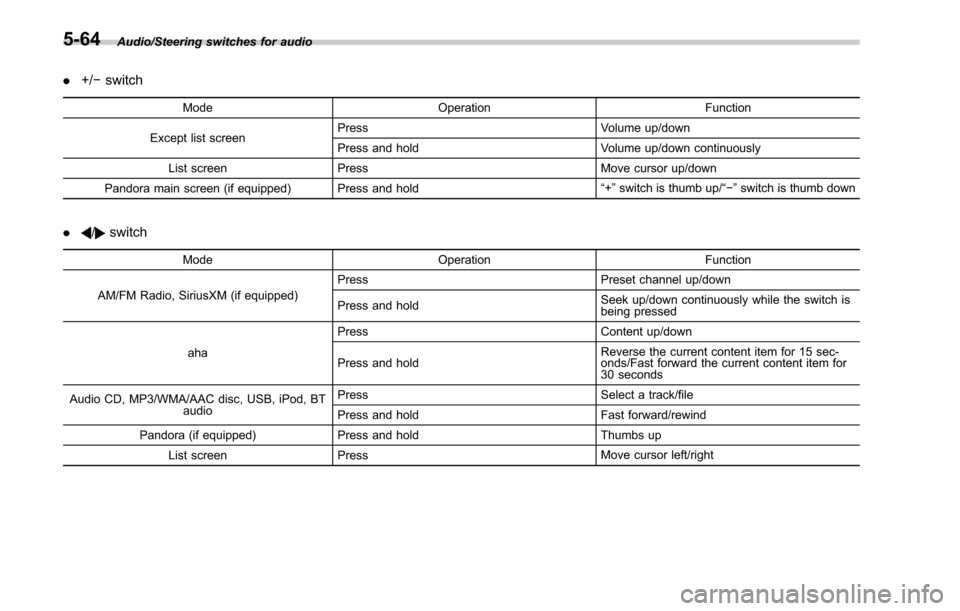
Audio/Steering switches for audio
.+/− switch
Mode Operation Function
Except list screen Press
Volume up/down
Press and hold Volume up/down continuously
List screen Press Move cursor up/down
Pandora main screen (if equipped) Press and hold “
+” switch is thumb up/ “− ” switch is thumb down
./switch
Mode Operation Function
AM/FM Radio, SiriusXM (if equipped) Press
Preset channel up/down
Press and hold Seek up/down continuously while the switch is
being pressed
aha Press
Content up/down
Press and hold Reverse the current content item for 15 sec-
onds/Fast forward the current content item for
30 seconds
Audio CD, MP3/WMA/AAC disc, USB, iPod, BT audio Press
Select a track/file
Press and hold Fast forward/rewind
Pandora (if equipped) Press and hold Thumbs up
List screen Press Move cursor left/right
5-64
Page 316 of 610
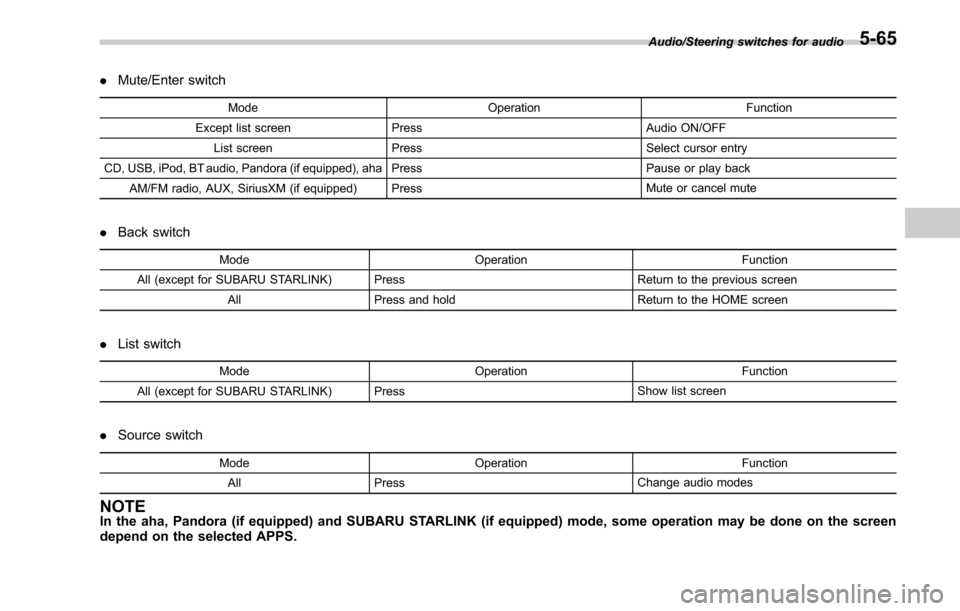
.Mute/Enter switch
Mode OperationFunction
Except list screen Press Audio ON/OFF
List screen Press Select cursor entry
CD, USB, iPod, BT audio, Pandora (if equipped), aha Press Pause or play back
AM/FM radio, AUX, SiriusXM (if equipped) Press Mute or cancel mute
.
Back switch
Mode Operation Function
All (except for SUBARU STARLINK) Press Return to the previous screen
All Press and hold Return to the HOME screen
.
List switch
Mode Operation Function
All (except for SUBARU STARLINK) Press Show list screen
.
Source switch
Mode Operation Function
All Press Change audio modes
NOTEIn the aha, Pandora (if equipped) and SUBARU STARLINK (if equipped) mode, some operation may be done on the screen
depend on the selected APPS.
Audio/Steering switches for audio5-65