X mode SUBARU OUTBACK 2022 Getting Started Guide
[x] Cancel search | Manufacturer: SUBARU, Model Year: 2022, Model line: OUTBACK, Model: SUBARU OUTBACK 2022Pages: 172, PDF Size: 58.6 MB
Page 72 of 172
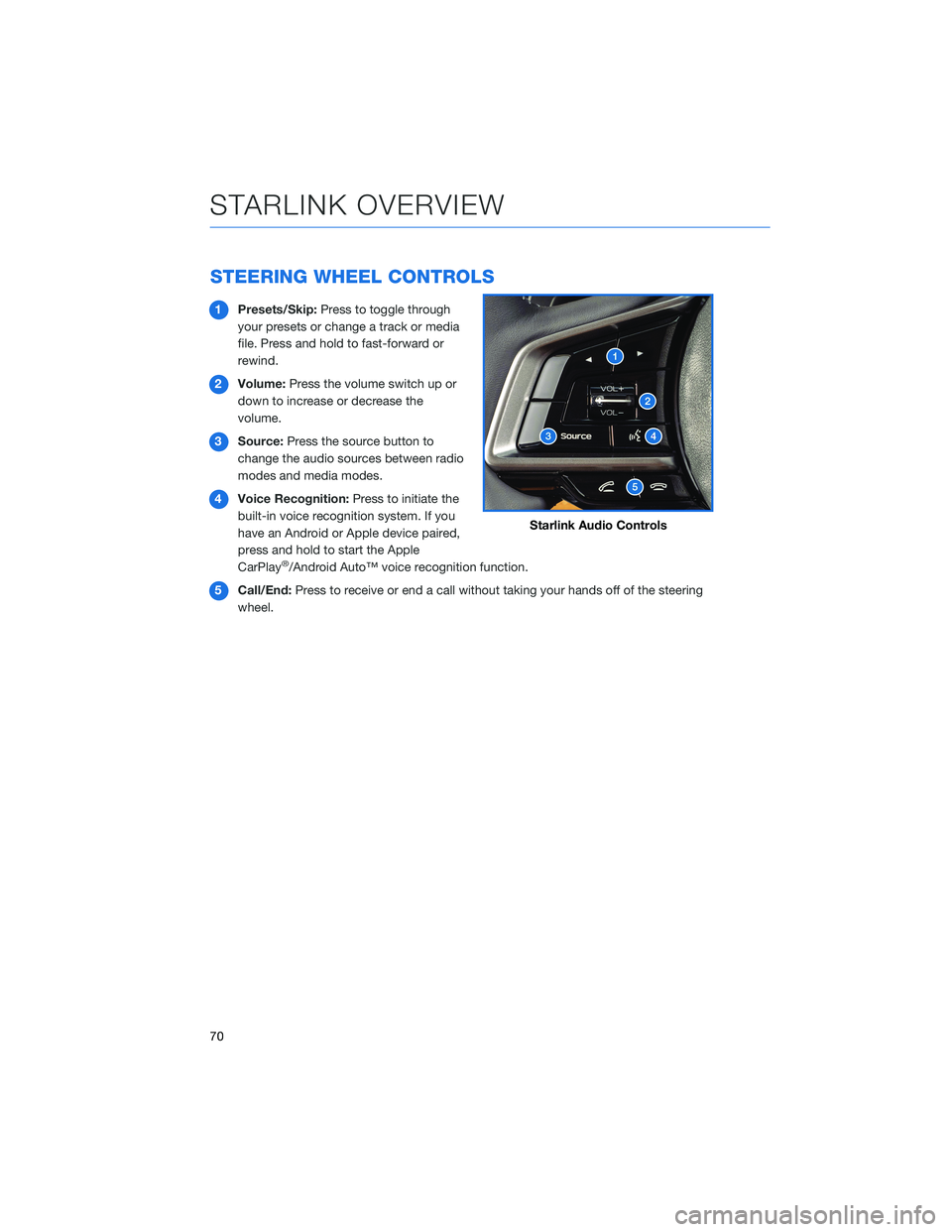
STEERING WHEEL CONTROLS
1Presets/Skip:Press to toggle through
your presets or change a track or media
file. Press and hold to fast-forward or
rewind.
2Volume:Press the volume switch up or
down to increase or decrease the
volume.
3Source:Press the source button to
change the audio sources between radio
modes and media modes.
4Voice Recognition:Press to initiate the
built-in voice recognition system. If you
have an Android or Apple device paired,
press and hold to start the Apple
CarPlay
®/Android Auto™ voice recognition function.
5Call/End:Press to receive or end a call without taking your hands off of the steering
wheel.
Starlink Audio Controls
STARLINK OVERVIEW
70
Page 73 of 172
VOICE RECOGNITION
With SUBARU STARLINK®, simple voice commands can control
features like navigation, entertainment, phone calls, and, on select
models, climate control. A microphone is located in the overhead
console. You do not need to speak directly into it.
Visit www.subaru.com/owners/starlink/multimedia.html for
more information.
Press the voice recognition switch to start the voice recognition
system. Press and hold the switch to cancel it.
For help with what you can say with voice recognition, press the “Help” button on the
screen or press the voice recognition button and say “Help”.
Tips
The system may not recognize the voice command due to various types of interference.
Some causes for voice command interference are:
• The command is spoken too quickly or at a low or high volume.
• The command is incorrect or unclear.
• The window is open, the climate control system is set on high, or the ventilation is
directed toward the microphone.
• Passengers are talking while the command is spoken.
NOTE: The system is designed to recognize a variety of commands, but certain words,
accents or speech patterns may be difficult for the system to recognize.
STARLINK OVERVIEW
71
Page 76 of 172
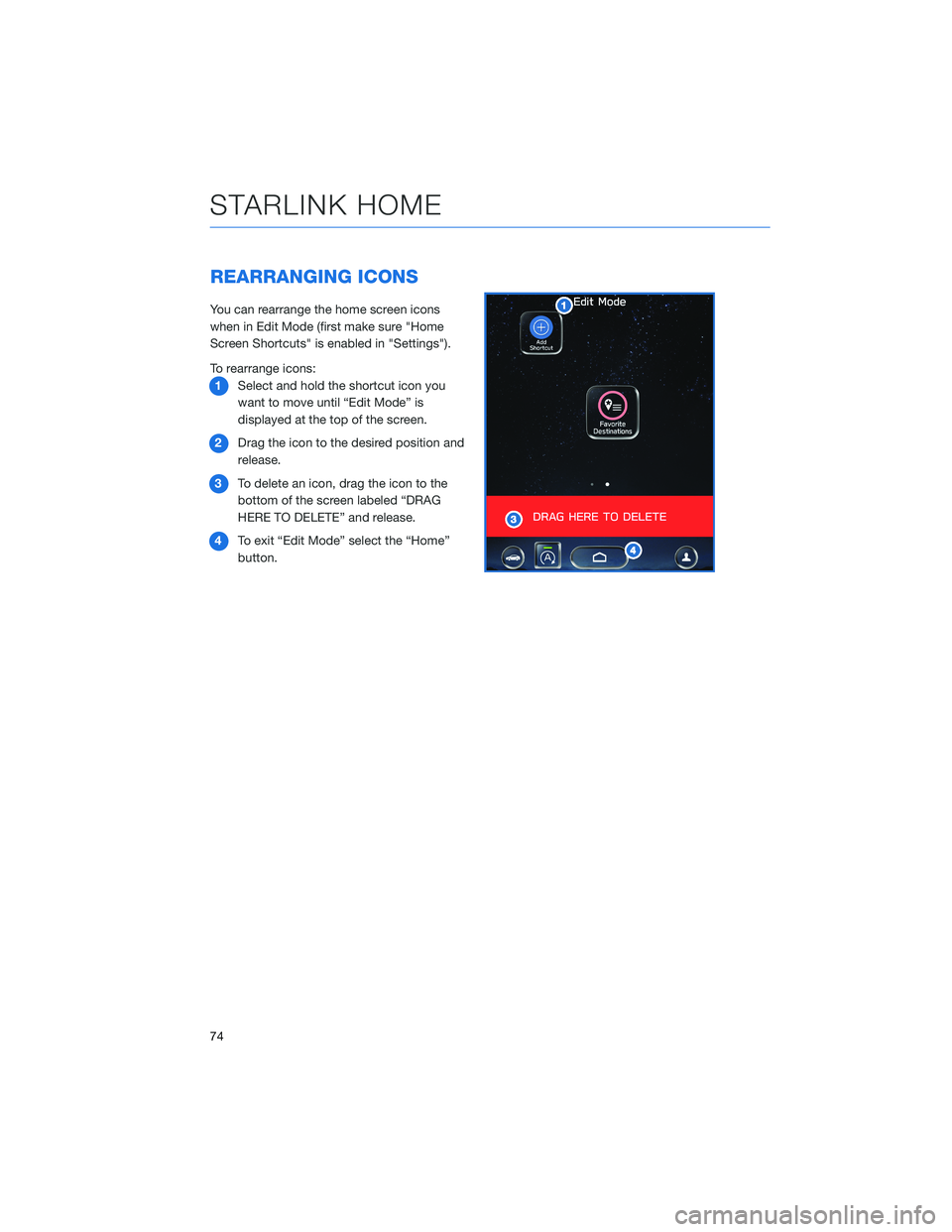
REARRANGING ICONS
You can rearrange the home screen icons
when in Edit Mode (first make sure "Home
Screen Shortcuts" is enabled in "Settings").
To rearrange icons:
1Select and hold the shortcut icon you
want to move until “Edit Mode” is
displayed at the top of the screen.
2Drag the icon to the desired position and
release.
3To delete an icon, drag the icon to the
bottom of the screen labeled “DRAG
HERE TO DELETE” and release.
4To exit “Edit Mode” select the “Home”
button.
STARLINK HOME
74
Page 94 of 172
SAFETY AND SECURITY OVERVIEW
STARLINK®Safety and Security services* are designed to help in your time of need. These
include Advanced Automatic Collision Notification, SOS Emergency Assistance, Enhanced
Roadside Assistance, Stolen Vehicle Recovery, the added convenience of Remote Engine
Start with Climate Control, and so much more.
With the SUBARU STARLINK
®system integrated into your vehicle, advanced safety and
security technology is just a button press away. The SUBARU STARLINK®experience
includes in-vehicle call center support, maintenance and diagnostic alerts as well as
remote services that keep you connected to your Subaru vehicle.
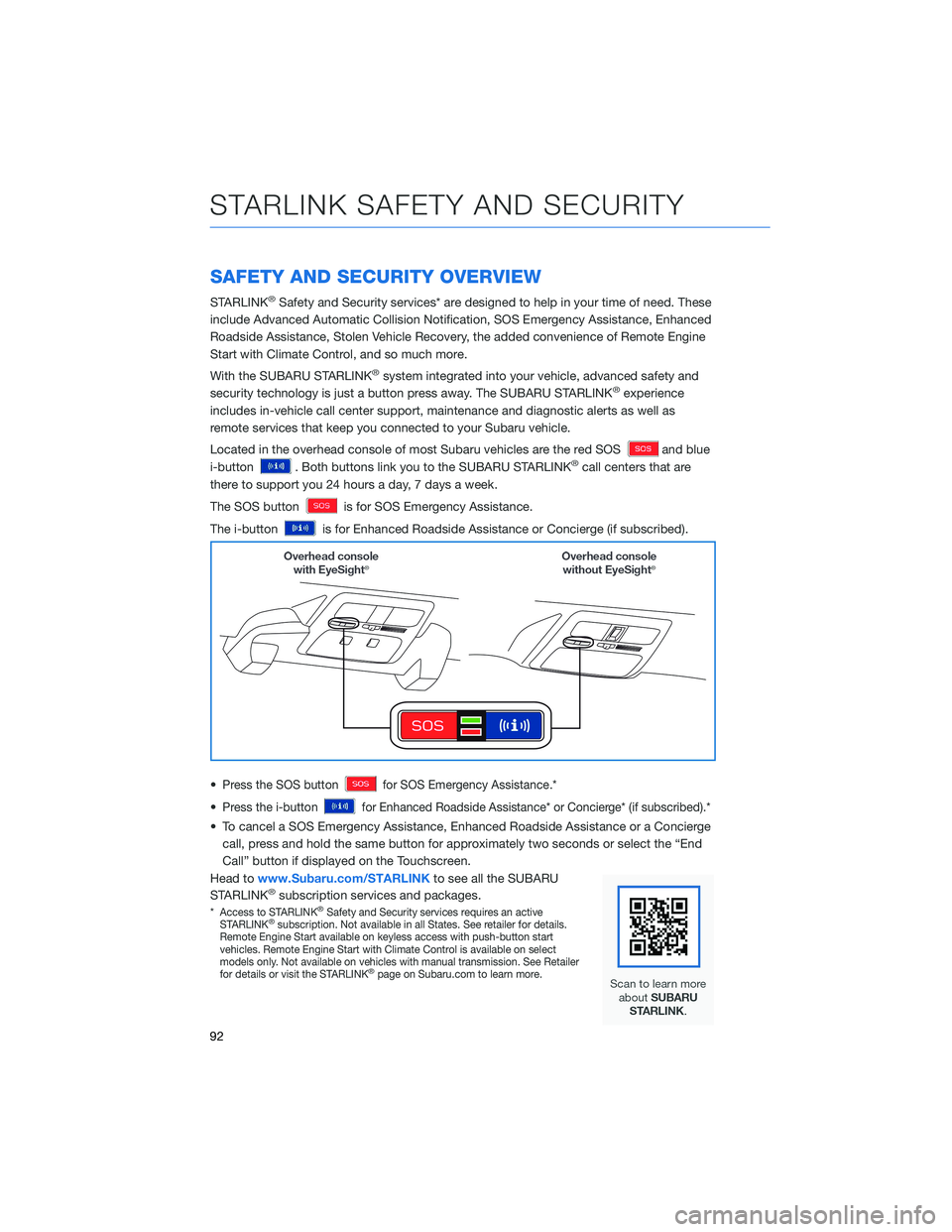
Located in the overhead console of most Subaru vehicles are the red SOS
and blue
i-button
. Both buttons link you to the SUBARU STARLINK®call centers that are
there to support you 24 hours a day, 7 days a week.
The SOS button
is for SOS Emergency Assistance.
The i-button
is for Enhanced Roadside Assistance or Concierge (if subscribed).
•
Press the SOS buttonfor SOS Emergency Assistance.*
•Press the i-buttonfor Enhanced Roadside Assistance* or Concierge* (if subscribed).*
• To cancel a SOS Emergency Assistance, Enhanced Roadside Assistance or a Concierge
call, press and hold the same button for approximately two seconds or select the “End
Call” button if displayed on the Touchscreen.
Head towww.Subaru.com/STARLINKto see all the SUBARU
STARLINK
®subscription services and packages.
*Access to STARLINK®Safety and Security services requires an active
STARLINK®subscription. Not available in all States. See retailer for details.
Remote Engine Start available on keyless access with push-button start
vehicles. Remote Engine Start with Climate Control is available on select
models only. Not available on vehicles with manual transmission. See Retailer
for details or visit the STARLINK
®page on Subaru.com to learn more.
STARLINK SAFETY AND SECURITY
92
Page 96 of 172
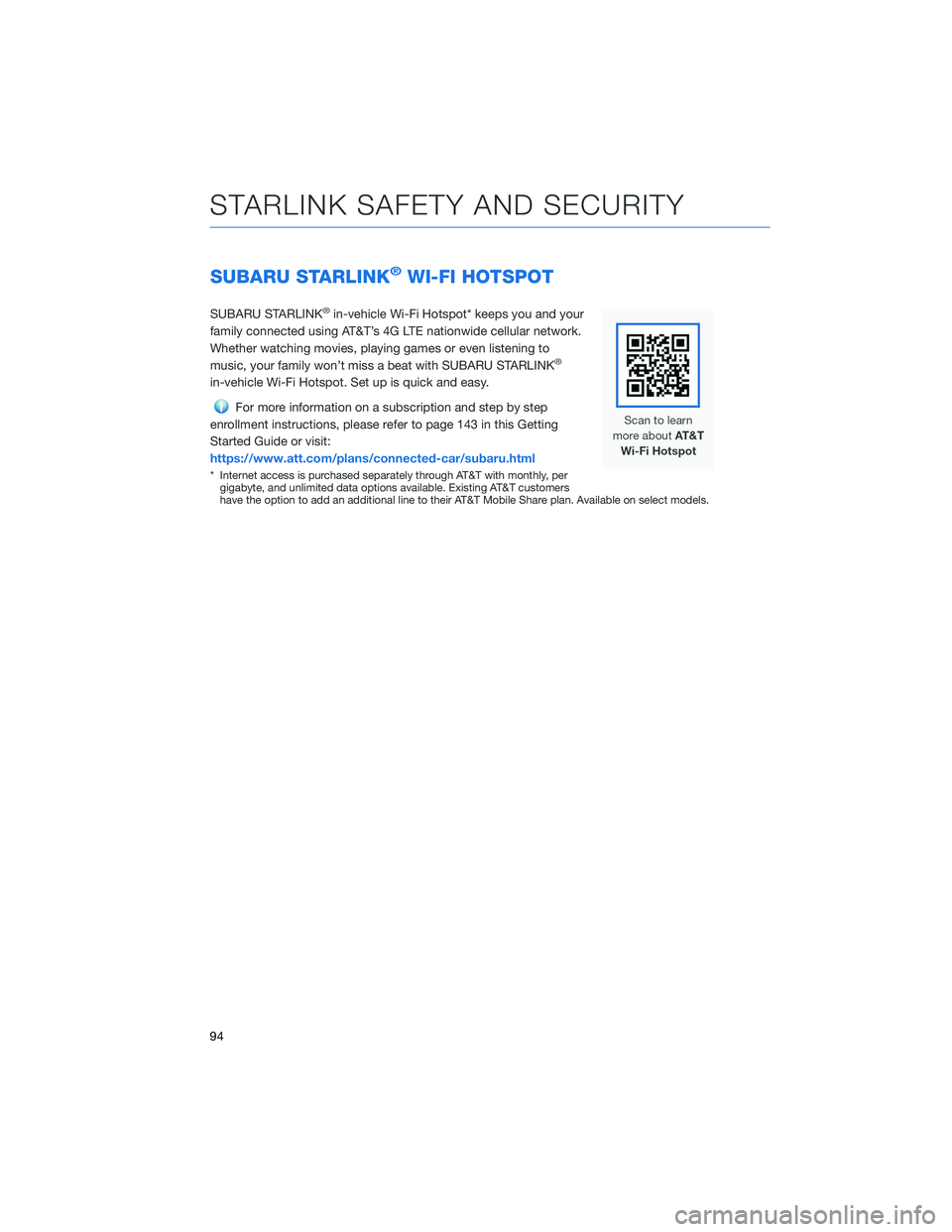
SUBARU STARLINK®WI-FI HOTSPOT
SUBARU STARLINK®in-vehicle Wi-Fi Hotspot* keeps you and your
family connected using AT&T’s 4G LTE nationwide cellular network.
Whether watching movies, playing games or even listening to
music, your family won’t miss a beat with SUBARU STARLINK
®
in-vehicle Wi-Fi Hotspot. Set up is quick and easy.
For more information on a subscription and step by step
enrollment instructions, please refer to page 143 in this Getting
Started Guide or visit:
https://www.att.com/plans/connected-car/subaru.html
* Internet access is purchased separately through AT&T with monthly, per
gigabyte, and unlimited data options available. Existing AT&T customers
have the option to add an additional line to their AT&T Mobile Share plan. Available on select models.
STARLINK SAFETY AND SECURITY
94
Page 129 of 172
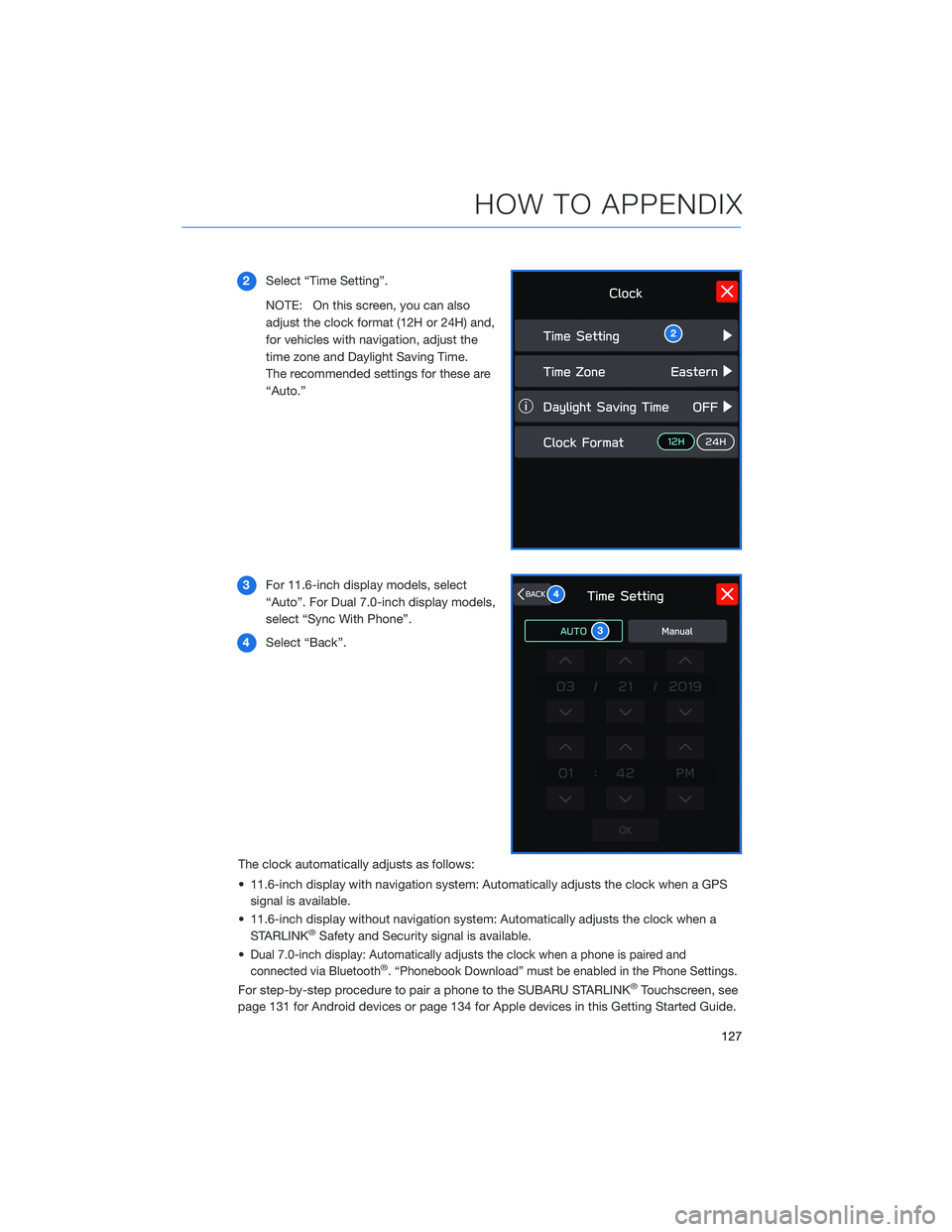
2Select “Time Setting”.
NOTE: On this screen, you can also
adjust the clock format (12H or 24H) and,
for vehicles with navigation, adjust the
time zone and Daylight Saving Time.
The recommended settings for these are
“Auto.”
3For 11.6-inch display models, select
“Auto”. For Dual 7.0-inch display models,
select “Sync With Phone”.
4Select “Back”.
The clock automatically adjusts as follows:
• 11.6-inch display with navigation system: Automatically adjusts the clock when a GPS
signal is available.
• 11.6-inch display without navigation system: Automatically adjusts the clock when a
STARLINK
®Safety and Security signal is available.
•
Dual 7.0-inch display: Automatically adjusts the clock when a phone is paired and
connected via Bluetooth®. “Phonebook Download” must be enabled in the Phone Settings.
For step-by-step procedure to pair a phone to the SUBARU STARLINK®Touchscreen, see
page 131 for Android devices or page 134 for Apple devices in this Getting Started Guide.
2
3
4
HOW TO APPENDIX
127
Page 133 of 172
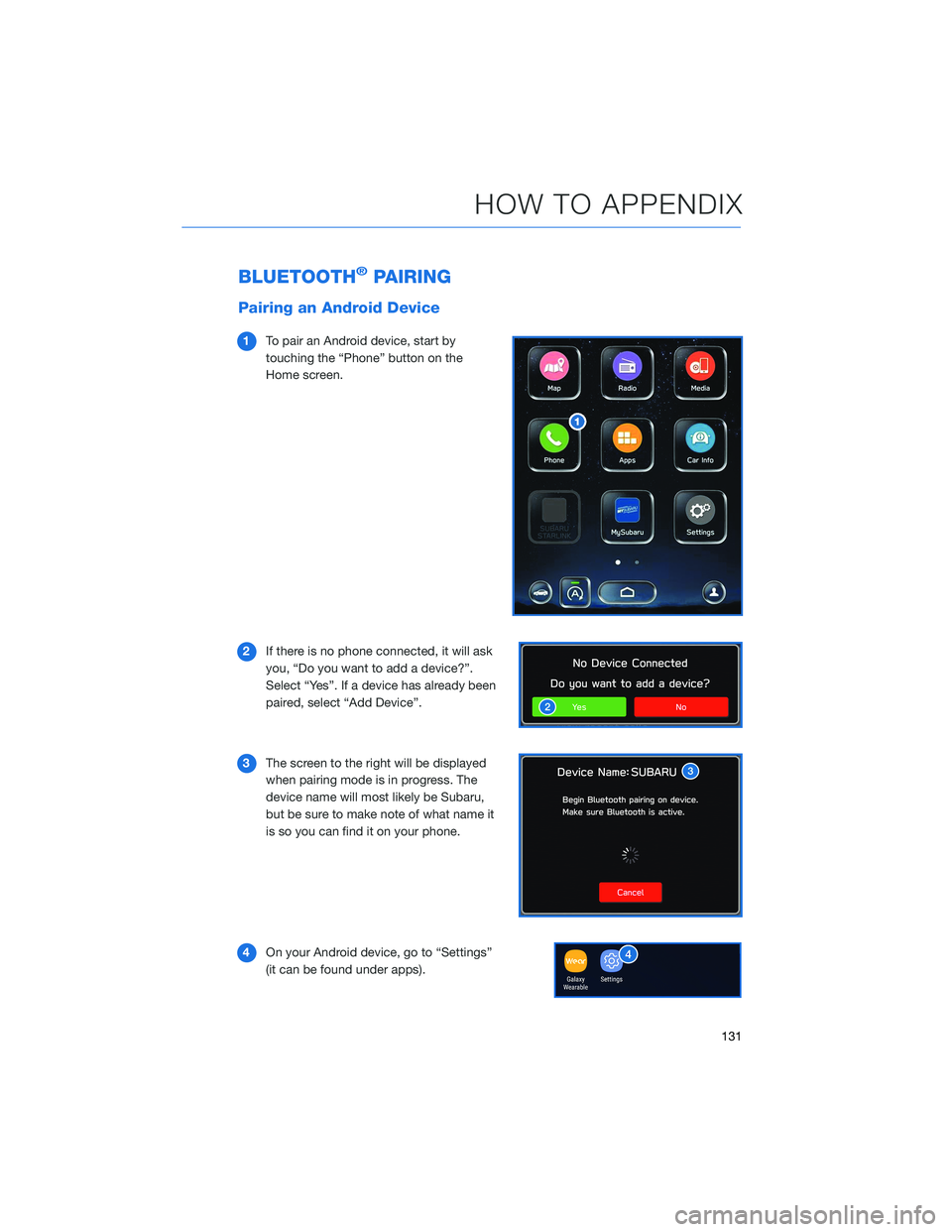
BLUETOOTH®PAIRING
Pairing an Android Device
1To pair an Android device, start by
touching the “Phone” button on the
Home screen.
2If there is no phone connected, it will ask
you, “Do you want to add a device?”.
Select “Yes”. If a device has already been
paired, select “Add Device”.
3The screen to the right will be displayed
when pairing mode is in progress. The
device name will most likely be Subaru,
but be sure to make note of what name it
is so you can find it on your phone.
4On your Android device, go to “Settings”
(it can be found under apps).
HOW TO APPENDIX
131
Page 136 of 172
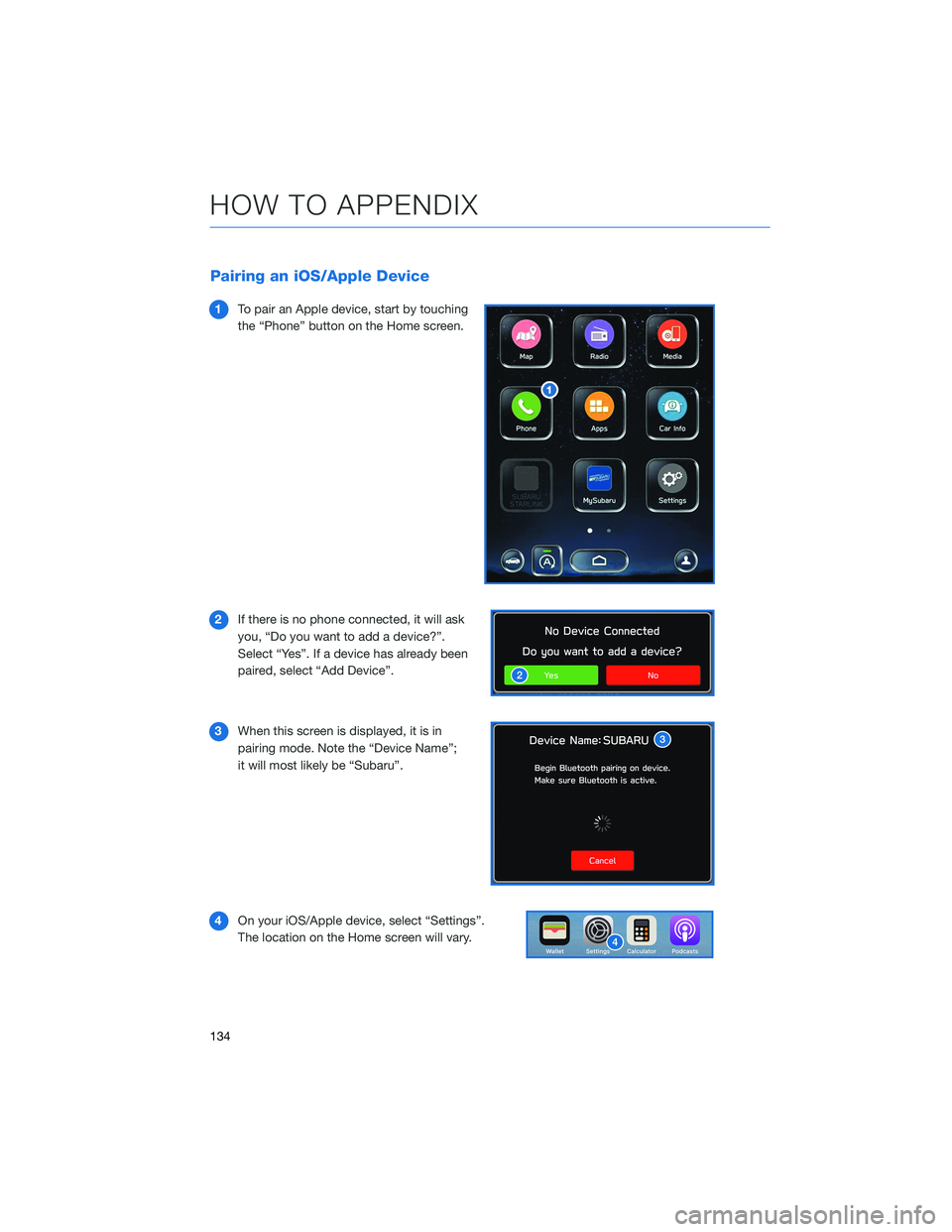
Pairing an iOS/Apple Device
1To pair an Apple device, start by touching
the “Phone” button on the Home screen.
2If there is no phone connected, it will ask
you, “Do you want to add a device?”.
Select “Yes”. If a device has already been
paired, select “Add Device”.
3When this screen is displayed, it is in
pairing mode. Note the “Device Name”;
it will most likely be “Subaru”.
4On your iOS/Apple device, select “Settings”.
The location on the Home screen will vary.
HOW TO APPENDIX
134
Page 141 of 172
Compatible Models
Android Auto™ is available on Android phones. To see if your phone
is compatible, please refer to the Android Auto™ website:
https://www.android.com/phones/
APPLE CARPLAY®
Cables
Apple CarPlay®requires compatible iPhones to be connected via
your Subaru’s USB port. Cables must be an 8-Pin Lightning MFi
Certified cable (made for iPod/iPhone). Look for the “Works with
Apple CarPlay
®” or “Made for iPod, iPhone, iPad” icons when
selecting a cable.
For more information, visit: www.apple.com/ios/carplay/
HOW TO APPENDIX
139
Page 143 of 172

Compatible Models
For a list of all the Apple phones that are compatible with Apple
CarPlay®, visit: www.apple.com/ios/carplay/
WI-FI
Connecting to a Wi-Fi Network
1On the Home Screen, select “Settings”.
2In the “General” settings menu, select
“Wi-Fi”.
HOW TO APPENDIX
141