update software SUBARU OUTBACK 2022 Getting Started Guide
[x] Cancel search | Manufacturer: SUBARU, Model Year: 2022, Model line: OUTBACK, Model: SUBARU OUTBACK 2022Pages: 172, PDF Size: 58.6 MB
Page 5 of 172
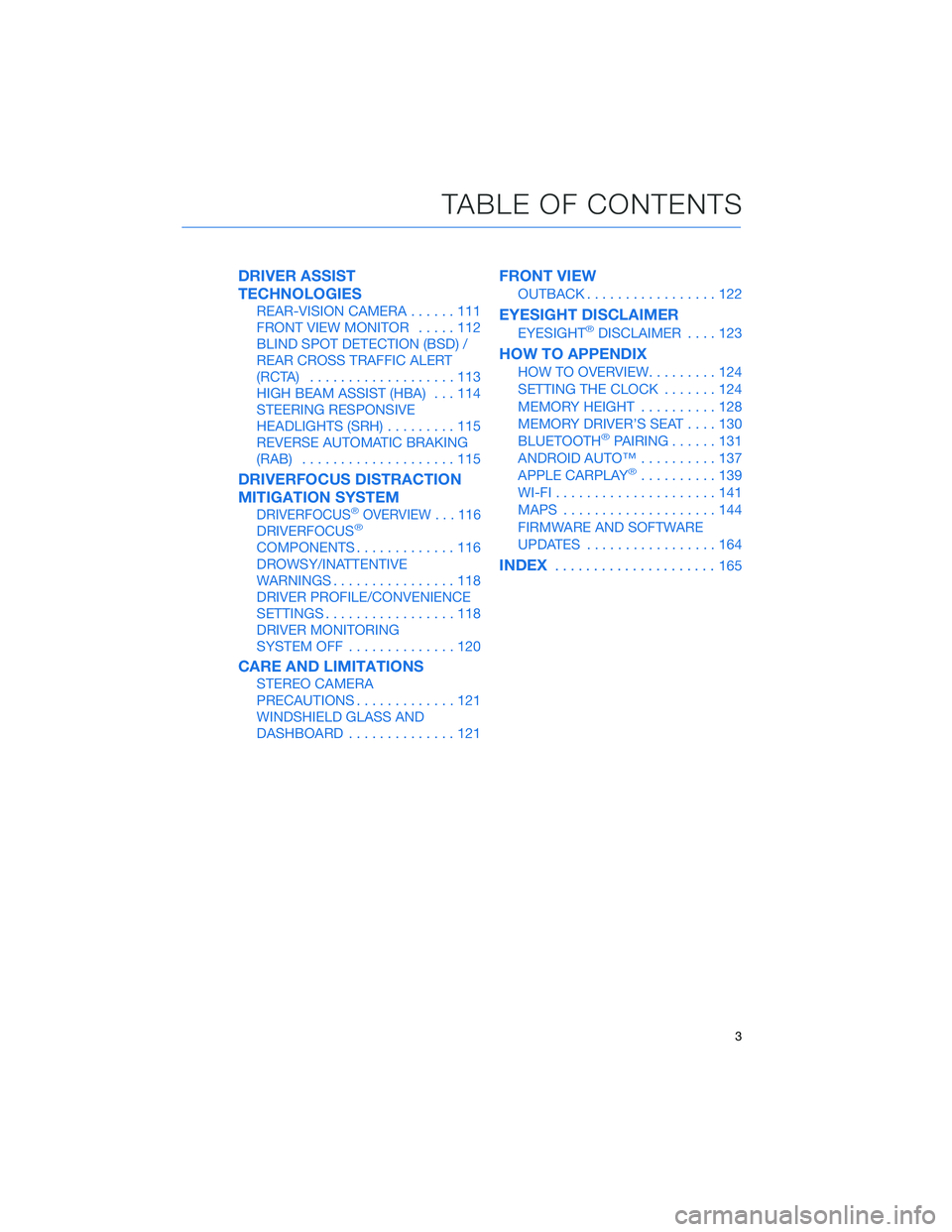
DRIVER ASSIST
TECHNOLOGIES
REAR-VISION CAMERA......111
FRONT VIEW MONITOR.....112
BLIND SPOT DETECTION (BSD) /
REAR CROSS TRAFFIC ALERT
(RCTA)...................113
HIGH BEAM ASSIST (HBA)...114
STEERING RESPONSIVE
HEADLIGHTS (SRH).........115
REVERSE AUTOMATIC BRAKING
(RAB)....................115
DRIVERFOCUS DISTRACTION
MITIGATION SYSTEM
DRIVERFOCUS®OVERVIEW . . . 116
DRIVERFOCUS®
COMPONENTS.............116
DROWSY/INATTENTIVE
WARNINGS................118
DRIVER PROFILE/CONVENIENCE
SETTINGS.................118
DRIVER MONITORING
SYSTEM OFF..............120
CARE AND LIMITATIONS
STEREO CAMERA
PRECAUTIONS.............121
WINDSHIELD GLASS AND
DASHBOARD..............121
FRONT VIEW
OUTBACK.................122
EYESIGHT DISCLAIMER
EYESIGHT®DISCLAIMER....123
HOW TO APPENDIX
HOW TO OVERVIEW.........124
SETTING THE CLOCK.......124
MEMORY HEIGHT..........128
MEMORY DRIVER’S SEAT....130
BLUETOOTH
®PAIRING......131
ANDROID AUTO™..........137
APPLE CARPLAY
®..........139
WI-FI.....................141
MAPS....................144
FIRMWARE AND SOFTWARE
UPDATES.................164
INDEX.....................165
TABLE OF CONTENTS
3
Page 6 of 172
WELCOME
Congratulations on choosing a Subaru Outback and welcome to the Subaru family!
Subaru is more than a car company™. We are committed to making the world a better place, and
the Subaru Love Promise is our vision to show love and respect to all people at every interaction
with Subaru. We believe in building lifelong relationships with our customers, earning your trust
and exceeding your expectations by providing customer service with integrity and compassion.
This Getting Started Guide will introduce you to your new Subaru Outback by providing
information on the basic operation and key features of your Subaru as well as the STARLINK®
and EyeSight®systems in your vehicle.
IMPORTANT SAFETY INFORMATION
The Getting Started Guide is not intended as a substitute for your Owner’s Manuals.
We strongly encourage you to review your Vehicle, STARLINK®, and EyeSight®Owner’s
Manuals to ensure complete understanding.
As part of routine maintenance and continuous improvement, Subaru releases updates to
the firmware and software in your vehicle. Following the installation of these updates, the
screens and menus in your vehicle may differ from what appears in this guide.
For the most current information on firmware and software updates, please refer to the
“Owner’s Resources” in the following section or contact your Subaru Retailer.
OWNER’S RESOURCES
If you’re having difficulty using any of the functions outlined in this guide, or want to learn more, you
can get additional information from the following sources:
Your Subaru Owner’s Manuals:
Located in the glovebox
Online Subaru Owner’s Resources:
www.subaru.com/owners
Subaru Customer Support:
www.subaru.com/customer-support
1-800-782-2783 (1-800-SUBARU3 )
PURPOSE OF THIS GUIDE
4
Page 68 of 172
OVERVIEW OF YOUR MULTIMEDIA SYSTEM
SUBARU STARLINK®Multimedia combines the radio along with the ability to connect your
phone* through Bluetooth®to the multimedia system for making calls, sending text
messages and listening to your favorite songs on your phone.
As part of routine maintenance and continuous improvement, Subaru releases updates to
the firmware and software in your vehicle. Following the installation of these updates, the
screens and menus in your vehicle may differ from what appears in this guide.
For the most current information, please visitwww.subaru.com/owners,
www.subaru.com/customer-support, or contact your Subaru Retailer. Refer to page 4
for details on these resources.
* Compatible smartphone and application required. For applications to operate, latest version of each
application required. Data provided by smartphone is displayed on the Touchscreen. Some state laws
prohibit the operation of handheld electronic devices while operating a vehicle. Smartphone apps
should only be launched when vehicle is safely parked. Your wireless carrier’s rates may apply.
Various Systems
Depending on your model and trim level there are several types of SUBARU STARLINK®
Multimedia systems. Some of the functions described in this guide will vary by system.
• Dual 7.0-inch Multimedia
• 11.6-inch Multimedia Plus
• 11.6-inch Multimedia Navigation
STARLINK OVERVIEW
66
Page 97 of 172
SETTINGS AND UPDATES OVERVIEW
Many settings can be customized for different features in your Subaru. In this section you
will find examples and instructions for some of the settings you can tailor to fit your
preferences, as well as ways to keep your system updated.
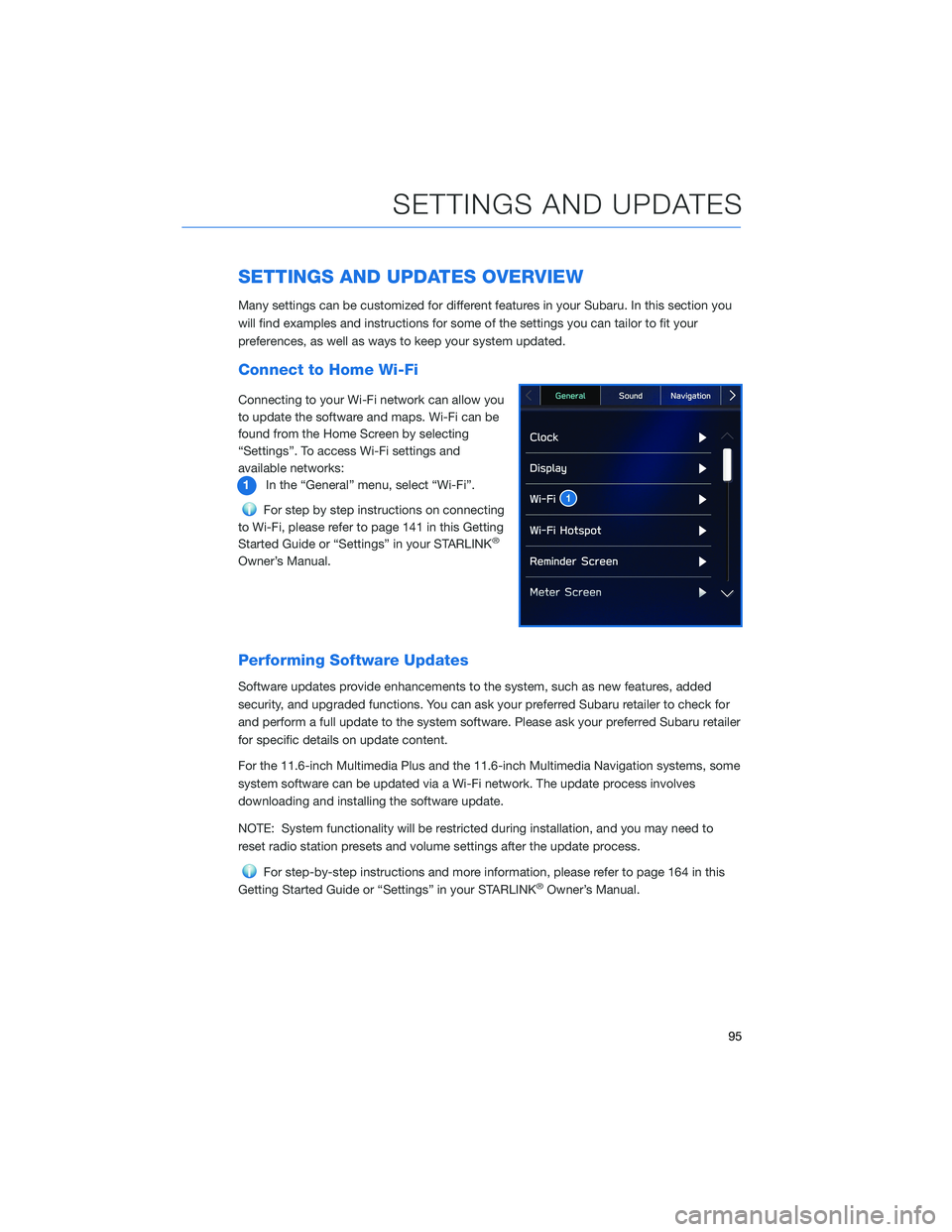
Connect to Home Wi-Fi
Connecting to your Wi-Fi network can allow you
to update the software and maps. Wi-Fi can be
found from the Home Screen by selecting
“Settings”. To access Wi-Fi settings and
available networks:
1In the “General” menu, select “Wi-Fi”.
For step by step instructions on connecting
to Wi-Fi, please refer to page 141 in this Getting
Started Guide or “Settings” in your STARLINK
®
Owner’s Manual.
Performing Software Updates
Software updates provide enhancements to the system, such as new features, added
security, and upgraded functions. You can ask your preferred Subaru retailer to check for
and perform a full update to the system software. Please ask your preferred Subaru retailer
for specific details on update content.
For the 11.6-inch Multimedia Plus and the 11.6-inch Multimedia Navigation systems, some
system software can be updated via a Wi-Fi network. The update process involves
downloading and installing the software update.
NOTE: System functionality will be restricted during installation, and you may need to
reset radio station presets and volume settings after the update process.
For step-by-step instructions and more information, please refer to page 164 in this
Getting Started Guide or “Settings” in your STARLINK®Owner’s Manual.
SETTINGS AND UPDATES
95
Page 166 of 172
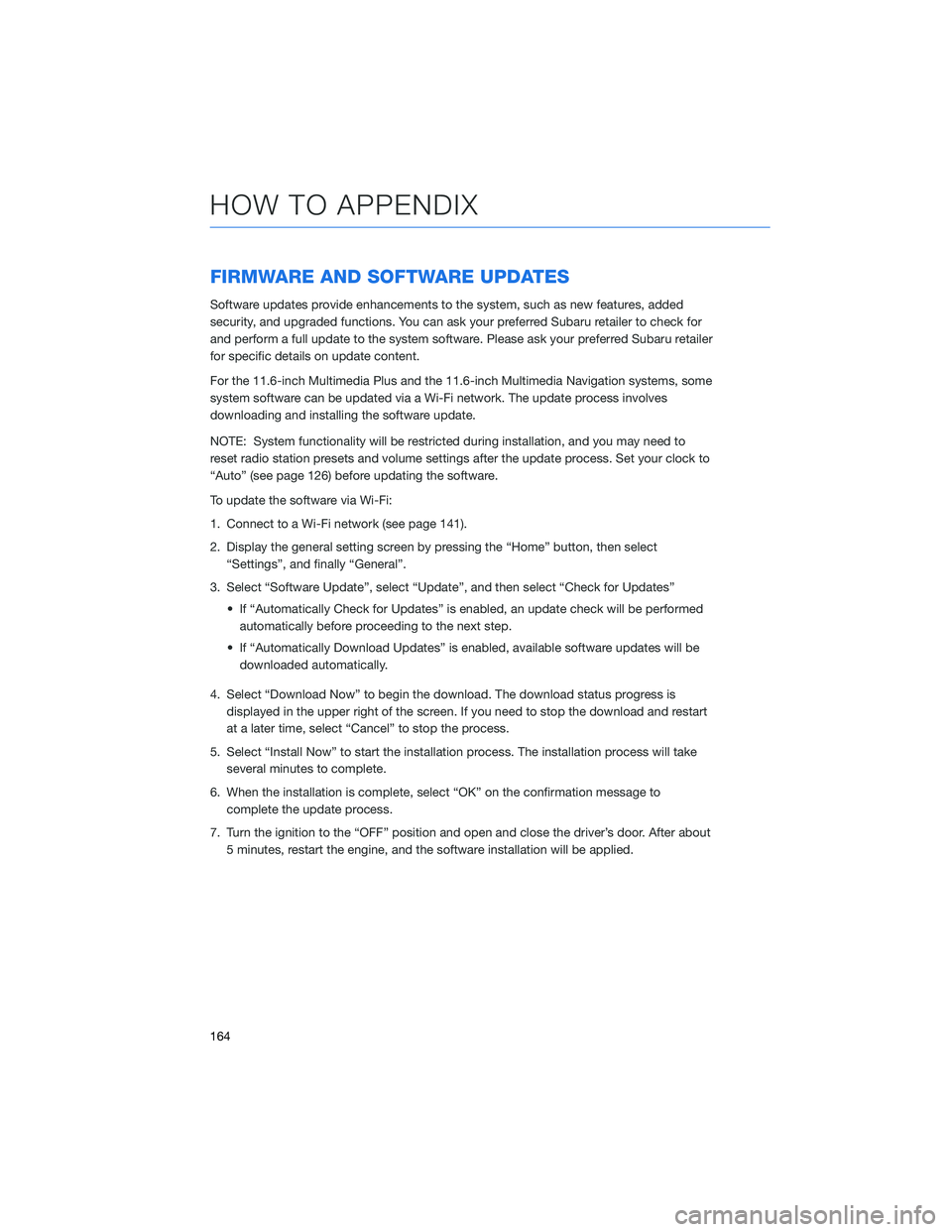
FIRMWARE AND SOFTWARE UPDATES
Software updates provide enhancements to the system, such as new features, added
security, and upgraded functions. You can ask your preferred Subaru retailer to check for
and perform a full update to the system software. Please ask your preferred Subaru retailer
for specific details on update content.
For the 11.6-inch Multimedia Plus and the 11.6-inch Multimedia Navigation systems, some
system software can be updated via a Wi-Fi network. The update process involves
downloading and installing the software update.
NOTE: System functionality will be restricted during installation, and you may need to
reset radio station presets and volume settings after the update process. Set your clock to
“Auto” (see page 126) before updating the software.
To update the software via Wi-Fi:
1. Connect to a Wi-Fi network (see page 141).
2. Display the general setting screen by pressing the “Home” button, then select
“Settings”, and finally “General”.
3. Select “Software Update”, select “Update”, and then select “Check for Updates”
• If “Automatically Check for Updates” is enabled, an update check will be performed
automatically before proceeding to the next step.
• If “Automatically Download Updates” is enabled, available software updates will be
downloaded automatically.
4. Select “Download Now” to begin the download. The download status progress is
displayed in the upper right of the screen. If you need to stop the download and restart
at a later time, select “Cancel” to stop the process.
5. Select “Install Now” to start the installation process. The installation process will take
several minutes to complete.
6. When the installation is complete, select “OK” on the confirmation message to
complete the update process.
7. Turn the ignition to the “OFF” position and open and close the driver’s door. After about
5 minutes, restart the engine, and the software installation will be applied.
HOW TO APPENDIX
164
Page 168 of 172
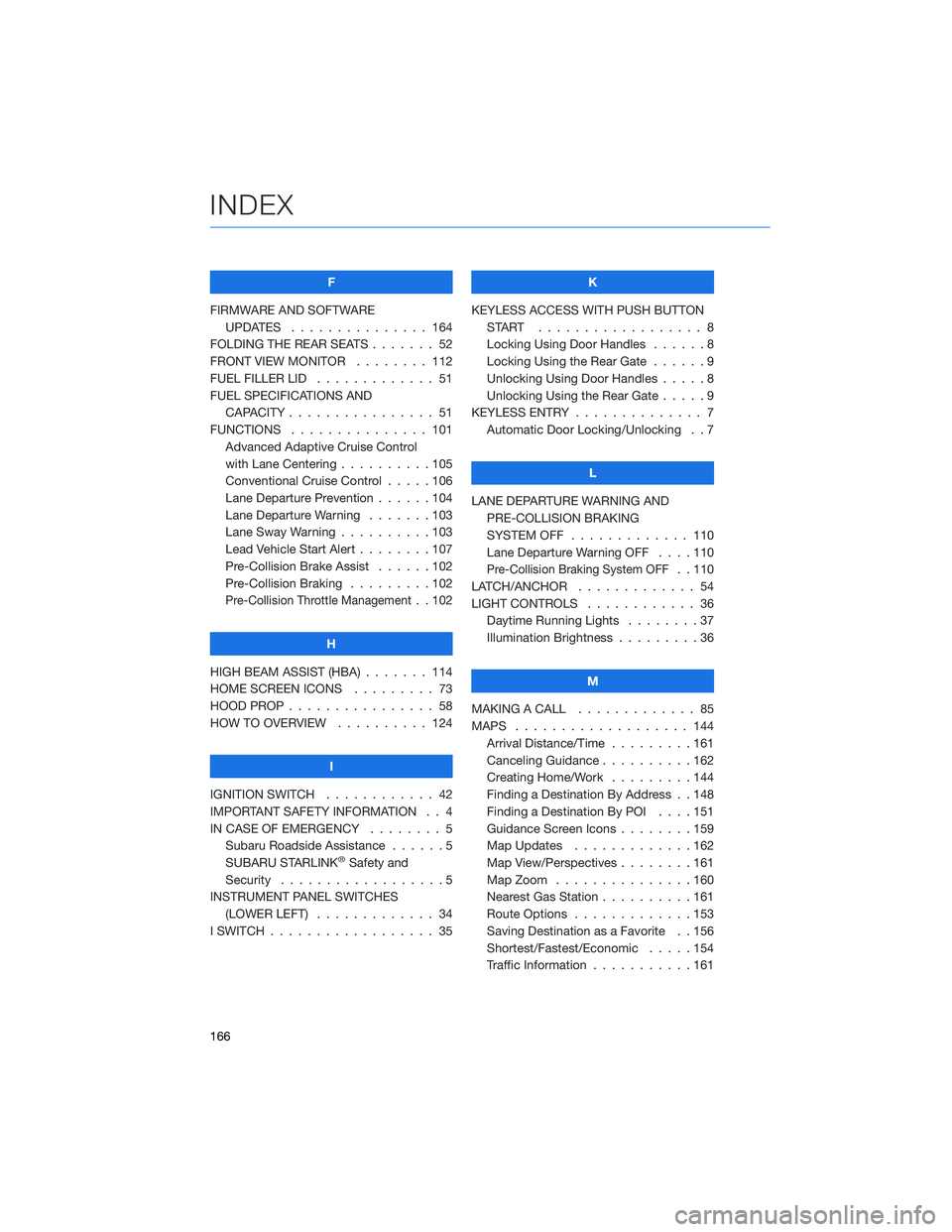
F
FIRMWARE AND SOFTWARE
UPDATES . . . . . . . . ....... 164
FOLDING THE REAR SEATS . . . . . . . 52
FRONT VIEW MONITOR . ....... 112
FUEL FILLER LID . . . . . . . . ..... 51
FUEL SPECIFICATIONS AND
CAPACITY . . . . . . . . ........ 51
FUNCTIONS . . . . . . . ........ 101
Advanced Adaptive Cruise Control
with Lane Centering . . . .......105
Conventional Cruise Control . . . . . 106
Lane Departure Prevention......104
Lane Departure Warning . . . . . . . 103
Lane Sway Warning . . . .......103
Lead Vehicle Start Alert . . . . . . . . 107
Pre-Collision Brake Assist . .....102
Pre-Collision Braking . . .......102
Pre-Collision Throttle Management. . 102
H
HIGH BEAM ASSIST (HBA) . . . . . . . 114
HOME SCREEN ICONS ......... 73
HOOD PROP . . . . . . . . ........ 58
HOW TO OVERVIEW . . ........ 124
I
IGNITION SWITCH . . .......... 42
IMPORTANT SAFETY INFORMATION . . 4
IN CASE OF EMERGENCY . . . . . . . . 5
Subaru Roadside Assistance . . . . . . 5
SUBARU STARLINK
®Safety and
Security . . . . . . . . ..........5
INSTRUMENT PANEL SWITCHES
(LOWER LEFT) . . . . . . . . . . . . . 34
I SWITCH . . . . . . . . . . . . . . . . . . 35K
KEYLESS ACCESS WITH PUSH BUTTON
START .................. 8
Locking Using Door Handles . .....8
Locking Using the Rear Gate ......9
Unlocking Using Door Handles.....8
Unlocking Using the Rear Gate .....9
KEYLESS ENTRY . . . . . ......... 7
Automatic Door Locking/Unlocking . . 7
L
LANE DEPARTURE WARNING AND
PRE-COLLISION BRAKING
SYSTEM OFF............. 110
Lane Departure Warning OFF . . . . 110
Pre-Collision Braking System OFF. . 110
LATCH/ANCHOR . . . .......... 54
LIGHT CONTROLS . ........... 36
Daytime Running Lights . . . . . . . . 37
Illumination Brightness . . . . . . . . . 36
M
MAKING A CALL . . . . . . . ...... 85
MAPS . . . . . . . . . . . ........ 144
Arrival Distance/Time . . . . . . . . . 161
Canceling Guidance..........162
Creating Home/Work .........144
Finding a Destination By Address . . 148
Finding a Destination By POI....151
Guidance Screen Icons . . . . . . . . 159
Map Updates . . . . . . . ......162
Map View/Perspectives . . . . . . . . 161
Map Zoom . . . . . . .........160
Nearest Gas Station . . . . ......161
Route Options . . . . . . .......153
Saving Destination as a Favorite . . 156
Shortest/Fastest/Economic . . . . . 154
Traffic Information . . . . . ......161
INDEX
166
Page 169 of 172
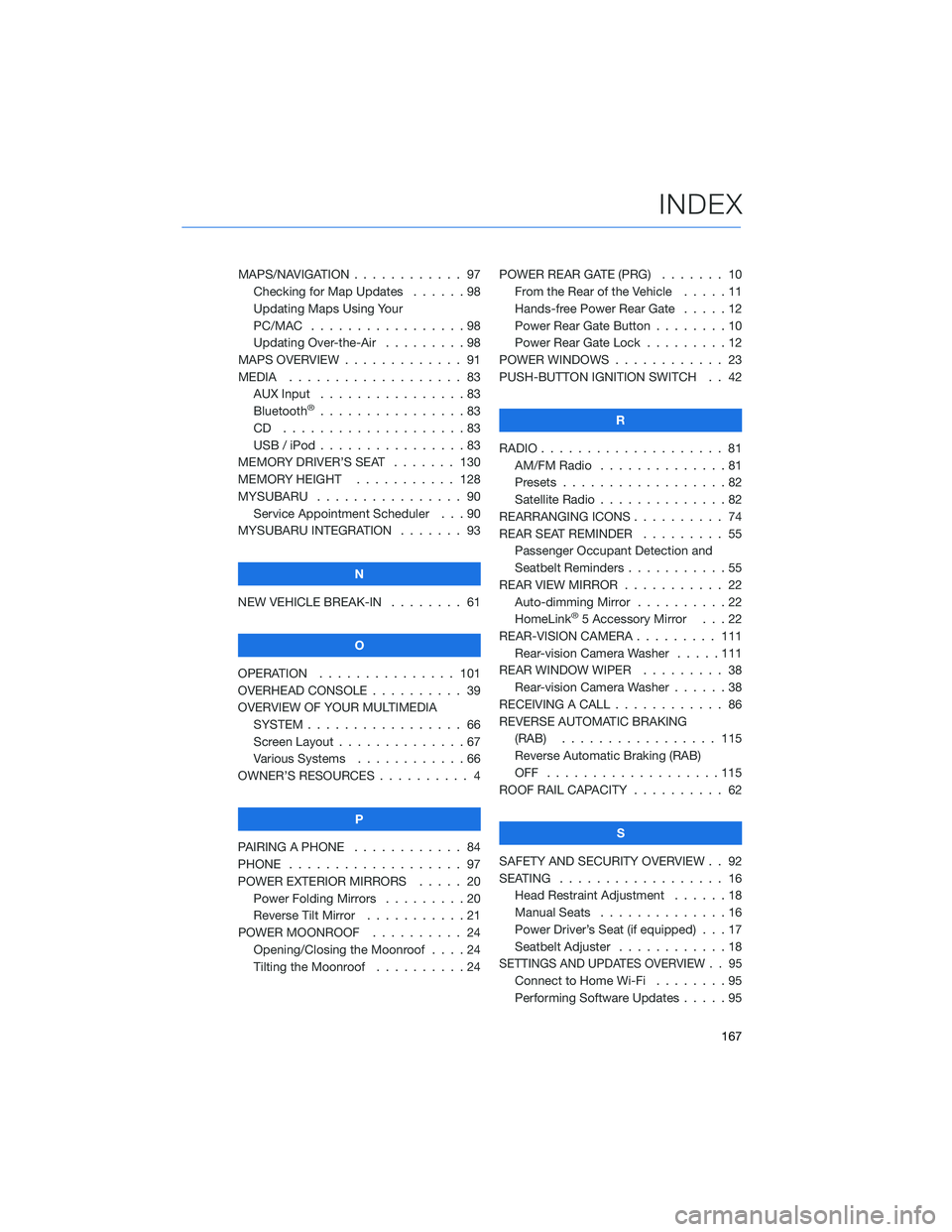
MAPS/NAVIGATION . ........... 97
Checking for Map Updates . . . . . . 98
Updating Maps Using Your
PC/MAC . . . . . . . . . ........98
Updating Over-the-Air . . . ......98
MAPS OVERVIEW . . . . . . . . . . . . . 91
MEDIA . . . . . . . . ........... 83
AUX Input . . . . . . . . . . . . . . . . 83
Bluetooth
®................83
CD ....................83
USB / iPod . . . . . ...........83
MEMORY DRIVER’S SEAT ....... 130
MEMORY HEIGHT . . ......... 128
MYSUBARU . . . . . ........... 90
Service Appointment Scheduler . . . 90
MYSUBARU INTEGRATION....... 93
N
NEW VEHICLE BREAK-IN . . . . . . . . 61
O
OPERATION . . . . . . ......... 101
OVERHEAD CONSOLE .......... 39
OVERVIEW OF YOUR MULTIMEDIA
SYSTEM . . . . . . . . . . . . . . . . . 66
Screen Layout . . ............67
Various Systems . ...........66
OWNER’S RESOURCES . ......... 4
P
PAIRING A PHONE . . . . . . . . . . . . 84
PHONE . . . . . . . . ........... 97
POWER EXTERIOR MIRRORS . . . . . 20
Power Folding Mirrors . . . . . . . . . 20
Reverse Tilt Mirror ...........21
POWER MOONROOF.......... 24
Opening/Closing the Moonroof . . . . 24
Tilting the Moonroof..........24POWER REAR GATE (PRG)....... 10
From the Rear of the Vehicle .....11
Hands-free Power Rear Gate . . . . . 12
Power Rear Gate Button . . ......10
Power Rear Gate Lock.........12
POWER WINDOWS . . . . ........ 23
PUSH-BUTTON IGNITION SWITCH . . 42
R
RADIO.................... 81
AM/FM Radio . . . . . . . . . .....81
Presets . . . . . . . ...........82
Satellite Radio . . . . ..........82
REARRANGING ICONS.......... 74
REAR SEAT REMINDER . . . . . . . . . 55
Passenger Occupant Detection and
Seatbelt Reminders . . . ........55
REAR VIEW MIRROR . . ......... 22
Auto-dimming Mirror . .........22
HomeLink
®5 Accessory Mirror . . . 22
REAR-VISION CAMERA . . . ...... 111
Rear-vision Camera Washer.....111
REAR WINDOW WIPER . . . ...... 38
Rear-vision Camera Washer . . . . . . 38
RECEIVING A CALL . . . . . . . . . . . . 86
REVERSE AUTOMATIC BRAKING
(RAB) . . . . . . ........... 115
Reverse Automatic Braking (RAB)
OFF ...................115
ROOF RAIL CAPACITY.......... 62
S
SAFETY AND SECURITY OVERVIEW . . 92
SEATING . . . . .............. 16
Head Restraint Adjustment ......18
Manual Seats . . . . . . . . . . . . . . 16
Power Driver’s Seat (if equipped) . . . 17
Seatbelt Adjuster . . . .........18
SETTINGS AND UPDATES OVERVIEW . . 95
Connect to Home Wi-Fi........95
Performing Software Updates . . . . . 95
INDEX
167