ECO mode SUBARU TRIBECA 2011 1.G Owner's Manual
[x] Cancel search | Manufacturer: SUBARU, Model Year: 2011, Model line: TRIBECA, Model: SUBARU TRIBECA 2011 1.GPages: 422, PDF Size: 12.7 MB
Page 194 of 422
NOTE
While you are holding down either side
of the“TUNE TRACK ”button, the
tuning frequency will not stop chan-
ging even if the frequency of a recei-
vable station is reached. ! Seek tuning
If you press the “
”or “”side of the
“ SEEK FLDR ”button (7), the radio will
automatically search for a receivable
station and stop at the first one it finds.
This function may not be available, how-
ever, when radio signals are weak. In such
a situation, perform manual tuning to
select the desired station. ! Automatic tuning (SCAN)
Press the “SCAN ”button (8) to change the
radio to the SCAN mode. In this mode, the
radio scans through the radio band until a
station is found. The radio will stop at the
station for 5 seconds while displaying the
frequency, after which scanning will con-
tinue until the entire band has been
scanned from the low end to the high
end. Press the “SCAN ”button again to
cancel the SCAN mode and to stop on any
displayed frequency.
Press the “
”or “”side of the “SEEK
FLDR ”button (7) again to cancel the scan
mode and to stop on any displayed frequency.
When the
“SCAN ”button is pressed for
automatic tuning, stations are scanned in
the direction of low frequencies to high
frequencies only.
Automatic tuning may not function prop-
erly if the station reception is weakened by
distance from the station or proximity to
tall buildings and hills. ! Selecting preset stations
Presetting a station with a preset button
(10) allows you to select that station in a
single operation. Up to six, AM, FM1 and
FM2 stations each may be preset. ! How to preset stations
1. Press the “FM AM ”button (2) to select
FM1, FM2, or AM reception.
2. Press the “SCAN ”button (8) or tune
the radio manually until the desired station
frequency is displayed.
3. Press one of the preset buttons (10)
for more than 1.5 seconds to store the
frequency. If the button is pressed for less
than 1.5 seconds, the preceding selection
will remain in memory. NOTE . If the connection between the radio
and battery is broken for any reason
such as vehicle maintenance or radio removal, all stations stored in the
preset buttons are cleared. If this
occurs, it is necessary to reset the
preset buttons..
If a cell phone is placed near the
radio, it may cause the radio to emit
noise when it receives calls. This noise
does not indicate a radio malfunction. ! Satellite radio mode (if equipped)
To receive satellite radio, it is necessary to
install the SUBARU genuine satellite
receiver (optional part) and to enter into
a contract with a satellite radio network
service such as “XM
TMsatellite radio ”(for
U.S.A. only) or “Sirius satellite radio ”. For
details, please contact your SUBARU
dealer. ! Sirius satellite radio
Sirius satellite radio is a recent innovation
that allows the listener to experience
digital sound quality and to have a greater
variety of channels.
Use of satellite radio (Sirius) requires a
tuner, antenna and a service contract. For
details, please contact your SUBARU
dealer or visit Sirius Satellite Radio at
www.sirius.com or call 1-888-539-SIRIUS
(7474) for more information. Sirius, the
Sirius dog logo, channel names and logos
are trademarks of SIRIUS Satellite RadioInc. Audio
5-7
– CONTINUED –
Page 195 of 422
5-8Audio
! XM
TMsatellite radio (for U.S.A. only)
XMTMis a continental U.S. based satellite
radio service, including music, news,
sports, talk and children ’s programming.
XM
TMprovides digital quality audio and
text information, including song title and
artist name. A service fee is required to
receive the XM
TMservice. For more
information, contact XMTMatwww.xmradio.com or call 1-800-
XMRADIO (1-800-967-2346). ! Satellite radio reception
Satellite radio signals are best received in
areas with a clear view of the open sky. In
areas where there are tall buildings, trees,
tunnels or other structures that may
obstruct the signal of the satellites, there
may be signal interruptions. Other circum-
stances that may result in signal loss
include driving near a wall, steep cliff or
hill, or driving on the lower level of a multi-
tiered road or inside a parking garage.
To help reduce this condition, satellite
radio providers have installed ground-
based repeaters in heavily populated
areas. However, you may still experience
reception problems in some areas. ! Displaying satellite radio ID of tuner
When you activate satellite radio, you
should have your satellite radio tuner ID ready because each tuner is identified by
its unique satellite radio tuner ID.
The satellite radio ID will be needed when
you activate satellite radio and receive
satellite radio customer support.
The satellite radio ID can be found on the
audio display by tuning the channel to
“0 ”.
Turn the “TUNE TRACK ”button (4) to
select the satellite radio channel. ! Band selection button
Push the “SAT ”button (1) when the radio
is off to turn on the radio.
Push the “SAT ”button when the radio is
on to select SAT1, SAT2 or SAT3 recep- tion. ! Channel selection
Press “
”of the “TUNE TRACK ”button
(4) to select the next channel and press “
” of the button to select the previous
channel.
Keep pressing “
”of the button to
change to the next channel continuously
and keep pressing “
”of the button to
change to the previous channel continu-
ously. ! Category selection
Press “
”or “”of the “SEEK FLDR ”
button (7) to display the current category. Press “
”again to select the next category, and press
“
”again to select
the previous category. ! Channel scan
Press the “SCAN ”button (8) to change the
radio to the SCAN mode. In this mode, the
radio scans through the channels until a
station is found. The radio will stop at the
station for 5 seconds while displaying the
channel number, after which scanning will
continue until the entire channel has been
scanned from the low end to the high end.
Also during the category selection, chan-
nel scan can be performed in that cate-
gory.
Press the “SCAN ”button again to cancel
the SCAN mode and to stop on any
displayed channel. ! Selecting preset channels
Presetting a channel with a preset button
(10) allows you to select that channel in a
single operation. Up to six, SAT1, SAT2
and SAT3 channels each may be preset. ! How to preset channels
1. Press the “SAT ”button (1) to select
SAT1, SAT2 and SAT3 reception.
2. Press the “SCAN ”button (8) or the
“ TUNE TRACK ”button (4) to select the
channel.
3. Press one of the preset buttons (10)
Page 198 of 422
.If you insert a disc that cannot be
played by the player, “CHECK DISC ”
will appear on the display and the
player will revert to the previously
selected mode.. The player is designed to be able to
play music CD-Rs and music CD-RWs,
but it may not be able to play certainones.. CDs (i.e., 8 cm/3 inch CDs) are not
supported, and if inserted, they will be
immediately ejected. ! When CD is in the player
When the “CD ”button (1) is pressed, the
player will start playback. NOTE
After the last song finishes, the player
will automatically return to track 1 (the
first song on the disc). ! To stop playback of a CD
When the “PUSH POWER ”button is
pressed during playback of a CD, the CD
stops playing temporarily. To let the CD
resume playing, press the button again. ! To select a song from its beginning
! Forward direction
Briefly press the “
”side of the “TUNE
TRACK ”button (2) to skip to the beginning of the next track/file (track). Each time this
side of the button is pressed, the indicated
track/file (track) number will increase. NOTE
In an MP3 folder, skipping past the last
track/file (track) will take you back to
the first track/file (track) in the folder. !
Backward direction
Briefly press the “
”side of the “TUNE
TRACK ”button (2) to skip to the beginning
of the current track/file (track). Each time
this side of the button is pressed, the
indicated track/file (track) number willdecrease. NOTE
In an MP3 folder, skipping past the last
track/file (track) will take you back to
the first track/file (track) in the folder. ! Fast-forwarding and rewinding
! Fast-forwarding
Press the “
”side of the “TUNE TRACK ”
button (2) continuously to fast-forward the track/file.
Release the button to stop fast-forwarding. NOTE
If you fast-forward past the last track/
file (track) on the disc, the player will select the first track/file (track) on the
disc and start playing it. !
Rewinding
Press the “
”side of the “TUNE TRACK ”
button (2) continuously to rewind the track/
file (track).
Release the button to stop rewinding.
NOTE
If you rewind to the beginning of the
first track/file (track) on the disc, the
rewinding will stop and the player will
start playing the first track/file (track)
on the disc. ! Folder selection (MP3 disc)
Press the “
”side of the “SEEK FLDR ”
button (4) briefly to select the next folder.
Pressing the “
”side of the same button
the first time makes the player go back to
the beginning of the currently selected file;
pressing it a second time makes it go back
to the previously selected file. NOTE
Only MP3 folders are recognized when
an attempt to select the next or pre-
vious folder is made. If no appropriate
folder exists on the disc, pressing the “
” or “”side of the “SEEK FLDR ”
button has no effect. Audio
5-11
– CONTINUED –
Page 200 of 422
NOTE
Random playback will be cancelled if
you perform any of the following steps. .Press the “RPT ”button
. Press the “SCAN ”button
. Press the “
”button
. Select the radio mode
. Press the “RSE AUX ”button
. Press the “
”or “”side of the
“ SEEK FLDR ”button
. Turn off the power of the audio
equipment . Turn the ignition switch to the
“ LOCK ”position
! MP3 disc
Press the “RDM ”button (5) during disc
playback to play all of the tracks in the
folder currently being played in random
order. Press the “RDM ”button again to
play all of the tracks on the disc in random
order. The display will show “RDM ”during
the random mode.
To cancel the random mode, press the “ RDM ”button during “in-disc ”random
playback. The “RDM ”indication will turn
off, and the normal playback mode will be resumed. NOTE . Each time you briefly press the
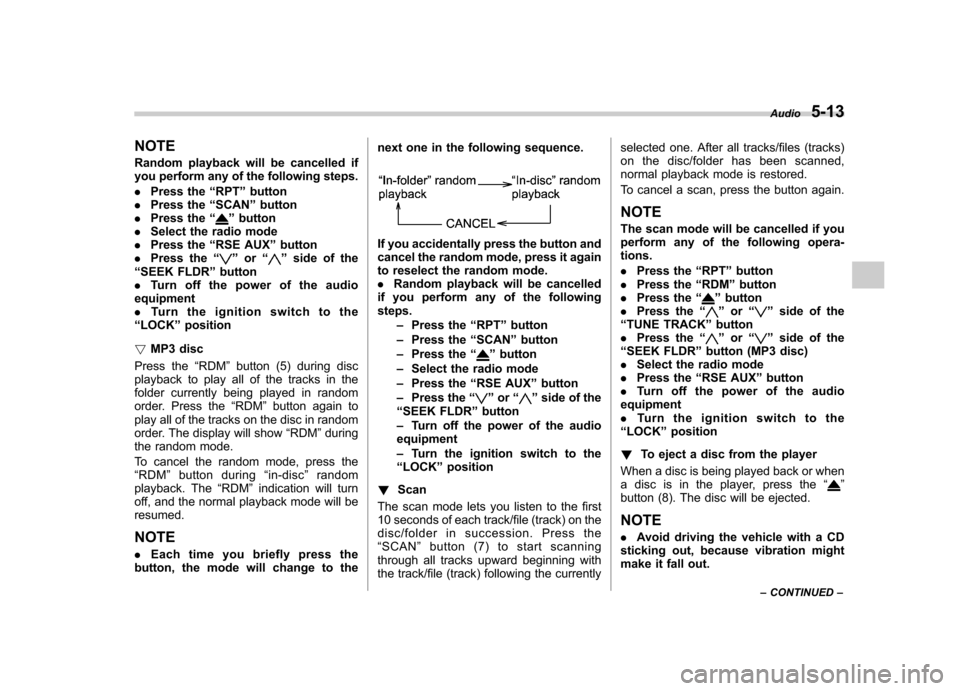
button, the mode will change to the next one in the following sequence.
If you accidentally press the button and
cancel the random mode, press it again
to reselect the random mode..
Random playback will be cancelled
if you perform any of the followingsteps.
–Press the “RPT ”button
– Press the “SCAN ”button
– Press the “
”button
– Select the radio mode
– Press the “RSE AUX ”button
– Press the “
”or “”side of the
“ SEEK FLDR ”button
– Turn off the power of the audio
equipment – Turn the ignition switch to the
“ LOCK ”position
! Scan
The scan mode lets you listen to the first
10 seconds of each track/file (track) on the
disc/folder in succession. Press the“ SCAN ”button (7) to start scanning
through all tracks upward beginning with
the track/file (track) following the currently selected one. After all tracks/files (tracks)
on the disc/folder has been scanned,
normal playback mode is restored.
To cancel a scan, press the button again.
NOTE
The scan mode will be cancelled if you
perform any of the following opera-tions. . Press the “RPT ”button
. Press the “RDM ”button
. Press the “
”button
. Press the “”or “”side of the
“ TUNE TRACK ”button
. Press the “
”or “”side of the
“ SEEK FLDR ”button (MP3 disc)
. Select the radio mode
. Press the “RSE AUX ”button
. Turn off the power of the audio
equipment . Turntheignitionswitchtothe
“ LOCK ”position
! To eject a disc from the player
When a disc is being played back or when
a disc is in the player, press the “
”
button (8). The disc will be ejected.
NOTE . Avoid driving the vehicle with a CD
sticking out, because vibration might
make it fall out. Audio
5-13
– CONTINUED –
Page 202 of 422
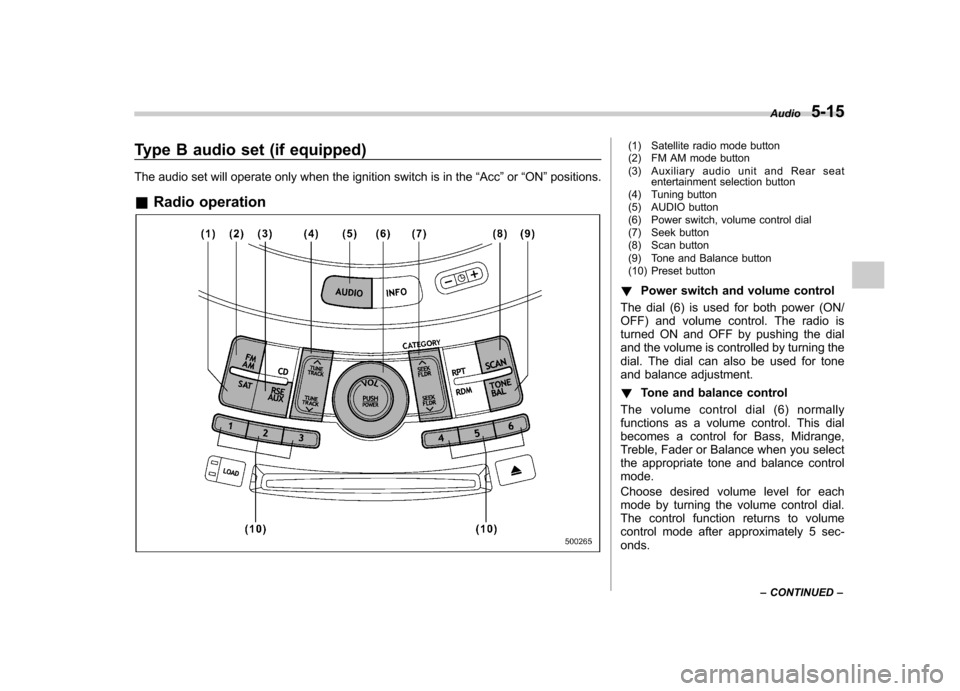
Type B audio set (if equipped)
The audio set will operate only when the ignition switch is in the“Acc ”or “ON ”positions.
& Radio operation(1) Satellite radio mode button
(2) FM AM mode button
(3) Auxiliary audio unit and Rear seat
entertainment selection button
(4) Tuning button
(5) AUDIO button
(6) Power switch, volume control dial
(7) Seek button
(8) Scan button
(9) Tone and Balance button
(10) Preset button
! Power switch and volume control
The dial (6) is used for both power (ON/
OFF) and volume control. The radio is
turned ON and OFF by pushing the dial
and the volume is controlled by turning the
dial. The dial can also be used for tone
and balance adjustment. ! Tone and balance control
The volume control dial (6) normally
functions as a volume control. This dial
becomes a control for Bass, Midrange,
Treble, Fader or Balance when you select
the appropriate tone and balance controlmode.
Choose desired volume level for each
mode by turning the volume control dial.
The control function returns to volume
control mode after approximately 5 sec-onds. Audio
5-15
– CONTINUED –
Page 205 of 422
5-18Audio
NOTE
While you are holding down either side
of the TUNE/TRACK button, the tuning
frequency will not stop changing even
if the frequency of a receivable station
is reached. ! Seek tuning (SEEK)
If you press the “
”or “”side of the
“ SEEK FLDR ”button (7), the radio will
automatically search for a receivable
station and stop at the first one it finds.
This function may not be available, how-
ever, when radio signals are weak. In such
a situation, perform manual tuning to
select the desired station. ! Scan tuning (SCAN)
Press the “SCAN ”button (8) to change the
radio to the SCAN mode. In this mode, the
radio scans through the radio band until a
station is found. The radio will stop at the
station for 5 seconds while displaying the
frequency, after which scanning will con-
tinue until the entire band has been
scanned from the low end to the high
end. Press the “SCAN ”button again to
cancel the SCAN mode and to stop on any
displayed frequency.
Press the “
”or “”side of the “SEEK
FLDR ”button (7) again to cancel the scan
mode and to stop on any displayed frequency.
When the
“SCAN ”button is pressed for
automatic tuning, stations are scanned in
the direction of low frequencies to high
frequencies only.
Automatic tuning may not function prop-
erly if the station reception is weakened by
distance from the station or proximity to
tall buildings and hills. ! Selecting preset stations
Presetting a station with a preset button
allows you to select that station in a single
operation. Up to six AM, FM1 and FM2
stations each may be preset. ! How to preset stations
1. Press the “FM AM ”button (2) to select
FM1, FM2 or AM reception.
2. Press the “SCAN ”button (8) or tune
the radio manually until the desired station
frequency is displayed.
3. Press one of the preset buttons for
more than 1.5 seconds to store the
frequency. If the button is pressed for less
than 1.5 seconds, the preceding selection
will remain in memory. NOTE . If the connection between the radio
and battery is broken for any reason
such as vehicle maintenance or radio removal, all stations stored in the
preset buttons are cleared. If this
occurs, it is necessary to reset the
preset buttons..
If a cell phone is placed near the
radio, it may cause the radio to emit
noise when it receives calls. This noise
does not indicate a radio malfunction. ! Satellite radio mode (if equipped)
To receive satellite radio, it is necessary to
install the SUBARU genuine satellite
receiver (optional part) and to enter into
a contract with a satellite radio network
service such as “XM
TMsatellite radio ”(for
U.S.A. only) or “Sirius satellite radio ”. For
details, please contact your SUBARU
dealer. ! Sirius satellite radio
Sirius satellite radio is a recent innovation
that allows the listener to experience
digital sound quality and to have a greater
variety of channels.
Use of satellite radio (Sirius) requires a
tuner, antenna and a service contract. For
details, please contact your SUBARU
dealer or visit Sirius Satellite Radio at
www.sirius.com or call 1-888-539-SIRIUS
(7474) for more information. Sirius, the
Sirius dog logo, channel names and logos
are trademarks of SIRIUS Satellite RadioInc.
Page 206 of 422
!XMTMsatellite radio (for U.S.A. only)
XMTMis a continental U.S. based satellite
radio service, including music, news,
sports, talk and children ’s programming.
XM
TMprovides digital quality audio and
text information, including song title and
artist name. A service fee is required to
receive the XM
TMservice. For more
information, contact XMTMatwww.xmradio.com or call 1-800-
XMRADIO (1-800-967-2346). ! Satellite radio reception
Satellite radio signals are best received in
areas with a clear view of the open sky. In
areas where there are tall buildings, trees,
tunnels or other structures that may
obstruct the signal of the satellites, there
may be signal interruptions. Other circum-
stances that may result in signal loss
include driving near a wall, steep cliff or
hill, or driving on the lower level of a multi-
tiered road or inside a parking garage.
To help reduce this condition, satellite
radio providers have installed ground-
based repeaters in heavily populated
areas. However, you may still experience
reception problems in some areas. ! Displaying satellite radio ID of tuner
When you activate satellite radio, you
should have your satellite radio tuner ID ready because each tuner is identified by
its unique satellite radio tuner ID.
The satellite radio ID will be needed when
you activate satellite radio and receive
satellite radio customer support.
The satellite radio ID can be found on the
audio display by tuning the channel to
“0 ”.
Turn the “TUNE/TRACK ”button (4) to
select the satellite radio channel. ! Band selection button
Push the “SAT ”button (1) when the radio
is off to turn on the radio.
Push the “SAT ”button when the radio is
on to select SAT1, SAT2 or SAT3 recep- tion. ! Channel selection
Press “
”of the “TUNE TRACK ”button
(4) to select the next channel and press “
” of the button to select the previous
channel.
Keep pressing “
”of the button to
change to the next channel continuously
and keep pressing “
”of the button to
change to the previous channel continu-
ously. ! Category selection
Press “
”or “”of the “SEEK FLDR ”
button (7) to display the current category. Press “
”again to select the next category, and press
“
”again to select
the previous category. ! Channel scan
Press the “SCAN ”button (8) to change the
radio to the SCAN mode. In this mode, the
radio scans through the channels until a
station is found. The radio will stop at the
station for 5 seconds while displaying the
channel number, after which scanning will
continue until the entire channel has been
scanned from the low end to the high end.
Also during the category selection, chan-
nel scan can be performed in that cate-
gory.
Press the “SCAN ”button again to cancel
the SCAN mode and to stop on any
displayed channel. ! Selecting preset channels
Presetting a channel with a preset button
(10) allows you to select that channel in a
single operation. Up to six, SAT1, SAT2
and SAT3 channels each may be preset. ! How to preset channels
1. Press the “SAT ”button (1) to select
SAT1, SAT2 and SAT3 reception.
2. Press the “SCAN ”button (8) or the
“ TUNE TRACK ”button (4) to select the
channel.
3. Press one of the preset buttons (10) Audio
5-19
– CONTINUED –
Page 209 of 422
5-22Audio
! How to insert a CD(s)
! Inserting a CD
1. Briefly press the “LOAD ”button (10). If
the magazine in the player has an idle
position where you can insert a disc, the
disc number indicator associated with the
idle position will blink.
If no indicator blinks, it means that there is
no idle position in the magazine.
2. After the disc number indicator has
started to flash, insert the disc when“ LOAD ”flashes on the display. The disc
will then be automatically drawn in, and
the player will begin to play back the first
track of the disc. . To insert more discs in succession,
repeat Steps 1 and 2. The magazine will
be loaded with discs in the ascending
order of position number.
If you do not insert any disc in 15 seconds
after you have pressed the “LOAD ”button,
the player will begin to play back the first
track of the last disc you have inserted. . The disc indicator steadily lights up if a
disc is already inserted in the correspond-
ing position of the magazine. . While the player is in the loading mode,
if you press “FM AM ”button, the player will
enter the standby mode. Press the “CD ”
button (1) to start playback. !
Inserting a disc in a desired position
1. Briefly press the “LOAD ”button (10). If
the magazine in the player has an idle
position where you can insert a disc, the
disc number indicator associated with the
idle position will blink.
The positions in the magazine the indica-
tor of which steadily lights up are already
loaded with discs.
2. Press the disc select button (9) at the
position where you want to insert a disc.
3. Insert the disc when “LOAD ”flashes
on the display. The disc will then be
automatically drawn in, and the player will
begin to play the first track on the disc. . If you wish to insert another disc,
repeat the procedure beginning with step 1.
If you do not insert any disc in 15 seconds
after you have pressed the “LOAD ”button,
the player will begin to play back the first
track of the last disc you have inserted. . While the player is in the loading mode,
if you press “FM AM ”button, the player will
enter standby mode. Press the “CD ”
button (1) to start playback. ! Loading all the magazine (full disc
loading mode)
1. If you continue to press the “LOAD ”button (10) for more than 1.5 seconds, the
player will produce beep sound and will
enter the full disc loading mode.
2. A
“disc number ”indicator will blink,
and “ALL LOAD ”will be on display for a
period of 15 seconds. If a disc is success-
fully loaded during this period, the disc
number indicator will stop blinking and will
steadily light.
3. When the loading of a disc is com-
plete, the next disc number indicator will
blink. Then repeat Step 2.
4. When the magazine is filled with discs
by repeating Steps 2 and 3, the player will
start playback of the discs, beginning with
the one inserted first.
If you fail to insert any disc during each 15
seconds interval, the full disc loading
mode will be canceled, and the player will
start playback of the disc inserted first. ! How to play back a CD or make a pause
! When there is no CD inserted:
Properly insert a CD. Refer to “How to
insert a CD(s) ”F 5-22.
When a CD is loaded, the player will start
playback of the CD, beginning with the
first track.
Page 212 of 422
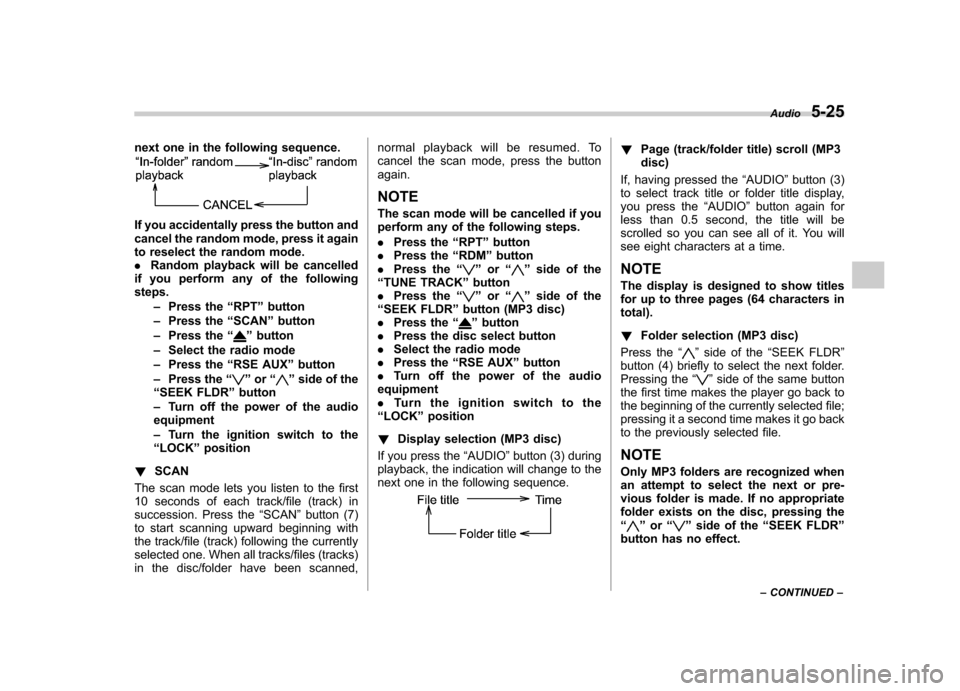
next one in the following sequence.
If you accidentally press the button and
cancel the random mode, press it again
to reselect the random mode..Random playback will be cancelled
if you perform any of the followingsteps.
–Press the “RPT ”button
– Press the “SCAN ”button
– Press the “
”button
– Select the radio mode
– Press the “RSE AUX ”button
– Press the “
”or “”side of the
“ SEEK FLDR ”button
– Turn off the power of the audio
equipment – Turn the ignition switch to the
“ LOCK ”position
! SCAN
The scan mode lets you listen to the first
10 seconds of each track/file (track) in
succession. Press the “SCAN ”button (7)
to start scanning upward beginning with
the track/file (track) following the currently
selected one. When all tracks/files (tracks)
in the disc/folder have been scanned, normal playback will be resumed. To
cancel the scan mode, press the buttonagain.
NOTE
The scan mode will be cancelled if you
perform any of the following steps. . Press the “RPT ”button
. Press the “RDM ”button
. Press the “
”or “”side of the
“ TUNE TRACK ”button
. Press the “
”or “”side of the
“ SEEK FLDR ”button (MP3 disc)
. Press the “
”button
. Press the disc select button
. Select the radio mode
. Press the “RSE AUX ”button
. Turn off the power of the audio
equipment . Turn the ignition switch to the
“ LOCK ”position
! Display selection (MP3 disc)
If you press the “AUDIO ”button (3) during
playback, the indication will change to the
next one in the following sequence.
! Page (track/folder title) scroll (MP3 disc)
If, having pressed the “AUDIO ”button (3)
to select track title or folder title display,
you press the “AUDIO ”button again for
less than 0.5 second, the title will be
scrolled so you can see all of it. You will
see eight characters at a time. NOTE
The display is designed to show titles
for up to three pages (64 characters intotal). ! Folder selection (MP3 disc)
Press the “
”side of the “SEEK FLDR ”
button (4) briefly to select the next folder.
Pressing the “
”side of the same button
the first time makes the player go back to
the beginning of the currently selected file;
pressing it a second time makes it go back
to the previously selected file. NOTE
Only MP3 folders are recognized when
an attempt to select the next or pre-
vious folder is made. If no appropriate
folder exists on the disc, pressing the“
” or “”side of the “SEEK FLDR ”
button has no effect. Audio
5-25
– CONTINUED –
Page 214 of 422
waveband will be displayed.
*2: Only when a CD is in the player.
*3: Only vehicle equipped with RSE (Rear Seat Entertainment)
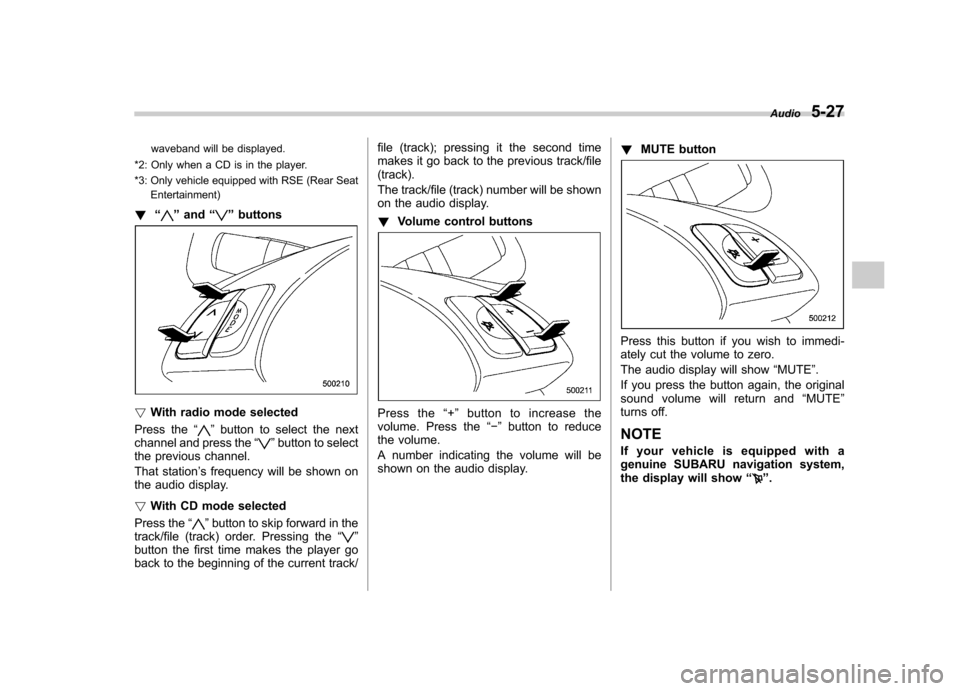
! “
”and “”buttons
! With radio mode selected
Press the “
”button to select the next
channel and press the “”button to select
the previous channel.
That station ’s frequency will be shown on
the audio display. ! With CD mode selected
Press the “
”button to skip forward in the
track/file (track) order. Pressing the “”
button the first time makes the player go
back to the beginning of the current track/ file (track); pressing it the second time
makes it go back to the previous track/file(track).
The track/file (track) number will be shown
on the audio display. !
Volume control buttons
Press the “+ ” button to increase the
volume. Press the “ ” button to reduce
the volume.
A number indicating the volume will be
shown on the audio display. !
MUTE button
Press this button if you wish to immedi-
ately cut the volume to zero.
The audio display will show “MUTE ”.
If you press the button again, the original
sound volume will return and “MUTE ”
turns off.
NOTE
If your vehicle is equipped with a
genuine SUBARU navigation system,
the display will show “
”.Audio
5-27