display SUBARU TRIBECA 2013 1.G Owner's Guide
[x] Cancel search | Manufacturer: SUBARU, Model Year: 2013, Model line: TRIBECA, Model: SUBARU TRIBECA 2013 1.GPages: 420, PDF Size: 12.74 MB
Page 212 of 420
first track.!When there are CDs loaded:
Press the preferred disc select button (9),
the disc number indicator of which is
constantly illuminated. The player will then
start playback of the selected CD, begin-
ning with the first track.
If a disc that the player cannot read has
been loaded, “CHECK DISC ”will appear
on the display and the player will not playanything. ! To select a song from its beginning
! Forward direction
Briefly press the “
”side of the “TUNE
TRACK ”button (2) to skip to the beginning
of the next track. Each time the button is
pressed, the indicated track number willincrease.
NOTE
In an MP3 folder, skipping past the last
track will take you back to the first track
in the folder.
!Backward direction
Briefly press the “
”side of the “TUNE
TRACK ”button (2) to skip to the beginning
of the current track. Each time the button
is pressed, the indicated track number willdecrease. NOTE
In an MP3 folder, skipping past the first
track will take you to the last track in
the folder. !
Fast-forwarding and rewinding
! Fast-forwarding
Press and hold the “
”side of the “TUNE
TRACK ”button (2) to fast-forward the
track.
Release the button to stop fast-forwarding. NOTE
If you fast-forward to the end of the last
track, fast-forwarding will stop and the
player will start playback beginning
with the first track.
!Rewinding
Press and hold the “
”side of the “TUNE
TRACK ”button (2) to rewind the track.
Release the button to stop rewinding. NOTE
If you rewind to the beginning of the
first track, the rewinding will stop and
the player will start playback. !
Repeating
! To repeat the currently playingtrack
To repeat a track, briefly press the “RPT ”
button (6) while the track is playing. The
display will show “RPT ”, and the track will
be repeated.
To cancel the track repeat-play mode,
briefly press the “RPT ”button twice. The
“ RPT ”indication will turn off, and the
normal playback mode will be resumed.
NOTE . Each time you briefly press the
button, the mode will change to the
next one in the following sequence.If you accidentally press the button and
cancel the track repeat-play mode,
press it again to reselect the repeat-
play mode.. The repeat-play mode will be can-
celled if you perform any of the follow-
ing steps.
–Press the “RDM ”button.
– Press the “SCAN ”button.
– Press the “
”button.
– Press the disc select button.
– Select the radio mode.
Audio/Type B audio set5-23
– CONTINUED –
Page 213 of 420
5-24Audio/Type B audio set
–Press the “RSE AUX ”button.
– Press the “
”or “”side of the
“ SEEK FLDR ”button (MP3 disc).
– Turn off the power of the audio
equipment. – Turn the ignition switch to the
“ LOCK ”position.
! To repeat the currently playing disc/folder
To repeat the currently playing disc/folder,
press the “RPT ”button (6) twice while a
track is playing. The display will show “D-
RPT ”, and the disc/folder will be played
repeatedly.
To cancel the disc/folder repeat-play
mode, press the “RPT ”button once more.
The “D-RPT ”indication will turn off, and
the normal playback mode will be re-sumed. NOTE . Each time you briefly press the
button, the mode will change to the
next one in the following sequence.
If you accidentally press the button and
cancel the disc/folder repeat-play
mode, press it again to reselect the
disc/folder repeat-play mode. .
The disc/folder repeat-play mode
will be cancelled if you perform any of
the following steps.
–Press the “RDM ”button.
– Press the “SCAN ”button.
– Press the “
”button.
– Press the disc select button.
– Select the radio mode.
– Press the “RSE AUX ”button.
– Press the “
”or “”side of the
“ SEEK FLDR ”button (MP3 disc).
– Turn off the power of the audio
equipment. – Turn the ignition switch to the
“ LOCK ”position.
! Random playback
! Non-MP3 disc
Press the “RDM ”button (5) briefly during
disc playback to play all of the tracks on
the disc in a random order. The display willshow “RDM ”, and all of the tracks on the
disc will be played in a random order.
To cancel random mode, press the button
again. The “RDM ”indication will turn off,
and the normal playback mode will beresumed. NOTE
Random playback will be cancelled if
you perform any of the following steps. .
Press the “RPT ”button.
. Press the “SCAN ”button.
. Press the “
”button.
. Select the radio mode.
. Press the “RSE AUX ”button.
. Press the “
”or “”side of the
“ SEEK FLDR ”button.
. Turn off the power of the audio
equipment. . Turntheignitionswitchtothe
“ LOCK ”position.
! MP3 disc
Press the “RDM ”button (5) during disc
playback to play all of the tracks in the
folder currently being played in random
order. Press the “RDM ”button again to
play all of the tracks on the disc in random
order. The display will show “RDM ”during
the random mode.
To cancel the random mode, press the “ RDM ”button during “in-disc ”random
playback. The “RDM ”indication will turn
off, and the normal playback mode will beresumed.
NOTE . Each time you briefly press the
button, the mode will change to the
next one in the following sequence.
Page 214 of 420
If you accidentally press the button and
cancel the random mode, press it again
to reselect the random mode..Random playback will be cancelled
if you perform any of the followingsteps.
–Press the “RPT ”button.
– Press the “SCAN ”button.
– Press the “
”button.
– Select the radio mode.
– Press the “RSE AUX ”button.
– Press the “
”or “”side of the
“ SEEK FLDR ”button.
– Turn off the power of the audio
equipment. – Turn the ignition switch to the
“ LOCK ”position.
! SCAN
The scan mode lets you listen to the first
10 seconds of each track in succession.
Press the “SCAN ”button (7) to start
scanning upward beginning with the track
following the currently selected one. When
all tracks in the disc/folder have been
scanned, normal playback will be re-
sumed. To cancel the scan mode, press the button again.
NOTE
The scan mode will be cancelled if you
perform any of the following steps. . Press the “RPT ”button.
. Press the “RDM ”button.
. Press the “
”or “”side of the
“ TUNE TRACK ”button.
. Press the “
”or “”side of the
“ SEEK FLDR ”button (MP3 disc).
. Press the “
”button.
. Press the disc select button.
. Select the radio mode.
. Press the “RSE AUX ”button.
. Turn off the power of the audio
equipment. . Turn the ignition switch to the
“ LOCK ”position.
! Display selection (MP3 disc)
If you press the “AUDIO ”button (3) during
playback, the indication will change to the
next one in the following sequence.
! Page (track/folder title) scroll (MP3 disc)
If, having pressed the “AUDIO ”button (3)
to select track title or folder title display,
you press the “AUDIO ”button again for
less than 0.5 second, the title will be
scrolled so you can see all of it. You will
see eight characters at a time. NOTE
The display is designed to show titles
for up to three pages (64 characters intotal). ! Folder selection (MP3 disc)
Press the “
”side of the “SEEK FLDR ”
button (4) briefly to select the next folder.
Pressing the “
”side of the same button
the first time makes the player go back to
the beginning of the currently selected
track; pressing it a second time makes it
go back to the previously selected track. NOTE
Only MP3 folders are recognized when
an attempt to select the next or pre-
vious folder is made. If no appropriate
folder exists on the disc, pressing the“
” or “”side of the “SEEK FLDR ”
button has no effect.
Audio/Type B audio set5-25
– CONTINUED –
Page 216 of 420
*1: The frequency last received in the selectedwaveband will be displayed.
*2: Only when a CD is in the player.
*3: Only vehicle equipped with RSE (Rear Seat Entertainment)
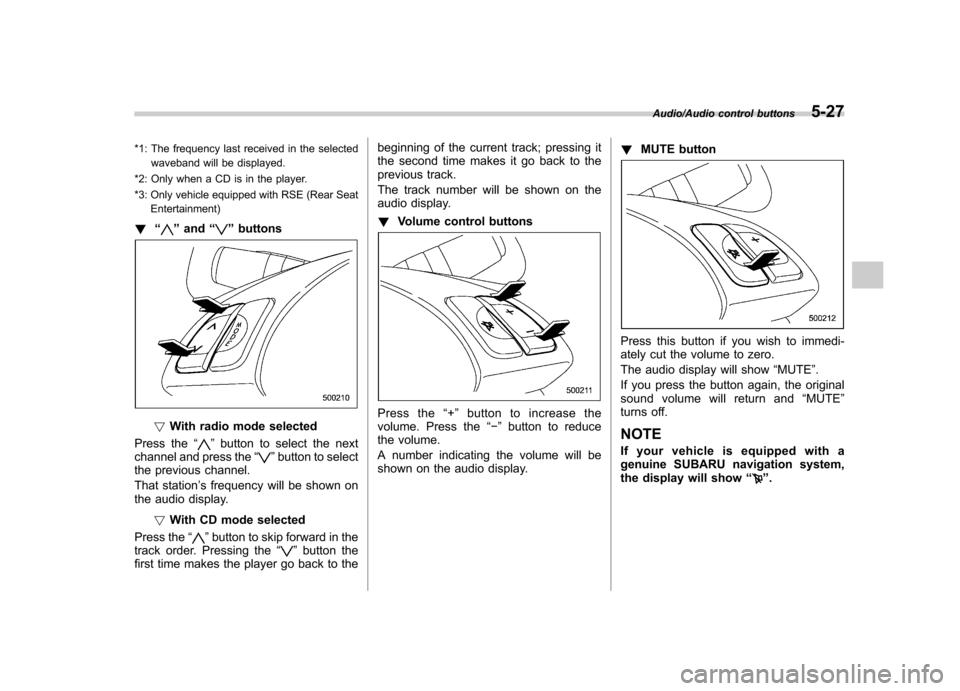
! “
”and “”buttons
! With radio mode selected
Press the “
”button to select the next
channel and press the “”button to select
the previous channel.
That station ’s frequency will be shown on
the audio display.
!With CD mode selected
Press the “
”button to skip forward in the
track order. Pressing the “”button the
first time makes the player go back to the beginning of the current track; pressing it
the second time makes it go back to the
previous track.
The track number will be shown on the
audio display. !
Volume control buttons
Press the “+ ” button to increase the
volume. Press the “ ” button to reduce
the volume.
A number indicating the volume will be
shown on the audio display. !
MUTE button
Press this button if you wish to immedi-
ately cut the volume to zero.
The audio display will show “MUTE ”.
If you press the button again, the original
sound volume will return and “MUTE ”
turns off.
NOTE
If your vehicle is equipped with a
genuine SUBARU navigation system,
the display will show “
”.
Audio/Audio control buttons5-27
Page 218 of 420
Rear Seat Entertainment
(RSE) system operation (ifequipped)
If your vehicle is equipped with the Rear
Seat Entertainment (RSE) system, you
can listen to the audio via the vehicle
speakers. Push the“RSE AUX ”button to
play a DVD using the Rear Seat Entertain-
ment system.
For detailed operating procedures, refer to
the Owner ’s Manual supplement for the
Rear Seat Entertainment (RSE) system.
NOTE . To watch a DVD in the front seats
using the monitor of the navigation
system, park the vehicle in a safe
location and apply the parking brake.
Images of the DVD will not be displayed
on the front monitor unless the parking
brake is applied.. The harman/kardon
®audio system
is a stereo system with 2 channels. If a
harman/kardon
®audio system is
equipped, the Rear Seat Entertainment
(RSE) system may not generate a
satisfying realistic sound when playing
5.1 channel audio sources. Precautions to observe when
handling a compact disc
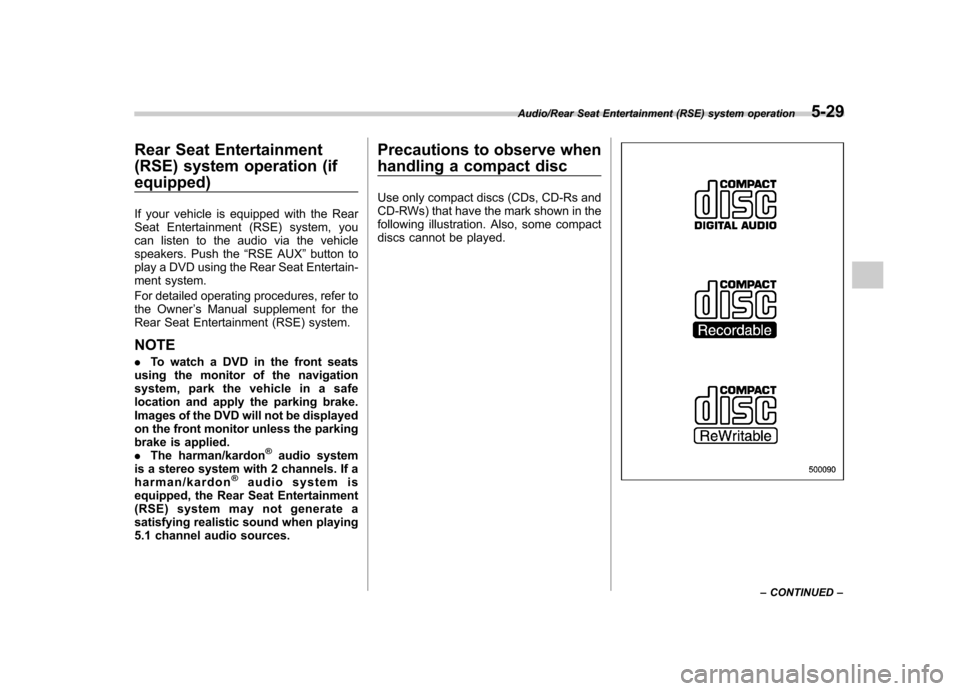
Use only compact discs (CDs, CD-Rs and
CD-RWs) that have the mark shown in the
following illustration. Also, some compact
discs cannot be played.
Audio/Rear Seat Entertainment (RSE) system operation5-29
– CONTINUED –
Page 240 of 420
opener by pressing the programmed HomeLink®button.
& Programming other devices
To program other devices such as door
locks, home lighting and security systems,
contact HomeLink at www.homelink.com
or call 1-800-355-3515. & Operating the HomeLink
®
Wireless Control System
Once programmed, the HomeLink
®Wire-
less Control System can be used to
remote-control the devices to which its
buttons are programmed. To activate a
device, simply press the appropriate but-
ton. The indicator light illuminates, indicat-
ing that the signal is being transmitted.
& Erasing HomeLink
®button
memory
NOTE . Performing this procedure erases
the memory of all the preprogrammed
buttons simultaneously. The memory
of individual buttons cannot be erased. . It is recommended that upon the
sale of the vehicle, the memory of all
programmed HomeLink
®buttons be
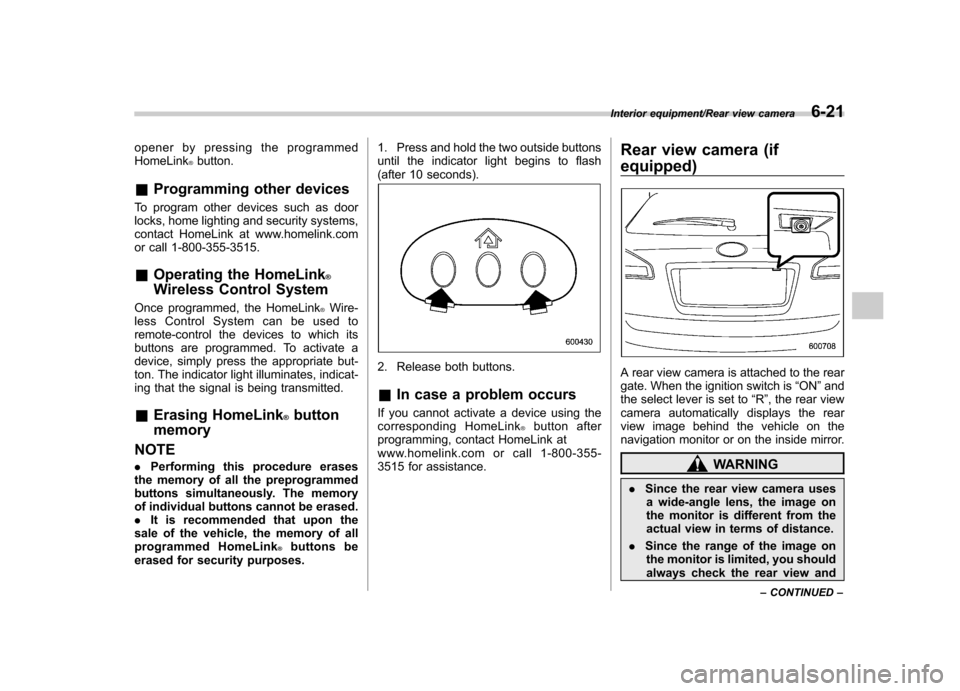
erased for security purposes. 1. Press and hold the two outside buttons
until the indicator light begins to flash
(after 10 seconds).
2. Release both buttons. &
In case a problem occurs
If you cannot activate a device using the
corresponding HomeLink
®button after
programming, contact HomeLink at
www.homelink.com or call 1-800-355-
3515 for assistance. Rear view camera (if
equipped)
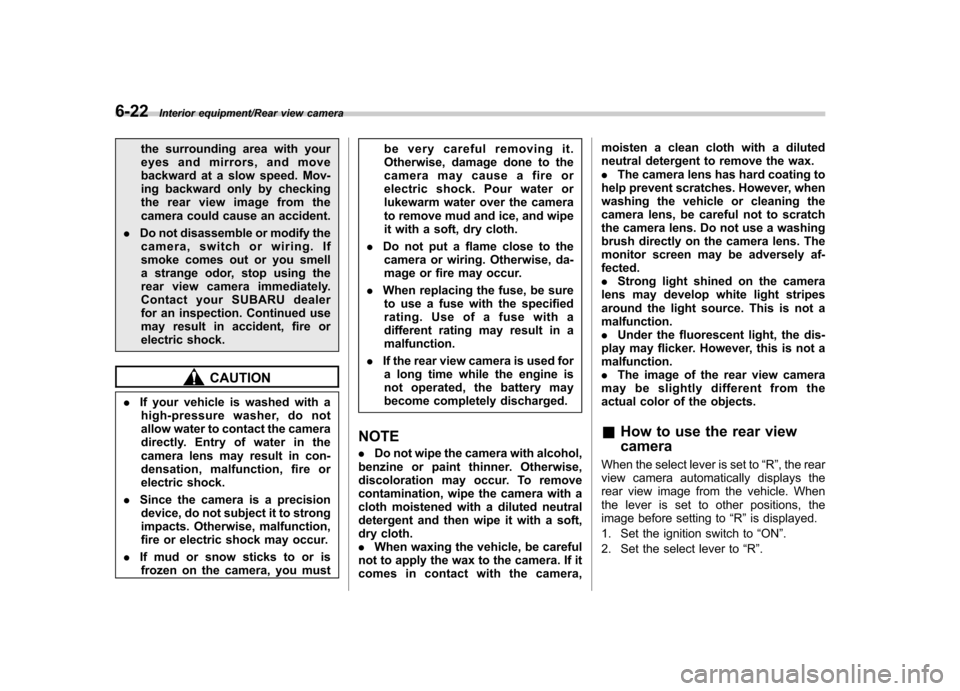
A rear view camera is attached to the rear
gate. When the ignition switch is
“ON ”and
the select lever is set to “R ”, the rear view
camera automatically displays the rear
view image behind the vehicle on the
navigation monitor or on the inside mirror.
WARNING
. Since the rear view camera uses
a wide-angle lens, the image on
the monitor is different from the
actual view in terms of distance.
. Since the range of the image on
the monitor is limited, you should
always check the rear view and
Interior equipment/Rear view camera6-21
– CONTINUED –
Page 241 of 420
6-22Interior equipment/Rear view camera
the surrounding area with your
eyes and mirrors, and move
backward at a slow speed. Mov-
ing backward only by checking
the rear view image from the
camera could cause an accident.
. Do not disassemble or modify the
camera, switch or wiring. If
smoke comes out or you smell
a strange odor, stop using the
rear view camera immediately.
Contact your SUBARU dealer
for an inspection. Continued use
may result in accident, fire or
electric shock.
CAUTION
. If your vehicle is washed with a
high-pressure washer, do not
allow water to contact the camera
directly. Entry of water in the
camera lens may result in con-
densation, malfunction, fire or
electric shock.
. Since the camera is a precision
device, do not subject it to strong
impacts. Otherwise, malfunction,
fire or electric shock may occur.
. If mud or snow sticks to or is
frozen on the camera, you must be very careful removing it.
Otherwise, damage done to the
camera may cause a fire or
electric shock. Pour water or
lukewarm water over the camera
to remove mud and ice, and wipe
it with a soft, dry cloth.
. Do not put a flame close to the
camera or wiring. Otherwise, da-
mage or fire may occur.
. When replacing the fuse, be sure
to use a fuse with the specified
rating. Use of a fuse with a
different rating may result in amalfunction.
. If the rear view camera is used for
a long time while the engine is
not operated, the battery may
become completely discharged.
NOTE . Do not wipe the camera with alcohol,
benzine or paint thinner. Otherwise,
discoloration may occur. To remove
contamination, wipe the camera with a
cloth moistened with a diluted neutral
detergent and then wipe it with a soft,
dry cloth.. When waxing the vehicle, be careful
not to apply the wax to the camera. If it
comes in contact with the camera, moisten a clean cloth with a diluted
neutral detergent to remove the wax..
The camera lens has hard coating to
help prevent scratches. However, when
washing the vehicle or cleaning the
camera lens, be careful not to scratch
the camera lens. Do not use a washing
brush directly on the camera lens. The
monitor screen may be adversely af-fected.. Strong light shined on the camera
lens may develop white light stripes
around the light source. This is not amalfunction.. Under the fluorescent light, the dis-
play may flicker. However, this is not a malfunction. . The image of the rear view camera
may be slightly different from the
actual color of the objects. & How to use the rear view camera
When the select lever is set to “R ”, the rear
view camera automatically displays the
rear view image from the vehicle. When
the lever is set to other positions, the
image before setting to “R ”is displayed.
1. Set the ignition switch to “ON ”.
2. Set the select lever to “R ”.
Page 242 of 420
NOTE .The image of the rear view camera
has priority over other screen displays. . The image of the rear view camera is
horizontally reversed as is the case
with the vehicle rearview mirror or the
side view mirror.. It may be difficult to see the image of
the rearview camera in the following
cases. This is not a malfunction of thecamera.
–The vehicle is in a dark place (at
night, in a tunnel, etc.). – The vehicle is in an extremely hot
or cold place.– An object (such as raindrops,
snow, dirt, etc.) that disturbs the
view of the rear view camera sticks
to the lens of the camera. – Strong light shined directly on
the camera lens (occasionally, there
are vertical lines on the screen). &
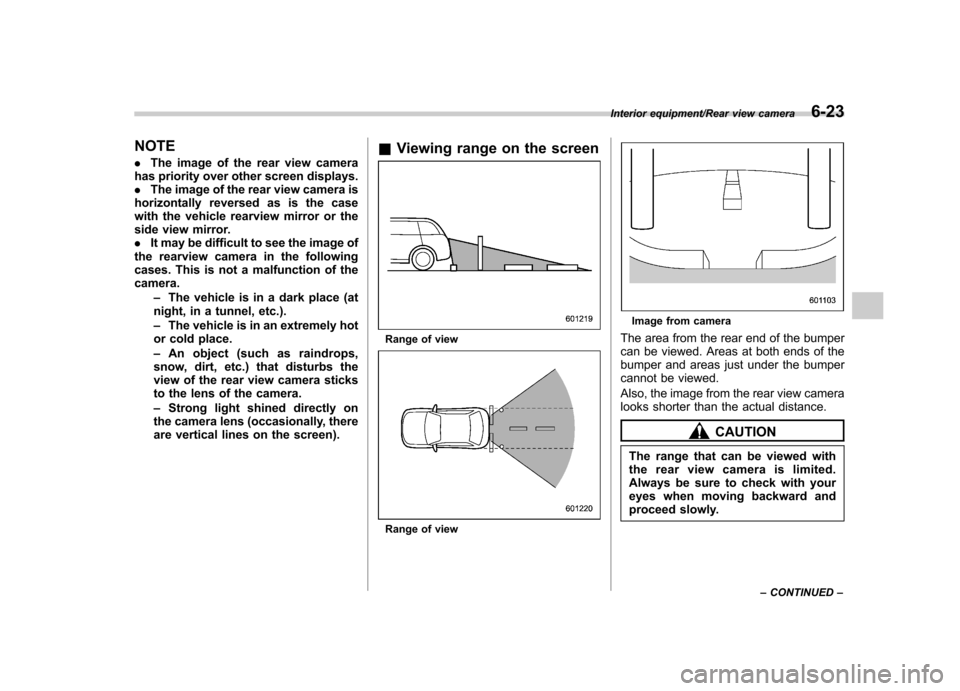
Viewing range on the screen
Range of view
Range of view
Image from camera
The area from the rear end of the bumper
can be viewed. Areas at both ends of the
bumper and areas just under the bumper
cannot be viewed.
Also, the image from the rear view camera
looks shorter than the actual distance.
CAUTION
The range that can be viewed with
the rear view camera is limited.
Always be sure to check with your
eyes when moving backward and
proceed slowly.
Interior equipment/Rear view camera6-23
– CONTINUED –
Page 243 of 420
6-24Interior equipment/Rear view camera
Range of view
Image from camera
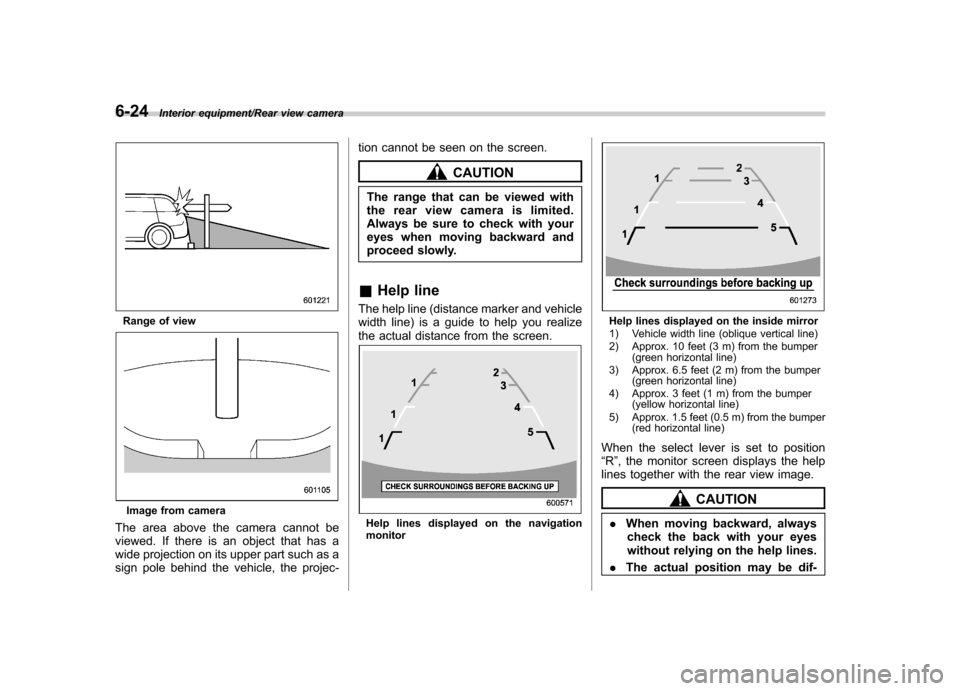
The area above the camera cannot be
viewed. If there is an object that has a
wide projection on its upper part such as a
sign pole behind the vehicle, the projec- tion cannot be seen on the screen.
CAUTION
The range that can be viewed with
the rear view camera is limited.
Always be sure to check with your
eyes when moving backward and
proceed slowly.
& Help line
The help line (distance marker and vehicle
width line) is a guide to help you realize
the actual distance from the screen.
Help lines displayed on the navigation monitor
Help lines displayed on the inside mirror
1) Vehicle width line (oblique vertical line)
2) Approx. 10 feet (3 m) from the bumper (green horizontal line)
3) Approx. 6.5 feet (2 m) from the bumper (green horizontal line)
4) Approx. 3 feet (1 m) from the bumper (yellow horizontal line)
5) Approx. 1.5 feet (0.5 m) from the bumper (red horizontal line)
When the select lever is set to position “ R ”, the monitor screen displays the help
lines together with the rear view image.
CAUTION
. When moving backward, always
check the back with your eyes
without relying on the help lines.
. The actual position may be dif-
Page 245 of 420
6-26Interior equipment/Rear view camera
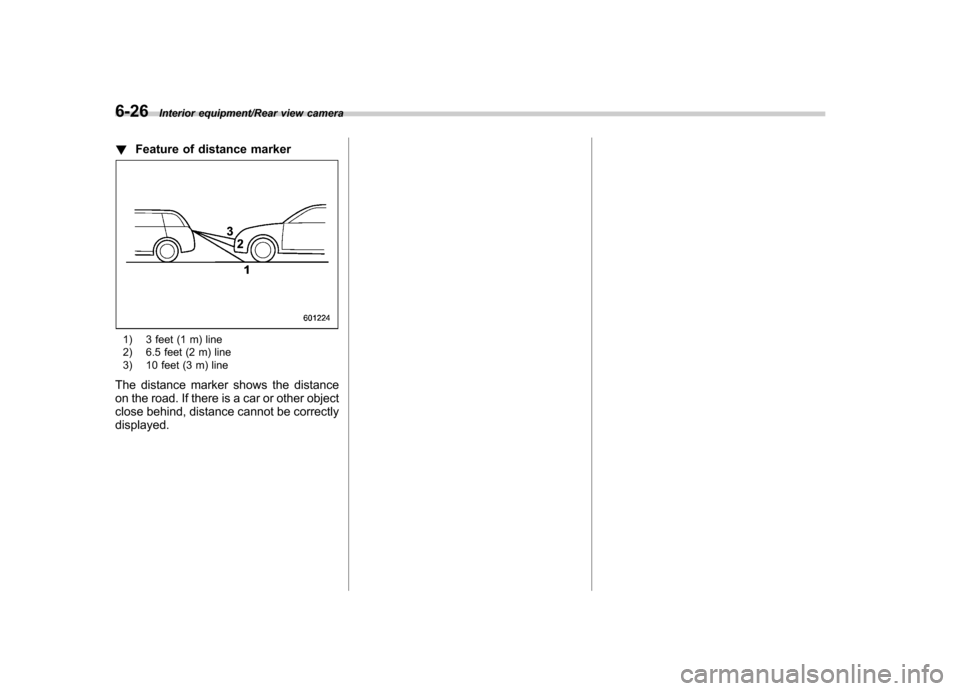
!Feature of distance marker
1) 3 feet (1 m) line
2) 6.5 feet (2 m) line
3) 10 feet (3 m) line
The distance marker shows the distance
on the road. If there is a car or other object
close behind, distance cannot be correctlydisplayed.