reset SUBARU WRX 2016 User Guide
[x] Cancel search | Manufacturer: SUBARU, Model Year: 2016, Model line: WRX, Model: SUBARU WRX 2016Pages: 594, PDF Size: 19.43 MB
Page 266 of 594
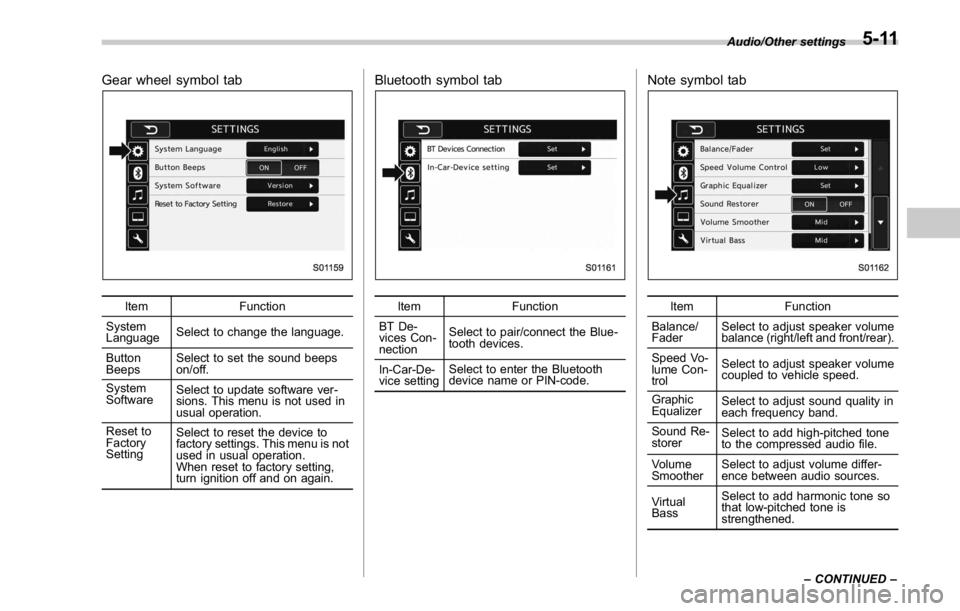
Gear wheel symbol tab
Item Function
System
Language Select to change the language.
Button
Beeps Select to set the sound beeps
on/off.
System
Software Select to update software ver-
sions. This menu is not used in
usual operation.
Reset to
Factory
Setting Select to reset the device to
factory settings. This menu is not
used in usual operation.
When reset to factory setting,
turn ignition off and on again. Bluetooth symbol tab
Item Function
BT De-
vices Con-
nection Select to pair/connect the Blue-
tooth devices.
In-Car-De-
vice setting Select to enter the Bluetooth
device name or PIN-code. Note symbol tab
Item Function
Balance/
Fader Select to adjust speaker volume
balance (right/left and front/rear).
Speed Vo-
lume Con-
trol Select to adjust speaker volume
coupled to vehicle speed.
Graphic
Equalizer Select to adjust sound quality in
each frequency band.
Sound Re-
storer Select to add high-pitched tone
to the compressed audio file.
Volume
Smoother Select to adjust volume differ-
ence between audio sources.
Virtual
Bass Select to add harmonic tone so
that low-pitched tone is
strengthened. Audio/Other settings
– CONTINUED –5-11
Page 271 of 594

Audio/Basic operation
3. Adjust the balance by pressing “ ”
or “
” button.
4. Adjust the fader by pressing “
” or
“
” button.
5. Select the “ Vocal Image Control ”
menu. 6. Adjust the balance by pressing “ ”
or “
” button.
7. Adjust the fader by pressing “
” or
“
” button.
! “ Speed Volume Control ”
The system adjusts to the optimum
volume and tone quality according to
vehicle speed to compensate for in-
creased vehicle noise.
1. Touch the right side button of the
Speed Volume Control function, and se-
lect “ OFF ” , “ Low ” ,or “ High ” menu. “ High ”
comes to have a bigger effect.
2. When select “ OFF ” , speed volume
control function is cancelled. ! “ Graphic Equalizer ”
1. Touch the “ Set ” button of the Graphic
Equalizer function.
2. In this mode, 6 preset equalizer
patterns and 3 customized patterns are
available.
6 preset patterns: “ Bass ” , “ Treble ” ,
“ Acoustic ” , “ Impact ” , “ Smooth ” , “ Flat ”
3 customized patterns: “ SET 1 ” - “ SET 3 ”
3. When customizing the equalizer pat-
tern, press one of SET button and then
press “ Adjust ” button.5-16
Page 274 of 594

“ +/- ” switch Mode Operation Function
Except list screen Press Volume up/down
Press and hold Volume up/down continuously
List screen Press Move cursor up/down
“ <> ” switch Mode Operation Function
AM/FM Radio, SiriusXM Press Preset channel up/down
Press and hold Seek up/down continuously
while the switch is being
pressed
aha Press Content up/down
Press and hold Reverse the current content
item for 15 seconds/Fast for-
ward the current content item
for 30 seconds
Audio CD, MP3/WMA/AAC
disc, USB, iPod, BT audio Press Select a track/file
Press and hold Fast forward/rewind
Pandora Press and hold Thumbs up
List screen Press Move cursor left/right Audio/Audio/visual remote controls
– CONTINUED –5-19
Page 283 of 594
Audio/Useful information
Useful information & SiriusXM Data Service*Data service information, which is com-
prised of traffic information and weather
information, can be received via the
SiriusXM Radio.
To receive the data service information in
the vehicle, a subscription to the SiriusXM
Satellite Radio service is necessary. Refer
to “ SiriusXM Satellite Radio ” F 5-45.
Content set to use the SiriusXM data
service is reset when personal information
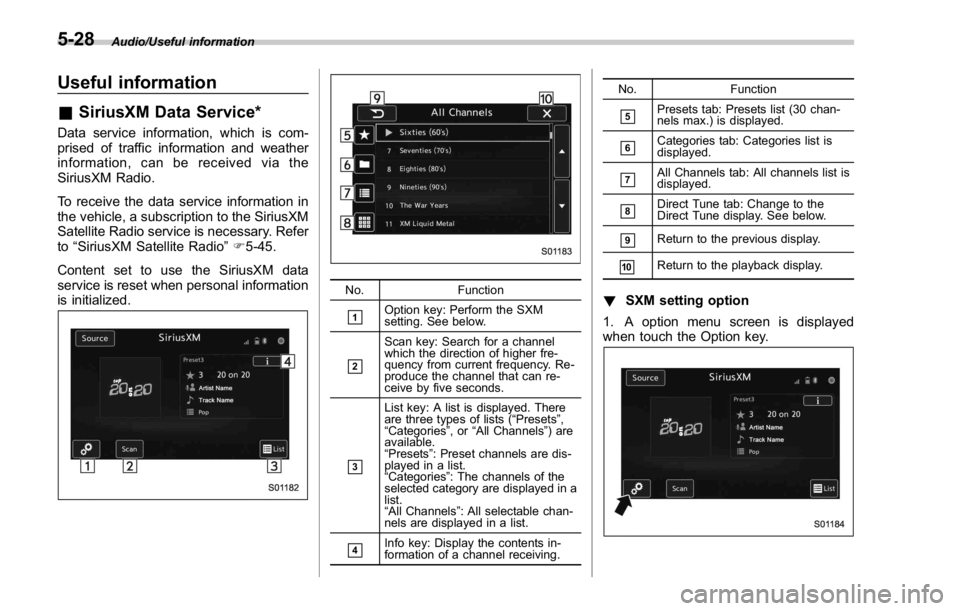
is initialized. No. Function
& 1
Option key: Perform the SXM
setting. See below.
& 2
Scan key: Search for a channel
which the direction of higher fre-
quency from current frequency. Re-
produce the channel that can re-
ceive by five seconds.
& 3List key: A list is displayed. There
are three types of lists ( “ Presets ” ,
“ Categories ” ,or “ All Channels ” ) are
available.
“ Presets ” : Preset channels are dis-
played in a list.
“ Categories ” : The channels of the
selected category are displayed in a
list.
“ All Channels ” : All selectable chan-
nels are displayed in a list.
& 4
Info key: Display the contents in-
formation of a channel receiving. No. Function
& 5
Presets tab: Presets list (30 chan-
nels max.) is displayed.
& 6
Categories tab: Categories list is
displayed.
& 7
All Channels tab: All channels list is
displayed.
& 8
Direct Tune tab: Change to the
Direct Tune display. See below.
& 9
Return to the previous display.
& 10
Return to the playback display.
! SXM setting option
1. A option menu screen is displayed
when touch the Option key.5-28
Page 289 of 594
Audio/Radio operation
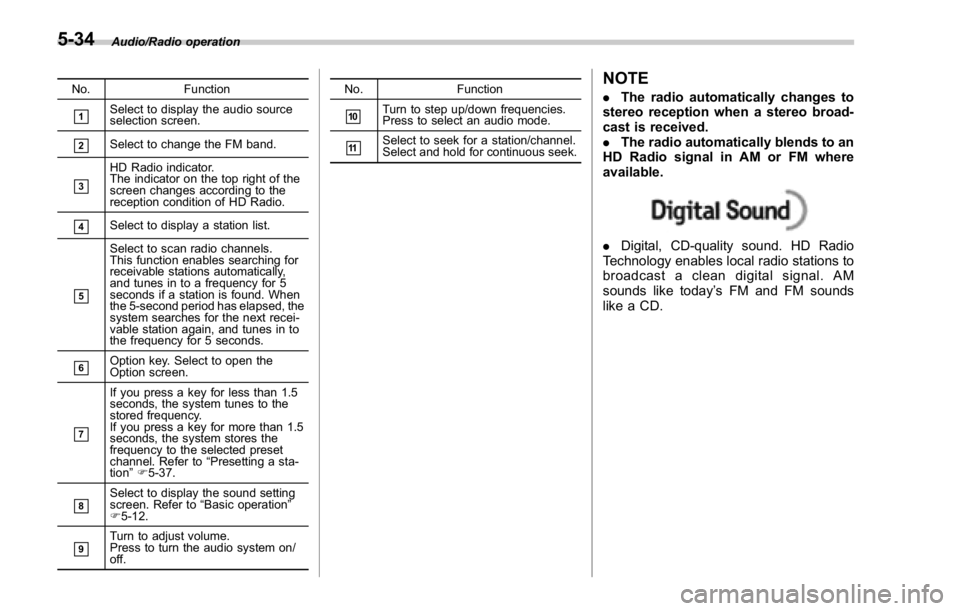
No. Function
& 1
Select to display the audio source
selection screen.
& 2
Select to change the FM band.
& 3
HD Radio indicator.
The indicator on the top right of the
screen changes according to the
reception condition of HD Radio.
& 4
Select to display a station list.
& 5
Select to scan radio channels.
This function enables searching for
receivable stations automatically,
and tunes in to a frequency for 5
seconds if a station is found. When
the 5-second period has elapsed, the
system searches for the next recei-
vable station again, and tunes in to
the frequency for 5 seconds.
& 6
Option key. Select to open the
Option screen.
& 7 If you press a key for less than 1.5
seconds, the system tunes to the
stored frequency.
If you press a key for more than 1.5
seconds, the system stores the
frequency to the selected preset
channel. Refer to “ Presetting a sta-
tion ” F 5-37.
& 8
Select to display the sound setting
screen. Refer to “ Basic operation ”
F 5-12.
& 9
Turn to adjust volume.
Press to turn the audio system on/
off. No. Function
& 10
Turn to step up/down frequencies.
Press to select an audio mode.
& 11
Select to seek for a station/channel.
Select and hold for continuous seek.
NOTE . The radio automatically changes to
stereo reception when a stereo broad-
cast is received.
. The radio automatically blends to an
HD Radio signal in AM or FM where
available.
. Digital, CD-quality sound. HD Radio
Technology enables local radio stations to
broadcast a clean digital signal. AM
sounds like today ’ s FM and FM sounds
like a CD.5-34
Page 292 of 594
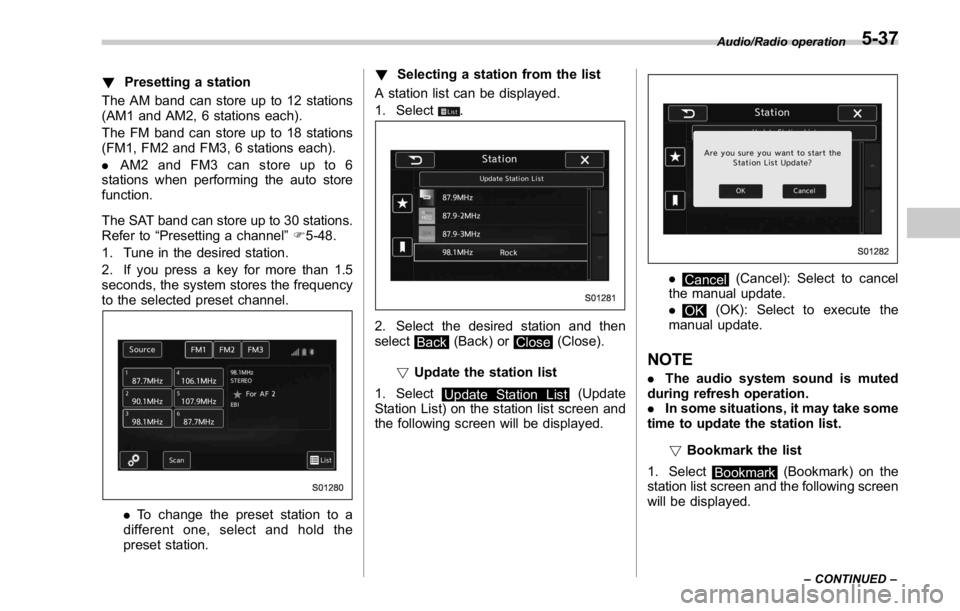
! Presetting a station
The AM band can store up to 12 stations
(AM1 and AM2, 6 stations each).
The FM band can store up to 18 stations
(FM1, FM2 and FM3, 6 stations each).
. AM2andFM3canstoreupto6
stations when performing the auto store
function.
The SAT band can store up to 30 stations.
Refer to “ Presetting a channel ” F 5-48.
1. Tune in the desired station.
2. If you press a key for more than 1.5
seconds, the system stores the frequency
to the selected preset channel.
. To change the preset station to a
different one, select and hold the
preset station. ! Selecting a station from the list
A station list can be displayed.
1. Select
.
2. Select the desired station and then
select
Back (Back) or
Close (Close).
! Update the station list
1. Select
Update Station List (Update
Station List) on the station list screen and
the following screen will be displayed. .
Cancel (Cancel): Select to cancel
the manual update.
.
OK (OK): Select to execute the
manual update.
NOTE . The audio system sound is muted
during refresh operation.
. In some situations, it may take some
time to update the station list.
! Bookmark the list
1. Select
Bookmark (Bookmark) on the
station list screen and the following screen
will be displayed. Audio/Radio operation
– CONTINUED –5-37
Page 297 of 594

Audio/Radio operation
In addition, the following caution messages appear. Caution Contents Display Message
If there is not enough memory in the digital audio “ Tag storage full ”
If the same information is stored in the digital
audio “ Already Stored ”
If the store process in the digital audio failed “ Storing Failed ”
If there is not enough memory in the iPod “ iPod full Tags cannot be stored ”
If the system starts to transmit music information
to an iPod “ Starting to transfer the Tag files. ”
If the transmitting process of music information
to an iPod failed “ Transferring Failed ”
If the transmitting process of music information
to an iPod is successful “ X Tag(s) Sent ” (X = number of transmitted
information) will be displayed. NOTE . The tag information can not be
preserved while scanning or caching
the radio station.
. If tagging the music information
fails, “ Saving the HD Radio tag was
unsuccessful. (Saving the HD Radio
tag was unsuccessful.) ” will be dis-
played on the screen. If this occurs, tag
the information again.
. HD Radio TM
stations can be preset.
. An orange
HD) (HD)) will be dis-
played on the screen when in digital.
The
HD) (HD)) will first appear in a gray
color indicating the station is indeed
(an analog and) a digital station. Once
the digital signal is acquired, the logo
will change to a bright orange color.
. The song title and artist name will
appear on the screen when available by
the radio station. The radio station can
send album pictures when available.
. As a user works through the analog
radio stations, (where applicable) the
radio receiver will automatically tune
from an analog signal to a digital signal
within 5 seconds.5-42
Page 299 of 594

Audio/Radio operation
! Troubleshooting guide Experience Cause Action
Mismatch of time alignment - a user may hear
a short period of programming replayed or an
echo, stutter or skip. The radio stations analog and digital volume is
not properly aligned or the station is in ballgame
mode. None, radio broadcast issue. A user can contact
the radio station.
Sound fades, blending in and out. Radio is shifting between analog and digital
audio. Reception issue, may clear-up as the vehicle
continues to be driven. Turning the indicator of the
“ HD Radio TM
” button off can force radio in an
analog audio.
Audio mute condition when an HD2/HD3
multicast channel had been playing. The radio does not have access to digital
signals at the moment. This is normal behavior, wait until the digital signal
returns. If out of the coverage area, seek a new
station.
Audio mute delay when selecting an HD2/
HD3 multicast channel preset. The digital multicast content is not available until
HD Radio TM
broadcast can be decoded and
make the audio available. This takes up to 7
seconds. This is normal behavior, wait for the audio to
become available.
Text information does not match the present
song audio. Data service issue by the radio broadcaster. Broadcaster should be notified. Complete the form;
www.ibiquity.com/automotive/report_radio
_station_experiences.
No text information shown for the present
selected frequency. Data service issue by the radio broadcaster. Broadcaster should be notified. Complete the form;
www.ibiquity.com/automotive/report_radio
_station_experiences.5-44
Page 301 of 594
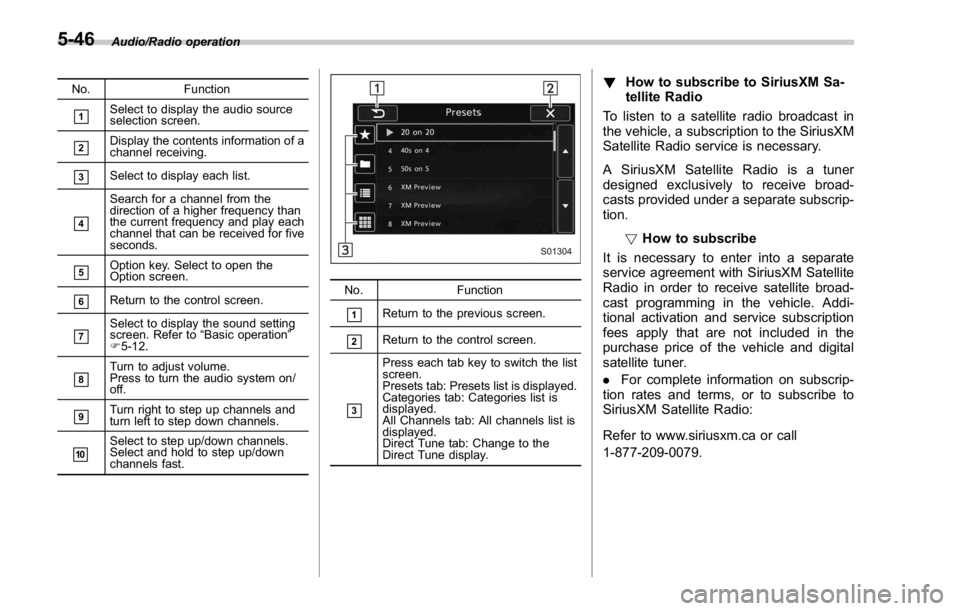
Audio/Radio operation
No. Function
& 1
Select to display the audio source
selection screen.
& 2
Display the contents information of a
channel receiving.
& 3
Select to display each list.
& 4
Search for a channel from the
direction of a higher frequency than
the current frequency and play each
channel that can be received for five
seconds.
& 5
Option key. Select to open the
Option screen.
& 6
Return to the control screen.
& 7
Select to display the sound setting
screen. Refer to “ Basic operation ”
F 5-12.
& 8
Turn to adjust volume.
Press to turn the audio system on/
off.
& 9
Turn right to step up channels and
turn left to step down channels.
& 10
Select to step up/down channels.
Select and hold to step up/down
channels fast. No. Function
& 1
Return to the previous screen.
& 2
Return to the control screen.
& 3Press each tab key to switch the list
screen.
Presets tab: Presets list is displayed.
Categories tab: Categories list is
displayed.
All Channels tab: All channels list is
displayed.
Direct Tune tab: Change to the
Direct Tune display. ! How to subscribe to SiriusXM Sa-
tellite Radio
To listen to a satellite radio broadcast in
the vehicle, a subscription to the SiriusXM
Satellite Radio service is necessary.
A SiriusXM Satellite Radio is a tuner
designed exclusively to receive broad-
casts provided under a separate subscrip-
tion.
! How to subscribe
It is necessary to enter into a separate
service agreement with SiriusXM Satellite
Radio in order to receive satellite broad-
cast programming in the vehicle. Addi-
tional activation and service subscription
fees apply that are not included in the
purchase price of the vehicle and digital
satellite tuner.
. For complete information on subscrip-
tion rates and terms, or to subscribe to
SiriusXM Satellite Radio:
Refer to www.siriusxm.ca or call
1-877-209-0079.5-46
Page 303 of 594
Audio/Radio operation
1-877-209-0079
. SiriusXM Satellite Radio is solely
responsible for the quality, availability
and content of the satellite radio ser-
vices provided, which are subject to
the terms and conditions of the
SiriusXM Satellite Radio customer ser-
vice agreement.
. Customers should have their radio
ID ready; the radio ID can be found by
tuning to “ Ch 000 ” on the radio. For
details, see “ DISPLAYING THE RADIO
ID ” below.
. All fees and programming are the
responsibility of SiriusXM Satellite
Radio and are subject to change.
! Displaying the Radio ID
Each SiriusXM tuner is identified with a
unique radio ID. The radio ID is required
when activating an SiriusXM Satellite
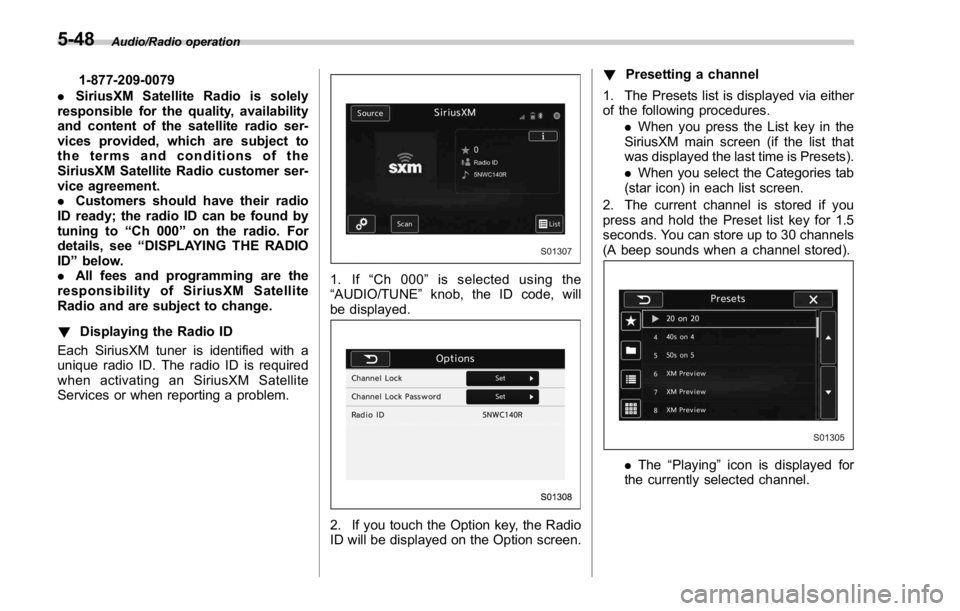
Services or when reporting a problem. 1. If “ Ch 000 ” is selected using the
“ AUDIO/TUNE ” knob, the ID code, will
be displayed.
2. If you touch the Option key, the Radio
ID will be displayed on the Option screen. ! Presetting a channel
1. The Presets list is displayed via either
of the following procedures.
. When you press the List key in the
SiriusXM main screen (if the list that
was displayed the last time is Presets).
. When you select the Categories tab
(star icon) in each list screen.
2. The current channel is stored if you
press and hold the Preset list key for 1.5
seconds. You can store up to 30 channels
(A beep sounds when a channel stored).
. The “ Playing ” icon is displayed for
the currently selected channel.5-48