ECO mode SUBARU WRX 2016 Workshop Manual
[x] Cancel search | Manufacturer: SUBARU, Model Year: 2016, Model line: WRX, Model: SUBARU WRX 2016Pages: 594, PDF Size: 19.43 MB
Page 274 of 594

“ +/- ” switch Mode Operation Function
Except list screen Press Volume up/down
Press and hold Volume up/down continuously
List screen Press Move cursor up/down
“ <> ” switch Mode Operation Function
AM/FM Radio, SiriusXM Press Preset channel up/down
Press and hold Seek up/down continuously
while the switch is being
pressed
aha Press Content up/down
Press and hold Reverse the current content
item for 15 seconds/Fast for-
ward the current content item
for 30 seconds
Audio CD, MP3/WMA/AAC
disc, USB, iPod, BT audio Press Select a track/file
Press and hold Fast forward/rewind
Pandora Press and hold Thumbs up
List screen Press Move cursor left/right Audio/Audio/visual remote controls
– CONTINUED –5-19
Page 289 of 594

Audio/Radio operation
No. Function
& 1
Select to display the audio source
selection screen.
& 2
Select to change the FM band.
& 3
HD Radio indicator.
The indicator on the top right of the
screen changes according to the
reception condition of HD Radio.
& 4
Select to display a station list.
& 5
Select to scan radio channels.
This function enables searching for
receivable stations automatically,
and tunes in to a frequency for 5
seconds if a station is found. When
the 5-second period has elapsed, the
system searches for the next recei-
vable station again, and tunes in to
the frequency for 5 seconds.
& 6
Option key. Select to open the
Option screen.
& 7 If you press a key for less than 1.5
seconds, the system tunes to the
stored frequency.
If you press a key for more than 1.5
seconds, the system stores the
frequency to the selected preset
channel. Refer to “ Presetting a sta-
tion ” F 5-37.
& 8
Select to display the sound setting
screen. Refer to “ Basic operation ”
F 5-12.
& 9
Turn to adjust volume.
Press to turn the audio system on/
off. No. Function
& 10
Turn to step up/down frequencies.
Press to select an audio mode.
& 11
Select to seek for a station/channel.
Select and hold for continuous seek.
NOTE . The radio automatically changes to
stereo reception when a stereo broad-
cast is received.
. The radio automatically blends to an
HD Radio signal in AM or FM where
available.
. Digital, CD-quality sound. HD Radio
Technology enables local radio stations to
broadcast a clean digital signal. AM
sounds like today ’ s FM and FM sounds
like a CD.5-34
Page 299 of 594

Audio/Radio operation
! Troubleshooting guide Experience Cause Action
Mismatch of time alignment - a user may hear
a short period of programming replayed or an
echo, stutter or skip. The radio stations analog and digital volume is
not properly aligned or the station is in ballgame
mode. None, radio broadcast issue. A user can contact
the radio station.
Sound fades, blending in and out. Radio is shifting between analog and digital
audio. Reception issue, may clear-up as the vehicle
continues to be driven. Turning the indicator of the
“ HD Radio TM
” button off can force radio in an
analog audio.
Audio mute condition when an HD2/HD3
multicast channel had been playing. The radio does not have access to digital
signals at the moment. This is normal behavior, wait until the digital signal
returns. If out of the coverage area, seek a new
station.
Audio mute delay when selecting an HD2/
HD3 multicast channel preset. The digital multicast content is not available until
HD Radio TM
broadcast can be decoded and
make the audio available. This takes up to 7
seconds. This is normal behavior, wait for the audio to
become available.
Text information does not match the present
song audio. Data service issue by the radio broadcaster. Broadcaster should be notified. Complete the form;
www.ibiquity.com/automotive/report_radio
_station_experiences.
No text information shown for the present
selected frequency. Data service issue by the radio broadcaster. Broadcaster should be notified. Complete the form;
www.ibiquity.com/automotive/report_radio
_station_experiences.5-44
Page 306 of 594
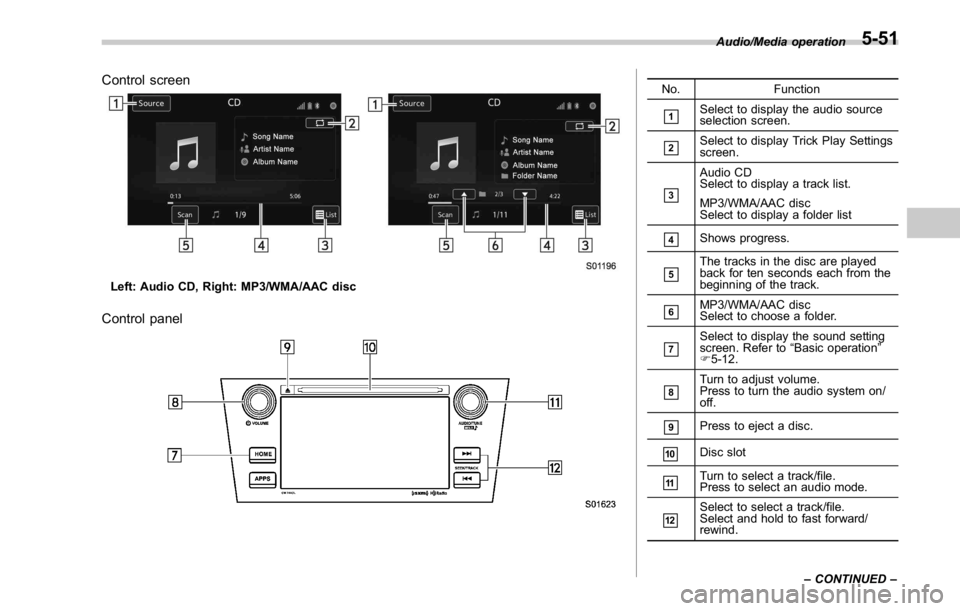
Control screen
Left: Audio CD, Right: MP3/WMA/AAC disc
Control panel No. Function
& 1
Select to display the audio source
selection screen.
& 2
Select to display Trick Play Settings
screen.
& 3
Audio CD
Select to display a track list.
MP3/WMA/AAC disc
Select to display a folder list
& 4
Shows progress.
& 5
The tracks in the disc are played
back for ten seconds each from the
beginning of the track.
& 6
MP3/WMA/AAC disc
Select to choose a folder.
& 7
Select to display the sound setting
screen. Refer to “ Basic operation ”
F 5-12.
& 8
Turn to adjust volume.
Press to turn the audio system on/
off.
& 9
Press to eject a disc.
& 10
Disc slot
& 11
Turn to select a track/file.
Press to select an audio mode.
& 12
Select to select a track/file.
Select and hold to fast forward/
rewind. Audio/Media operation
– CONTINUED –5-51
Page 309 of 594
Audio/Media operation
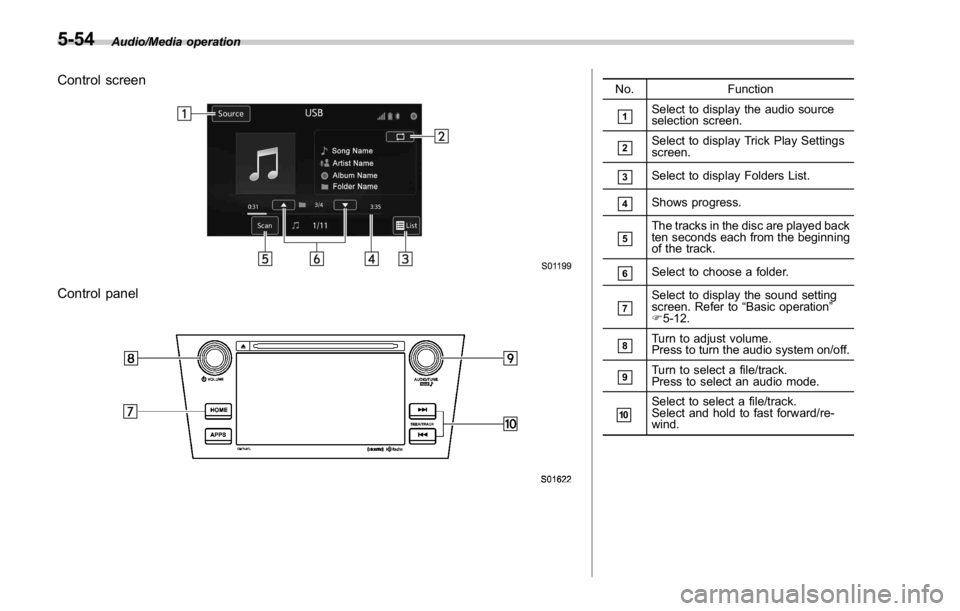
Control screen
Control panel No. Function
& 1
Select to display the audio source
selection screen.
& 2
Select to display Trick Play Settings
screen.
& 3
Select to display Folders List.
& 4
Shows progress.
& 5
The tracks in the disc are played back
ten seconds each from the beginning
of the track.
& 6
Select to choose a folder.
& 7
Select to display the sound setting
screen. Refer to “ Basic operation ”
F 5-12.
& 8
Turn to adjust volume.
Press to turn the audio system on/off.
& 9
Turn to select a file/track.
Press to select an audio mode.
& 10
Select to select a file/track.
Select and hold to fast forward/re-
wind.5-54
Page 315 of 594
Audio/Media operation
WARNINGDo not operate the player ’ s controls
or connect the iPod while driving.
CAUTION. Do not leave your portable player
in the car. In particular, high
temperatures inside the vehicle
may damage the portable player.
. Do not push down on or apply
unnecessary pressure to the por-
table player while it is connected
as this may damage the portable
player or its terminal.
. Do not insert foreign objects into
the port as this may damage the
portable player or its terminal.
NOTE . When an iPod is connected using a
genuine iPod cable, the iPod starts
charging its battery.
. When an iPod is connected and the
audio source is changed to iPod mode,
the iPod will resume playing from the
same point it was last used.
. Depending on the iPod that is con-
nected to the system, certain functions may not be available.
. Files/tracks selected by operating a
connected iPod may not be recognized
or displayed properly.
. If you press the “ Mute ” switch on
the steering wheel during playback, the
track pauses. If you press the “ Mute ”
switch once again, the playback will
resume.
& Bluetooth audio The Bluetooth audio system enables
users to enjoy listening to music that is
played on a portable player on the vehicle
speakers via wireless communication.
This audio system supports Bluetooth, a
wireless data system capable of playing
portable audio music without cables. If
your device does not support Bluetooth,
the Bluetooth audio system will not func-
tion.
! Overview
Select
BT Audio (BT Audio) on the “ Select
Audio Source (Select Audio Source) ”
screen. Refer to “ Selecting an audio
source ” F 5-13.
Depending on the type of portable player
connected, some functions may not be
available and/or the screen may look
differently than shown in this manual.5-60
Page 321 of 594

Audio/Media operation
No. Function
& 1
Select to display the audio source
selection screen.
& 2
Select to open Station List.
& 3
Select to fast forward the current con-
tent item by 30 seconds.
& 4
Select to display the Contents List of
the selected station.
& 5
Select to make a phone call to the
current content item.
A phone number is distributed depend-
ing on content items.
This feature is available only in these
cases.
& 6
Select to play back or pause a track.
The track pauses when pressed during
playback and plays back when pressed
during pause.
& 7
Select to set “ Like ” .
& 8
Select to set “ Dislike ” .
& 9
Select to start the playback from the
beginning of the content in the target
station.
& 10
Select to rewind the current content
item by 15 seconds.
& 11 To display the APPS menu screen,
select the “ STARLINK ” .
Or, to display the aha screen, select
“ aha ” or to display the Pandora screen,
select “ Pandora ” . No. Function
& 12
Select to display the sound setting
screen. Refer to “ Basic operation ” F 5-
12.
& 13
Turn to adjust volume.
Press to turn the audio system on/off.
& 14
Turn to display the next/previous con-
tent item.
Press to select an audio mode
& 15
Select to display the next/previous
content item.
5-66
Page 331 of 594
Audio/Media operation
WARNINGDo not operate the player ’ s controls
or connect the portable audio device
while driving.
CAUTION. Do not leave portable audio de-
vice in the vehicle. The tempera-
ture inside the vehicle may be-
come high, resulting in damage
to the player.
. Do not push down on or apply
unnecessary pressure to the por-
table audio device while it is
connected as this may damage
the portable audio device or its
terminal.
. Do not insert foreign objects into
the port as this may damage the
portable audio device or its term-
inal. & Pandora ®
Pandora is an application for a smart-
phone. This can automatically select and
play recommended tracks.
By rating the track currently playing, tracks
that better match your preference will be
recommended.
In order to connect to this system, use a
USB port for an iPhone or iPod touch and
Bluetooth for Android devices.
Depending on differences between mod-
els or software version etc., some models
might be incompatible with this system.
This function is not available if the
Pandora application has not been in-
stalled on the smartphone.
NOTE . Connect a smartphone to the USB
port before turning the ignition switch
to the “ ACC ” or “ ON ” position.
. When it is not played back normally,
press the POWER/VOLUME knob twice
while a USB cable is connected.
! Overview
The Pandora operation screen can be
reached by the following methods:
. Connecting a Pandora device. Refer to
“ Connecting a Bluetooth device ” F 5-85 or “ Connecting and disconnecting a USB
memory/portable device ” F 5-6.
. Select
Pandora (Pandora) on the
“ Select Audio Source (Select Audio
Source) ” screen. Refer to “ Selecting an
audio source ” F 5-13.
. Select
Pandora (Pandora) on the
“ APPS (APPS) ” screen. Refer to
“ STARLINK ” F 5-30.5-76
Page 363 of 594
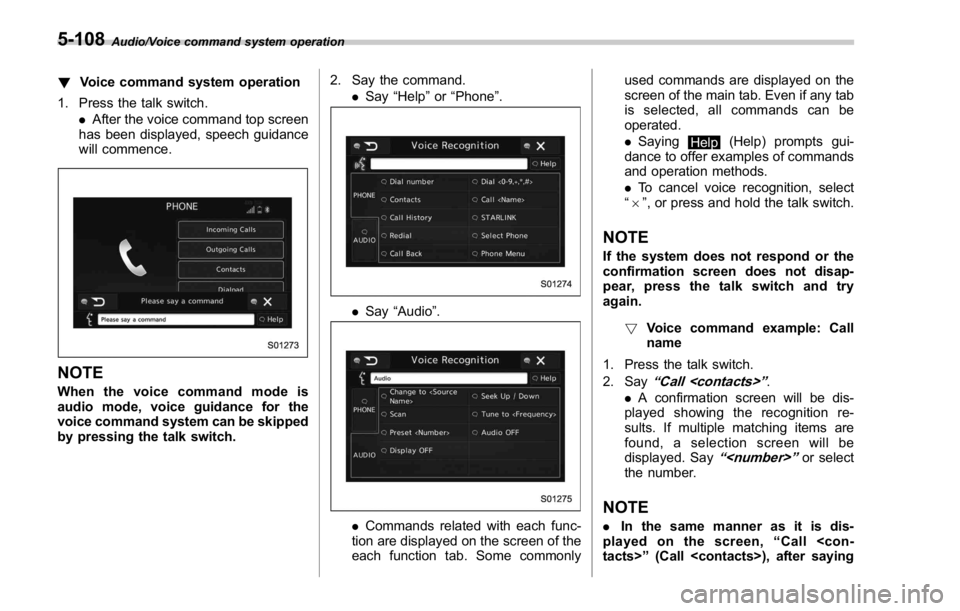
Audio/Voice command system operation
! Voice command system operation
1. Press the talk switch.
. After the voice command top screen
has been displayed, speech guidance
will commence.
NOTE When the voice command mode is
audio mode, voice guidance for the
voice command system can be skipped
by pressing the talk switch. 2. Say the command.
. Say “ Help ” or “ Phone ” .
. Say “ Audio ” .
. Commands related with each func-
tion are displayed on the screen of the
each function tab. Some commonly used commands are displayed on the
screen of the main tab. Even if any tab
is selected, all commands can be
operated.
. Saying
Help (Help) prompts gui-
dance to offer examples of commands
and operation methods.
. To cancel voice recognition, select
“ 6 ” , or press and hold the talk switch.
NOTE If the system does not respond or the
confirmation screen does not disap-
pear, press the talk switch and try
again.
! Voice command example: Call
name
1. Press the talk switch.
2. Say
“ Call
. A confirmation screen will be dis-
played showing the recognition re-
sults. If multiple matching items are
found, a selection screen will be
displayed. Say
“
the number.
NOTE
. In the same manner as it is dis-
played on the screen, “ Call
Page 365 of 594

Audio/Command list
NOTE If the command cannot be recognized
completely, the command input screen
will be displayed. (Search results will
be shown based on the part of the
command that was recognized.)
! Expression examples for each
function Command Expression examples
“ Dial
actions are shown below.
. Frequently used commands are listed
in the following tables.
. For devices that are not installed in the
vehicle, the related commands will not be
displayed in the screen. Also, according to
conditions, other commands may not be
displayed in the screen.
. The functions available may vary ac-
cording to the system installed.
. Voice recognition language can be
changed. Refer to “ Other settings ” F 5-10.
NOTE . The notations used in the com-
mands are as follows.
– [
]: Commands that need not
to be spoken
– <
>: Numbers, titles, or
names to be spoken Basic command Voice
command Phrase Function
System back Back Go back one
hierarchy or
cancel the
voice recogni-
tion (voice
command top
screen)
System help Help Ask for help
with the cur-
rent task
System can-
cel (Close) Cancel, Close Cancel the
current task
Ye s Ye s
No No
Display OFF Display OFF Turns the dis-
play off
Audio ON Audio ON Turns the
audio system
on
Audio OFF Audio OFF Turns the
audio system
off
STARLINK
mode change STARLINK Switch to
APPS mode5-110