audio SUBARU WRX 2016 Manual Online
[x] Cancel search | Manufacturer: SUBARU, Model Year: 2016, Model line: WRX, Model: SUBARU WRX 2016Pages: 594, PDF Size: 19.43 MB
Page 329 of 594
Audio/Media operation
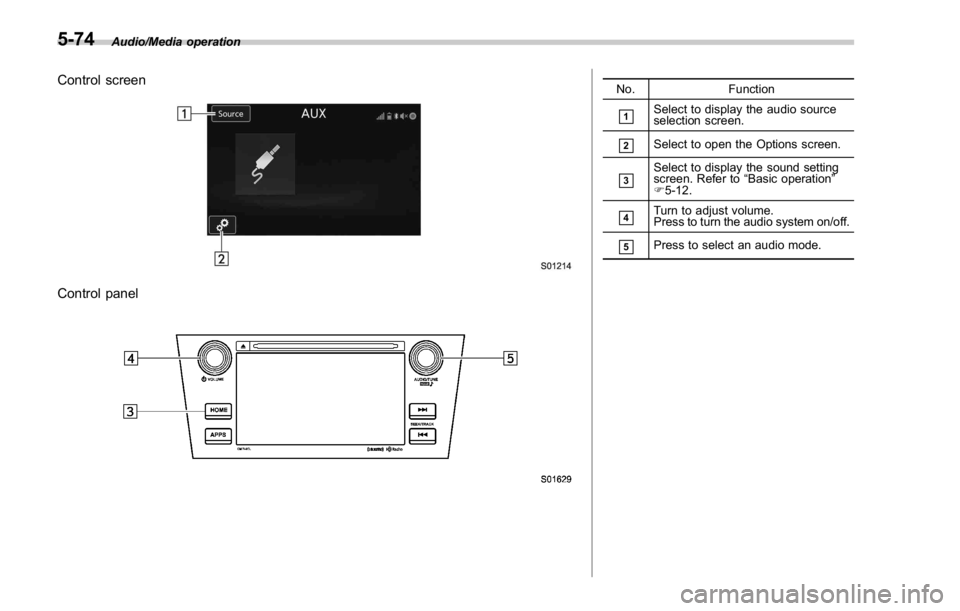
Control screen
Control panel No. Function
& 1
Select to display the audio source
selection screen.
& 2
Select to open the Options screen.
& 3
Select to display the sound setting
screen. Refer to “ Basic operation ”
F 5-12.
& 4
Turn to adjust volume.
Press to turn the audio system on/off.
& 5
Press to select an audio mode.
5-74
Page 330 of 594
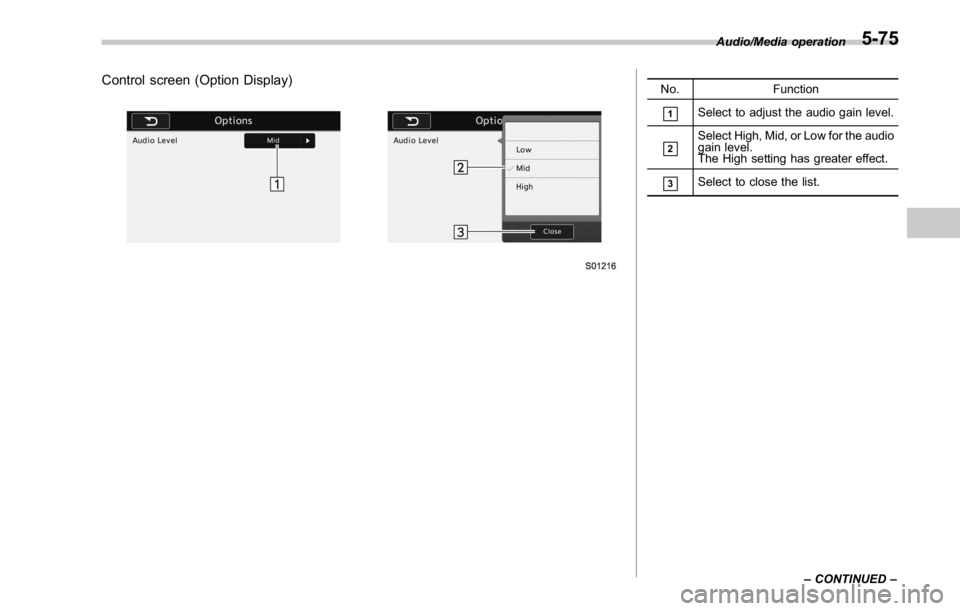
Control screen (Option Display) No. Function
& 1
Select to adjust the audio gain level.
& 2
Select High, Mid, or Low for the audio
gain level.
The High setting has greater effect.
& 3
Select to close the list. Audio/Media operation
– CONTINUED –5-75
Page 331 of 594
Audio/Media operation
WARNINGDo not operate the player ’ s controls
or connect the portable audio device
while driving.
CAUTION. Do not leave portable audio de-
vice in the vehicle. The tempera-
ture inside the vehicle may be-
come high, resulting in damage
to the player.
. Do not push down on or apply
unnecessary pressure to the por-
table audio device while it is
connected as this may damage
the portable audio device or its
terminal.
. Do not insert foreign objects into
the port as this may damage the
portable audio device or its term-
inal. & Pandora ®
Pandora is an application for a smart-
phone. This can automatically select and
play recommended tracks.
By rating the track currently playing, tracks
that better match your preference will be
recommended.
In order to connect to this system, use a
USB port for an iPhone or iPod touch and
Bluetooth for Android devices.
Depending on differences between mod-
els or software version etc., some models
might be incompatible with this system.
This function is not available if the
Pandora application has not been in-
stalled on the smartphone.
NOTE . Connect a smartphone to the USB
port before turning the ignition switch
to the “ ACC ” or “ ON ” position.
. When it is not played back normally,
press the POWER/VOLUME knob twice
while a USB cable is connected.
! Overview
The Pandora operation screen can be
reached by the following methods:
. Connecting a Pandora device. Refer to
“ Connecting a Bluetooth device ” F 5-85 or “ Connecting and disconnecting a USB
memory/portable device ” F 5-6.
. Select
Pandora (Pandora) on the
“ Select Audio Source (Select Audio
Source) ” screen. Refer to “ Selecting an
audio source ” F 5-13.
. Select
Pandora (Pandora) on the
“ APPS (APPS) ” screen. Refer to
“ STARLINK ” F 5-30.5-76
Page 332 of 594
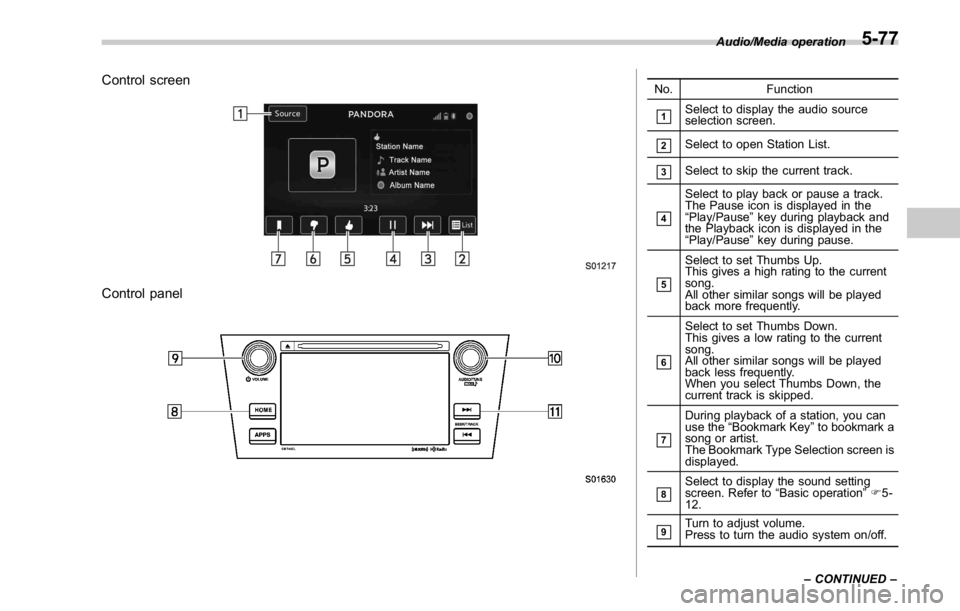
Control screen
Control panel No. Function
& 1
Select to display the audio source
selection screen.
& 2
Select to open Station List.
& 3
Select to skip the current track.
& 4
Select to play back or pause a track.
The Pause icon is displayed in the
“ Play/Pause ” key during playback and
the Playback icon is displayed in the
“ Play/Pause ” key during pause.
& 5
Select to set Thumbs Up.
This gives a high rating to the current
song.
All other similar songs will be played
back more frequently.
& 6
Select to set Thumbs Down.
This gives a low rating to the current
song.
All other similar songs will be played
back less frequently.
When you select Thumbs Down, the
current track is skipped.
& 7
During playback of a station, you can
use the “ Bookmark Key ” to bookmark a
song or artist.
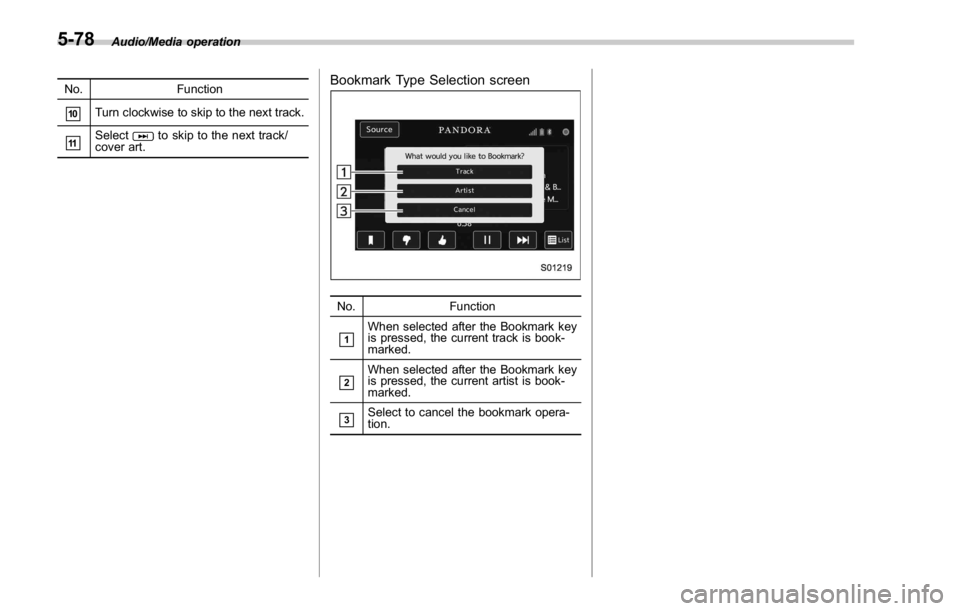
The Bookmark Type Selection screen is
displayed.
& 8
Select to display the sound setting
screen. Refer to “ Basic operation ” F 5-
12.
& 9
Turn to adjust volume.
Press to turn the audio system on/off. Audio/Media operation
– CONTINUED –5-77
Page 333 of 594
Audio/Media operation
No. Function
& 10
Turn clockwise to skip to the next track.
& 11
Select to skip to the next track/
cover art. Bookmark Type Selection screen
No. Function
& 1
When selected after the Bookmark key
is pressed, the current track is book-
marked.
& 2
When selected after the Bookmark key
is pressed, the current artist is book-
marked.
& 3
Select to cancel the bookmark opera-
tion.5-78
Page 334 of 594
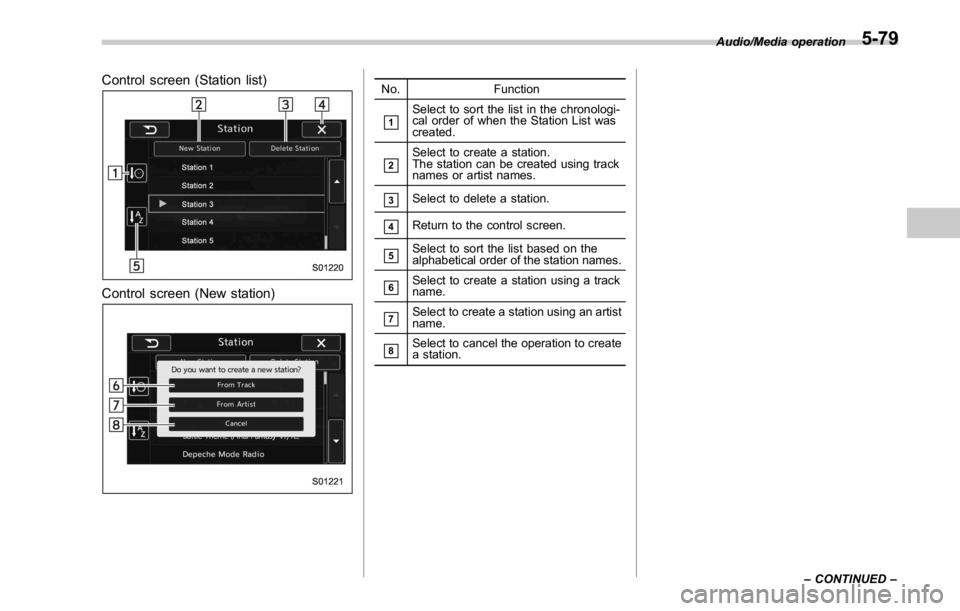
Control screen (Station list)
Control screen (New station) No. Function
& 1
Select to sort the list in the chronologi-
cal order of when the Station List was
created.
& 2
Select to create a station.
The station can be created using track
names or artist names.
& 3
Select to delete a station.
& 4
Return to the control screen.
& 5
Select to sort the list based on the
alphabetical order of the station names.
& 6
Select to create a station using a track
name.
& 7
Select to create a station using an artist
name.
& 8
Select to cancel the operation to create
a station. Audio/Media operation
– CONTINUED –5-79
Page 335 of 594
Audio/Media operation
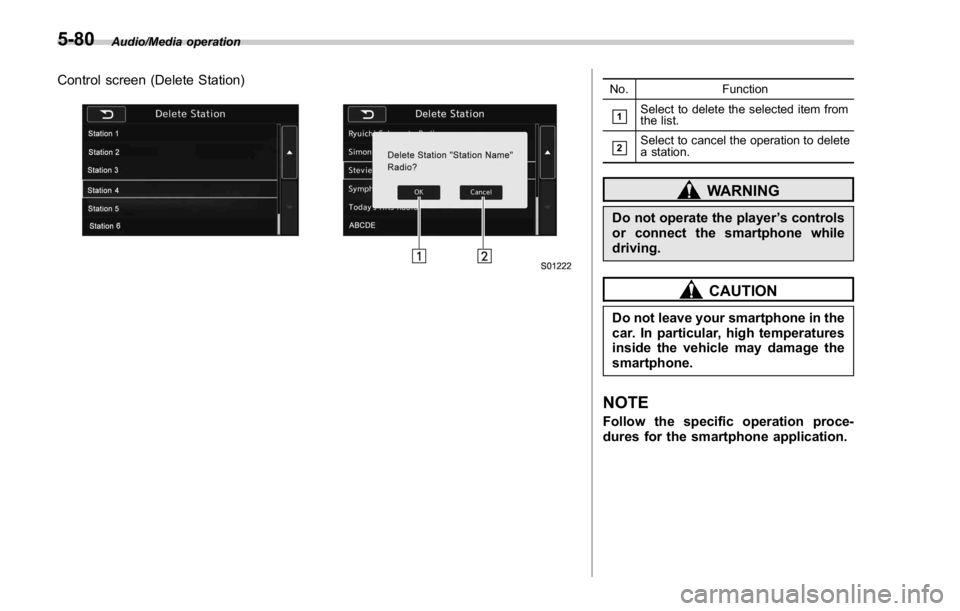
Control screen (Delete Station) No. Function
& 1
Select to delete the selected item from
the list.
& 2
Select to cancel the operation to delete
a station.
WARNINGDo not operate the player ’ s controls
or connect the smartphone while
driving.
CAUTIONDo not leave your smartphone in the
car. In particular, high temperatures
inside the vehicle may damage the
smartphone.
NOTE Follow the specific operation proce-
dures for the smartphone application.5-80
Page 336 of 594
Bluetooth ®
settings& Registering/connecting
Bluetooth ®
deviceThe Bluetooth ®
word mark and logos are
registered trademarks owned by Bluetooth
SIG, Inc.
! Registering a Bluetooth phone for
the first time
To use the hands-free system, it is
necessary to register a Bluetooth phone
with the system.
Once the phone has been registered, it is
possible to use the hands-free system.
This operation cannot be performed while
driving.
For details about registering a Bluetooth
device: Refer to “ Registering a Bluetooth
device ” F 5-84.
1. Turn the Bluetooth connection setting
of your cellular phone on.
. This function is not available when
Bluetooth connection setting of your
cellular phone is set to off.
2. Select
and select
SETTINGS
(SETTINGS) to display the SETTINGS screen.
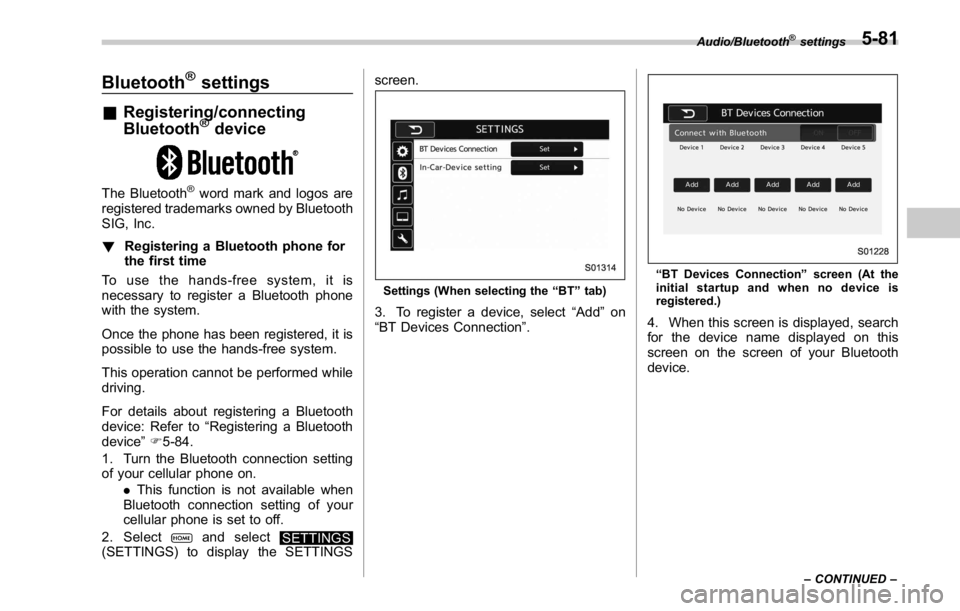
Settings (When selecting the “ BT ” tab)
3. To register a device, select “ Add ” on
“ BT Devices Connection ” . “ BT Devices Connection ” screen (At the
initial startup and when no device is
registered.)
4. When this screen is displayed, search
for the device name displayed on this
screen on the screen of your Bluetooth
device. Audio/Bluetooth ®
settings
– CONTINUED –5-81
Page 337 of 594
Audio/Bluetooth ®
settings
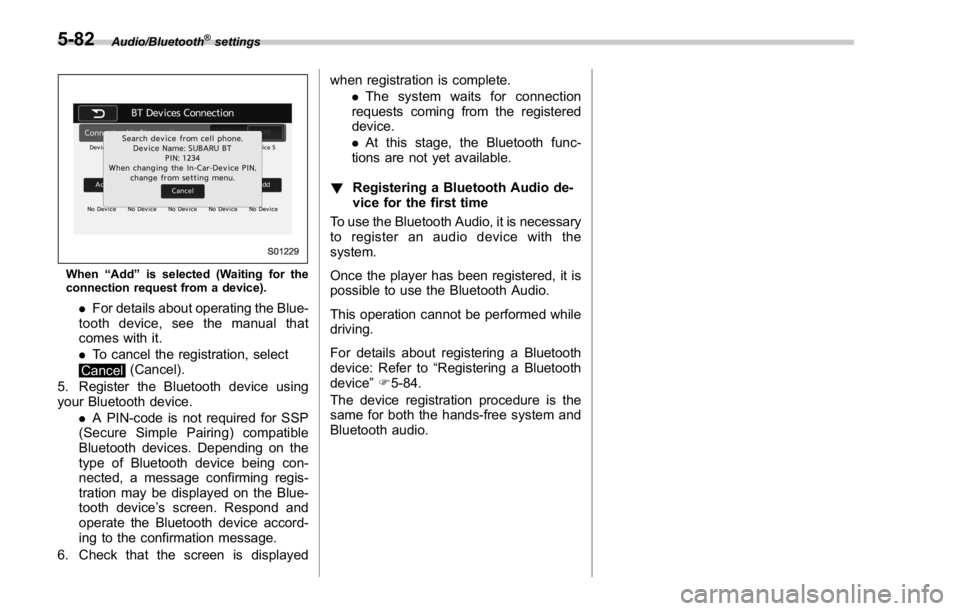
When “ Add ” is selected (Waiting for the
connection request from a device).
. For details about operating the Blue-
tooth device, see the manual that
comes with it.
. To cancel the registration, select
Cancel (Cancel).
5. Register the Bluetooth device using
your Bluetooth device.
. A PIN-code is not required for SSP
(Secure Simple Pairing) compatible
Bluetooth devices. Depending on the
type of Bluetooth device being con-
nected, a message confirming regis-
tration may be displayed on the Blue-
tooth device ’ s screen. Respond and
operate the Bluetooth device accord-
ing to the confirmation message.
6. Check that the screen is displayed when registration is complete.
. The system waits for connection
requests coming from the registered
device.
. At this stage, the Bluetooth func-
tions are not yet available.
! Registering a Bluetooth Audio de-
vice for the first time
To use the Bluetooth Audio, it is necessary
to register an audio device with the
system.
Once the player has been registered, it is
possible to use the Bluetooth Audio.
This operation cannot be performed while
driving.
For details about registering a Bluetooth
device: Refer to “ Registering a Bluetooth
device ” F 5-84.
The device registration procedure is the
same for both the hands-free system and
Bluetooth audio.5-82
Page 338 of 594

! Profiles
This system supports the following services. Bluetooth Device Spec. Function Requirements Recommendations
Bluetooth Phone/Bluetooth
Audio Device Bluetooth Specification Registering a Bluetooth de-
vice Ver. 1.1 Ver. 2.1 + EDR
Bluetooth Device Profile Function Requirements Recommendations
Bluetooth Phone HFP (Hands-Free Profile) Hands-free system Ver. 1.0 Ver. 1.5
OPP (Object Push Profile)
Transferring the contacts Ver. 1.1 Ver. 1.1
PBAP (Phone Book Access
profile) Ver. 1.0 Ver. 1.0
MAP (Message Access
Profile) Bluetooth phone message — Ver. 1.0
SPP (Serial Port Profile) Connecting a Bluetooth
phone — Ver. 1.1
Bluetooth Audio Device A2DP (Advanced Audio
Distribution Profile)
Bluetooth audio system Ver. 1.0 Ver. 1.2
AVRCP (Audio/Video Re-
mote Control Profile) Ver. 1.0 Ver. 1.4
NOTE . If your cellular phone does not support HFP, registering the Bluetooth phone or using OPP, PBAP, MAP or SPP profiles
individually will not be possible.
. If the connected Bluetooth device version is older than recommended or incompatible, the Bluetooth device function may
not work properly.
. For USA customers, please visit www.subaru.com for details. Outside of the USA customers, contact your local dealer to
arrange a demonstration in order to confirm whether or not the device can be paired with the vehicle. Audio/Bluetooth ®
settings
– CONTINUED –5-83