change wheel SUBARU WRX 2016 Owners Manual
[x] Cancel search | Manufacturer: SUBARU, Model Year: 2016, Model line: WRX, Model: SUBARU WRX 2016Pages: 594, PDF Size: 19.43 MB
Page 149 of 594
Instruments and controls/Warning and indicator lights
the tire to lose air rapidly. If you have
a flat tire, replace it with a spare tire
as soon as possible.
When a spare tire is mounted or a
wheel rim is replaced without the
original pressure sensor/transmitter
being transferred, the Low tire pres-
sure warning light will illuminate
steadily after blinking for approxi-
mately one minute. This indicates
the TPMS is unable to monitor all
four road wheels. Contact your
SUBARU dealer as soon as possible
for tire and sensor replacement and/
or system resetting.
If the light illuminates steadily after
blinking for approximately one min-
ute, promptly contact a SUBARU
dealer to have the system inspected.
CAUTION
The tire pressure monitoring system
is NOT a substitute for manually
checking tire pressure. The tire
pressure should be checked peri-
odically (at least monthly) using a
tire gauge. After any change to tire
pressure(s), the tire pressure mon-
itoring system will not re-check tire
inflation pressures until the vehicle is first driven to a vehicle speed of at
least 20 mph (32 km/h). After adjust-
ing the tire pressures, increase the
vehicle speed to at least 20 mph (32
km/h) to start the TPMS re-checking
of the tire inflation pressures. If the
tire pressures are now above the
severe low pressure threshold, the
low tire pressure warning light
should turn off a few minutes later.
Therefore, be sure to install the
specified size for the front and rear
tires.
& ABS warning light
CAUTION. If any of the following conditions
occur, we recommend that you
have the ABS system repaired at
the first available opportunity by
your SUBARU dealer.
– The warning light does not
illuminate when the ignition
switch is turned to the “ ON ”
position.
– The warning light illuminates
when the ignition switch is
turned to the “ ON ” position,
but it does not turn off even after starting the vehicle.
– The warning light illuminates
during driving.
. When the warning light is on (and
the brake system warning light is
off), the ABS function shuts
down. However, the conventional
brake system continues to oper-
ate normally.
The ABS warning light illuminates to-
gether with the brake system warning light
if the EBD system malfunctions. For
further details of the EBD system mal-
function warning, refer to “ Brake system
warning light ” F 3-21.
NOTE If the warning light behavior is as
described in the following conditions,
the ABS system may be considered
normal.
. The warning light illuminates when
the ignition switch is turned to the
“ ON ” position and turns off approxi-
mately 2 seconds after the engine has
started.
. The warning light illuminates right
after the engine is started but turns off
immediately, remaining off.
. The warning light remains illumi-
nated after the engine has been started,3-20
Page 173 of 594
Instruments and controls/Multi information display
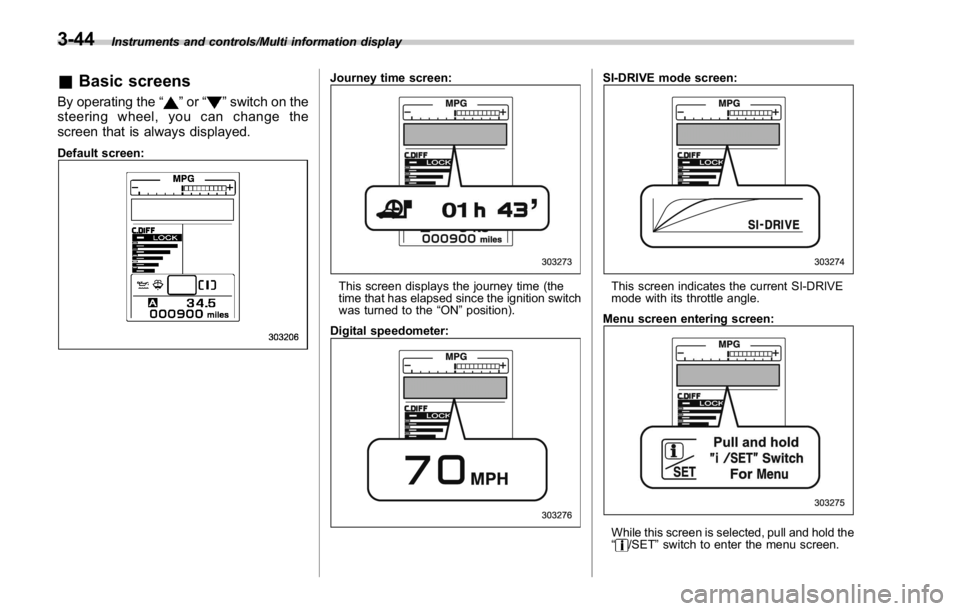
& Basic screensBy operating the “ ” or “ ” switch on the
steering wheel, you can change the
screen that is always displayed. Default screen: Journey time screen:
This screen displays the journey time (the
time that has elapsed since the ignition switch
was turned to the “ ON ” position).
Digital speedometer: SI-DRIVE mode screen:
This screen indicates the current SI-DRIVE
mode with its throttle angle.
Menu screen entering screen:
While this screen is selected, pull and hold the
“ /SET ” switch to enter the menu screen.3-44
Page 266 of 594
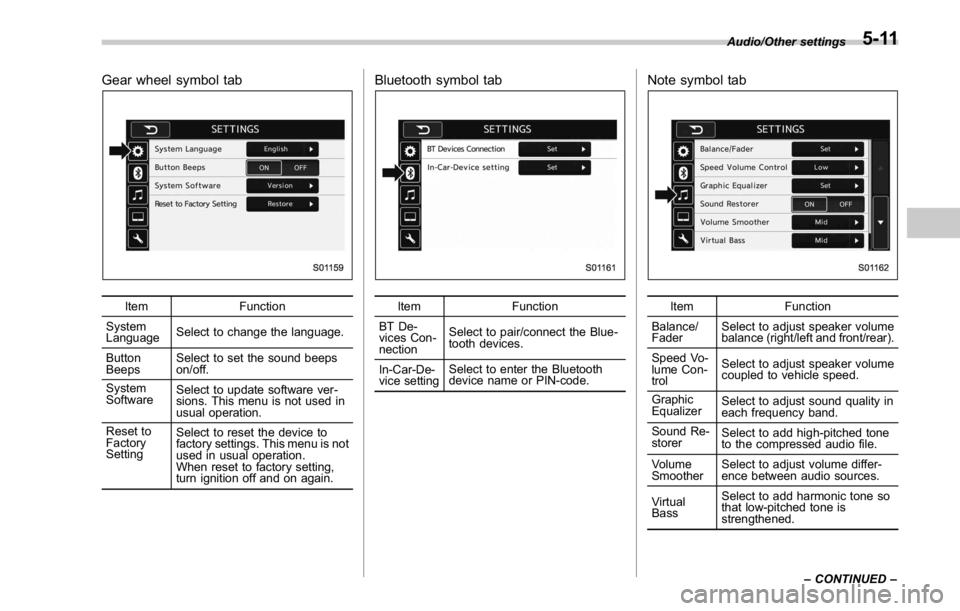
Gear wheel symbol tab
Item Function
System
Language Select to change the language.
Button
Beeps Select to set the sound beeps
on/off.
System
Software Select to update software ver-
sions. This menu is not used in
usual operation.
Reset to
Factory
Setting Select to reset the device to
factory settings. This menu is not
used in usual operation.
When reset to factory setting,
turn ignition off and on again. Bluetooth symbol tab
Item Function
BT De-
vices Con-
nection Select to pair/connect the Blue-
tooth devices.
In-Car-De-
vice setting Select to enter the Bluetooth
device name or PIN-code. Note symbol tab
Item Function
Balance/
Fader Select to adjust speaker volume
balance (right/left and front/rear).
Speed Vo-
lume Con-
trol Select to adjust speaker volume
coupled to vehicle speed.
Graphic
Equalizer Select to adjust sound quality in
each frequency band.
Sound Re-
storer Select to add high-pitched tone
to the compressed audio file.
Volume
Smoother Select to adjust volume differ-
ence between audio sources.
Virtual
Bass Select to add harmonic tone so
that low-pitched tone is
strengthened. Audio/Other settings
– CONTINUED –5-11
Page 315 of 594
Audio/Media operation
WARNINGDo not operate the player ’ s controls
or connect the iPod while driving.
CAUTION. Do not leave your portable player
in the car. In particular, high
temperatures inside the vehicle
may damage the portable player.
. Do not push down on or apply
unnecessary pressure to the por-
table player while it is connected
as this may damage the portable
player or its terminal.
. Do not insert foreign objects into
the port as this may damage the
portable player or its terminal.
NOTE . When an iPod is connected using a
genuine iPod cable, the iPod starts
charging its battery.
. When an iPod is connected and the
audio source is changed to iPod mode,
the iPod will resume playing from the
same point it was last used.
. Depending on the iPod that is con-
nected to the system, certain functions may not be available.
. Files/tracks selected by operating a
connected iPod may not be recognized
or displayed properly.
. If you press the “ Mute ” switch on
the steering wheel during playback, the
track pauses. If you press the “ Mute ”
switch once again, the playback will
resume.
& Bluetooth audio The Bluetooth audio system enables
users to enjoy listening to music that is
played on a portable player on the vehicle
speakers via wireless communication.
This audio system supports Bluetooth, a
wireless data system capable of playing
portable audio music without cables. If
your device does not support Bluetooth,
the Bluetooth audio system will not func-
tion.
! Overview
Select
BT Audio (BT Audio) on the “ Select
Audio Source (Select Audio Source) ”
screen. Refer to “ Selecting an audio
source ” F 5-13.
Depending on the type of portable player
connected, some functions may not be
available and/or the screen may look
differently than shown in this manual.5-60
Page 342 of 594
! When the cursor is at the “ Device
Name Display Area ”
. Thedevicenamecanbesetor
changed.
. Press the “ PIN ” key to enter a pass-
code.
. If the “ PIN ” key is already selected, the
“ Alphabet ” key is cross-hatched and dis-
abled.
! When the cursor is at the “ Pass-
code Display Area ”
. The passcode can be set/changed.
. Press the “ Name ” key to enter a device
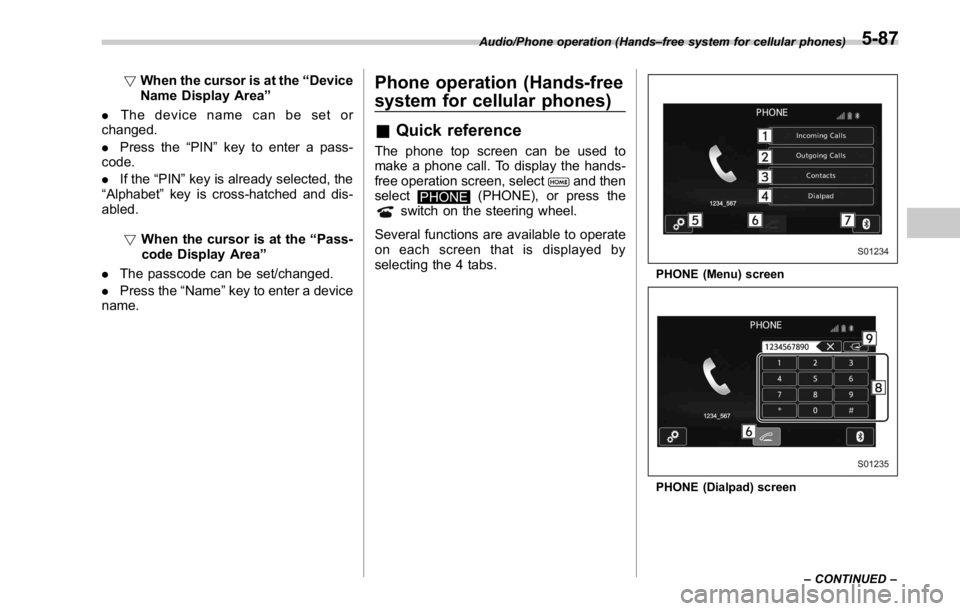
name. Phone operation (Hands-free
system for cellular phones) & Quick reference The phone top screen can be used to
make a phone call. To display the hands-
free operation screen, select
and then
select
PHONE (PHONE), or press the
switch on the steering wheel.
Several functions are available to operate
on each screen that is displayed by
selecting the 4 tabs. PHONE (Menu) screen
PHONE (Dialpad) screenAudio/Phone operation (Hands – free system for cellular phones)
– CONTINUED –5-87
Page 343 of 594
Audio/Phone operation (Hands – free system for cellular phones)
No. Function
& 1
“ Incoming Calls ” key: Opens the
Incoming Calls screen.
& 2
“ Outgoing Calls ” key: Opens the Out-
going Calls screen.
& 3
“ Contacts ” key: Opens the Contacts
screen.
& 4
“ Dialpad ” key: Changes the screen
from the Menu screen to the Dialpad
screen.
& 5
“ Option ” key: Opens the phone vo-
lume setting screen.
& 6
“ OFF Hook ” key: Use to make a
phone call. You cannot press this key
until you open the Dialpad screen and
enter a phone number.
& 7
“ Bluetooth Setting ” key: Opens the BT
Devices Connection screen.
& 8
Enter the phone number that you
want to call.
& 9
“ Switch Screen ” key: Switches the
screen to the Phone (Menu) screen.
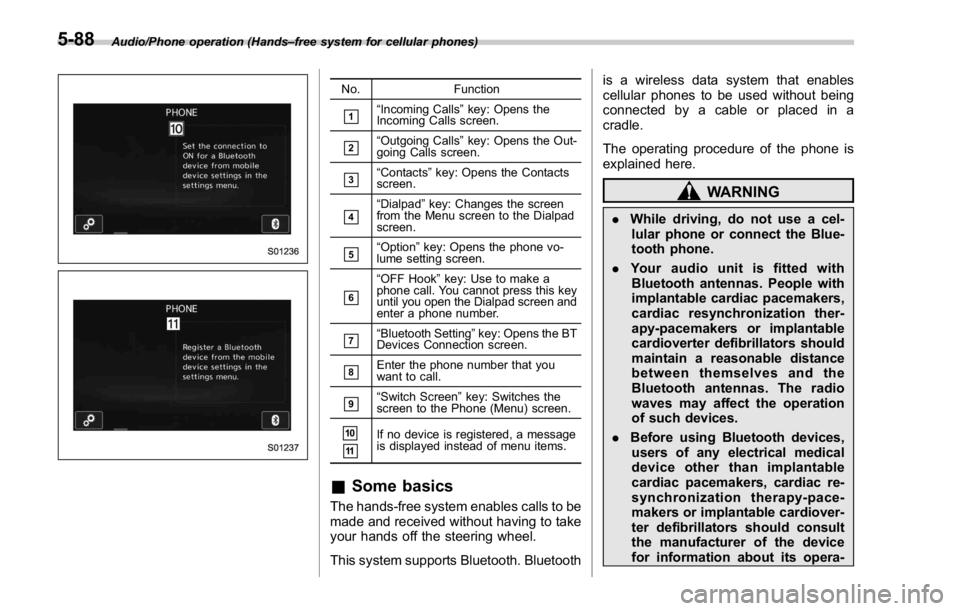
& 10
& 11
If no device is registered, a message
is displayed instead of menu items.
& Some basics The hands-free system enables calls to be
made and received without having to take
your hands off the steering wheel.
This system supports Bluetooth. Bluetooth is a wireless data system that enables
cellular phones to be used without being
connected by a cable or placed in a
cradle.
The operating procedure of the phone is
explained here.
WARNING. While driving, do not use a cel-
lular phone or connect the Blue-
tooth phone.
. Your audio unit is fitted with
Bluetooth antennas. People with
implantable cardiac pacemakers,
cardiac resynchronization ther-
apy-pacemakers or implantable
cardioverter defibrillators should
maintain a reasonable distance
between themselves and the
Bluetooth antennas. The radio
waves may affect the operation
of such devices.
. Before using Bluetooth devices,
users of any electrical medical
device other than implantable
cardiac pacemakers, cardiac re-
synchronization therapy-pace-
makers or implantable cardiover-
ter defibrillators should consult
the manufacturer of the device
for information about its opera-5-88
Page 353 of 594
Audio/Phone operation (Hands – free system for cellular phones)
! By off hook switch
1. Press the
switch on the steering
wheel to display the phone top screen.
2. Check that the “ Call (Call) ” screen is
displayed.
& Receiving on the Bluetooth
phone! Incoming calls
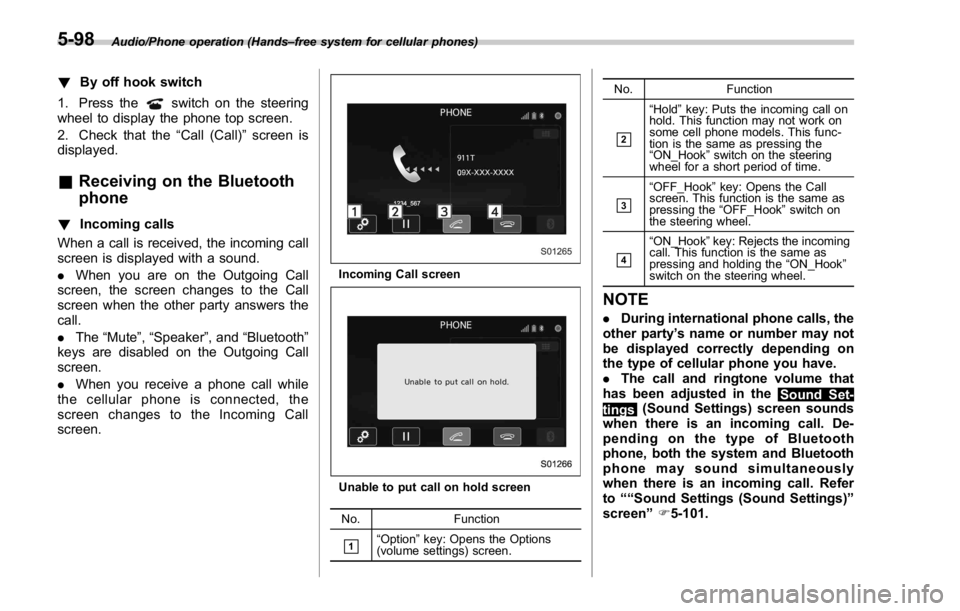
When a call is received, the incoming call
screen is displayed with a sound.
. When you are on the Outgoing Call
screen, the screen changes to the Call
screen when the other party answers the
call.
. The “ Mute ” , “ Speaker ” , and “ Bluetooth ”
keys are disabled on the Outgoing Call
screen.
. When you receive a phone call while
the cellular phone is connected, the
screen changes to the Incoming Call
screen. Incoming Call screen
Unable to put call on hold screen
No. Function
& 1
“ Option ” key: Opens the Options
(volume settings) screen. No. Function
& 2
“ Hold ” key: Puts the incoming call on
hold. This function may not work on
some cell phone models. This func-
tion is the same as pressing the
“ ON_Hook ” switch on the steering
wheel for a short period of time.
& 3
“ OFF_Hook ” key: Opens the Call
screen. This function is the same as
pressing the “ OFF_Hook ” switch on
the steering wheel.
& 4
“ ON_Hook ” key: Rejects the incoming
call. This function is the same as
pressing and holding the “ ON_Hook ”
switch on the steering wheel.
NOTE . During international phone calls, the
other party ’ s name or number may not
be displayed correctly depending on
the type of cellular phone you have.
. The call and ringtone volume that
has been adjusted in the
Sound Set-
tings (Sound Settings) screen sounds
when there is an incoming call. De-
pending on the type of Bluetooth
phone, both the system and Bluetooth
phone may sound simultaneously
when there is an incoming call. Refer
to ““ Sound Settings (Sound Settings) ”
screen ” F 5-101.5-98
Page 355 of 594
Audio/Phone operation (Hands – free system for cellular phones)
No. Function
& 2
“ Mute ” key: Mutes your voice to the
other party. Press the “ Mute ” key
again to deactivate the Mute mode.
This key is disabled in the Private
mode.
& 3
“ Speaker ” key: Changes the mode to
Private mode. The other party ’ s voice
emits from the cell phone. Press the
“ Speaker ” key again to deactivate the
Private mode.
& 4
“ ON_Hook ” key: Ends the call. You
return to the Phone (Menu) screen
when ending outgoing calls and the
previous screen when ending incom-
ing calls. This function is the same as
pressing and holding the “ ON_Hook ”
switch on the steering wheel.
& 5
“ Dialpad ” key: Opens the Call (Dia-
lpad) screen.
& 6
“ Switch Screen ” key: Switches the
screen to the Phone (Menu) screen.
& 7
“ Dialpad ” key: Allows you to make
DTMF (Dual Tone Multi Frequency)
calls. The numbers you enter are sent
as tone signals.
NOTE . When cellular phone call is changed
to hands-free call, the hands-free
screen will be displayed and its func-
tions can be operated on the screen.
. Changing between cellular phone
call and hands-free call can be per- formed by operating the cellular phone
directly.
. Transferring methods and opera-
tions will be different depending on
the type of cellular phone you have.
. For the operation of the cellular
phone, see the manual that comes with
it.
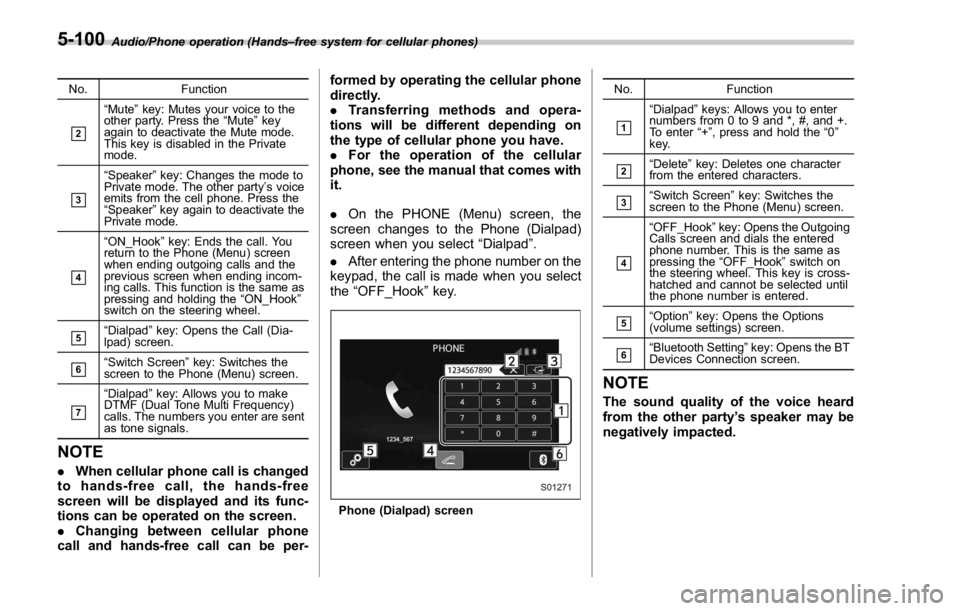
. On the PHONE (Menu) screen, the
screen changes to the Phone (Dialpad)
screen when you select “ Dialpad ” .
. After entering the phone number on the
keypad, the call is made when you select
the “ OFF_Hook ” key.
Phone (Dialpad) screen No. Function
& 1
“ Dialpad ” keys: Allows you to enter
numbers from 0 to 9 and *, #, and +.
To enter “ + ” , press and hold the “ 0 ”
key.
& 2
“ Delete ” key: Deletes one character
from the entered characters.
& 3
“ Switch Screen ” key: Switches the
screen to the Phone (Menu) screen.
& 4
“ OFF_Hook ” key: Opens the Outgoing
Calls screen and dials the entered
phone number. This is the same as
pressing the “ OFF_Hook ” switch on
the steering wheel. This key is cross-
hatched and cannot be selected until
the phone number is entered.
& 5
“ Option ” key: Opens the Options
(volume settings) screen.
& 6
“ Bluetooth Setting ” key: Opens the BT
Devices Connection screen.
NOTE The sound quality of the voice heard
from the other party ’ s speaker may be
negatively impacted.5-100
Page 364 of 594

“
Call a contact ” say the name of a
contact. For example:
“ Call a contact ” ,
“
John Smith ” or“ Call a contact ” ,
“
Mary Davis ”
. Short or abbreviated names in the
contacts list may not be recognized.
Change names in the contacts list to
full names.
. Sometimes a voice recognition re-
sult confirmation screen will be dis-
played. After confirming the result, say
“ Ye s ” or“ No ” .
. When the system recognizes multi-
ple names from the contacts list, a
name candidate list will be displayed
on the screen. If the desired name is
not displayed on the top of the screen,
say or select the number of the name
from the candidate list (number 1,
number 2, etc.) to select a name from
the candidate list.
. When a contact has multiple phone
numbers registered in the contacts list,
a candidate list will be displayed. If the
desired phone number is not displayed
on the top of the screen, say or select
the number of the desired phone
number from the candidate list (num-
ber 1, number 2, etc.) to select a phone
number from the candidate list. ! Voice command example: Dial
number
1. Press the talk switch.
2. Say the phone number.
. In the same manner as it is dis-
played on the screen, “ Dial
(Dial
“ Dial a
number ”
say the phone number.
. Say the phone number one digit at a
time.
For example, if the phone number is
2345678:
Say
“ two three four five six seven
eight ”
Do not say“ twenty three forty five
sixty seven eight ”
Calling to the following phone numbers
– 3 digit numbers (911, 411, 611)
– 7 digit numbers (Local phone num-
bers)
– 10 digit numbers (Area code +
Local phone number)
– 11 digit phone numbers (1 + Area
code + Local phone number)
. As the system cannot recognize
additional numbers, say the complete
number without stopping. Calling to other phone numbers
3. Say
“ Call ” or press the switch on
the steering wheel.
. When the system recognizes multi-
ple phone numbers, a phone number
candidate list will be displayed on the
screen. Pressing the
switch on the
steering wheel makes a call to the top
entry on the list. If the desired phone
number is not displayed on the top of
the screen, say the number of the
desired phone number from the candi-
date list to select a phone number from
the candidate list.
! Casual speech recognition
Due to natural language speech recogni-
tion technology, this system enables re-
cognition of a command when spoken
naturally. However, the system cannot
recognize every variation of each com-
mand. In some situations, it is possible to
omit the command for the procedure and
directly state the desired operation. Not all
voice commands are displayed in the
function menu. Audio/Voice command system operation
– CONTINUED –5-109
Page 409 of 594
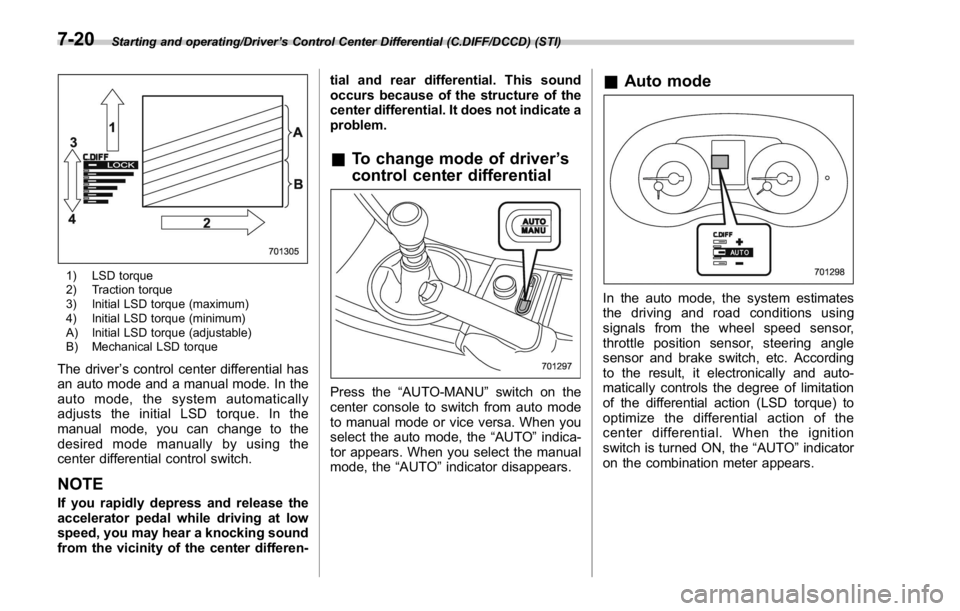
Starting and operating/Driver ’ s Control Center Differential (C.DIFF/DCCD) (STI)
1) LSD torque
2) Traction torque
3) Initial LSD torque (maximum)
4) Initial LSD torque (minimum)
A) Initial LSD torque (adjustable)
B) Mechanical LSD torque
The driver ’ s control center differential has
an auto mode and a manual mode. In the
auto mode, the system automatically
adjusts the initial LSD torque. In the
manual mode, you can change to the
desired mode manually by using the
center differential control switch.
NOTE If you rapidly depress and release the
accelerator pedal while driving at low
speed, you may hear a knocking sound
from the vicinity of the center differen- tial and rear differential. This sound
occurs because of the structure of the
center differential. It does not indicate a
problem.
& To change mode of driver ’ s
control center differential
Press the “ AUTO-MANU ” switch on the
center console to switch from auto mode
to manual mode or vice versa. When you
select the auto mode, the “ AUTO ” indica-
tor appears. When you select the manual
mode, the “ AUTO ” indicator disappears. & Auto mode
In the auto mode, the system estimates
the driving and road conditions using
signals from the wheel speed sensor,
throttle position sensor, steering angle
sensor and brake switch, etc. According
to the result, it electronically and auto-
matically controls the degree of limitation
of the differential action (LSD torque) to
optimize the differential action of the
center differential. When the ignition
switch is turned ON, the “ AUTO ” indicator
on the combination meter appears.7-20