USB SUBARU WRX 2018 Owner's Manual
[x] Cancel search | Manufacturer: SUBARU, Model Year: 2018, Model line: WRX, Model: SUBARU WRX 2018Pages: 578, PDF Size: 33.21 MB
Page 302 of 578
(311,1)
北米Model "A1700BE-B" EDITED: 2017/ 10/ 11
&Setting Bluetooth details!BT Devices Connection screen
1. Press the HOME button.
2. Touch the“SETTINGS”key and then
touch the
tab.
3. Touch the“BT Devices Connection”
key and then select the desired device to
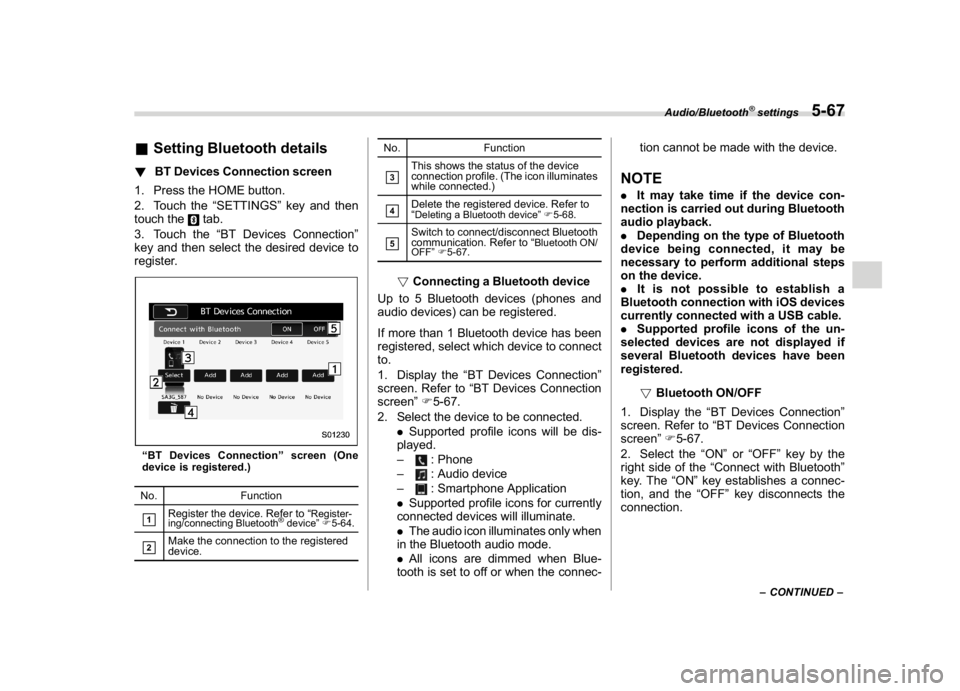
register.
“BT Devices Connection”screen (One
device is registered.)
No. Function&1
Register the device. Refer to“
Register-
ing/connecting Bluetooth
®device”F5-64.
&2
Make the connection to the registered
device.No. Function
&3
This shows the status of the device
connection profile. (The icon illuminates
while connected.)
&4
Delete the registered device. Refer to
“Deleting a Bluetooth device”F5-68.
&5
Switch to connect/disconnect Bluetooth
communication. Refer to“
Bluetooth ON/
OFF”F5-67.
!Connecting a Bluetooth device
Up to 5 Bluetooth devices (phones and
audio devices) can be registered.
If more than 1 Bluetooth device has been
registered, select which device to connect
to.
1. Display the“BT Devices Connection”
screen. Refer to“BT Devices Connection
screen”F5-67.
2. Select the device to be connected.
.Supported profile icons will be dis-
played.
–
: Phone
–: Audio device
–: Smartphone Application
.Supported profile icons for currently
connected devices will illuminate.
.The audio icon illuminates only when
in the Bluetooth audio mode.
.All icons are dimmed when Blue-
tooth is set to off or when the connec-tion cannot be made with the device.
NOTE.It may take time if the device con-
nection is carried out during Bluetooth
audio playback.
.Depending on the type of Bluetooth
device being connected, it may be
necessary to perform additional steps
on the device.
.It is not possible to establish a
Bluetooth connection with iOS devices
currently connected with a USB cable.
.Supported profile icons of the un-
selected devices are not displayed if
several Bluetooth devices have been
registered.
!Bluetooth ON/OFF
1. Display the“BT Devices Connection”
screen. Refer to“BT Devices Connection
screen”F5-67.
2. Select the“ON”or“OFF”key by the
right side of the“Connect with Bluetooth”
key. The“ON”key establishes a connec-
tion, and the“OFF”key disconnects the
connection.
–CONTINUED–
Audio/Bluetooth
®settings
5-67
5
Page 318 of 578

(327,1)
北米Model "A1700BE-B" EDITED: 2017/ 10/ 11
&Command listRecognizable voice commands and their
actions are shown below.NOTE.Some voice commands may not be
available depending on the market,
vehicle specifications or the device
connection status.
.Frequently used commands are
listed in the following tables.
.For devices that are not installed in
the vehicle, the related commands will
not be displayed on the screen. Also,
according to conditions, other com-
mands may not be displayed on the
screen.
.The functions available may vary
according to the system installed.
.Voice recognition language can be
changed. Refer to“Unit settings”F5-
18.
.The notations used in the com-
mands are as follows.
–<
>: Numbers, titles or
names to be spoken
–():Thereisnoneedto
speak the command, the voice
command system will recognize
the content.!Basic command
Voice command Function
BackGo back one hierar-
chy or cancel the
voice recognition
(voice command top
screen)
HelpAsk for help with the
current task
Cancel, CloseCancel the current
task
Ye s
No
Display OFF Turns the display off
Audio ONTurns the audio sys-
tem on
Audio OFFTurns the audio sys-
tem off
STARLINKSwitch to APPS mode
!Commands for changing the audio
mode
Voice command Function
Change to AM Switch to AM mode
Change to AM1Switch to AM mode
band 1
Change to AM2Switch to AM mode
band 2
Change to FM Switch to FM mode
Change to FM1Switch to FM mode
band 1
Change to FM2Switch to FM mode
band 2
Change to FM3Switch to FM mode
band 3
Change to SiriusXM Switch to XM mode
Change to BT AudioSwitch to Bluetooth
Audio mode
Change to CD Switch to CD mode
Change to USB Switch to USB mode
Change to iPod Switch to iPod mode
Change to ahaSwitch to aha radio
mode
Change to PandoraSwitch to Pandora
mode
Change to AUXSwitch to AUX mode
–CONTINUED–Audio/Voice command system
5-83
5
Page 320 of 578

(329,1)
北米Model "A1700BE-B" EDITED: 2017/ 10/ 11
Voice command Function
Category?Next
(page), Previous
(page), <1-5>?Next
(page), Previous
(page), <1-5>Displays the category
list screen
!Commands for CD control
Voice command Function
Track Up Select the next track
Track DownSelect the current
track
ScanSwitch to the scan
mode
Repeat?1 Track
Repeat, Repeat AllSelect a repeat mode
1 Track Repeat Repeat single track
Repeat All Repeat all tracks
ShufflePlays randomly
!Commands for MP3/WMA/AAC,
USB control
Voice command Function
Track Up Select the next track
Track DownSelect the current
track
Folder UpPlays from the start of
the next folder
Folder DownPlays from the start of
the previous folder
ScanSwitch to the scan
mode
Repeat?1 Track
Repeat, Repeat
Folder, Repeat AllSelect a repeat mode
1 Track Repeat Repeat single track
Repeat Folder Repeat of the folder
Repeat All Repeat all tracks
Shuffle?Shuffle
Folder, Shuffle AllSelect a random play
mode
Shuffle FolderPlays randomly of the
folder
Shuffle AllPlays randomly
!Commands for iPod Control
Voice command Function
Track Up Select the next track
Track DownSelect the current
track
Repeat?Repeat
One, Repeat AllSelect a repeat mode
Repeat One Repeat single track
Repeat All Repeat all tracks
Shuffle?Shuffle
Track, Shuffle Album,
Shuffle OFFSelect a random play
mode
Shuffle Track Shuffle all tracks
Shuffle Album Shuffle all tracks
Shuffle OFFTurn off shuffle
–CONTINUED–Audio/Voice command system
5-85
5