page 52 SUZUKI ERTIGA 2013 1.G Owners Manual
[x] Cancel search | Manufacturer: SUZUKI, Model Year: 2013, Model line: ERTIGA, Model: SUZUKI ERTIGA 2013 1.GPages: 207, PDF Size: 5.14 MB
Page 93 of 207
Downloaded from www.Manualslib.com manuals search engine 4-4
DRIVING TIPS
60MK0-14E
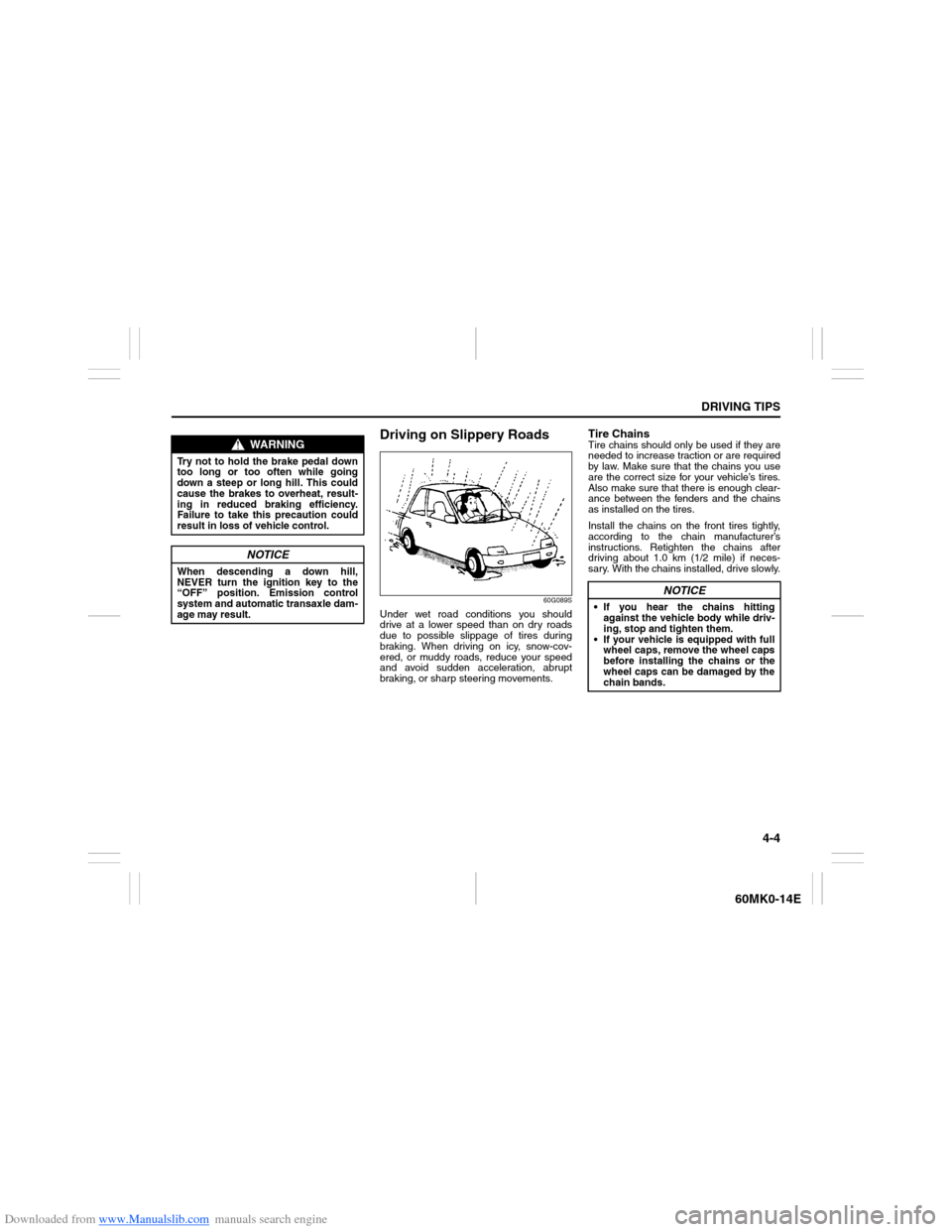
Driving on Slippery Roads
60G089S
Under wet road conditions you should
drive at a lower speed than on dry roads
due to possible slippage of tires during
braking. When driving on icy, snow-cov-
ered, or muddy roads, reduce your speed
and avoid sudden acceleration, abrupt
braking, or sharp steering movements.
Tire ChainsTire chains should only be used if they are
needed to increase traction or are required
by law. Make sure that the chains you use
are the correct size for your vehicle’s tires.
Also make sure that there is enough clear-
ance between the fenders and the chains
as installed on the tires.
Install the chains on the front tires tightly,
according to the chain manufacturer’s
instructions. Retighten the chains after
driving about 1.0 km (1/2 mile) if neces-
sary. With the chains installed, drive slowly.
WARNING
Try not to hold the brake pedal down
too long or too often while going
down a steep or long hill. This could
cause the brakes to overheat, result-
ing in reduced braking efficiency.
Failure to take this precaution could
result in loss of vehicle control.
NOTICE
When descending a down hill,
NEVER turn the ignition key to the
“OFF” position. Emission control
system and automatic transaxle dam-
age may result.
NOTICE
If you hear the chains hitting
against the vehicle body while driv-
ing, stop and tighten them.
If your vehicle is equipped with full
wheel caps, remove the wheel caps
before installing the chains or the
wheel caps can be damaged by the
chain bands.
Page 112 of 207
Downloaded from www.Manualslib.com manuals search engine 5-17OTHER CONTROLS AND EQUIPMENT
60MK0-14E
Selecting a track
Press the Up button (4) to listen to the
next track.
Press the Down button (5) twice to lis-
ten to the previous track.
When the Down button (5) is pressed
once, the track currently being played
will start from the beginning again.
Fast forwarding/Rewinding a track
Hold down the Up button (4) to fast for-
ward the track.
Hold down the Down button (5) to fast
rewind the track.
Random playback
Press the RDM button (7).
Each time the button is pressed, the mode
will change as follows:
TRACK RANDOM
The random indicator “RDM” will light.
The tracks in the loaded disc will be
played in random order.Repeat playback
Press the RPT button (6).
Each time the button is pressed, the mode
will change as follows:
TRACK REPEAT
The repeat indicator “RPT” will light.
The track currently being played will be
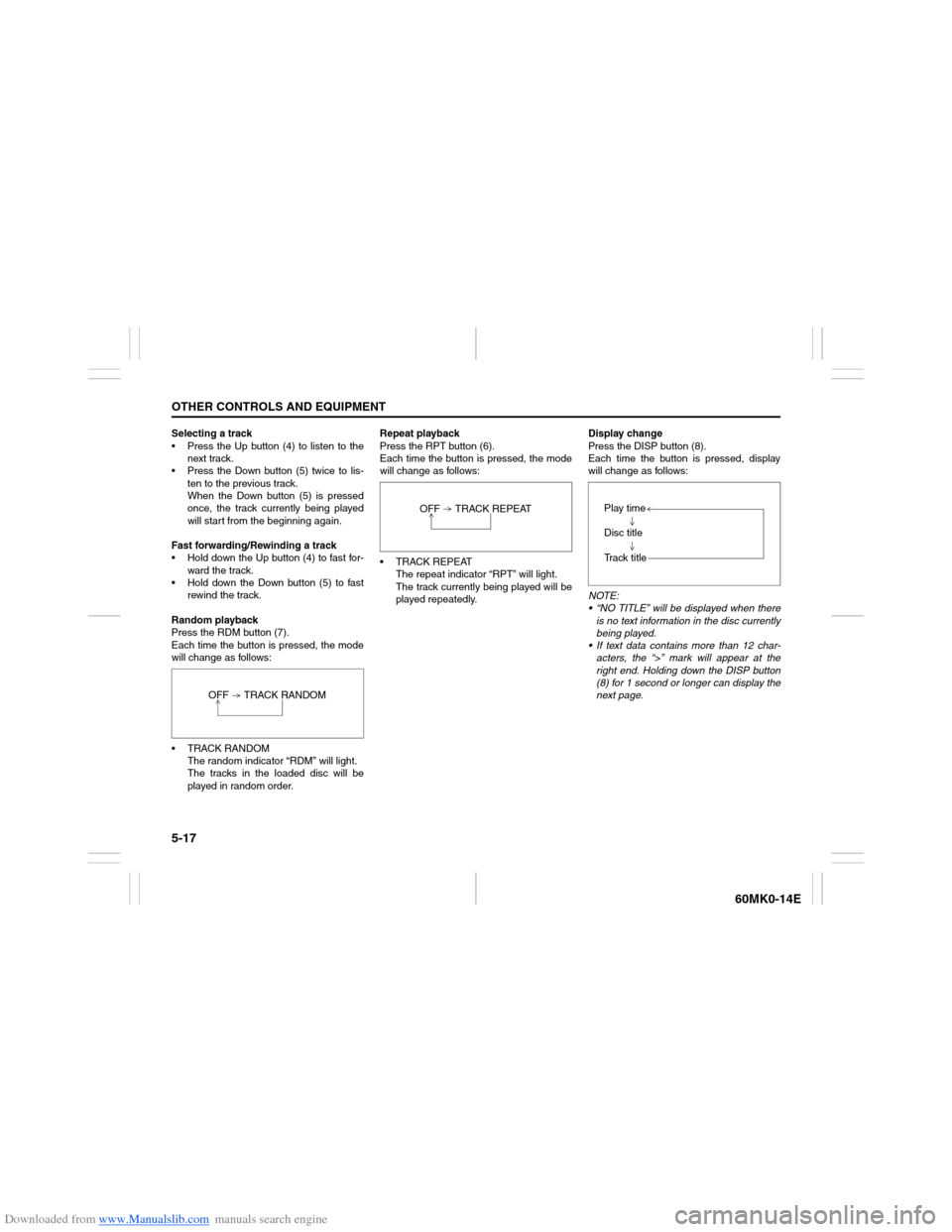
played repeatedly.Display change
Press the DISP button (8).
Each time the button is pressed, display
will change as follows:
NOTE:
“NO TITLE” will be displayed when there
is no text information in the disc currently
being played.
If text data contains more than 12 char-
acters, the “>” mark will appear at the
right end. Holding down the DISP button
(8) for 1 second or longer can display the
next page. OFF TRACK RANDOM
OFF TRACK REPEAT
Play time
Disc title
Track title
Page 115 of 207
Downloaded from www.Manualslib.com manuals search engine 5-20
OTHER CONTROLS AND EQUIPMENT
60MK0-14E
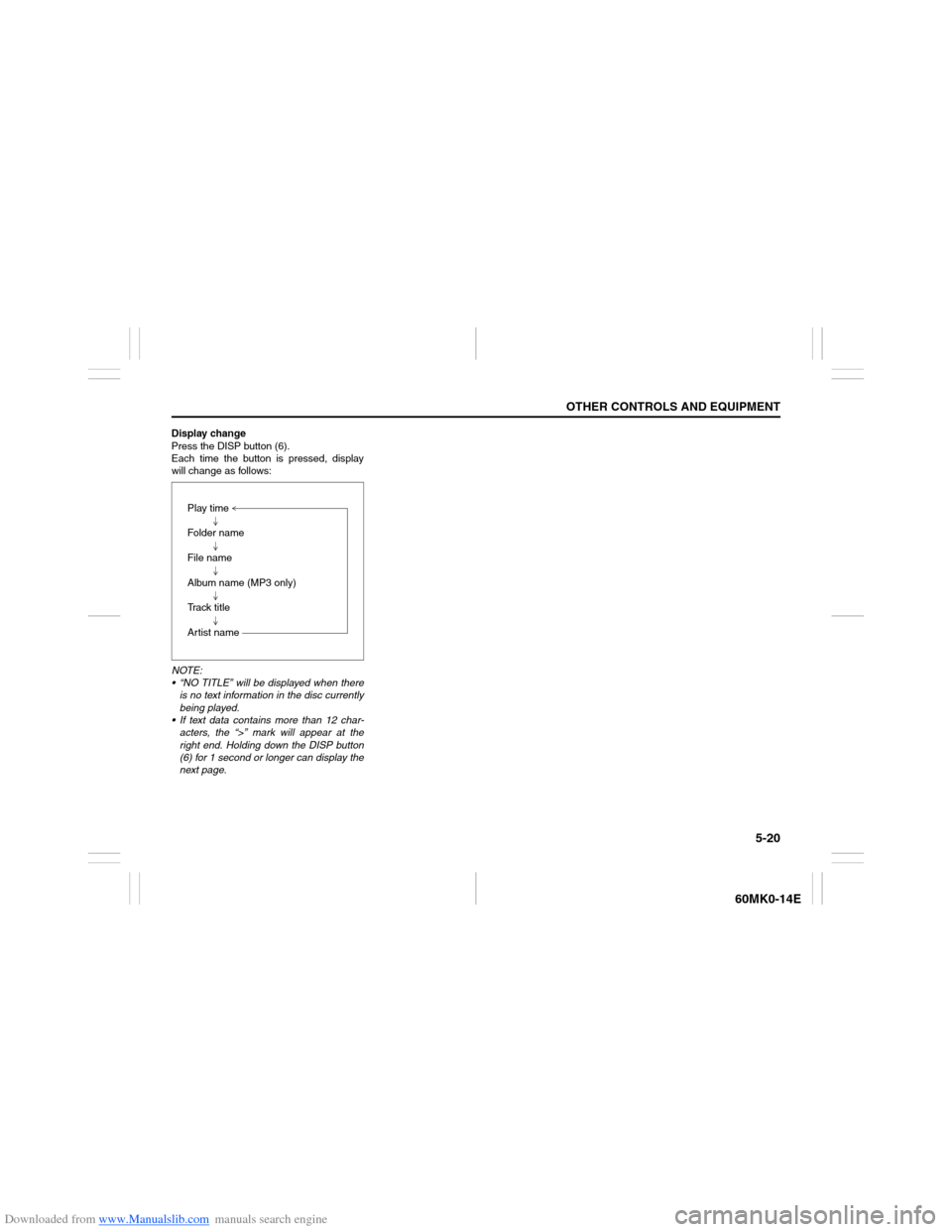
Display change
Press the DISP button (6).
Each time the button is pressed, display
will change as follows:
NOTE:
“NO TITLE” will be displayed when there
is no text information in the disc currently
being played.
If text data contains more than 12 char-
acters, the “>” mark will appear at the
right end. Holding down the DISP button
(6) for 1 second or longer can display the
next page.Play time
Folder name
File name
Album name (MP3 only)
Track title
Artist name
Page 120 of 207
Downloaded from www.Manualslib.com manuals search engine 5-25OTHER CONTROLS AND EQUIPMENT
60MK0-14E
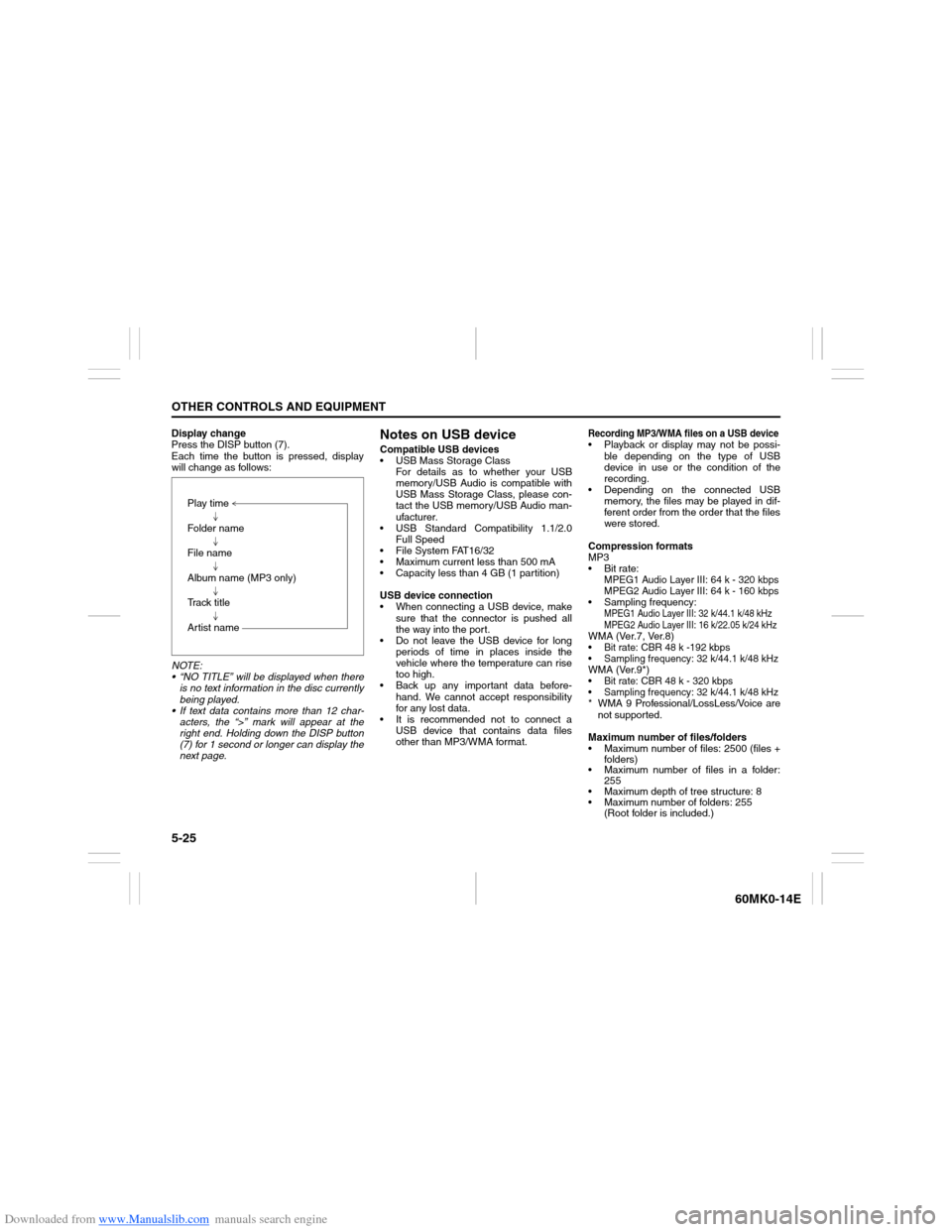
Display change
Press the DISP button (7).
Each time the button is pressed, display
will change as follows:
NOTE:
“NO TITLE” will be displayed when there
is no text information in the disc currently
being played.
If text data contains more than 12 char-
acters, the “>” mark will appear at the
right end. Holding down the DISP button
(7) for 1 second or longer can display the
next page.
Notes on USB deviceCompatible USB devices
USB Mass Storage Class
For details as to whether your USB
memory/USB Audio is compatible with
USB Mass Storage Class, please con-
tact the USB memory/USB Audio man-
ufacturer.
USB Standard Compatibility 1.1/2.0
Full Speed
File System FAT16/32
Maximum current less than 500 mA
Capacity less than 4 GB (1 partition)
USB device connection
When connecting a USB device, make
sure that the connector is pushed all
the way into the port.
Do not leave the USB device for long
periods of time in places inside the
vehicle where the temperature can rise
too high.
Back up any important data before-
hand. We cannot accept responsibility
for any lost data.
It is recommended not to connect a
USB device that contains data files
other than MP3/WMA format.
Recording MP3/WMA files on a USB device Playback or display may not be possi-
ble depending on the type of USB
device in use or the condition of the
recording.
Depending on the connected USB
memory, the files may be played in dif-
ferent order from the order that the files
were stored.
Compression formats
MP3
Bit rate
:
MPEG1 Audio Layer III: 64 k - 320 kbps
MPEG2 Audio Layer III: 64 k - 160 kbps
Sampling frequency
:
MPEG1 Audio Layer III: 32 k/44.1 k/48 kHz
MPEG2 Audio Layer III: 16 k/22.05 k/24 kHz
WMA (Ver.7, Ver.8) Bit rate: CBR 48 k -192 kbps Sampling frequency: 32 k/44.1 k/48 kHzWMA (Ver.9*) Bit rate: CBR 48 k - 320 kbps Sampling frequency: 32 k/44.1 k/48 kHz* WMA 9 Professional/LossLess/Voice are
not supported.
Maximum number of files/folders
Maximum number of files: 2500 (files +
folders)
Maximum number of files in a folder:
255
Maximum depth of tree structure: 8
Maximum number of folders: 255
(Root folder is included.) Play time
Folder name
File name
Album name (MP3 only)
Track title
Artist name
Page 123 of 207
Downloaded from www.Manualslib.com manuals search engine 5-28
OTHER CONTROLS AND EQUIPMENT
60MK0-14E
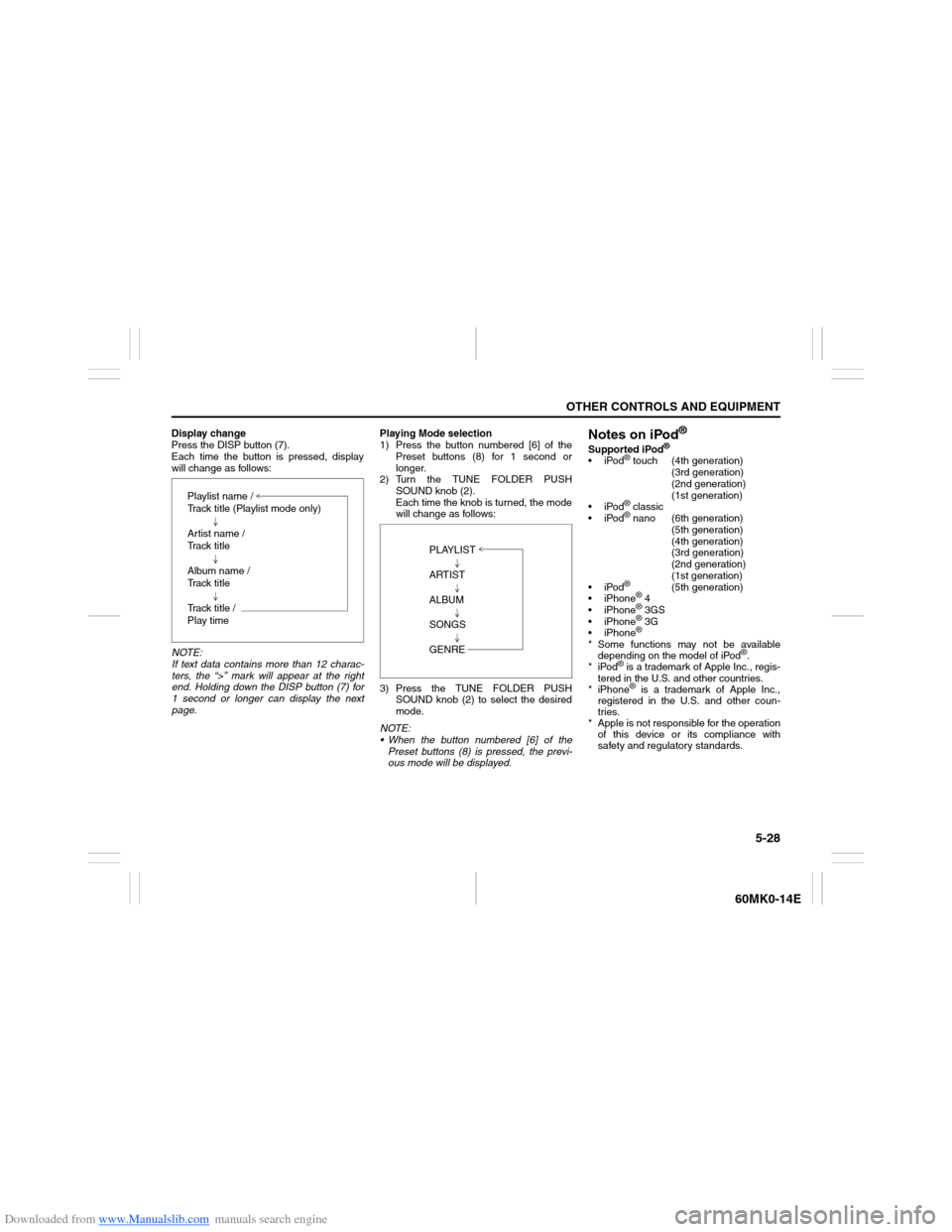
Display change
Press the DISP button (7).
Each time the button is pressed, display
will change as follows:
NOTE:
If text data contains more than 12 charac-
ters, the “>” mark will appear at the right
end. Holding down the DISP button (7) for
1 second or longer can display the next
page.Playing Mode selection
1) Press the button numbered [6] of the
Preset buttons (8) for 1 second or
longer.
2) Turn the TUNE FOLDER PUSH
SOUND knob (2).
Each time the knob is turned, the mode
will change as follows:
3) Press the TUNE FOLDER PUSH
SOUND knob (2) to select the desired
mode.
NOTE:
When the button numbered [6] of the
Preset buttons (8) is pressed, the previ-
ous mode will be displayed.
Notes on iPod
®
Supported iPod
®
iPod
® touch (4th generation)
(3rd generation)
(2nd generation)
(1st generation)
iPod® classic
iPod® nano (6th generation)
(5th generation)
(4th generation)
(3rd generation)
(2nd generation)
(1st generation)
iPod®
(5th generation)
iPhone
® 4
iPhone® 3GS
iPhone® 3G
iPhone®
* Some functions may not be available
depending on the model of iPod
®.
*iPod
® is a trademark of Apple Inc., regis-
tered in the U.S. and other countries.
* iPhone® is a trademark of Apple Inc.,
registered in the U.S. and other coun-
tries.
* Apple is not responsible for the operation
of this device or its compliance with
safety and regulatory standards. Playlist name /
Track title (Playlist mode only)
Artist name /
Track title
Album name /
Track title
Track title /
Play time
PLAYLIST
ARTIST
ALBUM
SONGS
GENRE