stop start SUZUKI FORENZA 2007 User Guide
[x] Cancel search | Manufacturer: SUZUKI, Model Year: 2007, Model line: FORENZA, Model: SUZUKI FORENZA 2007Pages: 225, PDF Size: 4.39 MB
Page 99 of 225
3-23 INSTRUMENT PANEL
85Z03-03E
cated by the system before any problem is
apparent. This may prevent more serious
damage to your vehicle. This system is
also designed to assist your service techni-
cian in correctly diagnosing any malfunc-
tion.
When the ignition is on, this light should
come on and should go out after a few sec-
onds as a check to show you it is working.
If the light doesn’t come on, have it
repaired.This light will also come on during a mal-
function in one of two ways:
Light Flashing
A misfire condition has been detected. A
misfire increases vehicle emissions and
may damage the emission control sys-
tem on your vehicle. Diagnosis and ser-
vice may be required.
Light On Steady
An emission control system malfunction
has been detected on your vehicle. Diag-
nosis and service may be required.
If the Light Is Flashing
The following may prevent more serious
damage to your vehicle:
Reducing vehicle speed.
Avoiding hard accelerations.
Avoiding steep uphill grades.
If the light stops flashing and remains on
steady, see “If the Light Is On Steady” fol-
lowing.
If the light continues to flash, when it is
safe to do so, stop the vehicle. Find a safe
place to park your vehicle. Turn the key off,
wait at least 10 seconds and restart the
engine. If the light remains on steady, see
“If the Light Is On Steady” following. If the
light is still flashing, see your SUZUKI
dealer for service as soon as possible. Fol-
low the driving guidelines described above.If the Light Is On Steady
You also may be able to correct the emis-
sion system malfunction by considering the
following:
Did you recently put fuel into your vehicle?
If so, reinstall the fuel cap, making sure to
fully install the cap. See “Filling Your Tank”
in section 5. The diagnostic system can
determine if the fuel cap has been left off
or is improperly installed. A loose or miss-
ing fuel cap will allow fuel to evaporate into
the atmosphere. A few driving trips with the
cap properly installed should turn the light
off.
Did you just drive through a deep puddle of
water?
If so, your electrical system may be wet.
The condition will usually be corrected
when the electrical system dries out. A few
driving trips should turn the light off.
Have you recently changed brands of fuel?
If so, be sure to fuel your vehicle with qual-
ity fuel. See “Gasoline Octane” in section
5. Poor fuel quality will cause your engine
not to run as efficiently as designed. You
may notice stalling after start-up, stalling
when you put the vehicle into gear, misfir-
ing, hesitation on acceleration or stumbling
on acceleration. (These conditions may go
away once the engine is warmed up.) This
will be detected by the system and cause
the light to turn on.
CAUTION
If you keep driving your vehicle with
this light on, your emission controls
may not work as well, your fuel econ-
omy may not be as good, and your
engine may not run as smoothly. This
could lead to costly repairs that may
not be covered by your warranty.
CAUTION
Modifications made to the engine,
transmission, exhaust or intake or
fuel system of your vehicle can affect
your vehicle’s emission controls and
may cause this light to come on.
Modifications to these systems could
lead to costly repairs not covered by
your warranty. This may also result in
a failure to pass a required Emission
Inspection/Maintenance test.
Warning Lights, Gauges and Indicators:
Page 100 of 225
3-24 INSTRUMENT PANEL
85Z03-03E
If you experience one or more of these
conditions, change the fuel brand you use.
It will require at least one full tank of the
proper fuel to turn the light off.
If none of the above steps have made the
light turn off, your SUZUKI dealer can
check the vehicle. Your SUZUKI dealer has
the proper test equipment and diagnostic
tools to fix any mechanical or electrical
problems that may have developed.
Emissions Inspection and Maintenance
Programs
Some state/provincial and local govern-
ments have or may begin programs to
inspect the emission control equipment on
your vehicle. Failure to pass this inspection
could prevent you from getting a vehicle
registration.
Here are some things you need to know to
help your vehicle pass an inspection:
Your vehicle will not pass this inspection if
the Check Engine light is on or is not work-
ing properly.
Your vehicle will not pass this inspection if
the OBD (on-board diagnostic) system
determines that critical emission control
systems have not been completely diag-
nosed by the system. The vehicle would be
considered not ready for inspection. This
can happen if you have recently replaced
your battery or if your battery has run
down. The diagnostic system is designed
to evaluate critical emission control sys-tems during normal driving. This may take
several days of routine driving. If you have
done this and your vehicle still does not
pass the inspection for lack of OBD system
readiness, your SUZUKI dealer can pre-
pare the vehicle for inspection.
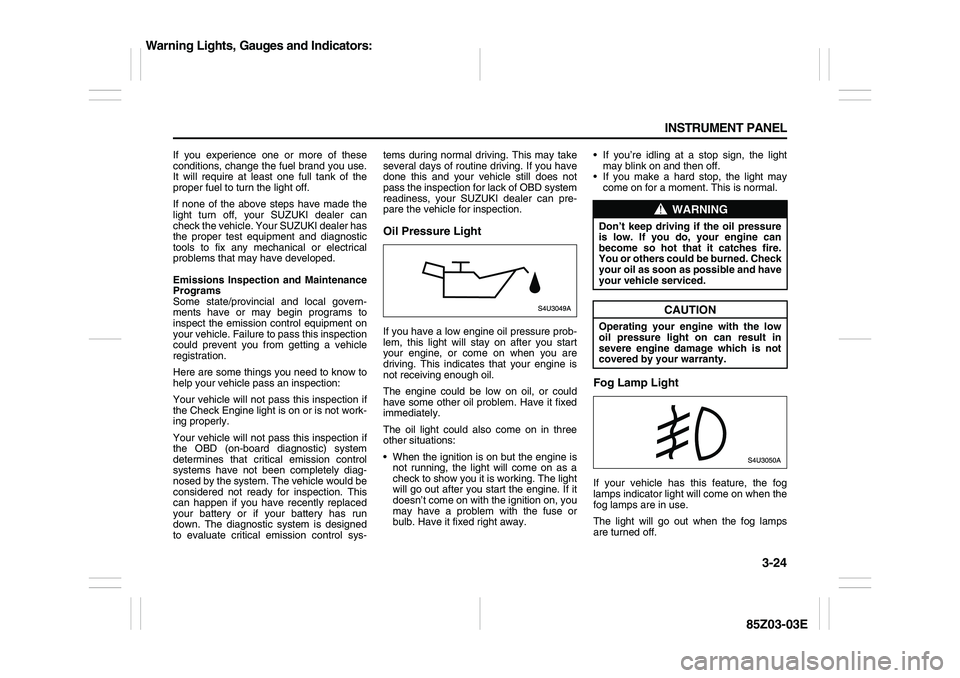
Oil Pressure LightIf you have a low engine oil pressure prob-
lem, this light will stay on after you start
your engine, or come on when you are
driving. This indicates that your engine is
not receiving enough oil.
The engine could be low on oil, or could
have some other oil problem. Have it fixed
immediately.
The oil light could also come on in three
other situations:
When the ignition is on but the engine is
not running, the light will come on as a
check to show you it is working. The light
will go out after you start the engine. If it
doesn’t come on with the ignition on, you
may have a problem with the fuse or
bulb. Have it fixed right away. If you’re idling at a stop sign, the light
may blink on and then off.
If you make a hard stop, the light may
come on for a moment. This is normal.
Fog Lamp LightIf your vehicle has this feature, the fog
lamps indicator light will come on when the
fog lamps are in use.
The light will go out when the fog lamps
are turned off.
WARNING
Don’t keep driving if the oil pressure
is low. If you do, your engine can
become so hot that it catches fire.
You or others could be burned. Check
your oil as soon as possible and have
your vehicle serviced.
CAUTION
Operating your engine with the low
oil pressure light on can result in
severe engine damage which is not
covered by your warranty.
Warning Lights, Gauges and Indicators:
Page 103 of 225
3-27 INSTRUMENT PANEL
85Z03-03E
tire pressure monitoring system is func-
tioning properly.
Your vehicle has also been equipped with
a TPMS malfunction indictor to indicate
when the system is not operating properly.
The TPMS malfunction indicator is com-
bined with the low tire pressure telltale.
When the system detects a malfunction,
the telltale will flash for approximately one
minute and then remain continuously illu-
minated. This sequence will continue upon
subsequent vehicle start-ups as long as
the malfunction exists.In this situation, please have the system
inspected by an authorized service facility.
If you replace one or more tires and the
TPMS warning light goes off during driv-
ing, there is no problem. However, if the
warning light does not go off, or if it flashes
again when the vehicle is driven, have the
vehicle inspected by an authorized service
facility.
WARNING
Each tire, including the spare (if pro-
vided), should be checked monthly
when cold and inflated to the inflation
pressure recommended by the vehi-
cle manufacturer on the vehicle plac-
ard or tire inflation pressure label and
this manual. (If your vehicle has tires
of a different size than the size indi-
cated on the vehicle label or tire infla-
tion pressure label, you should
determine the proper tire inflation
pressure for those tires.)
As an added safety feature, your
vehicle has been equipped with a tire
pressure monitoring system (TPMS)
that illuminates a low tire pressure
telltale when one or more of your
tires is significantly under-inflated.
Accordingly, when the low tire pres-
sure telltale illuminates, you should
stop and check your tires as soon as
possible and inflate them to the
proper pressure. Driving on a signifi-
cantly under-inflated tire causes the
tire to overheat and can lead to tire
failure.
Under-inflation also reduces fuel effi-
ciency and tire tread life and may
affect the vehicle’s handling and
stopping ability.
(Continued)
WARNING
(Continued)
Please note that the TPMS is not a
substitute for proper tire mainte-
nance, and it is the driver’s responsi-
bility to maintain correct tire
pressure, even if under-inflation has
not reached the level to trigger illumi-
nation of the TPMS low tire pressure
telltale.
WARNING
If the tire pressure monitoring system
warning light does not illuminate
when the ignition key is turned to the
“ON” position, have the system
inspected by an authorized service
facility. If the warning light flashes
while driving, check to see whether
the warning light goes off after a few
minutes of driving.
WARNING
When the malfunction indicator is
illuminated, the system may not be
able to detect or signal low tire pres-
sure as intended. TPMS malfunctions
may occur for a variety of reasons,
including the installation of replace-
ment or alternate tires or wheels on
the vehicle that prevent the TPMS
from functioning properly. Always
check the TPMS malfunction telltale
after replacing one or more tires or
wheels on your vehicle to ensure that
the replacement or alternate tires and
wheels allow the TPMS to continue to
function properly.
Audio System:
Page 108 of 225
3-32 INSTRUMENT PANEL
85Z03-03E
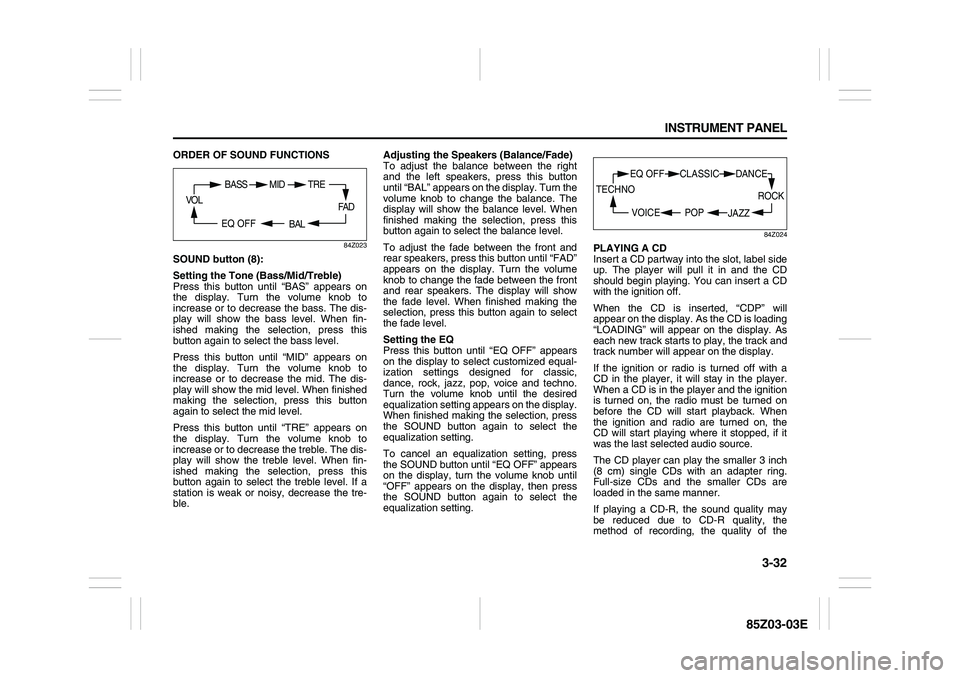
ORDER OF SOUND FUNCTIONS
84Z023
SOUND button (8):
Setting the Tone (Bass/Mid/Treble)
Press this button until “BAS” appears on
the display. Turn the volume knob to
increase or to decrease the bass. The dis-
play will show the bass level. When fin-
ished making the selection, press this
button again to select the bass level.
Press this button until “MID” appears on
the display. Turn the volume knob to
increase or to decrease the mid. The dis-
play will show the mid level. When finished
making the selection, press this button
again to select the mid level.
Press this button until “TRE” appears on
the display. Turn the volume knob to
increase or to decrease the treble. The dis-
play will show the treble level. When fin-
ished making the selection, press this
button again to select the treble level. If a
station is weak or noisy, decrease the tre-
ble. Adjusting the Speakers (Balance/Fade)
To adjust the balance between the right
and the left speakers, press this button
until “BAL” appears on the display. Turn the
volume knob to change the balance. The
display will show the balance level. When
finished making the selection, press this
button again to select the balance level.
To adjust the fade between the front and
rear speakers, press this button until “FAD”
appears on the display. Turn the volume
knob to change the fade between the front
and rear speakers. The display will show
the fade level. When finished making the
selection, press this button again to select
the fade level.
Setting the EQ
Press this button until “EQ OFF” appears
on the display to select customized equal-
ization settings designed for classic,
dance, rock, jazz, pop, voice and techno.
Turn the volume knob until the desired
equalization setting appears on the display.
When finished making the selection, press
the SOUND button again to select the
equalization setting.
To cancel an equalization setting, press
the SOUND button until “EQ OFF” appears
on the display, turn the volume knob until
“OFF” appears on the display, then press
the SOUND button again to select the
equalization setting.
84Z024
PLAYING A CD
Insert a CD partway into the slot, label side
up. The player will pull it in and the CD
should begin playing. You can insert a CD
with the ignition off.
When the CD is inserted, “CDP” will
appear on the display. As the CD is loading
“LOADING” will appear on the display. As
each new track starts to play, the track and
track number will appear on the display.
If the ignition or radio is turned off with a
CD in the player, it will stay in the player.
When a CD is in the player and the ignition
is turned on, the radio must be turned on
before the CD will start playback. When
the ignition and radio are turned on, the
CD will start playing where it stopped, if it
was the last selected audio source.
The CD player can play the smaller 3 inch
(8 cm) single CDs with an adapter ring.
Full-size CDs and the smaller CDs are
loaded in the same manner.
If playing a CD-R, the sound quality may
be reduced due to CD-R quality, the
method of recording, the quality of the
FA D
BAL
BASS MID
EQ OFF VOL
TRE
ROCK
JAZZ
EQ OFF CLASSIC
POP VOICE TECHNO
DANCE
Page 109 of 225
3-33 INSTRUMENT PANEL
85Z03-03E
music that has been recorded, and the way
the CD-R has been handled. There may be
an increase in skipping, difficulty in finding
tracks, and/or difficulty in loading and
ejecting. If these problems occur, check
the bottom surface of the CD. If the surface
of the CD is damaged, such as cracked,
broken, or scratched, the CD will not play
properly. If there is no apparent damage,
try a known good CD.
Do not add any label to a CD, it could get
caught in the CD player. If a CD is
recorded on a personal computer and a
description label is needed, try labeling the
top of the recorded CD with a marking pen
instead.
If an error appears on the display, see “CD
Messages” later in this section.
RPT (Repeat) button (7):
Press this button to repeat the current
track. RPT will appear on the display.
Press this button again to turn off repeat
play.
RDM (Random) button (7):
Press this button to hear the tracks in ran-
dom, rather than sequential, order. “RDM”
will appear on the display. Press this button
again to turn off random play.
INT (Scan) button (7):
Press this button to listen to the first few
seconds of each track on each loaded CD.
“INTRO” will appear on the display. To stopscanning, press this button again. The cur-
rent track will begin to play.
TUNE (Previous/Next Track) button (4):
Press the down arrows to go to the start of
the current track or press the up arrows to
go to the next track. The track number will
appear on the display. The player will con-
tinue moving backward or forward through
the CD with each press of the up or down
arrows.
AM button (2):
Press this button to listen to the radio when
a CD is playing. The inactive CD will
remain safely inside the radio for future lis-
tening.
FM button (3):
Press this button to listen to the radio when
a CD is playing. The inactive CD will
remain safely inside the radio for future lis-
tening.
CD/AUX button (9):
Press this button to play a CD when listen-
ing to the radio. “CDP” will appear on the
display when the CD player has been
selected. The CD symbol will appear on
the display when a CD is loaded.
Press this button while a CD is playing to
pause the CD. “PAUSE” will flash on the
display. Press this button again to resume
playing the CD.
Press this button to play a CD when listen-
ing to the audio contents from other device
(AUX mode). “CDP” will appear on the dis-play when the CD player has been
selected. The CD symbol will appear on
the display when a CD is loaded.
EJECT button (10):
Press this button to eject a CD. The only
way a CD can be ejected from the player is
by pressing the eject button. The CD will
not eject when the ignition or the radio is
turned off.
Using an MP3/WMA CD
MP3/WMA Format
If you burn your own MP3/WMA disc on a
personal computer:
Make sure the MP3/WMA files are
recorded on a CD-R disc.
Make sure to finalize the disc when burn-
ing an MP3/WMA disc, using multiple
sessions. It is usually better to burn the
disc all at once.
Files can be recorded with a variety of
fixed or variable bit rates. Song title, art-
ist name, and album will be available for
display by the radio when recorded using
ID3 tags version 1 and 2.
Do not mix standard audio and MP3/
WMA files on one disc.
Make sure each MP3/WMA file has a
“.mp3” or “.wma” extension, other file
extensions may not work.
The player will be able to read and play a
maximum of 50 folders, 5 sessions, and
999 files. Long file names and folder
names may use more disc memory space
Page 110 of 225
3-34 INSTRUMENT PANEL
85Z03-03E
than necessary. To conserve space on the
disc, minimize the length of the file, and
folder names. You can also play an MP3/
WMA CD that was recorded using no file
folders. The system can support up to 8
folders in depth, but, keep the depth of the
folders to a minimum in order to keep down
the complexity and confusion in trying to
locate a particular folder during playback. If
a CD contains more than the maximum of
50 folders, 5 sessions, and 999 files the
player will let you access and navigate up
to the maximum, but all items over the
maximum will be ignored.
Root Directory
The root directory will be treated as a
folder. If the root directory has compressed
audio files, the directory will be displayed
as “ROOT”. All files contained directly
under the root directory will be accessed
prior to any other directory.
Empty Directory or Folder
If a root directory or a folder exists some-
where in the file structure that contains
only folders/subfolders and no compressed
files directly beneath them, the player will
advance to the next folder in the file struc-
ture that contains compressed audio files
and the empty folder will not be displayed
or numbered.
No Folder
When the CD contains only compressed
files, the files will be located under the root
folder. The next and previous folder func-tions will have no function on a CD that
was recorded without folders or playlists.
When displaying the name of the folder the
radio will display “ROOT”.
When the CD contains only compressed
audio files, but no folders, all files will be
located under the root folder. When the
radio displays the name of the folder the
radio will display “ROOT”.
Order of Play
Tracks will be played in the following order:
Play will begin from the first track under the
root directory. When all tracks from the root
directory have been played, play will con-
tinue from files according to their numerical
listing. After playing the last track from the
last folder, the player will begin playing
again at the first track of the first folder or
root directory.
File System and Naming
The song name in the ID3 tag will be dis-
played. If the song name is not present in
the ID3 tag, then the radio will display the
file name without the extension (such as
MP3/WMA) instead.
Track names longer than 32 characters or
4 pages will be shortened. The display will
not show parts of words on the last page of
text and the extension of the filename will
not be displayed.Playing an MP3/WMA
With the ignition on, insert a CD partway
into the slot, label side up. The player will
pull it in, then “LOADING”, and then “MP3”
or “WMA” will appear on the display. The
CD should begin playing. You can’t insert a
CD with the acc off. As each new track
starts to play, the track number, and the
song name will appear on the display.
If the ignition or radio is turned off with a
CD in the player, it will stay in the player.
When a CD is in the player and the ignition
is turned on, the radio must be turned on
before the CD will start playback. When
the ignition and radio are turned on, the
CD will start playing where it stopped, if it
was the last selected audio source.
The CD player can play the smaller 3 inch
(8 cm) single CDs with an adapter ring.
Full-size CDs and the smaller CDs are
loaded in the same manner.
If playing a CD-R, the sound quality may
be reduced due to CD-R quality, the
method of recording, the quality of the
music that has been recorded, and the way
the CD-R has been handled. There may be
an increase in skipping, difficulty in finding
tracks, and/or difficulty in loading and
ejecting. If these problems occur, check
the bottom surface of the CD. If the surface
of the CD is damaged, such as cracked,
broken, or scratched, the CD will not play
properly.
Page 116 of 225
3-40 INSTRUMENT PANEL
85Z03-03E
PLAYING A CD
Insert a CD partway into the slot, label side
up. The player will pull it in and the CD
should begin playing. You can insert a CD
with the ignition off.
When the CD is inserted, “CDP” will
appear on the display. As the CD is loading
“LOADING” will appear on the display. As
each new track starts to play, the track and
track number will appear on the display.
If the ignition or radio is turned off with a
CD in the player, it will stay in the player.
When a CD is in the player and the ignition
is turned on, the radio must be turned on
before the CD will start playback. When
the ignition and radio are turned on, the
CD will start playing where it stopped, if it
was the last selected audio source.
The CD player can play the smaller 3 inch
(8 cm) single CDs with an adapter ring.
Full-size CDs and the smaller CDs are
loaded in the same manner.
If playing a CD-R, the sound quality may
be reduced due to CD-R quality, the
method of recording, the quality of the
music that has been recorded, and the way
the CD-R has been handled. There may be
increase in skipping, difficulty in finding
tracks, and/or difficulty in loading and
ejecting. If these problems occur, check
the bottom surface of the CD. If the surface
of the CD is damaged, such as cracked,
broken, or scratched, the CD will not playproperly. If there is no apparent damage,
try a known good CD.
Do not add any label to a CD, it could get
caught in the CD player. If a CD is
recorded on a personal computer and a
description label is needed, try labeling the
top of the recorded CD with a marking pen
instead.
If an error appears on the display, see “CD
Messages” later in this section.
RPT (Repeat) button (7):
Press this button to repeat the current
track. RPT will appear on the display.
Press this button again to turn off repeat
play.
RDM (Random) button (7):
Press this button to hear the tracks in ran-
dom, rather than sequential, order. “RDM”
will appear on the display. Press this button
again to turn off random play.
INT (Scan) button (7):
Press this button to listen to the first few
seconds of each track on each loaded CD.
“INTRO” will appear on the display. To stop
scanning, press this button again. The cur-
rent track will begin to play.
TUNE (Previous/Next Track) button (4):
Press the down arrows to go to the start of
the current track or press the up arrows to
go to the next track. The track number will
appear on the display. The player will con-
tinue moving backward or forward throughthe CD with each press of the up or down
arrows.
AM button (2):
Press this button to listen to the radio when
a CD is playing. The inactive CD will
remain safely inside the radio for future lis-
tening.
FM button (3):
Press this button to listen to the radio when
a CD is playing. The inactive CD will
remain safely inside the radio for future lis-
tening.
CD/AUX button (9):
Press this button to play a CD when listen-
ing to the radio. “CDP” will appear on the
display when the CD player has been
selected. The CD symbol will appear on
the display when a CD is loaded.
Press this button while a CD is playing to
pause the CD. “PAUSE” will flash on the
display. Press this button again to resume
playing the CD.
Press this button to play a CD when listen-
ing to the audio contents from other device
(AUX mode). “CDP” will appear on the dis-
play when the CD player has been
selected. The CD symbol will appear on
the display when a CD is loaded.
EJECT button (10):
Press this button to eject a CD. The only
way a CD can be ejected from the player is
by pressing the eject button. The CD will
Page 118 of 225
3-42 INSTRUMENT PANEL
85Z03-03E
Playing an MP3/WMA
With the ignition on, insert a CD partway
into the slot, label side up. The player will
pull it in, then “LOADING”, and then “MP3”
or “WMA” will appear on the display. The
CD should begin playing. You can’t insert a
CD with the acc off. As each new track
starts to play, the track number, and the
song name will appear on the display.
If the ignition or radio is turned off with a
CD in the player, it will stay in the player.
When a CD is in the player and the ignition
is turned on, the radio must be turned on
before the CD will start playback. When
the ignition and radio are turned on, the
CD will start playing where it stopped, if it
was the last selected audio source.
The CD player can play the smaller 3 inch
(8 cm) single CDs with an adapter ring.
Full-size CDs and the smaller CDs are
loaded in the same manner.
If playing a CD-R, the sound quality may
be reduced due to CD-R quality, the
method of recording, the quality of the
music that has been recorded, and the way
the CD-R has been handled. There may be
an increase in skipping, difficulty in finding
tracks, and/or difficulty in loading and
ejecting. If these problems occur, check
the bottom surface of the CD. If the surface
of the CD is damaged, such as cracked,
broken, or scratched, the CD will not play
properly. If there is no apparent damage,
try a known good CD.Do not add any label to a CD, it could get
caught in the CD player. If a CD is
recorded on a personal computer and a
description label is needed, try labeling the
top of the recorded CD with a marking pen
instead.
If an error appears on the display, see “CD
Messages” later in this section.
All of the CD functions work the same
while playing an MP3/WMA, except for
those listed here. See “Playing a CD” ear-
lier for more information.
DIR (Directory) button (11):
Press this button to repeat the tracks in the
current directory. “DIR” will appear on the
display.
Press this button again to repeat the tracks
in all of the directories. “ALL” will appear on
the display.
Press this button again to turn off repeat
play.
SEEK (Previous/Next Folder) button (5)
(in MP3/WMA mode):
Press the up or down arrows to change the
folder. If the CD-R doesn’t have any folder,
“ROOT” will flash on display for a short
time.TUNE (Previous/Next Folder) button (4):
Press the up or down arrows to go to the
first track in the previous folder or to go to
the next folder. The player will continue
moving backward or forward through the
CD with each press of the up or down
arrows.
INFO/DISP (Information/Display) button
(12):
Press this button to display additional text
information related to the current MP3/
WMA song. A choice of additional informa-
tion such as: Song Title, Album Title, Artist,
and Bit rate may appear.
When information is not available, “No Info”
will appear on the display.
Press and hold this button to change the
display mode.
Scroll:
Press and hold the sound button [in MP3/
WMA mode]
The song title or other information of a
song will scroll on/off. The default mode is
scroll on.
Scroll mode can be changed only when
you press and hold the sound button.
Page 127 of 225
4-3 DRIVING YOUR VEHICLE
85Z03-03E
Sometimes, as when you’re driving on
snow or ice, it’s easy to ask more of those
control systems than the tires and road
can provide. That means you can lose con-
trol of your vehicle.BrakingBraking action involves perception time
and reaction time.
First, you have to decide to push on the
brake pedal. That’s perception time. Then
you have to bring up your foot and do it.
That’s reaction time.
Average reaction time is about 3/4 of a
second. But that’s only an average. It might
be less with one driver and as long as two
or three seconds or more with another.
Age, physical condition, alertness, coordi-
nation and eyesight all play a part. So do
alcohol, drugs and frustration. But even in3/4 of a second, a vehicle moving at 60
mph (100 km/h) travels 66 feet (20 m).
That could be a lot of distance in an emer-
gency, so keeping enough space between
your vehicle and others is important.
And, of course, actual stopping distances
vary greatly with the surface of the road
(whether it’s pavement or gravel) the condi-
tion of the road (wet, dry, icy) tire tread the
condition of your brakes the weight of the
vehicle and the amount of brake force
applied.
Avoid needless heavy braking. Some peo-
ple drive in spurts – heavy acceleration fol-
lowed by heavy braking – rather than
keeping pace with traffic. This is a mistake.
Your brakes may not have time to cool
between hard stops. Your brakes will wear
out much faster if you do a lot of heavy
braking. If you keep pace with the traffic
and allow realistic following distances, you
will eliminate a lot of unnecessary braking.
That means better braking and longer
brake life.
If your engine ever stops while you’re driv-
ing, brake normally but don’t pump your
brakes. If you do, the pedal may get harder
to push down. If your engine stops, you will
still have some power brake assist. But you
will use it when you brake. Once the power
assist is used up, it may take longer to stop
and the brake pedal will be harder to push.
Anti-Lock Brake System (ABS)
(if equipped)ABS is an advanced electronic braking
system that will help prevent a braking
skid.
When you start your engine and begin to
drive away, your anti-lock brake system will
check itself. You may hear a momentary
motor or clicking noise while this test is
going on, and you may even notice that
your brake pedal moves a little. This is nor-
mal.
If there’s a problem with the anti-lock brake
system, this warning light will stay on. See
“Anti-Lock Brake System Warning Light” in
section 3.
Your Driving, the Road, and Your Vehicle:
Page 131 of 225
4-7 DRIVING YOUR VEHICLE
85Z03-03E
gerous move, since the passing vehicle
occupies the same lane as oncoming traf-
fic for several seconds. A miscalculation,
an error in judgment, or a brief surrender to
frustration or anger can suddenly put the
passing driver face to face with the worst of
all traffic accidents – the head-on collision.
So here are some tips for passing:
“Drive ahead.” Look down the road, to
the sides and to crossroads for situa-
tions that might affect your passing pat-
terns. If you have any doubt whatsoever
about making a successful pass, wait for
a better time.
Watch for traffic signs, pavement mark-
ings and lines. If you can see a sign up
ahead that might indicate a turn or an
intersection, delay your pass. A broken
center line usually indicates it’s all right
to pass (providing the road ahead is
clear). Never cross a solid line on your
side of the lane or a double solid line,
even if the road seems empty of
approaching traffic.
Do not get too close to the vehicle you
want to pass while you’re awaiting an
opportunity. For one thing, following too
closely reduces your area of vision,
especially if you’re following a larger
vehicle. Also, you won’t have adequate
space if the vehicle ahead suddenly
slows or stops. Keep back a reasonable
distance.
When it looks like a chance to pass is
coming up, start to accelerate but stay inthe right lane and don’t get too close.
Time your move so you will be increas-
ing speed as the time comes to move
into the other lane. If the way is clear to
pass, you will have a “running start” that
more than makes up for the distance you
would lose by dropping back. And if
something happens to cause you to can-
cel your pass, you need only slow down
and drop back again and wait for another
opportunity.
If other vehicles are lined up to pass a
slow vehicle, wait your turn. But take
care that someone isn’t trying to pass
you as you pull out to pass the slow vehi-
cle. Remember to glance over your
shoulder and check the blind spot.
Check your mirrors, glance over your
shoulder, and start your left lane change
signal before moving out of the right lane
to pass. When you are far enough ahead
of the passed vehicle to see its front in
your inside mirror, activate your right
lane change signal and move back into
the right lane. (Remember that your right
outside mirror is convex. The vehicle you
just passed may seem to be farther away
from you than it really is.)
Try not to pass more than one vehicle at
a time on two-lane roads. Reconsider
before passing the next vehicle.
Don’t overtake a slowly moving vehicle
too rapidly. Even though the brake lamps
are not flashing, it may be slowing down
or starting to turn. If you’re being passed, make it easy for
the following driver to get ahead of you.
Perhaps you can ease a little to the right.
Loss of ControlLet’s review what driving experts say about
what happens when the three control sys-
tems (brakes, steering and acceleration)
don’t have enough friction where the tires
meet the road to do what the driver has
asked.
In any emergency, don’t give up. Keep try-
ing to steer and constantly seek an escape
route or area of less danger.
Skidding
In a skid, a driver can lose control of the
vehicle. Defensive drivers avoid most skids
by taking reasonable care suited to exist-
ing conditions, and by not “overdriving”
those conditions. But skids are always pos-
sible.
The three types of skids correspond to
your vehicle’s three control systems. In the
braking skid, your wheels aren’t rolling. In
the steering or cornering skid, too much
speed or steering in a curve causes tires to
slip and lose cornering force. And in the
acceleration skid, too much throttle causes
the driving wheels to spin.
A cornering skid is best handled by easing
your foot off the accelerator pedal.
If your vehicle starts to slide, ease your
foot off the accelerator pedal and quickly
Your Driving, the Road, and Your Vehicle: