set time SUZUKI GRAND VITARA 2013 User Guide
[x] Cancel search | Manufacturer: SUZUKI, Model Year: 2013, Model line: GRAND VITARA, Model: SUZUKI GRAND VITARA 2013Pages: 337, PDF Size: 6.21 MB
Page 132 of 337
3-31OPERATING YOUR VEHICLE
79K21-03E
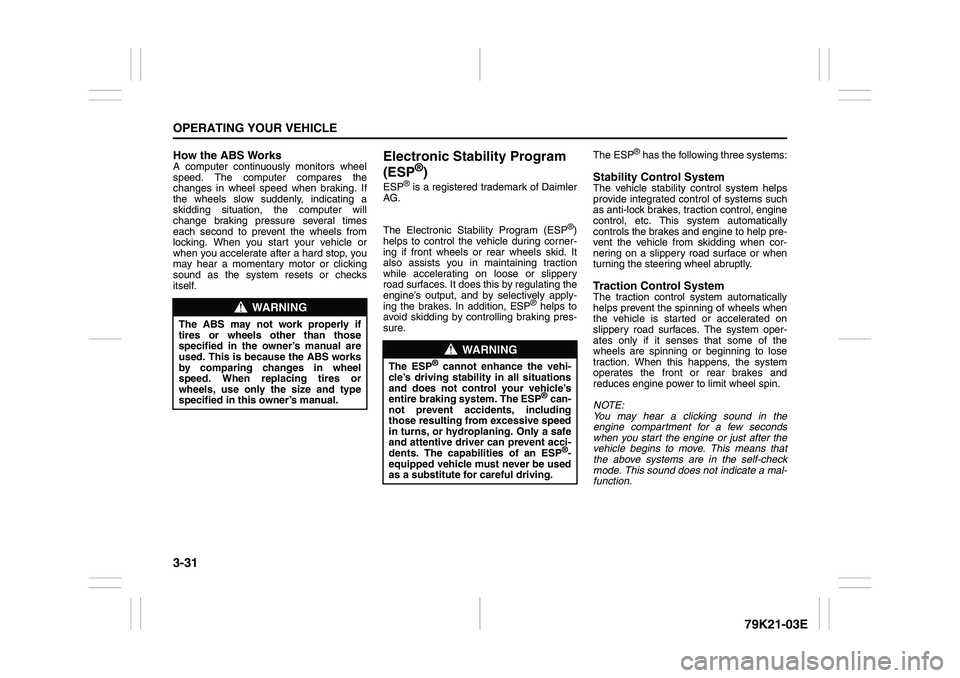
How the ABS WorksA computer continuously monitors wheel
speed. The computer compares the
changes in wheel speed when braking. If
the wheels slow suddenly, indicating a
skidding situation, the computer will
change braking pressure several times
each second to prevent the wheels from
locking. When you start your vehicle or
when you accelerate after a hard stop, you
may hear a momentary motor or clicking
sound as the system resets or checks
itself.
Electronic Stability Program
(ESP
®)
ESP
® is a registered trademark of Daimler
AG.
The Electronic Stability Program (ESP
®)
helps to control the vehicle during corner-
ing if front wheels or rear wheels skid. It
also assists you in maintaining traction
while accelerating on loose or slippery
road surfaces. It does this by regulating the
engine’s output, and by selectively apply-
ing the brakes. In addition, ESP
® helps to
avoid skidding by controlling braking pres-
sure.The ESP
® has the following three systems:
Stability Control SystemThe vehicle stability control system helps
provide integrated control of systems such
as anti-lock brakes, traction control, engine
control, etc. This system automatically
controls the brakes and engine to help pre-
vent the vehicle from skidding when cor-
nering on a slippery road surface or when
turning the steering wheel abruptly.Traction Control SystemThe traction control system automatically
helps prevent the spinning of wheels when
the vehicle is started or accelerated on
slippery road surfaces. The system oper-
ates only if it senses that some of the
wheels are spinning or beginning to lose
traction. When this happens, the system
operates the front or rear brakes and
reduces engine power to limit wheel spin.
NOTE:
You may hear a clicking sound in the
engine compartment for a few seconds
when you start the engine or just after the
vehicle begins to move. This means that
the above systems are in the self-check
mode. This sound does not indicate a mal-
function.
WARNING
The ABS may not work properly if
tires or wheels other than those
specified in the owner’s manual are
used. This is because the ABS works
by comparing changes in wheel
speed. When replacing tires or
wheels, use only the size and type
specified in this owner’s manual.
WARNING
The ESP
® cannot enhance the vehi-
cle’s driving stability in all situations
and does not control your vehicle’s
entire braking system. The ESP
® can-
not prevent accidents, including
those resulting from excessive speed
in turns, or hydroplaning. Only a safe
and attentive driver can prevent acci-
dents. The capabilities of an ESP
®-
equipped vehicle must never be used
as a substitute for careful driving.
Page 147 of 337
4-4
DRIVING TIPS
79K21-03E
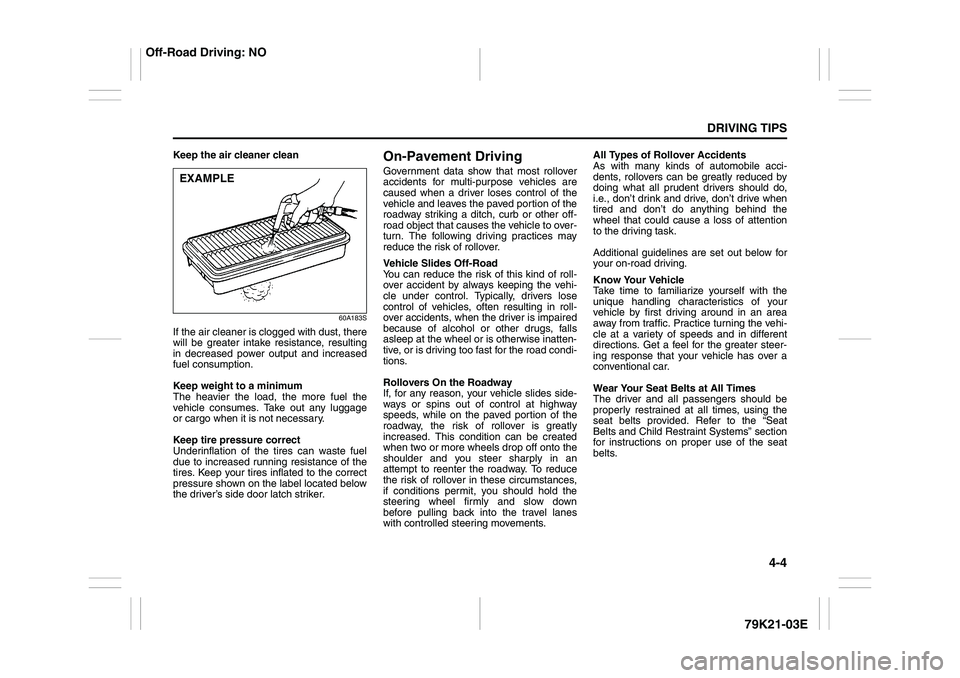
Keep the air cleaner clean
60A183S
If the air cleaner is clogged with dust, there
will be greater intake resistance, resulting
in decreased power output and increased
fuel consumption.
Keep weight to a minimum
The heavier the load, the more fuel the
vehicle consumes. Take out any luggage
or cargo when it is not necessary.
Keep tire pressure correct
Underinflation of the tires can waste fuel
due to increased running resistance of the
tires. Keep your tires inflated to the correct
pressure shown on the label located below
the driver’s side door latch striker.
On-Pavement DrivingGovernment data show that most rollover
accidents for multi-purpose vehicles are
caused when a driver loses control of the
vehicle and leaves the paved portion of the
roadway striking a ditch, curb or other off-
road object that causes the vehicle to over-
turn. The following driving practices may
reduce the risk of rollover.
Vehicle Slides Off-Road
You can reduce the risk of this kind of roll-
over accident by always keeping the vehi-
cle under control. Typically, drivers lose
control of vehicles, often resulting in roll-
over accidents, when the driver is impaired
because of alcohol or other drugs, falls
asleep at the wheel or is otherwise inatten-
tive, or is driving too fast for the road condi-
tions.
Rollovers On the Roadway
If, for any reason, your vehicle slides side-
ways or spins out of control at highway
speeds, while on the paved portion of the
roadway, the risk of rollover is greatly
increased. This condition can be created
when two or more wheels drop off onto the
shoulder and you steer sharply in an
attempt to reenter the roadway. To reduce
the risk of rollover in these circumstances,
if conditions permit, you should hold the
steering wheel firmly and slow down
before pulling back into the travel lanes
with controlled steering movements.All Types of Rollover Accidents
As with many kinds of automobile acci-
dents, rollovers can be greatly reduced by
doing what all prudent drivers should do,
i.e., don’t drink and drive, don’t drive when
tired and don’t do anything behind the
wheel that could cause a loss of attention
to the driving task.
Additional guidelines are set out below for
your on-road driving.
Know Your Vehicle
Take time to familiarize yourself with the
unique handling characteristics of your
vehicle by first driving around in an area
away from traffic. Practice turning the vehi-
cle at a variety of speeds and in different
directions. Get a feel for the greater steer-
ing response that your vehicle has over a
conventional car.
Wear Your Seat Belts at All Times
The driver and all passengers should be
properly restrained at all times, using the
seat belts provided. Refer to the “Seat
Belts and Child Restraint Systems” section
for instructions on proper use of the seat
belts.
EXAMPLE
Off-Road Driving: NO
Page 165 of 337
5-12
OTHER CONTROLS AND EQUIPMENT
79K21-03E
Turning power on/off
Press the power on/off knob (1).
The unit starts in the function mode it was
in when the power was turned off last.
Adjusting the volume
Turn the volume control knob (1).
Turning it clockwise increases the volume;
turning it counterclockwise decreases the
volume.
NOTE:
While driving, adjust the volume to an
extent that sound and/or noise coming
from outside the car can be heard.
Adjusting the clock
1) Press the clock button H (5) to adjust
the hours.
Press the clock button M (6) to adjust
the minutes.
2) Hold the button depressed to automati-
cally increment the number.
3) To reset the clock to an hour signal,
press the clock button H (5) while hold-
ing the clock button M (6) depressed.
NOTE:
When the clock has not been set, the time
“12:00” will flash in the display.
Clock reset is effected as follows:
When minutes are between 00 and 29,
the clock will reset to the current hour.
(example: 12:23 ➔ 12:00) When minutes are between 30 and 59,
the clock will reset to the next hour.
(example: 12:38 ➔ 1:00)
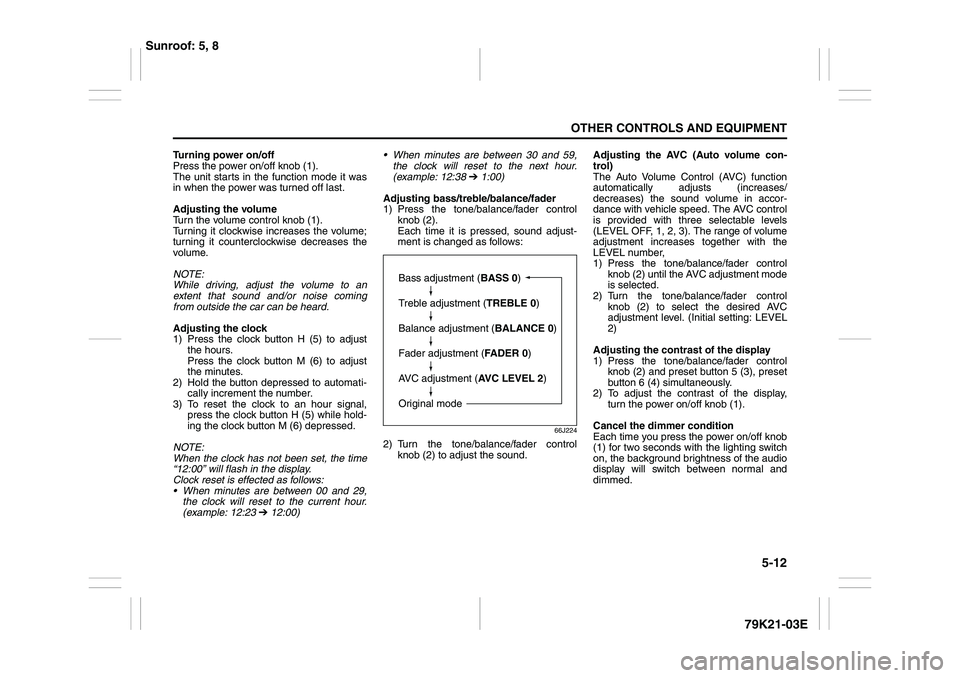
Adjusting bass/treble/balance/fader
1) Press the tone/balance/fader control
knob (2).
Each time it is pressed, sound adjust-
ment is changed as follows:
66J224
2) Turn the tone/balance/fader control
knob (2) to adjust the sound.Adjusting the AVC (Auto volume con-
trol)
The Auto Volume Control (AVC) function
automatically adjusts (increases/
decreases) the sound volume in accor-
dance with vehicle speed. The AVC control
is provided with three selectable levels
(LEVEL OFF, 1, 2, 3). The range of volume
adjustment increases together with the
LEVEL number,
1) Press the tone/balance/fader control
knob (2) until the AVC adjustment mode
is selected.
2) Turn the tone/balance/fader control
knob (2) to select the desired AVC
adjustment level. (Initial setting: LEVEL
2)
Adjusting the contrast of the display
1) Press the tone/balance/fader control
knob (2) and preset button 5 (3), preset
button 6 (4) simultaneously.
2) To adjust the contrast of the display,
turn the power on/off knob (1).
Cancel the dimmer condition
Each time you press the power on/off knob
(1) for two seconds with the lighting switch
on, the background brightness of the audio
display will switch between normal and
dimmed.
Bass adjustment (BASS 0)
Treble adjustment (TREBLE 0)
Balance adjustment (BALANCE 0)
Fader adjustment (FADER 0)
AVC adjustment (AVC LEVEL 2)
Original mode
Sunroof: 5, 8
Page 167 of 337
5-14
OTHER CONTROLS AND EQUIPMENT
79K21-03E
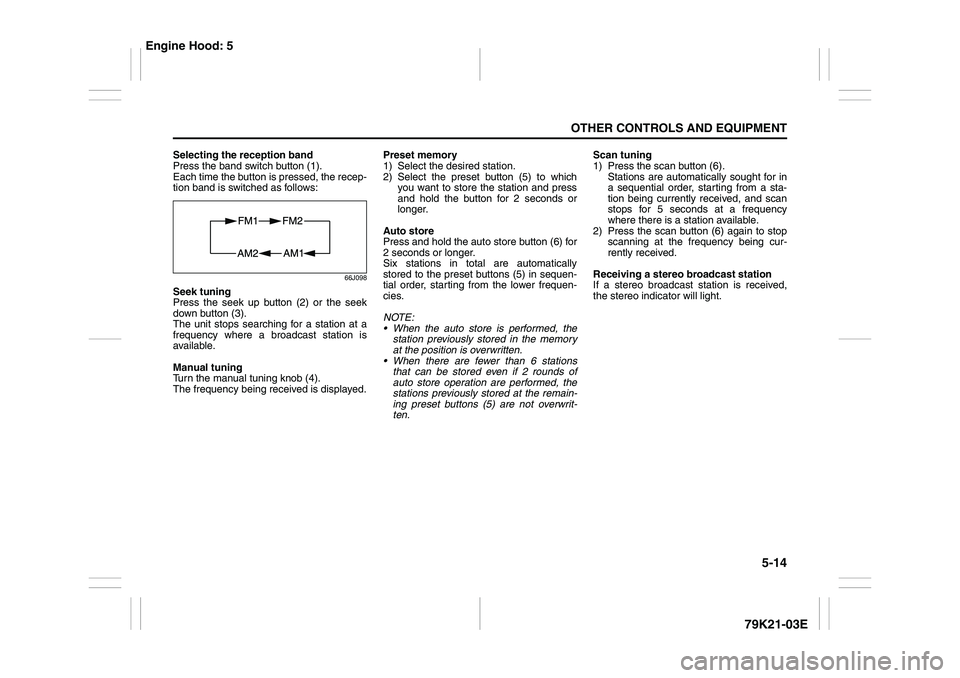
Selecting the reception band
Press the band switch button (1).
Each time the button is pressed, the recep-
tion band is switched as follows:
66J098
Seek tuning
Press the seek up button (2) or the seek
down button (3).
The unit stops searching for a station at a
frequency where a broadcast station is
available.
Manual tuning
Turn the manual tuning knob (4).
The frequency being received is displayed.Preset memory
1) Select the desired station.
2) Select the preset button (5) to which
you want to store the station and press
and hold the button for 2 seconds or
longer.
Auto store
Press and hold the auto store button (6) for
2 seconds or longer.
Six stations in total are automatically
stored to the preset buttons (5) in sequen-
tial order, starting from the lower frequen-
cies.
NOTE:
When the auto store is performed, the
station previously stored in the memory
at the position is overwritten.
When there are fewer than 6 stations
that can be stored even if 2 rounds of
auto store operation are performed, the
stations previously stored at the remain-
ing preset buttons (5) are not overwrit-
ten.Scan tuning
1) Press the scan button (6).
Stations are automatically sought for in
a sequential order, starting from a sta-
tion being currently received, and scan
stops for 5 seconds at a frequency
where there is a station available.
2) Press the scan button (6) again to stop
scanning at the frequency being cur-
rently received.
Receiving a stereo broadcast station
If a stereo broadcast station is received,
the stereo indicator will light.
Engine Hood: 5
Page 175 of 337
5-22
OTHER CONTROLS AND EQUIPMENT
79K21-03E
What is MP3/WMA?
MP3 (MPEG1/2 Audio Layer-III) and WMA
(Windows Media
TM
Audio) are the com-
pression formats of digital audio. The
former is developed by MPEG (Motion Pic-
ture Experts Group), and the latter is
developed by Microsoft Corporation. Using
these compression formats, you can
record the contents of about 10 music CDs
on a single CD media (This figures refer to
data recorded on a 650 MB CD-R or CD-
RW at a fixed bit rate of 128 kbps and a
sampling frequency of 44.1 kHz).Points to remember when making MP3/
WMA files
Common
High bit rate and high sampling fre-
quency are recommended for high qual-
ity sounds.
Selecting VBR (Variable Bit Rate) is not
recommended because playing time is
not displayed properly and sound may
be skipped.
The playback sound quality differs
depending on the encoding circum-
stances. For details, refer to the user
manual of your own encoding software
and writing software.
MP3
It is recommended to set the bit rate to
“128 kbps or more” and “fixed”.
WMA
It is recommended to set the bit rate to
“64 kbps or more” and “fixed”.
Do not set the copy protect attribute on
the WMA file to enable this unit to play
back.
NOTE:
Never assign the “.mp3”, or “.wma” file
name extension to a file that is not in the
MP3/WMA format. This may not only pro-
duce noise from the speaker damage, but
also damage your hearing.Recording MP3/WMA files on a CD-
media
You are recommended to minimize the
chances of making a disc that contains
both CD-DA files and MP3/WMA files.
If CD-DA files are on the same disc as
MP3 or WMA files, the songs may not
play in the intended order, or some
songs may not play at all.
When storing MP3 data and WMA data
on the same disc, use different folders
for each data.
Do not record files other than MP3/WMA
files and unnecessary folder on a disc.
The name of an MP3/WMA file should
be added by rules as shown in the fol-
lowing descriptions and also comply with
the rules of each file system.
The file extension “.mp3” or “.wma”
should be assigned to each file depend-
ing on the file format.
You may encounter trouble in playing
MP3/WMA files or displaying the infor-
mation of MP3/WMA files recorded with
certain writing software or CD recorders.
This unit does not have a play list func-
tion.
Although Multi-session recording is sup-
ported, the use of Disc-at-Once is rec-
ommended.
Underfloor Bins:
Roof Rails or Roof Rack Anchors: 5, 13
Page 179 of 337
5-26
OTHER CONTROLS AND EQUIPMENT
79K21-03E
XM MODE
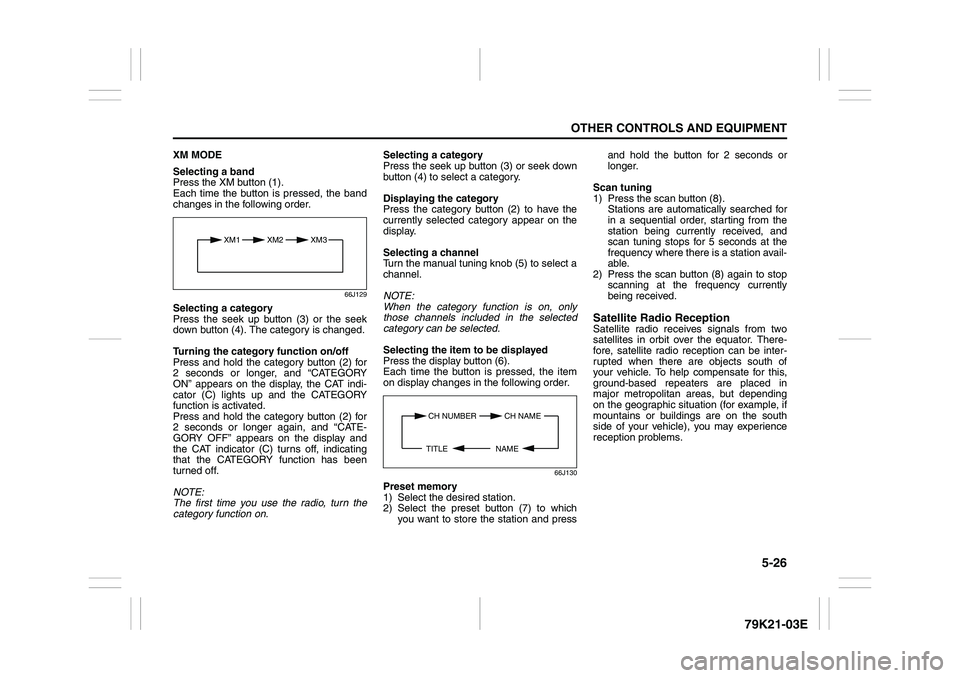
Selecting a band
Press the XM button (1).
Each time the button is pressed, the band
changes in the following order.
66J129
Selecting a category
Press the seek up button (3) or the seek
down button (4). The category is changed.
Turning the category function on/off
Press and hold the category button (2) for
2 seconds or longer, and “CATEGORY
ON” appears on the display, the CAT indi-
cator (C) lights up and the CATEGORY
function is activated.
Press and hold the category button (2) for
2 seconds or longer again, and “CATE-
GORY OFF” appears on the display and
the CAT indicator (C) turns off, indicating
that the CATEGORY function has been
turned off.
NOTE:
The first time you use the radio, turn the
category function on.Selecting a category
Press the seek up button (3) or seek down
button (4) to select a category.
Displaying the category
Press the category button (2) to have the
currently selected category appear on the
display.
Selecting a channel
Turn the manual tuning knob (5) to select a
channel.
NOTE:
When the category function is on, only
those channels included in the selected
category can be selected.
Selecting the item to be displayed
Press the display button (6).
Each time the button is pressed, the item
on display changes in the following order.
66J130
Preset memory
1) Select the desired station.
2) Select the preset button (7) to which
you want to store the station and pressand hold the button for 2 seconds or
longer.
Scan tuning
1) Press the scan button (8).
Stations are automatically searched for
in a sequential order, starting from the
station being currently received, and
scan tuning stops for 5 seconds at the
frequency where there is a station avail-
able.
2) Press the scan button (8) again to stop
scanning at the frequency currently
being received.
Satellite Radio ReceptionSatellite radio receives signals from two
satellites in orbit over the equator. There-
fore, satellite radio reception can be inter-
rupted when there are objects south of
your vehicle. To help compensate for this,
ground-based repeaters are placed in
major metropolitan areas, but depending
on the geographic situation (for example, if
mountains or buildings are on the south
side of your vehicle), you may experience
reception problems.
XM1 XM2
XM3
CH NUMBER CH NAME
NAME TITLE
Page 186 of 337
5-33OTHER CONTROLS AND EQUIPMENT
79K21-03E
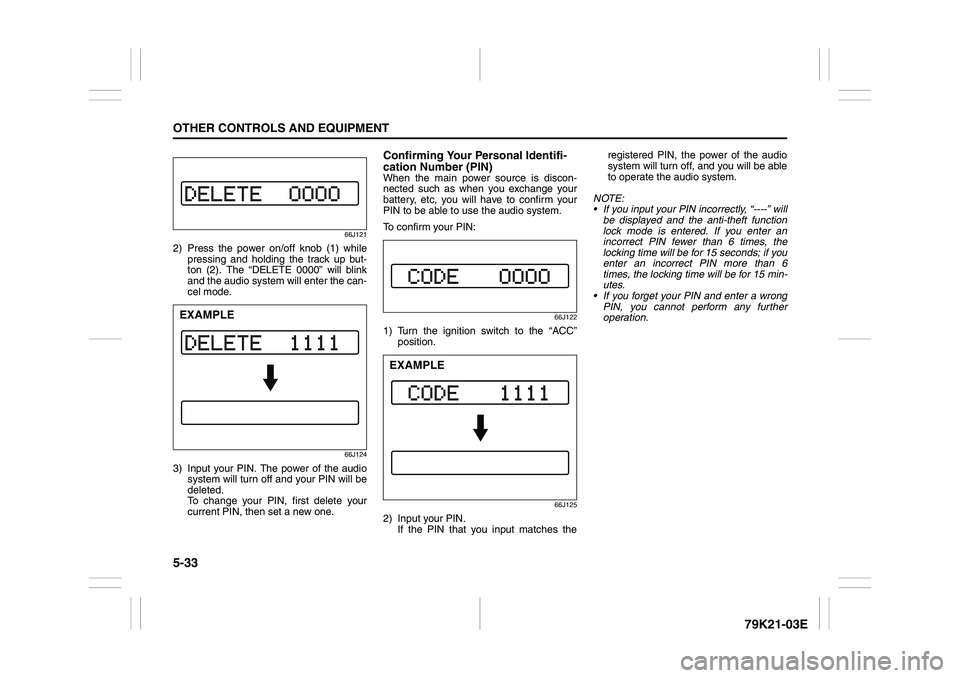
66J121
2) Press the power on/off knob (1) while
pressing and holding the track up but-
ton (2). The “DELETE 0000” will blink
and the audio system will enter the can-
cel mode.
66J124
3) Input your PIN. The power of the audio
system will turn off and your PIN will be
deleted.
To change your PIN, first delete your
current PIN, then set a new one.
Confirming Your Personal Identifi-
cation Number (PIN)When the main power source is discon-
nected such as when you exchange your
battery, etc, you will have to confirm your
PIN to be able to use the audio system.
To confirm your PIN:
66J122
1) Turn the ignition switch to the “ACC”
position.
66J125
2) Input your PIN.
If the PIN that you input matches theregistered PIN, the power of the audio
system will turn off, and you will be able
to operate the audio system.
NOTE:
If you input your PIN incorrectly, “----” will
be displayed and the anti-theft function
lock mode is entered. If you enter an
incorrect PIN fewer than 6 times, the
locking time will be for 15 seconds; if you
enter an incorrect PIN more than 6
times, the locking time will be for 15 min-
utes.
If you forget your PIN and enter a wrong
PIN, you cannot perform any further
operation.
EXAMPLE
EXAMPLE
Page 192 of 337
5-39OTHER CONTROLS AND EQUIPMENT
79K21-03E
Turning power on/off
Press the power on/off knob (1).
The unit starts in the function mode it was
in when the power was turned off last.
Adjusting the volume
Turn the volume control knob (1).
Turning it clockwise increases the volume;
turning it counterclockwise decreases the
volume.
NOTE:
While driving, adjust the volume to an
extent that sound and/or noise coming
from outside the car can be heard.
Adjusting the clock
1) Press the clock button H (5) to adjust
the hours.
Press the clock button M (6) to adjust
the minutes.
2) Hold the button depressed to automati-
cally increment the number.
3) To reset the clock to an hour signal,
press the clock button H (5) while hold-
ing the clock button M (6) depressed.
NOTE:
When the clock has not been set, the time
“12:00” will flash in the display.
Clock reset is effected as follows:
When minutes are between 00 and 29,
the clock will reset to the current hour.
(example: 12:23 ➔ 12:00) When minutes are between 30 and 59,
the clock will reset to the next hour.
(example: 12:38 ➔ 1:00)
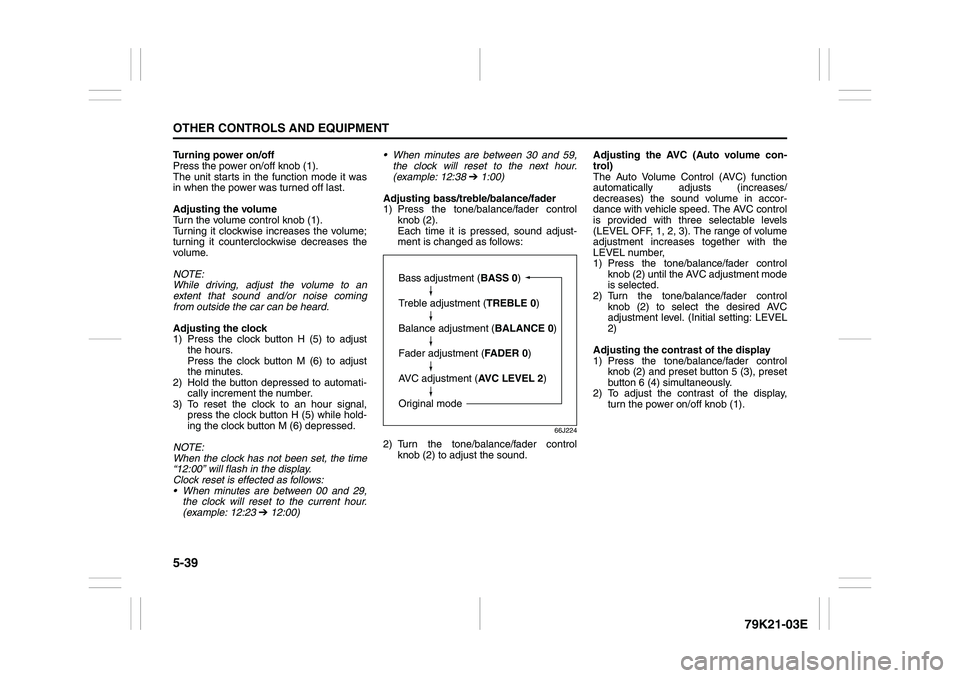
Adjusting bass/treble/balance/fader
1) Press the tone/balance/fader control
knob (2).
Each time it is pressed, sound adjust-
ment is changed as follows:
66J224
2) Turn the tone/balance/fader control
knob (2) to adjust the sound.Adjusting the AVC (Auto volume con-
trol)
The Auto Volume Control (AVC) function
automatically adjusts (increases/
decreases) the sound volume in accor-
dance with vehicle speed. The AVC control
is provided with three selectable levels
(LEVEL OFF, 1, 2, 3). The range of volume
adjustment increases together with the
LEVEL number,
1) Press the tone/balance/fader control
knob (2) until the AVC adjustment mode
is selected.
2) Turn the tone/balance/fader control
knob (2) to select the desired AVC
adjustment level. (Initial setting: LEVEL
2)
Adjusting the contrast of the display
1) Press the tone/balance/fader control
knob (2) and preset button 5 (3), preset
button 6 (4) simultaneously.
2) To adjust the contrast of the display,
turn the power on/off knob (1).
Bass adjustment (BASS 0)
Treble adjustment (TREBLE 0)
Balance adjustment (BALANCE 0)
Fader adjustment (FADER 0)
AVC adjustment (AVC LEVEL 2)
Original mode
Page 194 of 337
5-41OTHER CONTROLS AND EQUIPMENT
79K21-03E
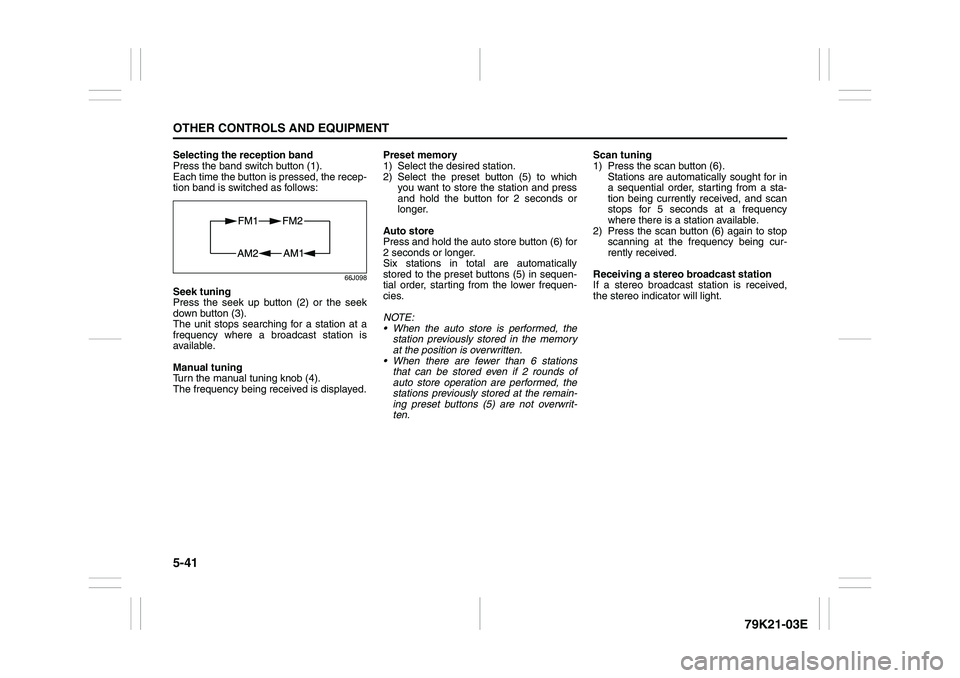
Selecting the reception band
Press the band switch button (1).
Each time the button is pressed, the recep-
tion band is switched as follows:
66J098
Seek tuning
Press the seek up button (2) or the seek
down button (3).
The unit stops searching for a station at a
frequency where a broadcast station is
available.
Manual tuning
Turn the manual tuning knob (4).
The frequency being received is displayed.Preset memory
1) Select the desired station.
2) Select the preset button (5) to which
you want to store the station and press
and hold the button for 2 seconds or
longer.
Auto store
Press and hold the auto store button (6) for
2 seconds or longer.
Six stations in total are automatically
stored to the preset buttons (5) in sequen-
tial order, starting from the lower frequen-
cies.
NOTE:
When the auto store is performed, the
station previously stored in the memory
at the position is overwritten.
When there are fewer than 6 stations
that can be stored even if 2 rounds of
auto store operation are performed, the
stations previously stored at the remain-
ing preset buttons (5) are not overwrit-
ten.Scan tuning
1) Press the scan button (6).
Stations are automatically sought for in
a sequential order, starting from a sta-
tion being currently received, and scan
stops for 5 seconds at a frequency
where there is a station available.
2) Press the scan button (6) again to stop
scanning at the frequency being cur-
rently received.
Receiving a stereo broadcast station
If a stereo broadcast station is received,
the stereo indicator will light.
Page 199 of 337
5-46
OTHER CONTROLS AND EQUIPMENT
79K21-03E
What is MP3/WMA?
MP3 (MPEG1/2 Audio Layer-III) and WMA
(Windows Media
TM
Audio) are the com-
pression formats of digital audio. The
former is developed by MPEG (Motion Pic-
ture Experts Group), and the latter is
developed by Microsoft Corporation. Using
these compression formats, you can
record the contents of about 10 music CDs
on a single CD media (This figures refer to
data recorded on a 650 MB CD-R or CD-
RW at a fixed bit rate of 128 kbps and a
sampling frequency of 44.1 kHz).Points to remember when making MP3/
WMA files
Common
High bit rate and high sampling fre-
quency are recommended for high qual-
ity sounds.
Selecting VBR (Variable Bit Rate) is not
recommended because playing time is
not displayed properly and sound may
be skipped.
The playback sound quality differs
depending on the encoding circum-
stances. For details, refer to the user
manual of your own encoding software
and writing software.
MP3
It is recommended to set the bit rate to
“128 kbps or more” and “fixed”.
WMA
It is recommended to set the bit rate to
“64 kbps or more” and “fixed”.
Do not set the copy protect attribute on
the WMA file to enable this unit to play
back.
NOTE:
Never assign the “.mp3”, or “.wma” file
name extension to a file that is not in the
MP3/WMA format. This may not only pro-
duce noise from the speaker damage, but
also damage your hearing.Recording MP3/WMA files on a CD-
media
You are recommended to minimize the
chances of making a disc that contains
both CD-DA files and MP3/WMA files.
If CD-DA files are on the same disc as
MP3 or WMA files, the songs may not
play in the intended order, or some
songs may not play at all.
When storing MP3 data and WMA data
on the same disc, use different folders
for each data.
Do not record files other than MP3/WMA
files and unnecessary folder on a disc.
The name of an MP3/WMA file should
be added by rules as shown in the fol-
lowing descriptions and also comply with
the rules of each file system.
The file extension “.mp3” or “.wma”
should be assigned to each file depend-
ing on the file format.
You may encounter trouble in playing
MP3/WMA files or displaying the infor-
mation of MP3/WMA files recorded with
certain writing software or CD recorders.
This unit does not have a play list func-
tion.
Although Multi-session recording is sup-
ported, the use of Disc-at-Once is rec-
ommended.