ratio SUZUKI GRAND VITARA 2013 Workshop Manual
[x] Cancel search | Manufacturer: SUZUKI, Model Year: 2013, Model line: GRAND VITARA, Model: SUZUKI GRAND VITARA 2013Pages: 337, PDF Size: 6.21 MB
Page 194 of 337
5-41OTHER CONTROLS AND EQUIPMENT
79K21-03E
Selecting the reception band
Press the band switch button (1).
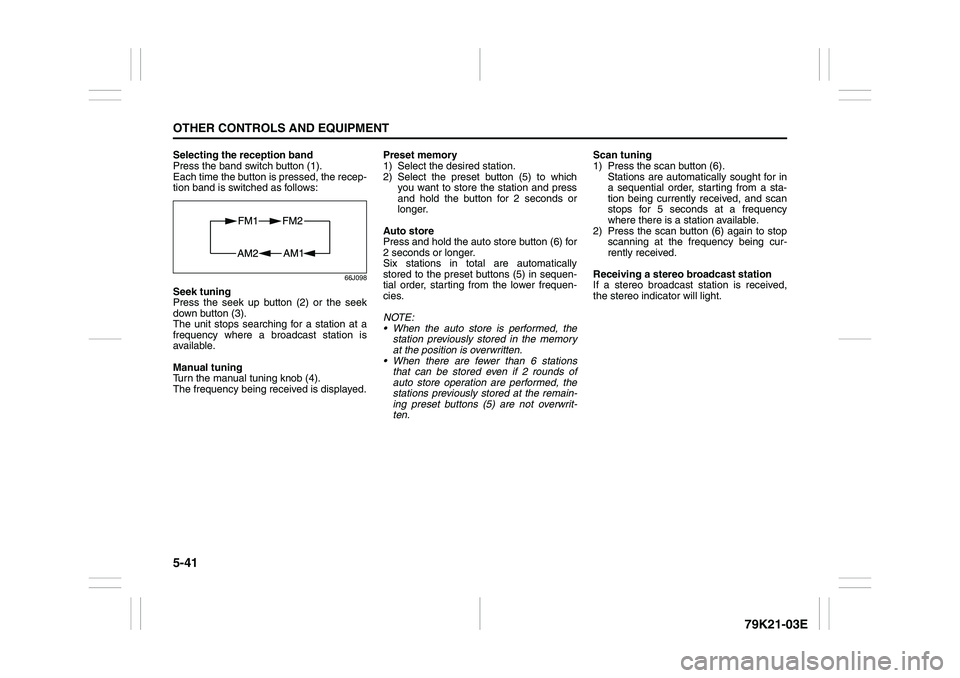
Each time the button is pressed, the recep-
tion band is switched as follows:
66J098
Seek tuning
Press the seek up button (2) or the seek
down button (3).
The unit stops searching for a station at a
frequency where a broadcast station is
available.
Manual tuning
Turn the manual tuning knob (4).
The frequency being received is displayed.Preset memory
1) Select the desired station.
2) Select the preset button (5) to which
you want to store the station and press
and hold the button for 2 seconds or
longer.
Auto store
Press and hold the auto store button (6) for
2 seconds or longer.
Six stations in total are automatically
stored to the preset buttons (5) in sequen-
tial order, starting from the lower frequen-
cies.
NOTE:
When the auto store is performed, the
station previously stored in the memory
at the position is overwritten.
When there are fewer than 6 stations
that can be stored even if 2 rounds of
auto store operation are performed, the
stations previously stored at the remain-
ing preset buttons (5) are not overwrit-
ten.Scan tuning
1) Press the scan button (6).
Stations are automatically sought for in
a sequential order, starting from a sta-
tion being currently received, and scan
stops for 5 seconds at a frequency
where there is a station available.
2) Press the scan button (6) again to stop
scanning at the frequency being cur-
rently received.
Receiving a stereo broadcast station
If a stereo broadcast station is received,
the stereo indicator will light.
Page 197 of 337
5-44
OTHER CONTROLS AND EQUIPMENT
79K21-03E
Loading a CD
Insert a CD in the CD insertion slot (1).
When a CD is loaded, play starts and the
CD indicator (A) lights.
Ejecting a CD
Press the CD eject button (2).
If you left a CD ejected for a period of
about 15 seconds, it will be automatically
drawn inside the unit. (Auto reload func-
tion)
The backup eject function:
This function allows you to eject a CD with
the power turned off by pressing the CD
eject button (2).Listening to a CD
When a CD is inserted, it is automatically
played back.
When a CD is already inside the unit,
press the disc button (3) to play back the
CD. When a CD is inside the unit, the CD
indicator (A) is lit on the display unit.
Selecting a track
Press the track up button (4) to listen to
the next track.
Press the track down button (5) twice to
listen to the previous track.
When the track down button (5) is
pressed once, the track being currently
played will return to the beginning.
Fast forwarding/Rewinding a track
Hold in the fast forward button (4) to
advance a track rapidly.
Hold in the rewind button (5) to rewind a
track.Repeat play
Press the repeat button (6).
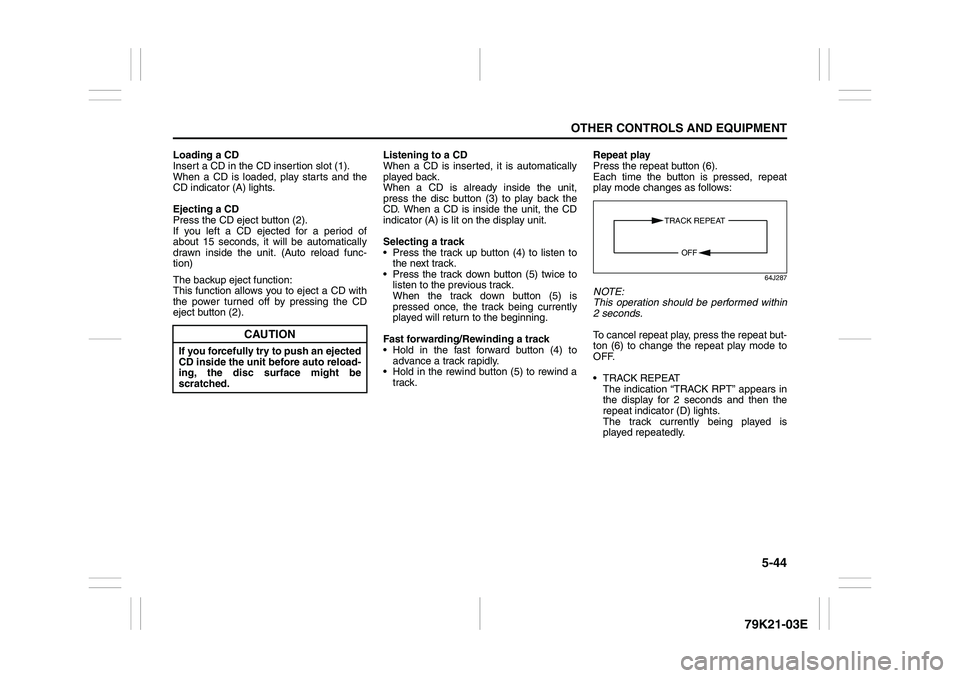
Each time the button is pressed, repeat
play mode changes as follows:
64J287
NOTE:
This operation should be performed within
2 seconds.
To cancel repeat play, press the repeat but-
ton (6) to change the repeat play mode to
OFF.
TRACK REPEAT
The indication “TRACK RPT” appears in
the display for 2 seconds and then the
repeat indicator (D) lights.
The track currently being played is
played repeatedly.
CAUTION
If you forcefully try to push an ejected
CD inside the unit before auto reload-
ing, the disc surface might be
scratched.
TRACK REPEAT
OFF
Page 199 of 337
5-46
OTHER CONTROLS AND EQUIPMENT
79K21-03E
What is MP3/WMA?
MP3 (MPEG1/2 Audio Layer-III) and WMA
(Windows Media
TM
Audio) are the com-
pression formats of digital audio. The
former is developed by MPEG (Motion Pic-
ture Experts Group), and the latter is
developed by Microsoft Corporation. Using
these compression formats, you can
record the contents of about 10 music CDs
on a single CD media (This figures refer to
data recorded on a 650 MB CD-R or CD-
RW at a fixed bit rate of 128 kbps and a
sampling frequency of 44.1 kHz).Points to remember when making MP3/
WMA files
Common
High bit rate and high sampling fre-
quency are recommended for high qual-
ity sounds.
Selecting VBR (Variable Bit Rate) is not
recommended because playing time is
not displayed properly and sound may
be skipped.
The playback sound quality differs
depending on the encoding circum-
stances. For details, refer to the user
manual of your own encoding software
and writing software.
MP3
It is recommended to set the bit rate to
“128 kbps or more” and “fixed”.
WMA
It is recommended to set the bit rate to
“64 kbps or more” and “fixed”.
Do not set the copy protect attribute on
the WMA file to enable this unit to play
back.
NOTE:
Never assign the “.mp3”, or “.wma” file
name extension to a file that is not in the
MP3/WMA format. This may not only pro-
duce noise from the speaker damage, but
also damage your hearing.Recording MP3/WMA files on a CD-
media
You are recommended to minimize the
chances of making a disc that contains
both CD-DA files and MP3/WMA files.
If CD-DA files are on the same disc as
MP3 or WMA files, the songs may not
play in the intended order, or some
songs may not play at all.
When storing MP3 data and WMA data
on the same disc, use different folders
for each data.
Do not record files other than MP3/WMA
files and unnecessary folder on a disc.
The name of an MP3/WMA file should
be added by rules as shown in the fol-
lowing descriptions and also comply with
the rules of each file system.
The file extension “.mp3” or “.wma”
should be assigned to each file depend-
ing on the file format.
You may encounter trouble in playing
MP3/WMA files or displaying the infor-
mation of MP3/WMA files recorded with
certain writing software or CD recorders.
This unit does not have a play list func-
tion.
Although Multi-session recording is sup-
ported, the use of Disc-at-Once is rec-
ommended.
Page 201 of 337
5-48
OTHER CONTROLS AND EQUIPMENT
79K21-03E
NOTE:
This operation should be performed within
2 seconds.
To cancel repeat play, press the repeat but-
ton (2) several times to change the repeat
play mode to OFF.
TRACK REPEAT
The indication “TRACK RPT” appears in
the display for 2 seconds and then the
repeat indicator (D) lights.
The track currently being played is
played repeatedly.
FOLDER REPEAT
The indication “FOLDER RPT” appears
in the display for 2 seconds and then the
repeat indicator (D) lights.
All the tracks in the folder currently being
played are played repeatedly.Selecting a track
Press the track up button (3) to listen to
the next track.
Press the track down button (4) twice to
listen to the previous track.
When the track down button (4) is
pressed once, the track currently being
played will start again at the beginning.
Fast forwarding/Rewinding a track
Hold in the fast forward button (3) to
advance a track rapidly.
Hold in the rewind button (4) to rewind a
track.Displaying CD titles
Press the display button (5).
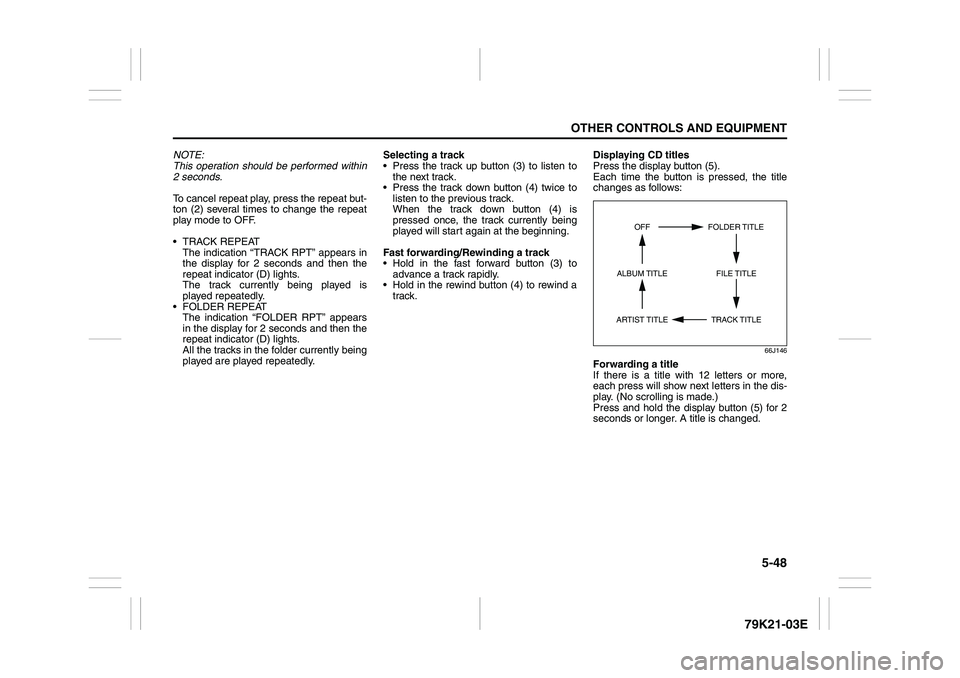
Each time the button is pressed, the title
changes as follows:
66J146
Forwarding a title
If there is a title with 12 letters or more,
each press will show next letters in the dis-
play. (No scrolling is made.)
Press and hold the display button (5) for 2
seconds or longer. A title is changed.
TRACK TITLE FOLDER TITLE
ARTIST TITLEOFF
FILE TITLE ALBUM TITLE
Page 208 of 337
5-55OTHER CONTROLS AND EQUIPMENT
79K21-03E
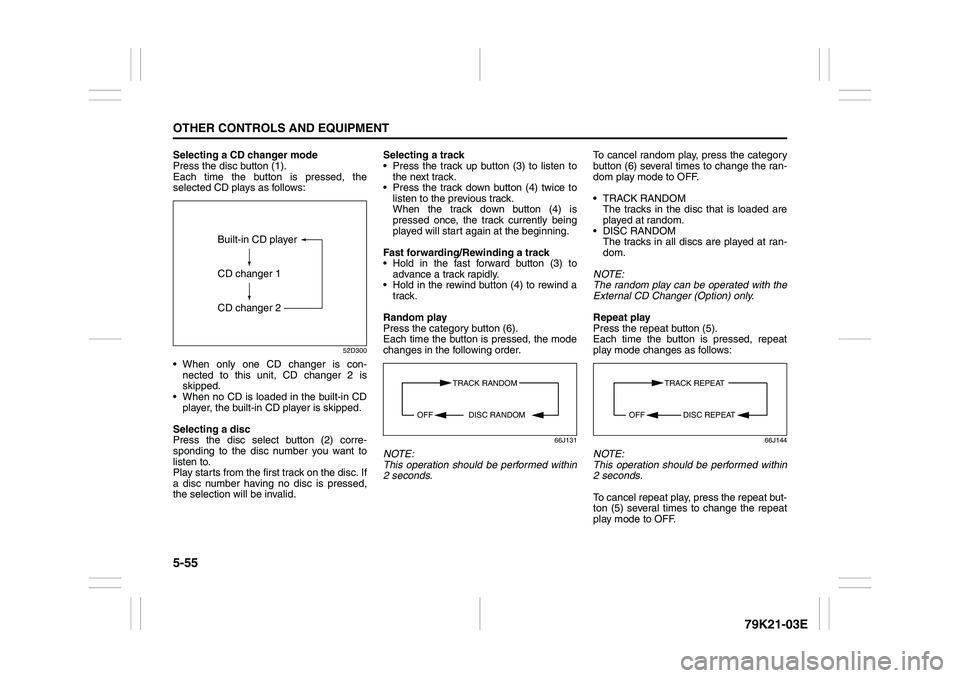
Selecting a CD changer mode
Press the disc button (1).
Each time the button is pressed, the
selected CD plays as follows:
52D300
When only one CD changer is con-
nected to this unit, CD changer 2 is
skipped.
When no CD is loaded in the built-in CD
player, the built-in CD player is skipped.
Selecting a disc
Press the disc select button (2) corre-
sponding to the disc number you want to
listen to.
Play starts from the first track on the disc. If
a disc number having no disc is pressed,
the selection will be invalid.Selecting a track
Press the track up button (3) to listen to
the next track.
Press the track down button (4) twice to
listen to the previous track.
When the track down button (4) is
pressed once, the track currently being
played will start again at the beginning.
Fast forwarding/Rewinding a track
Hold in the fast forward button (3) to
advance a track rapidly.
Hold in the rewind button (4) to rewind a
track.
Random play
Press the category button (6).
Each time the button is pressed, the mode
changes in the following order.
66J131
NOTE:
This operation should be performed within
2 seconds.To cancel random play, press the category
button (6) several times to change the ran-
dom play mode to OFF.
TRACK RANDOM
The tracks in the disc that is loaded are
played at random.
DISC RANDOM
The tracks in all discs are played at ran-
dom.
NOTE:
The random play can be operated with the
External CD Changer (Option) only.
Repeat play
Press the repeat button (5).
Each time the button is pressed, repeat
play mode changes as follows:
66J144
NOTE:
This operation should be performed within
2 seconds.
To cancel repeat play, press the repeat but-
ton (5) several times to change the repeat
play mode to OFF.
Built-in CD player
CD changer 1
CD changer 2
TRACK RANDOM
DISC RANDOM OFF
TRACK REPEAT
DISC REPEAT OFF
Page 211 of 337

5-58
OTHER CONTROLS AND EQUIPMENT
79K21-03E
(1) Power on/off knob
(2) Track up button/Fast forward button
(3) Preset buttons (1 to 6)
The anti-theft feature is intended to dis-
courage theft or the audio system by pre-
venting the system from operating when it
is moved to a different vehicle.
This feature works by allowing you to enter
a Personal Identification Number (PIN).
When the audio system is disconnected
from its power source, such as when the
audio system is removed or the battery is
disconnected, the system will not operate
again unless the PIN is reentered.Setting the Anti-Theft Function1) Turn off the power by pressing the
power on/off knob (1).
66J118
2) Press the power on/off knob (1) while
pressing and holding the track up but-
ton (2). The “ENTRY 0000” will blink
and the audio system enter PIN-input
mode.NOTE:
Establish your PIN by combining numbers
from 1 to 6 into any 4-digit number. If you
forget your PIN, when you remove the bat-
tery for repair etc., you will no longer be
able to operate the audio system.
66J117
3) Input the four digit PIN using preset but-
tons 1 to 6.
66J118
4) After you enter your four digit PIN, the
display will return to “0000”.
66J117
5) Input the same 4-digit number you pre-
viously entered.
66J120
6) The power of the audio system will turn
off.
NOTE:
Write down your PIN for the future use.Canceling Your Established PIN
SettingThis operation is to be done when you
want to cancel the anti-theft function or
change your PIN.
1) Turn off the power by pressing the
power on/off knob (1).
EXAMPLE
EXAMPLE
Page 212 of 337
5-59OTHER CONTROLS AND EQUIPMENT
79K21-03E
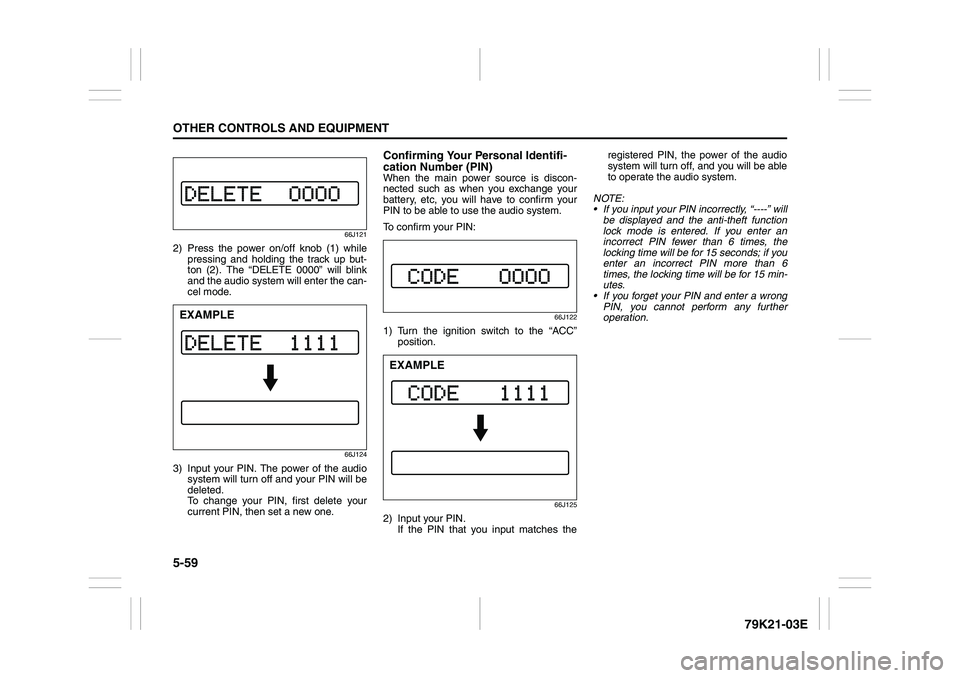
66J121
2) Press the power on/off knob (1) while
pressing and holding the track up but-
ton (2). The “DELETE 0000” will blink
and the audio system will enter the can-
cel mode.
66J124
3) Input your PIN. The power of the audio
system will turn off and your PIN will be
deleted.
To change your PIN, first delete your
current PIN, then set a new one.
Confirming Your Personal Identifi-
cation Number (PIN)When the main power source is discon-
nected such as when you exchange your
battery, etc, you will have to confirm your
PIN to be able to use the audio system.
To confirm your PIN:
66J122
1) Turn the ignition switch to the “ACC”
position.
66J125
2) Input your PIN.
If the PIN that you input matches theregistered PIN, the power of the audio
system will turn off, and you will be able
to operate the audio system.
NOTE:
If you input your PIN incorrectly, “----” will
be displayed and the anti-theft function
lock mode is entered. If you enter an
incorrect PIN fewer than 6 times, the
locking time will be for 15 seconds; if you
enter an incorrect PIN more than 6
times, the locking time will be for 15 min-
utes.
If you forget your PIN and enter a wrong
PIN, you cannot perform any further
operation.
EXAMPLE
EXAMPLE
Page 216 of 337
5-63OTHER CONTROLS AND EQUIPMENT
79K21-03E
Engine Hood
64J110
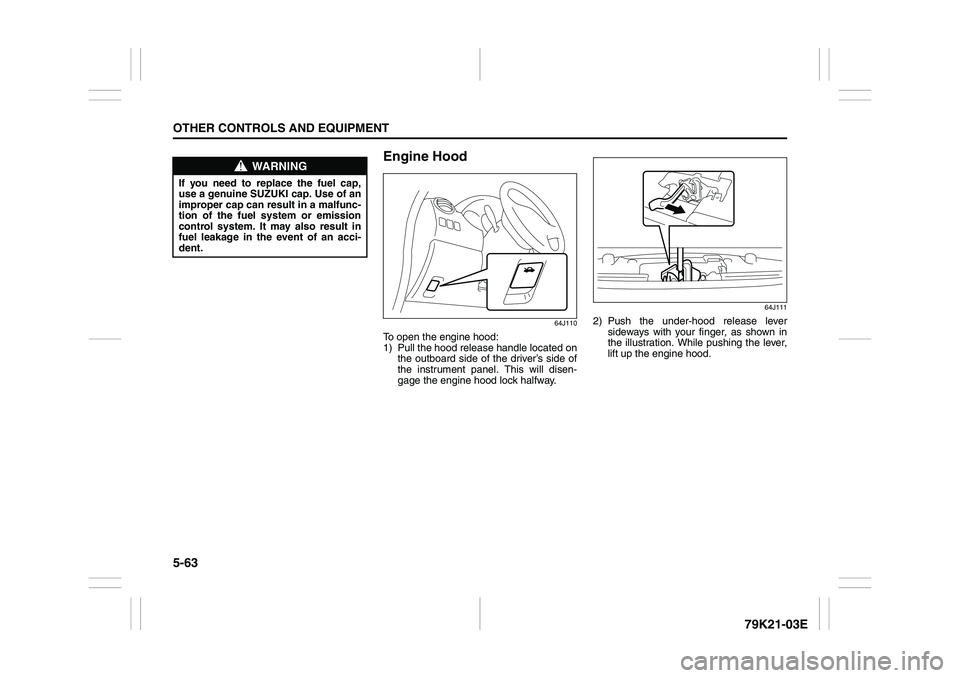
To open the engine hood:
1) Pull the hood release handle located on
the outboard side of the driver’s side of
the instrument panel. This will disen-
gage the engine hood lock halfway.
64J111
2) Push the under-hood release lever
sideways with your finger, as shown in
the illustration. While pushing the lever,
lift up the engine hood.
WARNING
If you need to replace the fuel cap,
use a genuine SUZUKI cap. Use of an
improper cap can result in a malfunc-
tion of the fuel system or emission
control system. It may also result in
fuel leakage in the event of an acci-
dent.
Page 218 of 337

5-65OTHER CONTROLS AND EQUIPMENT
79K21-03E
ON (1)
The light comes on and stays on regard-
less of whether the door is open or closed.
DOOR (2)
The light comes on when the door is
opened.
After closing all doors (including the tail-
gate), the light will remain on for about 15
seconds and then fade out. If you push in
the ignition switch or insert the key during
this time, the light will start to fade out
immediately.
After removing the key from the ignition
switch, the light will turn on for about 15
seconds and then fade out.
OFF (3)
The light remains off even when the door is
opened.
78K146
NOTE:
The number of doors involved in the light-
ing operation of the interior light depends
on the vehicle specification. If there is a
switch (rubber projection) at the door
opening as shown, the door is involved in
the lighting operation.
Luggage Compartment Light
66J047
The luggage compartment light is located
at the left side of the rear luggage com-
partment.
When you open any of the doors including
the tailgate with the luggage compartment
light switch in the “DOOR” position (1), the
light comes on and remains on as long as
you keep the door open.
After closing all doors, the light will remain
on for about 15 seconds and then fade out.
If you push in the ignition switch or insert
the key during this time, the light will start
to fade out immediately.
After removing the key from the ignition
switch, the light will turn on for about 15
seconds and then fade out.
When the luggage compartment light
switch is in the “OFF” position (2), the light
EXAMPLE
(1)(2)
Page 233 of 337
5-80
OTHER CONTROLS AND EQUIPMENT
79K21-03E
HomeLink
® (if equipped)
66J092
HomeLink
® and the HomeLink
® house are
registered trademarks of Johnson
Controls, Inc.
The HomeLink
® Wireless Control System
provides a convenient way to replace up to
three hand-held radio-frequency (RF)
transmitters used to activate devices such
as gate operators, garage door openers,
entry door locks, security systems, even
home lighting. Additional HomeLink
® infor-
mation can be found on the Internet at
www.homelink.com
or by calling 1-800-
355-3515.
Before programming HomeLink
® to a
garage door opener or gate operator, make
sure that people and objects are out of the
way of the device to prevent potential harm
or damage. When programming a garage
door opener, it is advised to park outside of
the garage. Do not use HomeLink® with
any garage door opener that lacks safety
stop and reverse features as required by
U.S. federal safety standards (this includesany garage door opener model manufac-
tured before April 1, 1982). A garage door
that cannot detect an object – signaling the
door to stop and reverse – does not meet
current U.S. federal safety standards. For
more information, contact HomeLink
® at
www.homelink.com
or by calling 1-800-
355-3515.
Retain the original transmitter of the RF
device you are programming for use in
other vehicles as well as for future
HomeLink
® programming. It is also sug-
gested that upon the sale of the vehicle,
the programmed HomeLink
® buttons be
erased for security purposes. Refer to
“Programming HomeLink
®” (step 1) only)
or, for assistance, contact HomeLink
® at
www.homelink.com
or by calling 1-800-
355-3515.
Programming HomeLink
®
NOTE:
Some vehicles may require the ignition
switch to be turned to the second (or
“accessories”) position or the “on” position
for programming and/or operation of
HomeLink
®. It is also recommended that a
new battery be placed in the hand-held
transmitter of the device being pro-
grammed to HomeLink
® for quicker train-
ing and accurate transmission of the radio-
frequency signal. Do not repeat “Program-
ming HomeLink
®” – step 1) to train addi-
tional devices to a second or thirdHomeLink
® button. Begin with “Program-
ming HomeLink
®” – step 2).
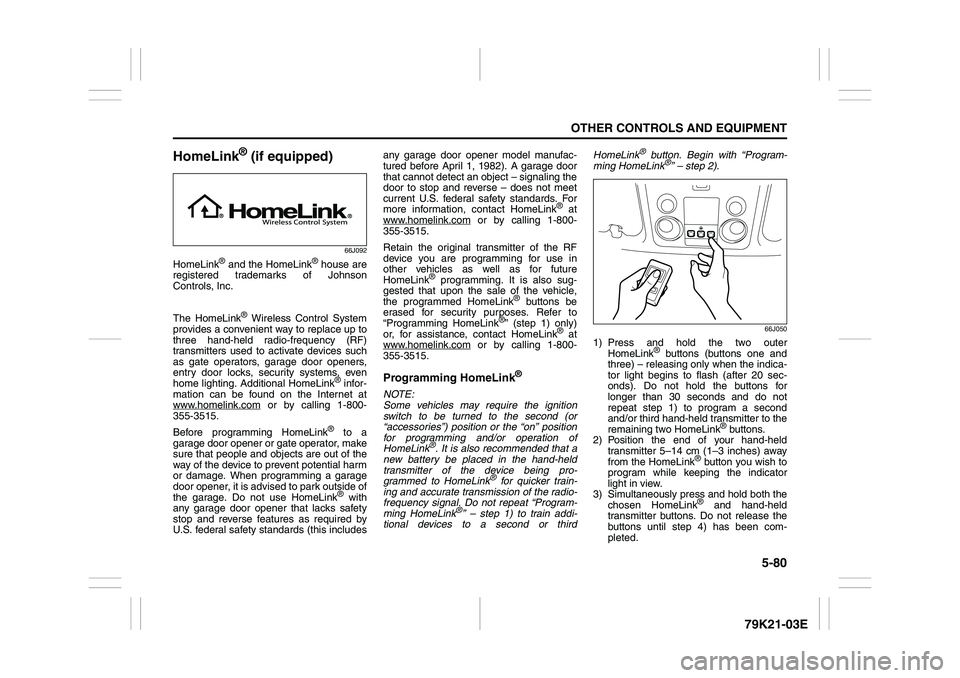
66J050
1) Press and hold the two outer
HomeLink
® buttons (buttons one and
three) – releasing only when the indica-
tor light begins to flash (after 20 sec-
onds). Do not hold the buttons for
longer than 30 seconds and do not
repeat step 1) to program a second
and/or third hand-held transmitter to the
remaining two HomeLink
® buttons.
2) Position the end of your hand-held
transmitter 5–14 cm (1–3 inches) away
from the HomeLink
® button you wish to
program while keeping the indicator
light in view.
3) Simultaneously press and hold both the
chosen HomeLink® and hand-held
transmitter buttons. Do not release the
buttons until step 4) has been com-
pleted.