bluetooth SUZUKI GRAND VITARA 2017 User Guide
[x] Cancel search | Manufacturer: SUZUKI, Model Year: 2017, Model line: GRAND VITARA, Model: SUZUKI GRAND VITARA 2017Pages: 482, PDF Size: 21 MB
Page 316 of 482
5-74
OTHER CONTROLS AND EQUIPMENT
54P00-01E
Deletion of registered data (Delete
Entry)
Follow the instructions below to delete a
number registered in phonebook.
1) Press the Bluetooth
® setup button (4).
The Bluetooth® setup menu will be dis-
played.
2) Turn “TUNE/FLD PUSH SOUND” knob
(1) to select “Setup Telephone”, and
press the knob (1) to determine the
selection.
3) Turn “TUNE/FLD PUSH SOUND” knob
(1) to select “Setup Phonebook”, and
press the knob (1) to determine the
selection.
4) Turn “TUNE/FLD PUSH SOUND” knob
(1) to select “Delete Contacts”, and
press the knob (1) to determine the
selection.
5) Turn “TUNE/FLD PUSH SOUND” knob
(1) to select a number to be deleted,
and press the knob (1) to determine the
selection.
6) Turn “TUNE/FLD PUSH SOUND” knob
(1) to select “Delete?”, and press the
knob (1) to determine the selection.
7) Turn “TUNE/FLD PUSH SOUND” knob
(1) to select “Confirm”, and press the
knob (1) to complete the deletion.
NOTE:
When selecting “Go Back”, the previous
menu will be displayed.Registration in speed dial
Follow the instructions below to assign a
number to one of PRESET buttons (3) to
use as the speed dial.
1) Press the Bluetooth
® setup button (4).
The Bluetooth® setup menu will be dis-
played.
2) Turn “TUNE/FLD PUSH SOUND” knob
(1) to select “Setup Telephone”, and
press the knob (1) to determine the
selection.
3) Turn “TUNE/FLD PUSH SOUND” knob
(1) to select “Setup Phonebook”, and
press the knob (1) to determine the
selection.
4) Turn “TUNE/FLD PUSH SOUND” knob
(1) to select “Add Speed Dial”, and
press the knob (1) to determine the
selection.
5) Turn “TUNE/FLD PUSH SOUND” knob
(1) to select a number to be assigned,
and press the knob (1) to determine the
selection.
6) Turn “TUNE/FLD PUSH SOUND” knob
(1) to select “Choose Preset”, and
press the knob (1) to determine the
selection.
7) Press one of PRESET buttons (3) to
which the selected number is to be
assigned. If a number is already
assigned to the selected button, a con-
firmation message will be displayed.
Turn “TUNE/FLD PUSH SOUND” knob
(1) to select “Confirm”, and press the
knob (1) to complete the assignment.When the assignment is completed, the
“Setup Phonebook” will be displayed.
NOTE:
When selecting “Go Back”, the previous
menu will be displayed.
One-touch call (Speed dial)
Follow the instructions below to dial the
number assigned to each of PRESET but-
tons (3).
1) Press OFF HOOK button (5).
The Bluetooth
® phonebook menu will
be displayed.
2) Turn “TUNE/FLD PUSH SOUND” knob
(1) to select “Speed Dials”, and press
the knob (1) to determine the selection.
3) Press one of PRESET buttons (3).
If no number is assigned, “No Entry” is
displayed.
4) Press OFF HOOK button (5).
The selected number will be dialed.
Page 317 of 482
5-75
OTHER CONTROLS AND EQUIPMENT
54P00-01E
Deletion of speed dial (Del Speed Dial)
Follow the instructions below to delete the
number assigned for the speed dial.
1) Press OFF HOOK button (5).
The Bluetooth
® phonebook menu will
be displayed.
2) Turn “TUNE/FLD PUSH SOUND” knob
(1) to select “Speed Dials”, and press
the knob (1) to determine the selection.
3) Press one of PRESET buttons (3) to
which the number to be deleted is
assigned.
If the number is not registered, “No
Entry” is displayed.
4) Turn “TUNE/FLD PUSH SOUND” knob
(1) to select “Delete”, and press the
knob (1) to determine the selection.
5) Turn “TUNE/FLD PUSH SOUND” knob
(1) to select “Del Speed Dial”, and
press the knob (1) to determine the
selection.
6) Turn “TUNE/FLD PUSH SOUND” knob
(1) to select “Confirm”, and press the
knob (1) to complete the deletion.
NOTE:
When selecting “Go Back”, the previous
menu will be displayed.Display of device data (Device Name)
Follow the instructions below to display the
BD (Bluetooth
® Device) address and
device name.
1) Press the Bluetooth
® setup button (4).
The Bluetooth® setup menu will be dis-
played.
2) Turn “TUNE/FLD PUSH SOUND” knob
(1) to select “Setup Bluetooth”, and
press the knob (1) to determine the
selection.
3) Turn “TUNE/FLD PUSH SOUND” knob
(1) to select “Bluetooth Info”, and press
the knob (1) to determine the selection.
4) Turn “TUNE/FLD PUSH SOUND” knob
(1) to select “Device Name” or “Device
Address”, and press the knob (1) to dis-
play the device name or the BD (Blue-
tooth
® Device) address.
NOTE:
When selecting “Go Back”, the previous
menu will be displayed.Reset to the factory defaults
Follow the instructions below to reset all
the settings to the factory defaults.
1) Press the Bluetooth
® setup button (4).
The Bluetooth® setup menu will be dis-
played.
2) Turn “TUNE/FLD PUSH SOUND” knob
(1) to select “Setup Bluetooth”, and
press the knob (1) to determine the
selection.
3) Turn “TUNE/FLD PUSH SOUND” knob
(1) to select “Initialize”, and press the
knob (1) to determine the selection.
4) Turn “TUNE/FLD PUSH SOUND” knob
(1) to select “All Initialize”, and press
the knob (1) to determine the selection.
5) Turn “TUNE/FLD PUSH SOUND” knob
(1) to select “Confirm”, and press the
knob (1) to start the reset.
NOTE:
When selecting “Go Back”, the previous
menu will be displayed.
Page 318 of 482
5-76
OTHER CONTROLS AND EQUIPMENT
54P00-01E
Selection of phone (Select Phone)
Follow the instructions below to select a
phone to be paired with from the registered
phones.
1) Press the Bluetooth
® setup button (4).
The Bluetooth® setup menu will be dis-
played.
2) Turn “TUNE/FLD PUSH SOUND” knob
(1) to select “Setup Bluetooth”, and
press the knob (1) to determine the
selection.
3) Turn “TUNE/FLD PUSH SOUND” knob
(1) to select “List Phone”, and press the
knob (1) to determine the selection.
4) Turn “TUNE/FLD PUSH SOUND” knob
(1) to select a phone to be paired with,
and press the knob (1) to determine the
selection.
5) Turn “TUNE/FLD PUSH SOUND” knob
(1) to select “Select”, and press the
knob (1) to determine the selection.
NOTE:
• When selecting “Go Back”, the previous
menu will be displayed.
• The Bluetooth
® ready audio device will
be disconnected when the phone is
selected.List of phones (List Phones)
Follow the instructions below to display the
names of the registered phones in
sequence.
1) Press the Bluetooth
® setup button (4).
The Bluetooth® setup menu will be dis-
played.
2) Turn “TUNE/FLD PUSH SOUND” knob
(1) to select “Setup Bluetooth”, and
press the knob (1) to determine the
selection.
3) Turn “TUNE/FLD PUSH SOUND” knob
(1) to select “List Phone”, and press the
knob (1) to determine the selection.
The names of the registered phones
are displayed in sequence.
NOTE:
When selecting “Go Back”, the previous
menu will be displayed.
Passkey setting (Set Passkey)
Follow the instructions below to set the
security number (passkey).
1) Press the Bluetooth
® setup button (4).
The Bluetooth® setup menu will be dis-
played.
2) Turn “TUNE/FLD PUSH SOUND” knob
(1) to select “Setup Bluetooth”, and
press the knob (1) to determine the
selection.
3) Turn “TUNE/FLD PUSH SOUND” knob
(1) to select “Passkey”, and press the
knob (1) to determine the selection.4) Turn “TUNE/FLD PUSH SOUND” knob
(1) to select “New Passkey”, and press
the knob (1) to determine the selection.
5) Press or turn “TUNE/FLD PUSH
SOUND” knob (1) to select “Confirm”.
6) Turn “TUNE/FLD PUSH SOUND” knob
(1) to select a number for the first digit,
and press the knob (1) to determine the
selection. Select and determine num-
bers for the second, third and fourth
digits in order in the same manner.
When not entering up to the eighth
digit, enter blanks for the successive
digits.
7) Turn “TUNE/FLD PUSH SOUND” knob
(1) to determine the passkey setting.
NOTE:
When selecting “Go Back”, the previous
menu will be displayed.
Page 319 of 482
5-77
OTHER CONTROLS AND EQUIPMENT
54P00-01E
Deletion of phone information (Delete
Phone)
Follow the instructions below to delete the
registered phone information.
1) Press the Bluetooth
® setup button (4).
The Bluetooth® setup menu will be dis-
played.
2) Turn “TUNE/FLD PUSH SOUND” knob
(1) to select “Setup Bluetooth”, and
press the knob (1) to determine the
selection.
3) Turn “TUNE/FLD PUSH SOUND” knob
(1) to select “List Phone”, and press the
knob (1) to determine the selection.
4) Turn “TUNE/FLD PUSH SOUND” knob
(1) to select a phone to be deleted, and
press the knob (1) to determine the
selection.
5) Turn “TUNE/FLD PUSH SOUND” knob
(1) to select “Delete Phone”, and press
the knob (1) to determine the selection.
6) Turn “TUNE/FLD PUSH SOUND” knob
(1) to select “Delete?”, and press the
knob (1) to determine the selection.
7) Turn “TUNE/FLD PUSH SOUND” knob
(1) to select “Confirm”, and press the
knob (1) to determine the selection.
NOTE:
When selecting “Go Back”, the previous
menu will be displayed.BT function on/off (BT Power)
Follow the instructions below to turn on/off
the Bluetooth
® function.
1) Press the Bluetooth® setup button (4).
The Bluetooth® setup menu will be dis-
played.
2) Turn “TUNE/FLD PUSH SOUND” knob
(1) to select “Setup Bluetooth”, and
press the knob (1) to determine the
selection.
3) Turn “TUNE/FLD PUSH SOUND” knob
(1) to select “BT Power”, and press the
knob (1) to determine the selection.
4) Press “TUNE/FLD PUSH SOUND”
knob (1) to select “BT Power On” or “BT
Power Off”.
NOTE:
• When the BT function is turned off, the
connection between this unit and the
registered phone in use will be discon-
nected.
• When selecting “Go Back”, the previous
menu will be displayed.
Page 320 of 482
5-78
OTHER CONTROLS AND EQUIPMENT
54P00-01E
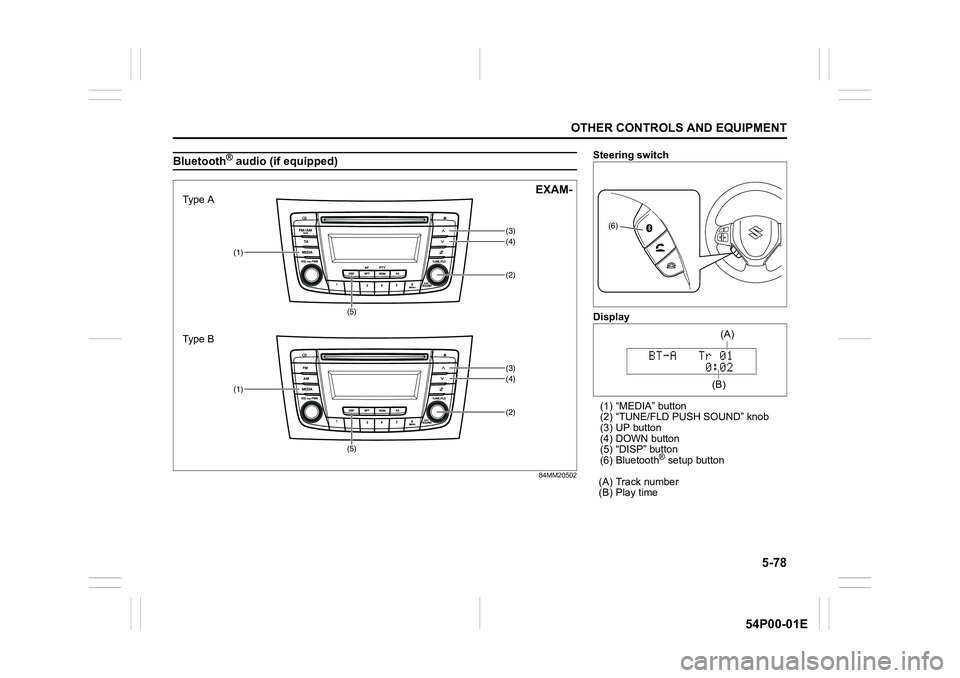
Bluetooth® audio (if equipped)
84MM20502
(2)
(1)
(5)(4)
(3)
(2)
(1)
(5)(4)
(3)
Type A
Type BEXAM-
Steering switch
Display
(1) “MEDIA” button
(2) “TUNE/FLD PUSH SOUND” knob
(3) UP button
(4) DOWN button
(5) “DISP” button
(6) Bluetooth
® setup button
(A) Track number
(B) Play time
(6)
(B)(A)
Page 321 of 482
5-79
OTHER CONTROLS AND EQUIPMENT
54P00-01E
Registration of audio devices
NOTE:
• To set up a new audio player, disconnect
the phone from the unit. Connect the
phone after audio player setup is com-
pleted if necessary.
• When attempts to establish the pairing
fail within 120 seconds, the connecting
operation will be canceled. Try to estab-
lish the pairing again or refer to the audio
player manual for assistance with the
pairing process.
1) Press the Bluetooth
® setup button (6).
The Bluetooth® setup menu will be dis-
played.
2) Turn “TUNE/FLD PUSH SOUND” knob
(2) to select “Setup Bluetooth”, and
press the knob (2) to determine the
selection.
3) Turn “TUNE/FLD PUSH SOUND” knob
(2) to select “Pairing”, and press the
knob (2) to determine the selection.
4) Select “CAR AUDIO” from the Blue-
tooth
® menu of the audio player and
establish the pairing.
Refer to the manual of the audio player
in use for further information.
5) Enter the passkey displayed on the unit
to the audio player.NOTE:
• When selecting “Go Back”, the previous
menu will be displayed.
• When registering additional audio
devices, repeat Step from 1).
Selecting the Bluetooth
® audio mode
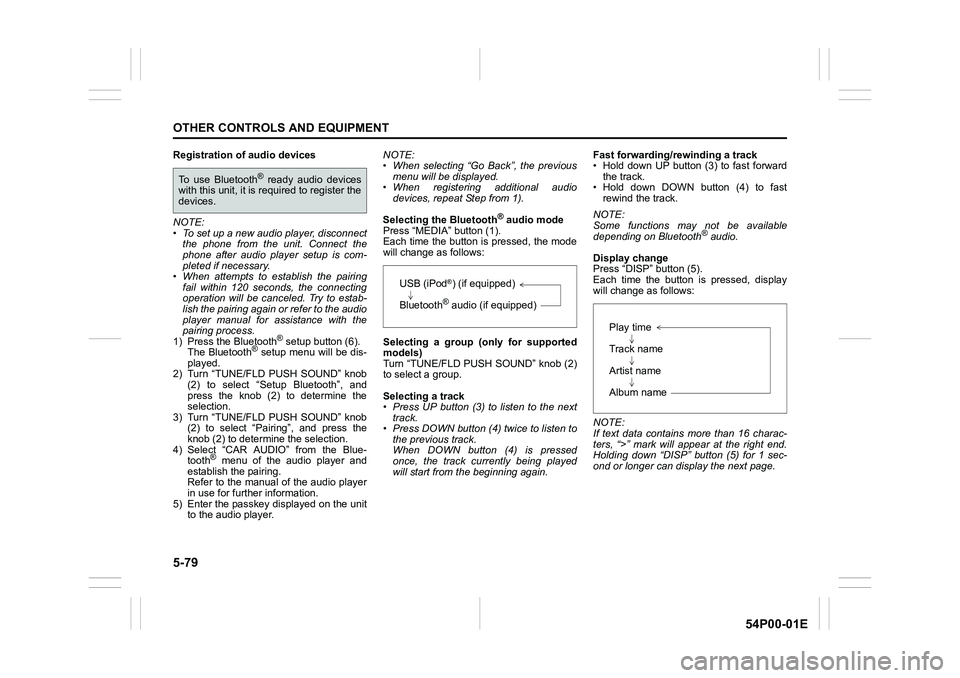
Press “MEDIA” button (1).
Each time the button is pressed, the mode
will change as follows:
Selecting a group (only for supported
models)
Turn “TUNE/FLD PUSH SOUND” knob (2)
to select a group.
Selecting a track
• Press UP button (3) to listen to the next
track.
• Press DOWN button (4) twice to listen to
the previous track.
When DOWN button (4) is pressed
once, the track currently being played
will start from the beginning again.Fast forwarding/rewinding a track
• Hold down UP button (3) to fast forward
the track.
• Hold down DOWN button (4) to fast
rewind the track.
NOTE:
Some functions may not be available
depending on Bluetooth
® audio.
Display change
Press “DISP” button (5).
Each time the button is pressed, display
will change as follows:
NOTE:
If text data contains more than 16 charac-
ters, “>” mark will appear at the right end.
Holding down “DISP” button (5) for 1 sec-
ond or longer can display the next page.
To use Bluetooth® ready audio devices
with this unit, it is required to register the
devices.
USB (iPod®) (if equipped)
Bluetooth
® audio (if equipped)
Play time
Track name
Artist name
Album name
Page 322 of 482
5-80
OTHER CONTROLS AND EQUIPMENT
54P00-01E
Selection of audio device (Select Audio)
Follow the instructions below to select an
audio device to be paired with from the
registered audio devices.
1) Press the Bluetooth
® setup button (6).
The Bluetooth® setup menu will be dis-
played.
2) Turn “TUNE/FLD PUSH SOUND” knob
(2) to select “Setup Bluetooth”, and
press the knob (2) to determine the
selection.
3) Turn “TUNE/FLD PUSH SOUND” knob
(2) to select “List Audio”, and press the
knob (2) to determine the selection.
4) Turn “TUNE/FLD PUSH SOUND” knob
(2) to select an audio device to be
used, and press the knob (2) to deter-
mine the selection.
5) Turn “TUNE/FLD PUSH SOUND” knob
(2) to select “Select”, and press the
knob (2) to determine the selection.
6) Turn “TUNE/FLD PUSH SOUND” knob
(2) to select “Confirm”, and press the
knob (2) to complete the pairing.
NOTE:
• When selecting “Go Back”, the previous
menu will be displayed.
• The phone will be disconnected when
the Bluetooth
® ready audio device is
selected.List of audio devices (List Audio)
Follow the instructions below to display the
names of the registered audio devices in
sequence.
1) Press the Bluetooth
® setup button (6).
The Bluetooth® setup menu will be dis-
played.
2) Turn “TUNE/FLD PUSH SOUND” knob
(2) to select “Setup Bluetooth”, and
press the knob (2) to determine the
selection.
3) Turn “TUNE/FLD PUSH SOUND” knob
(2) to select “List Audio”, and press the
knob (2) to determine the selection.
The names of registered audio devices
will be displayed in sequence.
NOTE:
When selecting “Go Back”, the previous
menu will be displayed.
Passkey setting (Set Passkey)
Follow the instructions below to set the
security number (Passkey).
1) Press the Bluetooth
® setup button (6).
The Bluetooth® setup menu will be dis-
played.
2) Turn “TUNE/FLD PUSH SOUND” knob
(2) to select “Setup Bluetooth”, and
press the knob (2) to determine the
selection.
3) Turn “TUNE/FLD PUSH SOUND” knob
(2) to select “Passkey”, and press the
knob (2) to determine the selection.4) Turn “TUNE/FLD PUSH SOUND” knob
(2) to select “New Passkey”, and press
the knob (2) to determine the selection.
5) Press or turn “TUNE/FLD PUSH
SOUND” knob (2) to select “Confirm”.
6) Turn “TUNE/FLD PUSH SOUND” knob
(2) to select a number for the first digit,
and press the knob (2) to determine the
selection. Select and determine num-
bers for the second, third and fourth
digits in order in the same manner.
When not entering up to the eighth
digit, enter blanks for the successive
digits.
7) Turn “TUNE/FLD PUSH SOUND” knob
(2) to determine the passkey setting.
NOTE:
When selecting “Go Back”, the previous
menu will be displayed.
Page 323 of 482
5-81
OTHER CONTROLS AND EQUIPMENT
54P00-01E
Deletion of audio device information
(Delete Audio)
Follow the instructions below to delete the
registered audio device information.
1) Press the Bluetooth
® setup button (6).
The Bluetooth® setup menu will be dis-
played.
2) Turn “TUNE/FLD PUSH SOUND” knob
(2) to select “Setup Bluetooth”, and
press the knob (2) to determine the
selection.
3) Turn “TUNE/FLD PUSH SOUND” knob
(2) to select “List Audio”, and press the
knob (2) to determine the selection.
4) Turn “TUNE/FLD PUSH SOUND” knob
(2) to select an audio device to be
deleted, and press the knob (2) to
determine the selection.
5) Turn “TUNE/FLD PUSH SOUND” knob
(2) to select “Delete”, and press the
knob (2) to determine the selection.
6) Turn “TUNE/FLD PUSH SOUND” knob
(2) to select “Delete?”, and press the
knob (2) to determine the selection.
7) Turn “TUNE/FLD PUSH SOUND” knob
(2) to select “Confirm”, and press the
knob (2) to complete the deletion.
NOTE:
When selecting “Go Back”, the previous
menu will be displayed.
Disclaimer for Bluetooth® function
• Depending on compatibility of mobile
phone models, no Bluetooth® function
can be used, or some Bluetooth® func-
tions may be restricted.
• Connectivity or voice quality may get
affected depending on circumstances.
• After the ignition switch is turned to “ON”
position or the engine switch is pressed
to change the ignition mode to “ON”, the
audio system takes few seconds to
detect and connect to the Bluetooth
®
device (if already paired).
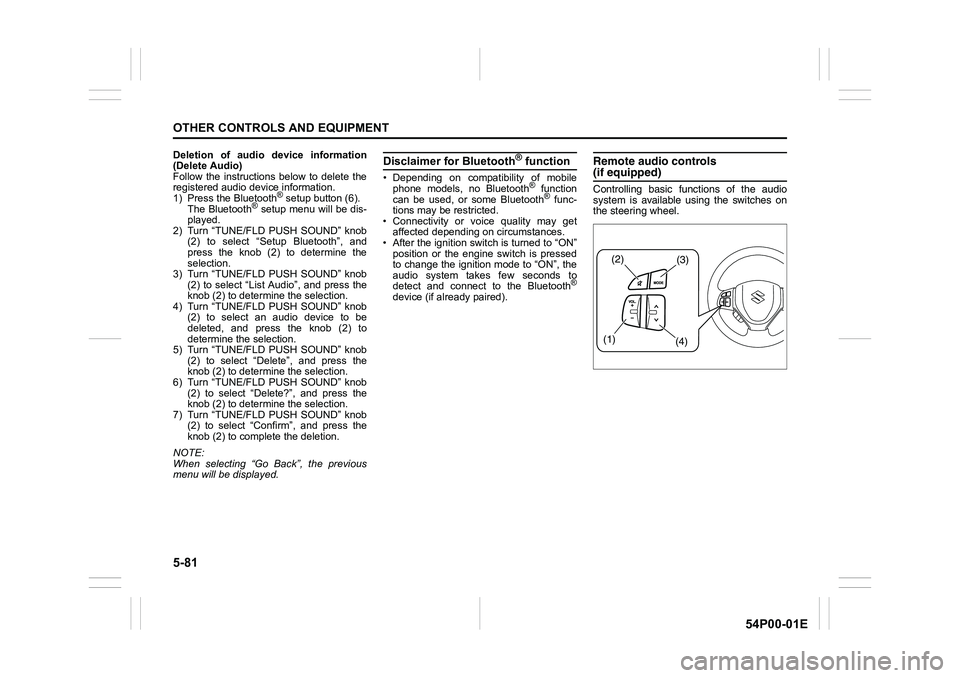
Remote audio controls(if equipped)
Controlling basic functions of the audio
system is available using the switches on
the steering wheel.
(2)(3)
(1)
(4)
Page 324 of 482
5-82
OTHER CONTROLS AND EQUIPMENT
54P00-01E
Adjusting the volume
To increase the volume, hold down “+” of
“VOL” switch (1). The volume will con-
tinue to increase until the switch is
released.
To decrease the volume, hold down “-” of
“VOL” switch (1). The volume will con-
tinue to decrease until the switch is
released.
To mute the sound, press the switch (2).
Selecting the mode
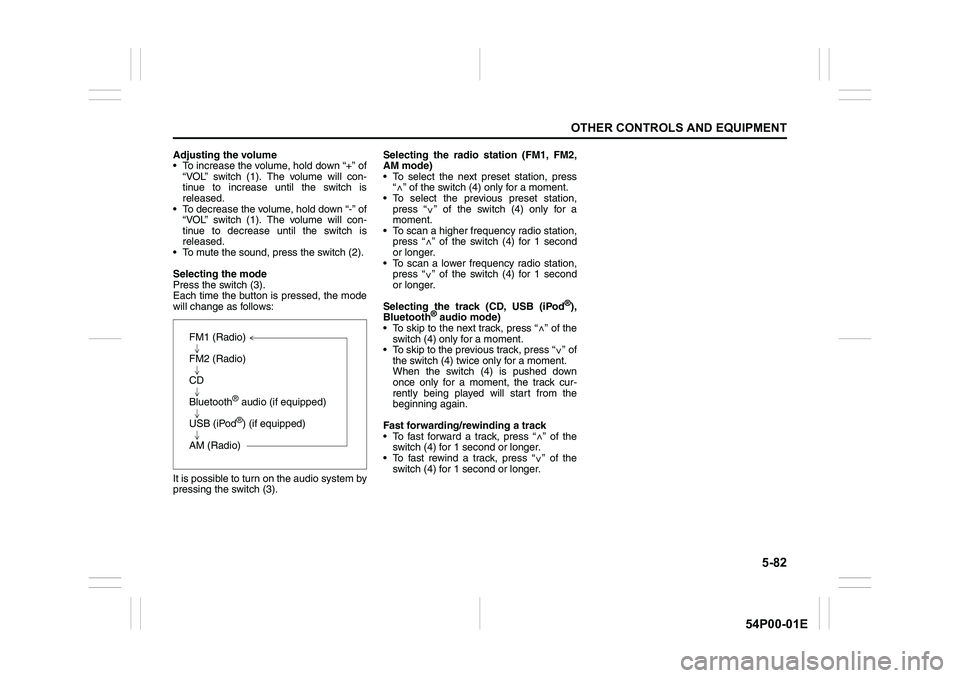
Press the switch (3).
Each time the button is pressed, the mode
will change as follows:
It is possible to turn on the audio system by
pressing the switch (3).Selecting the radio station (FM1, FM2,
AM mode)
To select the next preset station, press
“ ” of the switch (4) only for a moment.
To select the previous preset station,
press “ ” of the switch (4) only for a
moment.
To scan a higher frequency radio station,
press “ ” of the switch (4) for 1 second
or longer.
To scan a lower frequency radio station,
press “ ” of the switch (4) for 1 second
or longer.
Selecting the track (CD, USB (iPod
®),
Bluetooth® audio mode)
To skip to the next track, press “ ” of the
switch (4) only for a moment.
To skip to the previous track, press “ ” of
the switch (4) twice only for a moment.
When the switch (4) is pushed down
once only for a moment, the track cur-
rently being played will start from the
beginning again.
Fast forwarding/rewinding a track
To fast forward a track, press “ ” of the
switch (4) for 1 second or longer.
To fast rewind a track, press “ ” of the
switch (4) for 1 second or longer.
FM1 (Radio)
FM2 (Radio)
CD
Bluetooth
® audio (if equipped)
USB (iPod
®) (if equipped)
AM (Radio)
<
<
<
<
<
<
<
<
Page 329 of 482
5-87
OTHER CONTROLS AND EQUIPMENT
54P00-01E
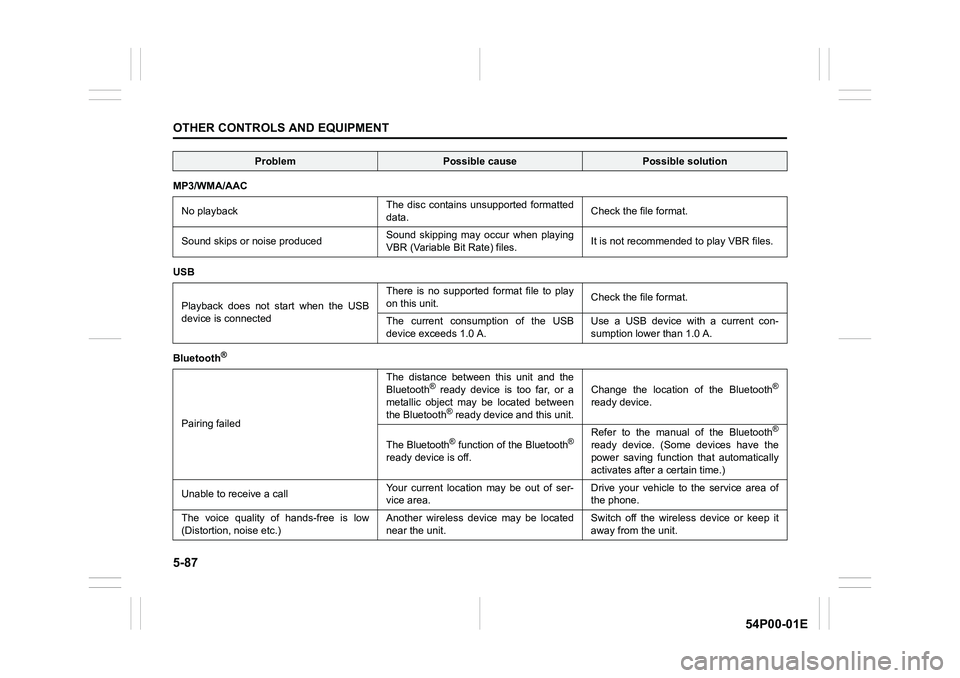
MP3/WMA/AAC
No playbackThe disc contains unsupported formatted
data. Check the file format.
Sound skips or noise producedSound skipping may occur when playing
VBR (Variable Bit Rate) files.It is not recommended to play VBR files.
USB
Playback does not start when the USB
device is connectedThere is no supported format file to play
on this unit.Check the file format.
The current consumption of the USB
device exceeds 1.0 A.Use a USB device with a current con-
sumption lower than 1.0 A.
Bluetooth
®
Pairing failedThe distance between this unit and the
Bluetooth
® ready device is too far, or a
metallic object may be located between
the Bluetooth
® ready device and this unit.Change the location of the Bluetooth
®
ready device.
The Bluetooth
® function of the Bluetooth®
ready device is off. Refer to the manual of the Bluetooth
®
ready device. (Some devices have the
power saving function that automatically
activates after a certain time.)
Unable to receive a callYour current location may be out of ser-
vice area. Drive your vehicle to the service area of
the phone.
The voice quality of hands-free is low
(Distortion, noise etc.)Another wireless device may be located
near the unit.Switch off the wireless device or keep it
away from the unit.
ProblemPossible causePossible solution