Information display SUZUKI IGNIS 2018 Repair Manual
[x] Cancel search | Manufacturer: SUZUKI, Model Year: 2018, Model line: IGNIS, Model: SUZUKI IGNIS 2018Pages: 505, PDF Size: 8.36 MB
Page 289 of 505
5-34
OTHER CONTROLS AND EQUIPMENT
75RM4-01E
Safety information
Notes on discsPrecautions
• When the inside of the vehicle is verycold and the player is used soon after
switching on the heater, condensation
may form on the disc or the optical
parts of the player and proper playback
may not be possible. If condensation
forms on the disc, wipe it off with a soft
cloth. If condensation forms on the opti-
cal parts of the player, do not use the
player for about one hour. This will
allow the condensation to disappear
normally.
• Driving on extremely bumpy roads which cause severe vibrations may
cause sound to skip.
• This unit uses a precision mechanism. Even in the event that trouble arises,
never open the case, disassemble the
unit, or lubricate the rotating parts.
Bring the unit to an authorized SUZUKI
dealer. Cautions on handling
52D274
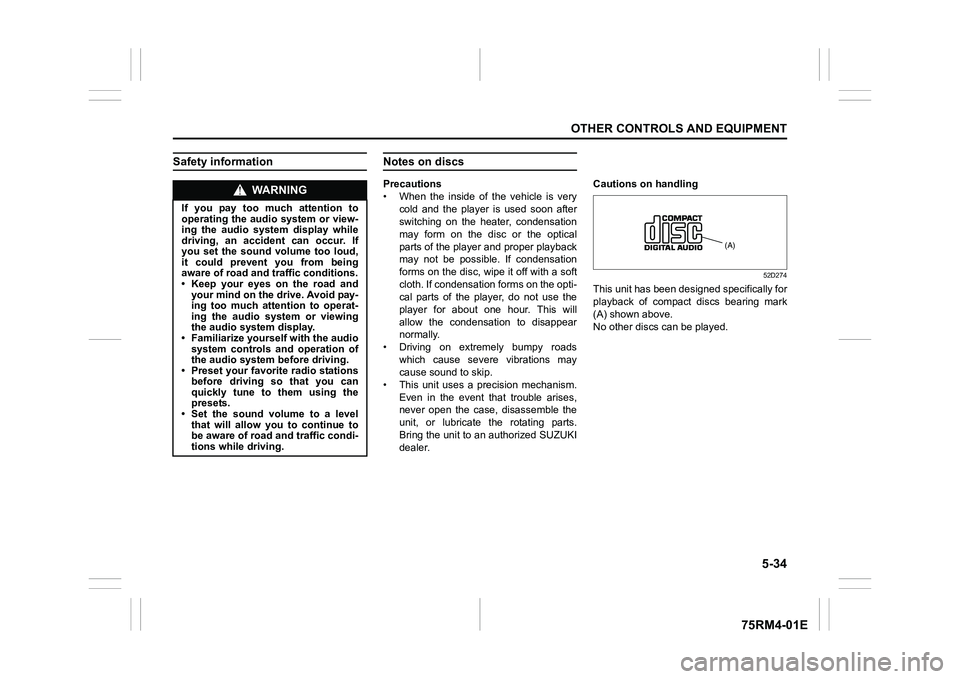
This unit has been designed specifically for
playback of compact discs bearing mark
(A) shown above.
No other discs
can be played.
WA R N I N G
If you pay too much attention to
operating the audio system or view-
ing the audio system display while
driving, an accident can occur. If
you set the sound volume too loud,
it could prevent you from being
aware of road and tr affic conditions.
• Keep your eyes on the road and your mind on the drive. Avoid pay-
ing too much attention to operat-
ing the audio system or viewing
the audio system display.
• Familiarize yourself with the audio
system controls and operation of
the audio system before driving.
• Preset your favorite radio stations
before driving so that you can
quickly tune to them using the
presets.
• Set the sound volume to a level that will allow you to continue to
be aware of road and traffic condi-
tions while driving.
(A)
Page 303 of 505
5-48
OTHER CONTROLS AND EQUIPMENT
75RM4-01E
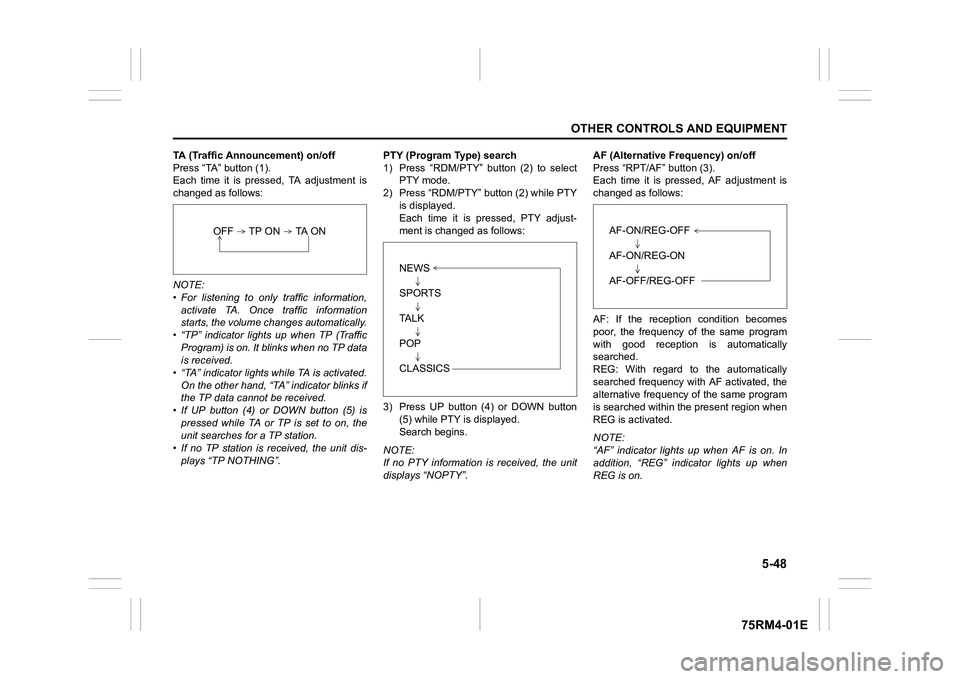
TA (Traffic Announcement) on/off
Press “TA” button (1).
Each time it is pressed, TA adjustment is
changed as follows:
NOTE:
• For listening to only traffic information,activate TA. Once traffic information
starts, the volume ch anges automatically.
• “TP” indicator lights up when TP (Traffic
Program) is on. It blinks when no TP data
is received.
• “TA” indicator lights while TA is activated.
On the other hand, “TA” indicator blinks if
the TP data cannot be received.
• If UP button (4) or DOWN button (5) is
pressed while TA or TP is set to on, the
unit searches for a TP station.
• If no TP station is received, the unit dis-
plays “TP NOTHING”. PTY (Program T
ype) search
1) Press “RDM/PTY” button (2) to select PTY mode.
2) Press “RDM/PTY” bu tton (2) while PTY
is displayed.
Each time it is pressed, PTY adjust-
ment is changed as follows:
3) Press UP button (4) or DOWN button (5) while PTY is displayed.
Search begins.
NOTE:
If no PTY information is received, the unit
displays “NOPTY”. AF (Alternative Frequency) on/off
Press “RPT/AF” button (3).
Each time it is pressed, AF adjustment is
changed as follows:
AF: If the reception condition becomes
poor, the frequency of the same program
with good reception is automatically
searched.
REG: With regard to the automatically
searched frequency with AF activated, the
alternative frequency of the same program
is searched within the present region when
REG is activated.
NOTE:
“AF” indicator lights up when AF is on. In
addition, “REG” indicator lights up when
REG is on.
OFF TP ON TA ON
NEWS
SPORTS
TA L K
POP
CLASSICS
AF-ON/REG-OFF
AF-ON/REG-ON
AF-OFF/REG-OFF
Page 304 of 505
5-49OTHER CONTROLS AND EQUIPMENT
75RM4-01E
TA standby
At the moment traffic information is
received while the source is set to CD,
USB, iPod
®, AUX, DAB, or Blue-
tooth
®audio with TA activated, the source
is automatically changed to radio. After
reception of traffic information, the source,
which was selected before being changed
to radio, resumes.
NOTE:
If no TP station can be received while the
unit stands by for TA, it automatically
searches for a TP station.
EON (Enhanced Other Network)
When the EON data is received with TP or
TA activated, “EON” indicator lights up,
and the traffic information from a network
other than the currently received station is
allowed to be received.
Emergency announcement reception
Emergency announcements are automati-
cally received and displayed.
Page 307 of 505

5-52
OTHER CONTROLS AND EQUIPMENT
75RM4-01E
Random playback
Press “RDM” button (7).
Each time the button is pressed, the mode
will change as follows:
• TRACK RANDOMThe random indicato r “RDM” will light.
The tracks in the loaded disc will be
played in random order.
Repeat playback
Press “RPT” button (6).
Each time the button is pressed, the mode
will change as follows:
• TRACK REPEAT The repeat indicator “RPT” will light.
The track currently being played will be
played repeatedly. Display change
Press “DISP” button (8).
Each time the button is pressed, display
will change as follows:
NOTE:
• “NO TITLE” will be displayed when there
is no text information in the disc currently
being played.
• If text data contains more than 16 char- acters, “>” mark will appear at the right
end. Holding down “DISP” button (8) for
1 second or longer can display the next
page.
OFF TRACK RANDOMOFF TRACK REPEAT
Play time
Disc title
Track title
Page 310 of 505
5-55OTHER CONTROLS AND EQUIPMENT
75RM4-01E
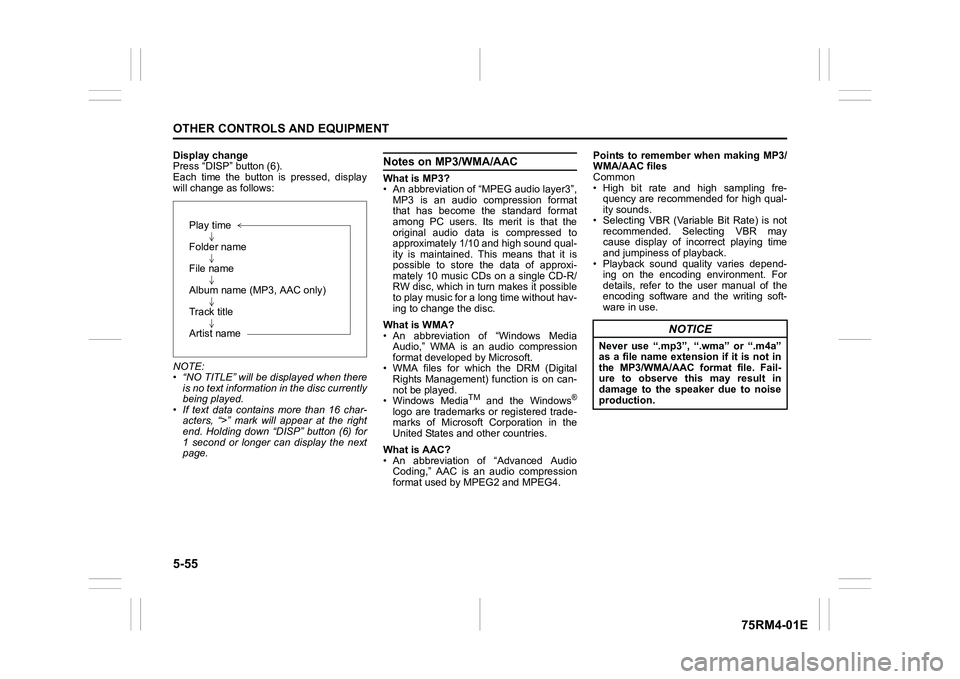
Display change
Press “DISP” button (6).
Each time the button is pressed, display
will change as follows:
NOTE:
• “NO TITLE” will be displayed when thereis no text information in the disc currently
being played.
• If text data contains more than 16 char- acters, “>” mark will appear at the right
end. Holding down “DISP” button (6) for
1 second or longer can display the next
page.
Notes on MP3/WMA/AACWhat is MP3?
• An abbreviation of “MPEG audio layer3”,
MP3 is an audio compression format
that has become the standard format
among PC users. Its merit is that the
original audio data is compressed to
approximately 1/10 and high sound qual-
ity is maintained. This means that it is
possible to store the data of approxi-
mately 10 music CDs on a single CD-R/
RW disc, which in turn makes it possible
to play music for a long time without hav-
ing to change the disc.
What is WMA?
• An abbreviation of “Windows Media Audio,” WMA is an audio compression
format developed by Microsoft.
• WMA files for which the DRM (Digital Rights Management) function is on can-
not be played.
• Windows Media
TM
and the Windows
®
logo are trademarks or registered trade-
marks of Microsoft Corporation in the
United States and other countries.
What is AAC?
• An abbreviation of “Advanced Audio Coding,” AAC is an audio compression
format used by MPEG2 and MPEG4. Points to remember when making MP3/
WMA/AAC files
Common
• High bit rate and high sampling fre-
quency are recommended for high qual-
ity sounds.
• Selecting VBR (Variable Bit Rate) is not recommended. Selecting VBR may
cause display of inc orrect playing time
and jumpiness of playback.
• Playback sound quality varies depend- ing on the encoding environment. For
details, refer to the user manual of the
encoding software and the writing soft-
ware in use.
Play time
Folder name
File name
Album name (MP3, AAC only)
Track title
Artist name
NOTICE
Never use “.mp3”, “.wma” or “.m4a”
as a file name extension if it is not in
the MP3/WMA/AAC format file. Fail-
ure to observe this may result in
damage to the speaker due to noise
production.
Page 313 of 505
5-58
OTHER CONTROLS AND EQUIPMENT
75RM4-01E
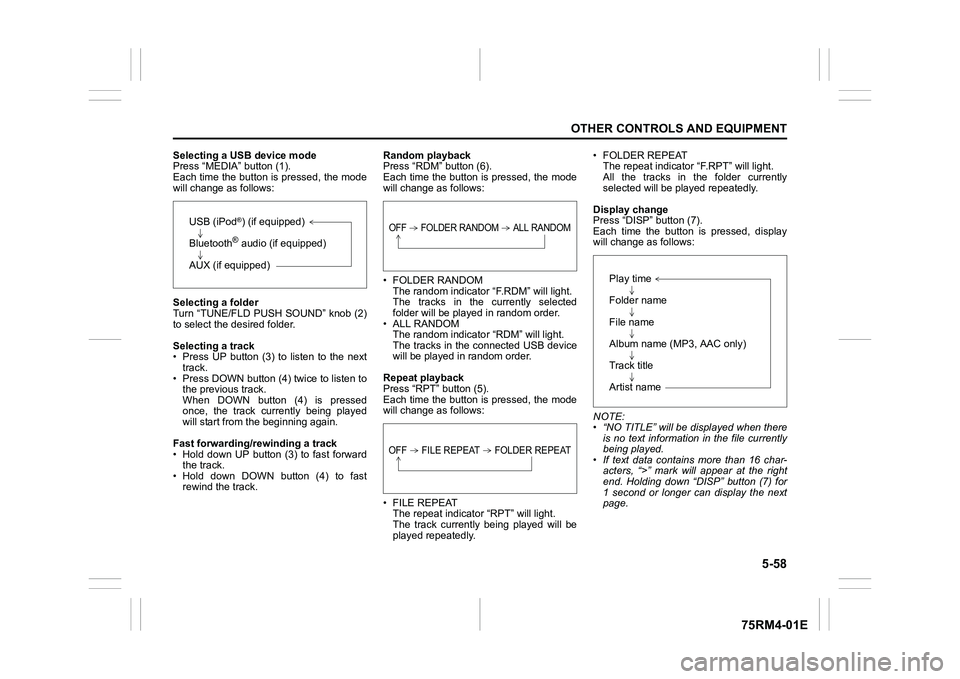
Selecting a USB device mode
Press “MEDIA” button (1).
Each time the button is pressed, the mode
will change as follows:
Selecting a folder
Turn “TUNE/FLD PUSH SOUND” knob (2)
to select the desired folder.
Selecting a track
• Press UP button (3) to listen to the next track.
• Press DOWN button (4) twice to listen to the previous track.
When DOWN button (4) is pressed
once, the track currently being played
will start from the beginning again.
Fast forwarding/rewinding a track
• Hold down UP button (3) to fast forward the track.
• Hold down DOWN button (4) to fast rewind the track. Random playback
Press “RDM” button (6).
Each time the button is pressed, the mode
will change as follows:
• FOLDER RANDOM
The random indicator “F.RDM” will light.
The tracks in the currently selected
folder will be played in random order.
•ALL RANDOM The random indicato r “RDM” will light.
The tracks in the connected USB device
will be played in random order.
Repeat playback
Press “RPT” button (5).
Each time the button is pressed, the mode
will change as follows:
• FILE REPEAT The repeat indicator “RPT” will light.
The track currently being played will be
played repeatedly. • FOLDER REPEAT
The repeat indicator “F.RPT” will light.
All the tracks in t he folder currently
selected will be played repeatedly.
Display change
Press “DISP” button (7).
Each time the button is pressed, display
will change as follows:
NOTE:
• “NO TITLE” will be displayed when there is no text information in the file currently
being played.
• If text data contains more than 16 char- acters, “>” mark will appear at the right
end. Holding down “DISP” button (7) for
1 second or longer can display the next
page.
USB (iPod
®) (if equipped)
Bluetooth® audio (if equipped)
AUX (if equipped)
OFF FOLDER RANDOM ALL RANDOMOFF FILE REPEAT FOLDER REPEAT
Play time
Folder name
File name
Album name (MP3, AAC only)
Track title
Artist name
Page 321 of 505
5-66
OTHER CONTROLS AND EQUIPMENT
75RM4-01E
Phone registration
NOTE:
• Up to 5 phones can be registered.
• To set up a new phone, disconnect theaudio player from the unit. Connect the
audio player again after phone setup is
completed if necessary.
• When attempts to establish the pairing
fail within 60 seconds, the connecting
operation will be canceled. Try to estab-
lish the pairing again or refer to the man-
ual of the phone in use for how to
establish the pairing with the phone.
1) Press the Bluetooth
® setup button (5)
or (6).
The Bluetooth
® setup menu will be dis-
played.
2) Turn “TUNE/FLD PUSH SOUND” knob (1) to select “Setup Bluetooth”, and
press the knob (1) to determine the
selection.
3) Turn “TUNE/FLD PUSH SOUND” knob (1) to select “Pairi ng”, and press the
knob (1) to determine the selection.
4) Select “My Car” from the Bluetooth
®
menu of the phone and establish the
pairing.
Refer to the manual of the phone in use
for further information.
5) Enter the passkey displayed on the unit to the phone. 6) When the pairing with the phone is
established, automatic transfer of the
phonebook and the call history
becomes selectable. The automatic
transfer starts with “Yes” and it does not
with “No”.
7) Press ON HOOK button (8).
NOTE:
• When selecting “Go Back” or pressing BACK button (4), the previous menu will
be displayed.
• When registering an additional phone, repeat Step from 1).
Receiving a call
Press OFF HOOK button (7) to receive a
call.
Ending a call
Press ON HOOK button (8) to end a call.
Rejecting a call (only for supported
models)
Press ON HOOK button (8) to reject a
incoming call.
Mute of hands-free microphone
Press MUTE switch (9) to mute the micro-
phone. To cancel the mute, press MUTE
switch (9) again. Adjusting the listening volume
• Turn “VOL PUSH PWR” knob (2) during
a call.
Turning it clockwise increases the vol-
ume; turning it counterclockwise
decreases the volume.
• Press “VOL” switch (10) during a call. Pressing the switch up increases the vol-
ume; pressing the switch down
decreases the volume.
Adjusting the ring volume
• Turn “VOL PUSH PWR” knob (2) while a call is coming in.
Turning it clockwise increases the vol-
ume; turning it counterclockwise
decreases the volume.
• Press “VOL” switch (10) during a call. Pressing the switch up increases the vol-
ume; pressing the switch down
decreases the volume.To use the hands-free function with this
unit, it is required to register the phone
in advance.
Page 328 of 505

5-73OTHER CONTROLS AND EQUIPMENT
75RM4-01E
Deletion of phone information (Delete
Phone)
Follow the instructions below to delete the
registered phone information.
1) Press the Bluetooth
® setup button (5)
or (6).
The Bluetooth
® setup menu will be dis-
played.
2) Turn “TUNE/FLD PUSH SOUND” knob
(1) to select “Setup Bluetooth”, and
press the knob (1) to determine the
selection.
3) Turn “TUNE/FLD PUSH SOUND” knob (1) to select “List Phone”, and press the
knob (1) to determine the selection.
4) Turn “TUNE/FLD PUSH SOUND” knob (1) to select a phone to be deleted, and
press the knob (1) to determine the
selection.
5) Turn “TUNE/FLD PUSH SOUND” knob
(1) to select “Delete”, and press the
knob (1) to determine the selection.
6) Turn “TUNE/FLD PUSH SOUND” knob
(1) to select “Delete?”, and press the
knob (1) to determine the selection.
7) Turn “TUNE/FLD PUSH SOUND” knob
(1) to select “Confirm”, and press the
knob (1) to determine the selection.
NOTE:
When selecting “Go Back” or pressing
BACK button (4), the previous menu will
be displayed. BT function on/off (BT Power)
Follow the instructions below to turn on/off
the Bluetooth
® function.
1) Press the Bluetooth
® setup button (5)
or (6).
The Bluetooth
® setup menu will be dis-
played.
2) Turn “TUNE/FLD PUSH SOUND” knob (1) to select “Setup Bluetooth”, and
press the knob (1) to determine the
selection.
3) Turn “TUNE/FLD PUSH SOUND” knob
(1) to select “BT Power”, and press the
knob (1) to determine the selection.
4) Press “TUNE/FLD PUSH SOUND”
knob (1) to select “BT Power On” or “BT
Power Off”.
NOTE:
• When the BT function is turned off, the connection between this unit and the
registered phone in use will be discon-
nected.
• When selecting “Go Back” or pressing BACK button (4), the previous menu will
be displayed.
Page 330 of 505
5-75OTHER CONTROLS AND EQUIPMENT
75RM4-01E
Registration of audio devices
NOTE:
• To set up a new audio player, disconnectthe phone from the unit. Connect the
phone after audio player setup is com-
pleted if necessary.
• When attempts to establish the pairing fail within 60 seconds, the connecting
operation will be canceled. Try to estab-
lish the pairing again or refer to the audio
player manual for assistance with the
pairing process.
1) Press the Bluetooth
® setup button (7)
or (8).
The Bluetooth
® setup menu will be dis-
played.
2) Turn “TUNE/FLD PUSH SOUND” knob
(2) to select “Setup Bluetooth”, and
press the knob (2) to determine the
selection.
3) Turn “TUNE/FLD PUSH SOUND” knob (2) to select “Pairi ng”, and press the
knob (2) to determine the selection.
4) Select “My Car” from the Bluetooth
®
menu of the audio player and establish
the pairing.
Refer to the manual of the audio player
in use for further information.
5) Enter the passkey displayed on the unit
to the audio player. NOTE:
• When selecting “Go Back” or pressing
BACK button (6), the previous menu will
be displayed.
• When registering additional audio devices, repeat Step from 1).
Selecting Bluetooth
® audio mode
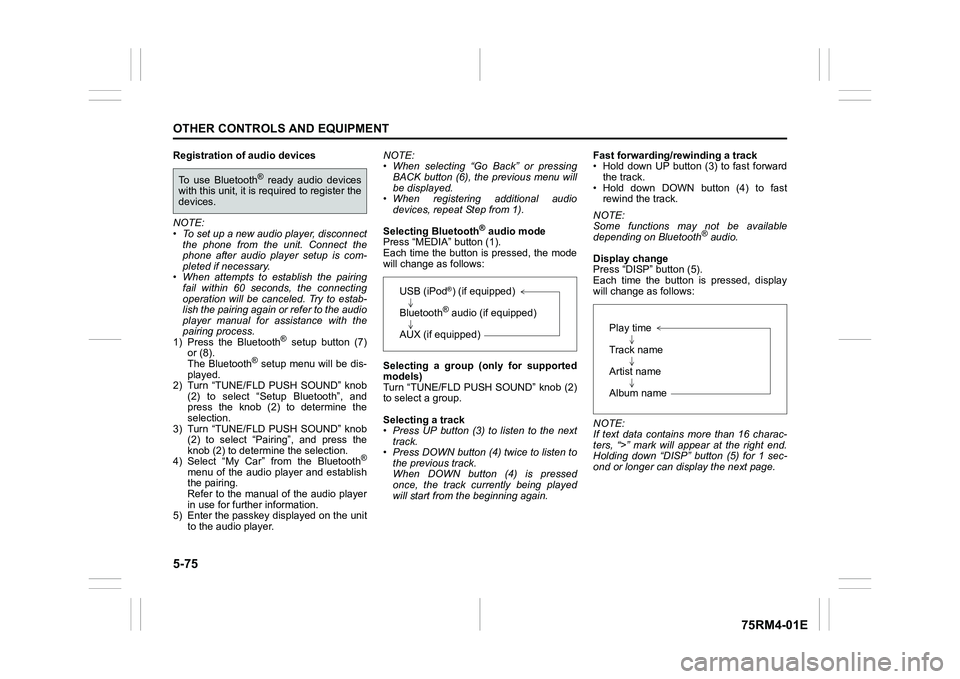
Press “MEDIA” button (1).
Each time the button is pressed, the mode
will change as follows:
Selecting a group (only for supported
models)
Turn “TUNE/FLD PUSH SOUND” knob (2)
to select a group.
Selecting a track
• Press UP button (3) to listen to the next track.
• Press DOWN button (4) twice to listen to the previous track.
When DOWN button (4) is pressed
once, the track currently being played
will start from the beginning again. Fast forwarding/rewinding a track
• Hold down UP button (3) to fast forward
the track.
• Hold down DOWN button (4) to fast rewind the track.
NOTE:
Some functions may not be available
depending on Bluetooth
® audio.
Display change
Press “DISP” button (5).
Each time the button is pressed, display
will change as follows:
NOTE:
If text data contains more than 16 charac-
ters, “>” mark will appear at the right end.
Holding down “DISP” button (5) for 1 sec-
ond or longer can display the next page.
To use Bluetooth
® ready audio devices
with this unit, it is r equired to register the
devices.
USB (iPod
®) (if equipped)
Bluetooth® audio (if equipped)
AUX (if equipped)
Play time
Track name
Artist name
Album name
Page 332 of 505

5-77OTHER CONTROLS AND EQUIPMENT
75RM4-01E
Deletion of audio device information
(Delete Audio)
Follow the instructions below to delete the
registered audio device information.
1) Press the Bluetooth
® setup button (7)
or (8).
The Bluetooth
® setup menu will be dis-
played.
2) Turn “TUNE/FLD PUSH SOUND” knob
(2) to select “Setup Bluetooth”, and
press the knob (2) to determine the
selection.
3) Turn “TUNE/FLD PUSH SOUND” knob (2) to select “List Audio”, and press the
knob (2) to determine the selection.
4) Turn “TUNE/FLD PUSH SOUND” knob (2) to select an audio device to be
deleted, and press the knob (2) to
determine the selection.
5) Turn “TUNE/FLD PUSH SOUND” knob
(2) to select “Delete”, and press the
knob (2) to determine the selection.
6) Turn “TUNE/FLD PUSH SOUND” knob
(2) to select “Delete?”, and press the
knob (2) to determine the selection.
7) Turn “TUNE/FLD PUSH SOUND” knob
(2) to select “Confirm”, and press the
knob (2) to complete the deletion.
NOTE:
When selecting “Go Back” or pressing
BACK button (6), the previous menu will
be displayed.
Disclaimer for Bluetooth
® function
• Depending on compatibility of mobile phone models, no Bluetooth
® function
can be used, or some Bluetooth® func-
tions may be restricted.
• Connectivity or voice quality may get
affected depending on circumstances.
• After the ignition switch is turned to “ON” position or the engine switch is pressed
to change the ignition mode to ON, the
audio system takes few seconds to
detect and connect to the Bluetooth
®
device (if already paired).
Remote audio controls (if equipped)Controlling basic functions of the audio
system is available us ing the switches on
the steering wheel.
75RM063
(4) (4)
(2)
(1) (3)