change time SUZUKI IGNIS 2019 Workshop Manual
[x] Cancel search | Manufacturer: SUZUKI, Model Year: 2019, Model line: IGNIS, Model: SUZUKI IGNIS 2019Pages: 505, PDF Size: 8.36 MB
Page 274 of 505

5-19OTHER CONTROLS AND EQUIPMENT
75RM4-01E
75RM402
NOTE:
The mark of “USE WITH” (5)
To clear fog on the windshield and/or the
side windows quickly, set the air flow
selector (3) to “HEAT & DEFROST” or
“DEFROST” and air intake selector (4) to
“FRESH AIR”. These positioning will clear
the fogged windshield and/or the side win-
dows faster than the “RECIRCULATED
AIR”.
System operating instructionsNatural ventilation
Select VENTILATION and FRESH AIR, the
temperature selector to the desired tem-
perature position, and the blower speed
selector to off. Fresh air will flow through
the vehicle during driving.
Forced ventilation
The control settings are the same as for
natural ventilation except you set the
blower speed selector to a position other
than off.
Normal heating (using outside air)
Select HEAT and FRESH AIR, the tem-
perature selector to the desired tempera-
ture position and the blower speed selector
to the desired blower speed position. Set-
ting the blower speed selector to a higher
blower speed position increases heating
efficiency.
Quick heating (using recirculated air)
The control settings are the same as for
normal heating except you select RECIR-
CULATED AIR. If you use this heating
method for an extended period of time, the
air in the vehicle can become contami-
nated and the windows can become misty.
Therefore, use this method only for quick
heating and change to the normal heating
method as soon as possible. Head cooled/Feet warmed heating
Select BI-LEVEL and FRESH AIR, the
temperature selector to the desired tem-
perature position, and the blower speed
selector to the desired blower speed posi-
tion. Unless the temperature selector is in
the fully cold position or fully hot position,
the air that comes out of the center and
side outlets will be cooler than the air that
comes out of the floor outlets.
Defrosting/Feet warmed heating
Select HEAT & DEFROST and FRESH
AIR, the temperatur
e selector to the
desired temperature position, and the
blower speed selector to high. When the
windshield has become clear, set the
blower speed selector to the desired
blower speed position.
Defrosting
Select DEFROST and FRESH AIR, the
temperature selector to the desired tem-
perature position (higher temperature pro-
vides more efficient defrosting), and the
blower speed selector to high. When the
windshield has become clear, set the
blower speed selector to the desired
blower speed position.
(3)
(5)
Page 278 of 505
5-23OTHER CONTROLS AND EQUIPMENT
75RM4-01E
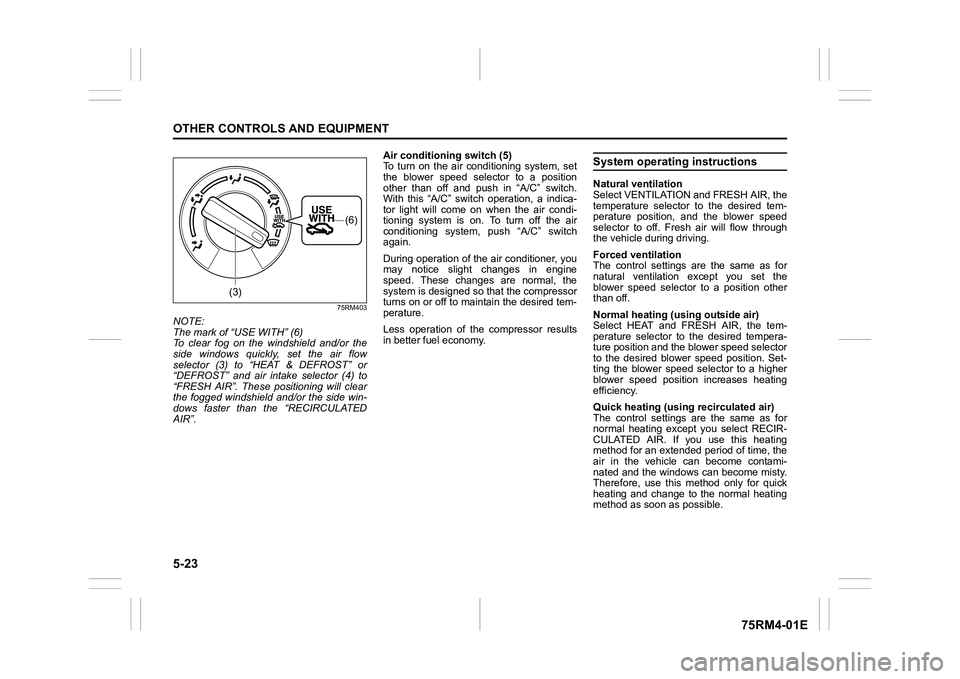
75RM403
NOTE:
The mark of “USE WITH” (6)
To clear fog on the windshield and/or the
side windows quickly, set the air flow
selector (3) to “HEAT & DEFROST” or
“DEFROST” and air intake selector (4) to
“FRESH AIR”. These positioning will clear
the fogged windshield and/or the side win-
dows faster than the “RECIRCULATED
AIR”. Air conditioning switch (5)
To turn on the air conditioning system, set
the blower speed selector to a position
other than off and push in “A/C” switch.
With this “A/C” switch operation, a indica-
tor light will come on when the air condi-
tioning system is on. To turn off the air
conditioning system,
push “A/C” switch
again.
During operation of the air conditioner, you
may notice slight changes in engine
speed. These changes are normal, the
system is designed so that the compressor
turns on or off to maintain the desired tem-
perature.
Less operation of the compressor results
in better fuel economy.
System operating instructionsNatural ventilation
Select VENTILATION and FRESH AIR, the
temperature selector to the desired tem-
perature position, and the blower speed
selector to off. Fresh air will flow through
the vehicle during driving.
Forced ventilation
The control settings are the same as for
natural ventilation except you set the
blower speed selector to a position other
than off.
Normal heating (using outside air)
Select HEAT and FRESH AIR, the tem-
perature selector to the desired tempera-
ture position and the blower speed selector
to the desired blower speed position. Set-
ting the blower speed selector to a higher
blower speed position increases heating
efficiency.
Quick heating (using recirculated air)
The control settings are the same as for
normal heating except you select RECIR-
CULATED AIR. If you use this heating
method for an extended period of time, the
air in the vehicle can become contami-
nated and the windows can become misty.
Therefore, use this method only for quick
heating and change to the normal heating
method as soon as possible.
(3)
(6)
Page 282 of 505
5-27OTHER CONTROLS AND EQUIPMENT
75RM4-01E
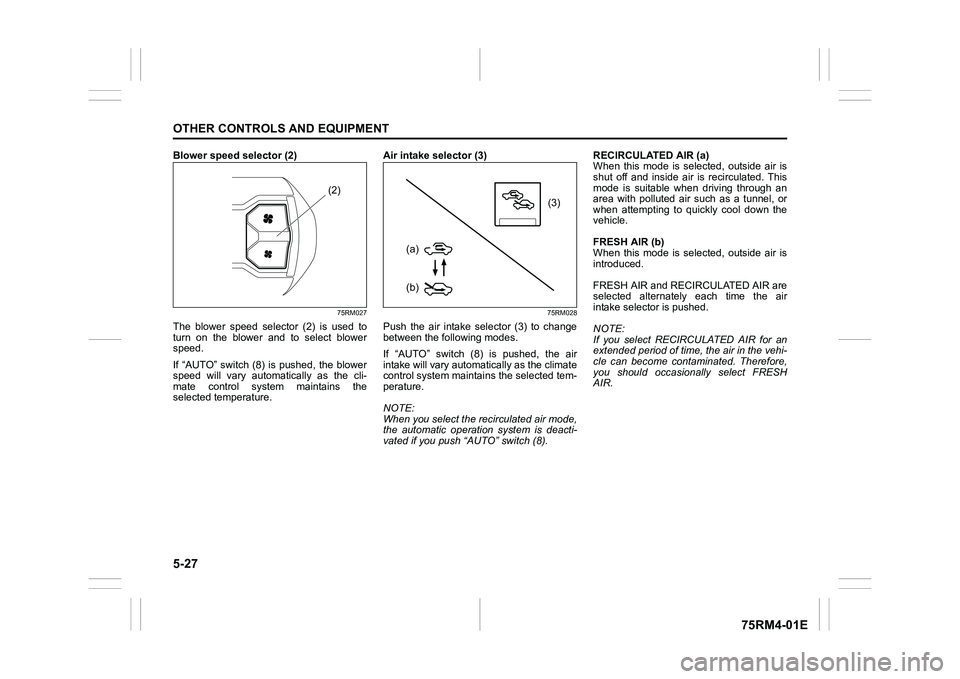
Blower speed selector (2)
75RM027
The blower speed selector (2) is used to
turn on the blower and to select blower
speed.
If “AUTO” switch (8) is pushed, the blower
speed will vary automatically as the cli-
mate control system maintains the
selected temperature. Air intake selector (3)
75RM028
Push the air intake selector (3) to change
between the following modes.
If “AUTO” switch (8) is pushed, the air
intake will vary automat
ically as the climate
control system maintai ns the selected tem-
perature.
NOTE:
When you select the recirculated air mode,
the automatic operation system is deacti-
vated if you push “AUTO” switch (8). RECIRCULATED AIR (a)
When this mode is selected, outside air is
shut off and inside air is recirculated. This
mode is suitable when driving through an
area with polluted air such as a tunnel, or
when attempting to quickly cool down the
vehicle.
FRESH AIR (b)
When this mode is selected, outside air is
introduced.
FRESH AIR and REC
IRCULATED AIR are
selected alternately each time the air
intake selector is pushed.
NOTE:
If you select RECIRCULATED AIR for an
extended period of time, the air in the vehi-
cle can become contam inated. Therefore,
you should occasio nally select FRESH
AIR.
(2)
(3)
(b)
(a)
Page 297 of 505
5-42
OTHER CONTROLS AND EQUIPMENT
75RM4-01E
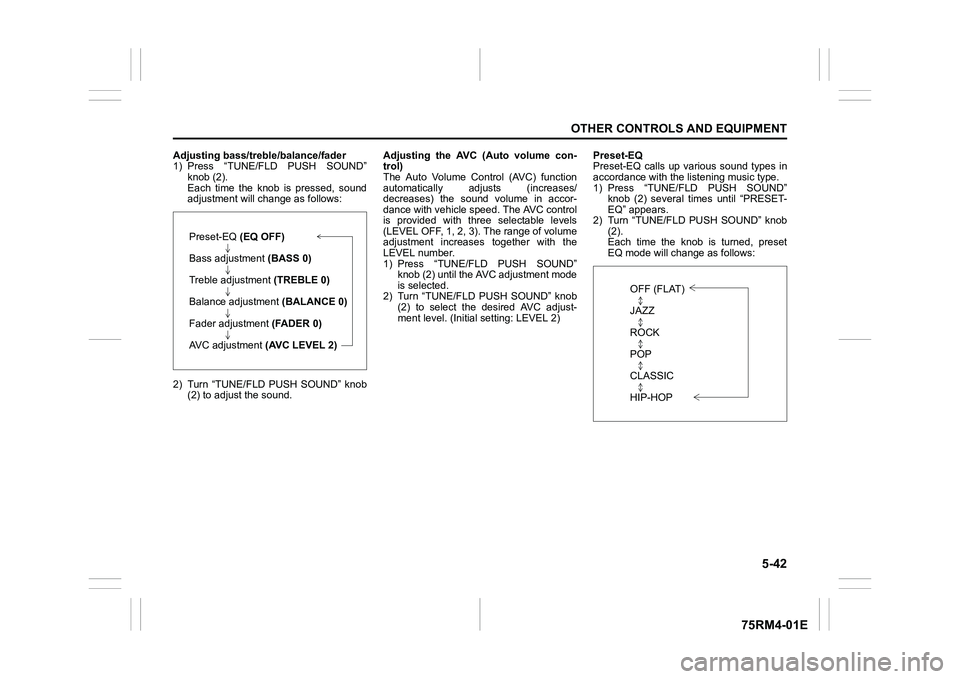
Adjusting bass/treble/balance/fader
1) Press “TUNE/FLD PUSH SOUND”knob (2).
Each time the knob is pressed, sound
adjustment will c hange as follows:
2) Turn “TUNE/FLD PUSH SOUND” knob (2) to adjust the sound. Adjusting the AVC (Auto volume con-
trol)
The Auto Volume Control (AVC) function
automatically adjusts (increases/
decreases) the sound volume in accor-
dance with vehicle speed. The AVC control
is provided with three selectable levels
(LEVEL OFF, 1, 2, 3). The range of volume
adjustment increases
together with the
LEVEL number.
1) Press “TUNE/FLD PUSH SOUND” knob (2) until the AV C adjustment mode
is selected.
2) Turn “TUNE/FLD PUSH SOUND” knob (2) to select the desired AVC adjust-
ment level. (Initi al setting: LEVEL 2) Preset-EQ
Preset-EQ calls up various sound types in
accordance with the listening music type.
1) Press “TUNE/FLD PUSH SOUND”
knob (2) several times until “PRESET-
EQ” appears.
2) Turn “TUNE/FLD PUSH SOUND” knob (2).
Each time the knob is turned, preset
EQ mode will change as follows:
Preset-EQ (EQ OFF)
Bass adjustment (BASS 0)
Treble adjustment (TREBLE 0)
Balance adjustment (BALANCE 0)
Fader adjustment (FADER 0)
AVC adjustment (AVC LEVEL 2)
OFF (FLAT)
JAZZ
ROCK
POP
CLASSIC
HIP-HOP
Page 299 of 505
5-44
OTHER CONTROLS AND EQUIPMENT
75RM4-01E
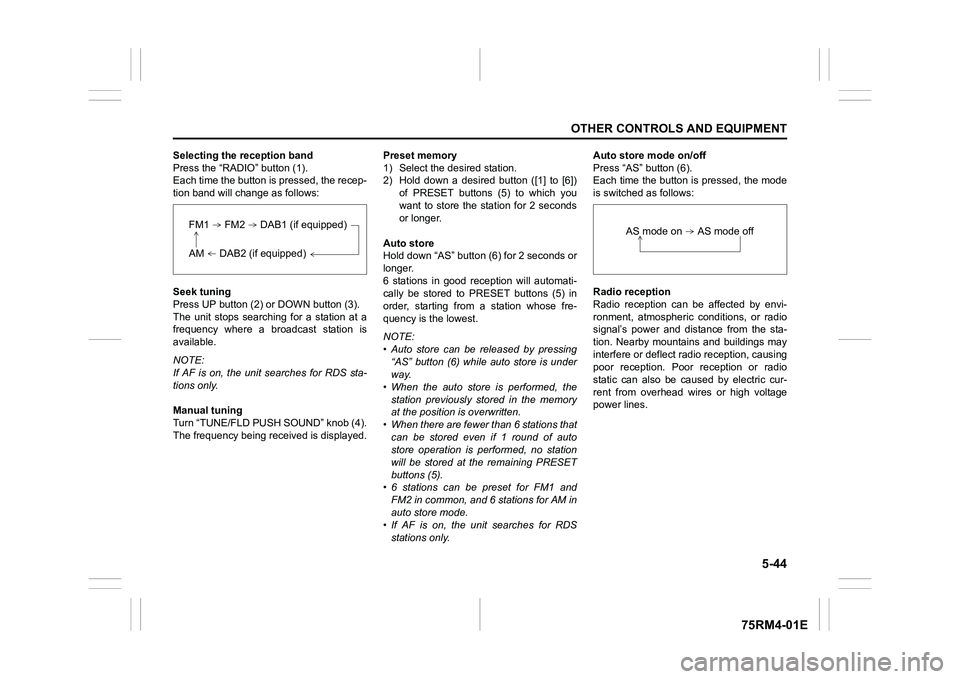
Selecting the reception band
Press the “RADIO” button (1).
Each time the button is pressed, the recep-
tion band will change as follows:
Seek tuning
Press UP button (2) or DOWN button (3).
The unit stops searching for a station at a
frequency where a broadcast station is
available.
NOTE:
If AF is on, the unit searches for RDS sta-
tions only.
Manual tuning
Turn “TUNE/FLD PUSH SOUND” knob (4).
The frequency being received is displayed. Preset memory
1) Select the desired station.
2) Hold down a desired button ([1] to [6])
of PRESET buttons (5) to which you
want to store the station for 2 seconds
or longer.
Auto store
Hold down “AS” button (6) for 2 seconds or
longer.
6 stations in good re ception will automati-
cally be stored to PRESET buttons (5) in
order, starting from a station whose fre-
quency is the lowest.
NOTE:
• Auto store can be released by pressing
“AS” button (6) while auto store is under
way.
• When the auto store is performed, the
station previously stored in the memory
at the position is overwritten.
• When there are fewer than 6 stations that
can be stored even if 1 round of auto
store operation is performed, no station
will be stored at the remaining PRESET
buttons (5).
• 6 stations can be preset for FM1 and FM2 in common, and 6 stations for AM in
auto store mode.
• If AF is on, the unit searches for RDS stations only. Auto store mode on/off
Press “AS” button (6).
Each time the button is pressed, the mode
is switched as follows:
Radio reception
Radio reception can be affected by envi-
ronment, atmospheric conditions, or radio
signal’s power and distance from the sta-
tion. Nearby mountains and buildings may
interfere or deflect r
adio reception, causing
poor reception. Poor reception or radio
static can also be caused by electric cur-
rent from overhead wires or high voltage
power lines.
FM1 FM2 DAB1 (if equipped)AM DAB2 (if equipped)
AS mode on AS mode off
Page 301 of 505
5-46
OTHER CONTROLS AND EQUIPMENT
75RM4-01E
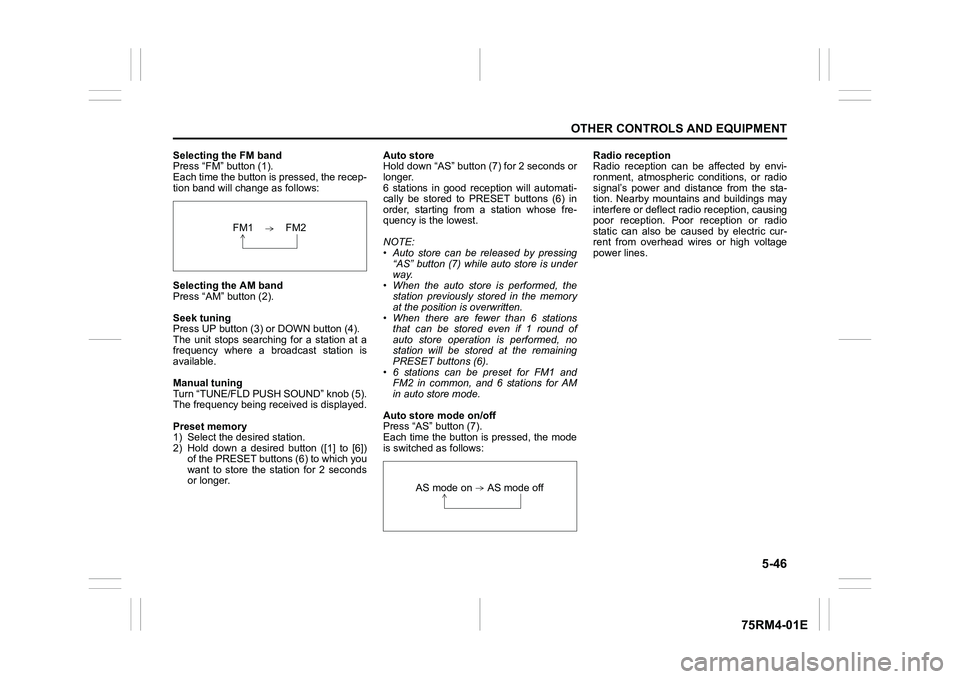
Selecting the FM band
Press “FM” button (1).
Each time the button is pressed, the recep-
tion band will change as follows:
Selecting the AM band
Press “AM” button (2).
Seek tuning
Press UP button (3) or DOWN button (4).
The unit stops searching for a station at a
frequency where a broadcast station is
available.
Manual tuning
Turn “TUNE/FLD PUSH SOUND” knob (5).
The frequency being received is displayed.
Preset memory
1) Select the desired station.
2) Hold down a desired button ([1] to [6])
of the PRESET buttons (6) to which you
want to store the station for 2 seconds
or longer. Auto store
Hold down “AS” button (7) for 2 seconds or
longer.
6 stations in good re
ception will automati-
cally be stored to PRESET buttons (6) in
order, starting from a station whose fre-
quency is the lowest.
NOTE:
• Auto store can be released by pressing “AS” button (7) while auto store is under
way.
• When the auto store is performed, the station previously stored in the memory
at the position is overwritten.
• When there are fewer than 6 stations that can be stored even if 1 round of
auto store operation is performed, no
station will be stored at the remaining
PRESET buttons (6).
• 6 stations can be preset for FM1 and FM2 in common, and 6 stations for AM
in auto store mode.
Auto store mode on/off
Press “AS” button (7).
Each time the button is pressed, the mode
is switched as follows: Radio reception
Radio reception can be affected by envi-
ronment, atmospheric conditions, or radio
signal’s power and distance from the sta-
tion. Nearby mountains and buildings may
interfere or deflect r
adio reception, causing
poor reception. Poor reception or radio
static can also be caused by electric cur-
rent from overhead wires or high voltage
power lines.
FM1 FM2
AS mode on AS mode off
Page 303 of 505
5-48
OTHER CONTROLS AND EQUIPMENT
75RM4-01E
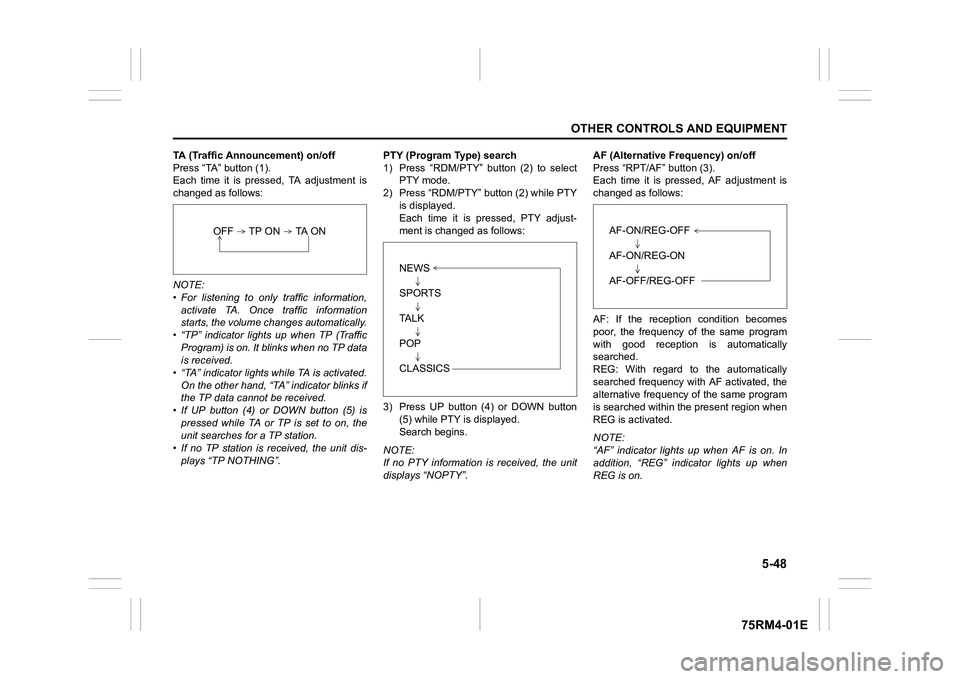
TA (Traffic Announcement) on/off
Press “TA” button (1).
Each time it is pressed, TA adjustment is
changed as follows:
NOTE:
• For listening to only traffic information,activate TA. Once traffic information
starts, the volume ch anges automatically.
• “TP” indicator lights up when TP (Traffic
Program) is on. It blinks when no TP data
is received.
• “TA” indicator lights while TA is activated.
On the other hand, “TA” indicator blinks if
the TP data cannot be received.
• If UP button (4) or DOWN button (5) is
pressed while TA or TP is set to on, the
unit searches for a TP station.
• If no TP station is received, the unit dis-
plays “TP NOTHING”. PTY (Program T
ype) search
1) Press “RDM/PTY” button (2) to select PTY mode.
2) Press “RDM/PTY” bu tton (2) while PTY
is displayed.
Each time it is pressed, PTY adjust-
ment is changed as follows:
3) Press UP button (4) or DOWN button (5) while PTY is displayed.
Search begins.
NOTE:
If no PTY information is received, the unit
displays “NOPTY”. AF (Alternative Frequency) on/off
Press “RPT/AF” button (3).
Each time it is pressed, AF adjustment is
changed as follows:
AF: If the reception condition becomes
poor, the frequency of the same program
with good reception is automatically
searched.
REG: With regard to the automatically
searched frequency with AF activated, the
alternative frequency of the same program
is searched within the present region when
REG is activated.
NOTE:
“AF” indicator lights up when AF is on. In
addition, “REG” indicator lights up when
REG is on.
OFF TP ON TA ON
NEWS
SPORTS
TA L K
POP
CLASSICS
AF-ON/REG-OFF
AF-ON/REG-ON
AF-OFF/REG-OFF
Page 307 of 505

5-52
OTHER CONTROLS AND EQUIPMENT
75RM4-01E
Random playback
Press “RDM” button (7).
Each time the button is pressed, the mode
will change as follows:
• TRACK RANDOMThe random indicato r “RDM” will light.
The tracks in the loaded disc will be
played in random order.
Repeat playback
Press “RPT” button (6).
Each time the button is pressed, the mode
will change as follows:
• TRACK REPEAT The repeat indicator “RPT” will light.
The track currently being played will be
played repeatedly. Display change
Press “DISP” button (8).
Each time the button is pressed, display
will change as follows:
NOTE:
• “NO TITLE” will be displayed when there
is no text information in the disc currently
being played.
• If text data contains more than 16 char- acters, “>” mark will appear at the right
end. Holding down “DISP” button (8) for
1 second or longer can display the next
page.
OFF TRACK RANDOMOFF TRACK REPEAT
Play time
Disc title
Track title
Page 309 of 505
5-54
OTHER CONTROLS AND EQUIPMENT
75RM4-01E
Selecting a folder
Turn “TUNE/FLD PUSH SOUND” knob (1)
to select a folder.
Selecting a track
• Press UP button (2) to listen to the nexttrack.
• Press DOWN button (3) twice to listen to the previous track.
When DOWN button (3) is pressed
once, the track currently being played
will start from the beginning again.
Fast forwarding/rewinding a track
• Hold down UP button (2) to fast forward the track.
• Hold down DOWN button (3) to fast
rewind the track. Random playback
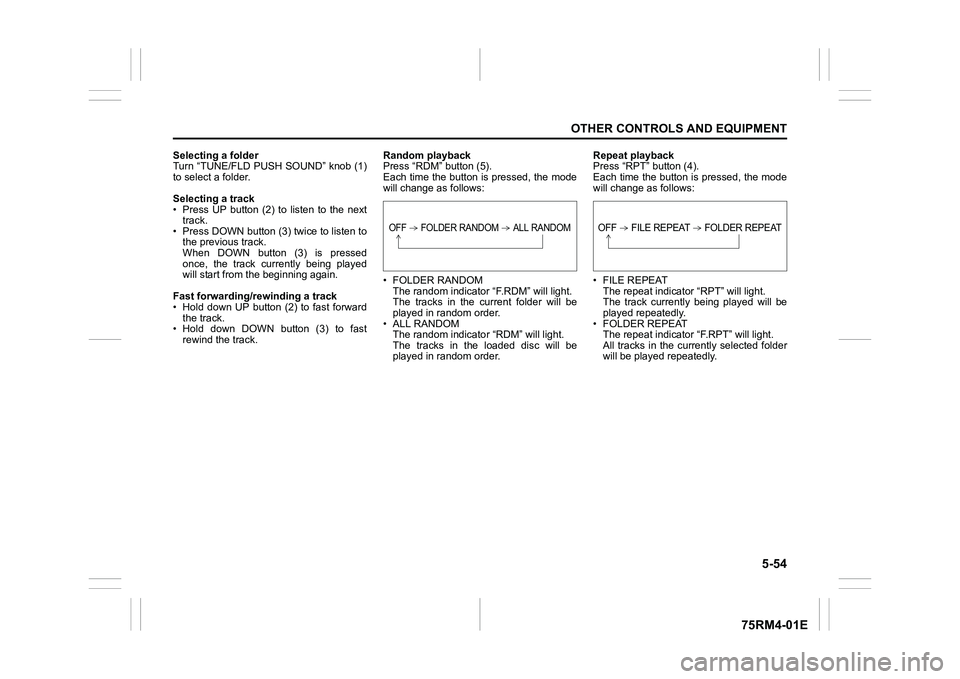
Press “RDM” button (5).
Each time the button is pressed, the mode
will change as follows:
• FOLDER RANDOM
The random indicator “F.RDM” will light.
The tracks in the cu rrent folder will be
played in random order.
•ALL RANDOM The random indicato r “RDM” will light.
The tracks in the loaded disc will be
played in random order. Repeat playback
Press “RPT” button (4).
Each time the button is pressed, the mode
will change as follows:
• FILE REPEAT
The repeat indicator “RPT” will light.
The track currently being played will be
played repeatedly.
• FOLDER REPEAT The repeat indicator “F.RPT” will light.
All tracks in the currently selected folder
will be played repeatedly.
OFF FOLDER RANDOM ALL RANDOM
OFF FILE REPEAT FOLDER REPEAT
Page 310 of 505
5-55OTHER CONTROLS AND EQUIPMENT
75RM4-01E
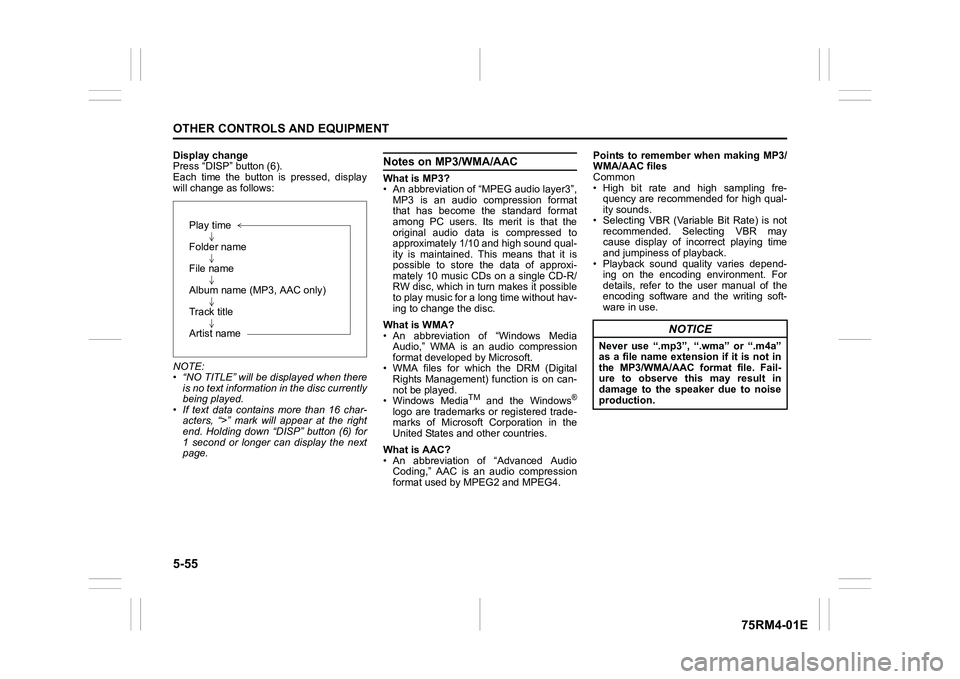
Display change
Press “DISP” button (6).
Each time the button is pressed, display
will change as follows:
NOTE:
• “NO TITLE” will be displayed when thereis no text information in the disc currently
being played.
• If text data contains more than 16 char- acters, “>” mark will appear at the right
end. Holding down “DISP” button (6) for
1 second or longer can display the next
page.
Notes on MP3/WMA/AACWhat is MP3?
• An abbreviation of “MPEG audio layer3”,
MP3 is an audio compression format
that has become the standard format
among PC users. Its merit is that the
original audio data is compressed to
approximately 1/10 and high sound qual-
ity is maintained. This means that it is
possible to store the data of approxi-
mately 10 music CDs on a single CD-R/
RW disc, which in turn makes it possible
to play music for a long time without hav-
ing to change the disc.
What is WMA?
• An abbreviation of “Windows Media Audio,” WMA is an audio compression
format developed by Microsoft.
• WMA files for which the DRM (Digital Rights Management) function is on can-
not be played.
• Windows Media
TM
and the Windows
®
logo are trademarks or registered trade-
marks of Microsoft Corporation in the
United States and other countries.
What is AAC?
• An abbreviation of “Advanced Audio Coding,” AAC is an audio compression
format used by MPEG2 and MPEG4. Points to remember when making MP3/
WMA/AAC files
Common
• High bit rate and high sampling fre-
quency are recommended for high qual-
ity sounds.
• Selecting VBR (Variable Bit Rate) is not recommended. Selecting VBR may
cause display of inc orrect playing time
and jumpiness of playback.
• Playback sound quality varies depend- ing on the encoding environment. For
details, refer to the user manual of the
encoding software and the writing soft-
ware in use.
Play time
Folder name
File name
Album name (MP3, AAC only)
Track title
Artist name
NOTICE
Never use “.mp3”, “.wma” or “.m4a”
as a file name extension if it is not in
the MP3/WMA/AAC format file. Fail-
ure to observe this may result in
damage to the speaker due to noise
production.