display SUZUKI RENO 2008 1.G Owners Manual
[x] Cancel search | Manufacturer: SUZUKI, Model Year: 2008, Model line: RENO, Model: SUZUKI RENO 2008 1.GPages: 226, PDF Size: 4.98 MB
Page 38 of 226
1-26
SEATS AND RESTRAINT SYSTEMS
85Z14-03E
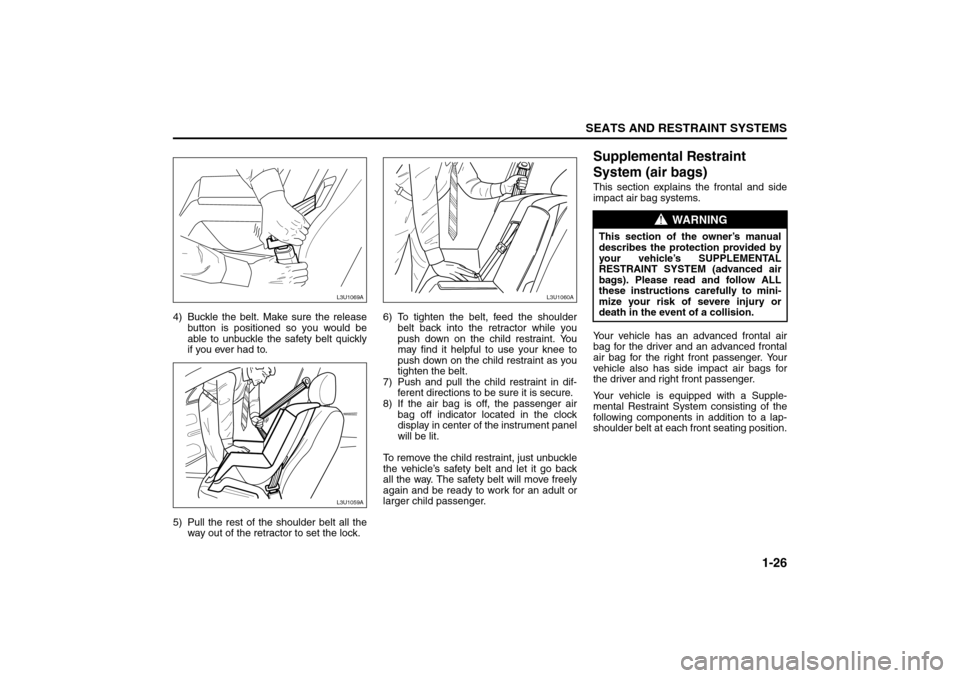
4) Buckle the belt. Make sure the release
button is positioned so you would be
able to unbuckle the safety belt quickly
if you ever had to.
5) Pull the rest of the shoulder belt all the
way out of the retractor to set the lock.6) To tighten the belt, feed the shoulder
belt back into the retractor while you
push down on the child restraint. You
may find it helpful to use your knee to
push down on the child restraint as you
tighten the belt.
7) Push and pull the child restraint in dif-
ferent directions to be sure it is secure.
8) If the air bag is off, the passenger air
bag off indicator located in the clock
display in center of the instrument panel
will be lit.
To remove the child restraint, just unbuckle
the vehicle’s safety belt and let it go back
all the way. The safety belt will move freely
again and be ready to work for an adult or
larger child passenger.
Supplemental Restraint
System (air bags)This section explains the frontal and side
impact air bag systems.
Your vehicle has an advanced frontal air
bag for the driver and an advanced frontal
air bag for the right front passenger. Your
vehicle also has side impact air bags for
the driver and right front passenger.
Your vehicle is equipped with a Supple-
mental Restraint System consisting of the
following components in addition to a lap-
shoulder belt at each front seating position.
L3U1069AL3U1059A
L3U1061AL3U1060A
WARNING
This section of the owner’s manual
describes the protection provided by
your vehicle’s SUPPLEMENTAL
RESTRAINT SYSTEM (advanced air
bags). Please read and follow ALL
these instructions carefully to mini-
mize your risk of severe injury or
death in the event of a collision.
Child Restraints:
Supplemental Restraint System:
Page 42 of 226
1-30
SEATS AND RESTRAINT SYSTEMS
85Z14-03E
Passenger Sensing SystemYour vehicle has a passenger sensing sys-
tem for the right front passenger position.
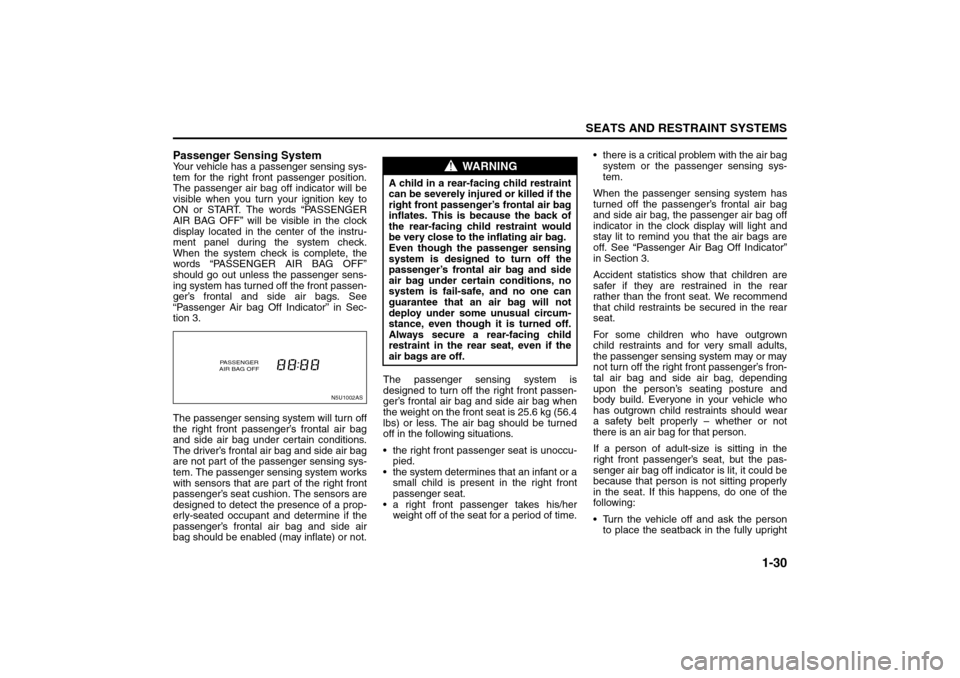
The passenger air bag off indicator will be
visible when you turn your ignition key to
ON or START. The words “PASSENGER
AIR BAG OFF” will be visible in the clock
display located in the center of the instru-
ment panel during the system check.
When the system check is complete, the
words “PASSENGER AIR BAG OFF”
should go out unless the passenger sens-
ing system has turned off the front passen-
ger’s frontal and side air bags. See
“Passenger Air bag Off Indicator” in Sec-
tion 3.
The passenger sensing system will turn off
the right front passenger’s frontal air bag
and side air bag under certain conditions.
The driver’s frontal air bag and side air bag
are not part of the passenger sensing sys-
tem. The passenger sensing system works
with sensors that are part of the right front
passenger’s seat cushion. The sensors are
designed to detect the presence of a prop-
erly-seated occupant and determine if the
passenger’s frontal air bag and side air
bag should be enabled (may inflate) or not.The passenger sensing system is
designed to turn off the right front passen-
ger’s frontal air bag and side air bag when
the weight on the front seat is 25.6 kg (56.4
lbs) or less. The air bag should be turned
off in the following situations.
the right front passenger seat is unoccu-
pied.
the system determines that an infant or a
small child is present in the right front
passenger seat.
a right front passenger takes his/her
weight off of the seat for a period of time. there is a critical problem with the air bag
system or the passenger sensing sys-
tem.
When the passenger sensing system has
turned off the passenger’s frontal air bag
and side air bag, the passenger air bag off
indicator in the clock display will light and
stay lit to remind you that the air bags are
off. See “Passenger Air Bag Off Indicator”
in Section 3.
Accident statistics show that children are
safer if they are restrained in the rear
rather than the front seat. We recommend
that child restraints be secured in the rear
seat.
For some children who have outgrown
child restraints and for very small adults,
the passenger sensing system may or may
not turn off the right front passenger’s fron-
tal air bag and side air bag, depending
upon the person’s seating posture and
body build. Everyone in your vehicle who
has outgrown child restraints should wear
a safety belt properly – whether or not
there is an air bag for that person.
If a person of adult-size is sitting in the
right front passenger’s seat, but the pas-
senger air bag off indicator is lit, it could be
because that person is not sitting properly
in the seat. If this happens, do one of the
following:
Turn the vehicle off and ask the person
to place the seatback in the fully upright
N5U1002AS
PASSENGER
AIR BAG OFF
WARNING
A child in a rear-facing child restraint
can be severely injured or killed if the
right front passenger’s frontal air bag
inflates. This is because the back of
the rear-facing child restraint would
be very close to the inflating air bag.
Even though the passenger sensing
system is designed to turn off the
passenger’s frontal air bag and side
air bag under certain conditions, no
system is fail-safe, and no one can
guarantee that an air bag will not
deploy under some unusual circum-
stance, even though it is turned off.
Always secure a rear-facing child
restraint in the rear seat, even if the
air bags are off.
Supplemental Restraint System:
Page 59 of 226
2-11FEATURES AND CONTROLS
85Z14-03E
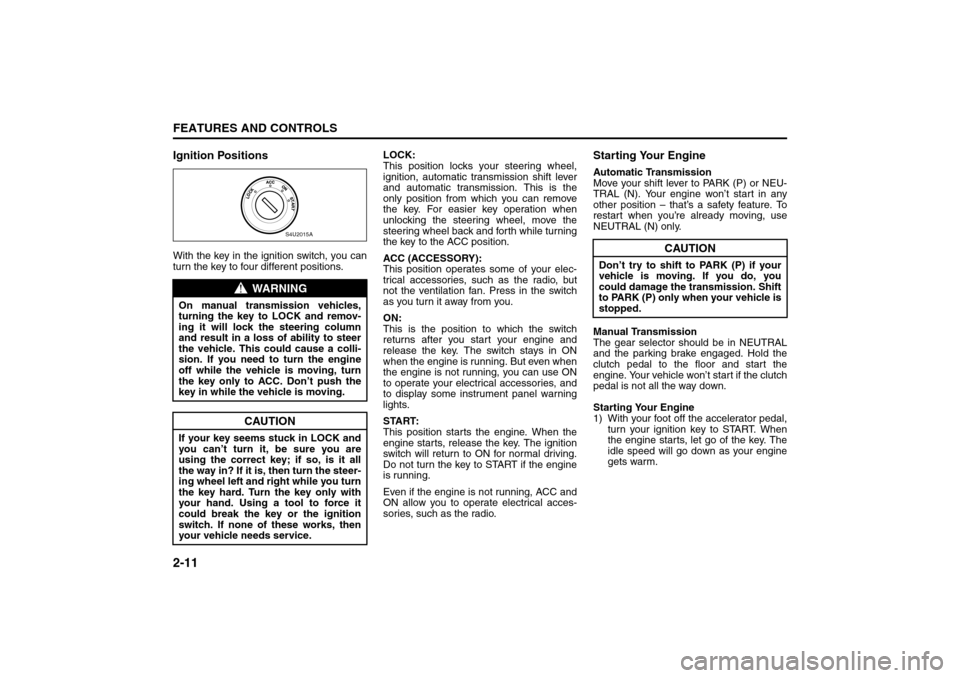
Ignition PositionsWith the key in the ignition switch, you can
turn the key to four different positions.LOCK:
This position locks your steering wheel,
ignition, automatic transmission shift lever
and automatic transmission. This is the
only position from which you can remove
the key. For easier key operation when
unlocking the steering wheel, move the
steering wheel back and forth while turning
the key to the ACC position.
ACC (ACCESSORY):
This position operates some of your elec-
trical accessories, such as the radio, but
not the ventilation fan. Press in the switch
as you turn it away from you.
ON:
This is the position to which the switch
returns after you start your engine and
release the key. The switch stays in ON
when the engine is running. But even when
the engine is not running, you can use ON
to operate your electrical accessories, and
to display some instrument panel warning
lights.
START:
This position starts the engine. When the
engine starts, release the key. The ignition
switch will return to ON for normal driving.
Do not turn the key to START if the engine
is running.
Even if the engine is not running, ACC and
ON allow you to operate electrical acces-
sories, such as the radio.
Starting Your EngineAutomatic Transmission
Move your shift lever to PARK (P) or NEU-
TRAL (N). Your engine won’t start in any
other position – that’s a safety feature. To
restart when you’re already moving, use
NEUTRAL (N) only.
Manual Transmission
The gear selector should be in NEUTRAL
and the parking brake engaged. Hold the
clutch pedal to the floor and start the
engine. Your vehicle won’t start if the clutch
pedal is not all the way down.
Starting Your Engine
1) With your foot off the accelerator pedal,
turn your ignition key to START. When
the engine starts, let go of the key. The
idle speed will go down as your engine
gets warm.
WARNING
On manual transmission vehicles,
turning the key to LOCK and remov-
ing it will lock the steering column
and result in a loss of ability to steer
the vehicle. This could cause a colli-
sion. If you need to turn the engine
off while the vehicle is moving, turn
the key only to ACC. Don’t push the
key in while the vehicle is moving.
CAUTION
If your key seems stuck in LOCK and
you can’t turn it, be sure you are
using the correct key; if so, is it all
the way in? If it is, then turn the steer-
ing wheel left and right while you turn
the key hard. Turn the key only with
your hand. Using a tool to force it
could break the key or the ignition
switch. If none of these works, then
your vehicle needs service.
S4U2015A
CAUTION
Don’t try to shift to PARK (P) if your
vehicle is moving. If you do, you
could damage the transmission. Shift
to PARK (P) only when your vehicle is
stopped.
Starting and Operating Your Vehicle:
Page 86 of 226
3-12
INSTRUMENT PANEL
85Z14-03E
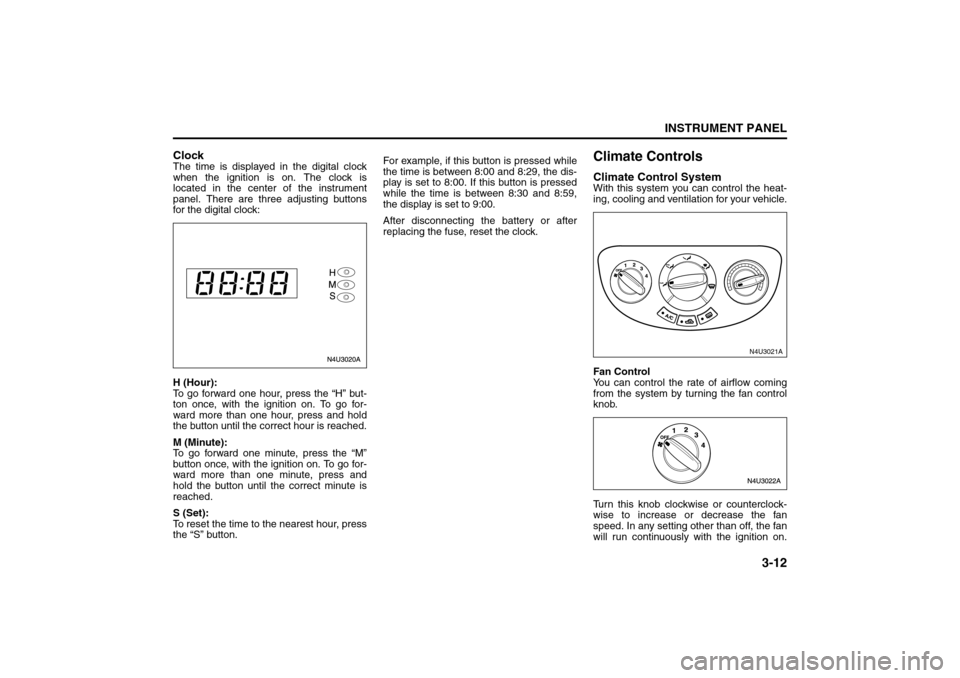
ClockThe time is displayed in the digital clock
when the ignition is on. The clock is
located in the center of the instrument
panel. There are three adjusting buttons
for the digital clock:
H (Hour):
To go forward one hour, press the “H” but-
ton once, with the ignition on. To go for-
ward more than one hour, press and hold
the button until the correct hour is reached.
M (Minute):
To go forward one minute, press the “M”
button once, with the ignition on. To go for-
ward more than one minute, press and
hold the button until the correct minute is
reached.
S (Set):
To reset the time to the nearest hour, press
the “S” button.For example, if this button is pressed while
the time is between 8:00 and 8:29, the dis-
play is set to 8:00. If this button is pressed
while the time is between 8:30 and 8:59,
the display is set to 9:00.
After disconnecting the battery or after
replacing the fuse, reset the clock.
Climate ControlsClimate Control SystemWith this system you can control the heat-
ing, cooling and ventilation for your vehicle.
Fan Control
You can control the rate of airflow coming
from the system by turning the fan control
knob.
Turn this knob clockwise or counterclock-
wise to increase or decrease the fan
speed. In any setting other than off, the fan
will run continuously with the ignition on.
N4U3021A
Instrument Panel Overview:
Climate Controls:
Page 92 of 226
3-18
INSTRUMENT PANEL
85Z14-03E
Warning Lights, Gauges and
IndicatorsThis section describes the warning lights
and gauges that may be on your vehicle.
The pictures will help you locate them.
Warning lights and gauges can signal that
something is wrong before it becomes seri-
ous enough to cause an expensive repair
or replacement. Paying attention to your
warning lights and gauges could also save
you or others from injury.
Warning lights come on when there may
be or is a problem with one of your vehi-
cle’s functions. As you will see in the
details on the next few pages, some warn-
ing lights come on briefly when you start
the engine just to let you know they’re
working. If you are familiar with this sec-
tion, you should not be alarmed when this
happens.
Gauges can indicate when there may be or
is a problem with one of your vehicle’s
functions. Often gauges and warning lights
work together to let you know when there’s
a problem with your vehicle.
When one of the warning lights comes on
and stays on when you are driving, or
when one of the gauges shows there may
be a problem, check the gauge that tells
you what to do about it. Please follow this
manual’s advice. Waiting to do repairs can
be costly – and even dangerous. So pleaseget to know your warning lights and
gauges. They’re a big help.
Instrument Panel ClusterYour instrument panel cluster is designed
to let you know at a glance how your vehi-
cle is running. You’ll know how fast you’re
going, how much fuel you’re using and
many other things you’ll need to drive
safely and economically.
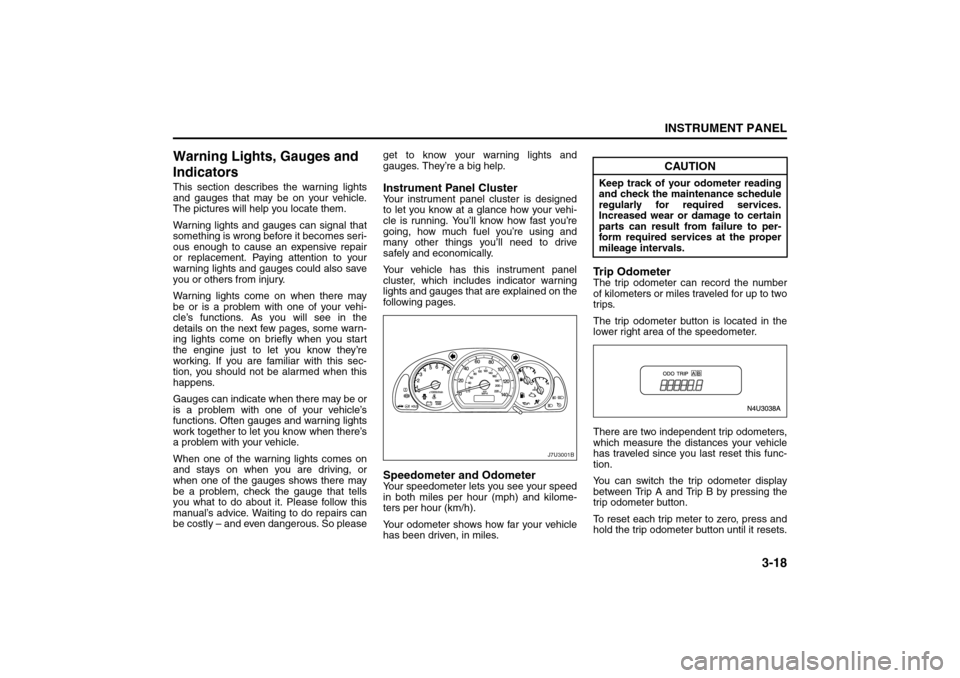
Your vehicle has this instrument panel
cluster, which includes indicator warning
lights and gauges that are explained on the
following pages.Speedometer and OdometerYour speedometer lets you see your speed
in both miles per hour (mph) and kilome-
ters per hour (km/h).
Your odometer shows how far your vehicle
has been driven, in miles.
Trip OdometerThe trip odometer can record the number
of kilometers or miles traveled for up to two
trips.
The trip odometer button is located in the
lower right area of the speedometer.
There are two independent trip odometers,
which measure the distances your vehicle
has traveled since you last reset this func-
tion.
You can switch the trip odometer display
between Trip A and Trip B by pressing the
trip odometer button.
To reset each trip meter to zero, press and
hold the trip odometer button until it resets.
J7U3001B
CAUTION
Keep track of your odometer reading
and check the maintenance schedule
regularly for required services.
Increased wear or damage to certain
parts can result from failure to per-
form required services at the proper
mileage intervals.
Warning Lights, Gauges and Indicators:
Page 100 of 226
3-26
INSTRUMENT PANEL
85Z14-03E
still have a little fuel left, but you should get
more soon. See “Low Fuel Warning Light”
in this section for more information.
Here are four things that some owners ask
about. None of these show a problem with
your fuel gauge:
At the service station, the gas pump
shuts off before the gauge reads full.
It takes a little more or less fuel to fill up
than the gauge indicated. For example,
the gauge may have indicated the tank
was half full, but it actually took a little
more or less than half the tank’s capacity
to fill the tank.
The indicator moves a little when you
turn a corner or speed up.
The gauge goes back to empty when
you turn off the ignition.
For your fuel tank capacity, see “Capacities
and Specifications” in section 5.
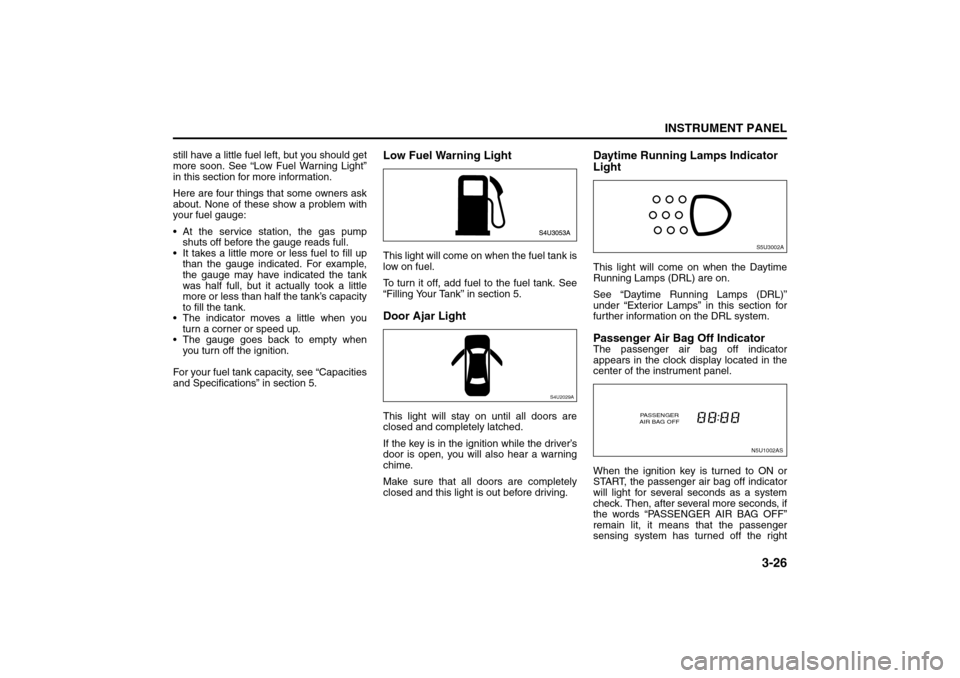
Low Fuel Warning LightThis light will come on when the fuel tank is
low on fuel.
To turn it off, add fuel to the fuel tank. See
“Filling Your Tank” in section 5.Door Ajar LightThis light will stay on until all doors are
closed and completely latched.
If the key is in the ignition while the driver’s
door is open, you will also hear a warning
chime.
Make sure that all doors are completely
closed and this light is out before driving.
Daytime Running Lamps Indicator
LightThis light will come on when the Daytime
Running Lamps (DRL) are on.
See “Daytime Running Lamps (DRL)”
under “Exterior Lamps” in this section for
further information on the DRL system.Passenger Air Bag Off IndicatorThe passenger air bag off indicator
appears in the clock display located in the
center of the instrument panel.
When the ignition key is turned to ON or
START, the passenger air bag off indicator
will light for several seconds as a system
check. Then, after several more seconds, if
the words “PASSENGER AIR BAG OFF”
remain lit, it means that the passenger
sensing system has turned off the right
S4U2029A
S5U3002AN5U1002AS
PASSENGER
AIR BAG OFF
Warning Lights, Gauges and Indicators:
Audio System:
Page 105 of 226
3-31INSTRUMENT PANEL
85Z14-03E
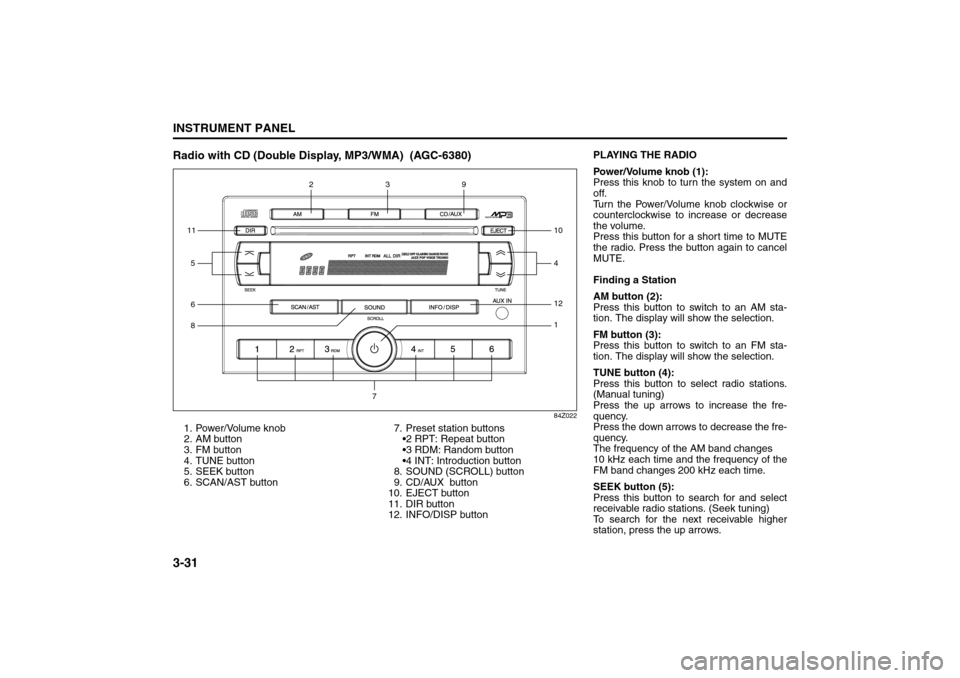
Radio with CD (Double Display, MP3/WMA) (AGC-6380)
84Z022
1. Power/Volume knob
2. AM button
3. FM button
4. TUNE button
5. SEEK button
6. SCAN/AST button7. Preset station buttons
2 RPT: Repeat button
3 RDM: Random button
4 INT: Introduction button
8. SOUND (SCROLL) button
9. CD/AUX button
10. EJECT button
11. DIR button
12. INFO/DISP button611812
1
59
410
3
2
7
PLAYING THE RADIO
Power/Volume knob (1):
Press this knob to turn the system on and
off.
Turn the Power/Volume knob clockwise or
counterclockwise to increase or decrease
the volume.
Press this button for a short time to MUTE
the radio. Press the button again to cancel
MUTE.
Finding a Station
AM button (2):
Press this button to switch to an AM sta-
tion. The display will show the selection.
FM button (3):
Press this button to switch to an FM sta-
tion. The display will show the selection.
TUNE button (4):
Press this button to select radio stations.
(Manual tuning)
Press the up arrows to increase the fre-
quency.
Press the down arrows to decrease the fre-
quency.
The frequency of the AM band changes
10 kHz each time and the frequency of the
FM band changes 200 kHz each time.
SEEK button (5):
Press this button to search for and select
receivable radio stations. (Seek tuning)
To search for the next receivable higher
station, press the up arrows.
Audio System:
Page 106 of 226
3-32
INSTRUMENT PANEL
85Z14-03E
To search for the previous receivable lower
station, press the down arrows.
SCAN/AST button (6):
Press this button to scan radio stations.
(Scan tuning)
Scan
The radio will go to a station, play for a few
seconds, and then go on to the next sta-
tion. Press this button again to stop scan-
ning.
The radio will only scan stations with a
strong signal that are in the selected band.
Automatic Store
Press and hold this button to use Auto
Store.
FM1’s 6 preset stations with the strongest
signal in the region can be automatically
stored. The display will show “AUTO
SCANNING”, and “SCANNING” will flash
on display.
Stored stations will flash for a short time on
display in sequence. Once the stations are
stored, the radio will switch to FM-A and
the first preset station will begin to play.
FM-A will appear on the display when lis-
tening to the automatically stored stations.
Press the AM or FM button to stop auto-
matic store.Preset station buttons (7):
Setting Preset Stations
Up to 36 stations (six FM1, six FM2, six
FM-A and six AM1, six AM2, six AM-A),
can be programmed on the six numbered
preset buttons, by performing the following
steps:
1) Turn the radio on.
2) Press the AM or FM button to select
FM1, FM2, FM-A, AM1, AM2 or AM-A.
3) Tune in the desired station.
4) Press and hold one of the six numbered
preset buttons.
The preset button number (Display:
CH#1 ~ CH#6) will flash on the display
when the station has been set. When-
ever that numbered preset button is
pressed, the memorized station will
return.
5) Repeat the previous four steps for each
preset button.
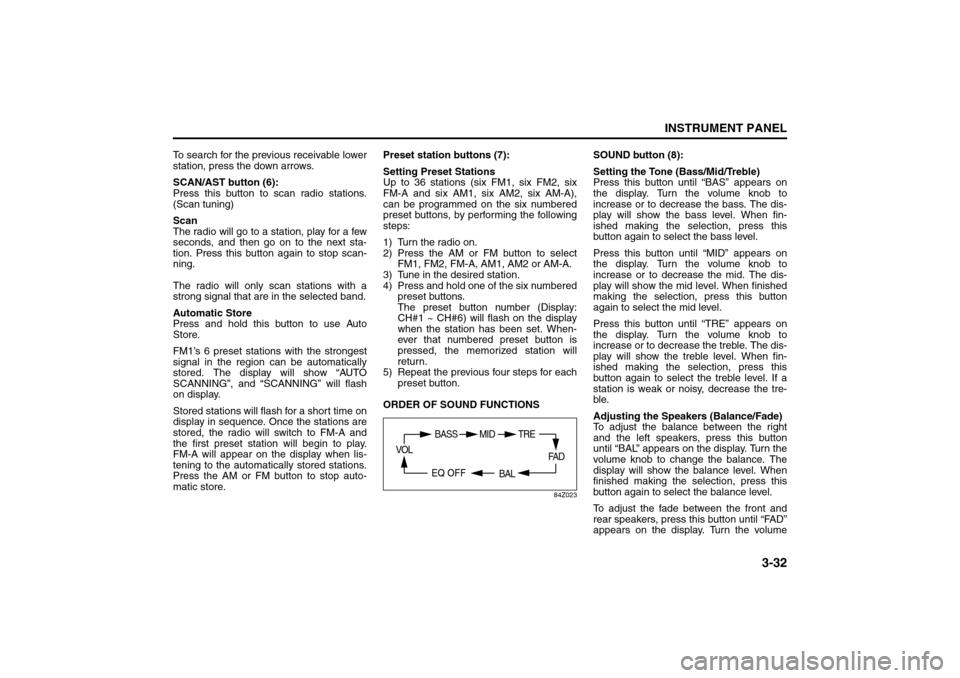
ORDER OF SOUND FUNCTIONS
84Z023
SOUND button (8):
Setting the Tone (Bass/Mid/Treble)
Press this button until “BAS” appears on
the display. Turn the volume knob to
increase or to decrease the bass. The dis-
play will show the bass level. When fin-
ished making the selection, press this
button again to select the bass level.
Press this button until “MID” appears on
the display. Turn the volume knob to
increase or to decrease the mid. The dis-
play will show the mid level. When finished
making the selection, press this button
again to select the mid level.
Press this button until “TRE” appears on
the display. Turn the volume knob to
increase or to decrease the treble. The dis-
play will show the treble level. When fin-
ished making the selection, press this
button again to select the treble level. If a
station is weak or noisy, decrease the tre-
ble.
Adjusting the Speakers (Balance/Fade)
To adjust the balance between the right
and the left speakers, press this button
until “BAL” appears on the display. Turn the
volume knob to change the balance. The
display will show the balance level. When
finished making the selection, press this
button again to select the balance level.
To adjust the fade between the front and
rear speakers, press this button until “FAD”
appears on the display. Turn the volume
FA D
BAL
BASS MID
EQ OFF VOL
TRE
Audio System:
Page 107 of 226
3-33INSTRUMENT PANEL
85Z14-03E
knob to change the fade between the front
and the rear speakers. The display will
show the fade level. When finished making
the selection, press this button again to
select the fade level.
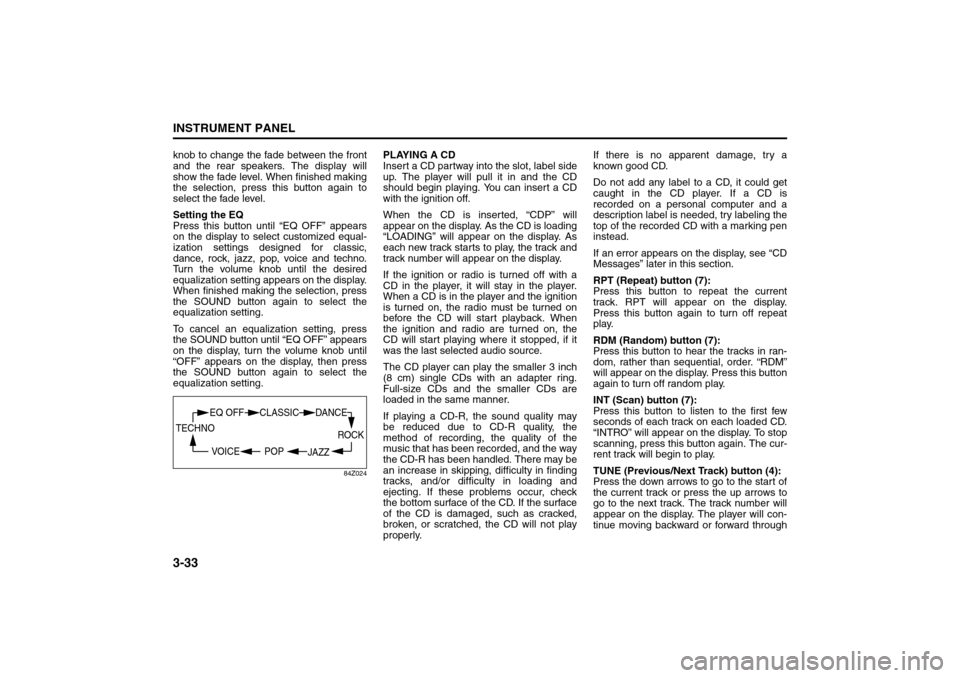
Setting the EQ
Press this button until “EQ OFF” appears
on the display to select customized equal-
ization settings designed for classic,
dance, rock, jazz, pop, voice and techno.
Turn the volume knob until the desired
equalization setting appears on the display.
When finished making the selection, press
the SOUND button again to select the
equalization setting.
To cancel an equalization setting, press
the SOUND button until “EQ OFF” appears
on the display, turn the volume knob until
“OFF” appears on the display, then press
the SOUND button again to select the
equalization setting.
84Z024
PLAYING A CD
Insert a CD partway into the slot, label side
up. The player will pull it in and the CD
should begin playing. You can insert a CD
with the ignition off.
When the CD is inserted, “CDP” will
appear on the display. As the CD is loading
“LOADING” will appear on the display. As
each new track starts to play, the track and
track number will appear on the display.
If the ignition or radio is turned off with a
CD in the player, it will stay in the player.
When a CD is in the player and the ignition
is turned on, the radio must be turned on
before the CD will start playback. When
the ignition and radio are turned on, the
CD will start playing where it stopped, if it
was the last selected audio source.
The CD player can play the smaller 3 inch
(8 cm) single CDs with an adapter ring.
Full-size CDs and the smaller CDs are
loaded in the same manner.
If playing a CD-R, the sound quality may
be reduced due to CD-R quality, the
method of recording, the quality of the
music that has been recorded, and the way
the CD-R has been handled. There may be
an increase in skipping, difficulty in finding
tracks, and/or difficulty in loading and
ejecting. If these problems occur, check
the bottom surface of the CD. If the surface
of the CD is damaged, such as cracked,
broken, or scratched, the CD will not play
properly.If there is no apparent damage, try a
known good CD.
Do not add any label to a CD, it could get
caught in the CD player. If a CD is
recorded on a personal computer and a
description label is needed, try labeling the
top of the recorded CD with a marking pen
instead.
If an error appears on the display, see “CD
Messages” later in this section.
RPT (Repeat) button (7):
Press this button to repeat the current
track. RPT will appear on the display.
Press this button again to turn off repeat
play.
RDM (Random) button (7):
Press this button to hear the tracks in ran-
dom, rather than sequential, order. “RDM”
will appear on the display. Press this button
again to turn off random play.
INT (Scan) button (7):
Press this button to listen to the first few
seconds of each track on each loaded CD.
“INTRO” will appear on the display. To stop
scanning, press this button again. The cur-
rent track will begin to play.
TUNE (Previous/Next Track) button (4):
Press the down arrows to go to the start of
the current track or press the up arrows to
go to the next track. The track number will
appear on the display. The player will con-
tinue moving backward or forward through
ROCK
JAZZ
EQ OFF CLASSIC
POP VOICE TECHNO
DANCE
Audio System:
Page 108 of 226
3-34
INSTRUMENT PANEL
85Z14-03E
the CD with each press of the up or down
arrows.
AM button (2):
Press this button to listen to the radio when
a CD is playing. The inactive CD will
remain safely inside the radio for future lis-
tening.
FM button (3):
Press this button to listen to the radio when
a CD is playing. The inactive CD will
remain safely inside the radio for future lis-
tening.
CD/AUX button (9):
Press this button to play a CD when listen-
ing to the radio. “CDP” will appear on the
display when the CD player has been
selected. The CD symbol will appear on
the display when a CD is loaded.
Press this button while a CD is playing to
pause the CD. “PAUSE” will flash on the
display. Press this button again to resume
playing the CD.
Press this button to play a CD when listen-
ing to the audio contents from other device
(AUX mode). “CDP” will appear on the dis-
play when the CD player has been
selected. The CD symbol will appear on
the display when a CD is loaded.
EJECT button (10):
Press this button to eject a CD. The only
way a CD can be ejected from the player is
by pressing the eject button. The CD willnot eject when the ignition or the radio is
turned off.
Using an MP3/WMA CD
MP3/WMA Format
If you burn your own MP3/WMA disc on a
personal computer:
Make sure the MP3/WMA files are
recorded on a CD-R disc.
Make sure to finalize the disc when burn-
ing an MP3/WMA disc, using multiple
sessions. It is usually better to burn the
disc all at once.
Files can be recorded with a variety of
fixed or variable bit rates. Song title, art-
ist name, and album will be available for
display by the radio when recorded using
ID3 tags version 1 and 2.
Do not mix standard audio and MP3/
WMA files on one disc.
Make sure each MP3/WMA file has a
“.mp3” or “.wma” extension, other file
extensions may not work.
The player will be able to read and play a
maximum of 50 folders, 5 sessions, and
999 files. Long file names and folder
names may use more disc memory space
than necessary. To conserve space on the
disc, minimize the length of the file, and
folder names. You can also play an MP3/
WMA CD that was recorded using no file
folders. The system can support up to 8
folders in depth, but, keep the depth of the
folders to a minimum in order to keep downthe complexity and confusion in trying to
locate a particular folder during playback. If
a CD contains more than the maximum of
50 folders, 5 sessions, and 999 files the
player will let you access and navigate up
to the maximum, but all items over the
maximum will be ignored.
Root Directory
The root directory will be treated as a
folder. If the root directory has compressed
audio files, the directory will be displayed
as “ROOT”. All files contained directly
under the root directory will be accessed
prior to any other directory.
Empty Directory or Folder
If a root directory or a folder exists some-
where in the file structure that contains
only folders/subfolders and no compressed
files directly beneath them, the player will
advance to the next folder in the file struc-
ture that contains compressed audio files
and the empty folder will not be displayed
or numbered.
No Folder
When the CD contains only compressed
files, the files will be located under the root
folder. The next and previous folder func-
tions will have no function on a CD that
was recorded without folders or playlists.
When displaying the name of the folder the
radio will display “ROOT”.
When the CD contains only compressed
audio files, but no folders, all files will be
located under the root folder. When the
Audio System: