air con SUZUKI SWIFT 2017 5.G Owner's Guide
[x] Cancel search | Manufacturer: SUZUKI, Model Year: 2017, Model line: SWIFT, Model: SUZUKI SWIFT 2017 5.GPages: 336, PDF Size: 6.24 MB
Page 136 of 336
5-9OTHER CONTROLS AND EQUIPMENT
74LH0-74E
mum performance and durability of your air
conditioner, it needs to be run periodically.
Operate the air conditioner at least once a
month for one minute with the engine
idling. This circulates the refrigerant and oil
and helps protect the internal components.
NOTE:
Your vehicle uses the air conditioning
refrigerant HFC-134a, commonly called
“R-134a”. Only R-134a should be used in
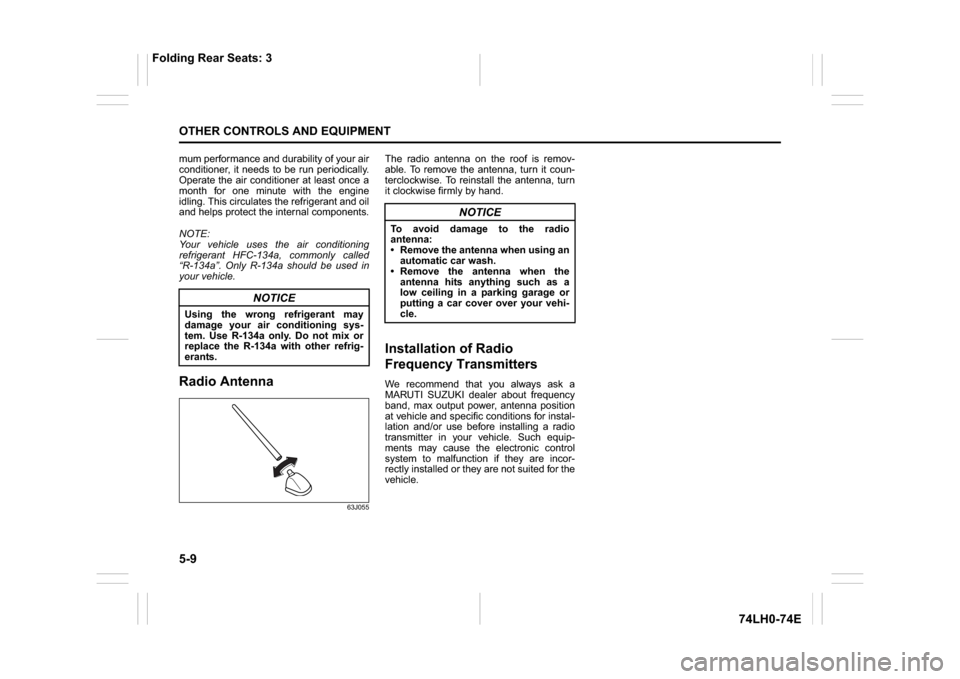
your vehicle.Radio Antenna
63J055
The radio antenna on the roof is remov-
able. To remove the antenna, turn it coun-
terclockwise. To reinstall the antenna, turn
it clockwise firmly by hand.Installation of Radio
Frequency TransmittersWe recommend that you always ask a
MARUTI SUZUKI dealer about frequency
band, max output power, antenna position
at vehicle and specific conditions for instal-
lation and/or use before installing a radio
transmitter in your vehicle. Such equip-
ments may cause the electronic control
system to malfunction if they are incor-
rectly installed or they are not suited for the
vehicle.
NOTICE
Using the wrong refrigerant may
damage your air conditioning sys-
tem. Use R-134a only. Do not mix or
replace the R-134a with other refrig-
erants.
NOTICE
To avoid damage to the radio
antenna:
Remove the antenna when using an
automatic car wash.
Remove the antenna when the
antenna hits anything such as a
low ceiling in a parking garage or
putting a car cover over your vehi-
cle.
Folding Rear Seats: 3
Page 139 of 336
5-12
OTHER CONTROLS AND EQUIPMENT
74LH0-74E
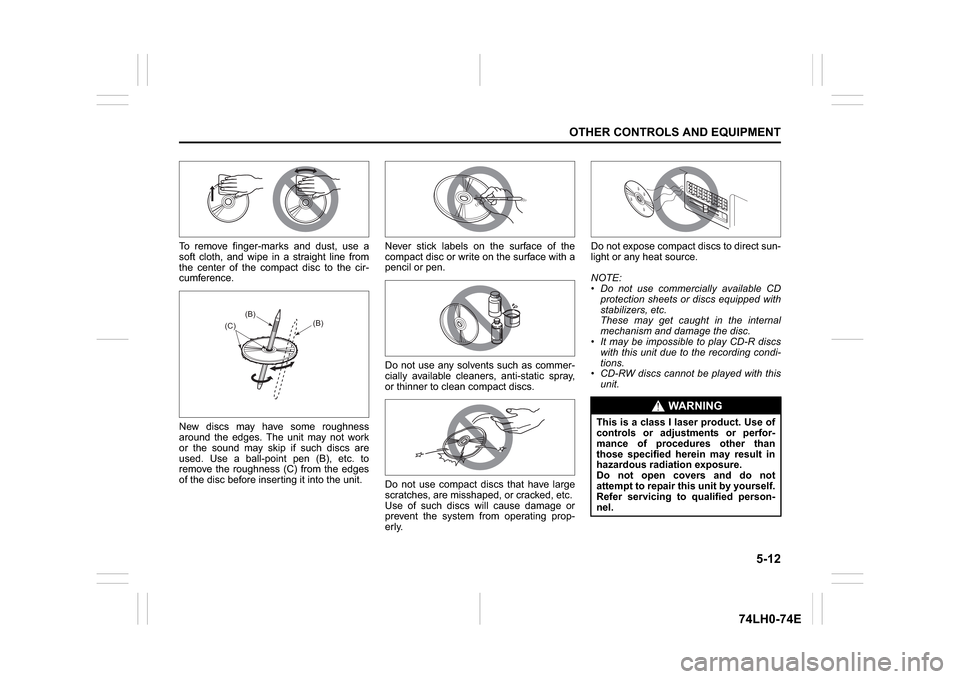
To remove finger-marks and dust, use a
soft cloth, and wipe in a straight line from
the center of the compact disc to the cir-
cumference.
New discs may have some roughness
around the edges. The unit may not work
or the sound may skip if such discs are
used. Use a ball-point pen (B), etc. to
remove the roughness (C) from the edges
of the disc before inserting it into the unit.Never stick labels on the surface of the
compact disc or write on the surface with a
pencil or pen.
Do not use any solvents such as commer-
cially available cleaners, anti-static spray,
or thinner to clean compact discs.
Do not use compact discs that have large
scratches, are misshaped, or cracked, etc.
Use of such discs will cause damage or
prevent the system from operating prop-
erly.Do not expose compact discs to direct sun-
light or any heat source.
NOTE:
Do not use commercially available CD
protection sheets or discs equipped with
stabilizers, etc.
These may get caught in the internal
mechanism and damage the disc.
It may be impossible to play CD-R discs
with this unit due to the recording condi-
tions.
CD-RW discs cannot be played with this
unit.
(B)
(B)
(C)
WA R N I N G
This is a class I laser product. Use of
controls or adjustments or perfor-
mance of procedures other than
those specified herein may result in
hazardous radiation exposure.
Do not open covers and do not
attempt to repair this unit by yourself.
Refer servicing to qualified person-
nel.
Page 151 of 336
5-24
OTHER CONTROLS AND EQUIPMENT
74LH0-74E
NOTE:
Please consult your place of purchase
for details about whether a given auxil-
iary audio source can be connected and
the proper auxiliary cord to use.
The volume and tone controls of the
auxiliary audio source can be adjusted
on the unit.
In AUX mode, the volume setting is dif-
ferent from another mode.
® Hands-Free (if equipped)
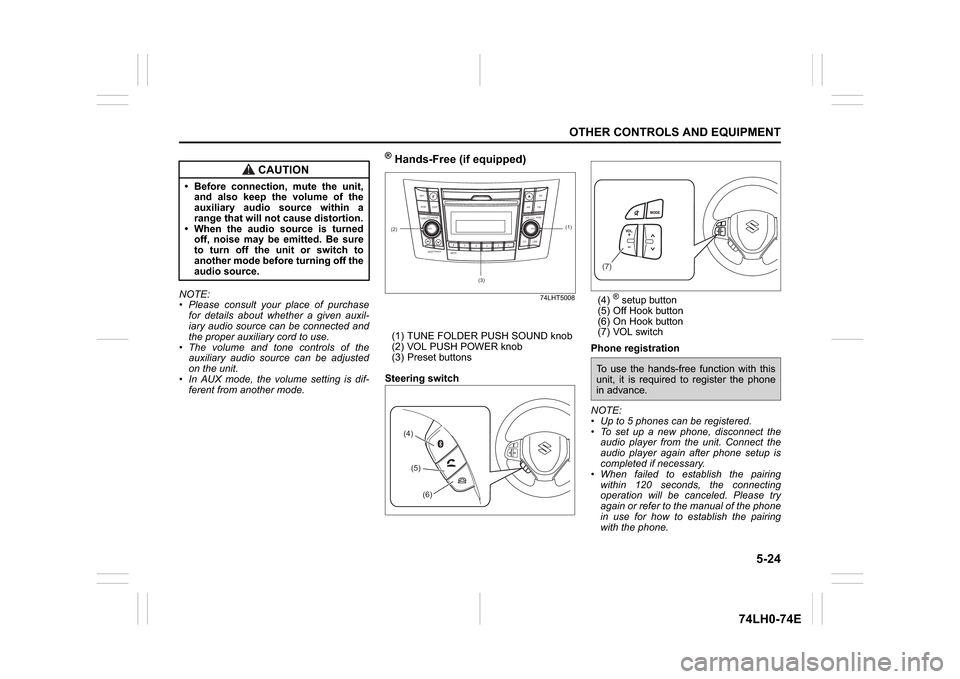
74LHT5008
(1) TUNE FOLDER PUSH SOUND knob
(2) VOL PUSH POWER knob
(3) Preset buttons
Steering switch(4)
® setup button
(5) Off Hook button
(6) On Hook button
(7) VOL switch
Phone registration
NOTE:
Up to 5 phones can be registered.
To set up a new phone, disconnect the
audio player from the unit. Connect the
audio player again after phone setup is
completed if necessary.
When failed to establish the pairing
within 120 seconds, the connecting
operation will be canceled. Please try
again or refer to the manual of the phone
in use for how to establish the pairing
with the phone.
CAUTION
Before connection, mute the unit,
and also keep the volume of the
auxiliary audio source within a
range that will not cause distortion.
When the audio source is turned
off, noise may be emitted. Be sure
to turn off the unit or switch to
another mode before turning off the
audio source.
(2)
B S U
CD
2
3 4 5 6
SEEK/TRACK
AS
AMFM RPT
RDM
DISP
PUSHSOUND
TUNE/FLD
VOLPWRPUSH
11
MENU
(3)
(1)
(4)(5)
(6)
(7)To use the hands-free function with this
unit, it is required to register the phone
in advance.
Page 152 of 336
5-25OTHER CONTROLS AND EQUIPMENT
74LH0-74E
/Telephone setup mode can be entered
only during vehicle is stationary speed
less than ~ 8 kmph)
1) Press the
® setup button (4).
The
® setup menu will be displayed.
2) Turn the TUNE FOLDER PUSH
SOUND knob (1) to select “Setup ”, and
press the knob (1) to determine the
selection.
3) Turn the TUNE FOLDER PUSH
SOUND knob (1) to select “Pairing”,
and press the knob (1) to determine the
selection.
4) Select “CAR AUDIO” from the
® menu
of the phone and establish the pairing.
Refer to the manual of the phone in use
for further information.
5) Enter the Passkey displayed on the unit
to the phone.
6) Press the On Hook button (6).
NOTE:
When selecting “Go Back”, the previous
menu will be displayed.
When additionally registering a phone,
operate the same step from 1).
Receiving a call
Press the Off Hook button (5) to receive a
call.
Ending a call
Press the On Hook button (6) to end a call.
Rejecting a call (only for supported
models)Press the On Hook button (6) to reject a
incoming call.
Adjusting the listening volume
Turn the VOL PUSH POWER knob (2)
during a call.
Turning it clockwise increases the vol-
ume; turning it counterclockwise
decreases the volume.
Press the VOL switch (7) during a call.
Pressing “+” of the switch increases the
volume, pressing “-” of the switch
decreases the volume.
Adjusting the ring volume
Turn the VOL PUSH POWER knob (2)
while a call coming in.
Turning it clockwise increases the vol-
ume; turning it counterclockwise
decreases the volume.
Press the VOL switch (7) during a call.
Pressing “+” of the switch increases the
volume, pressing “-” of the switch
decreases the volume.
Adjusting the call or ringtone volume
Follow the instructions below to adjust the
call or ringtone volume.
1) Press the
® setup button (4).
The
® setup menu will be displayed.
2) Turn the TUNE FOLDER PUSH
SOUND knob (1) to select “Setup Tele-
phone”, and press the knob (1) to deter-
mine the selection.
3) Turn the TUNE FOLDER PUSH
SOUND knob (1) to select “Sound Set-ting”, and press the knob (1) to deter-
mine the selection.
4) Turn the TUNE FOLDER PUSH
SOUND knob (1) to select “Call Vol-
ume” or “Ringtone Volume”, and press
the knob (1) to determine the selection.
The current call or ringtone volume will
be displayed.
5) Turn the TUNE FOLDER PUSH
SOUND knob (1) to select desired call
or ringtone volume, and press the knob
(1) to determine the selection.
NOTE:
When selecting “Go Back”, the previous
menu will be displayed.
Selecting the Ringtone
Follow the instructions below to select a
ringtone.
1) Press the
® setup button (4).
The
® setup menu will be displayed.
2) Turn the TUNE FOLDER PUSH
SOUND knob (1) to select “Setup Tele-
phone”, and press the knob (1) to deter-
mine the selection.
3) Turn the TUNE FOLDER PUSH
SOUND knob (1) to select “Sound Set-
ting”, and press the knob (1) to deter-
mine the selection.
4) Turn the TUNE FOLDER PUSH SOUND
knob (1) to select “Ringtone”, and press
the knob (1) to determine the selection.
The current ringtone will be sounded.
5) Turn the TUNE FOLDER PUSH SOUND
knob (1) to select desired ringtone, and
Page 156 of 336
5-29OTHER CONTROLS AND EQUIPMENT
74LH0-74E
the knob (1) to display the device name
or the BD (
® Device) address.
NOTE:
When selecting “Go Back”, the previous
menu will be displayed.
Reset to the factory defaults
Follow the instructions below to reset all
the settings to the factory defaults.
1) Press the ® setup button (4).
The
® setup menu will be displayed.
2) Turn the TUNE FOLDER PUSH
SOUND knob (1) to select “Setup ”, and
press the knob (1) to determine the
selection.
3) Turn the TUNE FOLDER PUSH
SOUND knob (1) to select “Initialize”,
and press the knob (1) to determine the
selection.
4) Turn the TUNE FOLDER PUSH
SOUND knob (1) to select “All Initial-
ize”, and press the knob (1) to deter-
mine the selection.
5) Turn the TUNE FOLDER PUSH
SOUND knob (1) to select “Confirm”,
and press the knob (1) to start the
reset.
NOTE:
When selecting “Go Back”, the previous
menu will be displayed.Selection of phone (Select Phone)
Follow the instructions below to select a
phone to be paired with from the registered
phones.
1) Press the
® setup button (4).
The
® setup menu will be displayed.
2) Turn the TUNE FOLDER PUSH
SOUND knob (1) to select “Setup ”, and
press the knob (1) to determine the
selection.
3) Turn the TUNE FOLDER PUSH
SOUND knob (1) to select “List Phone”,
and press the knob (1) to determine the
selection.
4) Turn the TUNE FOLDER PUSH
SOUND knob (1) to select a phone to
be paired with, and press the knob (1)
to determine the selection.
5) Turn the TUNE FOLDER PUSH
SOUND knob (1) to select “Select”, and
press the knob (1) to determine the
selection.
NOTE:
When selecting “Go Back”, the previous
menu will be displayed.
The ® ready audio device will be discon-
nected when the phone is selected.List of phones (List Phones)
Follow the instructions below to display the
names of the registered phones in
sequence.
1) Press the
® setup button (4).
The
® setup menu will be displayed.
2) Turn the TUNE FOLDER PUSH
SOUND knob (1) to select “Setup ”, and
press the knob (1) to determine the
selection.
3) Turn the TUNE FOLDER PUSH
SOUND knob (1) to select “List Phone”,
and press the knob (1) to determine the
selection.
The names of the registered phones
are displayed in sequence.
NOTE:
When selecting “Go Back”, the previous
menu will be displayed.
Passkey setting (Set Passkey)
Follow the instructions below to set the
security number (Passkey).
1) Press the
® setup button (4).
The
® setup menu will be displayed.
2) Turn the TUNE FOLDER PUSH
SOUND knob (1) to select “Setup ”, and
press the knob (1) to determine the
selection.
3) Turn the TUNE FOLDER PUSH
SOUND knob (1) to select “Passkey”,
and press the knob (1) to determine the
selection.
4) Turn the TUNE FOLDER PUSH
SOUND knob (1) to select “New Pass-
Page 158 of 336
5-31OTHER CONTROLS AND EQUIPMENT
74LH0-74E
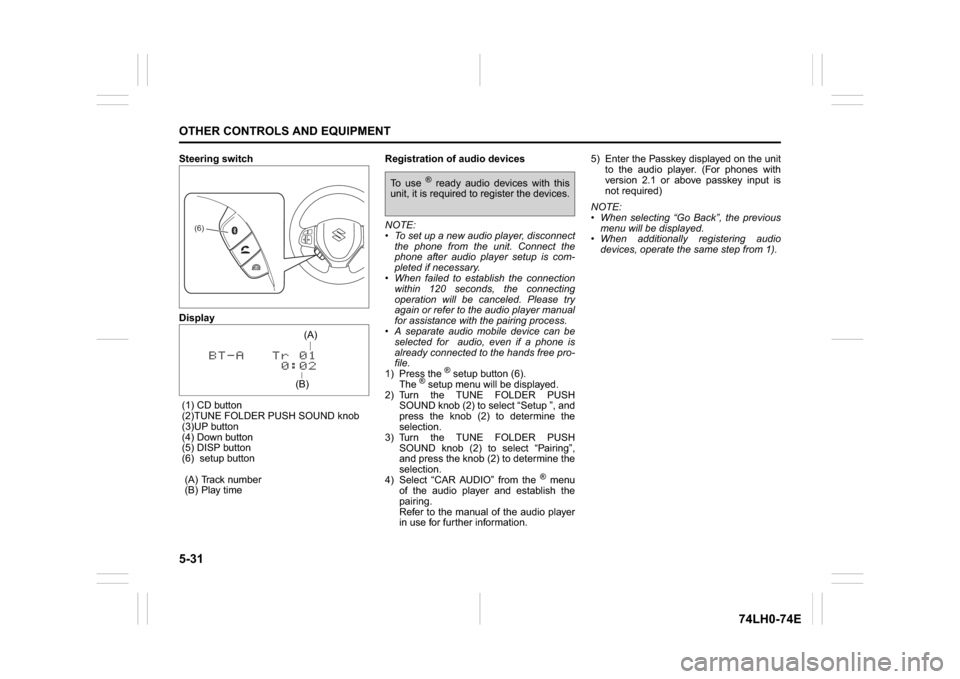
Steering switch
Display
(1) CD button
(2)TUNE FOLDER PUSH SOUND knob
(3)UP button
(4) Down button
(5) DISP button
(6) setup button
(A) Track number
(B) Play timeRegistration of audio devices
NOTE:
To set up a new audio player, disconnect
the phone from the unit. Connect the
phone after audio player setup is com-
pleted if necessary.
When failed to establish the connection
within 120 seconds, the connecting
operation will be canceled. Please try
again or refer to the audio player manual
for assistance with the pairing process.
A separate audio mobile device can be
selected for audio, even if a phone is
already connected to the hands free pro-
file.
1) Press the
® setup button (6).
The
® setup menu will be displayed.
2) Turn the TUNE FOLDER PUSH
SOUND knob (2) to select “Setup ”, and
press the knob (2) to determine the
selection.
3) Turn the TUNE FOLDER PUSH
SOUND knob (2) to select “Pairing”,
and press the knob (2) to determine the
selection.
4) Select “CAR AUDIO” from the
® menu
of the audio player and establish the
pairing.
Refer to the manual of the audio player
in use for further information.5) Enter the Passkey displayed on the unit
to the audio player. (For phones with
version 2.1 or above passkey input is
not required)
NOTE:
When selecting “Go Back”, the previous
menu will be displayed.
When additionally registering audio
devices, operate the same step from 1).
(6)
(B)(A)
To use
® ready audio devices with this
unit, it is required to register the devices.
Page 159 of 336
5-32
OTHER CONTROLS AND EQUIPMENT
74LH0-74E
Selecting the
® audio mode
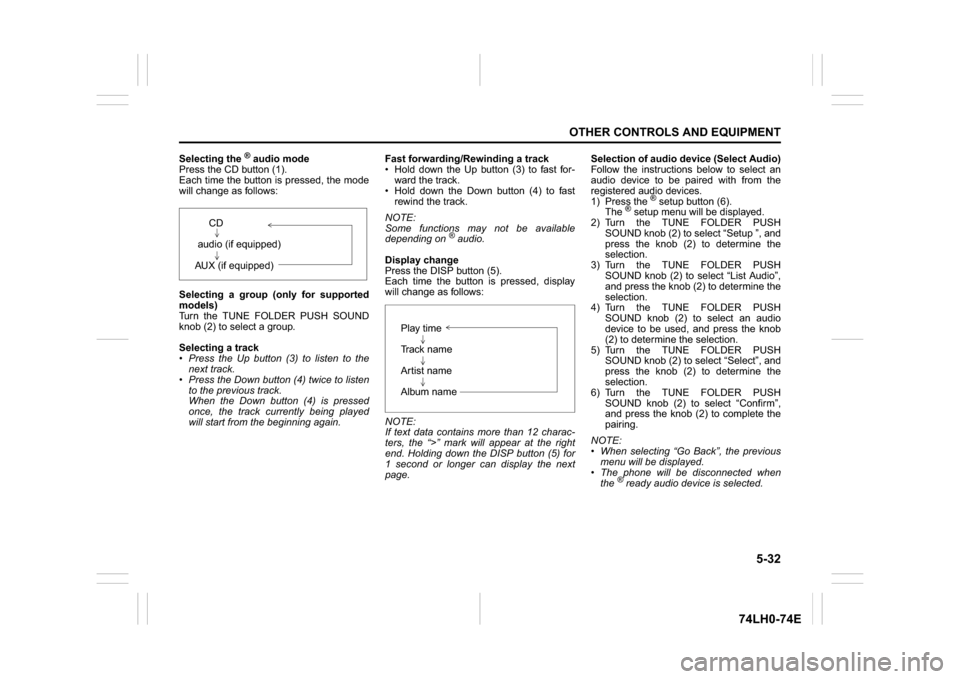
Press the CD button (1).
Each time the button is pressed, the mode
will change as follows:
Selecting a group (only for supported
models)
Turn the TUNE FOLDER PUSH SOUND
knob (2) to select a group.
Selecting a track
Press the Up button (3) to listen to the
next track.
Press the Down button (4) twice to listen
to the previous track.
When the Down button (4) is pressed
once, the track currently being played
will start from the beginning again.Fast forwarding/Rewinding a track
Hold down the Up button (3) to fast for-
ward the track.
Hold down the Down button (4) to fast
rewind the track.
NOTE:
Some functions may not be available
depending on
® audio.
Display change
Press the DISP button (5).
Each time the button is pressed, display
will change as follows:
NOTE:
If text data contains more than 12 charac-
ters, the “>” mark will appear at the right
end. Holding down the DISP button (5) for
1 second or longer can display the next
page.Selection of audio device (Select Audio)
Follow the instructions below to select an
audio device to be paired with from the
registered audio devices.
1) Press the
® setup button (6).
The
® setup menu will be displayed.
2) Turn the TUNE FOLDER PUSH
SOUND knob (2) to select “Setup ”, and
press the knob (2) to determine the
selection.
3) Turn the TUNE FOLDER PUSH
SOUND knob (2) to select “List Audio”,
and press the knob (2) to determine the
selection.
4) Turn the TUNE FOLDER PUSH
SOUND knob (2) to select an audio
device to be used, and press the knob
(2) to determine the selection.
5) Turn the TUNE FOLDER PUSH
SOUND knob (2) to select “Select”, and
press the knob (2) to determine the
selection.
6) Turn the TUNE FOLDER PUSH
SOUND knob (2) to select “Confirm”,
and press the knob (2) to complete the
pairing.
NOTE:
When selecting “Go Back”, the previous
menu will be displayed.
The phone will be disconnected when
the
® ready audio device is selected. CD
audio (if equipped)
AUX (if equipped)
Play time
Track name
Artist name
Album name
Page 160 of 336
5-33OTHER CONTROLS AND EQUIPMENT
74LH0-74E
List of audio devices (List Audio)
Follow the instructions below to display the
names of the registered audio devices in
sequence.
1) Press the
® setup button (6).
The
® setup menu will be displayed.
2) Turn the TUNE FOLDER PUSH
SOUND knob (2) to select “Setup ”, and
press the knob (2) to determine the
selection.
3) Turn the TUNE FOLDER PUSH
SOUND knob (2) to select “List Audio”,
and press the knob (2) to determine the
selection. The names of registered
audio devices will be displayed in
sequence.
NOTE:
When selecting “Go Back”, the previous
menu will be displayed.
Passkey setting (Set Passkey)
Follow the instructions below to set the
security number (Passkey).
1) Press the
® setup button (6).
The
® setup menu will be displayed.
2) Turn the TUNE FOLDER PUSH
SOUND knob (2) to select “Setup ”, and
press the knob (2) to determine the
selection.
3) Turn the TUNE FOLDER PUSH
SOUND knob (2) to select “Passkey”,
and press the knob (2) to determine the
selection.
4) Turn the TUNE FOLDER PUSH
SOUND knob (2) to select “New Pass-key”, and press the knob (2) to deter-
mine the selection.
5) Press or turn the TUNE FOLDER
PUSH SOUND knob (2) to select “Con-
firm”.
6) Turn the TUNE FOLDER PUSH
SOUND knob (2) to select a number for
the first digit, and press the knob (2) to
determine the selection. Select and
determine numbers for the second,
third and fourth digits in order in the
same manner. When not entering up to
the eighth digit, enter blanks for the
successive digits.
7) Turn the TUNE FOLDER PUSH
SOUND knob (2) to determine the
passkey setting.
NOTE:
When selecting “Go Back”, the previous
menu will be displayed.
Deletion of audio device information
(Delete Audio)
Follow the instructions below to delete the
registered information of audio device.
1) Press the
® setup button (6).
The
® setup menu will be displayed.
2) Turn the TUNE FOLDER PUSH
SOUND knob (2) to select “Setup ”, and
press the knob (2) to determine the
selection.
3) Turn the TUNE FOLDER PUSH
SOUND knob (2) to select “List Audio”,
and press the knob (2) to determine the
selection.4) Turn the TUNE FOLDER PUSH
SOUND knob (2) to select an audio
device to be deleted, and press the
knob (2) to determine the selection.
5) Turn the TUNE FOLDER PUSH
SOUND knob (2) to select “Delete”, and
press the knob (2) to determine the
selection.
6) Turn the TUNE FOLDER PUSH
SOUND knob (2) to select “Delete?”,
and press the knob (2) to determine the
selection.
7) Turn the TUNE FOLDER PUSH
SOUND knob (2) to select “Confirm”,
and press the knob (2) to complete the
deletion.
NOTE:
When selecting “Go Back”, the previous
menu will be displayed.
Disclaimer for
® function
Depending on the mobile phone models,
some phones may not be compatible
fully or partially (some function may be
restricted).
Connectivity or voice quality may get
affected depending on circumstances.
After the ignition switch is turned to the
“ON” position, the audio system takes
few seconds to detect and connect to the® device (if already paired).
Make sure that you are aware of all
applicable local laws and accordingly
use device.
Page 171 of 336
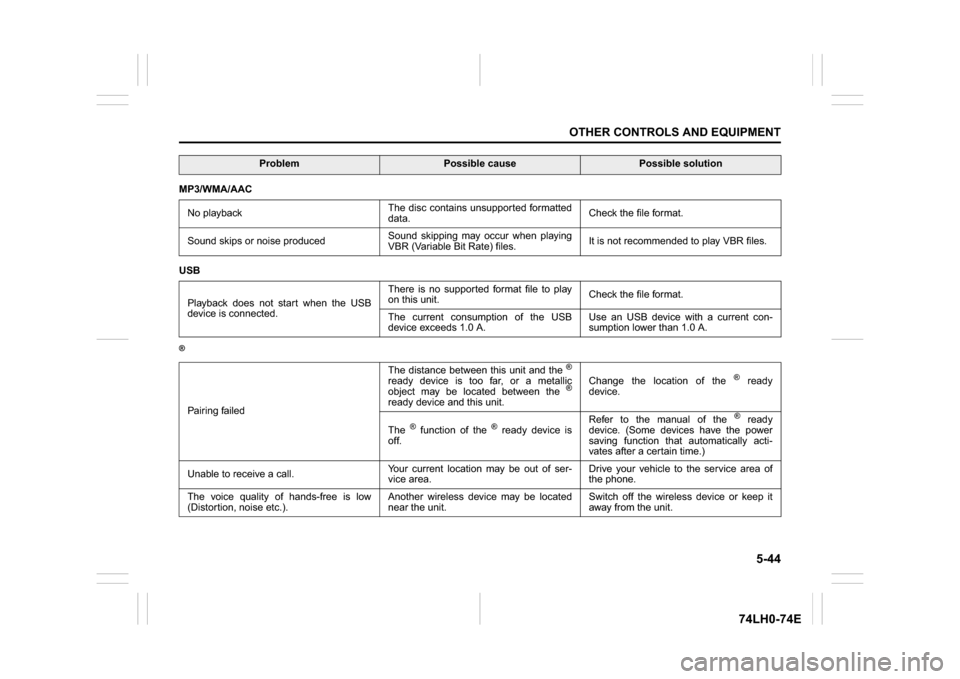
5-44
OTHER CONTROLS AND EQUIPMENT
74LH0-74E
MP3/WMA/AAC
No playbackThe disc contains unsupported formatted
data.Check the file format.
Sound skips or noise producedSound skipping may occur when playing
VBR (Variable Bit Rate) files.It is not recommended to play VBR files.
USB
Playback does not start when the USB
device is connected.There is no supported format file to play
on this unit.Check the file format.
The current consumption of the USB
device exceeds 1.0 A.Use an USB device with a current con-
sumption lower than 1.0 A.®Pairing failedThe distance between this unit and the
®
ready device is too far, or a metallic
object may be located between the
®
ready device and this unit.Change the location of the
® ready
device.
The
® function of the
® ready device is
off.Refer to the manual of the
® ready
device. (Some devices have the power
saving function that automatically acti-
vates after a certain time.)
Unable to receive a call.Your current location may be out of ser-
vice area.Drive your vehicle to the service area of
the phone.
The voice quality of hands-free is low
(Distortion, noise etc.).Another wireless device may be located
near the unit.Switch off the wireless device or keep it
away from the unit.
Problem
Possible cause
Possible solution
Page 173 of 336
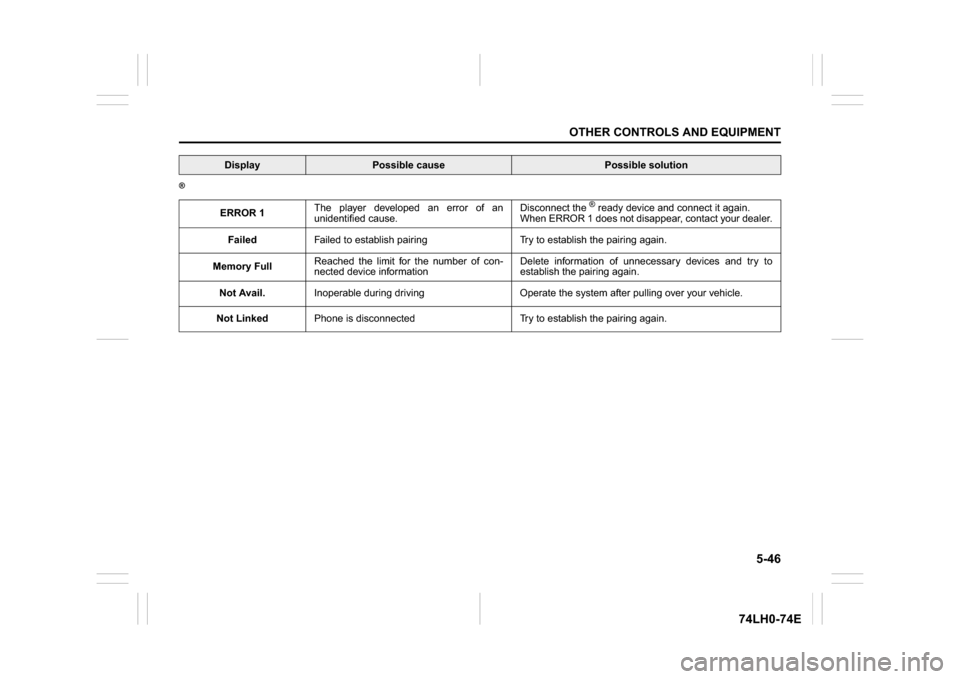
5-46
OTHER CONTROLS AND EQUIPMENT
74LH0-74E
®
ERROR 1The player developed an error of an
unidentified cause.Disconnect the
® ready device and connect it again.
When ERROR 1 does not disappear, contact your dealer.
FailedFailed to establish pairing Try to establish the pairing again.
Memory FullReached the limit for the number of con-
nected device informationDelete information of unnecessary devices and try to
establish the pairing again.
Not Avail.Inoperable during driving Operate the system after pulling over your vehicle.
Not LinkedPhone is disconnected Try to establish the pairing again.
Display
Possible cause
Possible solution