climate TESLA MODEL 3 2018 Owner's Manual
[x] Cancel search | Manufacturer: TESLA, Model Year: 2018, Model line: MODEL 3, Model: TESLA MODEL 3 2018Pages: 165, PDF Size: 8.63 MB
Page 3 of 165
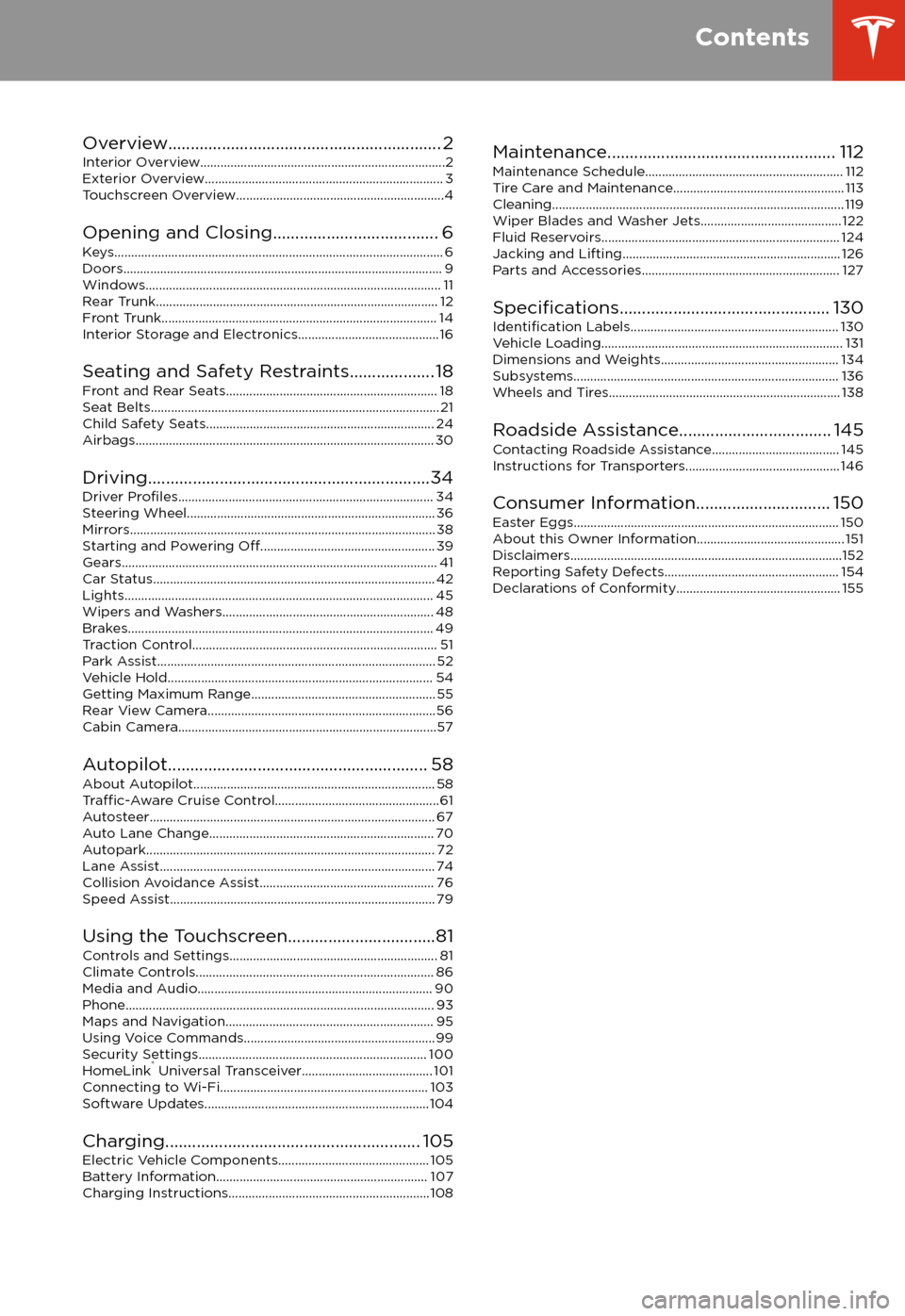
Overview............................................................. 2
Interior Overview.........................................................................2
Exterior Overview....................................................................... 3
Touchscreen Overview..............................................................4
Opening and Closing..................................... 6
Keys.................................................................................................. 6 Doors............................................................................................... 9Windows........................................................................................ 11 Rear Trunk.................................................................................... 12 Front Trunk.................................................................................. 14Interior Storage and Electronics.......................................... 16
Seating and Safety Restraints................... 18 Front and Rear Seats............................................................... 18Seat Belts...................................................................................... 21 Child Safety Seats.................................................................... 24
Airbags......................................................................................... 30
Driving...............................................................34 Driver
Profiles............................................................................ 34
Steering Wheel.......................................................................... 36 Mirrors........................................................................................... 38Starting and Powering
Off.................................................... 39
Gears.............................................................................................. 41 Car Status.................................................................................... 42Lights............................................................................................ 45 Wipers and Washers............................................................... 48Brakes........................................................................................... 49 Traction Control......................................................................... 51Park Assist................................................................................... 52 Vehicle Hold............................................................................... 54Getting Maximum Range....................................................... 55Rear View Camera....................................................................56
Cabin Camera.............................................................................57
Autopilot.......................................................... 58 About Autopilot........................................................................ 58
Traffic-Aware Cruise Control.................................................61
Autosteer..................................................................................... 67 Auto Lane Change................................................................... 70Autopark...................................................................................... 72Lane Assist.................................................................................. 74 Collision Avoidance Assist.................................................... 76Speed Assist............................................................................... 79
Using the Touchscreen.................................81 Controls and Settings.............................................................. 81Climate Controls....................................................................... 86Media and Audio...................................................................... 90 Phone............................................................................................ 93Maps and Navigation.............................................................. 95Using Voice Commands......................................................... 99Security Settings.................................................................... 100HomeLink
Page 4 of 165
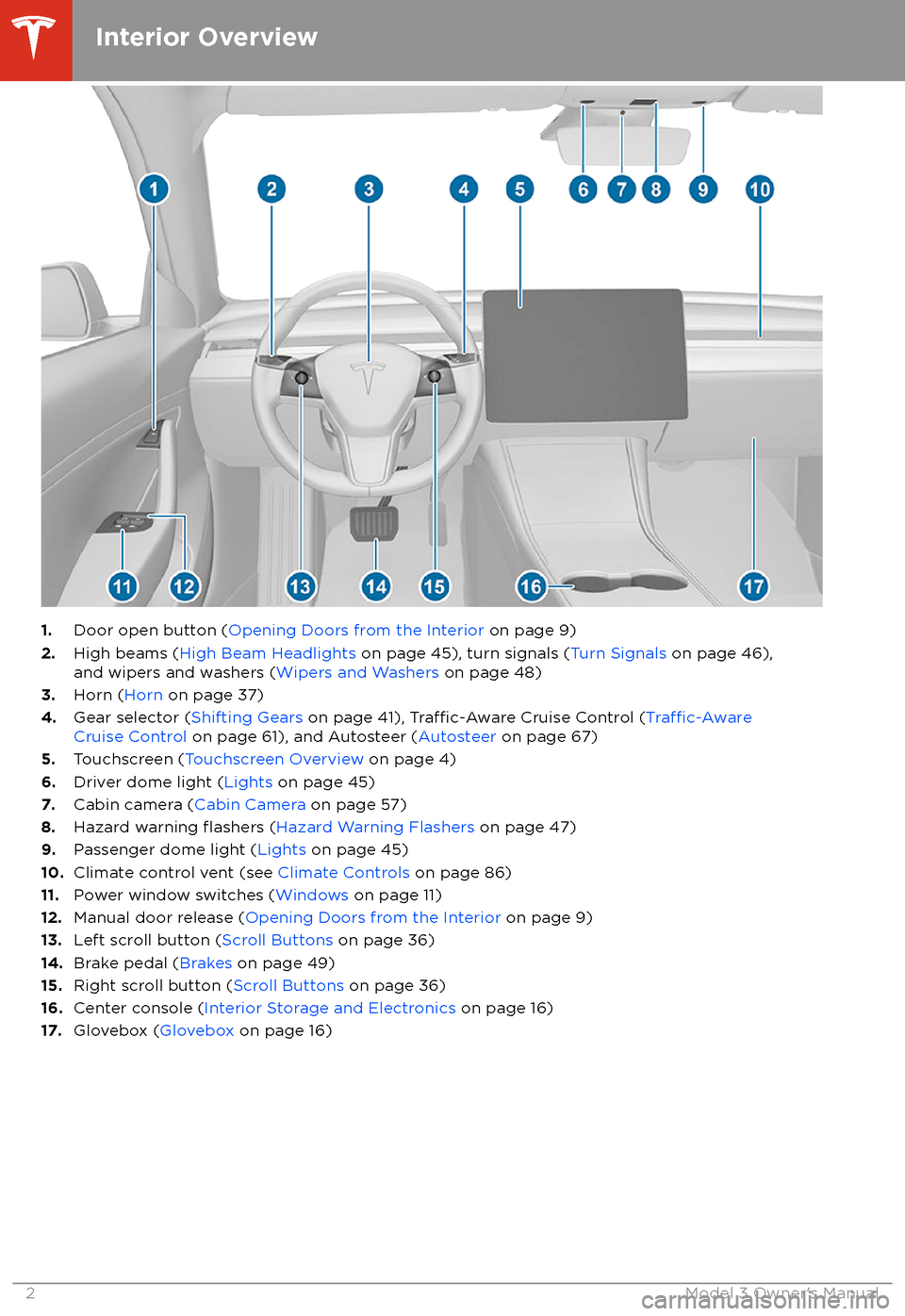
1.Door open button ( Opening Doors from the Interior on page 9)
2. High beams ( High Beam Headlights on page 45), turn signals ( Turn Signals on page 46),
and wipers and washers ( Wipers and Washers on page 48)
3. Horn ( Horn on page 37)
4. Gear selector ( Shifting Gears on page 41),
Traffic-Aware Cruise Control (Traffic-AwareCruise Control on page 61), and Autosteer ( Autosteer on page 67)
5. Touchscreen ( Touchscreen Overview on page 4)
6. Driver dome light ( Lights on page 45)
7. Cabin camera ( Cabin Camera on page 57)
8. Hazard warning
flashers (Hazard Warning Flashers on page 47)
9. Passenger dome light ( Lights on page 45)
10. Climate control vent (see Climate Controls on page 86)
11. Power window switches ( Windows on page 11)
12. Manual door release ( Opening Doors from the Interior on page 9)
13. Left scroll button ( Scroll Buttons on page 36)
14. Brake pedal ( Brakes on page 49)
15. Right scroll button ( Scroll Buttons on page 36)
16. Center console ( Interior Storage and Electronics on page 16)
17. Glovebox ( Glovebox on page 16)
Interior Overview
2Model 3 Owner
Page 7 of 165
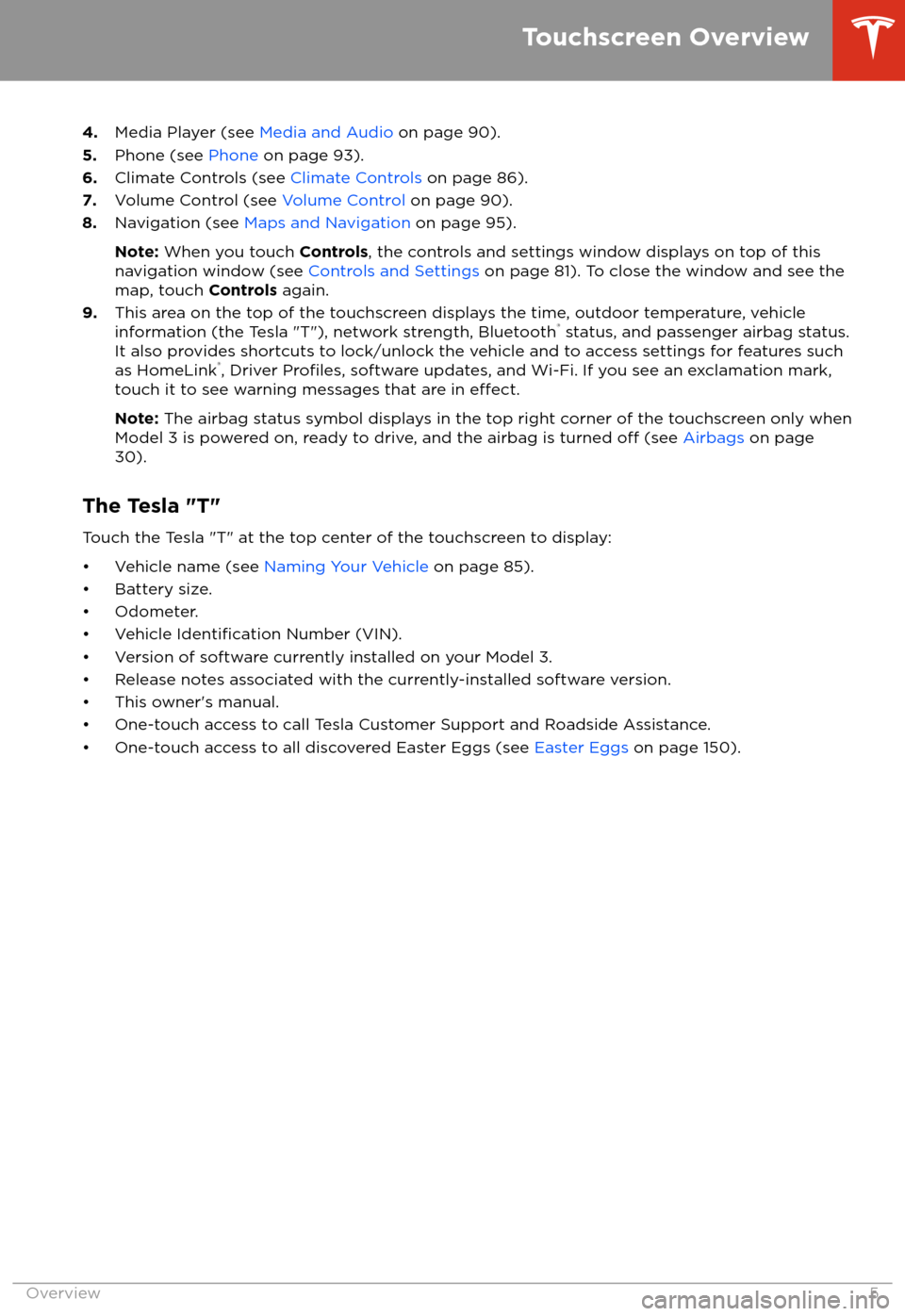
4.Media Player (see Media and Audio on page 90).
5. Phone (see Phone on page 93).
6. Climate Controls (see Climate Controls on page 86).
7. Volume Control (see Volume Control on page 90).
8. Navigation (see Maps and Navigation on page 95).
Note: When you touch Controls, the controls and settings window displays on top of this
navigation window (see Controls and Settings on page 81). To close the window and see the
map, touch Controls again.
9. This area on the top of the touchscreen displays the time, outdoor temperature, vehicle
information (the Tesla "T"), network strength, Bluetooth
Page 15 of 165
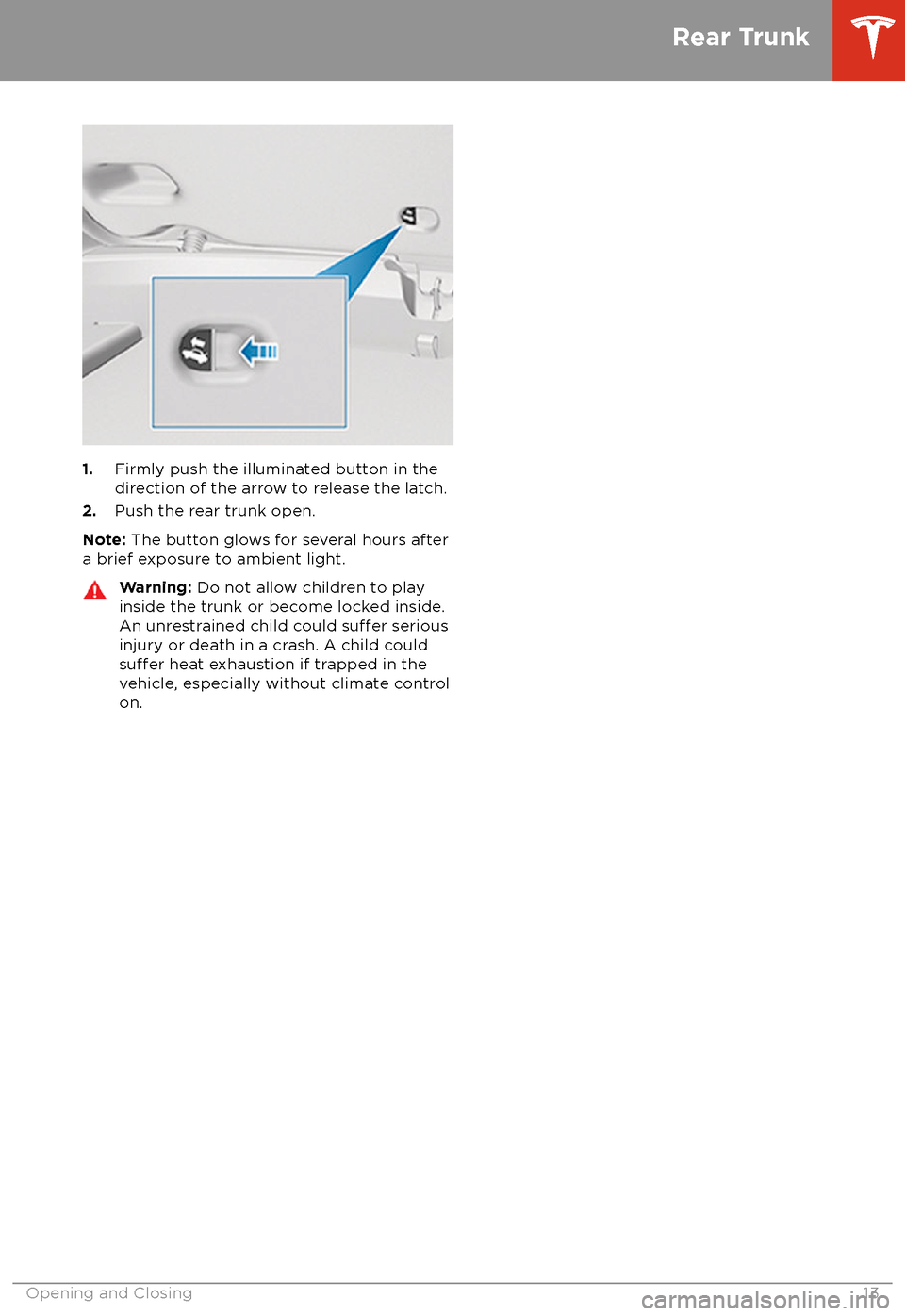
1.Firmly push the illuminated button in the
direction of the arrow to release the latch.
2. Push the rear trunk open.
Note: The button glows for several hours after
a brief exposure to ambient light.
Warning: Do not allow children to play
inside the trunk or become locked inside.
An unrestrained child could
suffer serious
injury or death in a crash. A child could
suffer heat exhaustion if trapped in the
vehicle, especially without climate control
on.
Rear Trunk
Opening and Closing13
Page 22 of 165
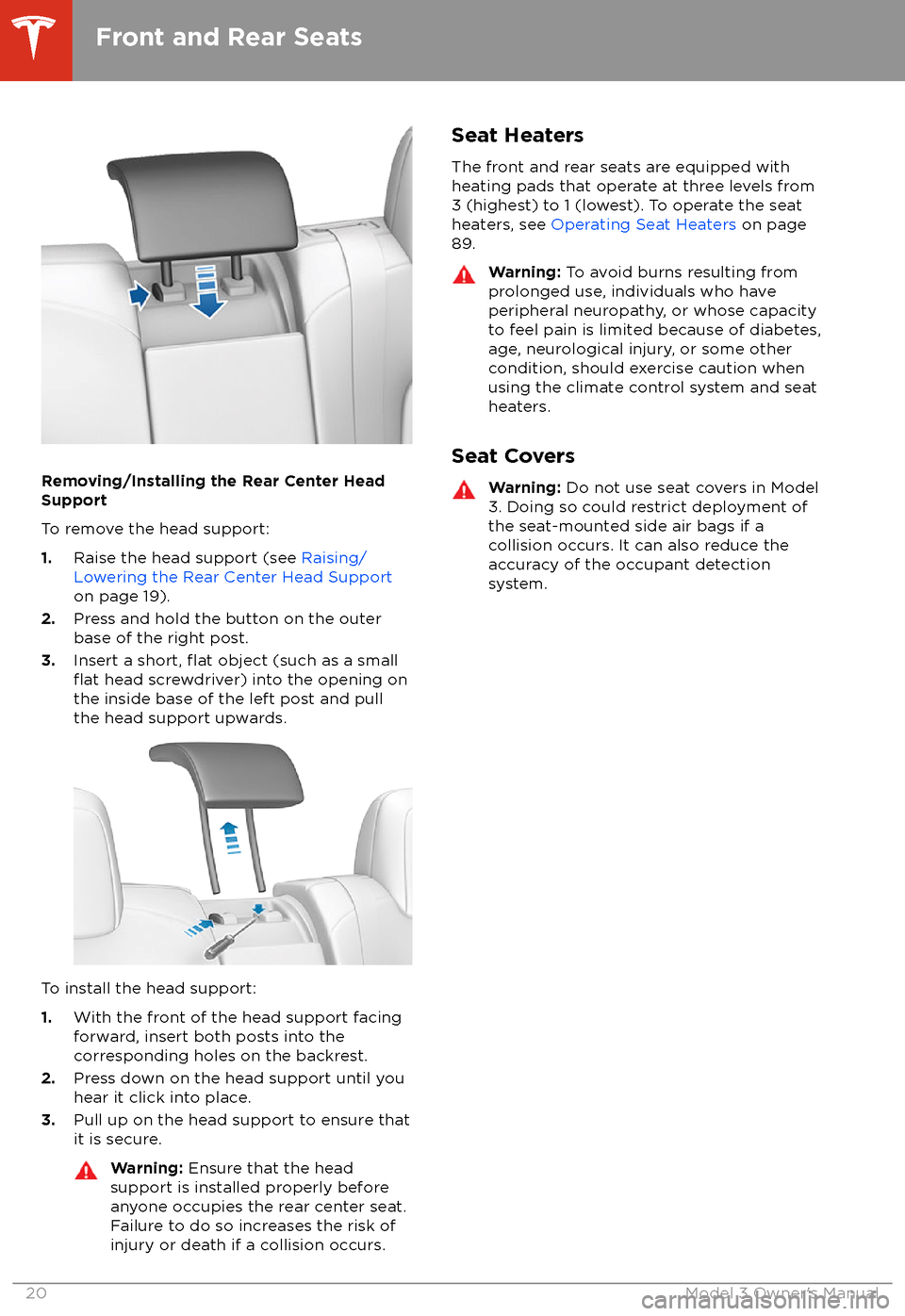
Removing/Installing the Rear Center Head
Support
To remove the head support:
1. Raise the head support (see Raising/
Lowering the Rear Center Head Support on page 19).
2. Press and hold the button on the outer
base of the right post.
3. Insert a short,
flat object (such as a smallflat head screwdriver) into the opening on
the inside base of the left post and pull
the head support upwards.
To install the head support:
1. With the front of the head support facing
forward, insert both posts into the corresponding holes on the backrest.
2. Press down on the head support until you
hear it click into place.
3. Pull up on the head support to ensure that
it is secure.
Warning: Ensure that the head
support is installed properly before
anyone occupies the rear center seat.
Failure to do so increases the risk of injury or death if a collision occurs.Seat Heaters
The front and rear seats are equipped with
heating pads that operate at three levels from
3 (highest) to 1 (lowest). To operate the seat
heaters, see Operating Seat Heaters on page
89.Warning: To avoid burns resulting from
prolonged use, individuals who have
peripheral neuropathy, or whose capacity
to feel pain is limited because of diabetes,
age, neurological injury, or some other
condition, should exercise caution when
using the climate control system and seat heaters.
Seat Covers
Warning: Do not use seat covers in Model
3. Doing so could restrict deployment of
the seat-mounted side air bags if a collision occurs. It can also reduce theaccuracy of the occupant detection
system.
Front and Rear Seats
20Model 3 Owner
Page 88 of 165
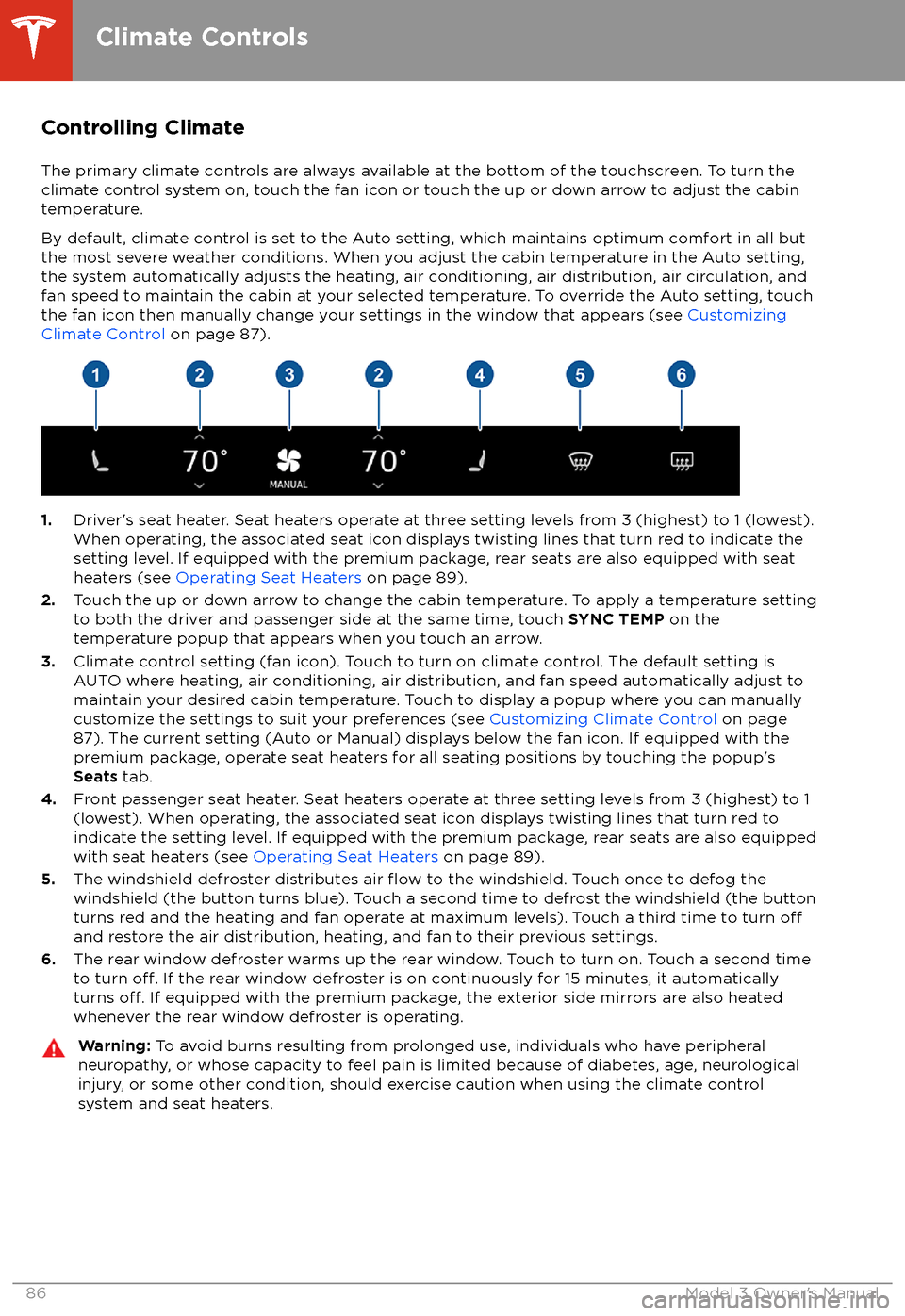
Controlling Climate
The primary climate controls are always available at the bottom of the touchscreen. To turn the
climate control system on, touch the fan icon or touch the up or down arrow to adjust the cabin
temperature.
By default, climate control is set to the Auto setting, which maintains optimum comfort in all but
the most severe weather conditions. When you adjust the cabin temperature in the Auto setting,
the system automatically adjusts the heating, air conditioning, air distribution, air circulation, and fan speed to maintain the cabin at your selected temperature. To override the Auto setting, touch
the fan icon then manually change your settings in the window that appears (see Customizing
Climate Control on page 87).
1.Driver
Page 89 of 165
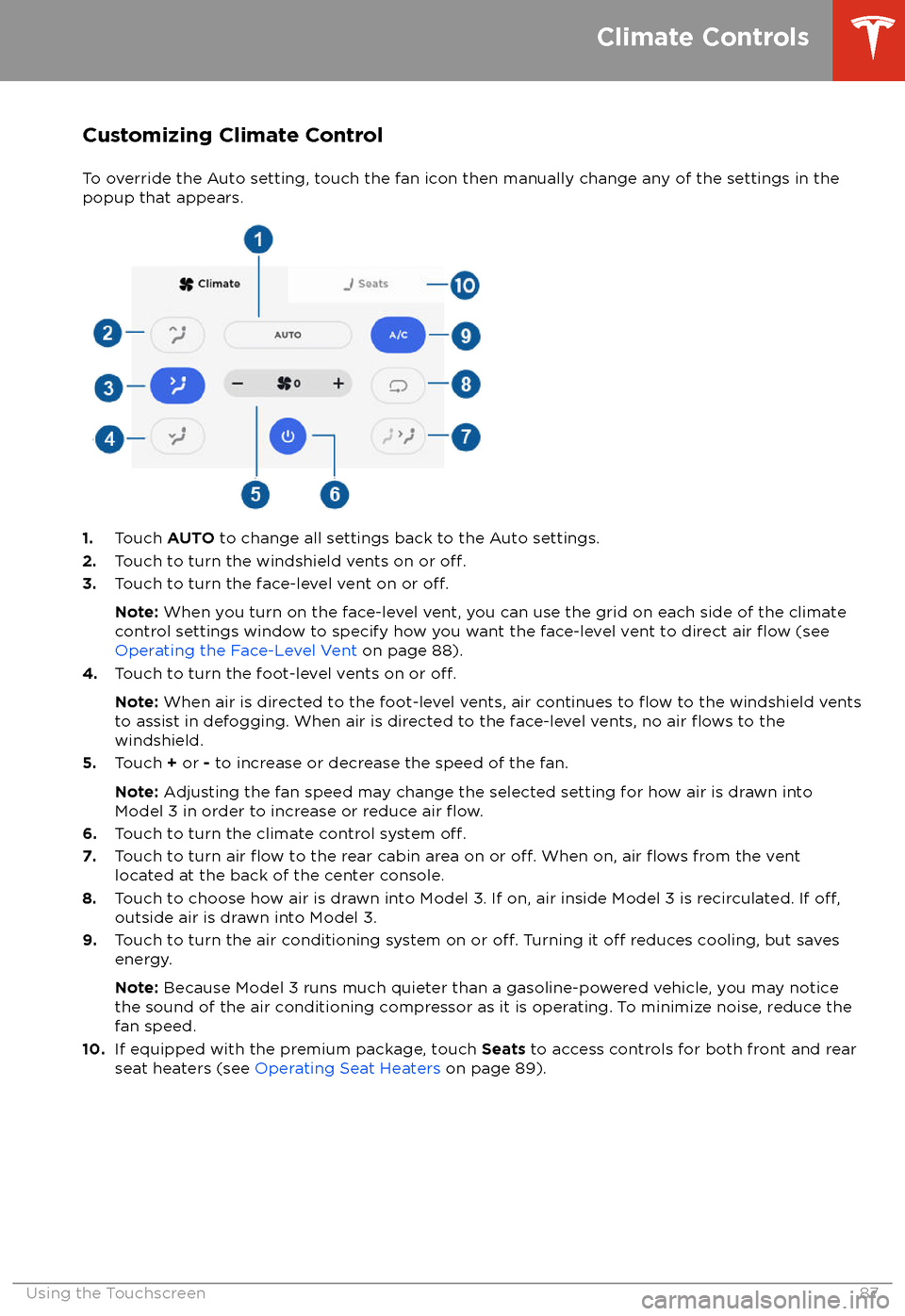
Customizing Climate ControlTo override the Auto setting, touch the fan icon then manually change any of the settings in thepopup that appears.
1. Touch AUTO to change all settings back to the Auto settings.
2. Touch to turn the windshield vents on or off.3.Touch to turn the face-level vent on or off.
Note: When you turn on the face-level vent, you can use the grid on each side of the climate
control settings window to specify how you want the face-level vent to direct air flow (see
Operating the Face-Level Vent on page 88).
4. Touch to turn the foot-level vents on or
off.
Note: When air is directed to the foot-level vents, air continues to flow to the windshield vents
to assist in defogging. When air is directed to the face-level vents, no air flows to the
windshield.
5. Touch + or - to increase or decrease the speed of the fan.
Note: Adjusting the fan speed may change the selected setting for how air is drawn into
Model 3 in order to increase or reduce air
flow.6. Touch to turn the climate control system off.7. Touch to turn air flow to the rear cabin area on or off. When on, air flows from the vent
located at the back of the center console.
8. Touch to choose how air is drawn into Model 3. If on, air inside Model 3 is recirculated. If
off,outside air is drawn into Model 3.
9. Touch to turn the air conditioning system on or off. Turning it off reduces cooling, but saves
energy.
Note: Because Model 3 runs much quieter than a gasoline-powered vehicle, you may notice
the sound of the air conditioning compressor as it is operating. To minimize noise, reduce the fan speed.
10. If equipped with the premium package, touch Seats to access controls for both front and rear
seat heaters (see Operating Seat Heaters on page 89).
Climate Controls
Using the Touchscreen87
Page 90 of 165
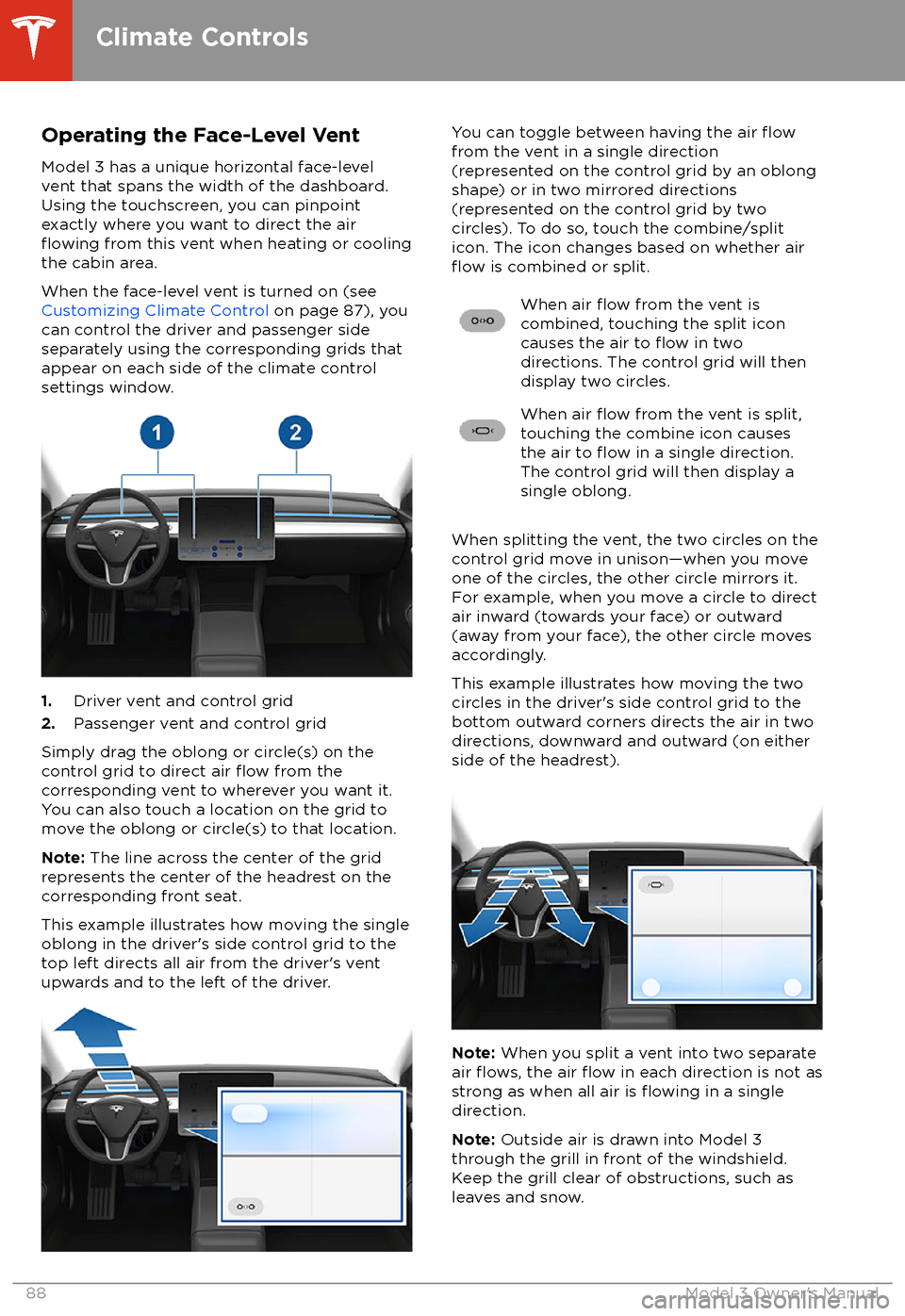
Operating the Face-Level Vent
Model 3 has a unique horizontal face-level
vent that spans the width of the dashboard.
Using the touchscreen, you can pinpoint
exactly where you want to direct the air
flowing from this vent when heating or cooling
the cabin area.
When the face-level vent is turned on (see
Customizing Climate Control on page 87), you
can control the driver and passenger side
separately using the corresponding grids that
appear on each side of the climate control
settings window.
1. Driver vent and control grid
2. Passenger vent and control grid
Simply drag the oblong or circle(s) on the control grid to direct air
flow from the
corresponding vent to wherever you want it. You can also touch a location on the grid tomove the oblong or circle(s) to that location.
Note: The line across the center of the grid
represents the center of the headrest on the
corresponding front seat.
This example illustrates how moving the single
oblong in the driver
Page 91 of 165
Operating Seat Heaters
To control the front seat heaters for the driver
and passenger, touch the corresponding
control on the main climate control area. To
control rear seat heaters, and access duplicate
controls for the front seat heaters, touch the
fan icon, touch the Seats tab, then touch the
seat for which you want to adjust heating.
Seat heaters operate at three setting levels
from 3 (highest) to 1 (lowest). When
operating, the associated seat icon displays
twisting lines that turn red to indicate the
setting level.
Climate Control Operating Tips
Page 127 of 165
Topping Up Washer FluidThe only reservoir into which you can add
fluidis the washer fluid reservoir, which is located
behind the front trunk. When the level is low, a
message displays on the touchscreen.
Caution: Do not add formulated washerfluids that contain water repellent or bug
wash. These fluids can cause streaking,
smearing, and squeaking or other noises.
Operate the washers periodically to check that
the nozzles are clear and properly directed.
See Wipers and Washers on page 48.
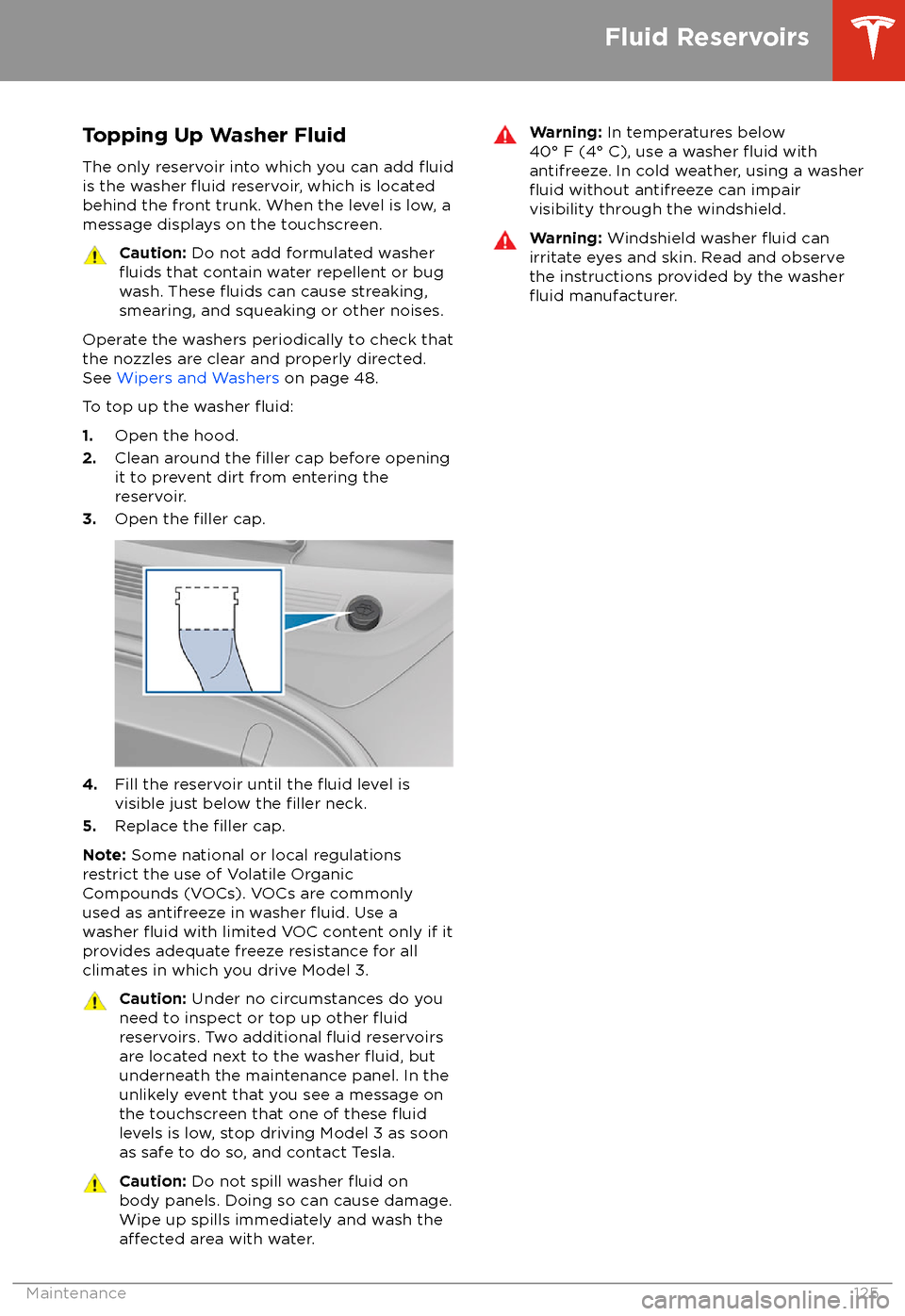
To top up the washer
fluid:
1. Open the hood.
2. Clean around the filler cap before opening
it to prevent dirt from entering the reservoir.
3. Open the
filler cap.
4.Fill the reservoir until the fluid level is
visible just below the filler neck.
5. Replace the filler cap.
Note: Some national or local regulations
restrict the use of Volatile Organic
Compounds (VOCs). VOCs are commonly
used as antifreeze in washer
fluid. Use a
washer fluid with limited VOC content only if it
provides adequate freeze resistance for all climates in which you drive Model 3.
Caution: Under no circumstances do you
need to inspect or top up other fluidreservoirs. Two additional fluid reservoirs
are located next to the washer fluid, but
underneath the maintenance panel. In the
unlikely event that you see a message on the touchscreen that one of these
fluidlevels is low, stop driving Model 3 as soon
as safe to do so, and contact Tesla.
Caution: Do not spill washer fluid on
body panels. Doing so can cause damage.
Wipe up spills immediately and wash the
affected area with water.
Warning: In temperatures below
40