PAGE 48 TESLA MODEL 3 2020 s User Guide
[x] Cancel search | Manufacturer: TESLA, Model Year: 2020, Model line: MODEL 3, Model: TESLA MODEL 3 2020Pages: 220, PDF Size: 9.65 MB
Page 25 of 220
Interior Storage and Electronics
Glovebox
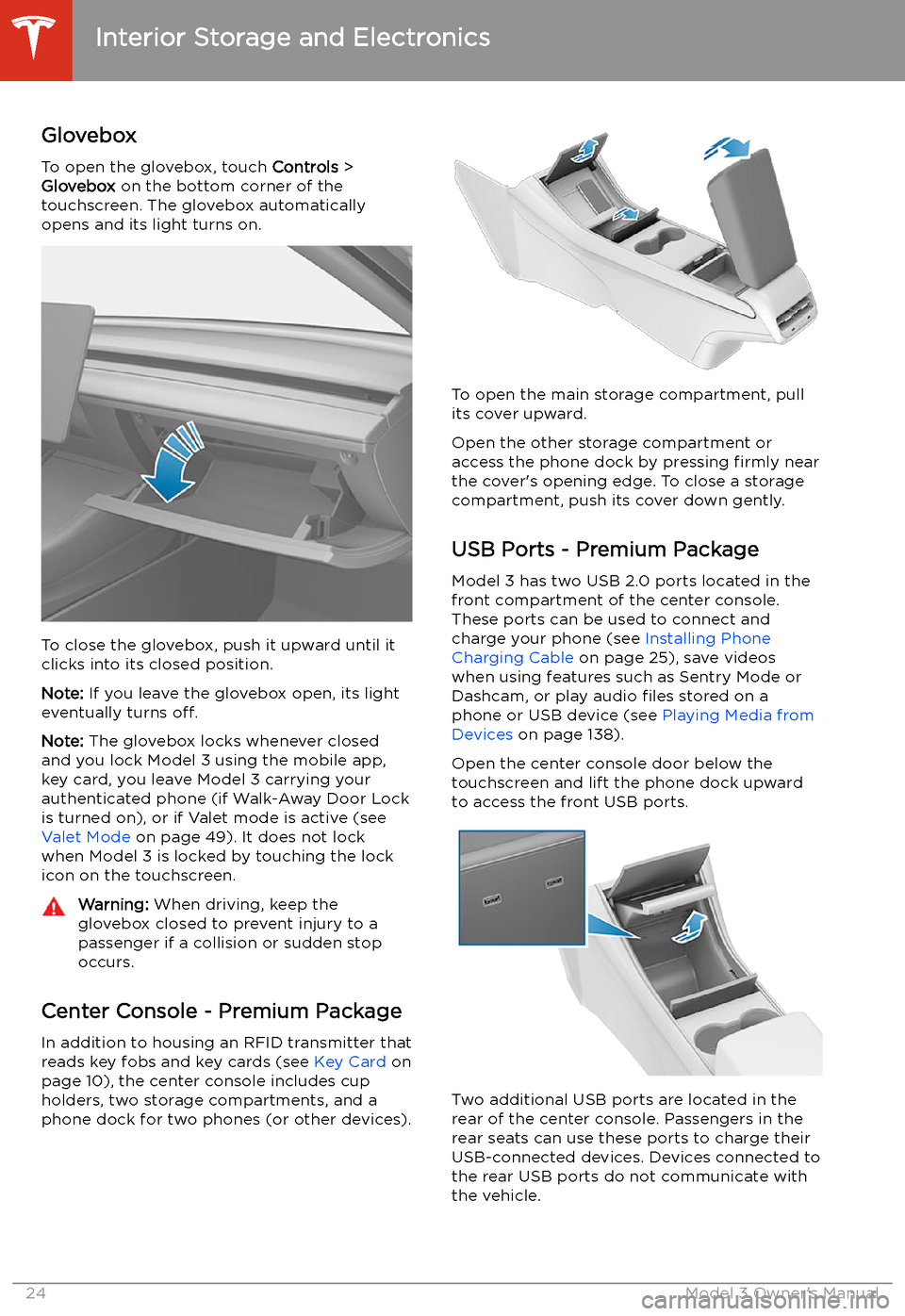
To open the glovebox, touch Controls >
Glovebox on the bottom corner of the
touchscreen. The glovebox automatically
opens and its light turns on.
To close the glovebox, push it upward until it
clicks into its closed position.
Note: If you leave the glovebox open, its light
eventually turns off.
Note: The glovebox locks whenever closed
and you lock Model 3 using the mobile app,
key card, you leave Model 3 carrying your authenticated phone (if Walk-Away Door Lock
is turned on), or if Valet mode is active (see Valet Mode on page 49). It does not lock
when Model 3 is locked by touching the lock
icon on the touchscreen.
Warning: When driving, keep the
glovebox closed to prevent injury to a
passenger if a collision or sudden stop occurs.
Center Console - Premium Package
In addition to housing an RFID transmitter that reads key fobs and key cards (see Key Card on
page 10), the center console includes cup
holders, two storage compartments, and a
phone dock for two phones (or other devices).
To open the main storage compartment, pull its cover upward.
Open the other storage compartment or
access the phone dock by pressing firmly near
the cover
Page 34 of 220
If the pre-tensioners and airbags did not
activate in an impact, this does not mean they
malfunctioned. It usually means that the strength or type of force needed to activate
them was not present.
Warning: Once the seat belt pre-
tensioners have been activated, they must
be replaced. After any collision, have the
airbags, seat belt pre-tensioners and any
associated components checked and, if
necessary, replaced.
Testing Seat Belts
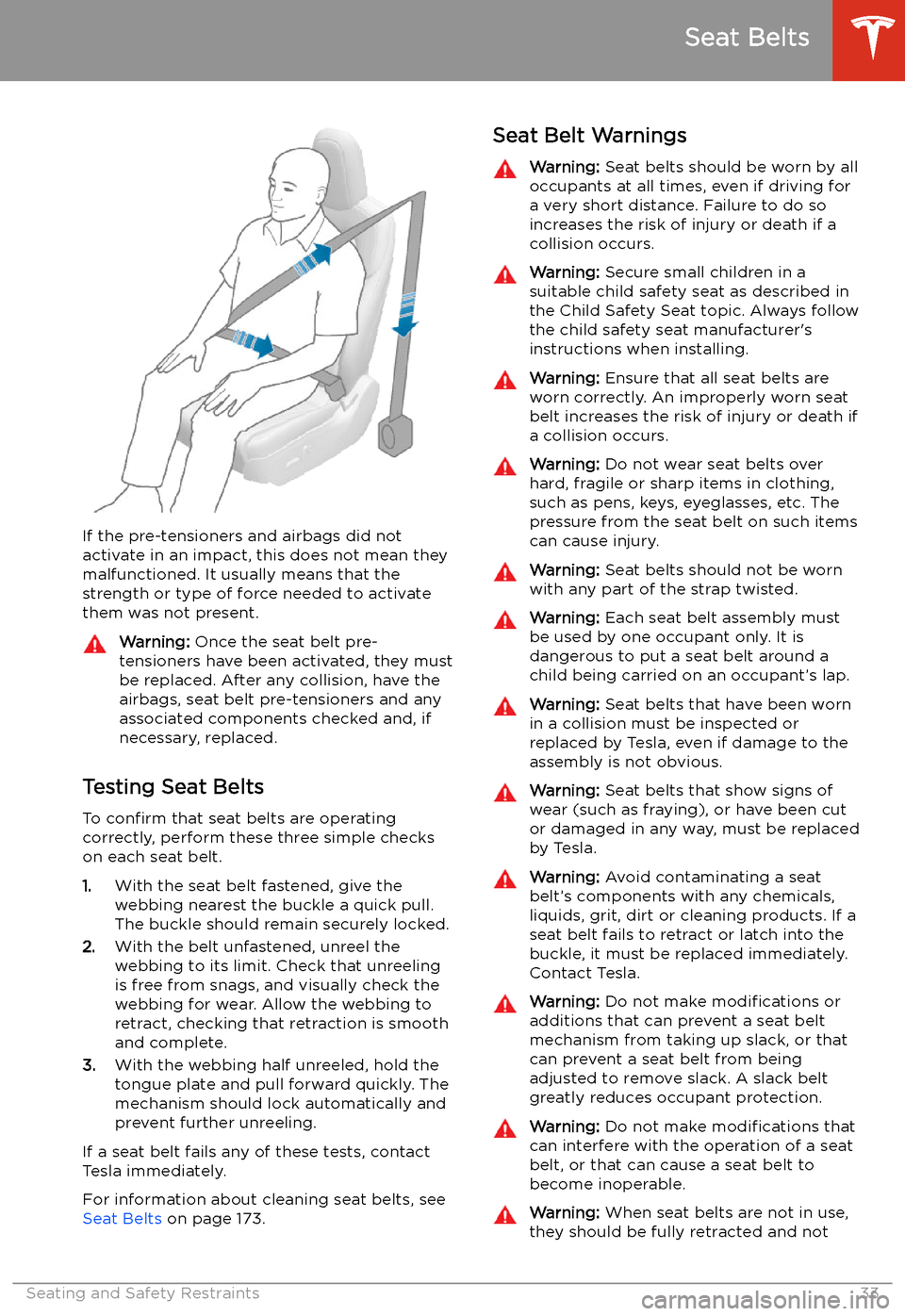
To confirm that seat belts are operating
correctly, perform these three simple checks
on each seat belt.
1. With the seat belt fastened, give the
webbing nearest the buckle a quick pull.
The buckle should remain securely locked.
2. With the belt unfastened, unreel the
webbing to its limit. Check that unreeling
is free from snags, and visually check the
webbing for wear. Allow the webbing to retract, checking that retraction is smooth
and complete.
3. With the webbing half unreeled, hold the
tongue plate and pull forward quickly. The
mechanism should lock automatically and
prevent further unreeling.
If a seat belt fails any of these tests, contact
Tesla immediately.
For information about cleaning seat belts, see
Seat Belts on page 173.
Seat Belt WarningsWarning: Seat belts should be worn by all
occupants at all times, even if driving for
a very short distance. Failure to do so
increases the risk of injury or death if a collision occurs.Warning: Secure small children in a
suitable child safety seat as described in
the Child Safety Seat topic. Always follow
the child safety seat manufacturer
Page 36 of 220
Child Safety Seats
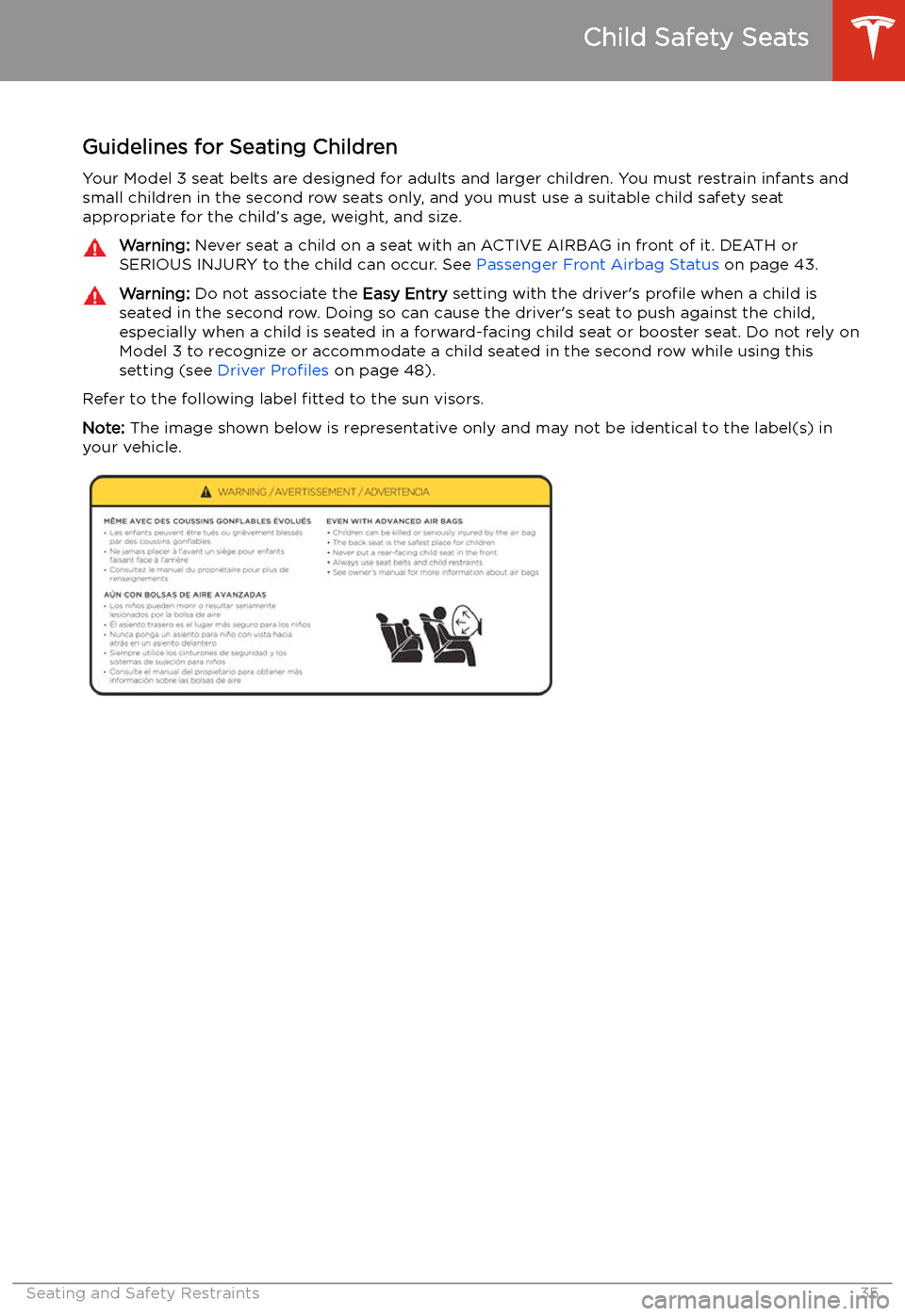
Guidelines for Seating Children
Your Model 3 seat belts are designed for adults and larger children. You must restrain infants and small children in the second row seats only, and you must use a suitable child safety seat
appropriate for the child’s age, weight, and size.
Warning: Never seat a child on a seat with an ACTIVE AIRBAG in front of it. DEATH or
SERIOUS INJURY to the child can occur. See Passenger Front Airbag Status on page 43.Warning: Do not associate the Easy Entry setting with the driver
Page 40 of 220
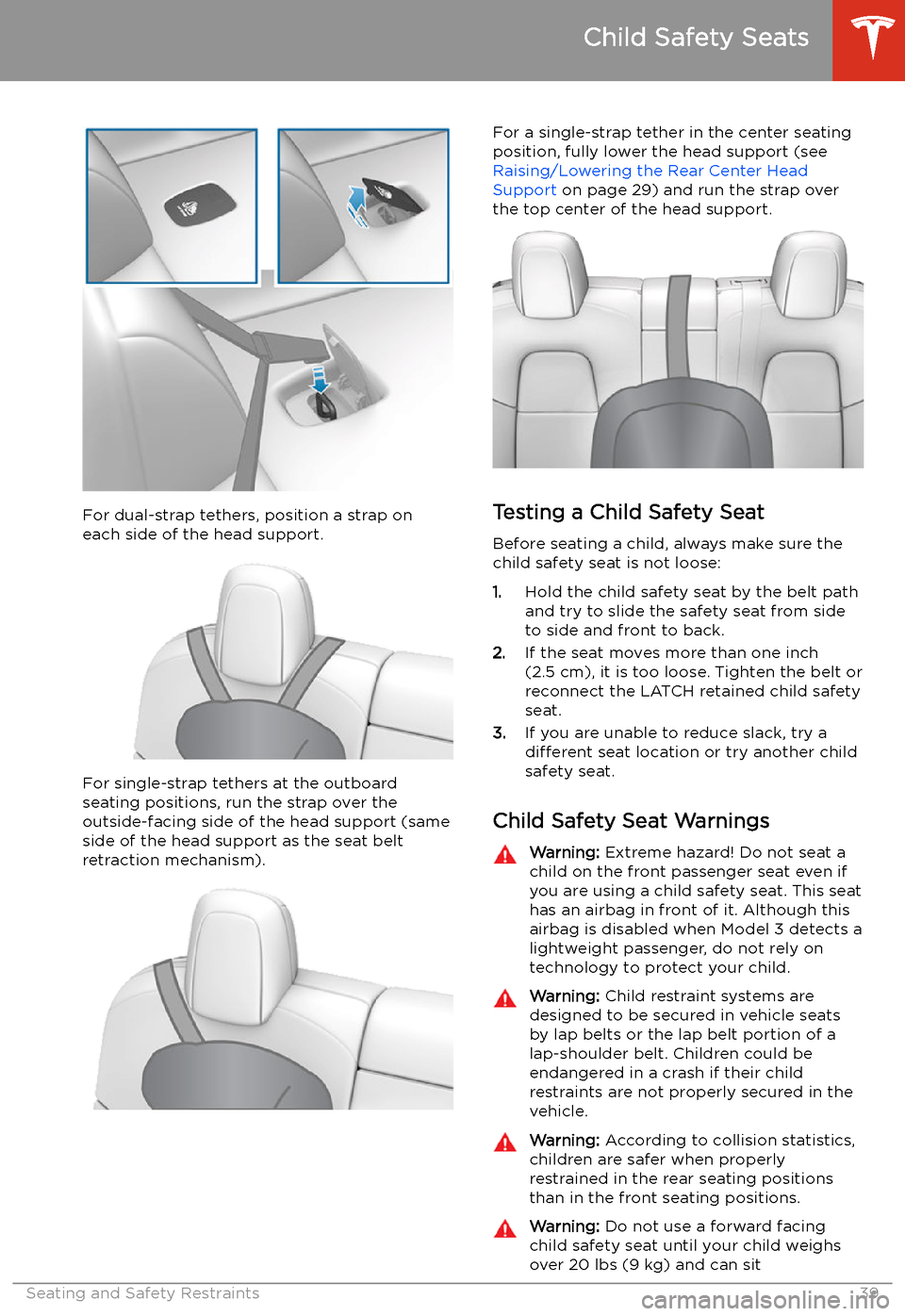
For dual-strap tethers, position a strap oneach side of the head support.
For single-strap tethers at the outboard
seating positions, run the strap over the outside-facing side of the head support (sameside of the head support as the seat belt
retraction mechanism).
For a single-strap tether in the center seating
position, fully lower the head support (see Raising/Lowering the Rear Center HeadSupport on page 29) and run the strap over
the top center of the head support.
Testing a Child Safety Seat
Before seating a child, always make sure the
child safety seat is not loose:
1. Hold the child safety seat by the belt path
and try to slide the safety seat from side
to side and front to back.
2. If the seat moves more than one inch
(2.5 cm), it is too loose. Tighten the belt or
reconnect the LATCH retained child safety
seat.
3. If you are unable to reduce slack, try a
different seat location or try another child
safety seat.
Child Safety Seat Warnings
Warning: Extreme hazard! Do not seat a
child on the front passenger seat even if
you are using a child safety seat. This seat
has an airbag in front of it. Although this airbag is disabled when Model 3 detects a
lightweight passenger, do not rely on technology to protect your child.Warning: Child restraint systems are
designed to be secured in vehicle seats
by lap belts or the lap belt portion of a lap-shoulder belt. Children could be
endangered in a crash if their child restraints are not properly secured in the
vehicle.Warning: According to collision statistics,
children are safer when properly
restrained in the rear seating positions
than in the front seating positions.Warning: Do not use a forward facing
child safety seat until your child weighs
over 20 lbs (9 kg) and can sit
Child Safety Seats
Seating and Safety Restraints39
Page 55 of 220
Starting and Powering
Off
Starting When you open a door, Model 3 powers on the
touchscreen and you can operate all controls.
To drive Model 3:
1. PRESS THE BRAKE PEDAL - Model 3
powers on and is ready to drive.
2. SELECT A GEAR - Move the gear lever all
the way down for Drive and all the way up
for Reverse. See Shifting Gears on page
56.
Note: If the PIN to Drive feature is enabled
(see PIN to Drive on page 143), you must also
enter a valid PIN on the touchscreen before
you can drive Model 3.
Note: If Passive Entry is off and you do not
press the brake pedal to start Model 3 within
approximately five minutes, a message
displays on the touchscreen and you must use
the key to lock then unlock Model 3 again before starting the vehicle.
Everything you need to know when driving
Model 3 displays on the touchscreen.
Drive Disabled - Requires Authentication
If Model 3 does not detect a key when you
press the brake (an authenticated phone is not
detected, or 30 seconds has passed since you
used the key card), the touchscreen displays a
message telling you that driving requires
authentication.
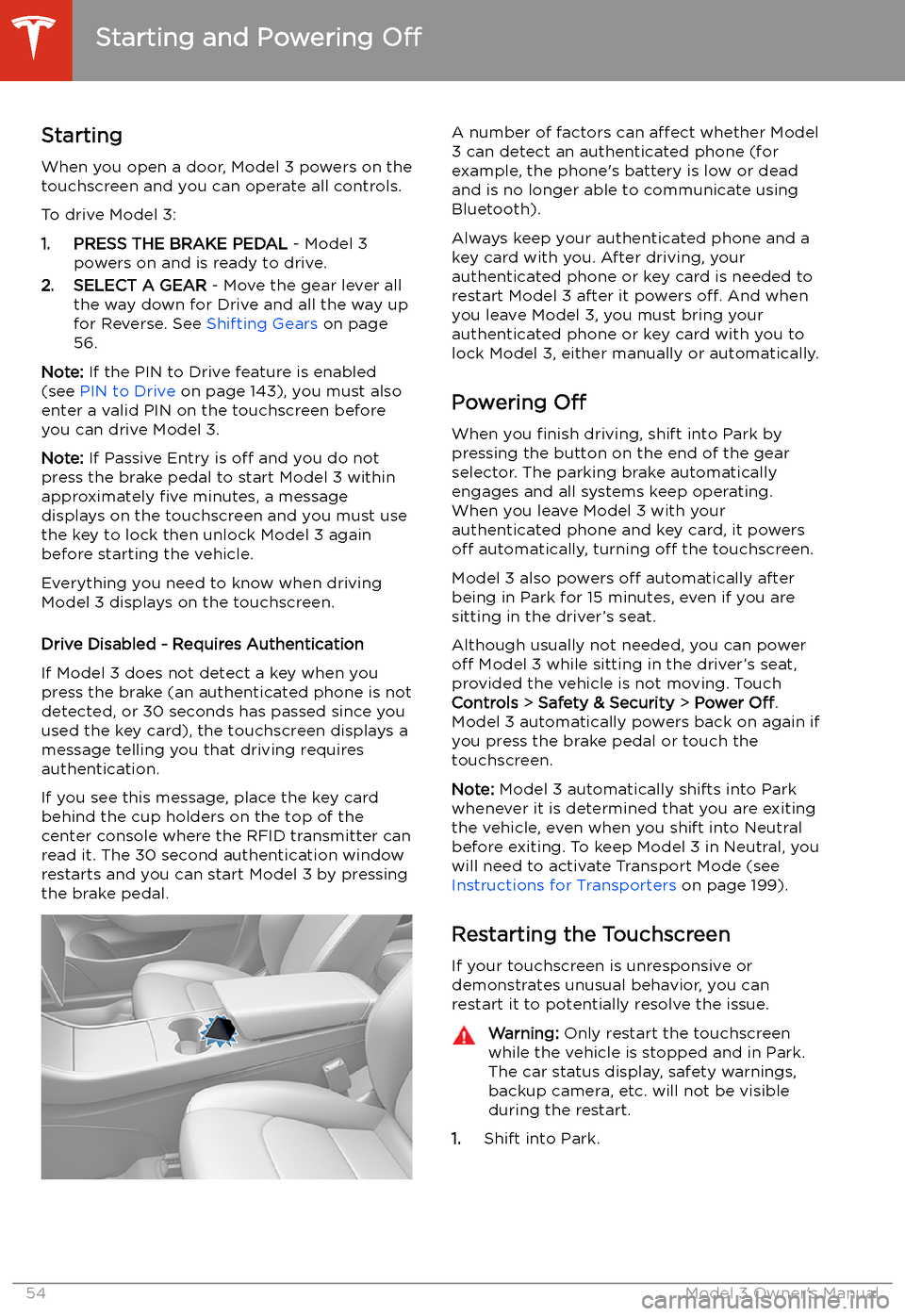
If you see this message, place the key card
behind the cup holders on the top of the center console where the RFID transmitter canread it. The 30 second authentication window
restarts and you can start Model 3 by pressing
the brake pedal.
A number of factors can affect whether Model
3 can detect an authenticated phone (for
example, the phone
Page 56 of 220
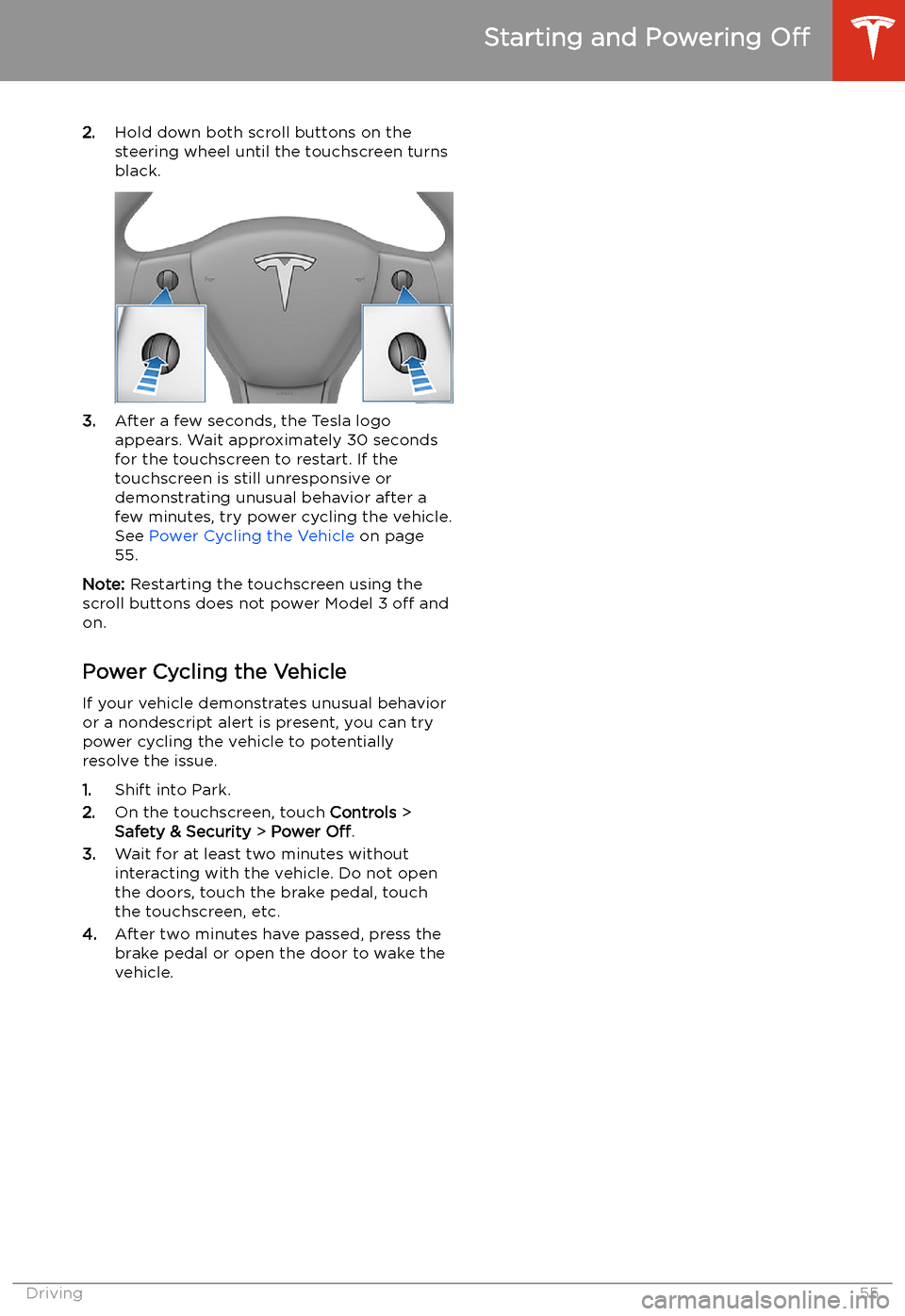
2.Hold down both scroll buttons on the
steering wheel until the touchscreen turns
black.
3. After a few seconds, the Tesla logo
appears. Wait approximately 30 seconds for the touchscreen to restart. If the
touchscreen is still unresponsive or
demonstrating unusual behavior after a
few minutes, try power cycling the vehicle.
See Power Cycling the Vehicle on page
55.
Note: Restarting the touchscreen using the
scroll buttons does not power Model 3 off and
on.
Power Cycling the Vehicle
If your vehicle demonstrates unusual behavior or a nondescript alert is present, you can try
power cycling the vehicle to potentially
resolve the issue.
1. Shift into Park.
2. On the touchscreen, touch Controls >
Safety & Security > Power Off.
3. Wait for at least two minutes without
interacting with the vehicle. Do not open
the doors, touch the brake pedal, touch the touchscreen, etc.
4. After two minutes have passed, press the
brake pedal or open the door to wake the
vehicle.
Starting and Powering Off
Driving55
Page 60 of 220
6.If you turn on Headlights after Exit , the
exterior lights remain on for a short period of time after you stop driving and parkModel 3 in low lighting conditions. See
Headlights After Exit on page 59.
7. If you turn on Steering Wheel Lights , the
arrows associated with the scroll buttons
are backlit in low ambient lighting
conditions.
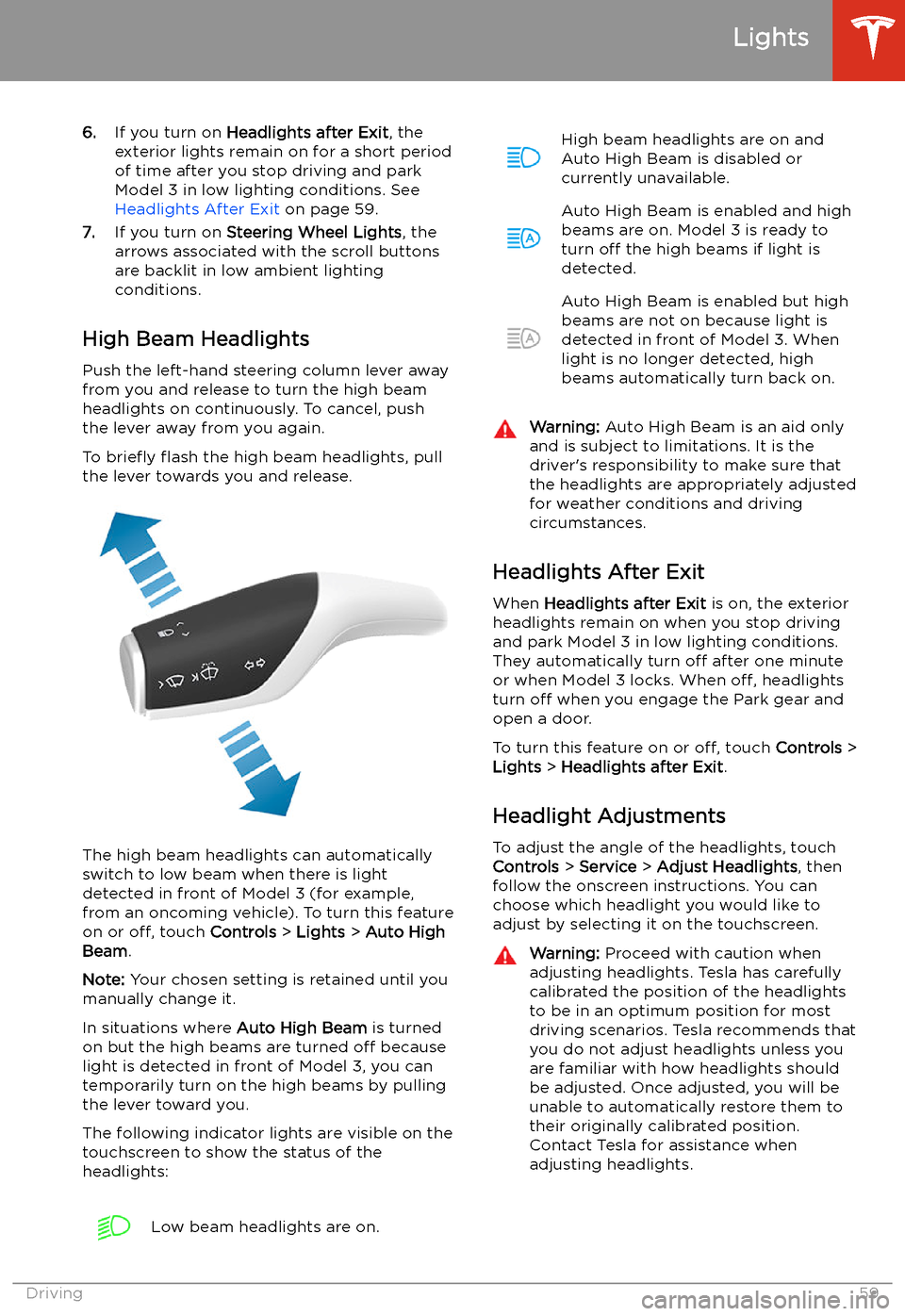
High Beam Headlights Push the left-hand steering column lever away
from you and release to turn the high beam
headlights on continuously. To cancel, push the lever away from you again.
To brie
Page 63 of 220
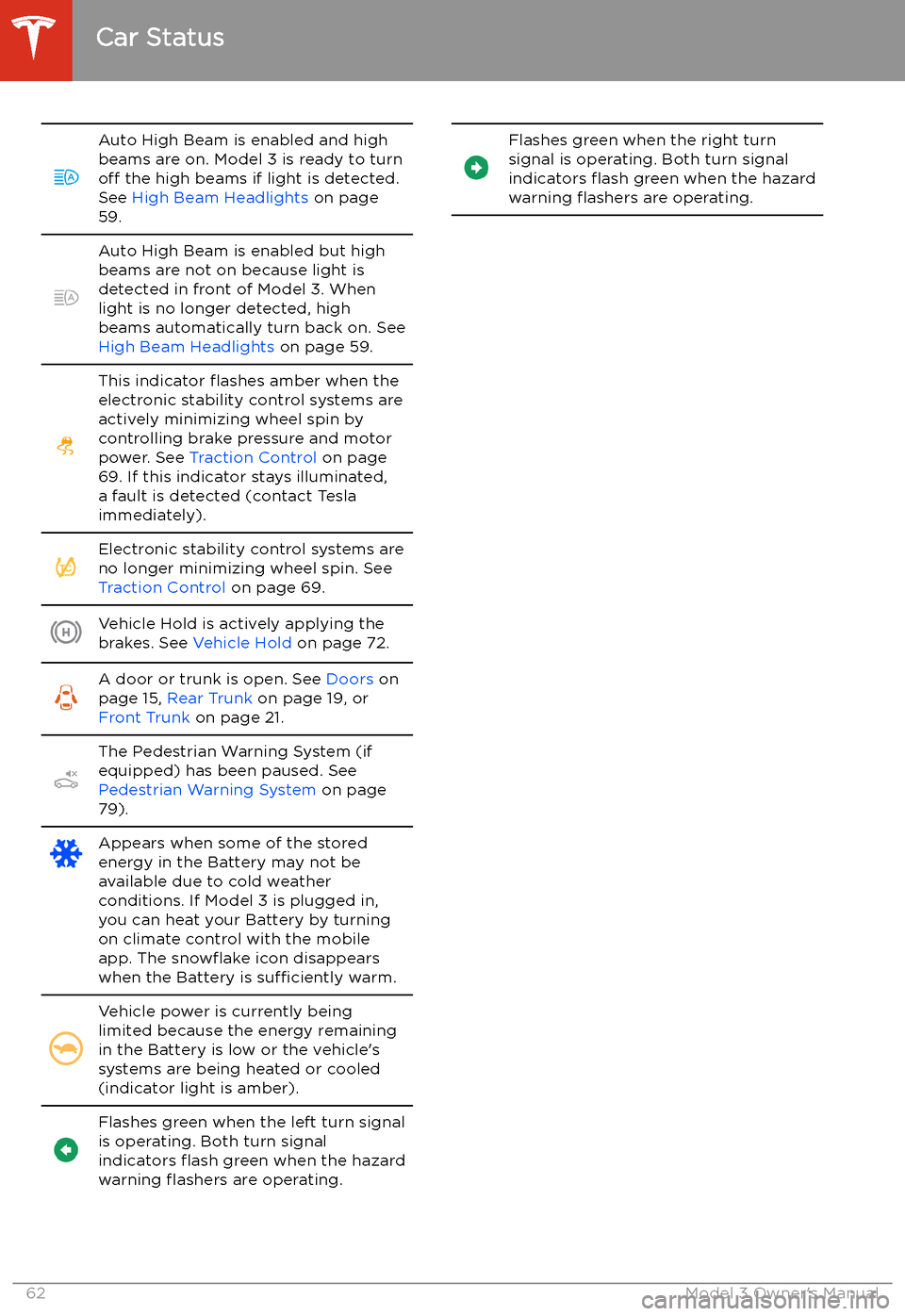
Auto High Beam is enabled and high
beams are on. Model 3 is ready to turn
off the high beams if light is detected.
See High Beam Headlights on page
59.Auto High Beam is enabled but high
beams are not on because light is
detected in front of Model 3. When light is no longer detected, high
beams automatically turn back on. See
High Beam Headlights on page 59.This indicator
Page 64 of 220
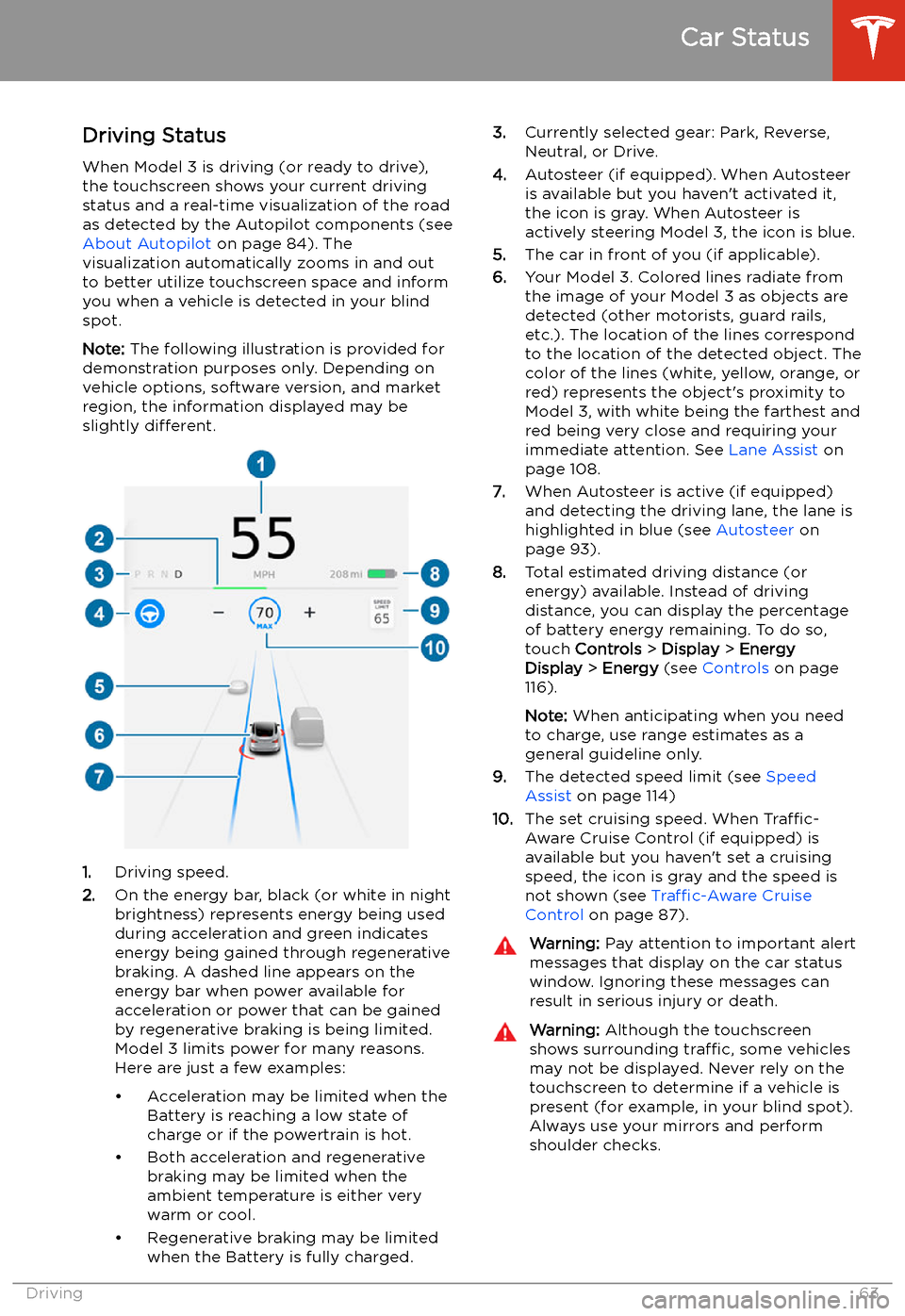
Driving StatusWhen Model 3 is driving (or ready to drive),
the touchscreen shows your current driving
status and a real-time visualization of the road
as detected by the Autopilot components (see About Autopilot on page 84). The
visualization automatically zooms in and out
to better utilize touchscreen space and inform
you when a vehicle is detected in your blind
spot.
Note: The following illustration is provided for
demonstration purposes only. Depending on vehicle options, software version, and market
region, the information displayed may be
slightly different.
1.Driving speed.
2. On the energy bar, black (or white in night
brightness) represents energy being used
during acceleration and green indicates
energy being gained through regenerative
braking. A dashed line appears on the
energy bar when power available for
acceleration or power that can be gained
by regenerative braking is being limited. Model 3 limits power for many reasons.
Here are just a few examples:
Page 65 of 220
Wipers and Washers
Wipers
To perform a single wipe with the windshield
wipers, press and immediately release the
button on the end of the left-hand steering column lever.
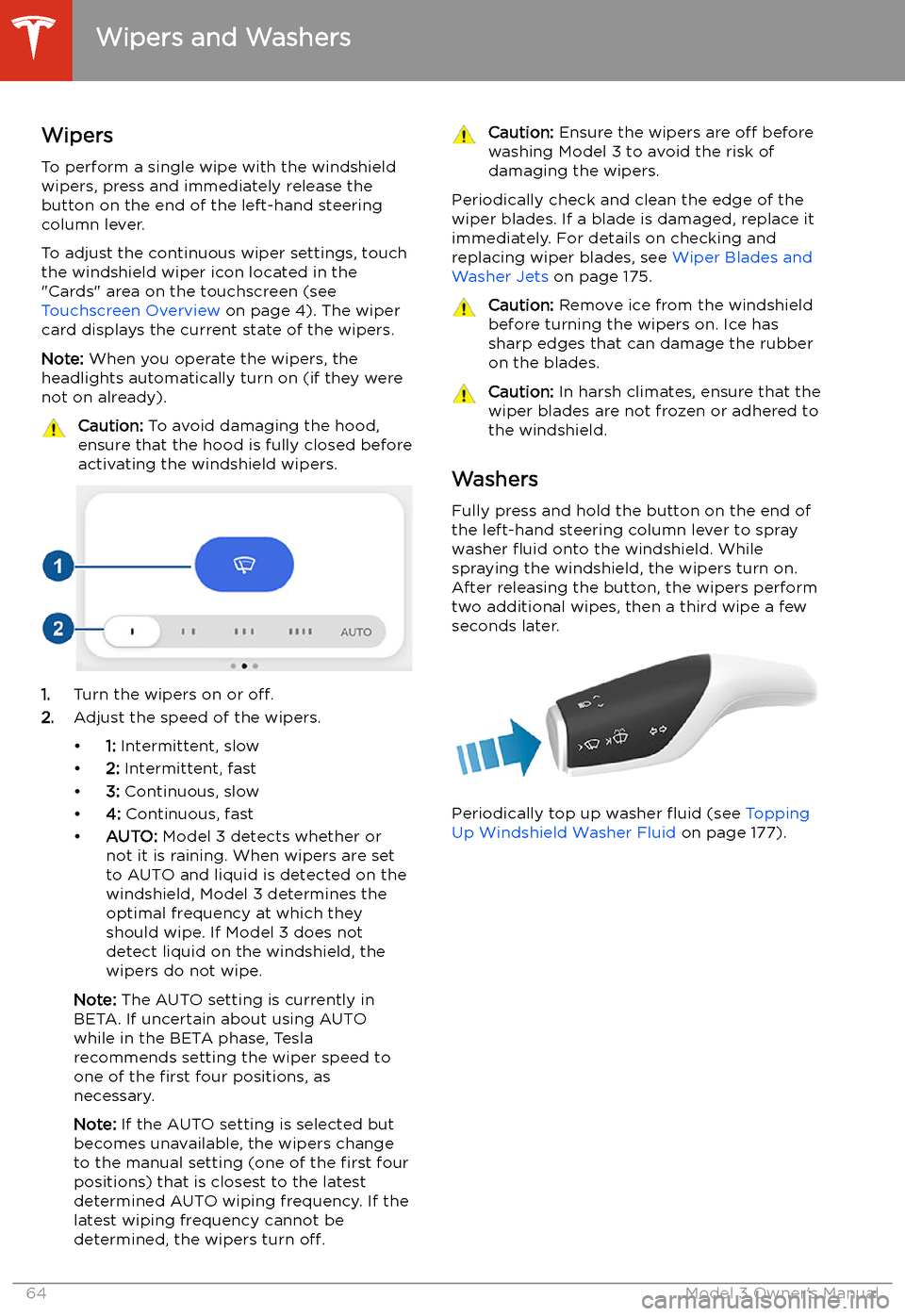
To adjust the continuous wiper settings, touch the windshield wiper icon located in the"Cards" area on the touchscreen (see
Touchscreen Overview on page 4). The wiper
card displays the current state of the wipers.
Note: When you operate the wipers, the
headlights automatically turn on (if they were
not on already).
Caution: To avoid damaging the hood,
ensure that the hood is fully closed before
activating the windshield wipers.
1. Turn the wipers on or off.
2. Adjust the speed of the wipers.