drive TESLA MODEL 3 2020 s User Guide
[x] Cancel search | Manufacturer: TESLA, Model Year: 2020, Model line: MODEL 3, Model: TESLA MODEL 3 2020Pages: 220, PDF Size: 9.65 MB
Page 49 of 220
Driving
Driver
Profiles
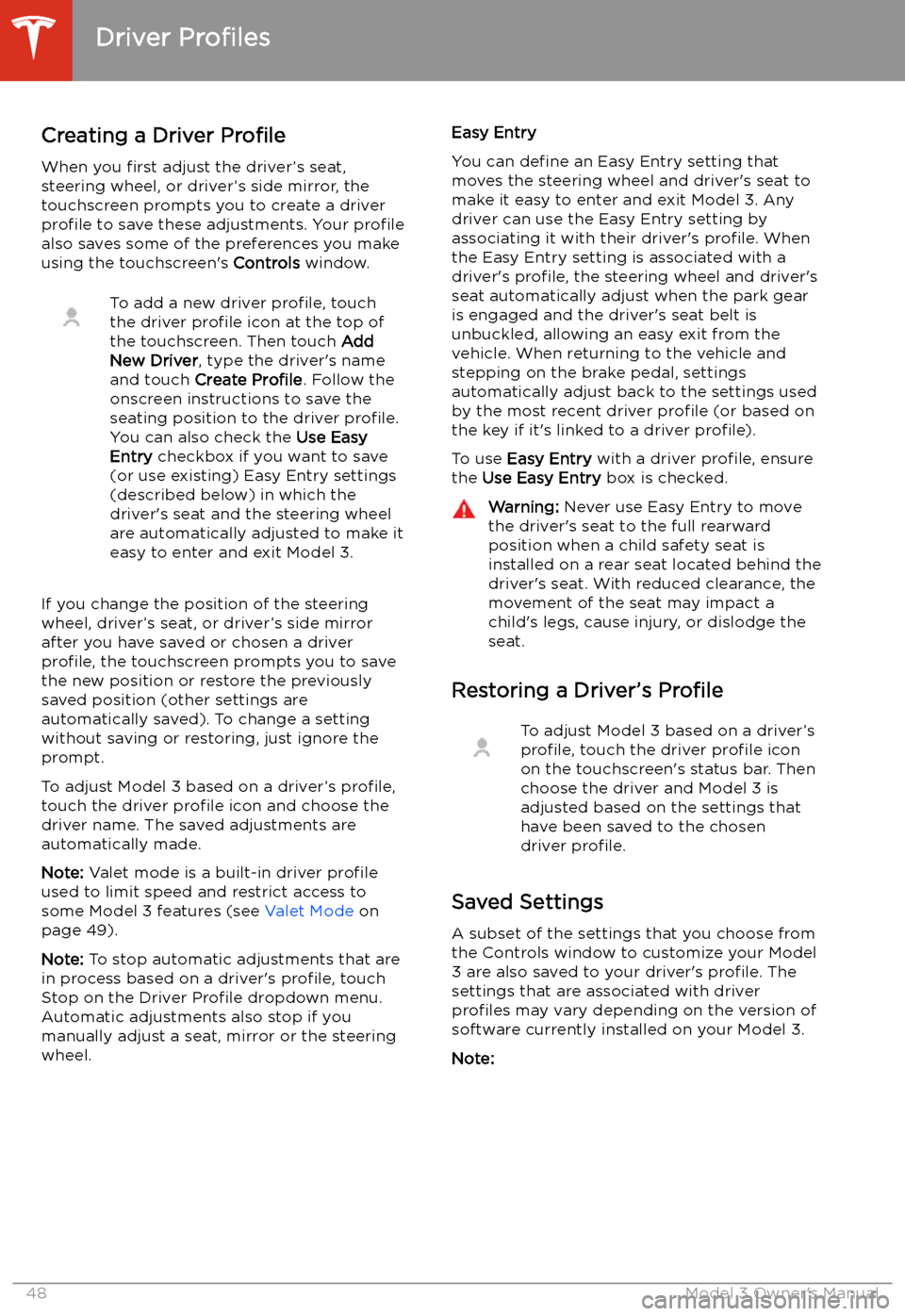
Creating a Driver Profile
When you first adjust the driver’s seat,
steering wheel, or driver’s side mirror, the
touchscreen prompts you to create a driver
profile to save these adjustments. Your profile
also saves some of the preferences you make
using the touchscreen
Page 50 of 220
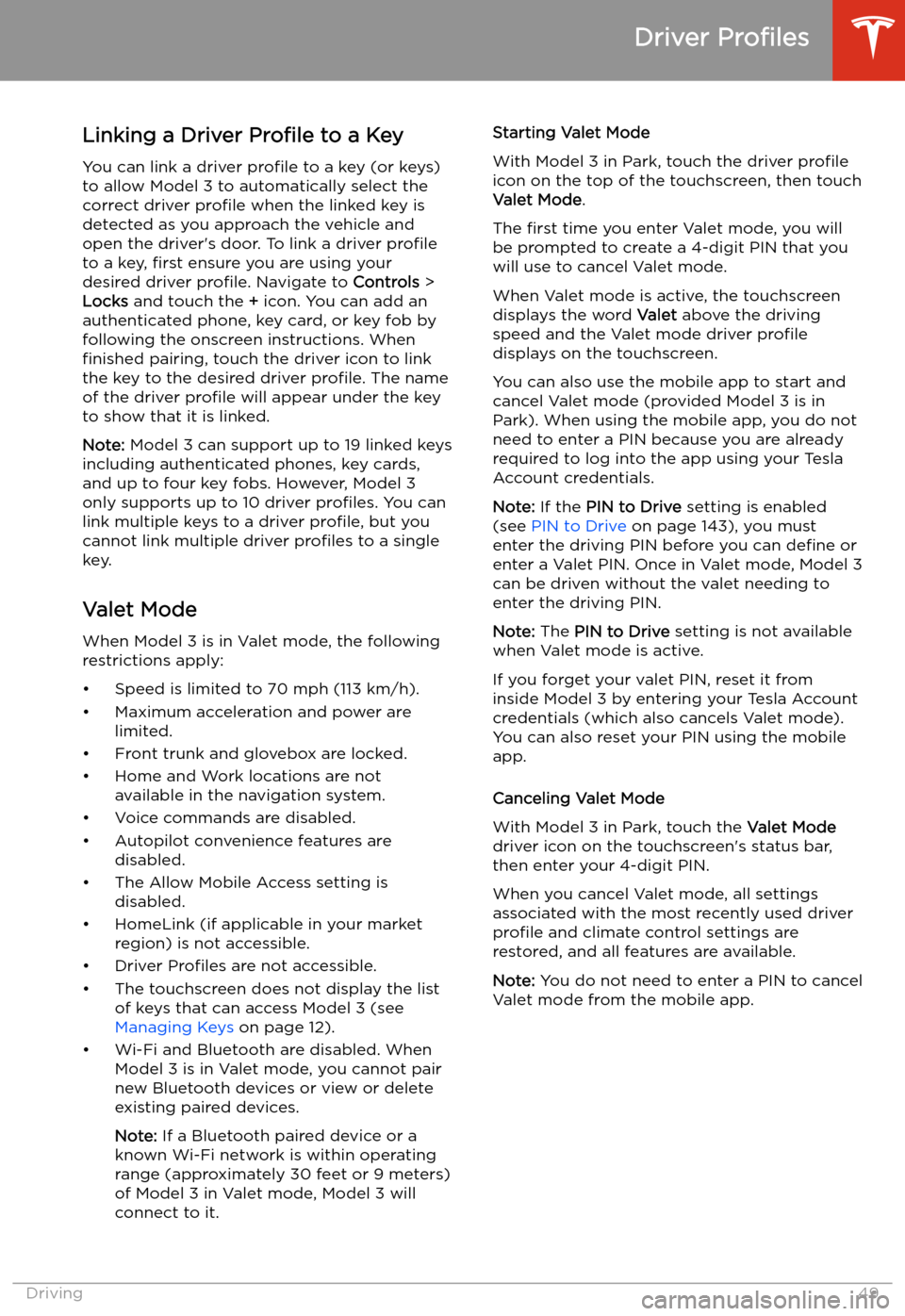
Linking a Driver Profile to a Key
You can link a driver profile to a key (or keys)
to allow Model 3 to automatically select the correct driver profile when the linked key is
detected as you approach the vehicle and
open the driver
Page 55 of 220
Starting and Powering
Off
Starting When you open a door, Model 3 powers on the
touchscreen and you can operate all controls.
To drive Model 3:
1. PRESS THE BRAKE PEDAL - Model 3
powers on and is ready to drive.
2. SELECT A GEAR - Move the gear lever all
the way down for Drive and all the way up
for Reverse. See Shifting Gears on page
56.
Note: If the PIN to Drive feature is enabled
(see PIN to Drive on page 143), you must also
enter a valid PIN on the touchscreen before
you can drive Model 3.
Note: If Passive Entry is off and you do not
press the brake pedal to start Model 3 within
approximately five minutes, a message
displays on the touchscreen and you must use
the key to lock then unlock Model 3 again before starting the vehicle.
Everything you need to know when driving
Model 3 displays on the touchscreen.
Drive Disabled - Requires Authentication
If Model 3 does not detect a key when you
press the brake (an authenticated phone is not
detected, or 30 seconds has passed since you
used the key card), the touchscreen displays a
message telling you that driving requires
authentication.
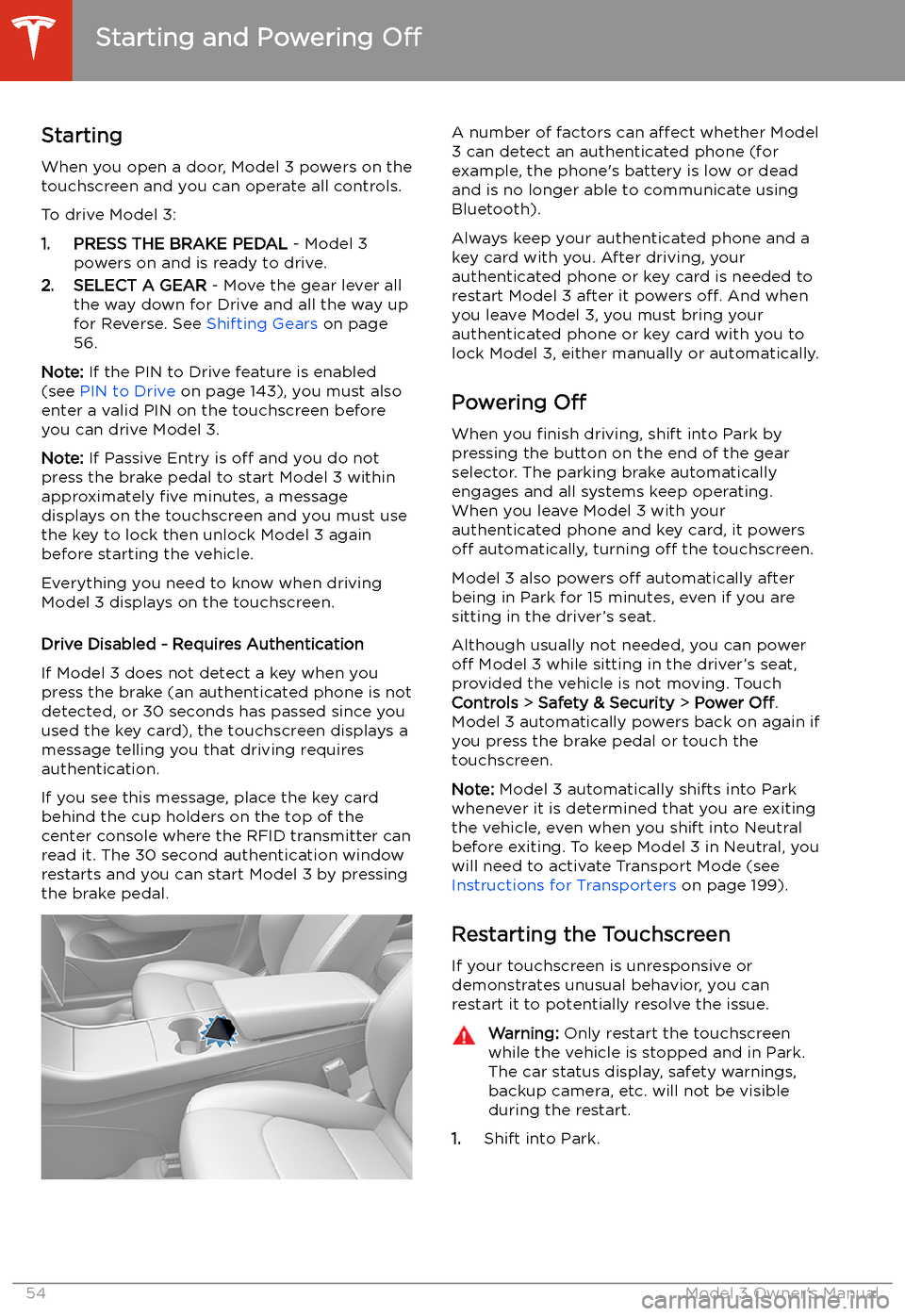
If you see this message, place the key card
behind the cup holders on the top of the center console where the RFID transmitter canread it. The 30 second authentication window
restarts and you can start Model 3 by pressing
the brake pedal.
A number of factors can affect whether Model
3 can detect an authenticated phone (for
example, the phone
Page 57 of 220
Gears
Shifting Gears When Model 3 is in Park, you must press the
brake to shift to another gear.
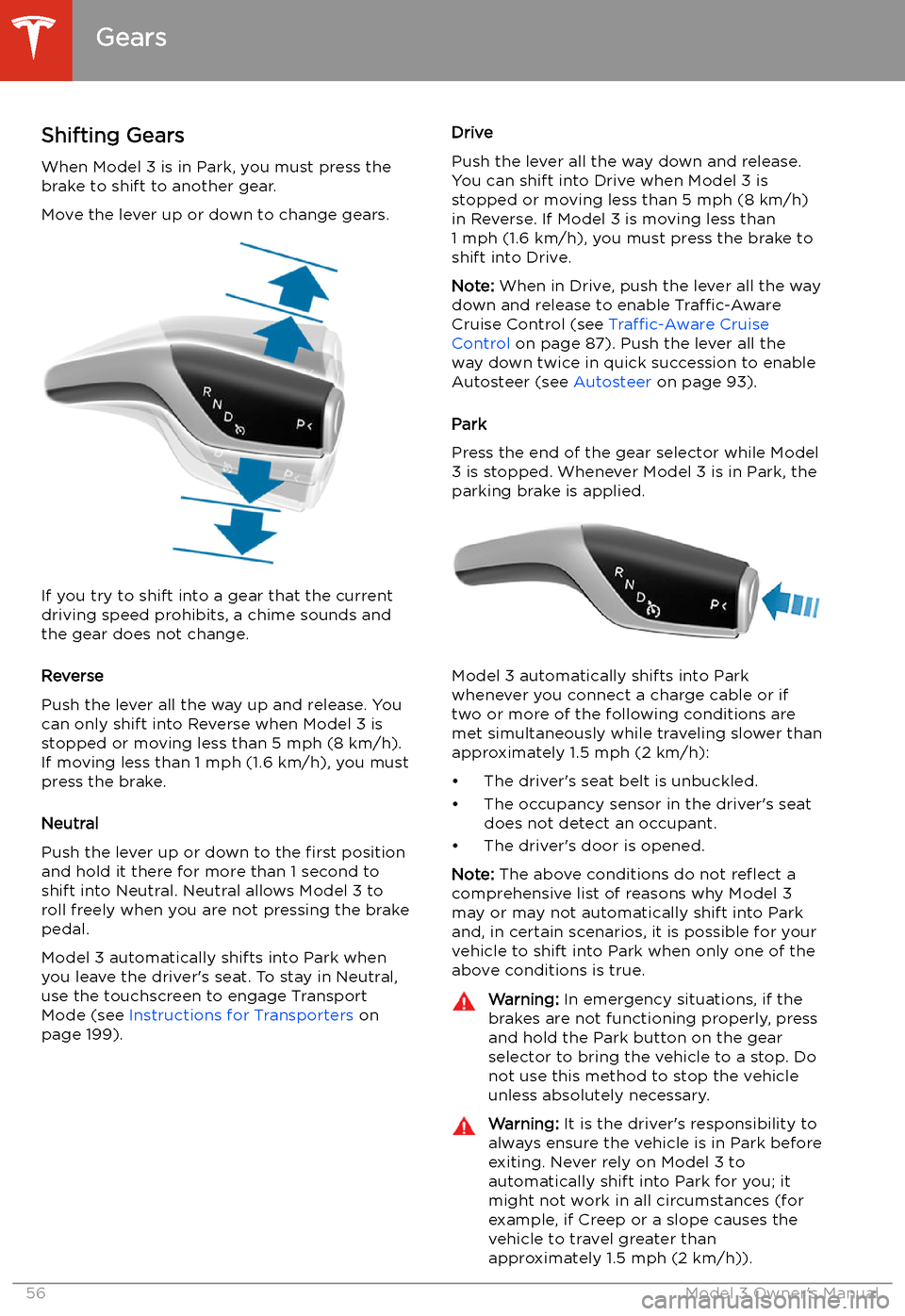
Move the lever up or down to change gears.
If you try to shift into a gear that the current
driving speed prohibits, a chime sounds and
the gear does not change.
Reverse
Push the lever all the way up and release. You
can only shift into Reverse when Model 3 is stopped or moving less than 5 mph (8 km/h).If moving less than 1 mph (1.6 km/h), you must
press the brake.
Neutral
Push the lever up or down to the first position
and hold it there for more than 1 second to shift into Neutral. Neutral allows Model 3 to
roll freely when you are not pressing the brake
pedal.
Model 3 automatically shifts into Park when
you leave the driver
Page 59 of 220
Lights
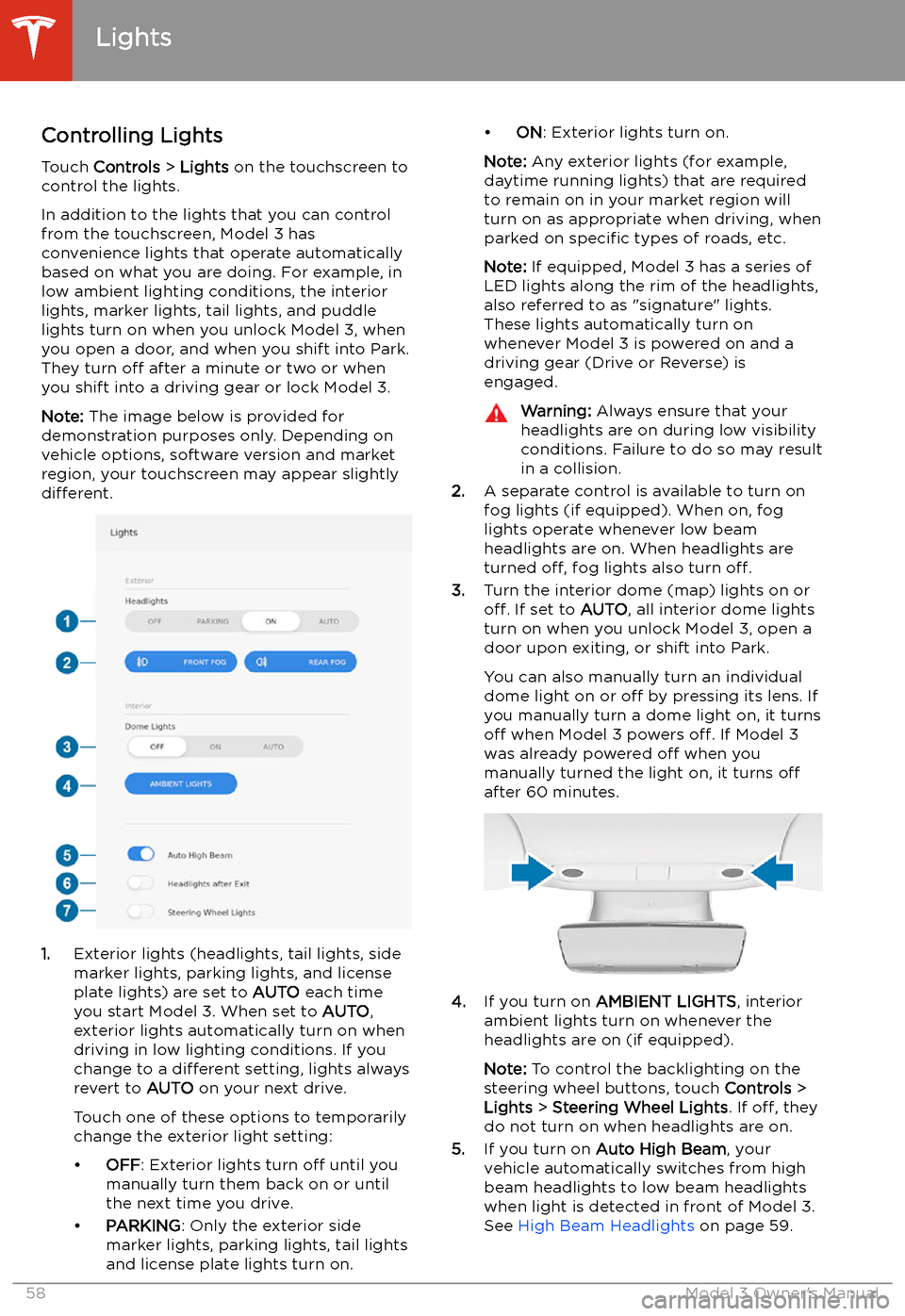
Controlling Lights Touch Controls > Lights on the touchscreen to
control the lights.
In addition to the lights that you can control
from the touchscreen, Model 3 has
convenience lights that operate automatically
based on what you are doing. For example, in
low ambient lighting conditions, the interior lights, marker lights, tail lights, and puddle
lights turn on when you unlock Model 3, when
you open a door, and when you shift into Park.
They turn off after a minute or two or when
you shift into a driving gear or lock Model 3.
Note: The image below is provided for
demonstration purposes only. Depending on vehicle options, software version and market
region, your touchscreen may appear slightly
different.
1. Exterior lights (headlights, tail lights, side
marker lights, parking lights, and license
plate lights) are set to AUTO each time
you start Model 3. When set to AUTO,
exterior lights automatically turn on when
driving in low lighting conditions. If you
change to a different setting, lights always
revert to AUTO on your next drive.
Touch one of these options to temporarily
change the exterior light setting:
Page 64 of 220
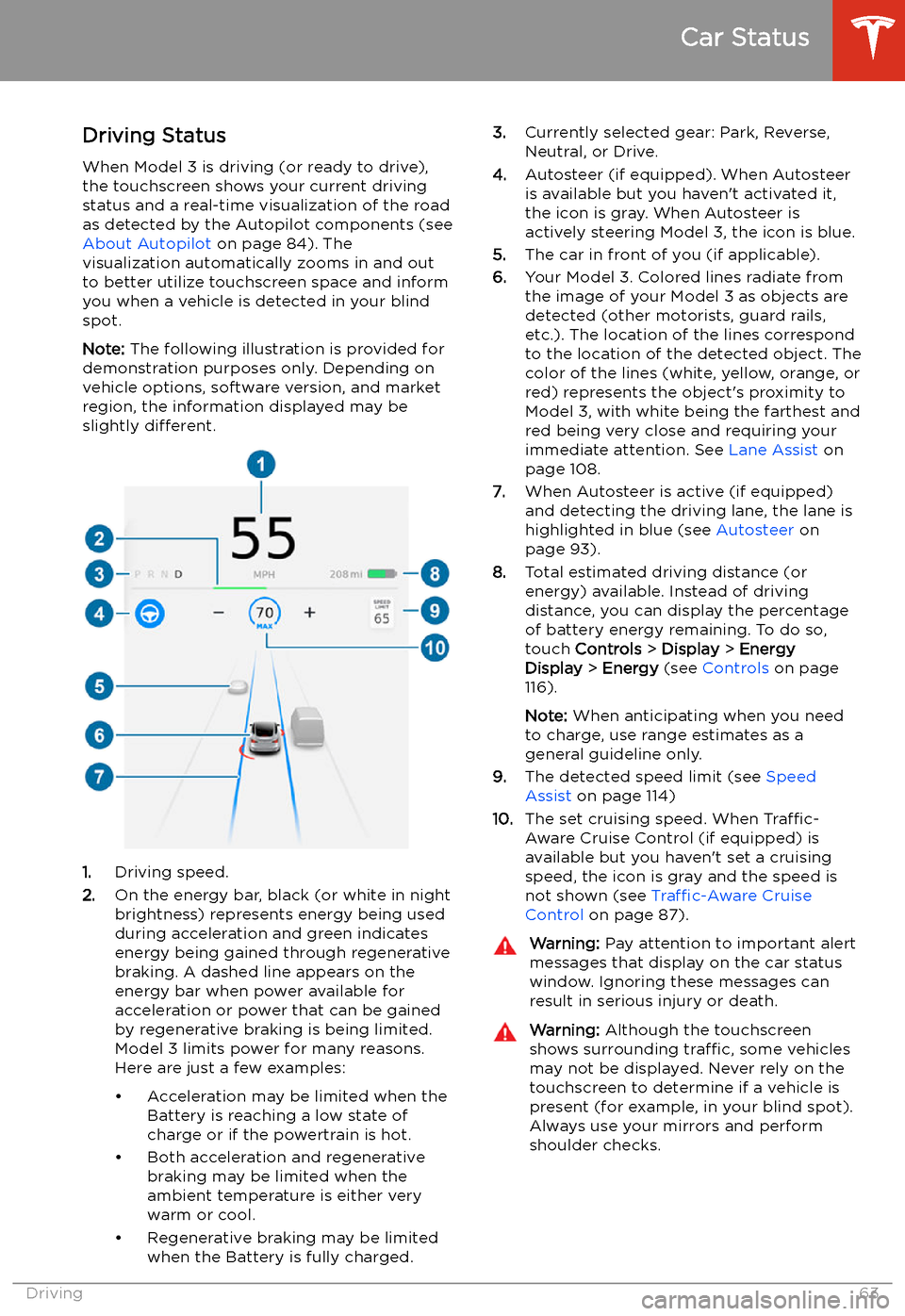
Driving StatusWhen Model 3 is driving (or ready to drive),
the touchscreen shows your current driving
status and a real-time visualization of the road
as detected by the Autopilot components (see About Autopilot on page 84). The
visualization automatically zooms in and out
to better utilize touchscreen space and inform
you when a vehicle is detected in your blind
spot.
Note: The following illustration is provided for
demonstration purposes only. Depending on vehicle options, software version, and market
region, the information displayed may be
slightly different.
1.Driving speed.
2. On the energy bar, black (or white in night
brightness) represents energy being used
during acceleration and green indicates
energy being gained through regenerative
braking. A dashed line appears on the
energy bar when power available for
acceleration or power that can be gained
by regenerative braking is being limited. Model 3 limits power for many reasons.
Here are just a few examples:
Page 67 of 220
Caution: If the brakes are not functioning
properly, stop the vehicle as soon as safety permits and contact Tesla Service.
See Park on page 56 for information on
using the Park button to stop the vehicle
in case of emergency.Warning: Always maintain a safe driving
distance from the vehicle in front of you
and be cautious in hazardous driving
conditions. Do not rely on brake disc
wiping or hydraulic fade compensation to act as a substitute for adequate braking.
Regenerative Braking
Whenever Model 3 is moving and your foot is
off the accelerator, regenerative braking slows
down Model 3 and feeds any surplus energy back to the Battery.
By anticipating your stops and reducing or
removing pressure from the accelerator pedal
to slow down, you can take advantage of regenerative braking to increase driving range.
Of course, this is no substitute for regular braking when needed for safety.
Note: If regenerative braking is aggressively
slowing Model 3 (such as when your foot is
completely off the accelerator pedal at
highway speeds), the brake lights turn on to
alert others that you are slowing down.
Note: Installing winter tires with aggressive
compound and tread design may result in
temporarily-reduced regenerative braking
power. However, your vehicle is designed to continuously recalibrate itself, and after changing tires it will increasingly restore
regenerative braking power after some
moderate-torque straight-line accelerations.
For most drivers this occurs after a short
period of normal driving, but drivers who
normally accelerate lightly may need to use
slightly harder accelerations while the
recalibration is in progress.
Warning: In snowy or icy conditions
Model 3 may experience traction loss
during regenerative braking, particularly
when in the Standard setting and/or not
using winter tires. Tesla recommends
using the Low setting (see To Set the
Regenerative Braking Level on page 66)
in snowy or icy conditions to help maintain vehicle stability.The amount of energy fed back to the Battery
using regenerative braking can depend on the
current state of the Battery and the charge
level setting that you are using. For example,
regenerative braking may be limited if the Battery is already fully charged or if the
ambient temperature is too cold.
Note: If regenerative braking is limited, a
dashed line displays on the energy bar (see
Driving Status on page 63).
To Set the Regenerative Braking Level
You can use the touchscreen to change the
level of regenerative braking:
1. Touch Controls > Driving > Regenerative
Braking .
2. Choose from two levels:
Page 69 of 220
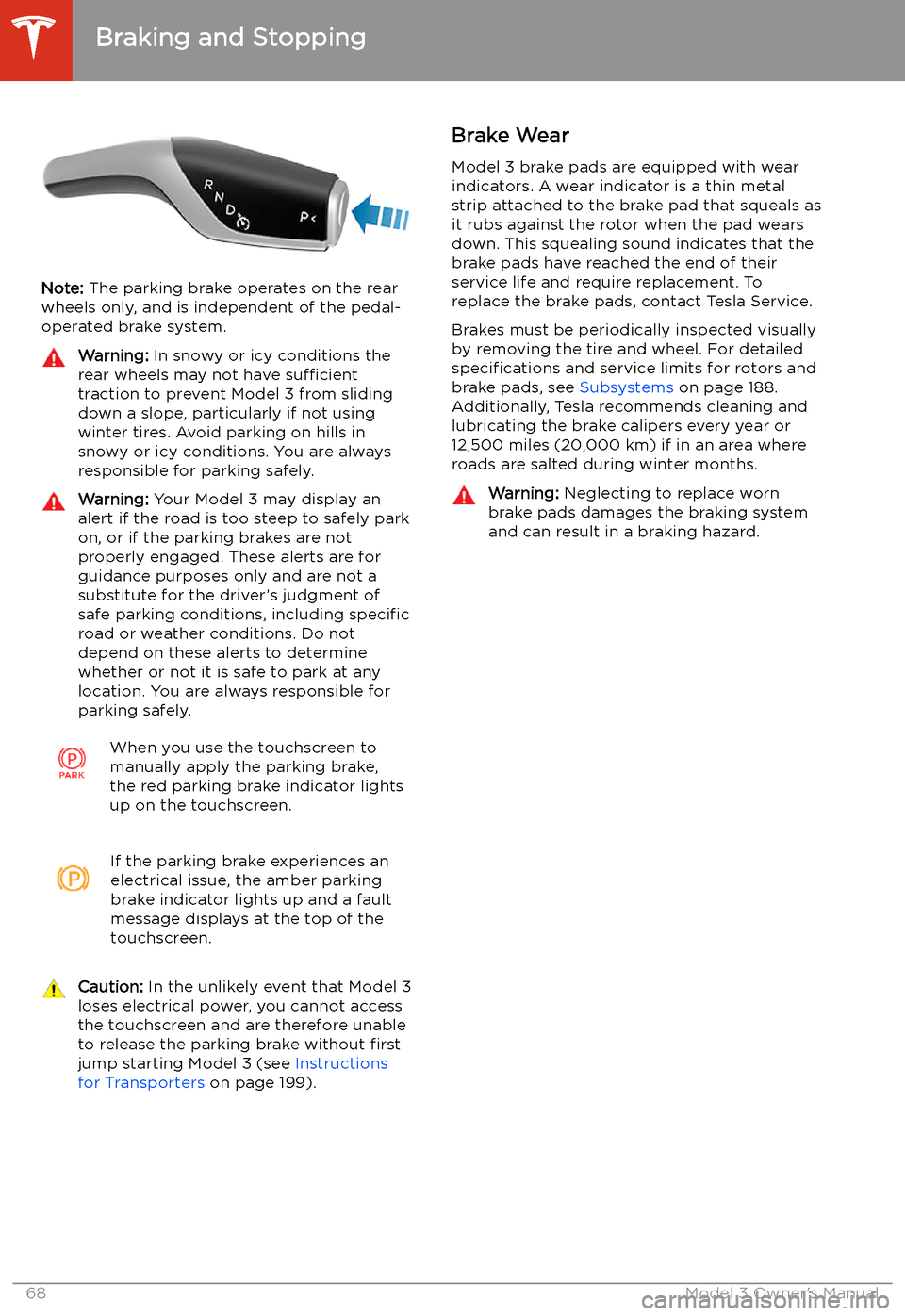
Note: The parking brake operates on the rear
wheels only, and is independent of the pedal-
operated brake system.
Warning: In snowy or icy conditions the
rear wheels may not have sufficient
traction to prevent Model 3 from sliding
down a slope, particularly if not using winter tires. Avoid parking on hills in
snowy or icy conditions. You are always responsible for parking safely.Warning: Your Model 3 may display an
alert if the road is too steep to safely park
on, or if the parking brakes are not
properly engaged. These alerts are for
guidance purposes only and are not a
substitute for the driver’s judgment of safe parking conditions, including specific
road or weather conditions. Do not
depend on these alerts to determine
whether or not it is safe to park at any location. You are always responsible for
parking safely.When you use the touchscreen to
manually apply the parking brake,
the red parking brake indicator lights
up on the touchscreen.If the parking brake experiences an
electrical issue, the amber parking brake indicator lights up and a fault
message displays at the top of the
touchscreen.Caution: In the unlikely event that Model 3
loses electrical power, you cannot access
the touchscreen and are therefore unable to release the parking brake without first
jump starting Model 3 (see Instructions
for Transporters on page 199).Brake Wear
Model 3 brake pads are equipped with wear indicators. A wear indicator is a thin metal
strip attached to the brake pad that squeals as
it rubs against the rotor when the pad wears
down. This squealing sound indicates that the
brake pads have reached the end of their service life and require replacement. To
replace the brake pads, contact Tesla Service.
Brakes must be periodically inspected visually by removing the tire and wheel. For detailed
specifications and service limits for rotors and
brake pads, see Subsystems on page 188.
Additionally, Tesla recommends cleaning and
lubricating the brake calipers every year or
12,500 miles (20,000 km) if in an area where
roads are salted during winter months.Warning: Neglecting to replace worn
brake pads damages the braking system
and can result in a braking hazard.
Braking and Stopping
68Model 3 Owner
Page 71 of 220
Park Assist
How Park Assist Works
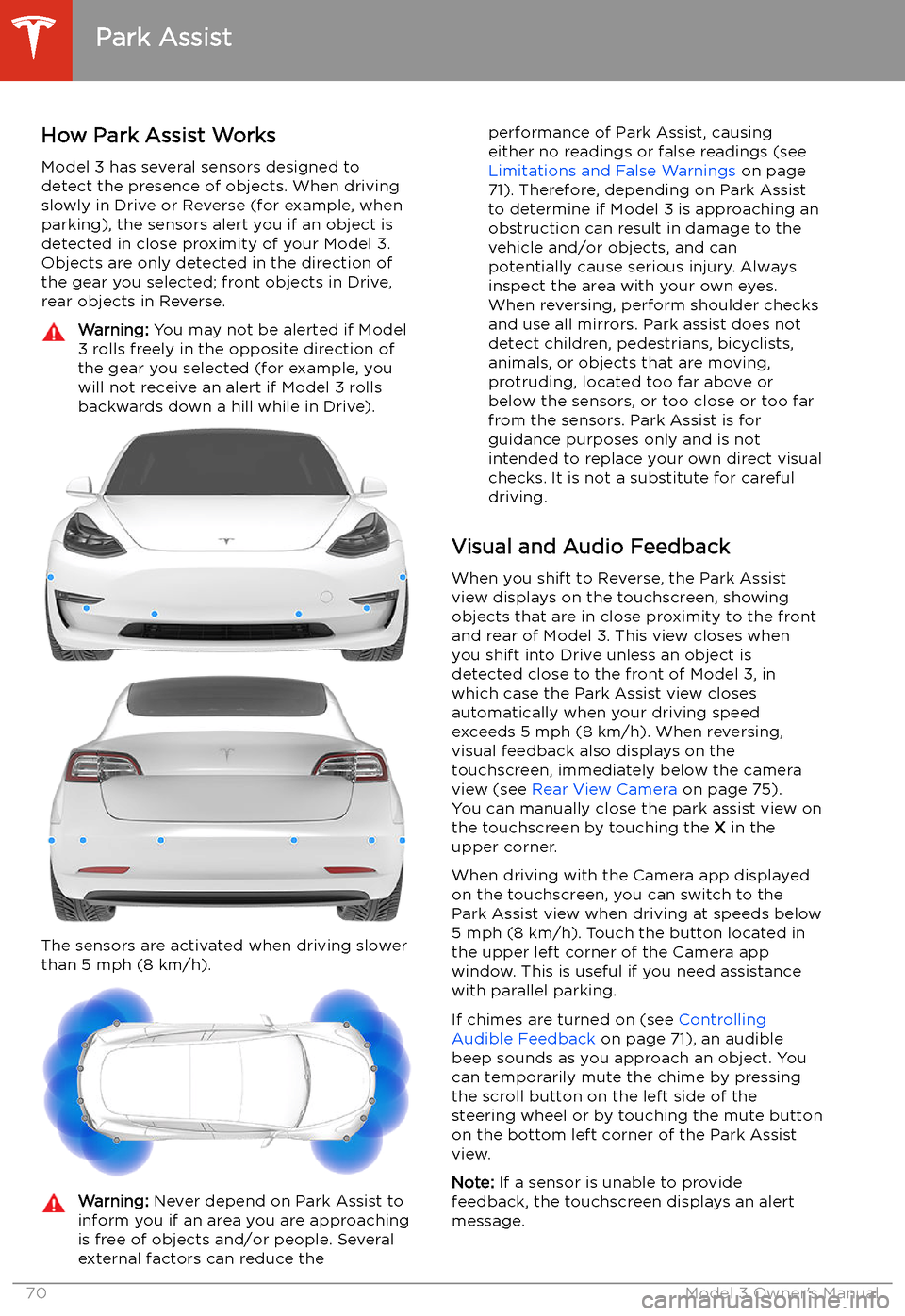
Model 3 has several sensors designed to
detect the presence of objects. When driving
slowly in Drive or Reverse (for example, when
parking), the sensors alert you if an object is
detected in close proximity of your Model 3.
Objects are only detected in the direction of
the gear you selected; front objects in Drive,
rear objects in Reverse.
Warning: You may not be alerted if Model
3 rolls freely in the opposite direction of
the gear you selected (for example, you
will not receive an alert if Model 3 rolls
backwards down a hill while in Drive).
The sensors are activated when driving slower
than 5 mph (8 km/h).
Warning: Never depend on Park Assist to
inform you if an area you are approaching is free of objects and/or people. Several
external factors can reduce theperformance of Park Assist, causing
either no readings or false readings (see
Limitations and False Warnings on page
71). Therefore, depending on Park Assist
to determine if Model 3 is approaching an
obstruction can result in damage to the vehicle and/or objects, and can
potentially cause serious injury. Always
inspect the area with your own eyes.
When reversing, perform shoulder checks and use all mirrors. Park assist does not
detect children, pedestrians, bicyclists,
animals, or objects that are moving, protruding, located too far above or
below the sensors, or too close or too far
from the sensors. Park Assist is for
guidance purposes only and is not intended to replace your own direct visual
checks. It is not a substitute for careful
driving.
Visual and Audio Feedback
When you shift to Reverse, the Park Assist
view displays on the touchscreen, showing objects that are in close proximity to the front
and rear of Model 3. This view closes when you shift into Drive unless an object is
detected close to the front of Model 3, in
which case the Park Assist view closes automatically when your driving speed
exceeds 5 mph (8 km/h). When reversing,
visual feedback also displays on the touchscreen, immediately below the camera
view (see Rear View Camera on page 75).
You can manually close the park assist view on
the touchscreen by touching the X in the
upper corner.
When driving with the Camera app displayed
on the touchscreen, you can switch to the
Park Assist view when driving at speeds below
5 mph (8 km/h). Touch the button located in
the upper left corner of the Camera app
window. This is useful if you need assistance
with parallel parking.
If chimes are turned on (see Controlling
Audible Feedback on page 71), an audible
beep sounds as you approach an object. You
can temporarily mute the chime by pressing
the scroll button on the left side of the
steering wheel or by touching the mute button on the bottom left corner of the Park Assist
view.
Note: If a sensor is unable to provide
feedback, the touchscreen displays an alert
message.
Park Assist
70Model 3 Owner
Page 72 of 220
Caution: Keep sensors clean from dirt,
debris, snow, and ice. Avoid using a high
pressure power washer on the sensors
and do not clean a sensor with a sharp or abrasive object that can scratch or
damage its surface.Caution: Do not install accessories or
stickers on or near the parking sensors.
Controlling Audible Feedback
You can use Park Assist with or without
audible feedback. To turn chimes on or off,
touch Controls > Safety & Security > Park
Assist Chimes .
To mute the chimes temporarily, press the
scroll button on the left side of the steering
wheel or touch the mute button in the corner
of the Park Assist view. The chimes are muted
until you shift into a different gear or drive
over 5 mph (8 km/h).
Limitations and False Warnings The parking sensors may not function
correctly in these situations: