lock TESLA MODEL 3 2020 s Owner's Guide
[x] Cancel search | Manufacturer: TESLA, Model Year: 2020, Model line: MODEL 3, Model: TESLA MODEL 3 2020Pages: 220, PDF Size: 9.65 MB
Page 156 of 220
Battery Information
About the Battery
Model 3 has one of the most sophisticated
battery systems in the world. The most
important way to preserve the Battery is to LEAVE YOUR VEHICLE PLUGGED IN when
you are not using it. This is particularly important if you are not planning to drive
Model 3 for several weeks. When plugged in,
Model 3 wakes up when needed to
automatically maintain a charge level that
maximizes the lifetime of the Battery.
Note: When left idle and unplugged, your
vehicle periodically uses energy from the Battery for system tests and recharging the
12V battery when necessary.
There is no advantage to waiting until the
Battery’s level is low before charging. In fact, the Battery performs best when charged
regularly.
Note: If you allow the Battery to discharge to
0%, other components may become damaged
or require replacement (for example, the 12V
battery). In these cases, you are responsible for repair and/or transporting expenses.
Discharge-related expenses are not covered
by the warranty or under the Roadside
Assistance policy.
The peak charging rate of the Battery may
decrease slightly after a large number of DC
Fast Charging sessions, such as those at
Superchargers. To ensure maximum driving
range and Battery safety, the Battery charge
rate is decreased when the Battery is too cold,
when the Battery’s charge is nearly full, and when the Battery conditions change with
usage and age. These changes in the condition of the Battery are driven by battery physics
and may increase the total Supercharging
duration by a few minutes over time.
Battery Care
Never allow the Battery to fully discharge.
Even when Model 3 is not being driven, its
Battery discharges very slowly to power the
onboard electronics. The Battery can
discharge at a rate of approximately 1% per day, though the discharge rate may vary
depending on environmental factors (such as
cold weather), vehicle configuration, and your
selected settings on the touchscreen.
Situations can arise in which you must leave
Model 3 unplugged for an extended period of time (for example, at an airport when
traveling). In these situations, keep the 1% in
mind to ensure that you leave the Battery with a sufficient charge level. For example, over a
two week period (14 days), the Battery may
discharge by approximately 14%.
Discharging the Battery to 0% may result in
damage to vehicle components. To protect
against a complete discharge, Model 3 enters
a low-power consumption mode when the
displayed charge level drops to approximately
0%. In this mode, the Battery stops supporting
the onboard electronics and auxiliary 12V
battery. Once this low-power consumption
mode is active, immediately plug in Model 3 to
prevent a jump-start and 12V battery
replacement.
Note: If the vehicle is unresponsive and will
not unlock, open, or charge, then the 12V
battery may have become discharged. In this
situation, contact Tesla.
Temperature Limits
For better long-term performance, avoid
exposing Model 3 to ambient temperatures
above 140
Page 158 of 220
Charging Instructions
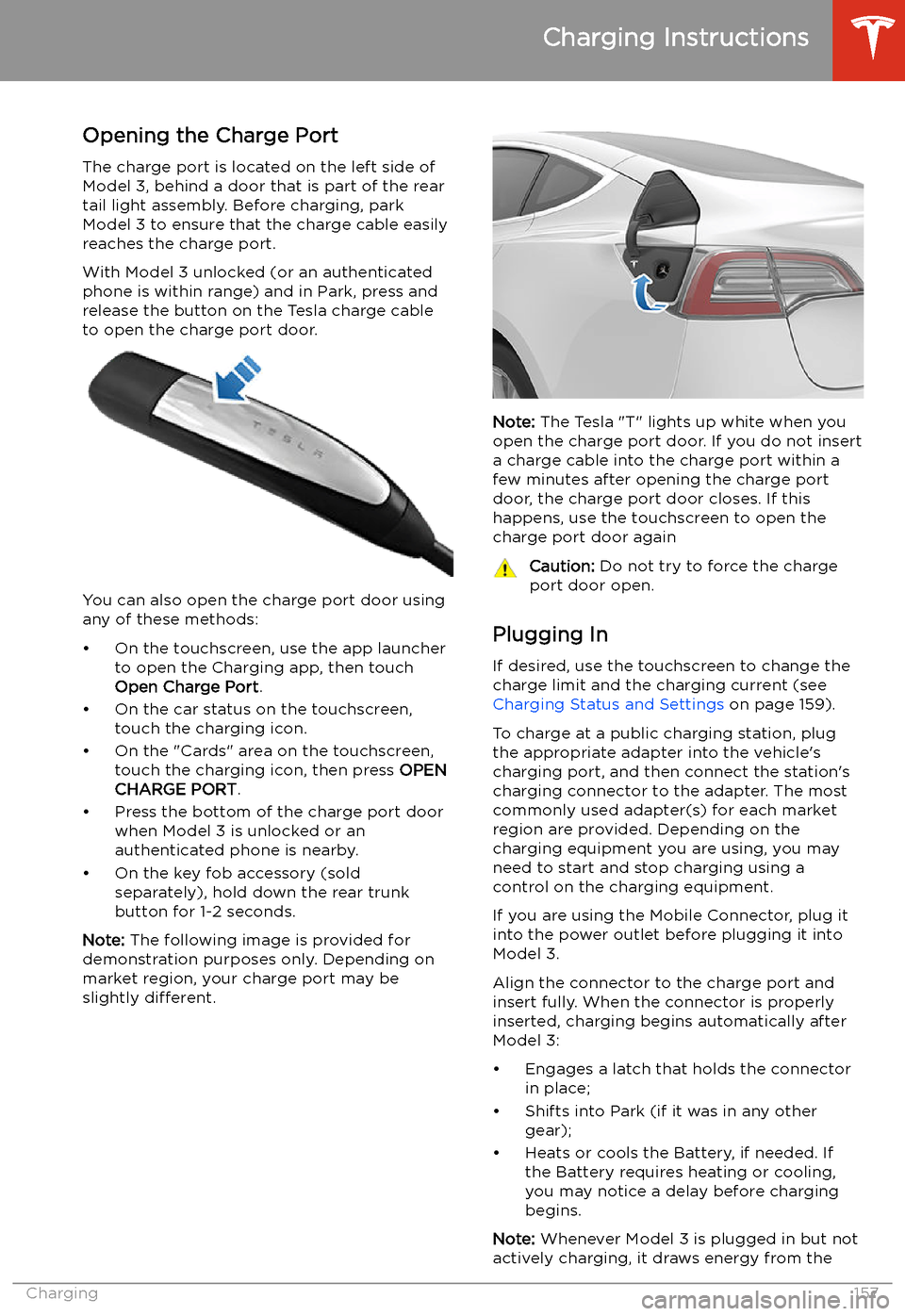
Opening the Charge Port The charge port is located on the left side of
Model 3, behind a door that is part of the rear
tail light assembly. Before charging, park
Model 3 to ensure that the charge cable easily reaches the charge port.
With Model 3 unlocked (or an authenticated
phone is within range) and in Park, press and
release the button on the Tesla charge cable
to open the charge port door.
You can also open the charge port door using
any of these methods:
Page 159 of 220
wall outlet instead of using energy stored in
the Battery. For example, if you are sitting in
Model 3 and using the touchscreen while
parked and plugged in, Model 3 draws energy
from the wall outlet instead of the Battery.Caution: The connector end of the charge
cable can damage the paint if dropped
onto the vehicle.
During Charging
During charging, the charge port light (the Tesla "T" logo) pulses green, and thetouchscreen displays the charging status. The
frequency at which the charge port light
pulses slows down as the charge level
approaches full. When charging is complete,
the light stops pulsing and is solid green.
Note: If Model 3 is locked, the charge port
light does not light up.
If the charge port light turns red while
charging, a fault is detected. Check the
touchscreen for a message describing the
fault. A fault can occur due to something as
common as a power outage. If a power outage
occurs, charging resumes automatically when
power is restored.
Note: When charging, particularly at high
currents, the refrigerant compressor and fan
operate as needed to keep the Battery cool.
Therefore, it is normal to hear sounds during charging.
Note: Air conditioning performance is
generally not affected by charging. However,
under certain circumstances (for example, you
are charging at high currents during a
particularly warm day), the air coming from
the vents may not be as cool as expected and
a message displays on the touchscreen. This is
normal behavior and ensures that the Battery stays within an optimum temperature range
while charging to support longevity and optimum performance.
Warning: Never spray liquid at a high
velocity (for example, if using a pressure
washer) towards the charge port while
charging. Failure to follow these
instructions can result in serious injury or
damage to the vehicle, charging
equipment, or property.
Stopping Charging
Stop charging at any time by disconnecting
the charge cable or touching Stop Charging
on the touchscreen.
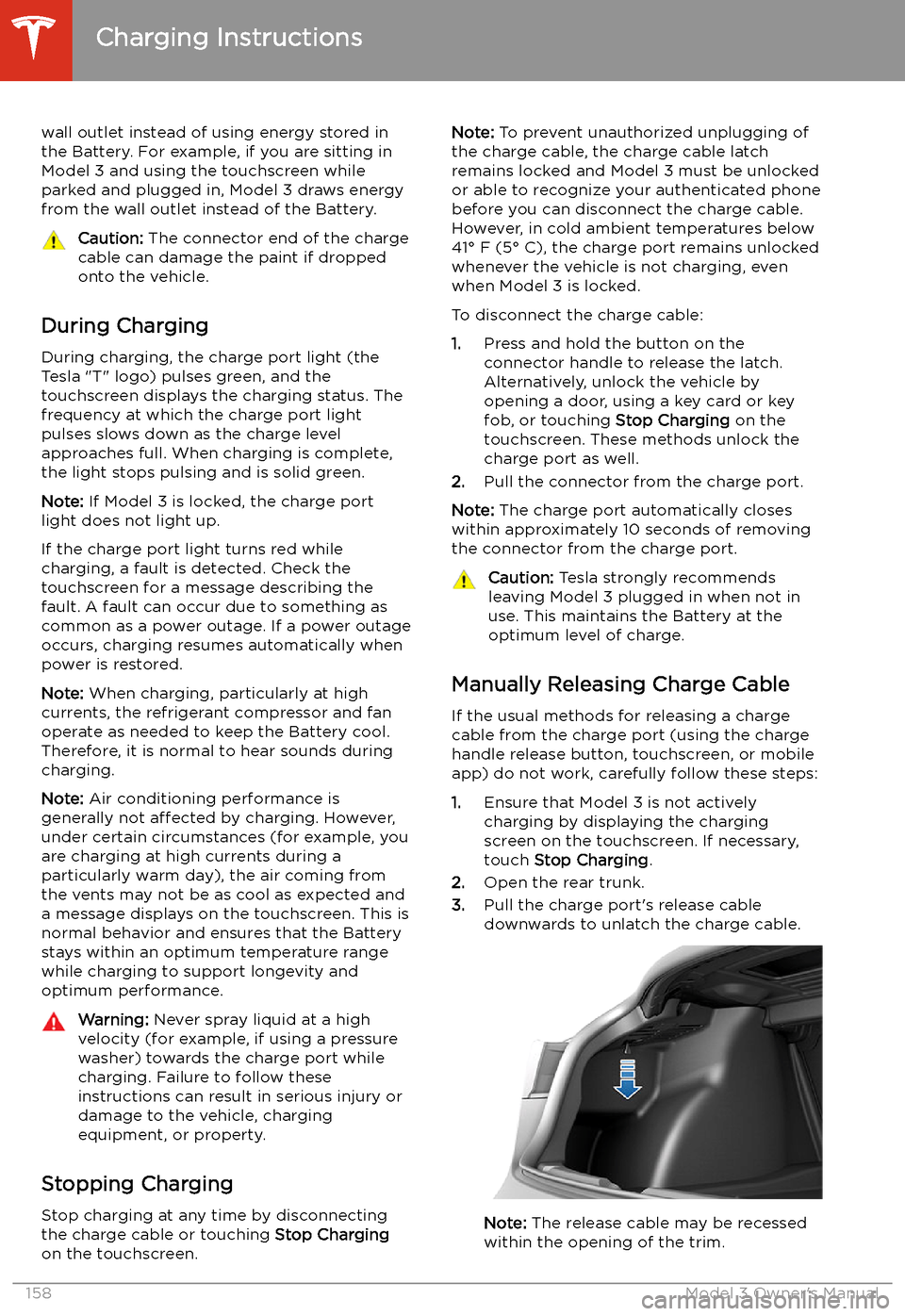
Note: To prevent unauthorized unplugging of
the charge cable, the charge cable latch remains locked and Model 3 must be unlockedor able to recognize your authenticated phone
before you can disconnect the charge cable.
However, in cold ambient temperatures below
41
Page 179 of 220
Jacking and Lifting
Jacking Procedure
Follow the steps below to lift Model 3. Ensure
that any non-Tesla repair facility is aware of
these lifting points.
1. Position Model 3 centrally between the lift
posts.
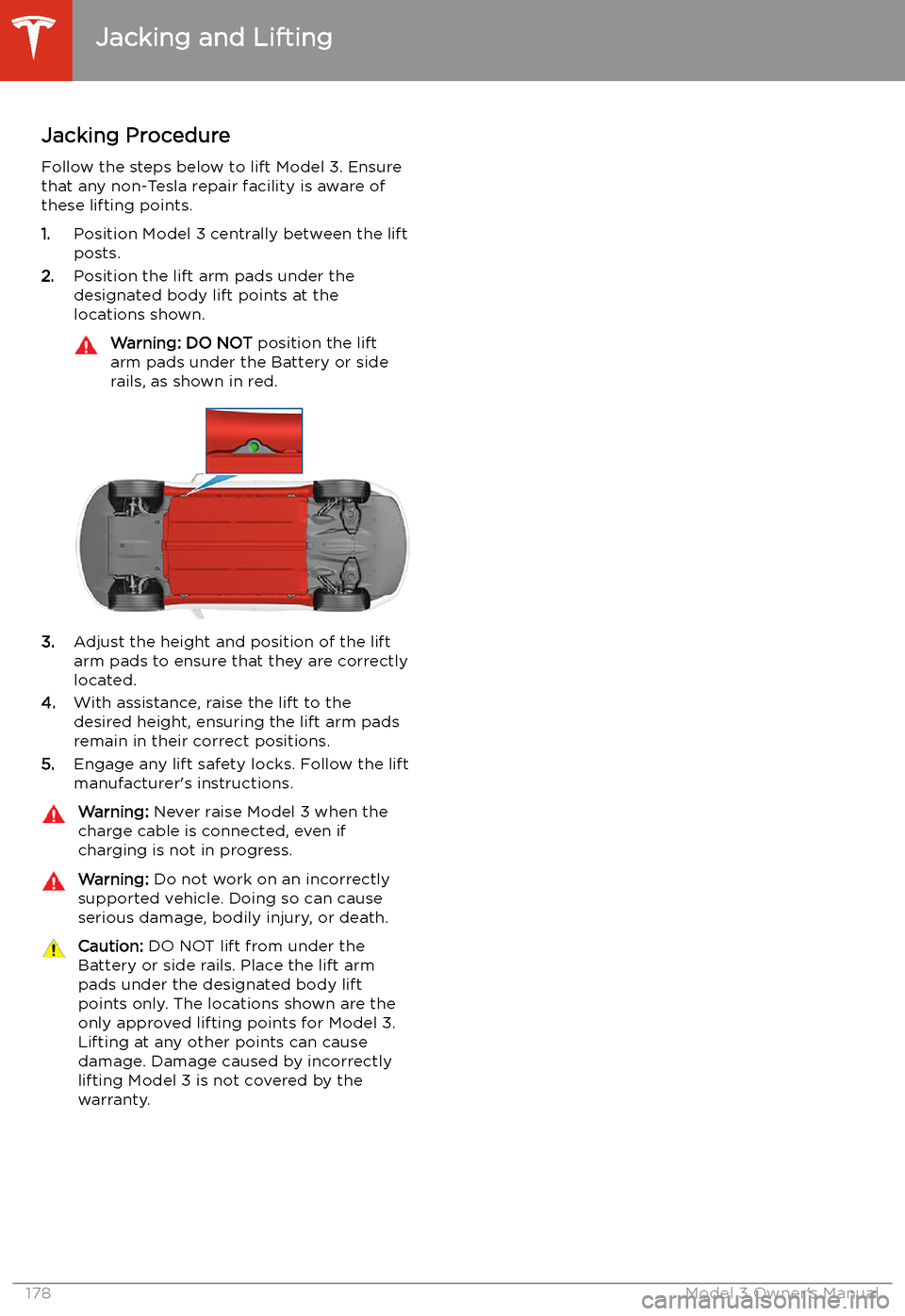
2. Position the lift arm pads under the
designated body lift points at the
locations shown.
Warning: DO NOT position the lift
arm pads under the Battery or side
rails, as shown in red.
3. Adjust the height and position of the lift
arm pads to ensure that they are correctly
located.
4. With assistance, raise the lift to the
desired height, ensuring the lift arm pads remain in their correct positions.
5. Engage any lift safety locks. Follow the lift
manufacturer
Page 189 of 220
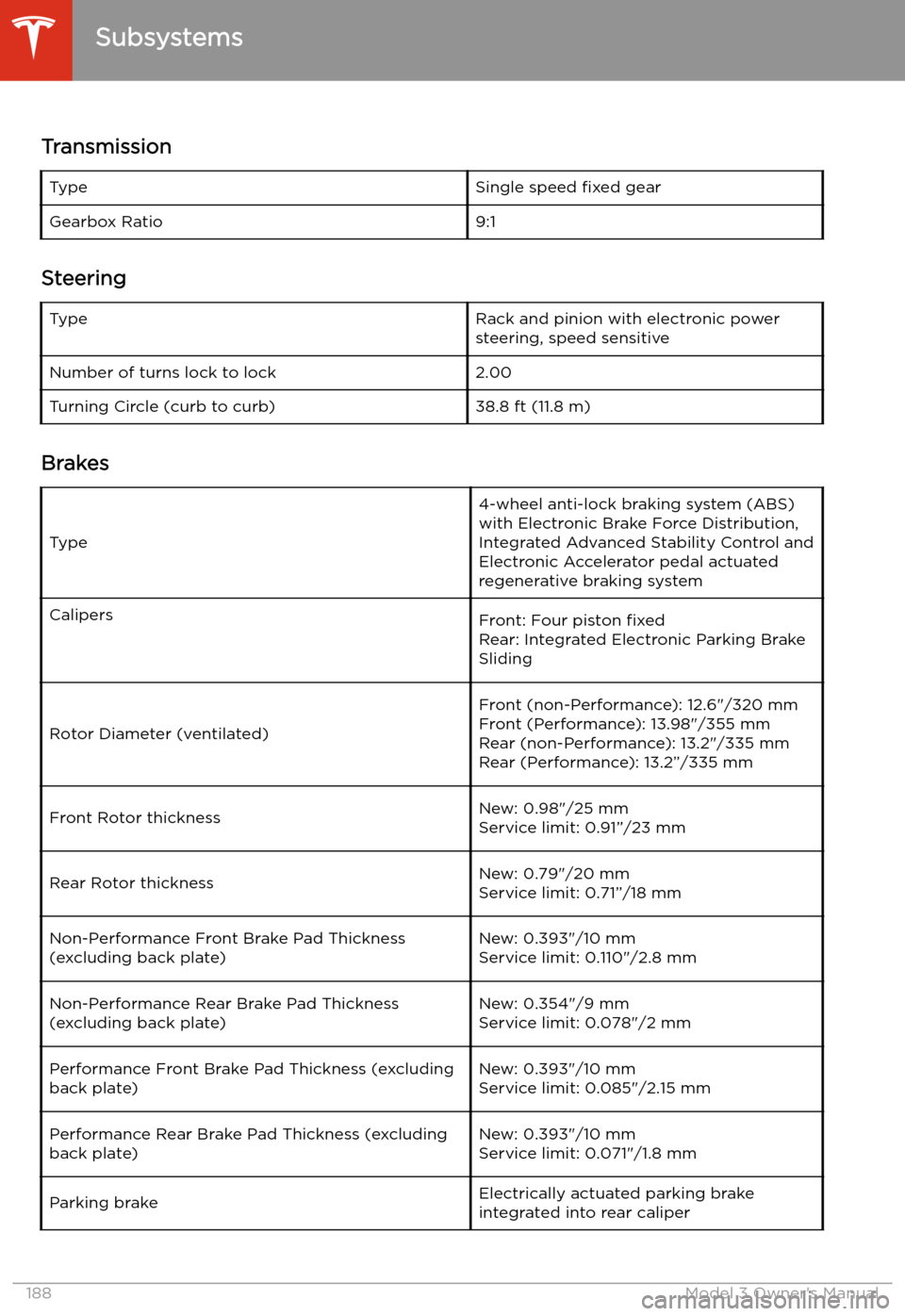
Subsystems
Transmission
TypeSingle speed fixed gearGearbox Ratio9:1
Steering
TypeRack and pinion with electronic power
steering, speed sensitiveNumber of turns lock to lock2.00Turning Circle (curb to curb)38.8 ft (11.8 m)
Brakes
Type
4-wheel anti-lock braking system (ABS)
with Electronic Brake Force Distribution,
Integrated Advanced Stability Control and
Electronic Accelerator pedal actuated
regenerative braking systemCalipersFront: Four piston fixed
Rear: Integrated Electronic Parking Brake
Sliding
Rotor Diameter (ventilated)
Front (non-Performance): 12.6"/320 mm
Front (Performance): 13.98"/355 mm
Rear (non-Performance): 13.2"/335 mm Rear (Performance): 13.2”/335 mmFront Rotor thicknessNew: 0.98"/25 mm
Service limit: 0.91”/23 mmRear Rotor thicknessNew: 0.79"/20 mm
Service limit: 0.71”/18 mmNon-Performance Front Brake Pad Thickness
(excluding back plate)New: 0.393"/10 mm
Service limit: 0.110"/2.8 mmNon-Performance Rear Brake Pad Thickness
(excluding back plate)New: 0.354"/9 mm
Service limit: 0.078"/2 mmPerformance Front Brake Pad Thickness (excluding
back plate)New: 0.393"/10 mm
Service limit: 0.085"/2.15 mmPerformance Rear Brake Pad Thickness (excluding
back plate)New: 0.393"/10 mm
Service limit: 0.071"/1.8 mmParking brakeElectrically actuated parking brake
integrated into rear caliper
Subsystems
188Model 3 Owner
Page 214 of 220
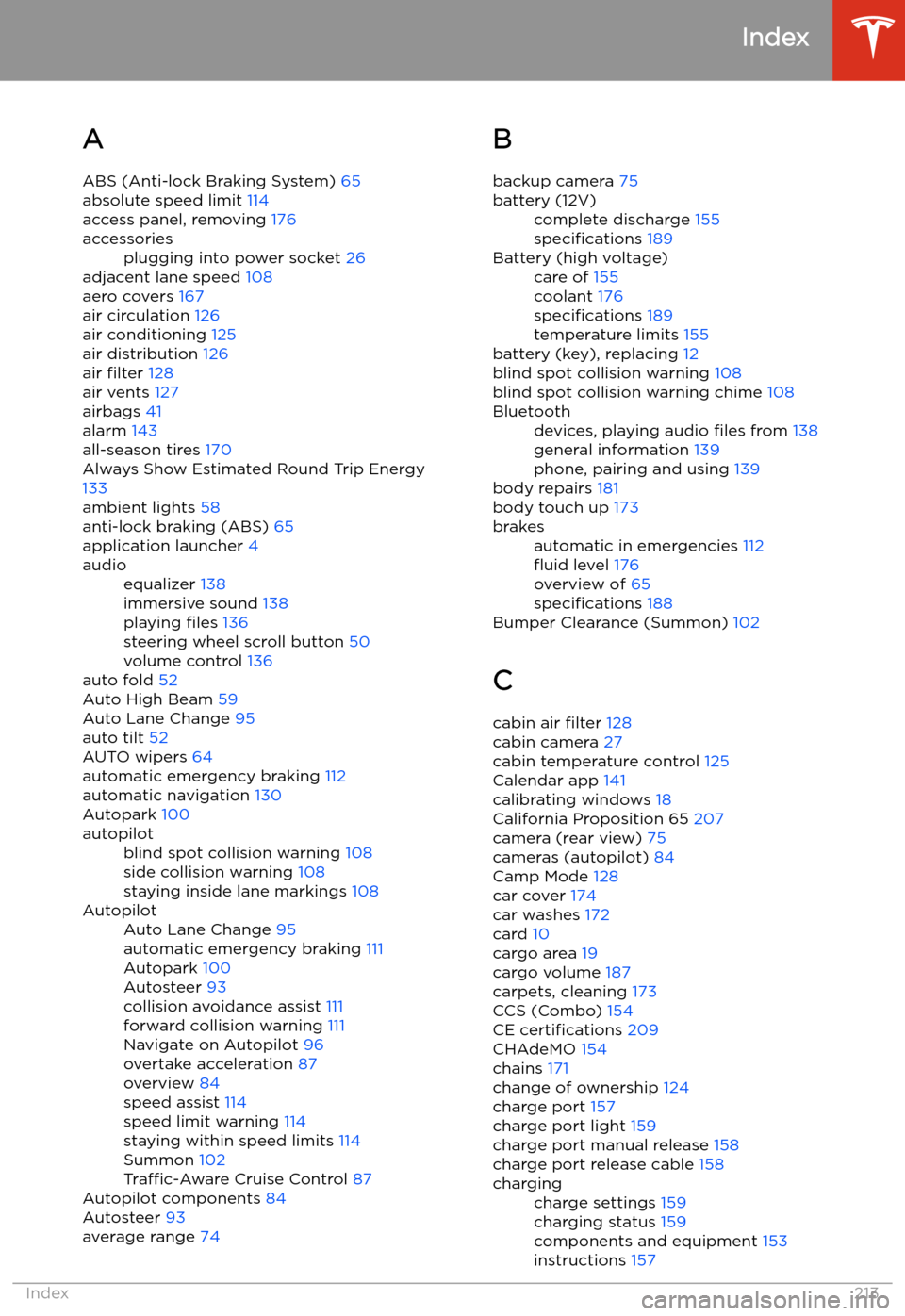
Index
A ABS (Anti-lock Braking System) 65
absolute speed limit 114
access panel, removing 176
accessoriesplugging into power socket 26
adjacent lane speed 108
aero covers 167
air circulation 126
air conditioning 125
air distribution 126
air filter 128
air vents 127
airbags 41
alarm 143
all-season tires 170
Always Show Estimated Round Trip Energy
133
ambient lights 58
anti-lock braking (ABS) 65
application launcher 4
audioequalizer 138
immersive sound 138
playing files 136
steering wheel scroll button 50
volume control 136
auto fold
52
Auto High Beam 59
Auto Lane Change 95
auto tilt 52
AUTO wipers 64
automatic emergency braking 112
automatic navigation 130
Autopark 100
autopilotblind spot collision warning 108
side collision warning 108
staying inside lane markings 108AutopilotAuto Lane Change 95
automatic emergency braking 111
Autopark 100
Autosteer 93
collision avoidance assist 111
forward collision warning 111
Navigate on Autopilot 96
overtake acceleration 87
overview 84
speed assist 114
speed limit warning 114
staying within speed limits 114
Summon 102
Traffic-Aware Cruise Control 87
Autopilot components 84
Autosteer 93
average range 74
B
backup camera 75battery (12V)complete discharge 155
specifications 189Battery (high voltage)care of 155
coolant 176
specifications 189
temperature limits 155
battery (key), replacing 12
blind spot collision warning 108
blind spot collision warning chime 108
Bluetoothdevices, playing audio files from 138
general information 139
phone, pairing and using 139
body repairs 181
body touch up 173
brakesautomatic in emergencies 112
Page 215 of 220
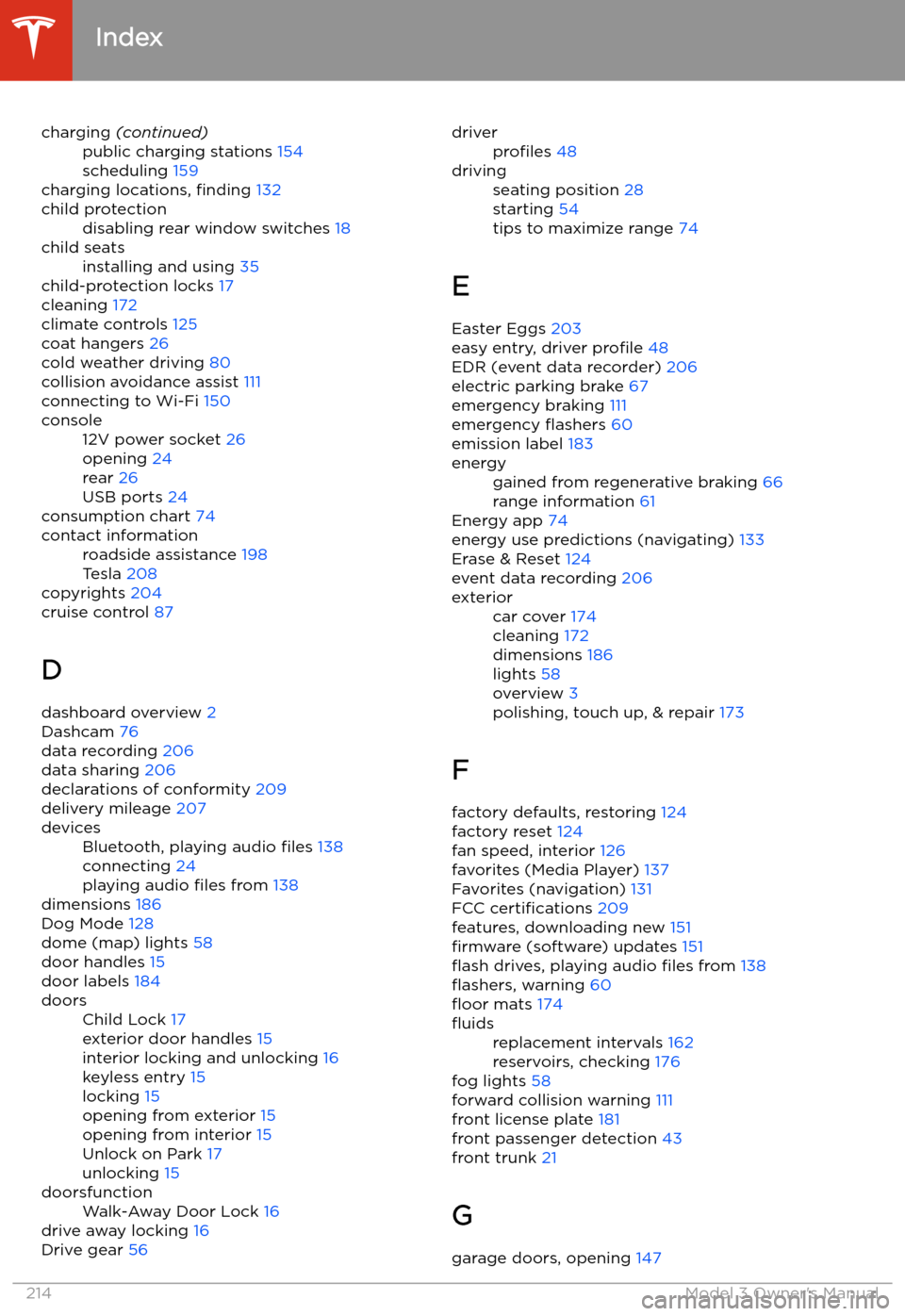
charging (continued)public charging stations 154
scheduling 159
charging locations, finding 132
child protectiondisabling rear window switches 18child seatsinstalling and using 35
child-protection locks 17
cleaning 172
climate controls 125
coat hangers 26
cold weather driving 80
collision avoidance assist 111
connecting to Wi-Fi 150
console12V power socket 26
opening 24
rear 26
USB ports 24
consumption chart 74
contact informationroadside assistance 198
Tesla 208
copyrights 204
cruise control 87
D dashboard overview 2
Dashcam 76
data recording 206
data sharing 206
declarations of conformity 209
delivery mileage 207
devicesBluetooth, playing audio files 138
connecting 24
playing audio files from 138
dimensions 186
Dog Mode 128
dome (map) lights 58
door handles 15
door labels 184
doorsChild Lock 17
exterior door handles 15
interior locking and unlocking 16
keyless entry 15
locking 15
opening from exterior 15
opening from interior 15
Unlock on Park 17
unlocking 15doorsfunctionWalk-Away Door Lock 16
drive away locking 16
Drive gear 56
driverprofiles 48drivingseating position 28
starting 54
tips to maximize range 74
E
Easter Eggs 203
easy entry, driver profile 48
EDR (event data recorder) 206
electric parking brake 67
emergency braking 111
emergency
Page 219 of 220
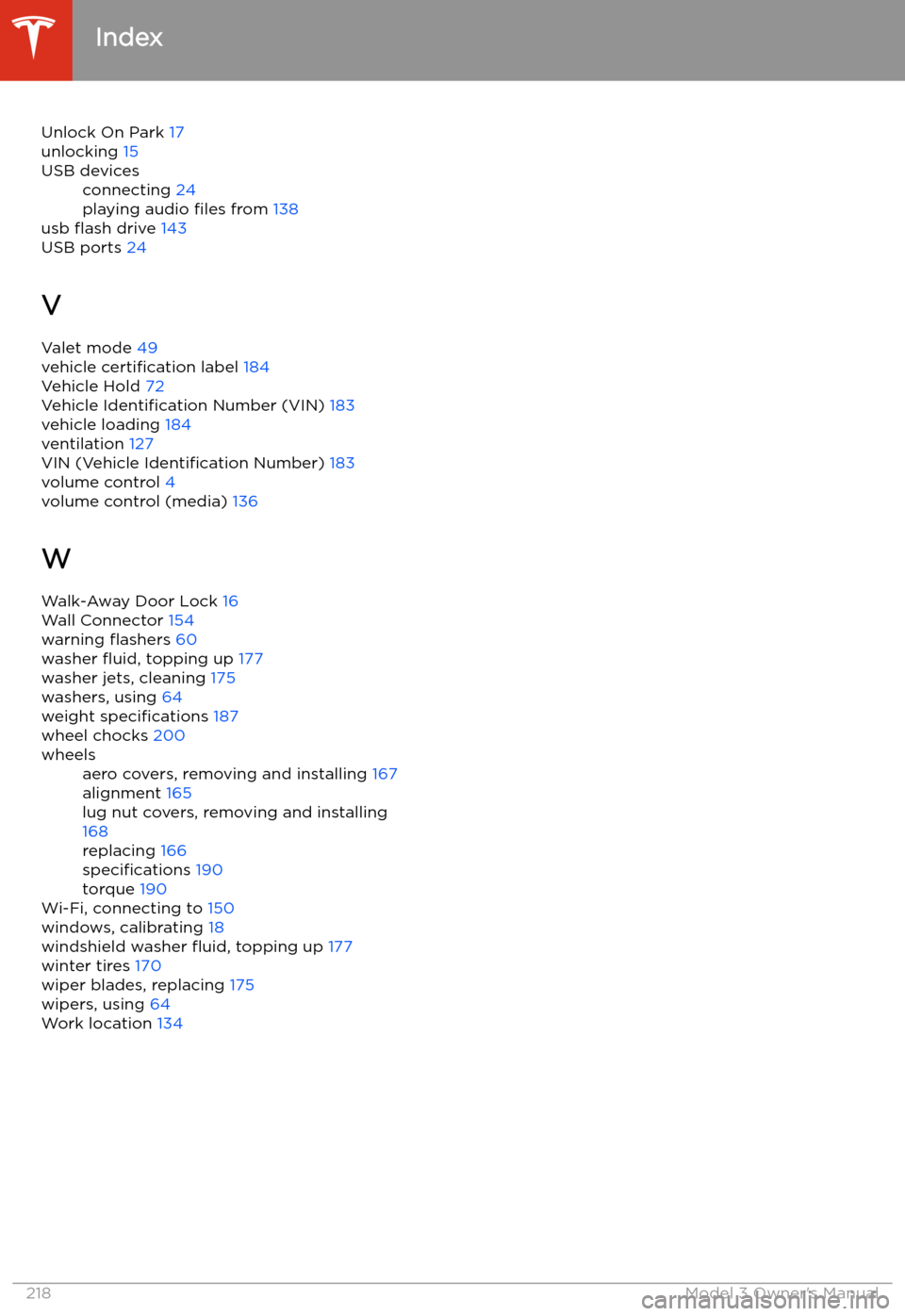
Unlock On Park 17
unlocking 15USB devicesconnecting 24
playing audio files from 138
usb