instrument panel TESLA MODEL S 2017 Owner's Guide
[x] Cancel search | Manufacturer: TESLA, Model Year: 2017, Model line: MODEL S, Model: TESLA MODEL S 2017Pages: 188, PDF Size: 5.46 MB
Page 72 of 188

Canceling and Resuming
To manually cancel
Traffic-Aware Cruise
Control, briefly push the cruise control lever
away from you or press the brake pedal. The
speedometer icon on the instrument panel
turns gray to indicate that cruise control is not
actively controlling your speed.
To resume cruising at the previously set speed,briefly pull the cruise control lever toward you.
Note: Depending on date of manufacture,
some Model S vehicles have a button on the end of the cruise control lever. Pressing this
button when cruise control is active cancels
cruise control.
Note: When
Traffic-Aware Cruise Control
cancels, Model S does not coast. Instead,
regenerative braking slows down Model S in
the same way as when you move your foot
offthe accelerator when driving without cruise control (see Regenerative Braking on page
55).
Warning: Traffic-Aware Cruise Control
cancels, or may not be available, in the
following situations:
Page 74 of 188
Note: Autosteer is a BETA feature.
If Model S is equipped with Driver Assistance
components (see About Driver Assistance on
page 65), and you have purchased the optional Autopilot Tech Package, you can use
Autosteer to manage steering and speed under certain circumstances. Autosteer builds
upon
Traffic-Aware Cruise Control, intelligently
keeping Model S in its driving lane when
cruising at a set speed. Using the forward
looking camera, the radar sensor, and the ultrasonic sensors, Autosteer detects lanemarkings and the presence of vehicles and
objects, steering Model S based on the lane
markings and the vehicle directly in front of
you.
Warning: Autosteer is a hands-on feature.
You must keep your hands on the steering
wheel at all times.Warning: Autosteer is intended for use
only on highways and limited-access
roads with a fully attentive driver. When using Autosteer, hold the steering wheel
and be mindful of road conditions and
surrounding
traffic. Do not use Autosteer
on city streets, in construction zones, or
in areas where bicyclists or pedestrians
may be present. Never depend on
Autosteer to determine an appropriate driving path. Always be prepared to take
immediate action. Failure to follow these instructions could cause serious property
damage, injury or death.
Operating Autosteer
Before you can operate Autosteer, you must
enable it by touching Controls > Settings >
Driver Assistance > Autosteer > Enable.
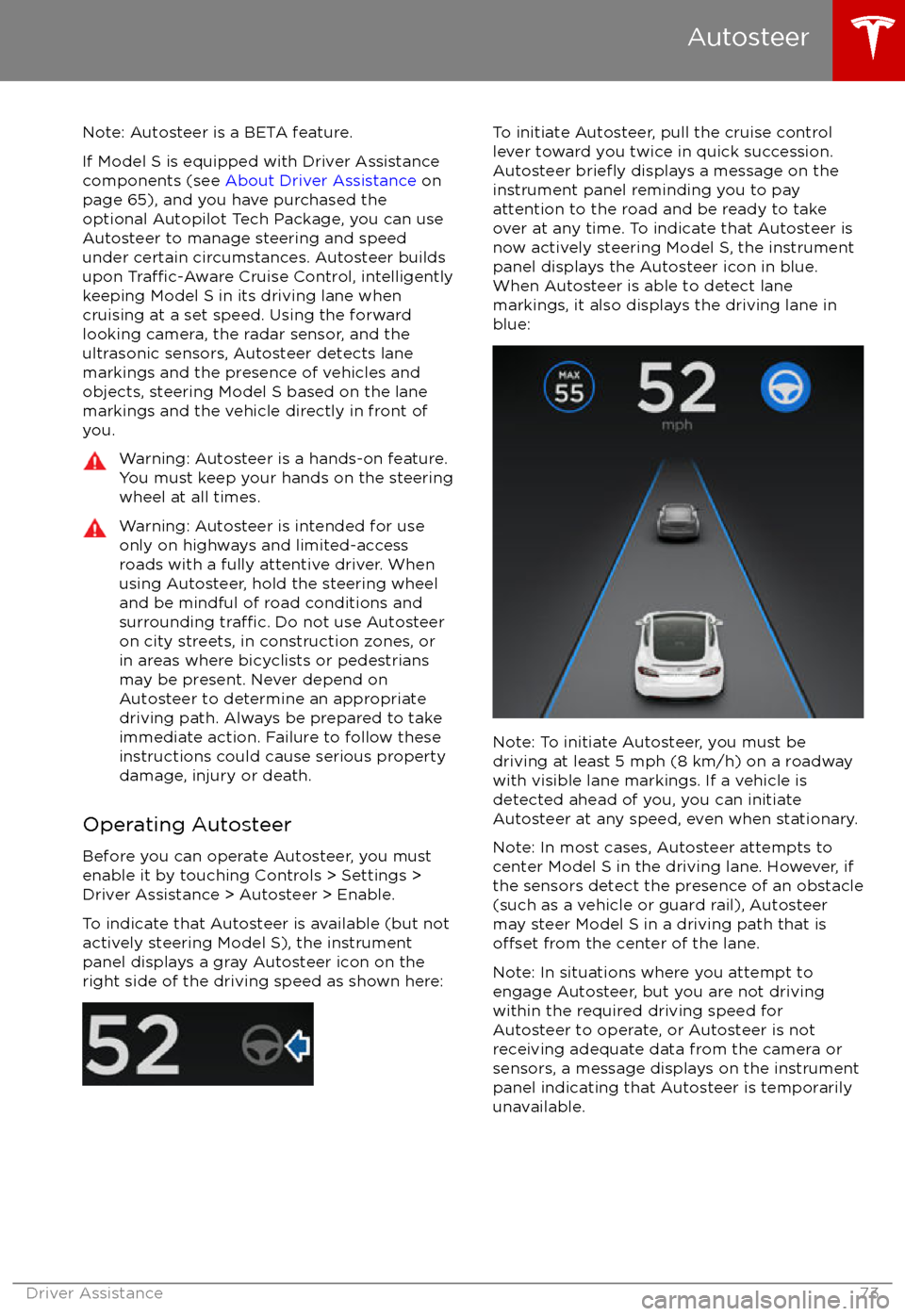
To indicate that Autosteer is available (but not actively steering Model S), the instrument
panel displays a gray Autosteer icon on the right side of the driving speed as shown here:
To initiate Autosteer, pull the cruise control
lever toward you twice in quick succession. Autosteer
briefly displays a message on the
instrument panel reminding you to pay
attention to the road and be ready to take
over at any time. To indicate that Autosteer is now actively steering Model S, the instrument
panel displays the Autosteer icon in blue.
When Autosteer is able to detect lane
markings, it also displays the driving lane in blue:
Note: To initiate Autosteer, you must be
driving at least 5 mph (8 km/h) on a roadway
with visible lane markings. If a vehicle is
detected ahead of you, you can initiate
Autosteer at any speed, even when stationary.
Note: In most cases, Autosteer attempts to
center Model S in the driving lane. However, if
the sensors detect the presence of an obstacle (such as a vehicle or guard rail), Autosteer
may steer Model S in a driving path that is
offset from the center of the lane.
Note: In situations where you attempt to
engage Autosteer, but you are not driving
within the required driving speed for Autosteer to operate, or Autosteer is not
receiving adequate data from the camera or
sensors, a message displays on the instrument
panel indicating that Autosteer is temporarily
unavailable.
Autosteer
Driver Assistance73
Page 75 of 188
Restricted Speed
Autosteer is intended for use on freeways and
highways where access is limited by entry and
exit ramps. When using Autosteer on residential roads, a road without a centerdivider, or a road where access is not limited,
Autosteer limits the driving speed. The
maximum driving speed is calculated based
on the detected speed limit plus 5 mph (10 km/h). In situations where the speed limit
cannot be detected, speed is limited to 45 mph (70 km/h). When Autosteer is
engaged in these situations, it reduces your
driving speed and your set speed to be within
these limits. You can manually accelerate to exceed the limited speed, but when you
release the accelerator pedal, Autosteer slows
Model S to the limited speed. When you leave
the road, or disengage Autosteer by using the steering wheel, you can increase your set
speed again, if desired.
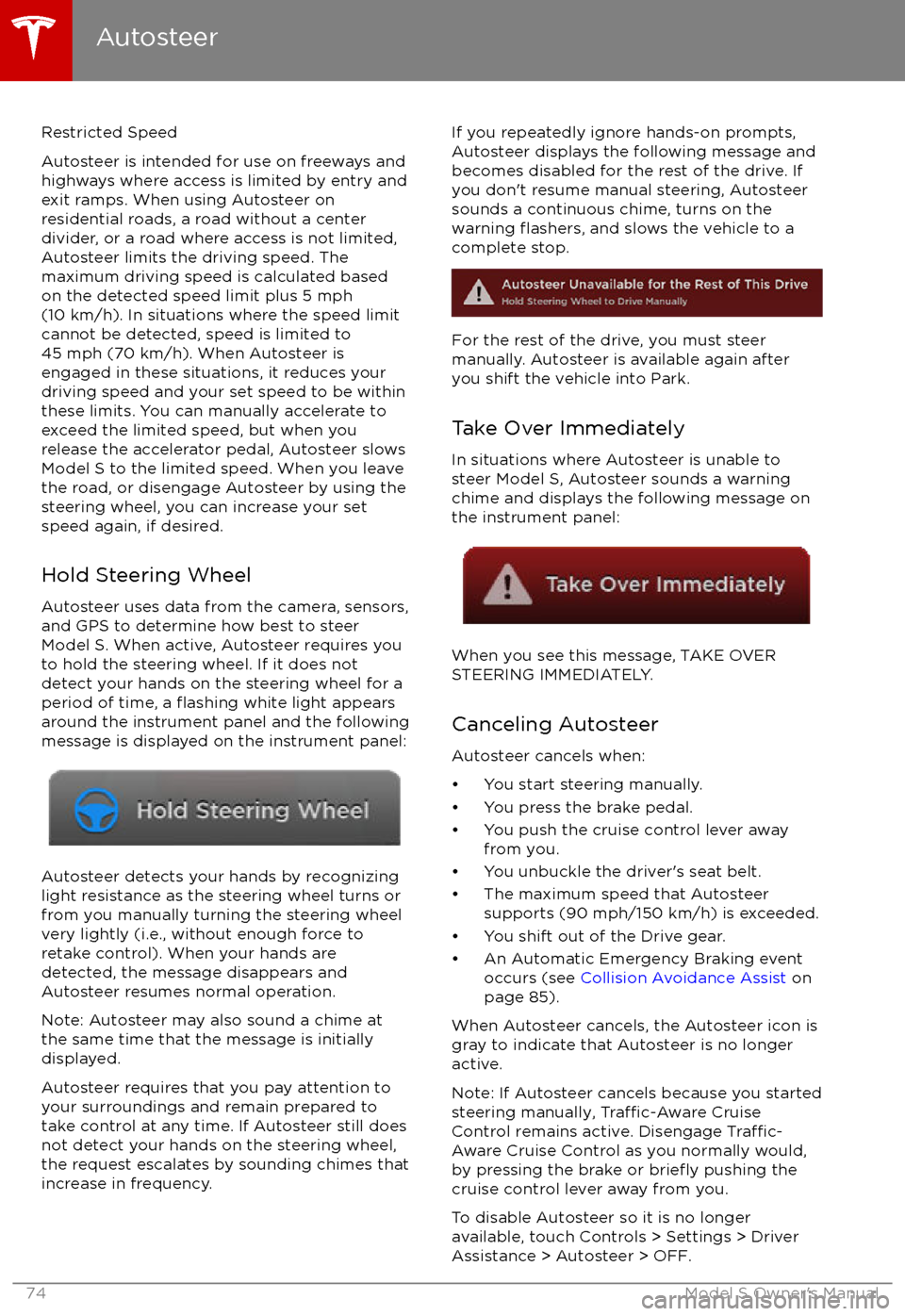
Hold Steering Wheel Autosteer uses data from the camera, sensors,
and GPS to determine how best to steer
Model S. When active, Autosteer requires you
to hold the steering wheel. If it does not detect your hands on the steering wheel for a
period of time, a
flashing white light appears
around the instrument panel and the following
message is displayed on the instrument panel:
Autosteer detects your hands by recognizing
light resistance as the steering wheel turns or
from you manually turning the steering wheel very lightly (i.e., without enough force toretake control). When your hands are
detected, the message disappears and Autosteer resumes normal operation.
Note: Autosteer may also sound a chime at
the same time that the message is initially
displayed.
Autosteer requires that you pay attention to your surroundings and remain prepared totake control at any time. If Autosteer still doesnot detect your hands on the steering wheel,the request escalates by sounding chimes that
increase in frequency.
If you repeatedly ignore hands-on prompts,
Autosteer displays the following message and
becomes disabled for the rest of the drive. If
you don
Page 78 of 188
Warning: If Auto Lane Change cannotdetect the outside of the target lane
midway through the lane change, both
Auto Lane Change and Autosteer will cancel. The instrument panel displays a
message instructing you to take over the
steering wheel immediately.
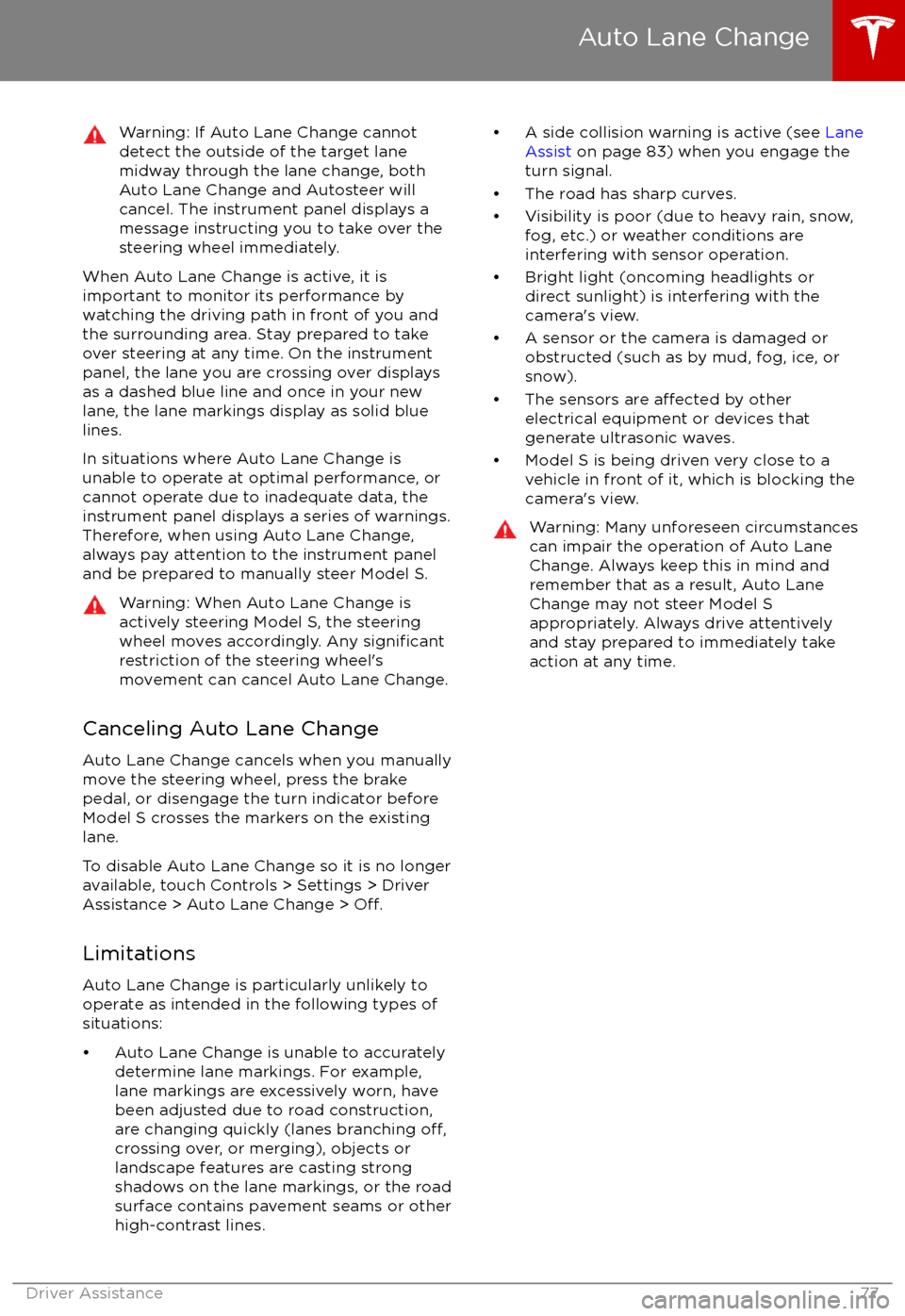
When Auto Lane Change is active, it is
important to monitor its performance by
watching the driving path in front of you and
the surrounding area. Stay prepared to take
over steering at any time. On the instrument
panel, the lane you are crossing over displays as a dashed blue line and once in your new
lane, the lane markings display as solid blue
lines.
In situations where Auto Lane Change is
unable to operate at optimal performance, or
cannot operate due to inadequate data, the
instrument panel displays a series of warnings.
Therefore, when using Auto Lane Change,
always pay attention to the instrument panel
and be prepared to manually steer Model S.
Warning: When Auto Lane Change is
actively steering Model S, the steering
wheel moves accordingly. Any
significantrestriction of the steering wheel
Page 83 of 188
1. With Model S in Park, stand within 10 feet (3 meters) and press and hold the top center buttonon the key (Lock/Unlock All button) until the hazard lights blink continuously.
Note: The hazard lights
flash once as Model S locks, then within five seconds, Model S powers
on and the hazard lights flash continuously. Do not proceed to the next step until the hazard
lights are flashing. If, after five seconds, the hazard lights are not flashing, release the button
on the key, move closer to Model S, and try again. If Summon receives no further input within ten seconds, Summon cancels.
2. Press the Front Trunk (Frunk) button on the key to move Model S forward into the parking space, or press the Rear Trunk button to reverse Model S into the parking space.
Initiate Automatic Parking Before Exiting the Vehicle (U.S. and Mexico Only)
If Require Continuous Press is set to NO, you can initiate the parking maneuver from inside
Model S before exiting:
1. While sitting in Model S with the vehicle powered on, double press the Park gear. The instrument panel displays a message indicating that Summon is engaged, and the
touchscreen displays a popup window.
2. On the touchscreen, choose the direction of travel.
3. Exit Model S and close the door.
Note: All doors and trunks must be closed.
Note: To cancel the parking maneuver before exiting the vehicle, touch Cancel on the popup window.
Summon now drives Model S into the parking space according to the direction you
specified on
the touchscreen.
Stopping or Canceling Summon
You can stop Model S at any time while Summon is active by pressing any button on the key or using the mobile app. Summon also cancels when:
Page 84 of 188
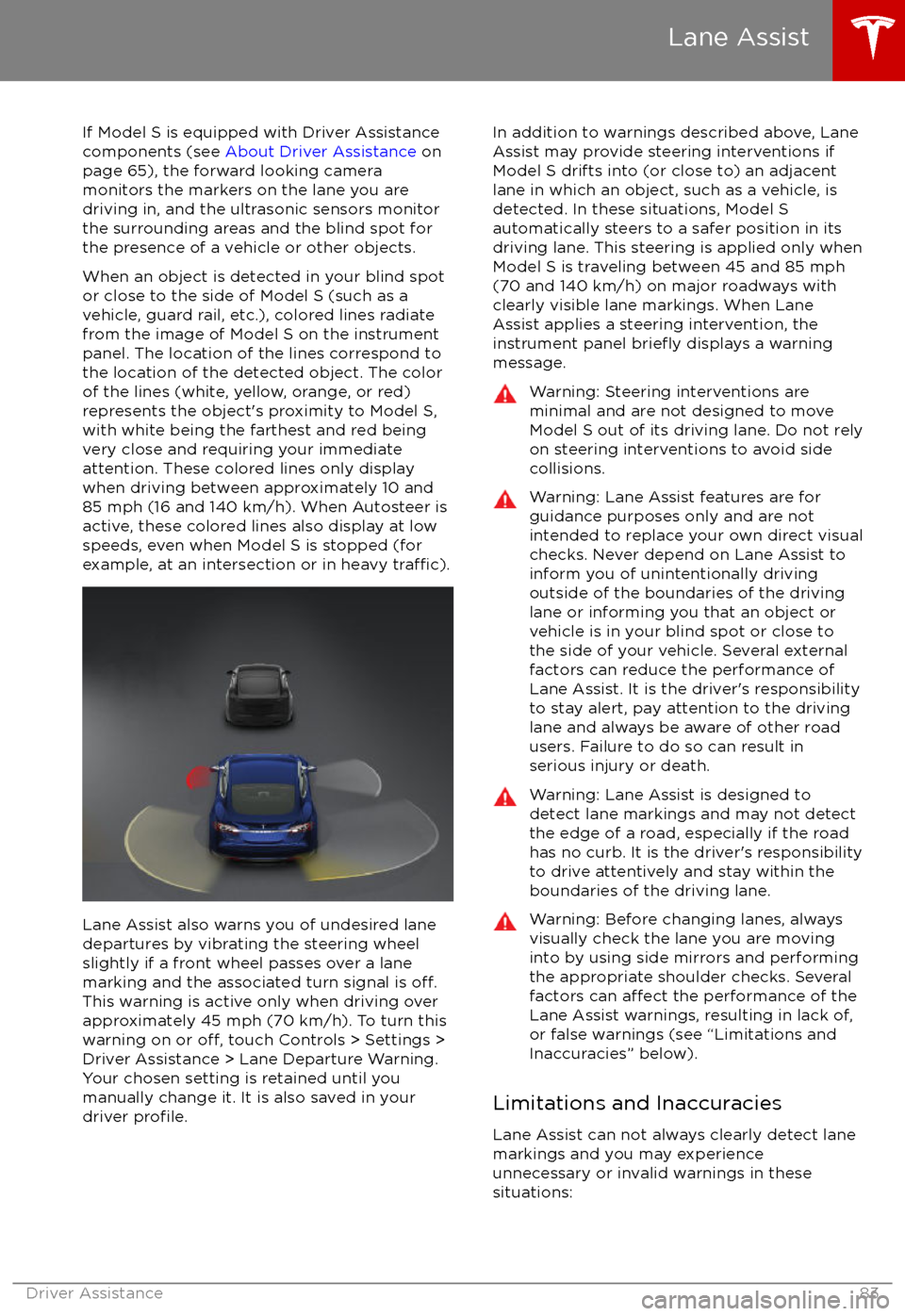
If Model S is equipped with Driver Assistance
components (see About Driver Assistance on
page 65), the forward looking camera
monitors the markers on the lane you are
driving in, and the ultrasonic sensors monitor
the surrounding areas and the blind spot for
the presence of a vehicle or other objects.
When an object is detected in your blind spot
or close to the side of Model S (such as a vehicle, guard rail, etc.), colored lines radiate
from the image of Model S on the instrument
panel. The location of the lines correspond to
the location of the detected object. The color
of the lines (white, yellow, orange, or red)
represents the object
Page 87 of 188

alert and always pay attention to the area
in front of Model S so you can anticipate whether any action is required.Warning: Forward Collision Warning does
not operate when Model S is traveling less than 4 mph (7 km/h).Warning: Forward Collision Warning does
not provide a warning when the driver is already applying the brake.
Automatic Emergency Braking
The forward looking camera and the radar
sensor are designed to determine the distance
from any object (vehicle, motorcycle, bicycle,
or pedestrian) traveling in front of Model S.
When a frontal collision is considered
unavoidable, Automatic Emergency Braking is designed to apply the brakes to reduce the
severity of the impact, even if you are already
applying the brakes.
When Automatic Emergency Braking applies
the brakes, the instrument panel displays a visual warning and you
Page 89 of 188

How Speed Assist Works
If Model S is equipped with Autopilot
components (see About Driver Assistance on
page 65), the forward looking camera detects
speed limit signs. The signs are then analyzed
and compared against GPS data to determine
the speed limit at your current driving
location. For routes where no signs are
present, speed limits are determined using
GPS data (if available). Instead of determining
the speed limit based on signs and GPS data,
you can also manually enter an arbitrary speed limit.
When Speed Assist is turned on (described
below), the instrument panel displays a speed
limit sign. Warnings (described below) take
effect when you exceed this limit.
In situations where Speed Assist is unable to
detect a speed (for example, speed limit signs
and GPS data are not available at the current
location), or if Speed Assist is uncertain that
an acquired speed limit is accurate (for
example, although a speed limit sign was
initially detected, some time has passed
before a subsequent sign has been detected), the instrument panel may not display a speed
limit sign and warnings do not take
effect.
If you set the speed limit warning to Display
(see Controlling Speed Assist on page 88),
the speed limit sign on the instrumental panel
increases in size whenever you exceed the
speed limit.
If you set the speed limit warning to Chime (see Controlling Speed Assist on page 88)
and exceed the speed limit, you also hear a warning chime.
Note: Speed limit warnings go away after 10 seconds, or when Model S slows down below
the
specified limit.
Warning: Do not rely on Speed Assist to
determine the appropriate speed limit. Always drive at a safe speed based on
traffic and road conditions.
Controlling Speed Assist
To turn Speed Assist on or
off, and control
how it works, touch Controls > Settings >
Driver Assistance > Speed Limit Warning, then
choose one of these options:
Page 113 of 188
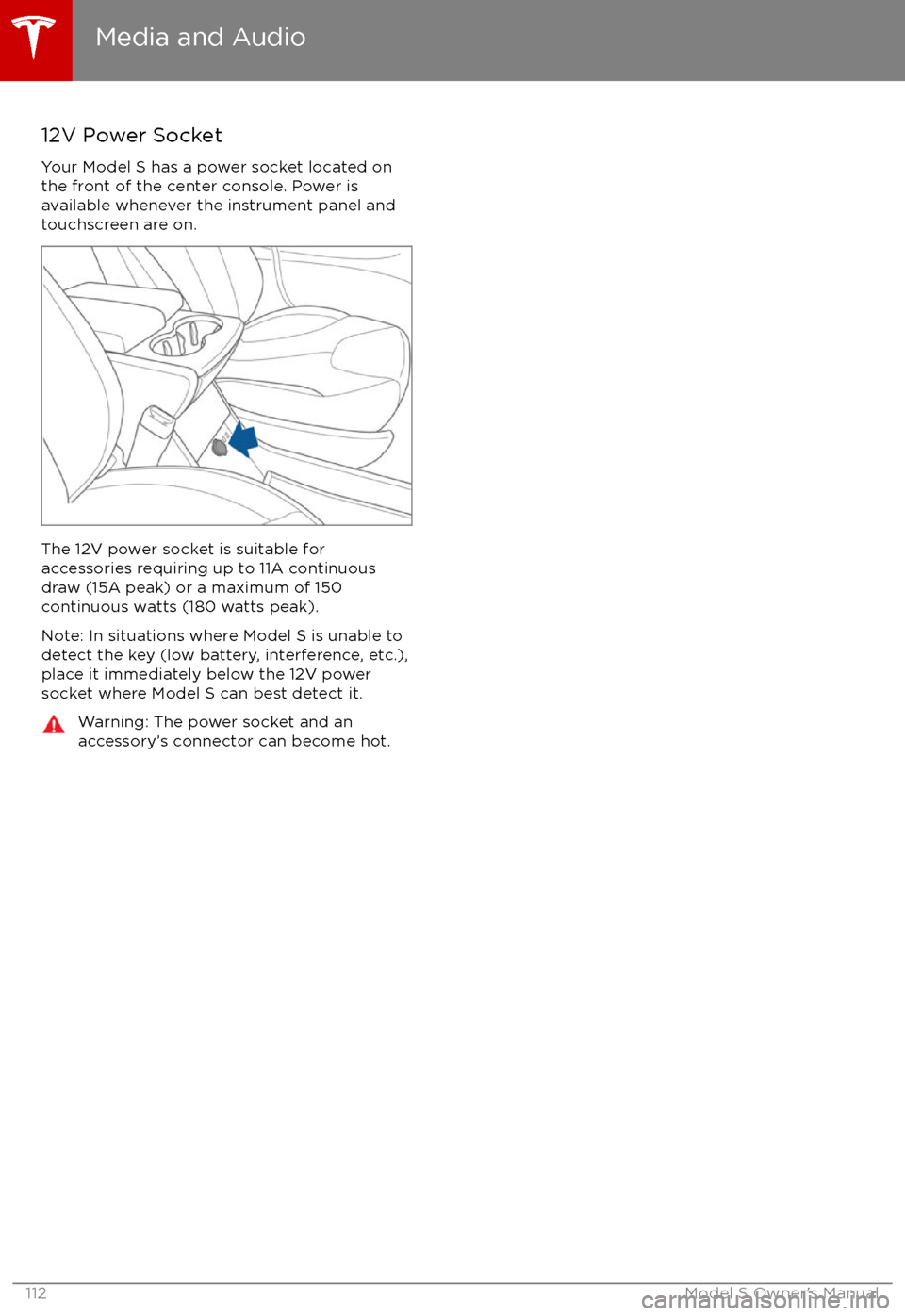
12V Power SocketYour Model S has a power socket located onthe front of the center console. Power is
available whenever the instrument panel and
touchscreen are on.
The 12V power socket is suitable for
accessories requiring up to 11A continuous
draw (15A peak) or a maximum of 150
continuous watts (180 watts peak).
Note: In situations where Model S is unable to detect the key (low battery, interference, etc.),
place it immediately below the 12V power
socket where Model S can best detect it.
Warning: The power socket and an
accessory
Page 134 of 188

During ChargingDuring charging, the charge port pulses green and charging status displays on the instrument
panel. The frequency at which the charge port