battery TESLA MODEL S 2022 Owner´s Manual
[x] Cancel search | Manufacturer: TESLA, Model Year: 2022, Model line: MODEL S, Model: TESLA MODEL S 2022Pages: 281, PDF Size: 7.63 MB
Page 137 of 281
Overview of Climate Controls
Climate controls are available at the bottom of the touchscreen. To turn the climate control
system on, touch the temperature icon. To turn it off, touch and hold the temperature or touch
the temperature icon to display the climate control popup, then touch the power button.
By default, climate control is set to Auto, which maintains optimum comfort in all but the most
severe weather conditions. When you adjust the cabin temperature in the Auto setting, the
system automatically adjusts the heating, air conditioning, air distribution, and fan speed to maintain the cabin at your selected temperature. Touch and hold the temperature to customize
settings in the climate control popup window. You can revert back to Auto at any time by
touching
Auto.
NOTE: The climate control system is powered by the high voltage Battery. Therefore, prolonged
use decreases driving range.
WARNING: To avoid burns resulting from prolonged use, individuals who have peripheral neuropathy, or whose capacity to feel pain is limited because of diabetes, age, neurological injury, or some other condition, should exercise caution when using the climate control system and seat heaters.
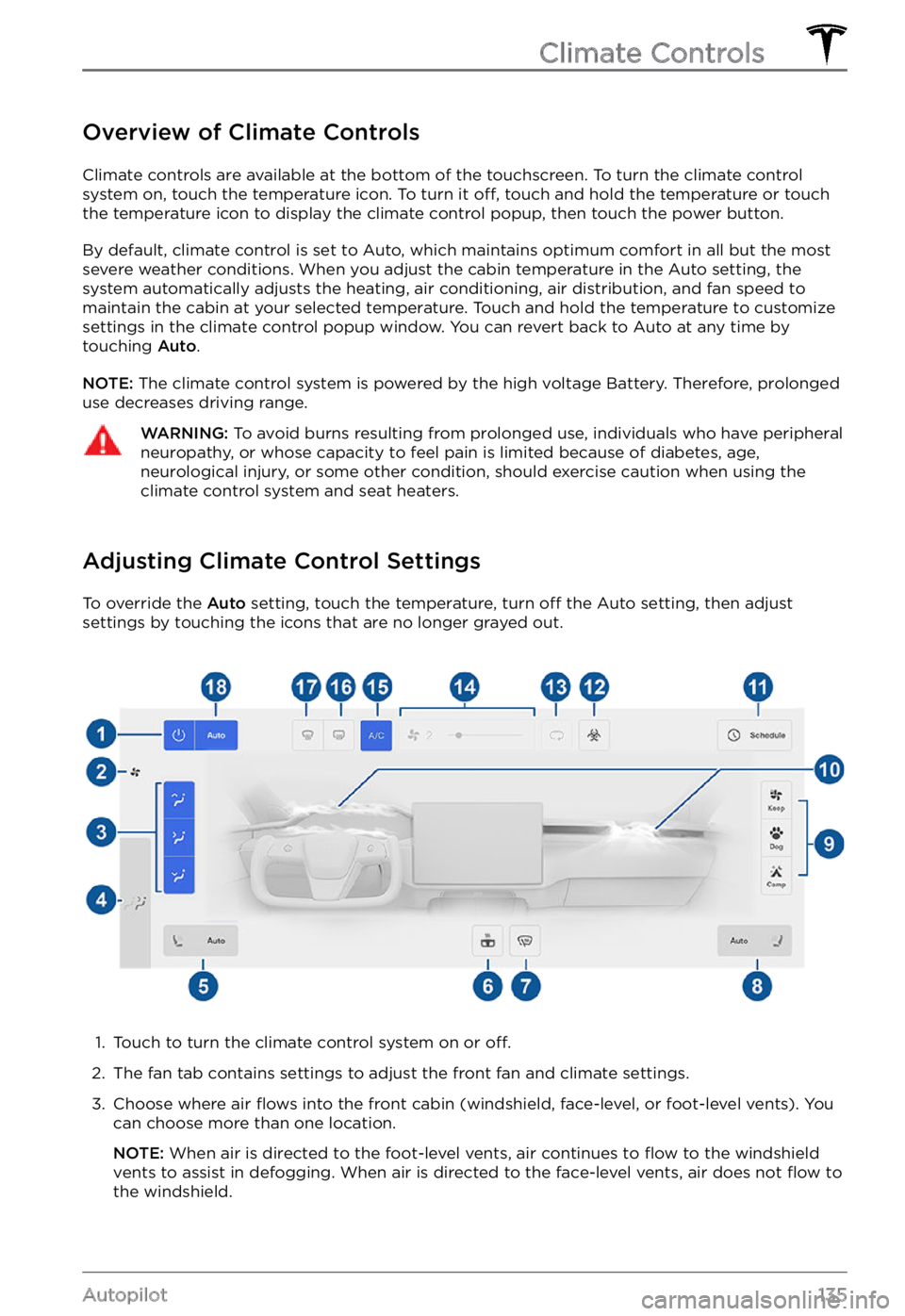
Adjusting Climate Control Settings
To override the Auto setting, touch the temperature, turn off the Auto setting, then adjust
settings by touching the icons that are no longer grayed out.
1.
Touch to turn the climate control system on or off.
2.
The fan tab contains settings to adjust the front fan and climate settings.
3.
Choose where air flows into the front cabin (windshield, face-level, or foot-level vents). You
can choose more than one location.
NOTE: When air is directed to the foot-level vents, air continues to flow to the windshield
vents to assist in defogging. When air is directed to the face-level vents, air does not flow to
the windshield.
Climate Controls
135Autopilot
Page 142 of 281

NOTE: Software updates cannot be
performed when Keep Climate On, Dog Mode,
or Camp Mode is active.
NOTE: The intrusion sensor (if equipped)
automatically disables when Keep Climate On,
Dog Mode, or Camp Mode is active. However,
you can override this behavior and keep the intrusion sensor enabled. To do so, touch
Controls > Safety > Tilt/Intrusion after
enabling Keep Climate On, Dog mode, or Camp mode. However, note that keeping the intrusion sensor enabled while Keep Climate On, Dog Mode, and Camp Mode is active can
trigger an alarm event as a result of air
movement inside the cabin.
WARNING: You can adjust the climate control system remotely using the mobile app. However, if you use the mobile app to turn off the climate control system, Keep Climate On, Dog Mode, and Camp Mode stop operating.
WARNING: Avoid using Keep Climate On, Dog Mode, or Camp Mode when the battery charge is low. When leaving a dog or pet in Model S, you must ensure that you have your phone with you and that the Tesla mobile app is running. This allows you to proactively monitor the cabin temperature. To ensure the safety and comfort of anyone or anything in your vehicle, always make sure you have adequate cellular coverage to receive notifications and allow enough time to return to Model S should the climate control system stop operating
Page 149 of 281

To determine if you have enough energy for a
round trip, touch the battery icon at the
bottom of the turn-by-turn direction list to
display an estimated calculation of your
round trip energy usage.
Online Routing
Model S detects real-time traffic conditions
and automatically adjusts the estimated
driving and arrival times. In situations where
traffic conditions will delay your estimated
time of arrival and an alternate route is
available, the navigation system can reroute
you to your destination. You can also specify
the minimum number of minutes that must be
saved before you are rerouted. To turn this feature on or
off, touch the map
Page 163 of 281

About the Security System
If Model S does not detect a key nearby and a
locked door or trunk is opened, an alarm
sounds and the headlights and turn signals
flash. To deactivate the alarm, press any
button on the key.
To manually enable or disable the alarm
system, touch Controls > Safety > Security Alarm. When enabled, Model S activates its
alarm one minute after you exit, the doors
lock, and a recognized key is no longer
detected.
A battery-backed siren sounds in situations where a locked door or trunk is opened and
Model S does not detect a key nearby (if
equipped). If you also want this siren to sound
in situations where
Model S detects motion
inside the cabin, or is moved or tilted (for
example, with a tow truck or jack), turn on the
Tilt/Intrusion setting (touch Controls > Safety > Tilt/Intrusion) (if equipped).
NOTE: If you plan to leave something that
moves inside your locked Model S, remember
to turn off Tilt/Intrusion. If this setting is on,
any motion detected inside Model S activates
the intrusion alarm.
NOTE: If Model S is in Sentry Mode (see Sentry Mode on page 162), you must disable
Sentry Mode before you can disable the
Security alarm or the Tilt/Intrusion alarm.
NOTE: The Security Alarm must be on to
enable Tilt/Intrusion.
NOTE: The Intrusion Sensor automatically
disables in situations where the climate
control system is operating when you have
left your vehicle (see
Keep Climate On, Dog Mode, and Camp Mode on page 139). To
override, you can manually turn the Intrusion
Sensor on again after choosing Keep Climate On, Dog, or Camp Mode (touch
Controls > Safety > Tilt/Intrusion).
If your Model S is equipped with the
Enhanced Anti-Theft upgrade, the horn
sounds in situations where a locked door or trunk is opened and
Model S does not detect
a key nearby. If the Tilt/Intrusion setting is on,
the horn also sounds if Model S detects
motion inside the cabin, or if the vehicle is moved or tilted (for example, with a tow truck
or jack). To turn the Tilt/Intrusion detection system on or
off, touch Controls > Safety > Tilt/Intrusion.
PIN to Drive
To increase security, you can prevent Model S from being driven until a 4-digit PIN (Personal Identification Number) is entered. To enable
this setting, touch Controls > Safety > PIN to Drive and follow the on-screen prompts to
create a driving PIN.
NOTE: When enabled, in addition to entering
the 4-digit driving PIN to drive, you must also
use it to enter Valet mode for the
first time
and create the 4-digit valet PIN that you can
use to enter and exit Valet mode. When in
Valet mode,
Model S can be driven without
the need for the valet to enter a driving PIN.
In addition, the
PIN to Drive setting is
disabled whenever Valet mode is active.
If you forget your driving PIN, or to disable PIN to Drive, return to this setting, touch the
link to enter your Tesla login credentials, then
follow the on-screen prompts.
NOTE: In the unlikely event that your
touchscreen is unresponsive, you may be
unable to enter the PIN. In this case,
first try
to restart the touchscreen (see Restarting the Touchscreen on page 52). If the touchscreen
is still unresponsive, you can still bypass PIN
to Drive by turning on Keyless Driving in the
Tesla mobile app.
Glovebox PIN
For additional security, you can protect the contents in your glovebox with a 4-digit PIN. To enable this setting, touch
Controls > Safety > Glovebox PIN and follow the on-
screen prompts. When enabled, you are
prompted to enter the PIN to open the
glovebox. To disable this setting, select the
toggle to disable and then enter the PIN.
If you forget your glovebox PIN, reset it by
entering your Tesla login credentials, then
follow the on-screen prompts.
NOTE: When you open the glovebox with
both Glovebox PIN and Valet mode enabled,
you are prompted for the glovebox PIN and taken out of Valet mode after the glovebox
opens.
Security Settings
161Using the Touchscreen
Page 164 of 281
Sentry Mode
NOTE: Depending on market region, vehicle configuration, options purchased, and software version, your vehicle may not be equipped with Sentry Mode, or the feature may not operate exactly as described.
In Sentry Mode, cameras and sensors remain
powered on and ready to record suspicious
activity whenever
Model S is locked and in
Park.
To turn Sentry Mode on or off, touch Controls > Sentry. Alternatively, you can use voice
commands, the mobile app, or you can touch
Controls > Safety > Sentry Mode. To activate
Sentry Mode using voice commands, say
"
Keep Tesla safe", "Keep my car safe", "Sentry on", or "Enable Sentry" (for details using
voice commands, see Using Voice Commands on page 160).
NOTE: Sentry Mode requires the Battery to be
at least 20% charged. If the Battery falls
below 20%, Sentry Mode turns
off and the
mobile app sends you a notification.
NOTE: Power consumption may increase
when Sentry Mode is active.
NOTE: Software updates cannot be installed
when Sentry Mode is activated.
CAUTION: Do not rely on Sentry Mode to protect Model S from all possible security threats. While it may help deter some threats, no security system can prevent all attacks.
CAUTION: Sentry Mode may not trigger the security alarm in all situations involving damage to the vehicle. The security alarm depends upon multiple factors to be triggered and may not detect all impacts to the vehicle or may not trigger the alarm in all cases.
Standby, Alert, and Alarm States
When in Sentry Mode, Model S may go
through three states depending on its
surroundings
Page 177 of 281
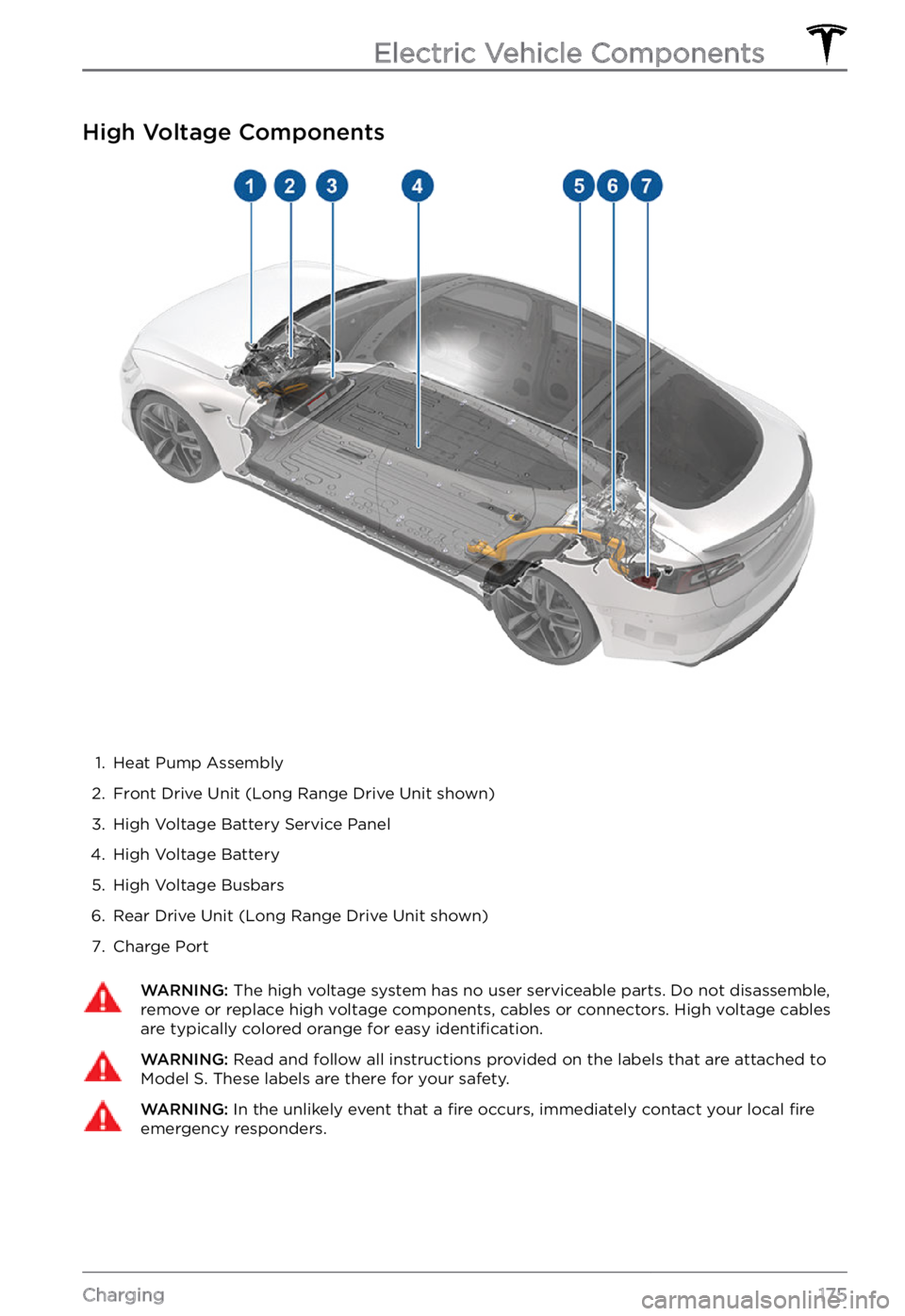
High Voltage Components
1.
Heat Pump Assembly
2.
Front Drive Unit (Long Range Drive Unit shown)
3.
High Voltage Battery Service Panel
4.
High Voltage Battery
5.
High Voltage Busbars
6.
Rear Drive Unit (Long Range Drive Unit shown)
7.
Charge Port
WARNING: The high voltage system has no user serviceable parts. Do not disassemble, remove or replace high voltage components, cables or connectors. High voltage cables are typically colored orange for easy identification.
WARNING: Read and follow all instructions provided on the labels that are attached to Model S. These labels are there for your safety.WARNING: In the unlikely event that a fire occurs, immediately contact your local fire emergency responders.
Electric Vehicle Components
175Charging
Page 179 of 281

About the Battery
Model S has one of the most sophisticated
battery systems in the world. The most
important way to preserve the Battery is to
LEAVE YOUR VEHICLE PLUGGED IN when
you are not using it. This is particularly important if you are not planning to drive
Model S for several weeks.
NOTE: When left idle and unplugged, your
vehicle periodically uses energy from the
Battery for system tests and recharging the
12V battery when necessary.
There is no advantage to waiting until the
Battery
Page 180 of 281

CAUTION: If the Battery
Page 184 of 281

2. While holding the public charging handle
in one hand and the adapter in the other
hand, press and hold the button on the
public charging handle and pull both
outwards, removing the handle and adapter at the same time.
NOTE: If the charging station handle
separates from the adapter, leaving the
adapter in
Model S, use the touchscreen
to unlock the charge port (touch the
charging icon on the overhead view of the
vehicle).
3.
Press and hold the charging handle button again to release the adapter from
the charging handle.
NOTE: The charge port automatically closes
within approximately 10 seconds of removing
the connector from the charge port.
CAUTION: Tesla strongly recommends leaving Model S plugged in when not in use. This maintains the Battery at the optimum level of charge.
Manually Releasing Charge
Cable
If the usual methods for releasing a charge
cable from the charge port (using the charge
handle release button, touchscreen, or mobile
app) do not work, carefully follow these steps:
1.
Ensure that Model S is not actively
charging by displaying the charging
screen on the touchscreen. If necessary,
touch
Stop Charging.
2.
Open the rear trunk.
3.
Pull the charge port
Page 185 of 281

1.
Driving distance: Displays the total
estimated driving distance available.
2.
Set limit: Adjust the charge limit by
dragging the arrow below the battery to
indicate the level of charging you want.
The setting you choose applies to
immediate and scheduled charging
sessions.
NOTE: A portion of the battery image
may appear blue. This indicates that a
small portion of the energy stored in the
battery is not available because the
battery is cold. This is normal and no
reason for concern. When the battery warms up, the blue portion no longer displays.
3.
Stop charging: Touch to stop charging.
4.
Charge current at this location: The
current automatically sets to the
maximum current available from the
attached charge cable, unless it was previously reduced to a lower level. If
needed, touch
- or + to change the
current (for example, you may want to
reduce the current if you are concerned
about overloading a domestic wiring
circuit shared by other equipment). It is
not possible to set the charging current to
a level that exceeds the maximum
available from the attached charge cable.
When you change the current,
Model S remembers the location. If you charge at
the same location, you do not need to
change it again.
NOTE: If Model S is charging and detects
unexpected