door lock TESLA MODEL X 2020 Owner's Manual
[x] Cancel search | Manufacturer: TESLA, Model Year: 2020, Model line: MODEL X, Model: TESLA MODEL X 2020Pages: 247, PDF Size: 6.48 MB
Page 7 of 247
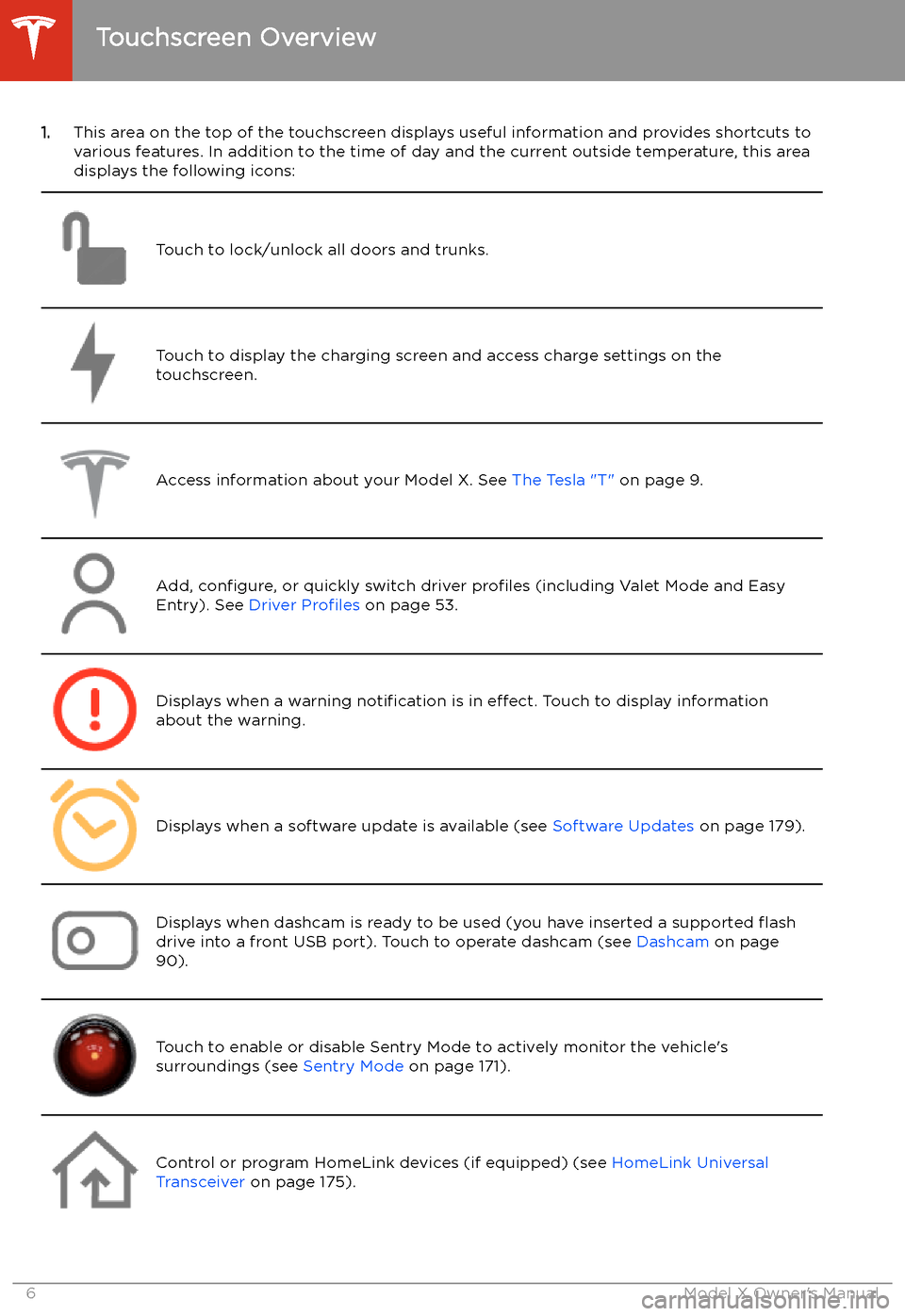
1.This area on the top of the touchscreen displays useful information and provides shortcuts to
various features. In addition to the time of day and the current outside temperature, this area displays the following icons:
Touch to lock/unlock all doors and trunks.Touch to display the charging screen and access charge settings on the
touchscreen.Access information about your Model X. See The Tesla "T" on page 9.Add, configure, or quickly switch driver profiles (including Valet Mode and Easy
Entry). See Driver Profiles on page 53.Displays when a warning notification is in effect. Touch to display information
about the warning.Displays when a software update is available (see Software Updates on page 179).Displays when dashcam is ready to be used (you have inserted a supported
Page 11 of 247
Opening and Closing
Keys and Doors
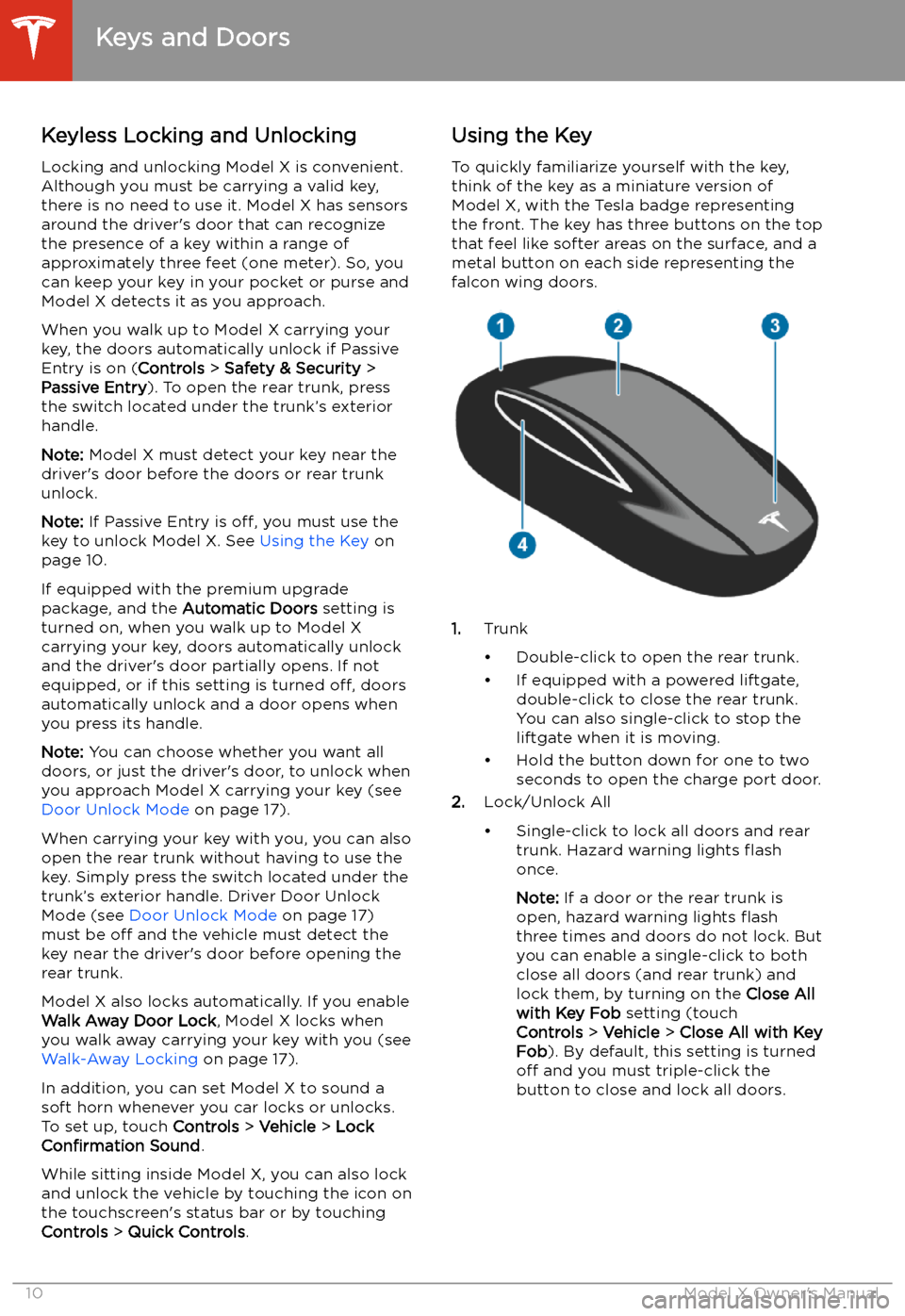
Keyless Locking and Unlocking Locking and unlocking Model X is convenient.
Although you must be carrying a valid key,
there is no need to use it. Model X has sensors
around the driver
Page 18 of 247

Door Unlock ModeYou can choose to unlock only the driver
Page 23 of 247
Front Trunk
Opening
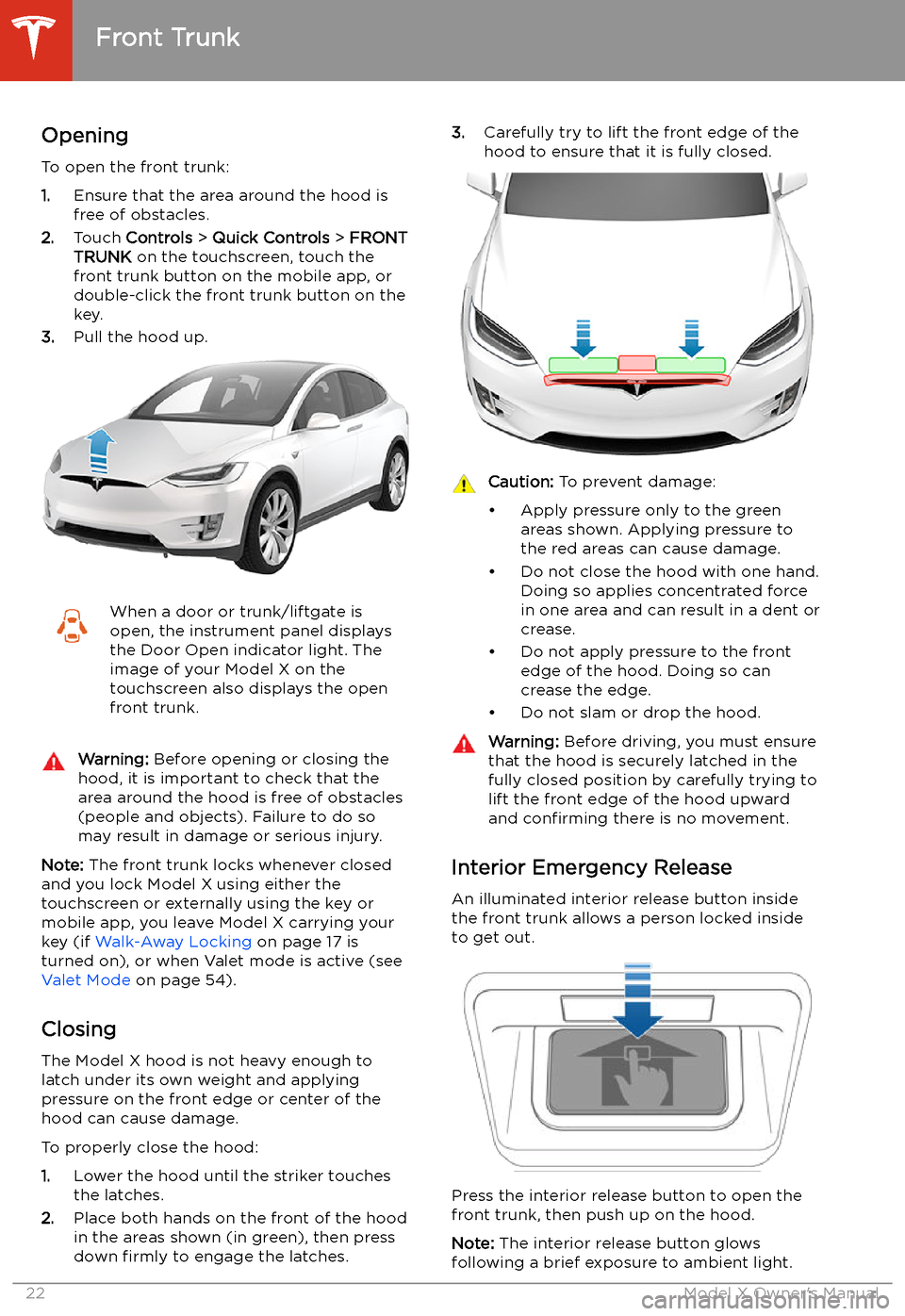
To open the front trunk:
1. Ensure that the area around the hood is
free of obstacles.
2. Touch Controls > Quick Controls > FRONT
TRUNK on the touchscreen, touch the
front trunk button on the mobile app, or
double-click the front trunk button on the key.
3. Pull the hood up.
When a door or trunk/liftgate is
open, the instrument panel displays
the Door Open indicator light. The
image of your Model X on the
touchscreen also displays the open
front trunk.Warning: Before opening or closing the
hood, it is important to check that the area around the hood is free of obstacles
(people and objects). Failure to do so
may result in damage or serious injury.
Note: The front trunk locks whenever closed
and you lock Model X using either the
touchscreen or externally using the key or
mobile app, you leave Model X carrying your key (if Walk-Away Locking on page 17 is
turned on), or when Valet mode is active (see Valet Mode on page 54).
Closing
The Model X hood is not heavy enough to
latch under its own weight and applying pressure on the front edge or center of the
hood can cause damage.
To properly close the hood:
1. Lower the hood until the striker touches
the latches.
2. Place both hands on the front of the hood
in the areas shown (in green), then press
down firmly to engage the latches.
3.
Carefully try to lift the front edge of the
hood to ensure that it is fully closed.Caution: To prevent damage:
Page 62 of 247
Starting and Powering
Off
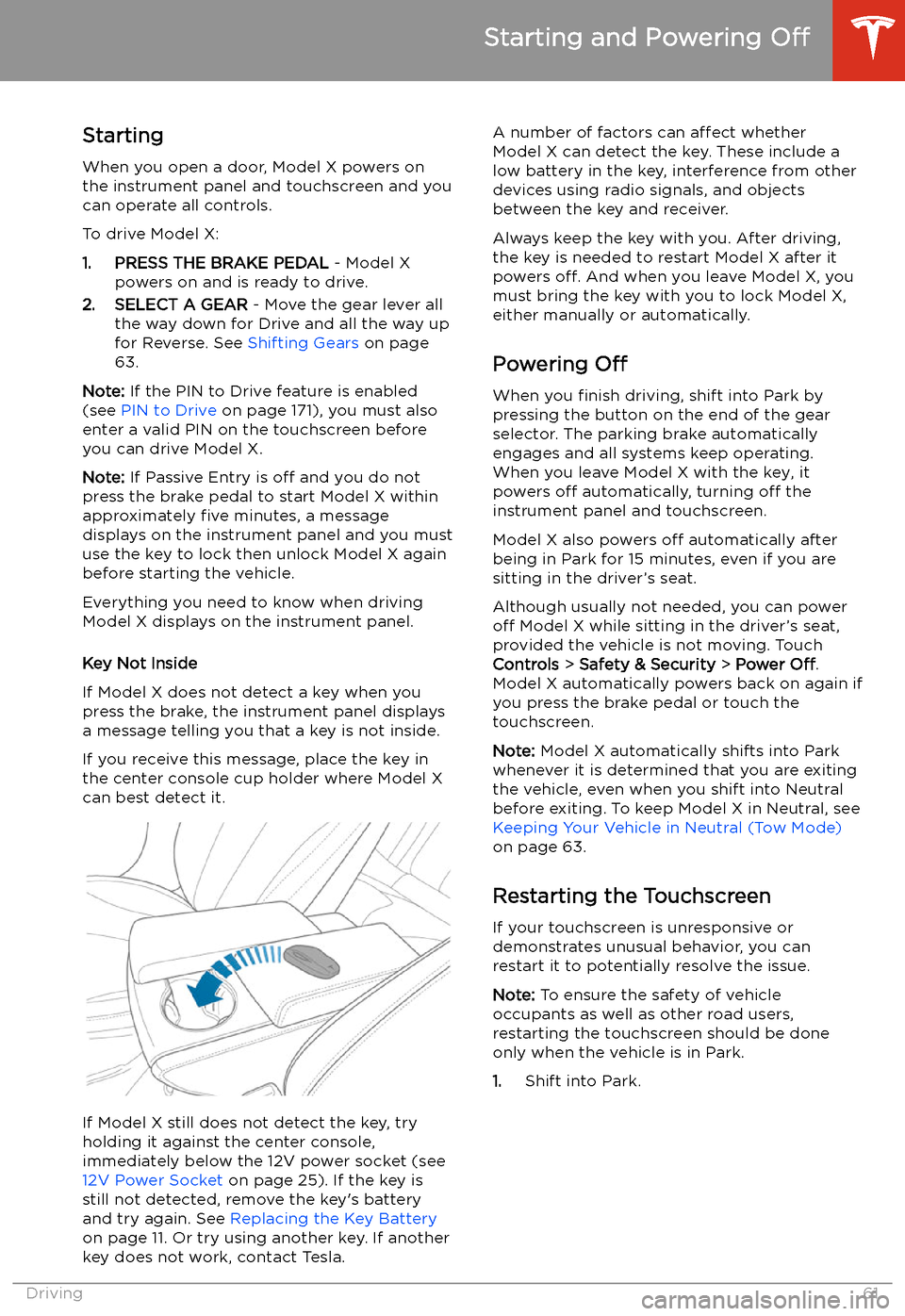
Starting When you open a door, Model X powers on
the instrument panel and touchscreen and you
can operate all controls.
To drive Model X:
1. PRESS THE BRAKE PEDAL - Model X
powers on and is ready to drive.
2. SELECT A GEAR - Move the gear lever all
the way down for Drive and all the way up
for Reverse. See Shifting Gears on page
63.
Note: If the PIN to Drive feature is enabled
(see PIN to Drive on page 171), you must also
enter a valid PIN on the touchscreen before
you can drive Model X.
Note: If Passive Entry is off and you do not
press the brake pedal to start Model X within
approximately five minutes, a message
displays on the instrument panel and you must use the key to lock then unlock Model X again
before starting the vehicle.
Everything you need to know when driving
Model X displays on the instrument panel.
Key Not Inside
If Model X does not detect a key when you
press the brake, the instrument panel displays
a message telling you that a key is not inside.
If you receive this message, place the key in
the center console cup holder where Model X
can best detect it.
If Model X still does not detect the key, try
holding it against the center console,
immediately below the 12V power socket (see
12V Power Socket on page 25). If the key is
still not detected, remove the key
Page 66 of 247
Lights
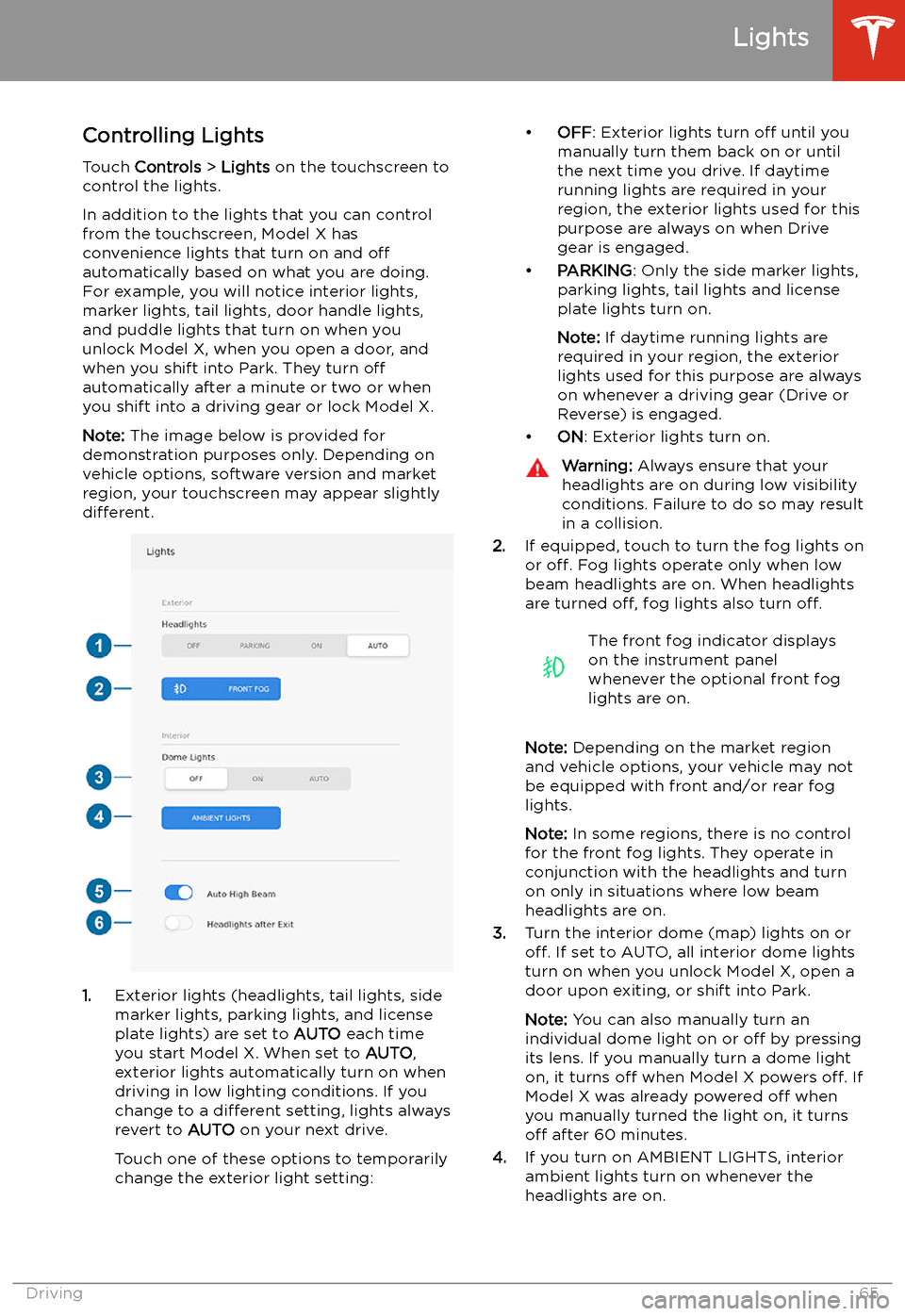
Controlling Lights Touch Controls > Lights on the touchscreen to
control the lights.
In addition to the lights that you can control
from the touchscreen, Model X has
convenience lights that turn on and off
automatically based on what you are doing. For example, you will notice interior lights,marker lights, tail lights, door handle lights,
and puddle lights that turn on when you unlock Model X, when you open a door, and
when you shift into Park. They turn off
automatically after a minute or two or when
you shift into a driving gear or lock Model X.
Note: The image below is provided for
demonstration purposes only. Depending on vehicle options, software version and market
region, your touchscreen may appear slightly
different.
1. Exterior lights (headlights, tail lights, side
marker lights, parking lights, and license
plate lights) are set to AUTO each time
you start Model X. When set to AUTO,
exterior lights automatically turn on when
driving in low lighting conditions. If you
change to a different setting, lights always
revert to AUTO on your next drive.
Touch one of these options to temporarily
change the exterior light setting:
Page 172 of 247
Security Settings
About the Security System
If Model X does not detect a key nearby and a
locked door or trunk is opened, an alarm sounds and the headlights and turn signals
Page 187 of 247

Charging Instructions
Opening the Charge Port The charge port is located on the left side of
Model X, behind a door that is part of the rear
tail light assembly. Before charging, park
Model X to ensure that the charge cable easily reaches the charge port.
With Model X unlocked (or a recognized key is
within range) and in Park, press and release
the button on the Tesla charge cable to open the charge port door.
You can also open the charge port door using
any of these methods:
Page 188 of 247
Note: If Model X is locked, the charge port
light does not light up.
If the charge port light turns red while
charging, a fault is detected. Check the instrument panel or touchscreen for a
message describing the fault. A fault can
occur due to something as common as a power outage. If a power outage occurs,
charging resumes automatically when power
is restored.
Note: When charging, particularly at high
currents, the refrigerant compressor and fan
operate as needed to keep the Battery cool.
Therefore, it is normal to hear sounds during
charging.
Note: Air conditioning performance is
generally not affected by charging. However,
under certain circumstances (for example, you
are charging at high currents during a
particularly warm day), the air coming from
the vents may not be as cool as expected and
a message displays on the instrument panel.
This is normal behavior and ensures that the
Battery stays within an optimum temperature
range while charging to support longevity and
optimum performance.Warning: Never spray liquid at a high
velocity (for example, if using a pressure
washer) towards the charge port while
charging. Failure to follow these
instructions can result in serious injury or
damage to the vehicle, charging
equipment, or property.
Stopping Charging
Stop charging at any time by disconnecting
the charge cable or touching Stop Charging
on the touchscreen.
Note: To prevent unauthorized unplugging of
the charge cable, the charge cable latch remains locked and Model X must be unlockedor able to recognize your key before you can
disconnect the charge cable.
To disconnect the charge cable:
1. Press and hold the button on the
connector handle to release the latch.
Alternatively, unlock the vehicle by
opening a door, using a key fob, or
touching Stop Charging on the
touchscreen. These methods unlock the
charge port as well.
2. Pull the connector from the charge port.
3. Push the charge port door closed.
Note:
If Model X is equipped with a motorized
charge port door, it automatically closes shortly after you remove the charge cable.Caution: Tesla strongly recommends
leaving Model X plugged in when not in use. This maintains the Battery at the
optimum level of charge.
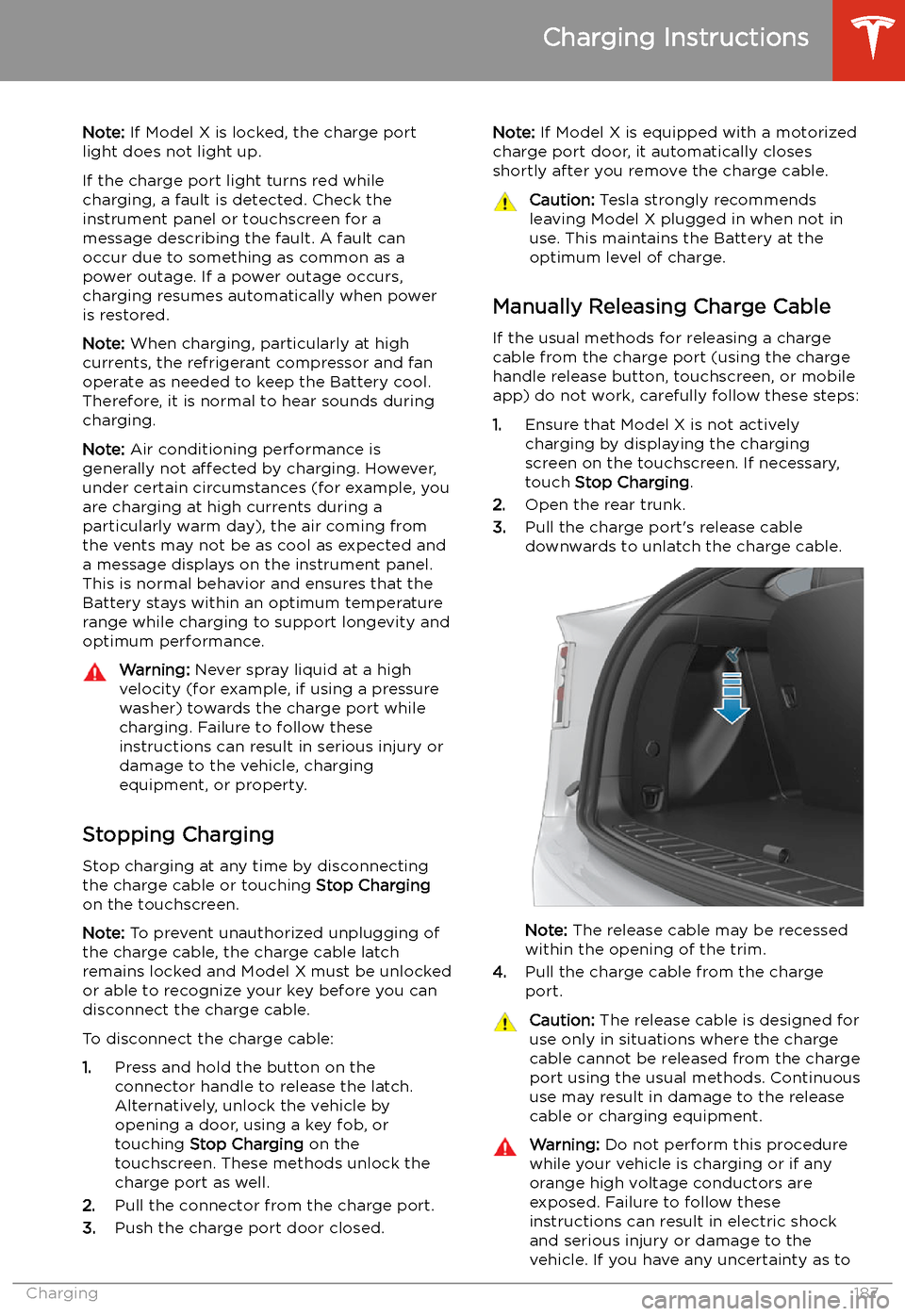
Manually Releasing Charge Cable
If the usual methods for releasing a charge
cable from the charge port (using the charge
handle release button, touchscreen, or mobile
app) do not work, carefully follow these steps:
1. Ensure that Model X is not actively
charging by displaying the charging
screen on the touchscreen. If necessary,
touch Stop Charging .
2. Open the rear trunk.
3. Pull the charge port
Page 242 of 247
charging (continued)components and equipment 182
instructions 186
public charging stations 183
scheduling 188
status of 190
charging locations, finding 158
child protectiondisabling rear window switches 19child seatsinstalling and using 36child-protectiondisabling liftgate and rear door handles
17
Chill acceleration 84
cleaning 201
climate controls 150
cold weather driving 104
collision avoidance assist 134
connecting to Wi-Fi 178
console12V power socket 25
cup holders 26
USB ports 24
consumption chart 87
contact informationroadside assistance 226
Tesla 236
copyrights 232
Creep 77
cruise control 109
cup holders 26
D dashboard overview 2
Dashcam 90
data recording 234
data sharing 234
declarations of conformity 237
delivery mileage 235
devicesBluetooth, playing audio files 164
connecting 24
playing audio files from 164
dimensions 213
Dog Mode 154
dome (map) lights 65
door labels 211
Door Unlock Mode 17
doors 10
doors, opening 10
drive away locking 17
Drive gear 63
driverprofiles 53
seat adjustment 28drivingdriving (continued)seating position 28
starting 61
tips to maximize range 87
E
Easter Eggs 230
Easy Entry 30, 31
easy entry, driver profile 53
EDR (event data recorder) 234
electric parking brake 78
emergency braking 134
emergency