instrument panel TESLA MODEL X 2023 Owner's Manual
[x] Cancel search | Manufacturer: TESLA, Model Year: 2023, Model line: MODEL X, Model: TESLA MODEL X 2023Pages: 296, PDF Size: 8.56 MB
Page 110 of 296
In situations where Auto Lane Change is unable to operate at optimal performance, or cannot operate due to inadequate data, the
instrument panel displays a
series of warnings. Therefore, when using Auto Lane
Change, always pay attention to the
instrument panel
and be prepared to manually steer Model X.
Adjacent Lane Speed
NOTE: Depending on market region, vehicle
configuration, options purchased, and software version,
your vehicle may not be equipped with Adjacent Lane
Speed, or the feature may not operate exactly as
described.
When moving significantly faster than vehicles in
adjacent lanes,
Model X automatically reduces the
driving speed. This is especially helpful in heavy
traffic
situations or when vehicles are constantly merging into
different lanes. When Model X detects other vehicles
driving
significantly slower, the instrument panel
highlights the adjacent lanes with arrows and detected
vehicles in gray, and
Model X reduces the driving speed
as appropriate. To temporarily override this feature,
press the accelerator pedal.
WARNING: Never depend on Autopilot to
determine a safe driving speed; you are
responsible for driving safely and according to
traffic laws in your market region.
Stop Light and Stop Sign Warning
NOTE: Depending on market region, vehicle
configuration, options purchased, and software version,
your vehicle may not be equipped with Stop Light and
Stop Sign Warning, or the feature may not operate
exactly as described.
While Autosteer is in use, Model X displays a warning on
the
instrument panel and sounds a chime if it detects
that you are likely to run through a red stop light or stop sign. If this happens,
TAKE IMMEDIATE CORRECTIVE
ACTION!
The visual and audible warnings cancel after a few seconds, or when you press the brake pedal, whichever
comes
first.
Stop Light and Stop Sign Warning provides warnings
only. It does not slow down or stop
Model X at red traffic
lights, stop signs, road markings, etc. If equipped with
Traffic Light and Stop Sign Control, you can enable this
feature to automatically stop Model X at traffic lights
and stop signs (see Traffic Light and Stop Sign Control
on page 113).
CAUTION: Stop Light and Stop Sign Warning
requires on-board maps to know that a particular
stop light or stop sign exists at a location. In some
cases, map data is inaccurate or outdated and may
not include all stop lights or stop signs. Therefore,
Stop Light and Stop Sign Warning may not detect
all stop lights and stop signs.
WARNING: The Stop Light and Stop Sign Warning
feature does not apply the brakes or decelerate
Model X and may not detect all stop lights and
stop signs. Stop Light and Stop Sign Warning is
designed for guidance purposes only and is not a
substitute for attentive driving and sound
judgment. Keep your eyes on the road when
driving and never depend on Stop Light and Stop
Sign Warning to warn you of a stop light or stop
sign.
WARNING: Stop Light and Stop Sign Warning is
designed to warn you only when approaching a
visible red stop sign, solid red or later portion of a
yellow traffic light. It may not warn you of
intersections with flashing lights and it does not
warn you of yield signs or temporary stop and
yield signs (such as those used in construction
areas). Additionally, Stop Light and Stop Sign
Warning does not warn you of approaching stop
lights or stop signs when you are pressing the
accelerator pedal or brake pedal (which disables
Autosteer).
Limitations
Autosteer and its associated functions are particularly
unlikely to operate as intended when:
Page 113 of 296
Navigate on Autopilot activates and deactivates as appropriate, based on the type of road you are driving on. For example, if Autosteer is active and Navigate on Autopilot is enabled, Navigate on Autopilot
automatically becomes active when you reach a
controlled-access highway on your navigation route.
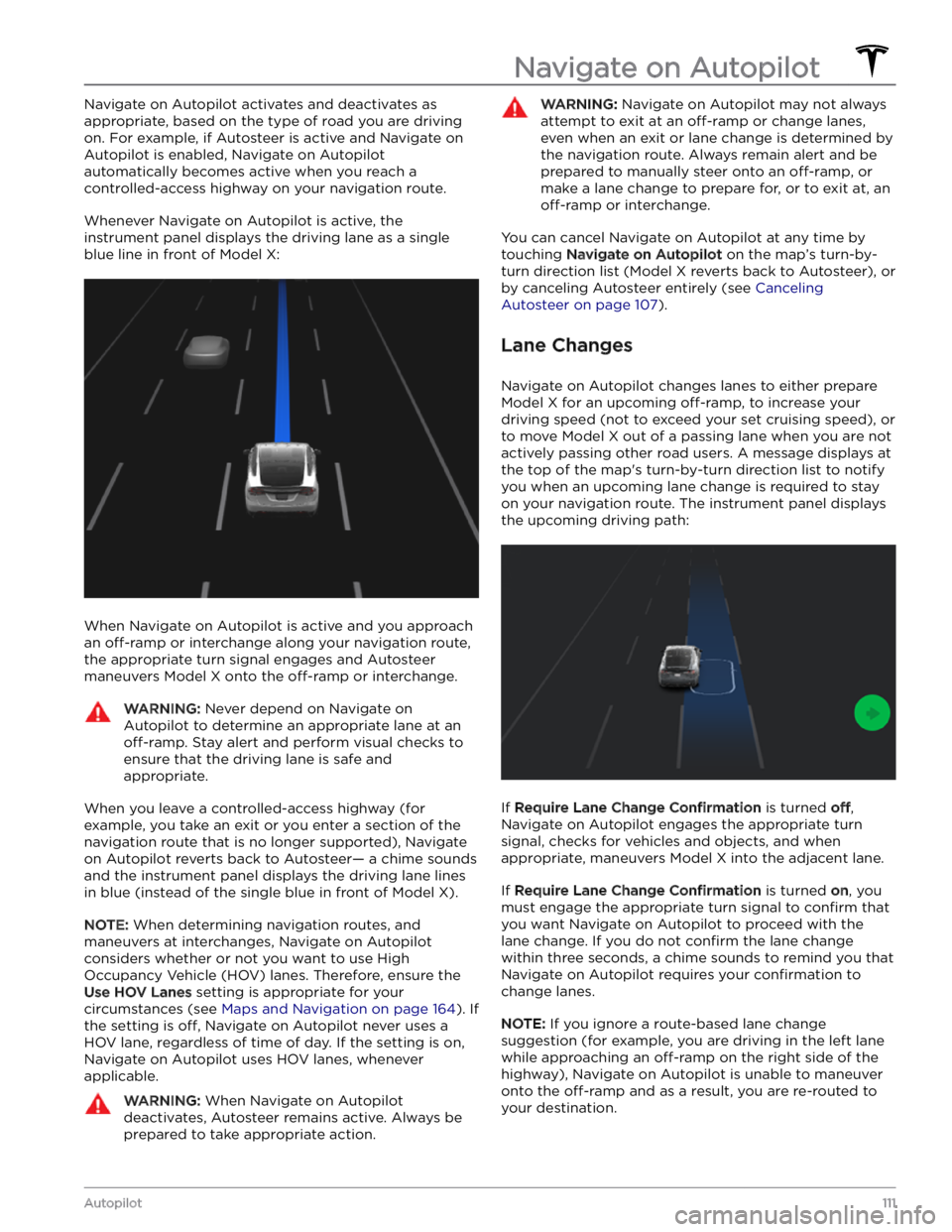
Whenever Navigate on Autopilot is active, the
instrument panel displays the driving lane as a single
blue line in front of
Model X:
When Navigate on Autopilot is active and you approach an
off-ramp or interchange along your navigation route,
the appropriate turn signal engages and Autosteer maneuvers
Model X onto the off-ramp or interchange.
WARNING: Never depend on Navigate on
Autopilot to determine an appropriate lane at an
off-ramp. Stay alert and perform visual checks to
ensure that the driving lane is safe and
appropriate.
When you leave a controlled-access highway (for example, you take an exit or you enter a section of the navigation route that is no longer supported), Navigate on Autopilot reverts back to Autosteer
Page 114 of 296

WARNING: Navigate on Autopilot may not always
attempt to exit at an off-ramp or change lanes,
even when an exit or lane change is determined by
the navigation route. Always remain alert and be
prepared to manually steer onto an off-ramp, or
make a lane change to prepare for, or to exit at, an
off-ramp or interchange.
Be Ready to Assist
When attempting to change lanes or maneuver Model X,
or when approaching construction zones, Navigate on Autopilot may be unable to determine the appropriate driving lane (for example, complex clover leafs and
multi-lane
off-ramps) and the instrument panel displays
an alert indicating that Navigate on Autopilot is trying to maneuver and may require assistance. When you see the message, be prepared to take immediate action to ensure that it is safe and appropriate to complete the lane change or maneuver.
Navigate on Autopilot
112MODEL X Owner
Page 117 of 296
Traffic Lights
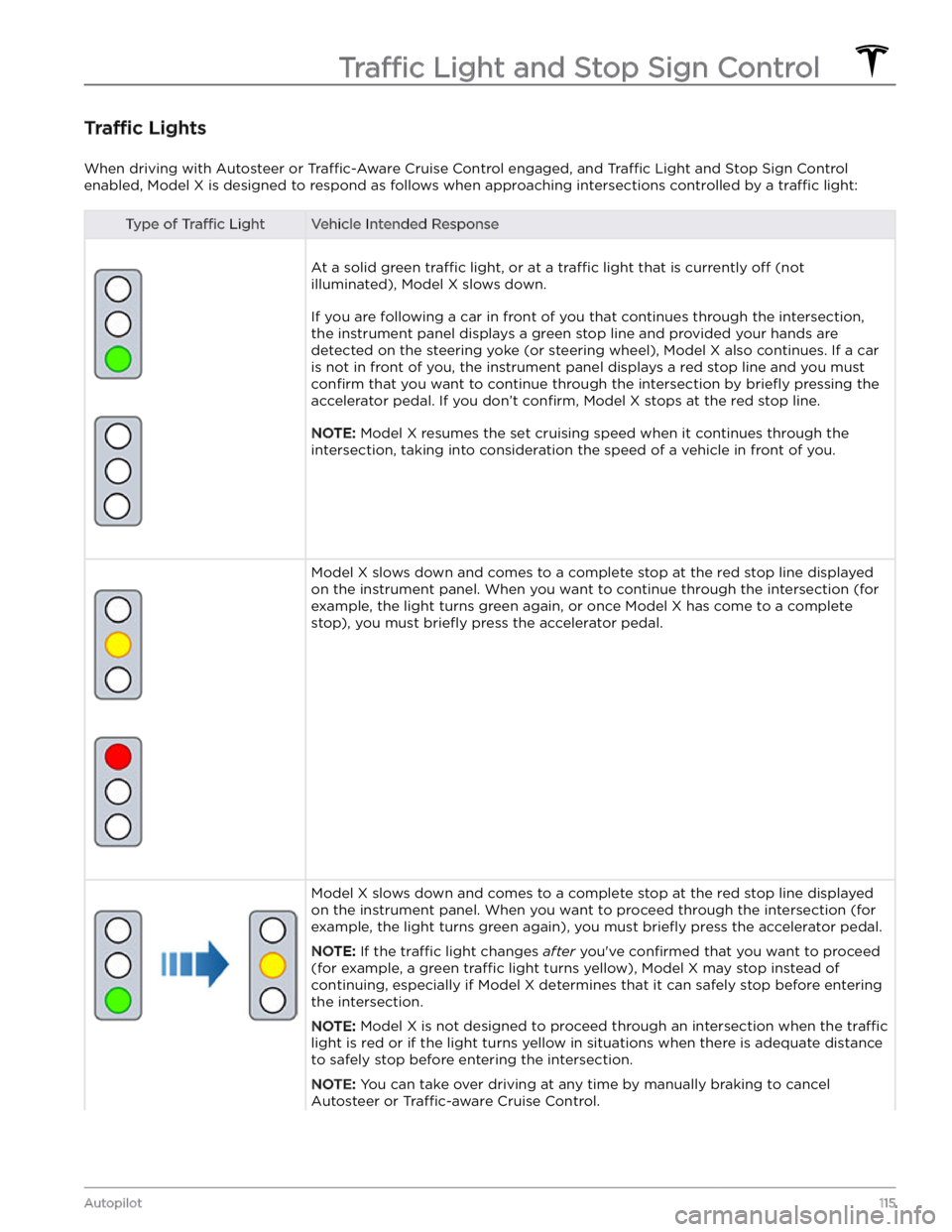
When driving with Autosteer or Traffic-Aware Cruise Control engaged, and Traffic Light and Stop Sign Control
enabled,
Model X is designed to respond as follows when approaching intersections controlled by a traffic light:
Type of Traffic LightVehicle Intended Response
At a solid green traffic light, or at a traffic light that is currently off (not
illuminated),
Model X slows down.
If you are following a car in front of you that continues through the intersection,
the
instrument panel displays a green stop line and provided your hands are
detected on the
steering yoke (or steering wheel), Model X also continues. If a car
is not in front of you, the
instrument panel displays a red stop line and you must
confirm that you want to continue through the intersection by briefly pressing the
accelerator pedal. If you don
Page 119 of 296
Stop Signs and Road Markings
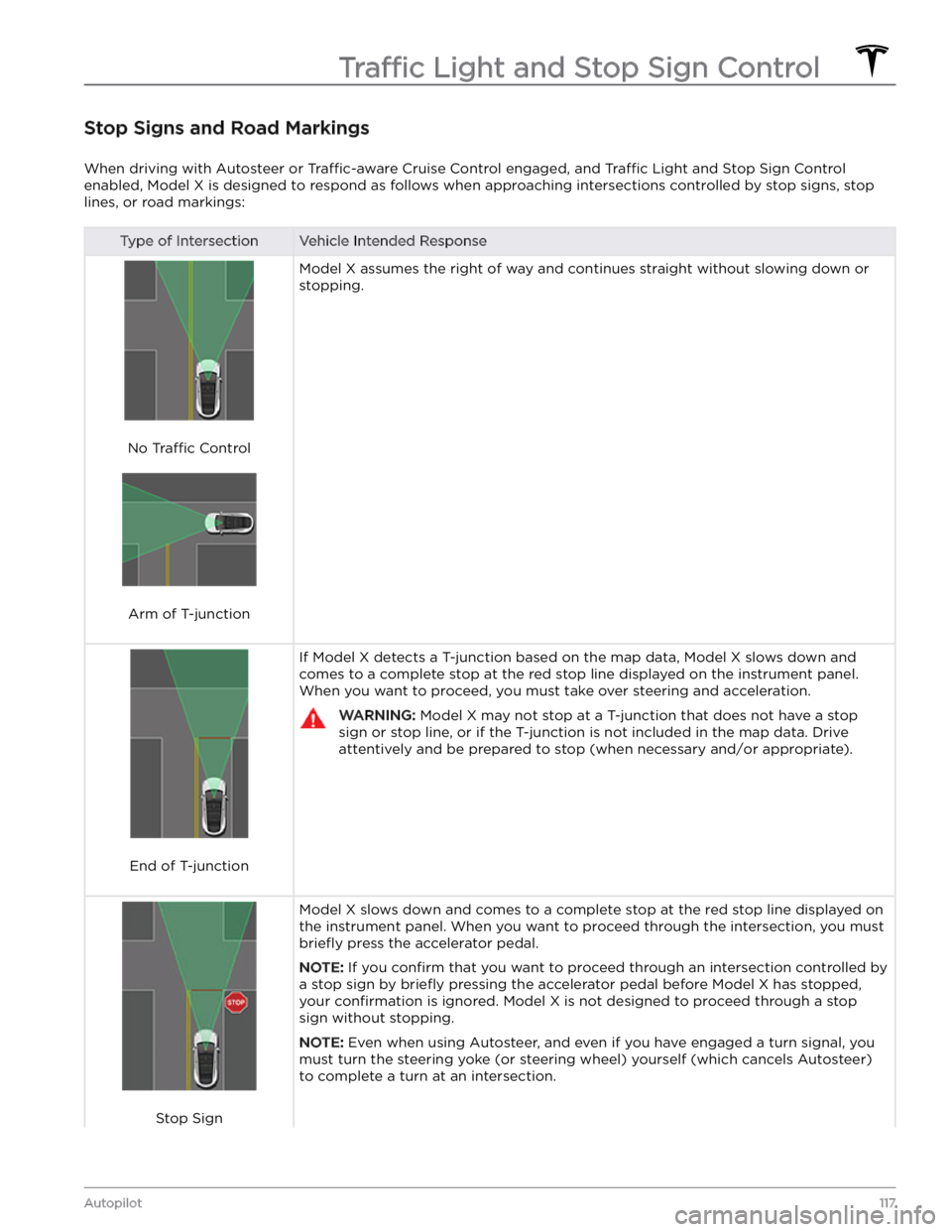
When driving with Autosteer or Traffic-aware Cruise Control engaged, and Traffic Light and Stop Sign Control
enabled,
Model X is designed to respond as follows when approaching intersections controlled by stop signs, stop
lines, or road markings:
Type of IntersectionVehicle Intended Response
No Traffic Control
Arm of T-junction
Model X assumes the right of way and continues straight without slowing down or
stopping.
End of T-junction
If Model X detects a T-junction based on the map data, Model X slows down and
comes to a complete stop at the red stop line displayed on the
instrument panel.
When you want to proceed, you must take over steering and acceleration.
WARNING: Model X may not stop at a T-junction that does not have a stop
sign or stop line, or if the T-junction is not included in the map data. Drive
attentively and be prepared to stop (when necessary and/or appropriate).
Stop Sign
Model X slows down and comes to a complete stop at the red stop line displayed on
the
instrument panel. When you want to proceed through the intersection, you must
briefly press the accelerator pedal.
NOTE: If you confirm that you want to proceed through an intersection controlled by
a stop sign by
briefly pressing the accelerator pedal before Model X has stopped,
your
confirmation is ignored. Model X is not designed to proceed through a stop
sign without stopping.
NOTE: Even when using Autosteer, and even if you have engaged a turn signal, you
must turn the
steering yoke (or steering wheel) yourself (which cancels Autosteer)
to complete a turn at an intersection.
Traffic Light and Stop Sign Control
117Autopilot
Page 130 of 296
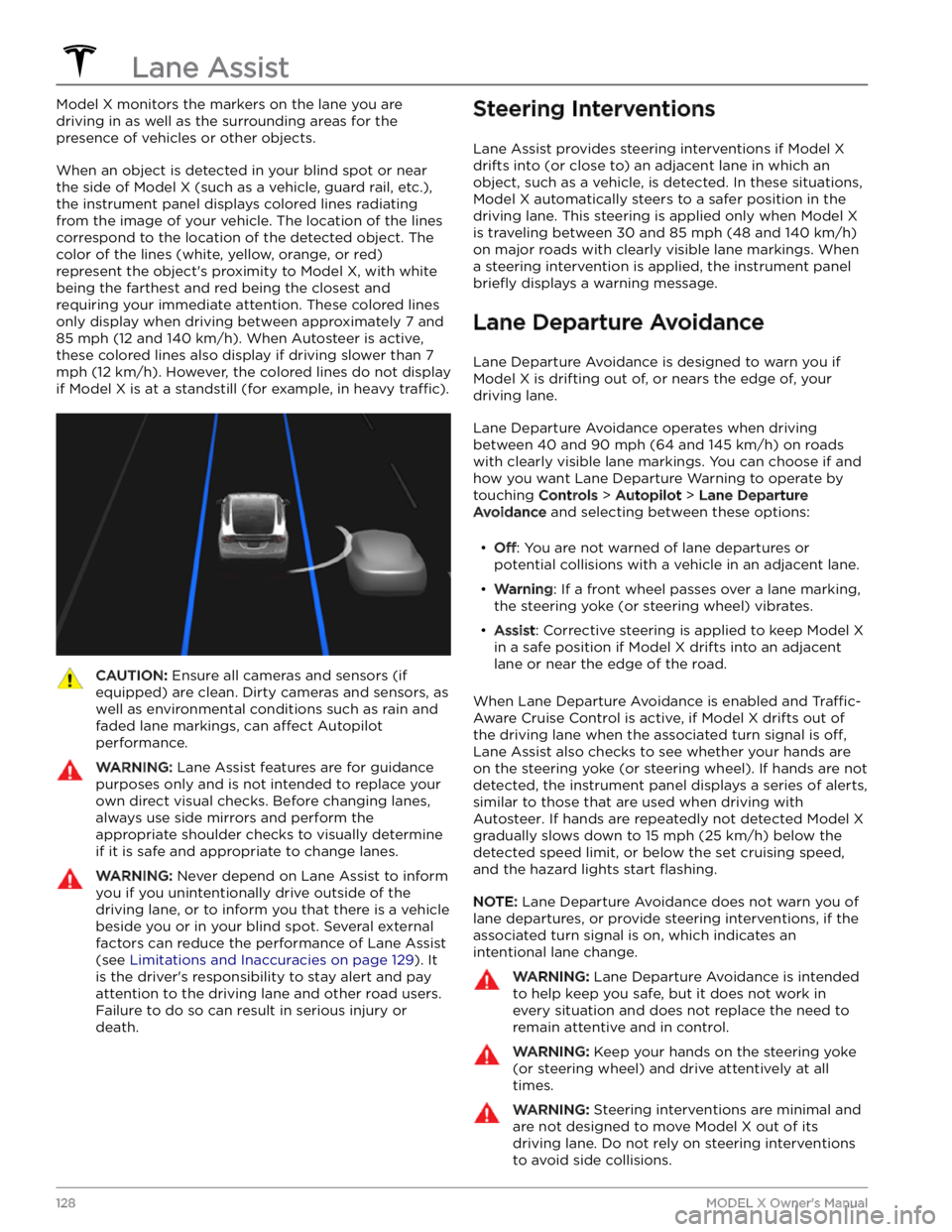
Model X monitors the markers on the lane you are
driving in as well as the surrounding areas for the presence of vehicles or other objects.
When an object is detected in your blind spot or near
the side of
Model X (such as a vehicle, guard rail, etc.),
the
instrument panel displays colored lines radiating
from the image of your vehicle. The location of the lines correspond to the location of the detected object. The color of the lines (white, yellow, orange, or red) represent the object
Page 136 of 296
How Speed Assist Works
Model X displays a speed limit on the instrument panel
and you can choose if and how you are warned when you exceed the speed limit. Also, instead of using the detected speed limit, you can base warnings on an arbitrary speed limit that you enter manually.
In situations where Model X is unable to determine a
speed limit, or if Speed Assist is uncertain that an acquired speed limit is accurate, the
instrument panel
may not display a speed limit sign and warnings do not take
effect.
NOTE: Speed limit warnings go away after ten seconds,
or when
Model X slows down below the specified limit.
WARNING: Do not rely on Speed Assist to
determine the appropriate speed limit or driving
speed. Always drive at a safe speed based on
traffic and road conditions.
Controlling Speed Assist
To adjust the Speed Limit Warning setting, touch
Controls > Autopilot > Speed Limit Warning, then
choose one of these options:
Page 149 of 296

to display detailed information about the dampers for each wheel, including ride height, compression and
rebound values, and body accelerations.
Auto-Raising Locations
Whenever you raise the suspension to High or Very
High, the location is automatically saved. By saving the
location, you do not need to manually raise the
suspension every time you arrive at a frequently-used location where you have previously raised the
suspension. When you return to the saved location,
Model X raises the suspension and the instrument panel
displays a message indicating that the suspension is being raised.
When saving locations, Model X also saves the Keep
until XX mph setting (if specified).
NOTE: When returning to a saved location and driving
faster than the
High and Very High suspension settings
allow, the suspension does not raise until
Model X slows
down.
NOTE: After leaving a saved location, the suspension
automatically lowers. However, it may not lower until
Model X meets the speed and distance threshold at
which the suspension lowers.
NOTE: If Model X reaches a saved location and the
existing suspension setting is already higher than the level that has been saved for that location, the ride height is not adjusted.
To remove an auto-raising location
If you do not want the suspension to automatically raise at a location, touch to deselect
Always raise at this
location in the popup that appears when you arrive at a
saved location.
Or, when using the Raise Suspension
shortcut on the main Controls window, touch to deselect
Location Saved.
Self-Leveling
Model X equipped with air suspension automatically
self-levels, even when power is
off. To prevent damage
when jacking or lifting the vehicle, you must activate
Jack Mode to disable self-leveling (press the brake pedal
and touch
Controls > Service > Jack Mode). For more
details, see
Jack Mode on page 202.
Air Suspension
147Using the Touchscreen
Page 181 of 296

CAUTION: The Battery requires no owner
maintenance. Do not remove the coolant filler cap
and do not add fluid. If the instrument panel warns
you that the fluid level is low, contact Tesla
immediately.
CAUTION: Do not use the Battery as a stationary
power source. Doing so voids the warranty.
High Voltage Battery Information
179Charging and Energy Consumption
Page 184 of 296
During Charging
During charging, the charge port light pulses green, and the
touchscreen displays real-time charging status. The
frequency at which the green charge port light pulses
slows down as the charge level approaches full. When charging is complete, the light stops pulsing and is solid green.
NOTE: If Model X is locked, the charge port light does
not light up.
If the charge port light turns red while charging, a fault
is detected. Check the
instrument panel or touchscreen
for an alert describing the fault. A fault can occur due to something as common as a power outage. If a power
outage occurs, charging resumes automatically when power is restored.
NOTE: The thermal system may produce steam under
certain conditions. For example, odorless steam can come from the front of your vehicle while charging at a Supercharger in cold temperature. This is normal and not a cause for concern.
NOTE: It is normal to hear sounds during charging.
Particularly at high currents, the refrigerant compressor and fan operate as needed to keep the Battery cool.
NOTE: Air conditioning performance is generally not
affected by charging. However, in some circumstances
(for example, charging at high currents during a particularly warm day), the air coming from the vents may not be as cool as expected and a message displays on the
instrument panel. This is normal and ensures that
the Battery stays within an optimum temperature range while charging to support longevity and optimum
performance.
WARNING: Never spray liquid at a high velocity
(for example, a pressure washer) towards the
charge port while charging. Doing so can result in
serious injury or damage to the vehicle, charging
equipment, or property.
Stopping Charging
Stop charging at any time by disconnecting the charge
cable or touching
Stop Charging on the touchscreen.
NOTE: To prevent unauthorized unplugging of the
charge cable, the charge cable latch remains locked and
Model X must be unlocked or able to recognize your key
before you can disconnect the charge cable.
To disconnect the charge cable:
1.
Press and hold the button on the connector handle to release the latch.
NOTE: You can also release the latch using the
touchscreen or mobile app, or by pressing and
holding the rear trunk button on the key fob.
If your
vehicle is equipped with a motorized charge port,
you can also press the button to the left of the
charge port to release the latch.
2.
Pull the connector from the charge port. The charge
port door automatically closes.
To disconnect the charge cable when using an adapter at a public charge station:
1.
Unlock Model X.
2.
While holding the public charging handle in one hand and the adapter in the other hand, press and hold the button on the public charging handle and pull both
outwards, removing the handle and adapter at the same time.
NOTE: If the charging station handle separates from
the adapter, leaving the adapter in
Model X, use the
touchscreen to unlock the charge port.
3.
Press and hold the button on the charging handle
again to release the adapter from the public charging handle.
NOTE: The charge port door automatically closes within
approximately 10 seconds of removing the connector from the charge port.
CAUTION: Tesla strongly recommends leaving
Model X plugged in when not in use. This
maintains the Battery at the optimum level of
charge.
Charge Settings
Access charge settings by touching Controls > Charging
when Model X is in Park.
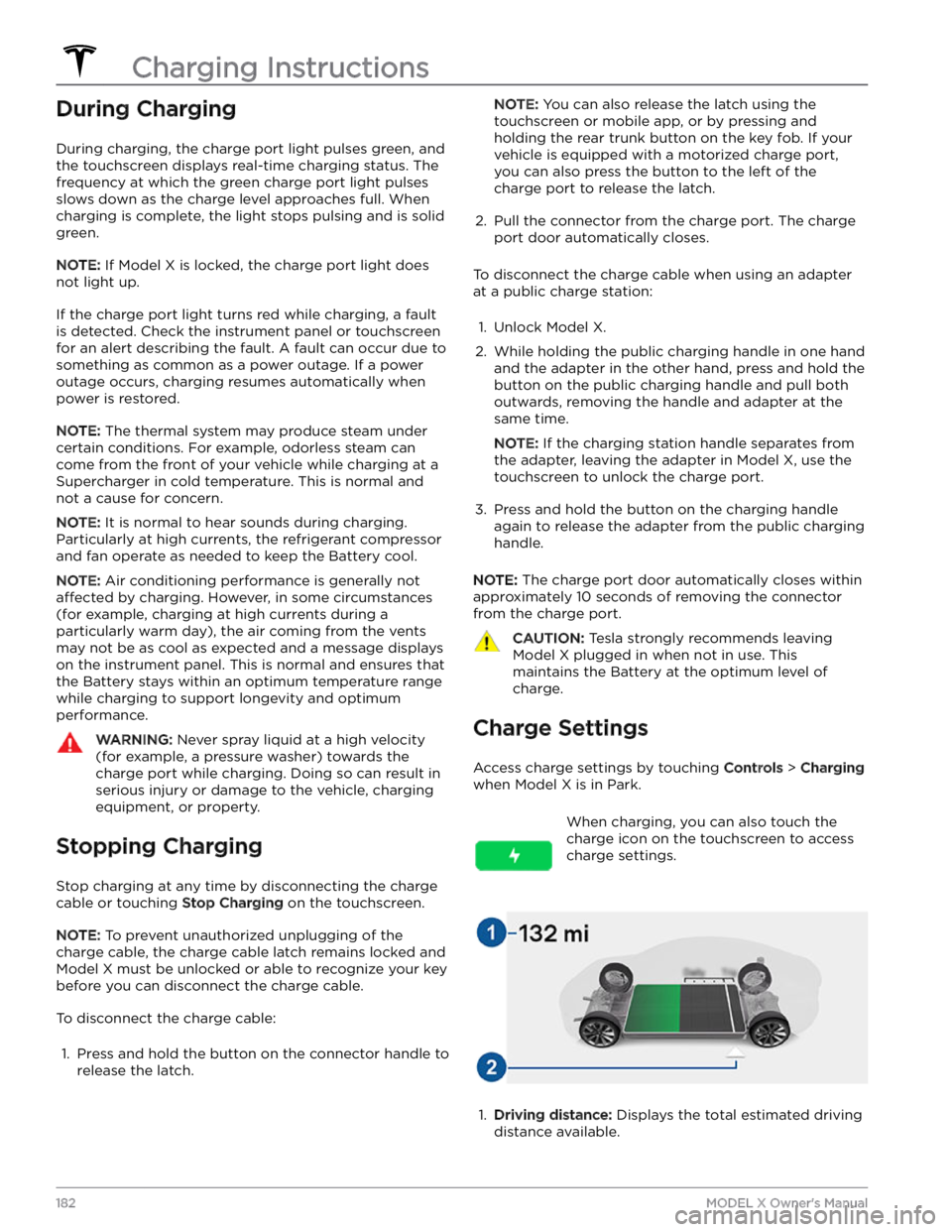
When charging, you can also touch the
charge icon on the touchscreen to access charge settings.1.
Driving distance: Displays the total estimated driving
distance available.
Charging Instructions
182MODEL X Owner