lane TESLA MODEL X 2023 Owners Manual
[x] Cancel search | Manufacturer: TESLA, Model Year: 2023, Model line: MODEL X, Model: TESLA MODEL X 2023Pages: 296, PDF Size: 8.56 MB
Page 3 of 296

Overview................................................................3
Exterior Overview............................................................................3
Interior Overview.............................................................................5
Touchscreen Overview...................................................................7
Opening and Closing.......................................13
Keys.....................................................................................................13
Doors..................................................................................................19
Windows...........................................................................................24
Rear Trunk........................................................................................25
Front Trunk......................................................................................27
Interior Storage and Electronics.............................................30
Sun Visors........................................................................................34
Seating and Safety Restraints.....................35
Front and Rear Seats...................................................................35
Seat Belts.........................................................................................40
Child Safety Seats.........................................................................43
Airbags...............................................................................................51
Driving..................................................................57
Driver Profiles.................................................................................57
Steering Yoke (or Steering Wheel)........................................59
Mirrors...............................................................................................62
Starting and Powering Off.........................................................63
Shifting..............................................................................................65
Lights.................................................................................................68
Instrument Panel.............................................................................71
Wipers and Washers....................................................................75
Braking and Stopping..................................................................76
Traction Control.............................................................................79
Park Assist.......................................................................................80
Vehicle Hold....................................................................................82
Acceleration Modes......................................................................83
Trip Information.............................................................................84
Rear Facing Camera(s)...............................................................85
Pedestrian Warning System......................................................86
Towing and Accessories.............................................................87
Cold Weather Best Practices....................................................96
Autopilot..............................................................98
About Autopilot............................................................................98
Traffic-Aware Cruise Control....................................................101
Autosteer........................................................................................105
Navigate on Autopilot................................................................110
Traffic Light and Stop Sign Control.......................................113
Autopark.........................................................................................120
Summon..........................................................................................122
Smart Summon.............................................................................125
Active Safety Features..................................128
Lane Assist.....................................................................................128
Collision Avoidance Assist.........................................................131
Speed Assist..................................................................................134
Cabin Camera................................................................................135
Using the Touchscreen.................................136
Climate Controls..........................................................................136
Phone, Calendar, and Web Conferencing...........................143
Air Suspension..............................................................................146
Voice Commands.........................................................................148
Safety & Security Settings.......................................................150
Dashcam..........................................................................................152
Sentry Mode..................................................................................153
USB Drive Requirements for Recording Videos..............155
Smart Garage Connectivity.....................................................156
Connecting to Wi-Fi...................................................................159
Software Updates.......................................................................160
Mobile App.....................................................................................162
Navigation and Entertainment..................164
Maps and Navigation.................................................................164
Media................................................................................................170
Theater, Arcade, and Toybox...................................................173
Charging and Energy Consumption........176
Electric Vehicle Components..................................................176
High Voltage Battery Information.........................................178
Charging Instructions................................................................180
Scheduled Charging and Scheduled Departure..............185
Getting Maximum Range..........................................................186
Maintenance......................................................188
Maintenance Service Intervals................................................188
Tire Care and Maintenance......................................................190
Cleaning..........................................................................................196
Windshield Wiper Blades, Jets and Fluid.........................200
Jacking and Lifting....................................................................202
Parts and Accessories..............................................................203
Do It Yourself Maintenance....................................................204
Specifications..................................................205
Identification Labels..................................................................205
Vehicle Loading..........................................................................206
Dimensions...................................................................................208
Subsystems.....................................................................................211
Wheels and Tires..........................................................................213
Roadside Assistance....................................220
Contacting Tesla Roadside Assistance..............................220
Instructions for Transporters...................................................221
Running Out of Range..............................................................225
Jump Starting..............................................................................226
Troubleshooting.............................................228
Contents
Page 72 of 296
If the AFS fails, the instrument panel displays an alert. Contact Tesla Service.
Turn Signals
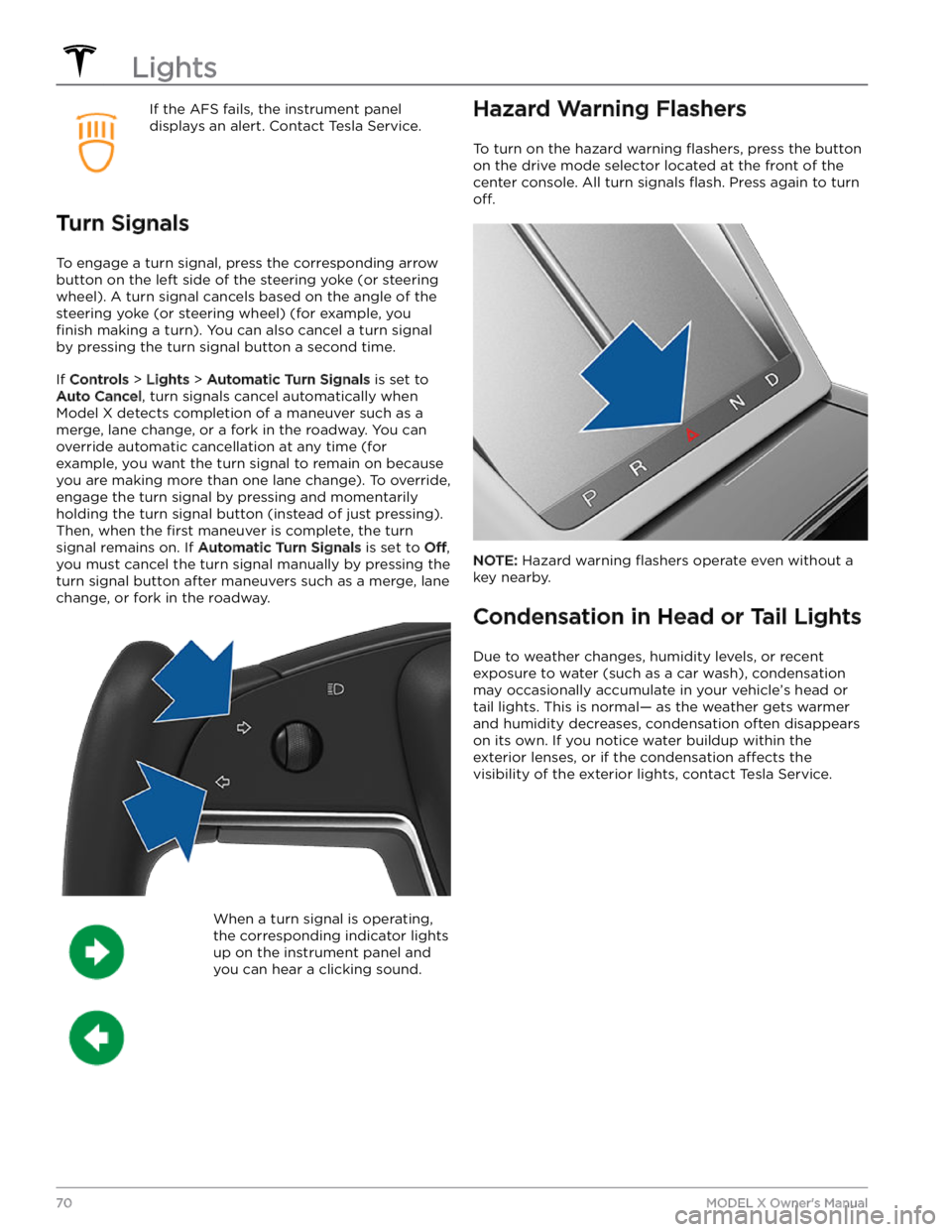
To engage a turn signal, press the corresponding arrow
button on the left side of the
steering yoke (or steering
wheel). A turn signal cancels based on the angle of the
steering yoke (or steering wheel) (for example, you
finish making a turn). You can also cancel a turn signal
by pressing the turn signal button a second time.
If Controls > Lights > Automatic Turn Signals is set to
Auto Cancel, turn signals cancel automatically when
Model X detects completion of a maneuver such as a
merge, lane change, or a fork in the roadway. You can override automatic cancellation at any time (for
example, you want the turn signal to remain on because
you are making more than one lane change). To override,
engage the turn signal by pressing and momentarily
holding the turn signal button (instead of just pressing). Then, when the
first maneuver is complete, the turn
signal remains on. If
Automatic Turn Signals is set to Off,
you must cancel the turn signal manually by pressing the
turn signal button after maneuvers such as a merge, lane change, or fork in the roadway.
When a turn signal is operating,
the corresponding indicator lights
up on the instrument panel and
you can hear a clicking sound.Hazard Warning Flashers
To turn on the hazard warning flashers, press the button
on the drive mode selector located at the front of the center console. All turn signals
flash. Press again to turn
off.
NOTE: Hazard warning flashers operate even without a
key nearby.
Condensation in Head or Tail Lights
Due to weather changes, humidity levels, or recent exposure to water (such as a car wash), condensation may occasionally accumulate in your vehicle
Page 75 of 296
10. The power meter displays real-time power usage. During acceleration, the bar fills to the right with a gray color
(or white if the display is dark) to represent power being used. During deceleration (when
Model X is moving and
you release your foot from the accelerator pedal), the bar
fills to the left with a green color to represent power
being fed back to the Battery by regenerative braking (see
Regenerative Braking on page 77).
11.
When Autosteer is active and detects the driving lane, it is highlighted in blue (see Autosteer on page 105).
Depending on the current driving scenario, you may see neighboring lanes.
NOTE: In situations where Autosteer is unable to detect lane markings, the driving lane is determined based on
the vehicle you are following.
NOTE: If Navigate on Autopilot is active, the driving lane displays as a single blue line in front of Model X (see
Navigate on Autopilot on page 110).
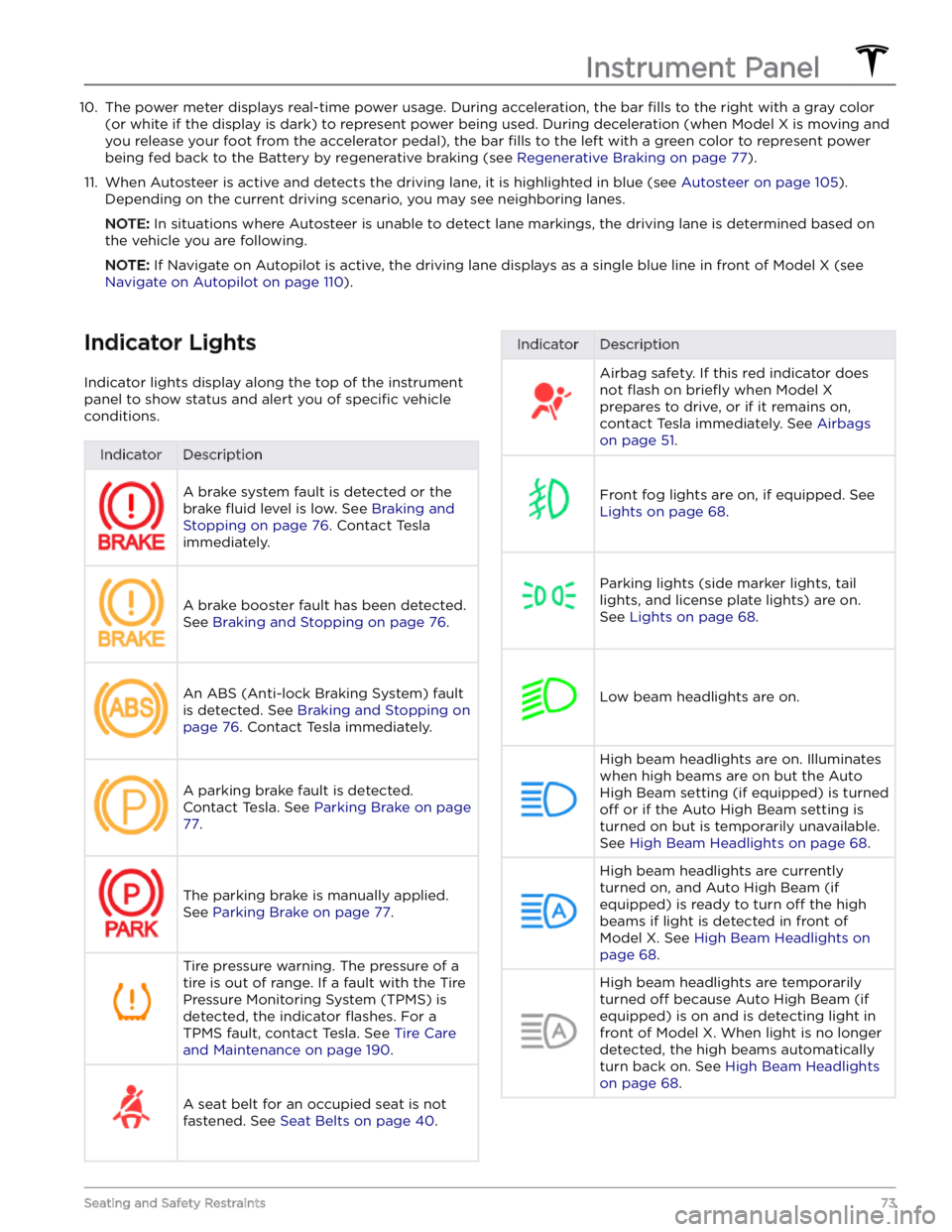
Indicator Lights
Indicator lights display along the top of the instrument panel to show status and alert you of
specific vehicle
conditions.
IndicatorDescriptionA brake system fault is detected or the brake
fluid level is low. See Braking and
Stopping on page 76. Contact Tesla
immediately.
A brake booster fault has been detected. See
Braking and Stopping on page 76.
An ABS (Anti-lock Braking System) fault is detected. See
Braking and Stopping on
page 76. Contact Tesla immediately.
A parking brake fault is detected. Contact Tesla. See
Parking Brake on page
77.
The parking brake is manually applied.
See
Parking Brake on page 77.
Tire pressure warning. The pressure of a tire is out of range. If a fault with the Tire Pressure Monitoring System (TPMS) is
detected, the indicator
flashes. For a
TPMS fault, contact Tesla. See
Tire Care
and Maintenance on page 190.
A seat belt for an occupied seat is not
fastened. See
Seat Belts on page 40.
IndicatorDescriptionAirbag safety. If this red indicator does not
flash on briefly when Model X
prepares to drive, or if it remains on, contact Tesla immediately. See
Airbags
on page 51.
Front fog lights are on, if equipped. See
Lights on page 68.
Parking lights (side marker lights, tail
lights, and license plate lights) are on. See
Lights on page 68.
Low beam headlights are on.
High beam headlights are on. Illuminates when high beams are on but the Auto High Beam setting (if equipped) is turned
off or if the Auto High Beam setting is
turned on but is temporarily unavailable.
See
High Beam Headlights on page 68.
High beam headlights are currently
turned on, and Auto High Beam (if equipped) is ready to turn
off the high
beams if light is detected in front of
Model X. See High Beam Headlights on
page 68.
High beam headlights are temporarily
turned
off because Auto High Beam (if
equipped) is on and is detecting light in
front of
Model X. When light is no longer
detected, the high beams automatically turn back on. See
High Beam Headlights
on page 68.
Instrument Panel
73Seating and Safety Restraints
Page 100 of 296

How It Works
Your Model X includes the following components that actively monitor the surrounding area:
1.
A camera is mounted above the rear license plate.
2.
Ultrasonic sensors (if equipped) are located in the front and rear bumpers.
3.
A camera is mounted in each door pillar.
4.
Three cameras are mounted to the windshield above the rear view mirror.
5.
A camera is mounted to each front fender.
6.
Radar (if equipped) is mounted behind the front bumper.
Model X is also equipped with high precision electronically-assisted braking and steering systems.
In addition, the cabin camera (if equipped) can determine driver inattentiveness and provide alerts when Autopilot is
engaged. By default, data from the camera does not leave the vehicle itself. In other words, data is not saved or transmitted unless you enable data sharing. To enable data sharing, touch
Controls > Software > Data Sharing >
Allow Cabin Camera Analytics. Cabin Camera Analytics helps Tesla continue to develop even safer vehicles in the
future. See
Cabin Camera on page 135.
NOTE: Ensure all cameras and sensors (if equipped) are clean before each drive. See Cleaning Cameras and Sensors
on page 100 for more information. Dirty cameras and sensors, as well as environmental conditions such as rain and
faded lane markings, can
affect Autopilot performance.
About Autopilot
98MODEL X Owner
Page 104 of 296
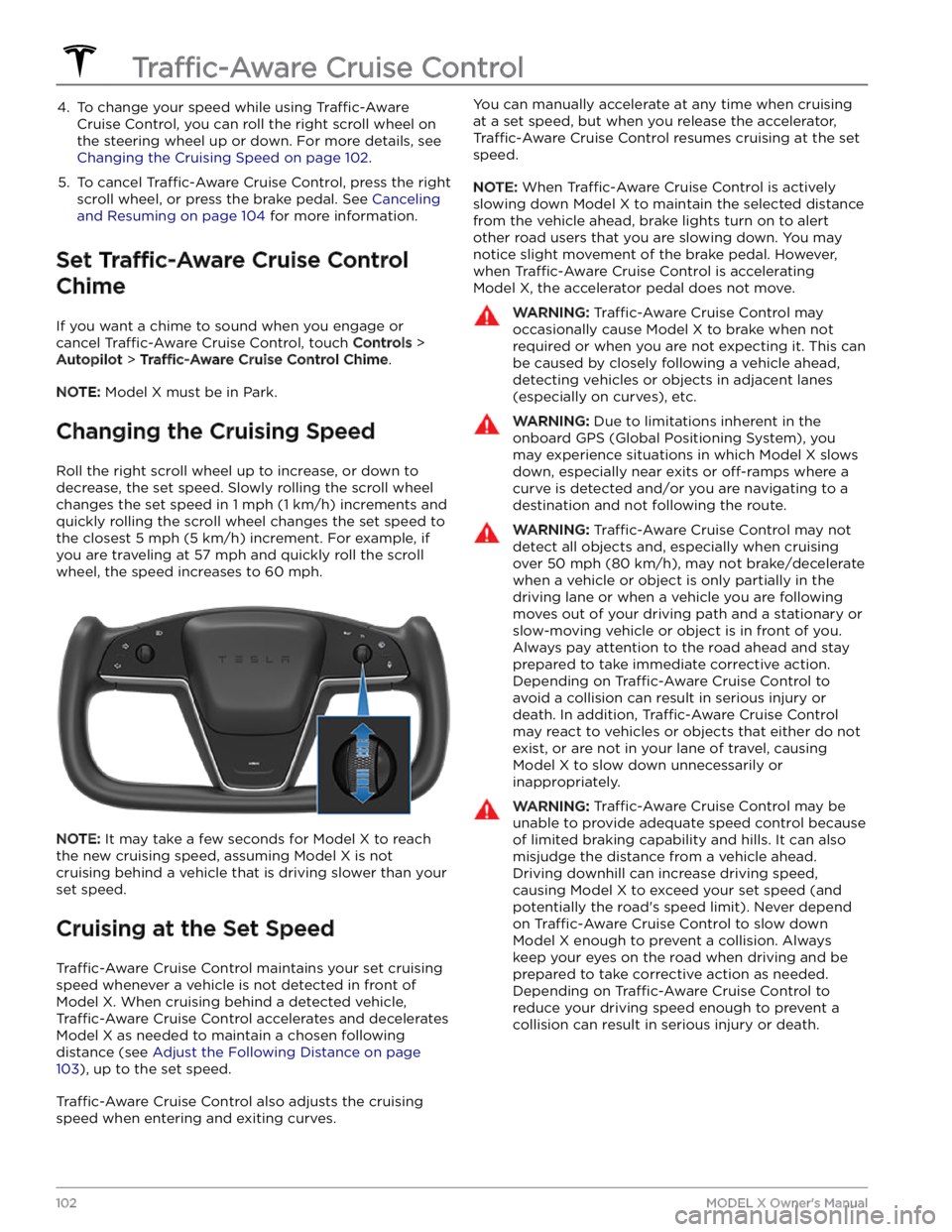
4. To change your speed while using Traffic-Aware
Cruise Control, you can roll the right scroll wheel on
the steering wheel up or down. For more details, see
Changing the Cruising Speed on page 102.
5.
To cancel Traffic-Aware Cruise Control, press the right
scroll wheel, or press the brake pedal. See
Canceling
and Resuming on page 104 for more information.
Set Traffic-Aware Cruise Control
Chime
If you want a chime to sound when you engage or cancel
Traffic-Aware Cruise Control, touch Controls >
Autopilot > Traffic-Aware Cruise Control Chime.
NOTE: Model X must be in Park.
Changing the Cruising Speed
Roll the right scroll wheel up to increase, or down to decrease, the set speed. Slowly rolling the scroll wheel
changes the set speed in
1 mph (1 km/h) increments and
quickly rolling the scroll wheel changes the set speed to the closest
5 mph (5 km/h) increment. For example, if
you are traveling at
57 mph and quickly roll the scroll
wheel, the speed increases to
60 mph.
NOTE: It may take a few seconds for Model X to reach
the new cruising speed, assuming
Model X is not
cruising behind a vehicle that is driving slower than your
set speed.
Cruising at the Set Speed
Traffic-Aware Cruise Control maintains your set cruising
speed whenever a vehicle is not detected in front of
Model X. When cruising behind a detected vehicle,
Traffic-Aware Cruise Control accelerates and decelerates
Model X as needed to maintain a chosen following
distance (see
Adjust the Following Distance on page
103), up to the set speed.
Traffic-Aware Cruise Control also adjusts the cruising
speed when entering and exiting curves.
You can manually accelerate at any time when cruising
at a set speed, but when you release the accelerator,
Traffic-Aware Cruise Control resumes cruising at the set
speed.
NOTE: When Traffic-Aware Cruise Control is actively
slowing down
Model X to maintain the selected distance
from the vehicle ahead, brake lights turn on to alert other road users that you are slowing down. You may
notice slight movement of the brake pedal. However,
when
Traffic-Aware Cruise Control is accelerating
Model X, the accelerator pedal does not move.
WARNING: Traffic-Aware Cruise Control may
occasionally cause Model X to brake when not
required or when you are not expecting it. This can
be caused by closely following a vehicle ahead,
detecting vehicles or objects in adjacent lanes
(especially on curves), etc.
WARNING: Due to limitations inherent in the
onboard GPS (Global Positioning System), you
may experience situations in which Model X slows
down, especially near exits or off-ramps where a
curve is detected and/or you are navigating to a
destination and not following the route.
WARNING: Traffic-Aware Cruise Control may not
detect all objects and, especially when cruising
over 50 mph (80 km/h), may not brake/decelerate
when a vehicle or object is only partially in the
driving lane or when a vehicle you are following
moves out of your driving path and a stationary or
slow-moving vehicle or object is in front of you.
Always pay attention to the road ahead and stay
prepared to take immediate corrective action.
Depending on Traffic-Aware Cruise Control to
avoid a collision can result in serious injury or
death. In addition, Traffic-Aware Cruise Control
may react to vehicles or objects that either do not
exist, or are not in your lane of travel, causing
Model X to slow down unnecessarily or
inappropriately.
WARNING: Traffic-Aware Cruise Control may be
unable to provide adequate speed control because
of limited braking capability and hills. It can also
misjudge the distance from a vehicle ahead.
Driving downhill can increase driving speed,
causing Model X to exceed your set speed (and
potentially the road
Page 107 of 296
NOTE: Depending on market region, vehicle
configuration, options purchased, and software version,
your vehicle may not be equipped with Autosteer, or the
feature may not operate exactly as described.
NOTE: Autosteer is a BETA feature.
Autosteer builds upon Traffic-Aware Cruise Control (see
Traffic-Aware Cruise Control on page 101), intelligently
keeping
Model X in its driving lane when cruising at a set
speed.
Autosteer also allows you to use the turn signals
to move Model X into an adjacent lane (see Auto Lane
Change on page 107). Autosteer detects lane markings
and the presence of vehicles and objects to
steer
Model X.
NOTE: To display more details about the roadway and its
surroundings, such as road markings, stop lights, objects (such as trash cans and poles), etc., touch
Controls >
Autopilot > Full Self-Driving Visualization Preview (if
equipped).
CAUTION: Ensure all cameras and sensors (if
equipped) are clean. Dirty cameras and sensors, as
well as environmental conditions such as rain and
faded lane markings, affect performance.
WARNING: Autosteer is a hands-on feature. You
must keep your hands on the steering yoke (or
steering wheel) at all times.
WARNING: Autosteer is intended for use on
controlled-access highways with a fully attentive
driver. When using Autosteer, hold the steering
yoke (or steering wheel) and be mindful of road
conditions and surrounding traffic. Do not use
Autosteer in construction zones, or in areas where
bicyclists or pedestrians may be present. Never
depend on Autosteer to determine an appropriate
driving path. Always be prepared to take
immediate action. Failure to follow these
instructions could cause damage, serious injury or
death.
Operating Autosteer
Before you can operate Autosteer, you must enable it by touching
Controls > Autopilot > Autosteer (Beta).
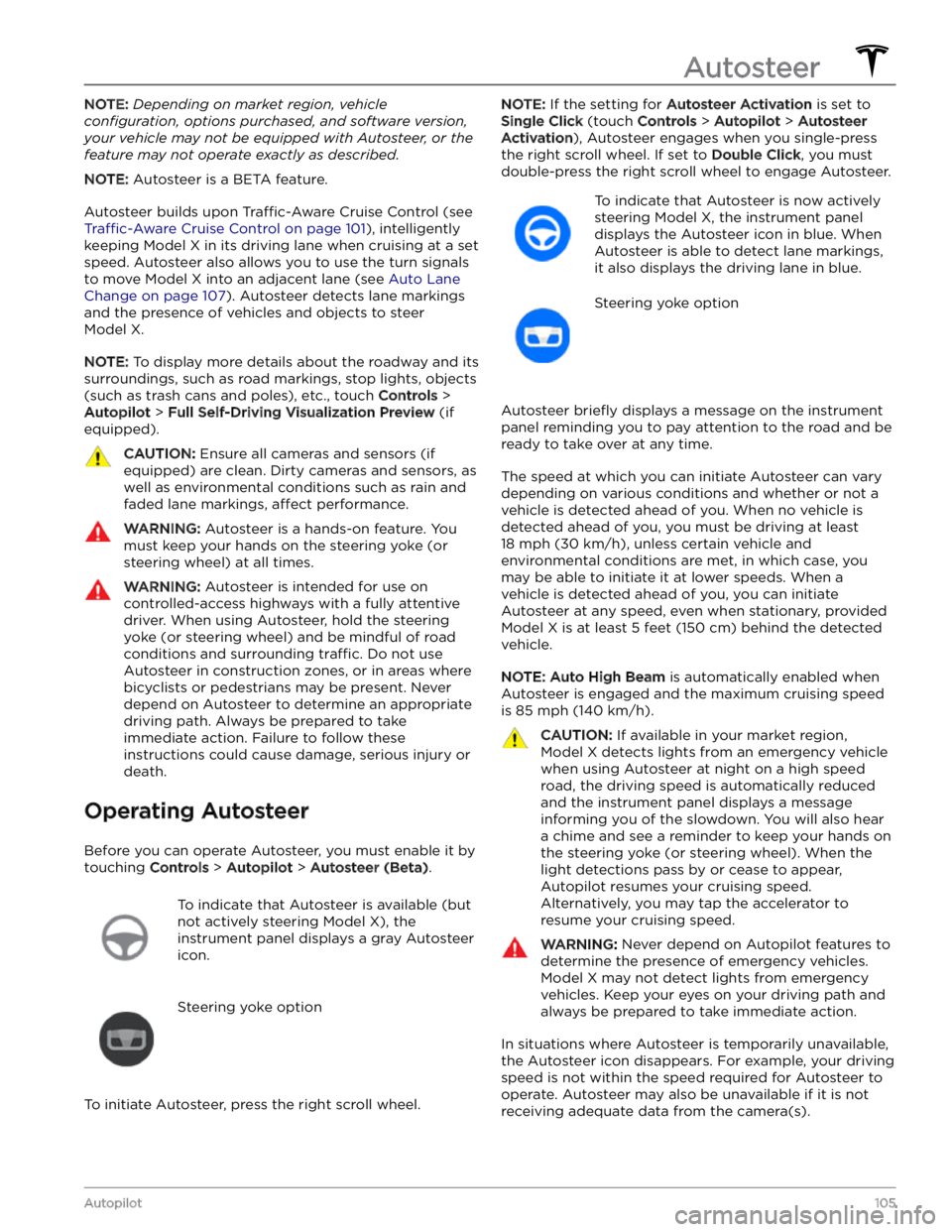
To indicate that Autosteer is available (but
not actively steering
Model X), the
instrument panel displays a gray Autosteer
icon.
Steering yoke option
To initiate Autosteer, press the right scroll wheel.
NOTE: If the setting for Autosteer Activation is set to
Single Click (touch Controls > Autopilot > Autosteer
Activation), Autosteer engages when you single-press
the right scroll wheel. If set to
Double Click, you must
double-press the right scroll wheel to engage Autosteer.
To indicate that Autosteer is now actively
steering
Model X, the instrument panel
displays the Autosteer icon in blue. When
Autosteer is able to detect lane markings,
it also displays the driving lane in blue.
Steering yoke option
Autosteer briefly displays a message on the instrument
panel reminding you to pay attention to the road and be
ready to take over at any time.
The speed at which you can initiate Autosteer can vary depending on various conditions and whether or not a
vehicle is detected ahead of you. When no vehicle is
detected ahead of you, you must be driving at least
18 mph (30 km/h), unless certain vehicle and
environmental conditions are met, in which case, you
may be able to initiate it at lower speeds. When a
vehicle is detected ahead of you, you can initiate
Autosteer at any speed, even when stationary, provided
Model X is at least 5 feet (150 cm) behind the detected
vehicle.
NOTE: Auto High Beam is automatically enabled when
Autosteer is engaged and the maximum cruising speed is
85 mph (140 km/h).
CAUTION: If available in your market region,
Model X detects lights from an emergency vehicle
when using Autosteer at night on a high speed
road, the driving speed is automatically reduced
and the instrument panel displays a message
informing you of the slowdown. You will also hear
a chime and see a reminder to keep your hands on
the steering yoke (or steering wheel). When the
light detections pass by or cease to appear,
Autopilot resumes your cruising speed.
Alternatively, you may tap the accelerator to
resume your cruising speed.
WARNING: Never depend on Autopilot features to
determine the presence of emergency vehicles.
Model X may not detect lights from emergency
vehicles. Keep your eyes on your driving path and
always be prepared to take immediate action.
In situations where Autosteer is temporarily unavailable, the Autosteer icon disappears. For example, your driving speed is not within the speed required for Autosteer to operate. Autosteer may also be unavailable if it is not receiving adequate data from the camera(s).
Autosteer
105Autopilot
Page 108 of 296
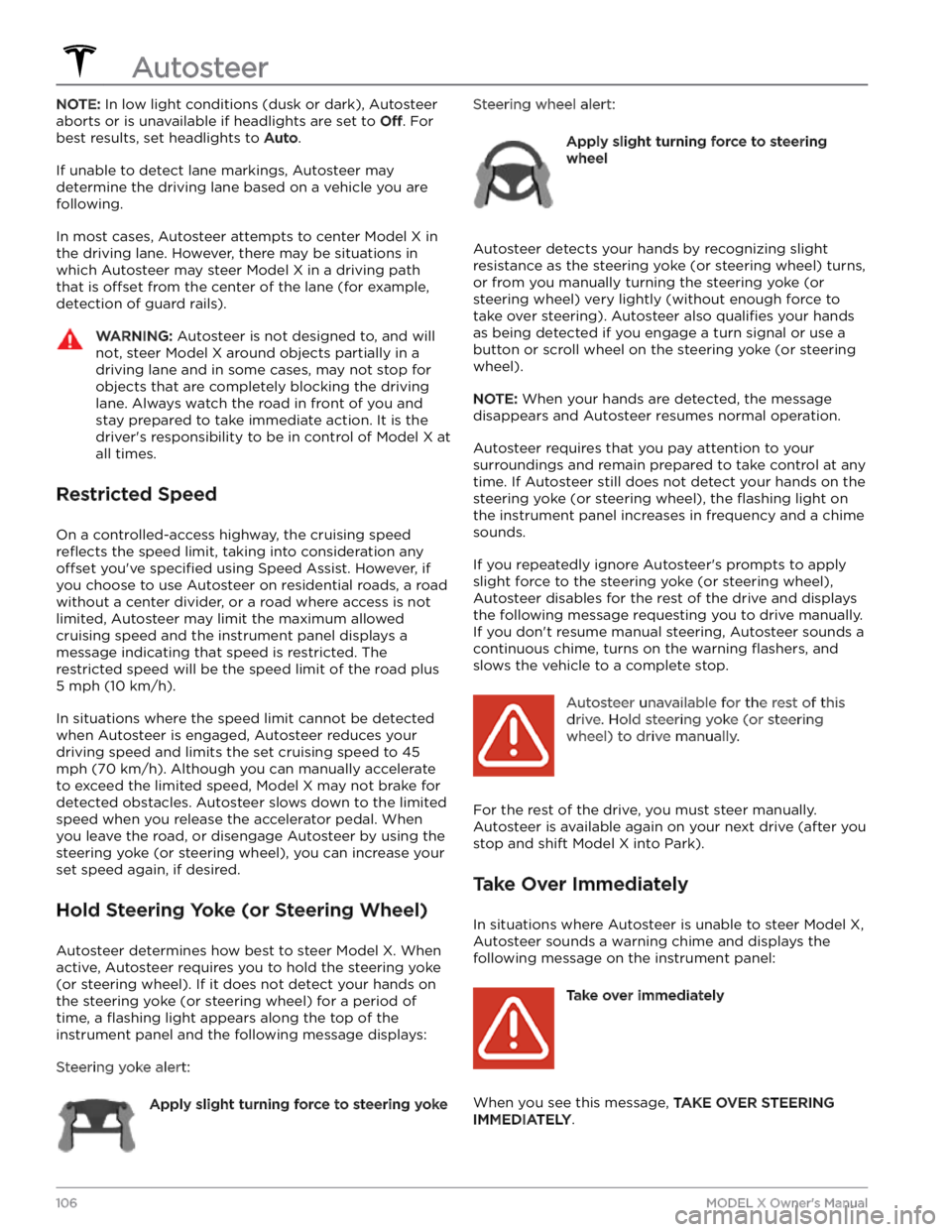
NOTE: In low light conditions (dusk or dark), Autosteer
aborts or is unavailable if headlights are set to
Off. For
best results, set headlights to
Auto.
If unable to detect lane markings, Autosteer may determine the driving lane based on a vehicle you are
following.
In most cases, Autosteer attempts to center Model X in
the driving lane. However, there may be situations in which Autosteer may steer
Model X in a driving path
that is
offset from the center of the lane (for example,
detection of guard rails).
WARNING: Autosteer is not designed to, and will
not, steer Model X around objects partially in a
driving lane and in some cases, may not stop for
objects that are completely blocking the driving
lane. Always watch the road in front of you and
stay prepared to take immediate action. It is the
driver
Page 110 of 296
In situations where Auto Lane Change is unable to operate at optimal performance, or cannot operate due to inadequate data, the
instrument panel displays a
series of warnings. Therefore, when using Auto Lane
Change, always pay attention to the
instrument panel
and be prepared to manually steer Model X.
Adjacent Lane Speed
NOTE: Depending on market region, vehicle
configuration, options purchased, and software version,
your vehicle may not be equipped with Adjacent Lane
Speed, or the feature may not operate exactly as
described.
When moving significantly faster than vehicles in
adjacent lanes,
Model X automatically reduces the
driving speed. This is especially helpful in heavy
traffic
situations or when vehicles are constantly merging into
different lanes. When Model X detects other vehicles
driving
significantly slower, the instrument panel
highlights the adjacent lanes with arrows and detected
vehicles in gray, and
Model X reduces the driving speed
as appropriate. To temporarily override this feature,
press the accelerator pedal.
WARNING: Never depend on Autopilot to
determine a safe driving speed; you are
responsible for driving safely and according to
traffic laws in your market region.
Stop Light and Stop Sign Warning
NOTE: Depending on market region, vehicle
configuration, options purchased, and software version,
your vehicle may not be equipped with Stop Light and
Stop Sign Warning, or the feature may not operate
exactly as described.
While Autosteer is in use, Model X displays a warning on
the
instrument panel and sounds a chime if it detects
that you are likely to run through a red stop light or stop sign. If this happens,
TAKE IMMEDIATE CORRECTIVE
ACTION!
The visual and audible warnings cancel after a few seconds, or when you press the brake pedal, whichever
comes
first.
Stop Light and Stop Sign Warning provides warnings
only. It does not slow down or stop
Model X at red traffic
lights, stop signs, road markings, etc. If equipped with
Traffic Light and Stop Sign Control, you can enable this
feature to automatically stop Model X at traffic lights
and stop signs (see Traffic Light and Stop Sign Control
on page 113).
CAUTION: Stop Light and Stop Sign Warning
requires on-board maps to know that a particular
stop light or stop sign exists at a location. In some
cases, map data is inaccurate or outdated and may
not include all stop lights or stop signs. Therefore,
Stop Light and Stop Sign Warning may not detect
all stop lights and stop signs.
WARNING: The Stop Light and Stop Sign Warning
feature does not apply the brakes or decelerate
Model X and may not detect all stop lights and
stop signs. Stop Light and Stop Sign Warning is
designed for guidance purposes only and is not a
substitute for attentive driving and sound
judgment. Keep your eyes on the road when
driving and never depend on Stop Light and Stop
Sign Warning to warn you of a stop light or stop
sign.
WARNING: Stop Light and Stop Sign Warning is
designed to warn you only when approaching a
visible red stop sign, solid red or later portion of a
yellow traffic light. It may not warn you of
intersections with flashing lights and it does not
warn you of yield signs or temporary stop and
yield signs (such as those used in construction
areas). Additionally, Stop Light and Stop Sign
Warning does not warn you of approaching stop
lights or stop signs when you are pressing the
accelerator pedal or brake pedal (which disables
Autosteer).
Limitations
Autosteer and its associated functions are particularly
unlikely to operate as intended when:
Page 112 of 296
NOTE: Depending on market region, vehicle
configuration, options purchased, and software version,
your vehicle may not be equipped with Navigate on
Autopilot, or the feature may not operate exactly as
described.
NOTE: Navigate on Autopilot is a BETA feature.
When using Autosteer on a controlled-access highway (a main highway on which road users enter and exit
using on-ramps and
off-ramps). Navigate on Autopilot
guides
Model X to off-ramps and interchanges based on
your navigation route. Along the highway portion of a navigation route, Navigate on Autopilot also changes
lanes to prepare for exits (route-based lane changes) and to minimize the driving time to your destination (speed-based lane changes).
WARNING: Navigate on Autopilot does not make
driving autonomous. You must pay attention to the
road, keep your hands on the steering yoke (or
steering wheel) at all times, and remain aware of
your navigation route.
WARNING: As is the case with normal driving, be
extra careful around blind corners, interchanges,
and on-ramps and off-ramps - obstacles can
appear quickly and at any time.
WARNING: Navigate on Autopilot may not
recognize or detect oncoming vehicles, stationary
objects, and special-use lanes such as those used
exclusively for bikes, carpools, emergency vehicles,
etc. Remain alert at all times and be prepared to
take immediate action. Failure to do so can cause
damage, injury or death.
Enabling and Customizing Navigate
on Autopilot
To enable Navigate on Autopilot, touch Controls >
Autopilot > Navigate on Autopilot (Beta). Then, to
customize how you want Navigate on Autopilot to operate, touch
Customize Navigate on Autopilot:
Page 113 of 296
Navigate on Autopilot activates and deactivates as appropriate, based on the type of road you are driving on. For example, if Autosteer is active and Navigate on Autopilot is enabled, Navigate on Autopilot
automatically becomes active when you reach a
controlled-access highway on your navigation route.
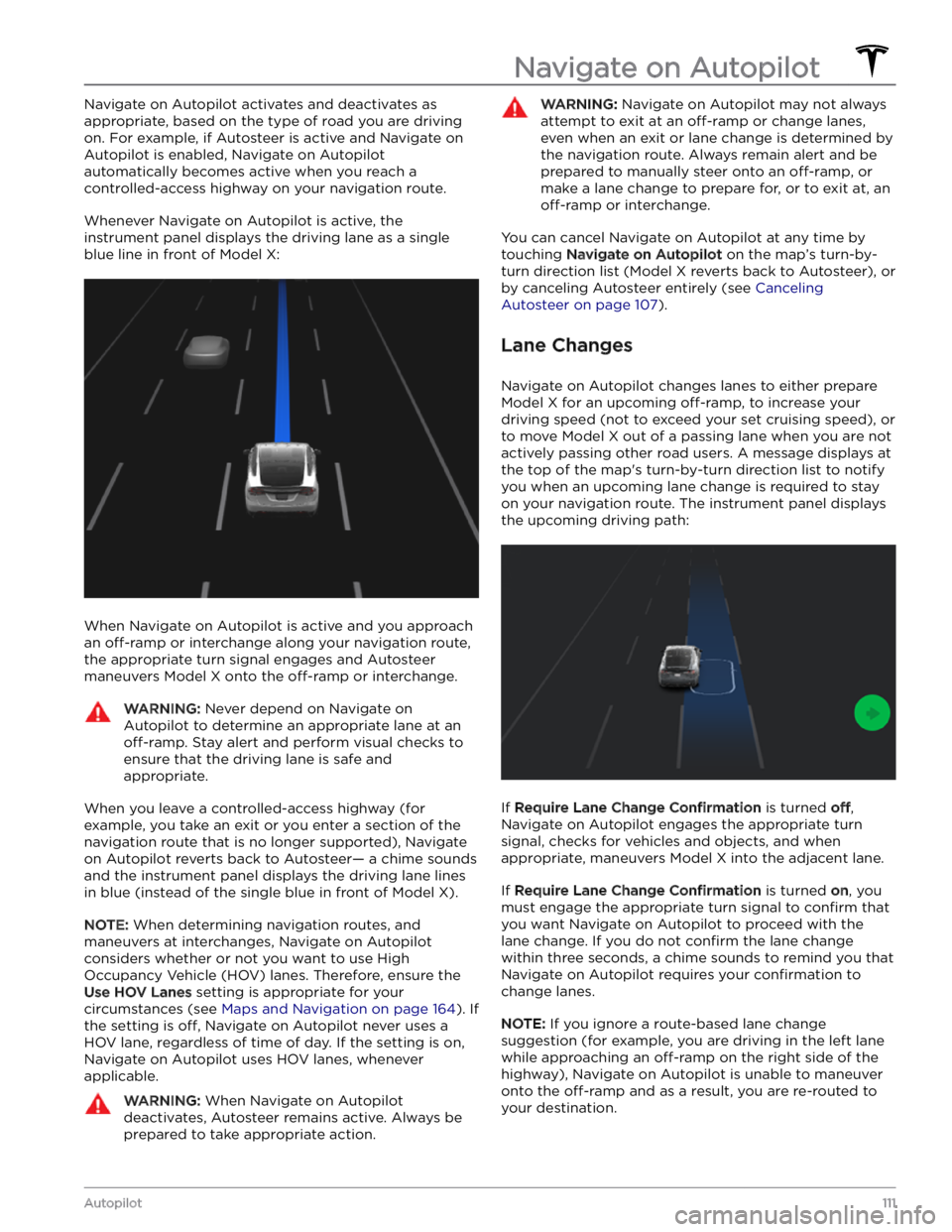
Whenever Navigate on Autopilot is active, the
instrument panel displays the driving lane as a single
blue line in front of
Model X:
When Navigate on Autopilot is active and you approach an
off-ramp or interchange along your navigation route,
the appropriate turn signal engages and Autosteer maneuvers
Model X onto the off-ramp or interchange.
WARNING: Never depend on Navigate on
Autopilot to determine an appropriate lane at an
off-ramp. Stay alert and perform visual checks to
ensure that the driving lane is safe and
appropriate.
When you leave a controlled-access highway (for example, you take an exit or you enter a section of the navigation route that is no longer supported), Navigate on Autopilot reverts back to Autosteer