light TESLA MODEL Y 2020 Owner´s Manual
[x] Cancel search | Manufacturer: TESLA, Model Year: 2020, Model line: MODEL Y, Model: TESLA MODEL Y 2020Pages: 232, PDF Size: 7.68 MB
Page 80 of 232
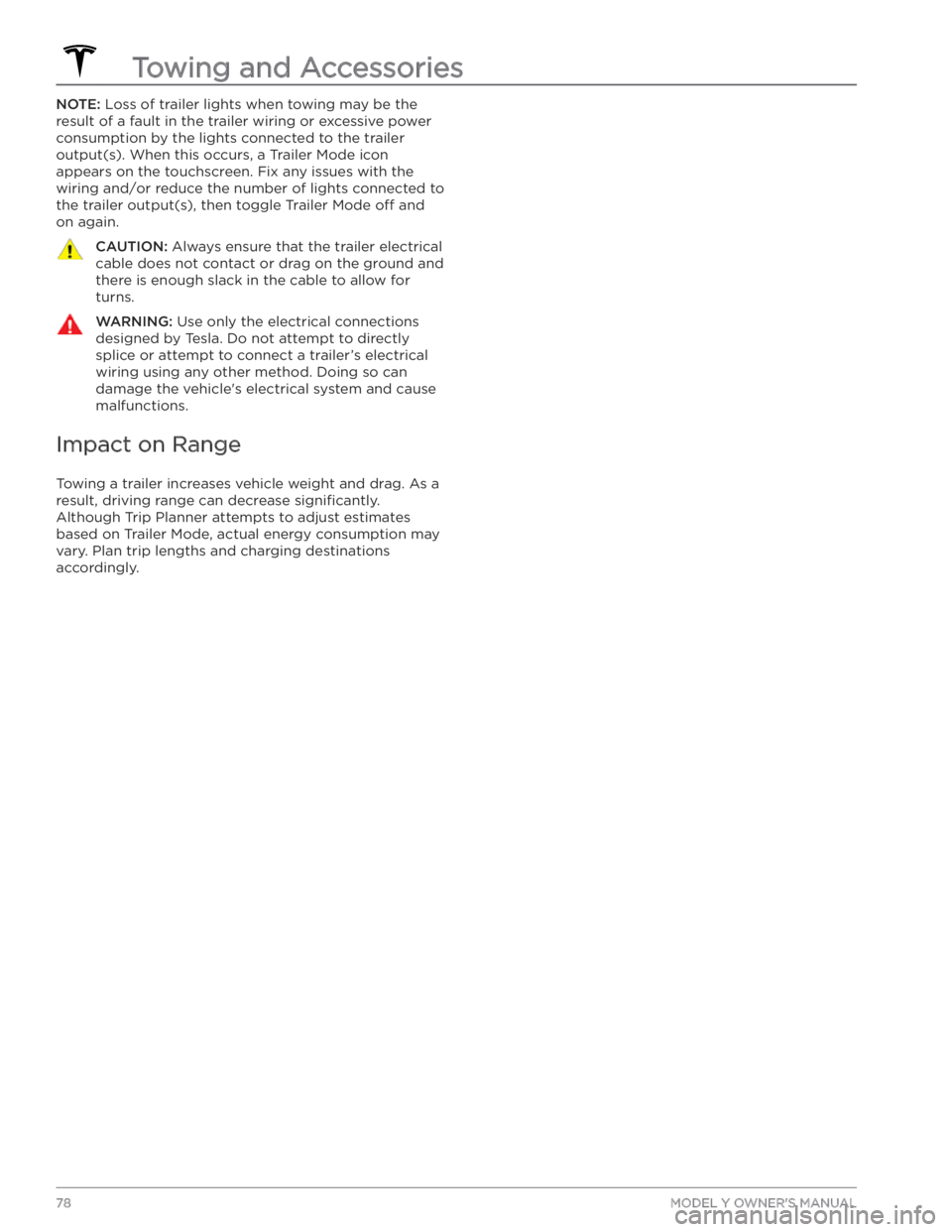
NOTE: Loss of trailer lights when towing may be the
result of a fault in the trailer wiring or excessive power
consumption by the lights connected to the trailer output(s). When this occurs, a Trailer Mode icon
appears on the touchscreen. Fix any issues with the wiring and/or reduce the number of lights connected to the trailer output(s), then toggle Trailer Mode
off and
on again.
CAUTION: Always ensure that the trailer electrical
cable does not contact or drag on the ground and
there is enough slack in the cable to allow for
turns.
WARNING: Use only the electrical connections
designed by Tesla. Do not attempt to directly
splice or attempt to connect a trailer’s electrical
wiring using any other method. Doing so can
damage the vehicle
Page 94 of 232
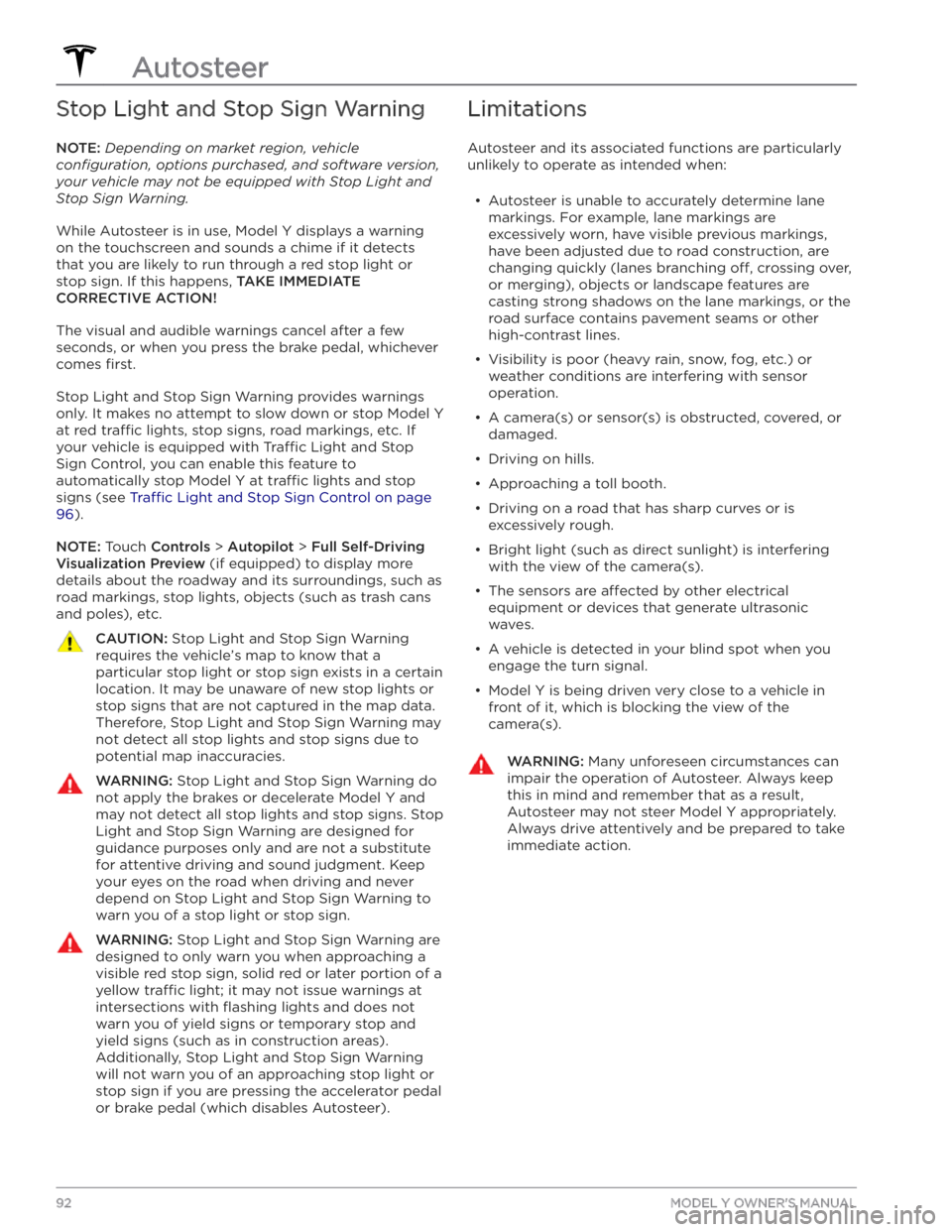
Stop Light and Stop Sign Warning
NOTE: Depending on market region, vehicle
configuration, options purchased, and software version,
your vehicle may not be equipped with Stop Light and
Stop Sign Warning.
While Autosteer is in use, Model Y displays a warning
on the
touchscreen and sounds a chime if it detects
that you are likely to run through a red stop light or stop sign. If this happens,
TAKE IMMEDIATE
CORRECTIVE ACTION!
The visual and audible warnings cancel after a few seconds, or when you press the brake pedal, whichever
comes
first.
Stop Light and Stop Sign Warning provides warnings
only. It makes no attempt to slow down or stop
Model Y
at red tra
Page 98 of 232
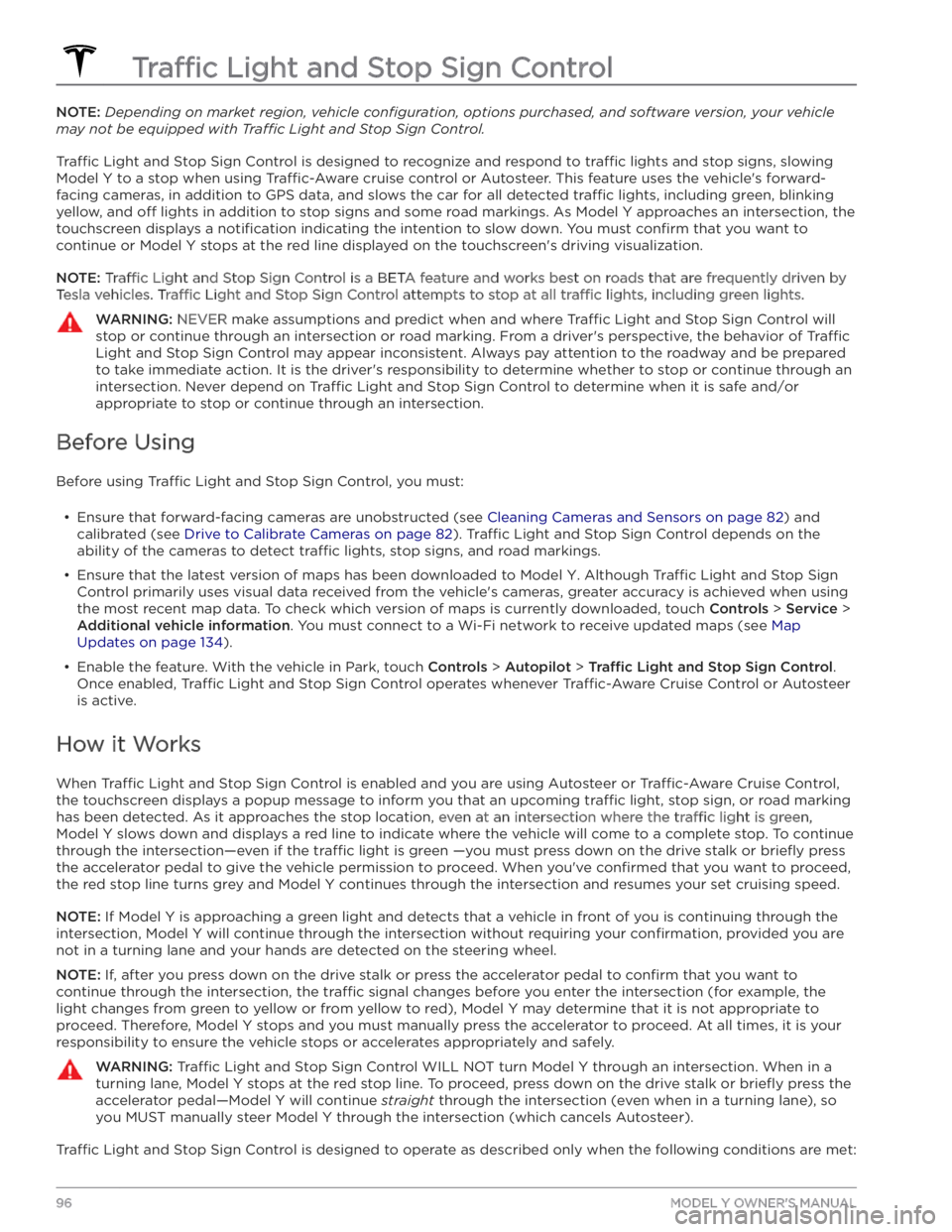
NOTE: Depending on market region, vehicle configuration, options purchased, and software version, your vehicle
may not be equipped with Traffic Light and Stop Sign Control.
Tra
Page 111 of 232
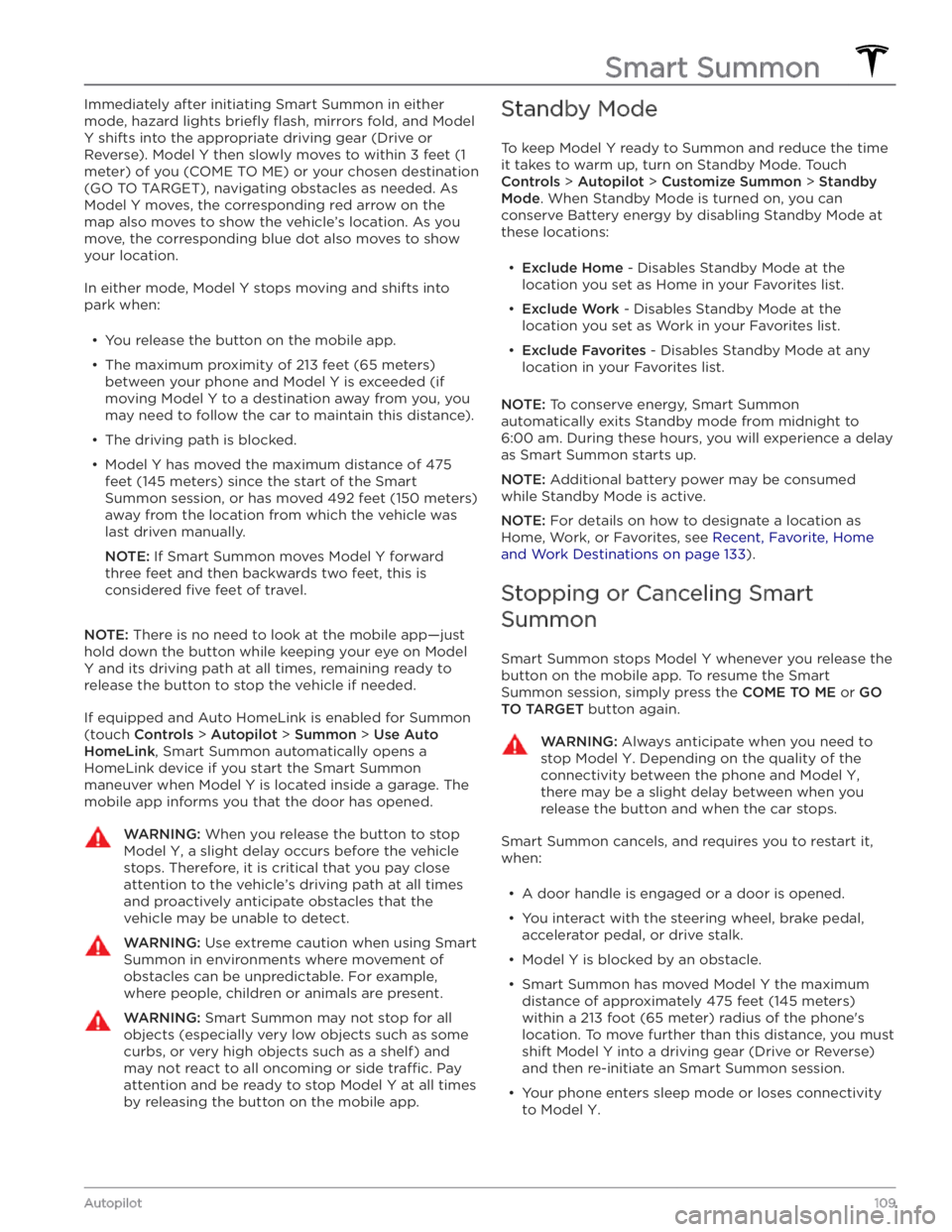
Immediately after initiating Smart Summon in either
mode, hazard lights
briefly flash, mirrors fold, and Model
Y shifts into the appropriate driving gear (Drive or
Reverse).
Model Y then slowly moves to within 3 feet (1
meter) of you (COME TO ME) or your chosen destination
(GO TO TARGET), navigating obstacles as needed. As
Model Y moves, the corresponding red arrow on the
map also moves to show the vehicle’s location. As you
move, the corresponding blue dot also moves to show
your location.
In either mode, Model Y stops moving and shifts into
park when:
Page 117 of 232
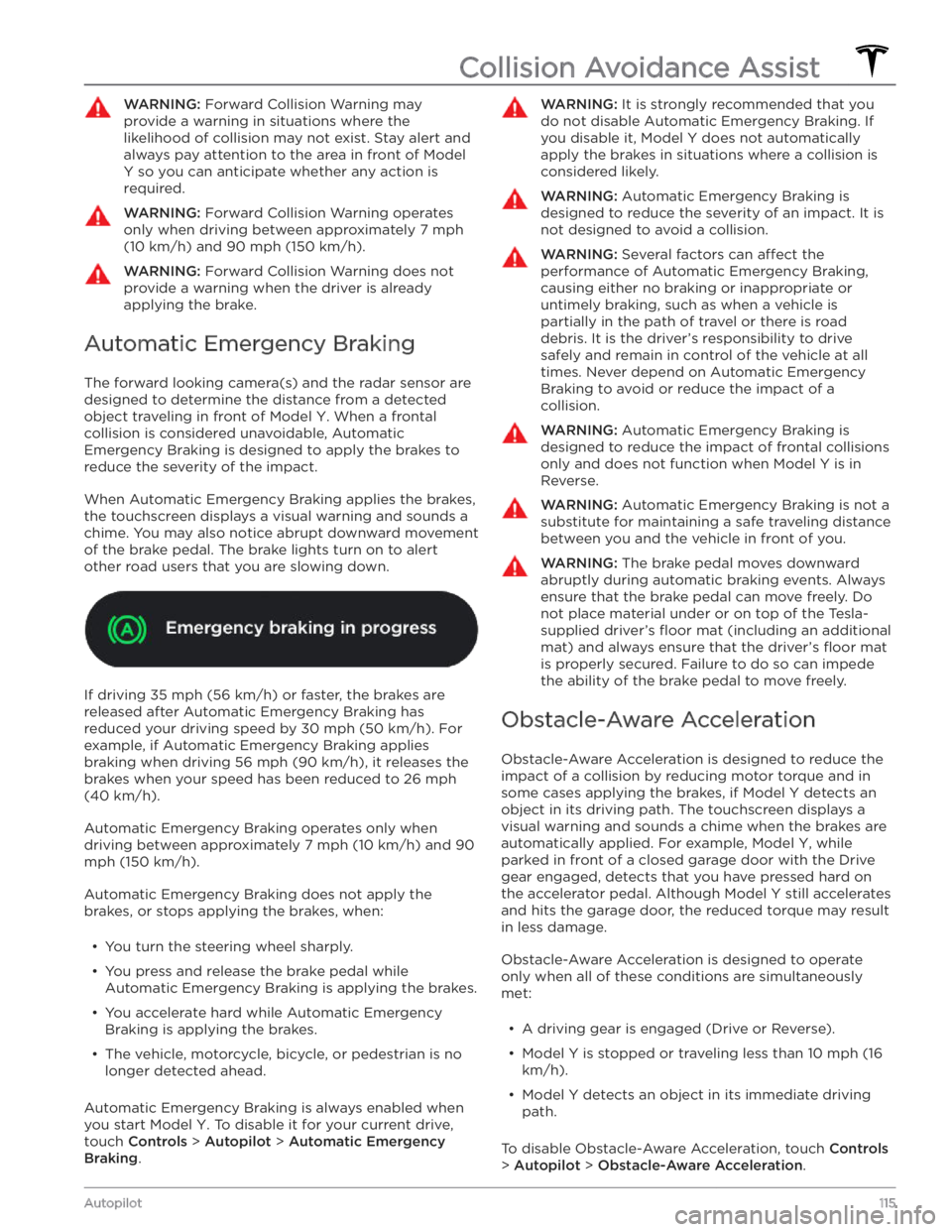
WARNING: Forward Collision Warning may
provide a warning in situations where the
likelihood of collision may not exist. Stay alert and
always pay attention to the area in front of Model
Y so you can anticipate whether any action is
required.
WARNING: Forward Collision Warning operates
only when driving between approximately 7 mph
(10 km/h) and 90 mph (150 km/h).
WARNING: Forward Collision Warning does not
provide a warning when the driver is already
applying the brake.
Automatic Emergency Braking
The forward looking camera(s) and the radar sensor are designed to determine the distance from a detected object traveling in front of
Model Y. When a frontal
collision is considered unavoidable, Automatic Emergency Braking is designed to apply the brakes to
reduce the severity of the impact.
When Automatic Emergency Braking applies the brakes,
the
touchscreen displays a visual warning and sounds a
chime. You may also notice abrupt downward movement of the brake pedal. The brake lights turn on to alert other road users that you are slowing down.
If driving 35 mph (56 km/h) or faster, the brakes are
released after Automatic Emergency Braking has reduced your driving speed by
30 mph (50 km/h). For
example, if Automatic Emergency Braking applies braking when driving
56 mph (90 km/h), it releases the
brakes when your speed has been reduced to
26 mph
(40 km/h).
Automatic Emergency Braking operates only when driving between approximately
7 mph (10 km/h) and 90
mph (150 km/h).
Automatic Emergency Braking does not apply the
brakes, or stops applying the brakes, when:
Page 123 of 232
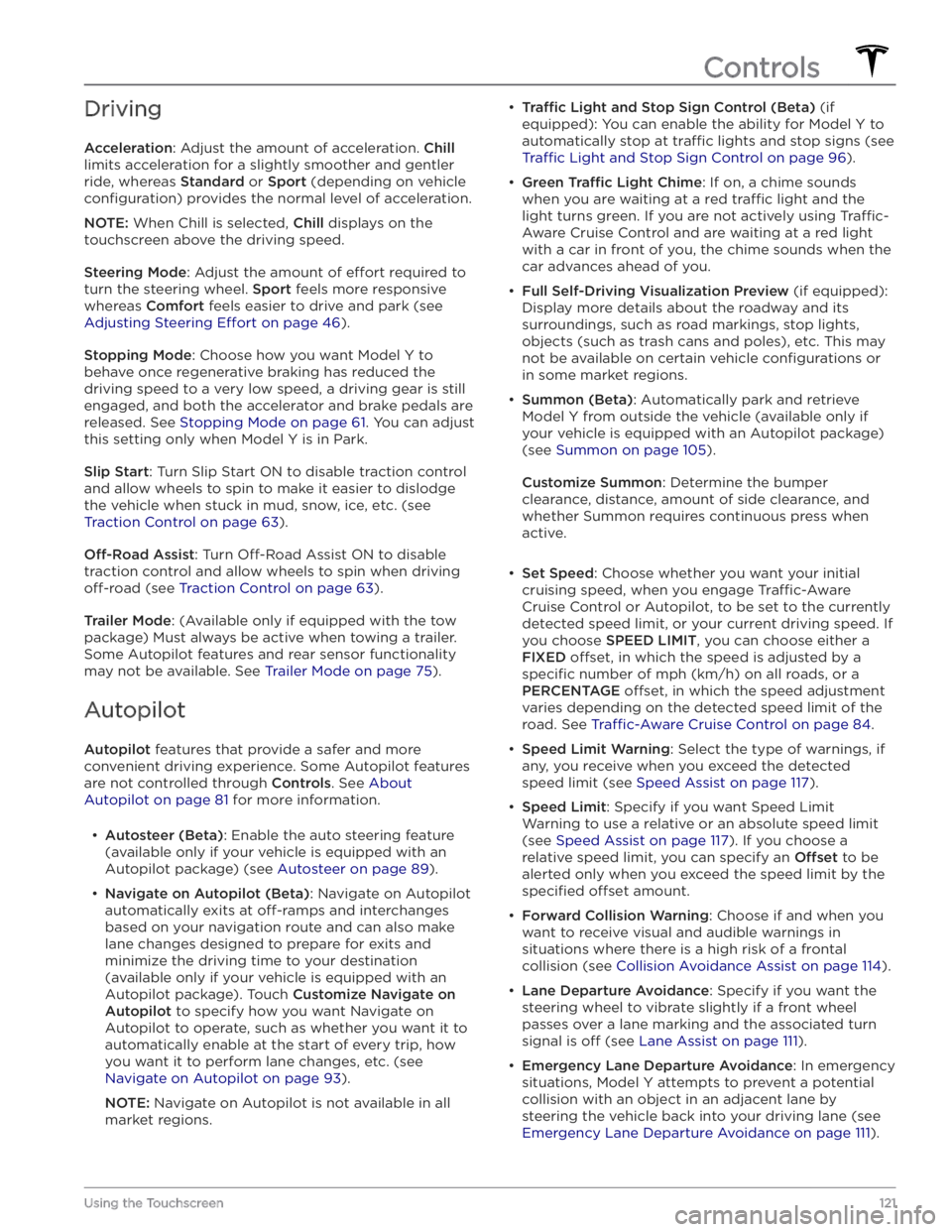
Driving
Acceleration: Adjust the amount of acceleration. Chill
limits acceleration for a slightly smoother and gentler
ride, whereas
Standard or Sport (depending on vehicle
configuration) provides the normal level of acceleration.
NOTE: When Chill is selected, Chill displays on the
touchscreen above the driving speed.
Steering Mode: Adjust the amount of effort required to
turn the steering wheel.
Sport feels more responsive
whereas
Comfort feels easier to drive and park (see
Adjusting Steering Effort on page 46).
Stopping Mode: Choose how you want Model Y to
behave once regenerative braking has reduced the driving speed to a very low speed, a driving gear is still
engaged, and both the accelerator and brake pedals are
released. See
Stopping Mode on page 61. You can adjust
this setting only when
Model Y is in Park.
Slip Start: Turn Slip Start ON to disable traction control
and allow wheels to spin to make it easier to dislodge the vehicle when stuck in mud, snow, ice, etc. (see
Traction Control on page 63).
Off-Road Assist: Turn Off-Road Assist ON to disable
traction control and allow wheels to spin when driving
off-road (see Traction Control on page 63).
Trailer Mode: (Available only if equipped with the tow
package) Must always be active when towing a trailer.
Some Autopilot features and rear sensor functionality may not be available. See
Trailer Mode on page 75).
Autopilot
Autopilot features that provide a safer and more
convenient driving experience. Some Autopilot features
are not controlled through
Controls. See About
Autopilot on page 81 for more information.
Page 144 of 232

About the Security System
If Model Y does not detect an authenticated phone, key
fob, or key card and a locked door or trunk is opened, an
alarm sounds and the headlights and turn signals
flash.
To deactivate the alarm, press any button on the mobile
app or tap your key card or key fob against the card reader located
approximately one third the way up of
the driver
Page 158 of 232

About the Battery
Model Y has one of the most sophisticated battery
systems in the world. The most important way to preserve the Battery is to
LEAVE YOUR VEHICLE
PLUGGED IN when you are not using it. This is
particularly important if you are not planning to drive
Model Y for several weeks. When plugged in, Model Y
wakes up when needed to automatically maintain a charge level that maximizes the lifetime of the Battery.
NOTE: When left idle and unplugged, your vehicle
periodically uses energy from the Battery for system tests and recharging the 12V battery when necessary.
There is no advantage to waiting until the Battery’s level is low before charging. In fact, the Battery performs best when charged regularly.
NOTE: If you allow the Battery to discharge to 0%,
other components may become damaged or require replacement (for example, the 12V battery). In these cases, you are responsible for repair and/or transporting expenses. Discharge-related expenses are
not covered by the warranty or under the Roadside Assistance policy.
The peak charging rate of the Battery may decrease slightly after a large number of DC Fast Charging sessions, such as those at Superchargers. To ensure maximum driving range and Battery safety, the Battery charge rate is decreased when the Battery is too cold, when the Battery’s charge is nearly full, and when the
Battery conditions change with usage and age. These changes in the condition of the Battery are driven by battery physics and may increase the total Supercharging duration by a few minutes over time.
Battery Care
Never allow the Battery to fully discharge. Even when
Model Y is not being driven, its Battery discharges very
slowly to power the onboard electronics. The Battery can discharge at a rate of approximately 1% per day, though the discharge rate may vary depending on environmental factors (such as cold weather), vehicle
configuration, and your selected settings on the
touchscreen. Situations can arise in which you must leave
Model Y unplugged for an extended period of
time (for example, at an airport when traveling). In
these situations, keep the 1% in mind to ensure that you leave the Battery with a
su
Page 159 of 232

Opening the Charge Port
The charge port is located on the left side of Model Y,
behind a door that is part of the rear tail light assembly.
Before charging, park
Model Y to ensure that the
charge cable easily reaches the charge port.
With Model Y unlocked (or an authenticated phone is
within range) and in Park, press and release the button on the Tesla charge cable to open the charge port door.
You can also open the charge port door using any of these methods:
Page 160 of 232

During Charging
During charging, the charge port light (the Tesla "T"
logo) pulses green, and the touchscreen displays the
charging status. The frequency at which the charge
port light pulses slows down as the charge level approaches full. When charging is complete, the light stops pulsing and is solid green.
NOTE: If Model Y is locked, the charge port light does
not light up.
If the charge port light turns red while charging, a fault
is detected. Check the touchscreen for a message describing the fault. A fault can occur due to something as common as a power outage. If a power outage
occurs, charging resumes automatically when power is
restored.
NOTE: When charging, particularly at high currents, the
refrigerant compressor and fan operate as needed to keep the Battery cool. Therefore, it is normal to hear sounds during charging.
NOTE: Air conditioning performance is generally not
affected by charging. However, under certain
circumstances (for example, you are charging at high currents during a particularly warm day), the air coming from the vents may not be as cool as expected and a message displays on the
touchscreen. This is normal
behavior and ensures that the Battery stays within an optimum temperature range while charging to support longevity and optimum performance.
WARNING: Never spray liquid at a high velocity
(for example, if using a pressure washer) towards
the charge port while charging. Failure to follow
these instructions can result in serious injury or
damage to the vehicle, charging equipment, or
property.
Stopping Charging
Stop charging at any time by disconnecting the charge
cable or touching
Stop Charging on the touchscreen.
NOTE: To prevent unauthorized unplugging of the
charge cable, the charge cable latch remains locked
and
Model Y must be unlocked or able to recognize
your
authenticated phone before you can disconnect
the charge cable.
To disconnect the charge cable using a connector:
1.
Press and hold the button on the connector handle to release the latch. Alternatively, unlock the vehicle
by opening a door, using a
key card or key fob, or
touching
Stop Charging on the touchscreen. These
methods unlock the charge port as well.
2.
Pull the connector from the charge port.
To disconnect the charge cable using an adapter at a
public charge station:
1. Ensure that Model Y is unlocked.2.
While holding the public charging handle in one
hand and the adapter in the other hand, press and hold the button on the public charging handle and
pull both outwards, removing the handle and
adapter at the same time.
NOTE: If the charging station handle separates from
the adapter, leaving the adapter in
Model Y, use the
touchscreen to unlock the charge port (touch the charging icon on the overhead view of the vehicle).
3.
Press and hold the charging handle button again to release the adapter from the charging handle.
NOTE: The charge port automatically closes within
approximately 10 seconds of removing the connector from the charge port.
CAUTION: Tesla strongly recommends leaving
Model Y plugged in when not in use. This
maintains the Battery at the optimum level of
charge.
CAUTION: Model Y will not shift out of Park if the
charge port is unable to determine whether a
charging cable is plugged in. Ensure any charging
cables are unplugged and follow the instructions
on the touchscreen to proceed (see Park on page
51.
Manually Releasing Charge Cable
If the usual methods for releasing a charge cable from the charge port (using the charge handle release button, touchscreen, or mobile app) do not work,
carefully follow these steps:
1.
Ensure that Model Y is not actively charging by
displaying the charging screen on the touchscreen. If necessary, touch
Stop Charging.
2.
Open the rear trunk.
3.
Pull the charge port