wheel TESLA MODEL Y 2021 Owner´s Manual
[x] Cancel search | Manufacturer: TESLA, Model Year: 2021, Model line: MODEL Y, Model: TESLA MODEL Y 2021Pages: 250, PDF Size: 8.4 MB
Page 64 of 250
WARNING: Forward Collision Warning and
Automatic Emergency Braking (if equipped) do
not operate when driving at very low speeds (see
Collision Avoidance Assist on page 117). Do not
rely on these features to warn you, or to prevent or
reduce the impact of a collision.
NOTE: Your chosen setting is retained in your Driver
Profile until you manually change it.
Parking Brake
To engage the parking brake, touch Controls > Safety &
Security > Parking Brake. Follow the onscreen
instructions.
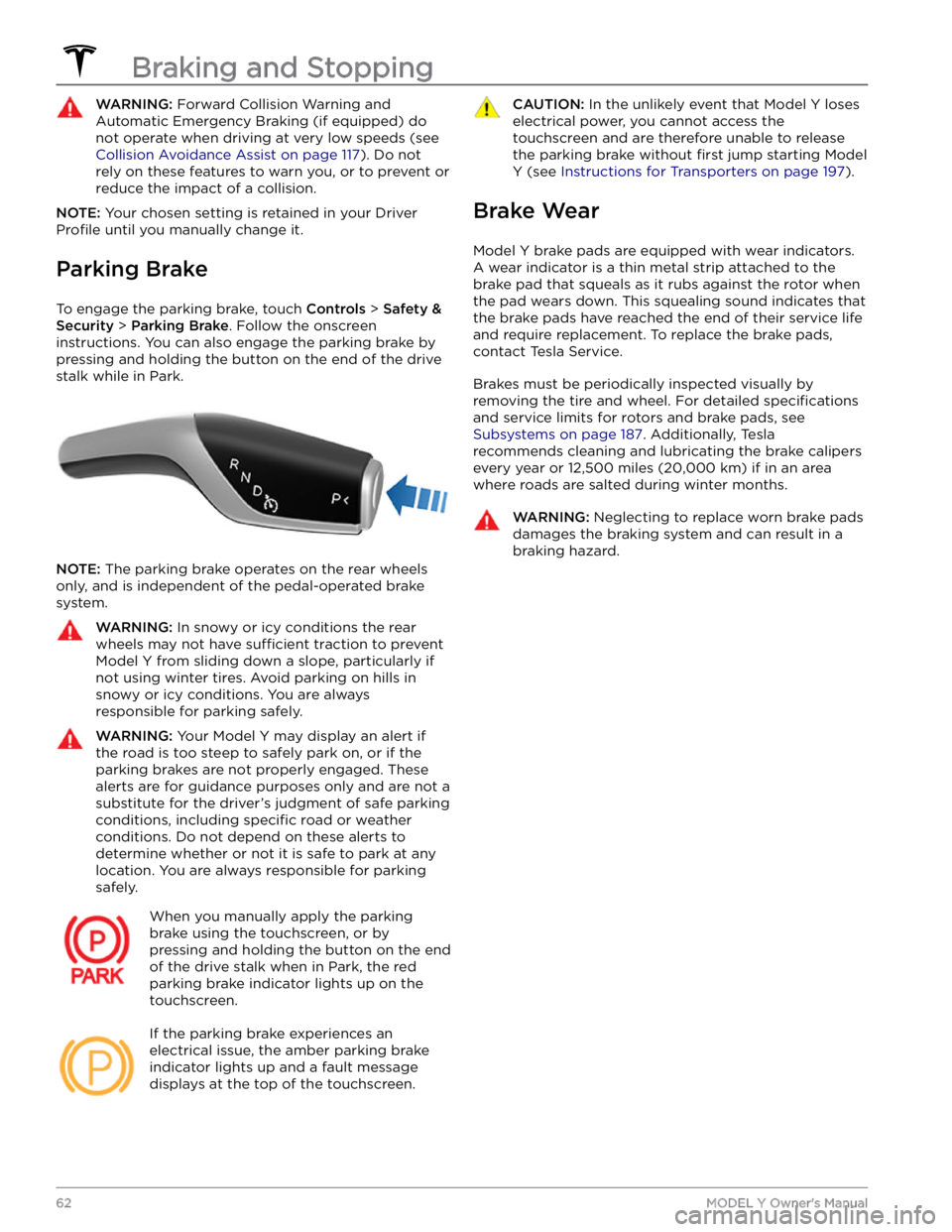
You can also engage the parking brake by
pressing and holding the button on the end of the drive
stalk while in Park.
NOTE: The parking brake operates on the rear wheels
only, and is independent of the pedal-operated brake
system.
WARNING: In snowy or icy conditions the rear
wheels may not have sufficient traction to prevent
Model Y from sliding down a slope, particularly if
not using winter tires. Avoid parking on hills in
snowy or icy conditions. You are always
responsible for parking safely.
WARNING: Your Model Y may display an alert if
the road is too steep to safely park on, or if the
parking brakes are not properly engaged. These
alerts are for guidance purposes only and are not a
substitute for the driver
Page 65 of 250
How It Works
The traction control system constantly monitors the speed of the front and rear wheels. If
Model Y
experiences a loss of traction, the system minimizes wheel spin by controlling brake pressure and motor
power. By default, the traction control system is on. Under normal conditions, it should remain on to ensure
maximum safety.
This yellow indicator flashes on the
touchscreen whenever the traction control
system is actively controlling brake
pressure and motor power to minimize wheel spin. If the indicator stays on, a fault is detected with the traction control system. Contact Tesla Service.
WARNING: Traction control cannot prevent
collisions caused by driving dangerously or turning
too sharply at high speeds.
Disabling Traction Control
Under normal conditions, the traction control system should remain on. Turn it
off only in circumstances
where you deliberately want the wheels to spin, such as:
Page 66 of 250
How Park Assist Works
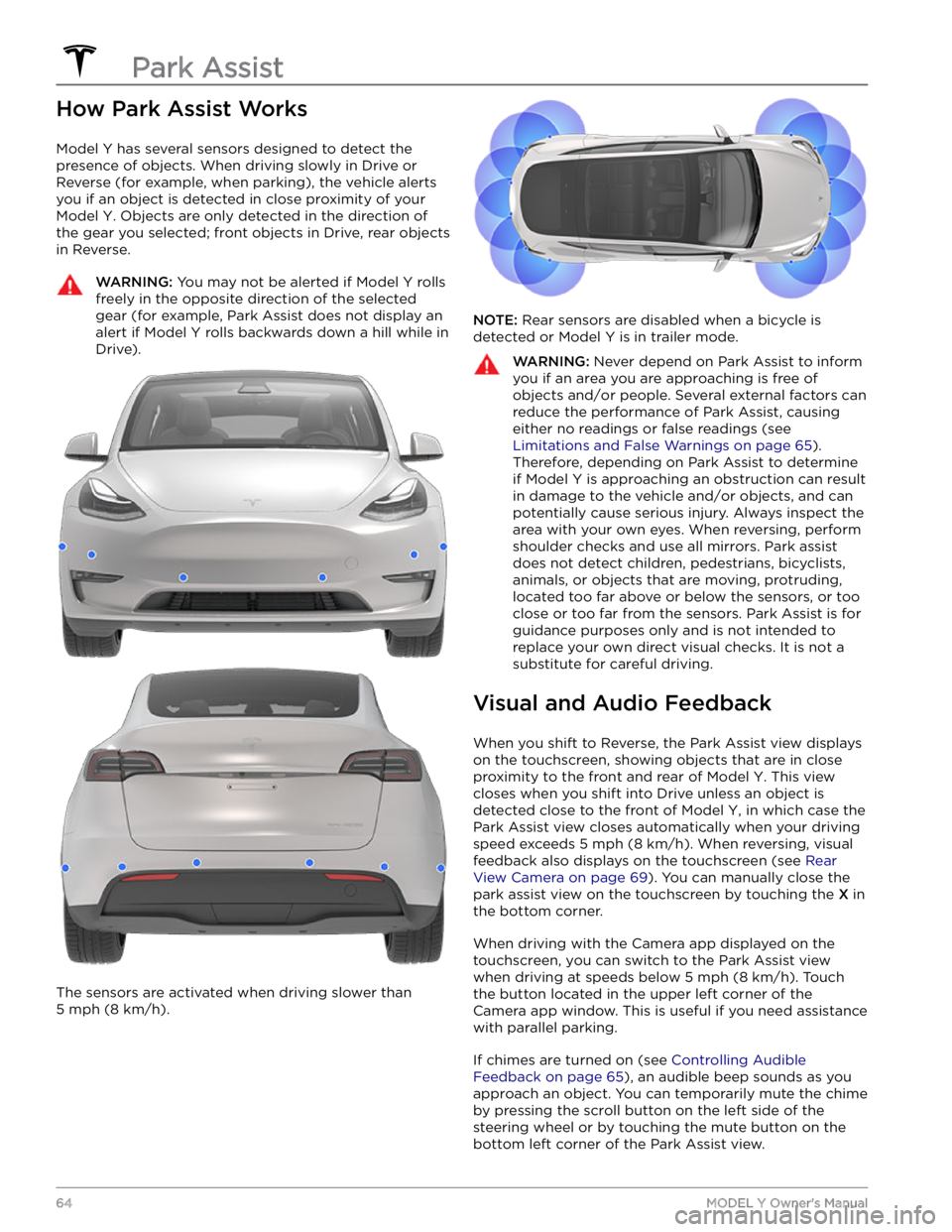
Model Y has several sensors designed to detect the
presence of objects. When driving slowly in Drive or
Reverse (for example, when parking), the vehicle alerts
you if an object is detected in close proximity of your
Model Y. Objects are only detected in the direction of
the gear you selected; front objects in Drive, rear objects in Reverse.
WARNING: You may not be alerted if Model Y rolls
freely in the opposite direction of the selected
gear (for example, Park Assist does not display an
alert if Model Y rolls backwards down a hill while in
Drive).
The sensors are activated when driving slower than
5 mph (8 km/h).
NOTE: Rear sensors are disabled when a bicycle is
detected or
Model Y is in trailer mode.
WARNING: Never depend on Park Assist to inform
you if an area you are approaching is free of
objects and/or people. Several external factors can
reduce the performance of Park Assist, causing
either no readings or false readings (see
Limitations and False Warnings on page 65).
Therefore, depending on Park Assist to determine
if Model Y is approaching an obstruction can result
in damage to the vehicle and/or objects, and can
potentially cause serious injury. Always inspect the
area with your own eyes. When reversing, perform
shoulder checks and use all mirrors. Park assist
does not detect children, pedestrians, bicyclists,
animals, or objects that are moving, protruding,
located too far above or below the sensors, or too
close or too far from the sensors. Park Assist is for
guidance purposes only and is not intended to
replace your own direct visual checks. It is not a
substitute for careful driving.
Visual and Audio Feedback
When you shift to Reverse, the Park Assist view displays on the
touchscreen, showing objects that are in close
proximity to the front and rear of
Model Y. This view
closes when you shift into Drive unless an object is
detected close to the front of
Model Y, in which case the
Park Assist view closes automatically when your driving speed exceeds
5 mph (8 km/h). When reversing, visual
feedback also displays on the touchscreen (see
Rear
View Camera on page 69). You can manually close the
park assist view on the touchscreen by touching the
X in
the bottom corner.
When driving with the Camera app displayed on the
touchscreen, you can switch to the Park Assist view when driving at speeds below
5 mph (8 km/h). Touch
the button located in the upper left corner of the Camera app window. This is useful if you need assistance
with parallel parking.
If chimes are turned on (see Controlling Audible
Feedback on page 65), an audible beep sounds as you
approach an object. You can temporarily mute the chime
by pressing the scroll button on the left side of the
steering wheel or by touching the mute button on the
bottom left corner of the Park Assist view.
Park Assist
64MODEL Y Owner
Page 71 of 250
Camera Location
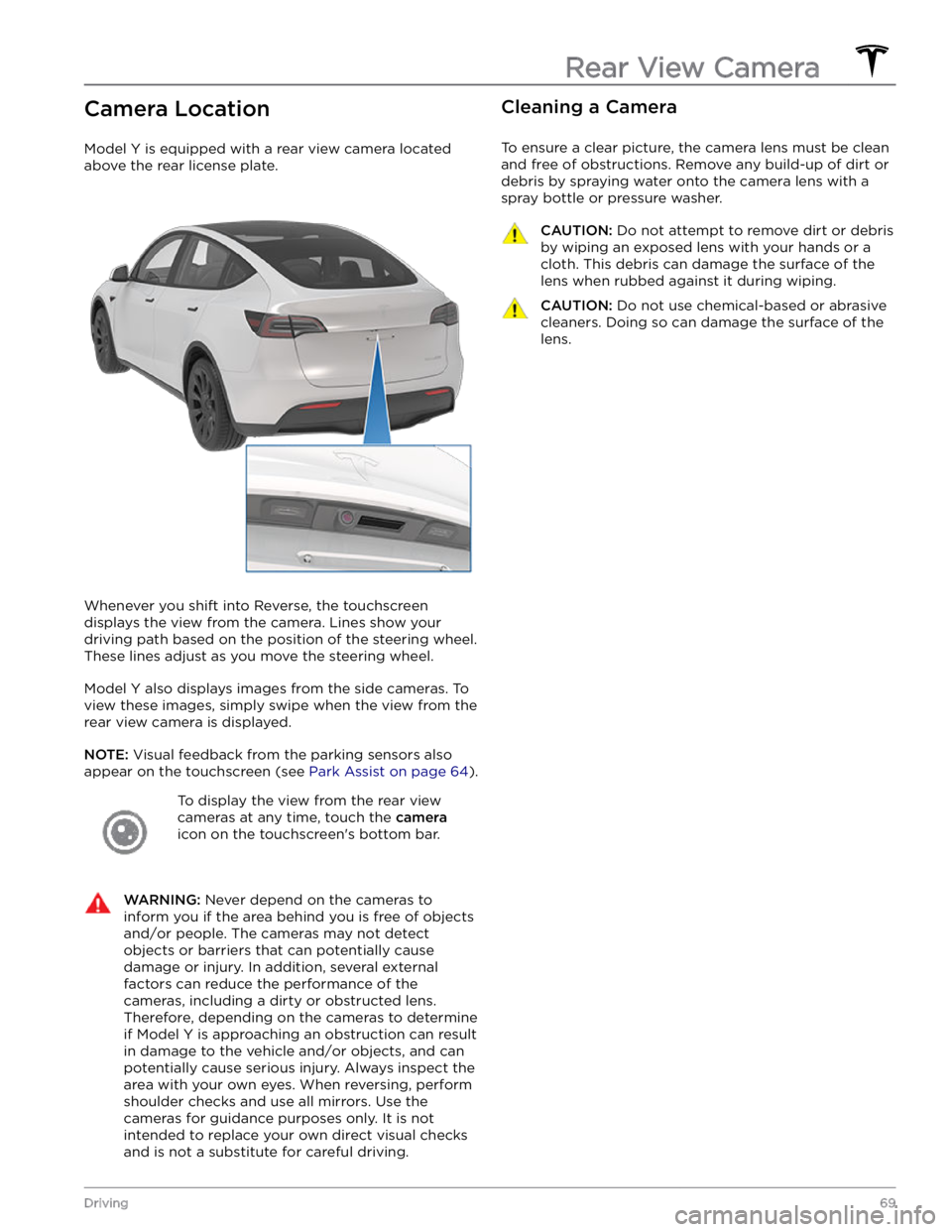
Model Y is equipped with a rear view camera located
above the rear license plate.
Whenever you shift into Reverse, the touchscreen displays the view from the camera. Lines show your
driving path based on the position of the
steering wheel.
These lines adjust as you move the
steering wheel.
Model Y also displays images from the side cameras. To
view these images, simply swipe when the view from the rear view camera is displayed.
NOTE: Visual feedback from the parking sensors also
appear on the
touchscreen (see Park Assist on page 64).
To display the view from the rear view
cameras at any time, touch the
camera
icon on the touchscreen
Page 80 of 250
NOTE: When testing chocks, ensure that Vehicle Hold
(see
Vehicle Hold on page 66) is not engaged. If
Vehicle Hold is braking
Model Y, the Vehicle Hold
indicator light displays on the touchscreen. To
disengage Vehicle Hold, press and release the brake
pedal.
4.
Place the vehicle in Park.
WARNING: If parking on a grade is necessary,
always ensure that all trailer wheels have been
securely chocked. Failure to do so can result in
serious damage or injury.
Trailer Sway Mitigation
When trailer sway is detected, the electronic stability control system attempts to apply the appropriate amount of braking to minimize trailer sway. The touchscreen
briefly displays the traction control system
indicator. Pressing the brake pedal when the system is actively braking to mitigate trailer sway does not cancel this automatic braking.
Attaching and Removing the Ball
Mount
The Model Y towing package does not include a ball
mount. You must purchase a ball mount suitable for the type of trailer you are towing. The
Model Y hitch receiver
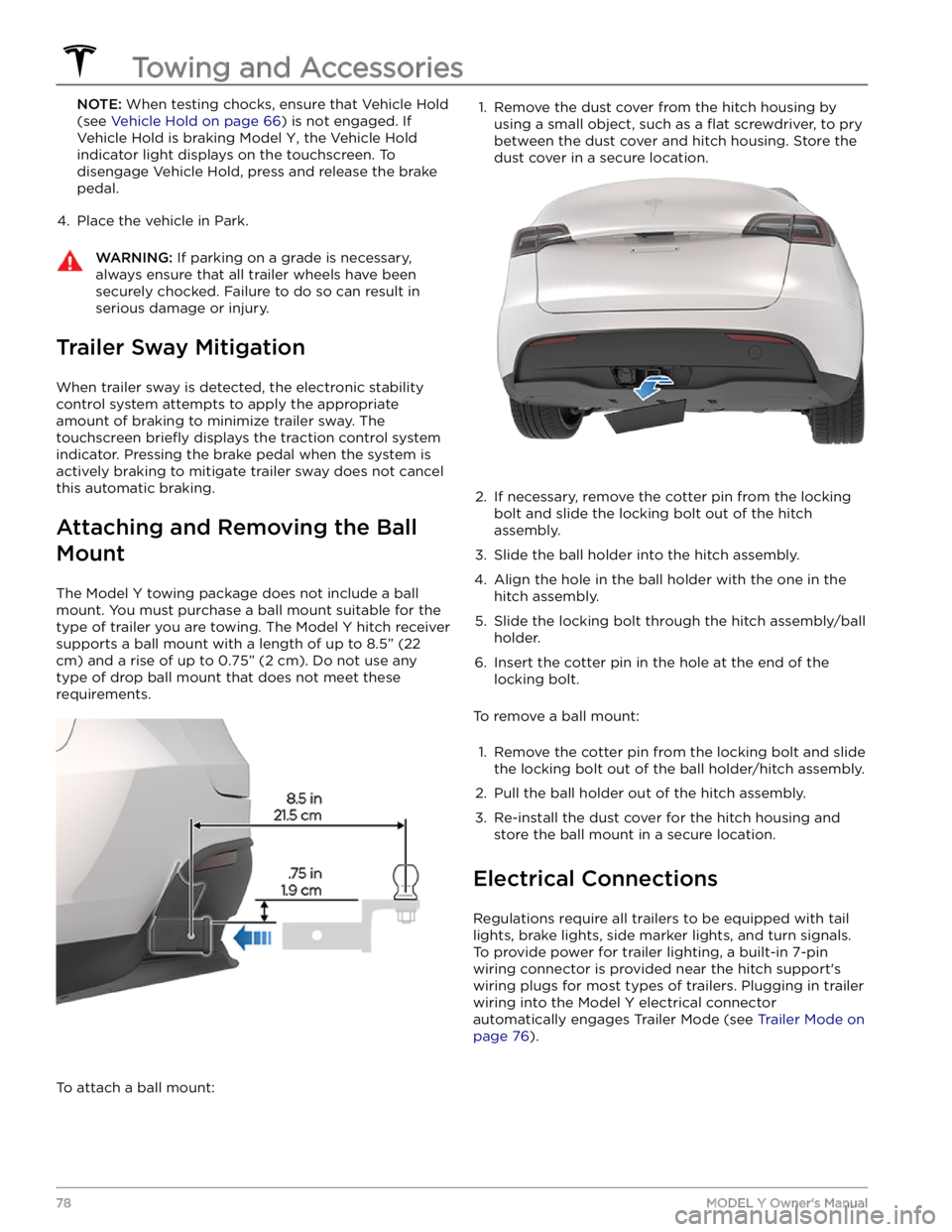
supports a ball mount with a length of up to
8.5” (22
cm) and a rise of up to 0.75” (2 cm). Do not use any
type of drop ball mount that does not meet these requirements.
To attach a ball mount:
1. Remove the dust cover from the hitch housing by
using a small object, such as a
flat screwdriver, to pry
between the dust cover and hitch housing. Store the dust cover in a secure location.
2.
If necessary, remove the cotter pin from the locking
bolt and slide the locking bolt out of the hitch assembly.
3.
Slide the ball holder into the hitch assembly.
4.
Align the hole in the ball holder with the one in the hitch assembly.
5.
Slide the locking bolt through the hitch assembly/ball holder.
6.
Insert the cotter pin in the hole at the end of the
locking bolt.
To remove a ball mount:
1.
Remove the cotter pin from the locking bolt and slide
the locking bolt out of the ball holder/hitch assembly.
2.
Pull the ball holder out of the hitch assembly.
3.
Re-install the dust cover for the hitch housing and store the ball mount in a secure location.
Electrical Connections
Regulations require all trailers to be equipped with tail lights, brake lights, side marker lights, and turn signals.
To provide power for trailer lighting, a built-in 7-pin wiring connector is provided near the hitch support
Page 89 of 250
3. To cancel Traffic-Aware Cruise Control, push the drive
stalk up once or press the brake pedal. See
Canceling
and Resuming on page 89 for more information.
Changing the Cruising Speed
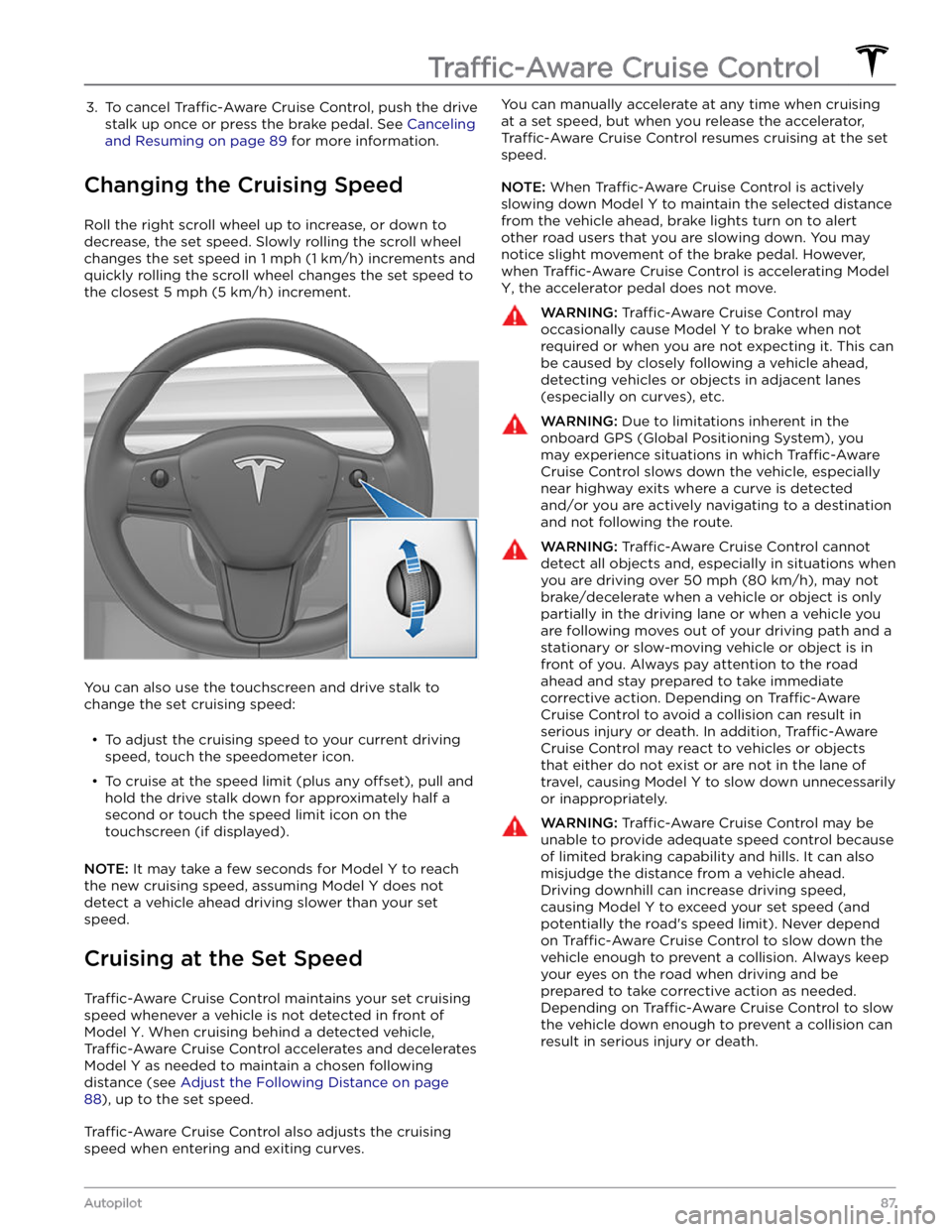
Roll the right scroll wheel up to increase, or down to decrease, the set speed. Slowly rolling the scroll wheel changes the set speed in
1 mph (1 km/h) increments and
quickly rolling the scroll wheel changes the set speed to
the closest
5 mph (5 km/h) increment.
You can also use the touchscreen and drive stalk to change the set cruising speed:
Page 93 of 250
NOTE: Depending on market region, vehicle
configuration, options purchased, and software version,
your vehicle may not be equipped with Autosteer, or the
feature may not operate exactly as described.
NOTE: Autosteer is a BETA feature.
Autosteer builds upon Traffic-Aware Cruise Control (see
Traffic-Aware Cruise Control on page 86), intelligently
keeping
Model Y in its driving lane when cruising at a set
speed.
Autosteer also allows you to use the turn signals
to move Model Y into an adjacent lane (see Auto Lane
Change on page 93). Autosteer detects lane markings
and the presence of vehicles and objects to
steer Model
Y.
NOTE: To display more details about the roadway and its
surroundings, such as road markings, stop lights, objects (such as trash cans and poles), etc., touch
Controls >
Autopilot > Full Self-Driving Visualization Preview (if
equipped).
CAUTION: Ensure all cameras and sensors are
clean. Dirty cameras and sensors, as well as
environmental conditions such as rain and faded
lane markings, affect performance.
WARNING: Autosteer is a hands-on feature. You
must keep your hands on the steering wheel at all
times.
WARNING: Autosteer is intended for use on
highways and limited-access roads with a fully
attentive driver. When using Autosteer, hold the
steering wheel and be mindful of road conditions
and surrounding traffic. Do not use Autosteer on
city streets, in construction zones, or in areas
where bicyclists or pedestrians may be present.
Never depend on Autosteer to determine an
appropriate driving path. Always be prepared to
take immediate action. Failure to follow these
instructions could cause damage, serious injury or
death.
Operating Autosteer
Before you can operate Autosteer, you must enable it by touching
Controls > Autopilot > Autosteer (Beta).
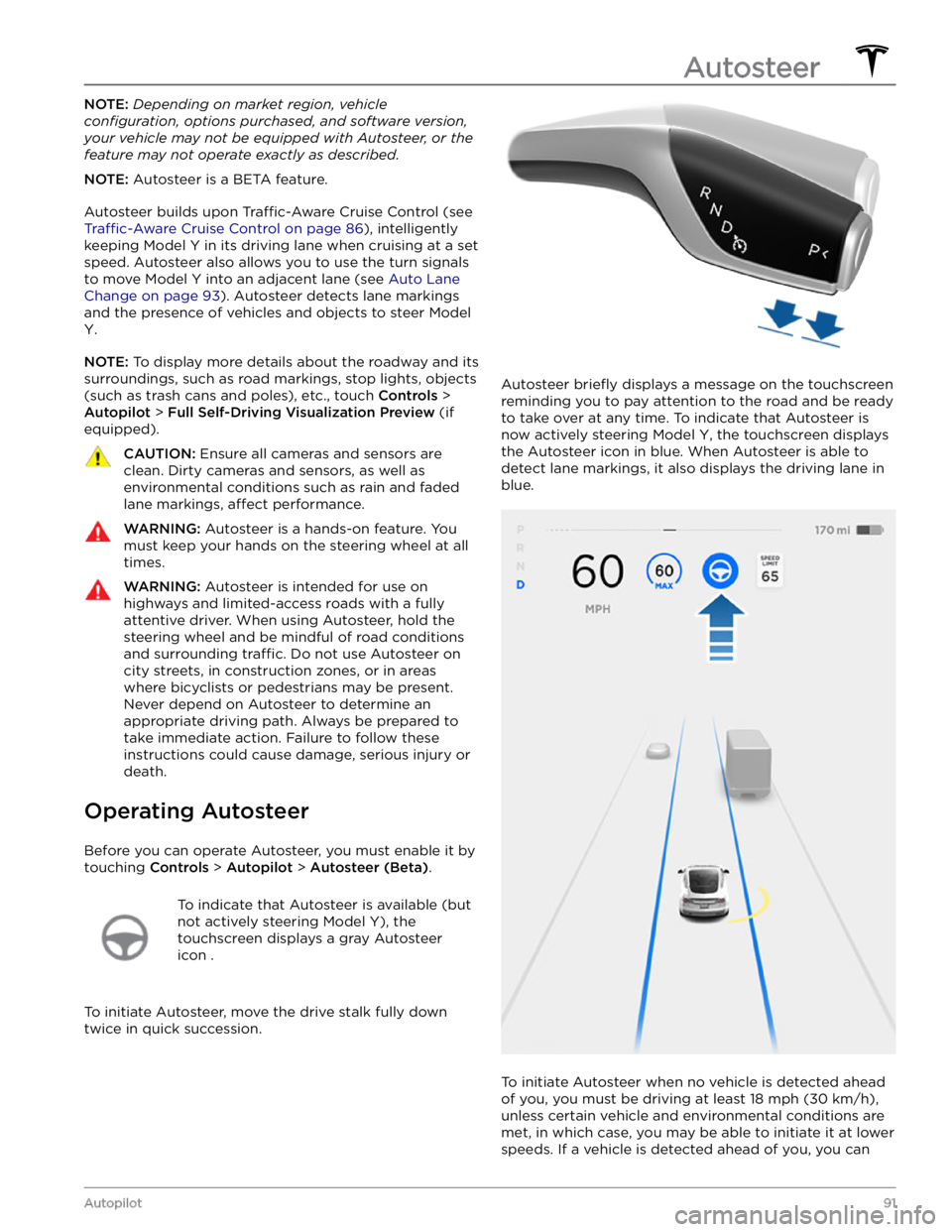
To indicate that Autosteer is available (but
not actively steering
Model Y), the
touchscreen displays a gray Autosteer
icon .
To initiate Autosteer, move the drive stalk fully down
twice in quick succession.
Autosteer briefly displays a message on the touchscreen
reminding you to pay attention to the road and be ready
to take over at any time. To indicate that Autosteer is
now actively steering
Model Y, the touchscreen displays
the Autosteer icon in blue. When Autosteer is able to detect lane markings, it also displays the driving lane in blue.
To initiate Autosteer when no vehicle is detected ahead
of you, you must be driving at least
18 mph (30 km/h),
unless certain vehicle and environmental conditions are met, in which case, you may be able to initiate it at lower speeds. If a vehicle is detected ahead of you, you can
Autosteer
91Autopilot
Page 98 of 250
NOTE: Navigate on Autopilot is a BETA feature.
NOTE: Depending on market region, vehicle
configuration, options purchased, and software version,
your vehicle may not be equipped with Navigate on
Autopilot, or the feature may not operate exactly as
described.
When using Autosteer on a controlled-access road (such as a highway or freeway), Navigate on Autopilot guides
Model Y to off-ramps and interchanges based on your
navigation route. Along the highway portion of a navigation route, Navigate on Autopilot also changes
lanes to prepare for exits and to minimize the driving time to your destination.
WARNING: Navigate on Autopilot does not make
driving autonomous. You must pay attention to the
road, keep your hands on the steering wheel at all
times, and remain aware of your navigation route.
WARNING: As is the case with normal driving, be
extra careful around blind corners, highway
interchanges, and exits because obstacles can
appear quickly and at any time.
WARNING: Navigate on Autopilot may not
recognize or detect oncoming vehicles, stationary
objects, and special-use lanes such as those used
exclusively for bikes, carpools, emergency vehicles,
etc. Remain alert at all times and be prepared to
take immediate action. Failure to do so can cause
damage, injury or death.
Enabling and Customizing Navigate
on Autopilot
To enable Navigate on Autopilot, touch Controls >
Autopilot > Navigate on Autopilot (Beta). Then, to
customize how you want Navigate on Autopilot to operate, touch
CUSTOMIZE NAVIGATE ON AUTOPILOT:
Page 105 of 250
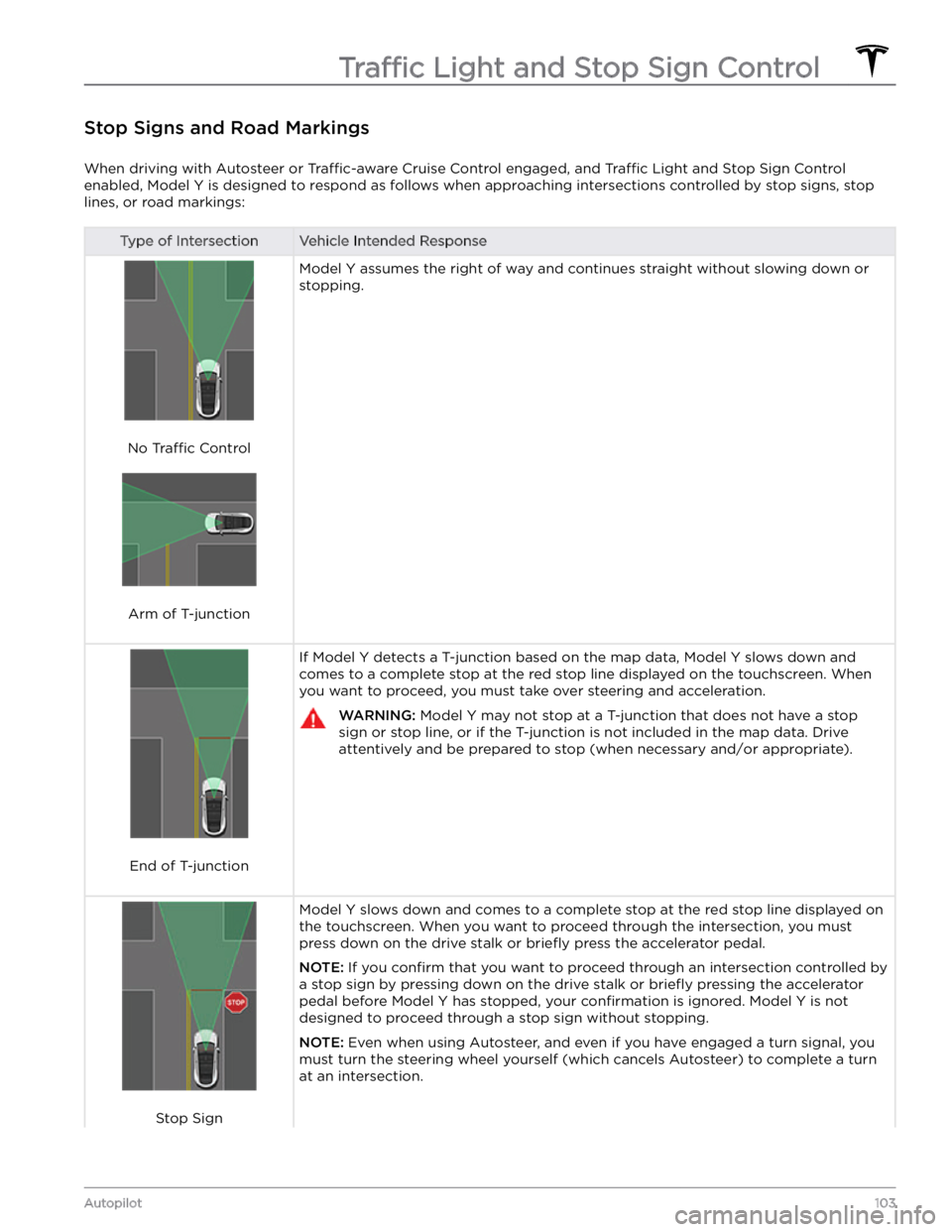
Stop Signs and Road Markings
When driving with Autosteer or Traffic-aware Cruise Control engaged, and Traffic Light and Stop Sign Control
enabled,
Model Y is designed to respond as follows when approaching intersections controlled by stop signs, stop
lines, or road markings:
Type of IntersectionVehicle Intended Response
No Traffic Control
Arm of T-junction
Model Y assumes the right of way and continues straight without slowing down or
stopping.
End of T-junction
If Model Y detects a T-junction based on the map data, Model Y slows down and
comes to a complete stop at the red stop line displayed on the
touchscreen. When
you want to proceed, you must take over steering and acceleration.
WARNING: Model Y may not stop at a T-junction that does not have a stop
sign or stop line, or if the T-junction is not included in the map data. Drive
attentively and be prepared to stop (when necessary and/or appropriate).
Stop Sign
Model Y slows down and comes to a complete stop at the red stop line displayed on
the
touchscreen. When you want to proceed through the intersection, you must
press down on the drive stalk or briefly press the accelerator pedal.
NOTE: If you confirm that you want to proceed through an intersection controlled by
a stop sign by
pressing down on the drive stalk or briefly pressing the accelerator
pedal before
Model Y has stopped, your confirmation is ignored. Model Y is not
designed to proceed through a stop sign without stopping.
NOTE: Even when using Autosteer, and even if you have engaged a turn signal, you
must turn the
steering wheel yourself (which cancels Autosteer) to complete a turn
at an intersection.
Traffic Light and Stop Sign Control
103Autopilot
Page 109 of 250

To Cancel Parking
Autopark cancels the parking sequence when you
manually move the
steering wheel, change gears, or
touch
Cancel on the touchscreen. Autopark also cancels
parking when: