phone TESLA MODEL Y 2023 User Guide
[x] Cancel search | Manufacturer: TESLA, Model Year: 2023, Model line: MODEL Y, Model: TESLA MODEL Y 2023Pages: 298, PDF Size: 10.28 MB
Page 136 of 298
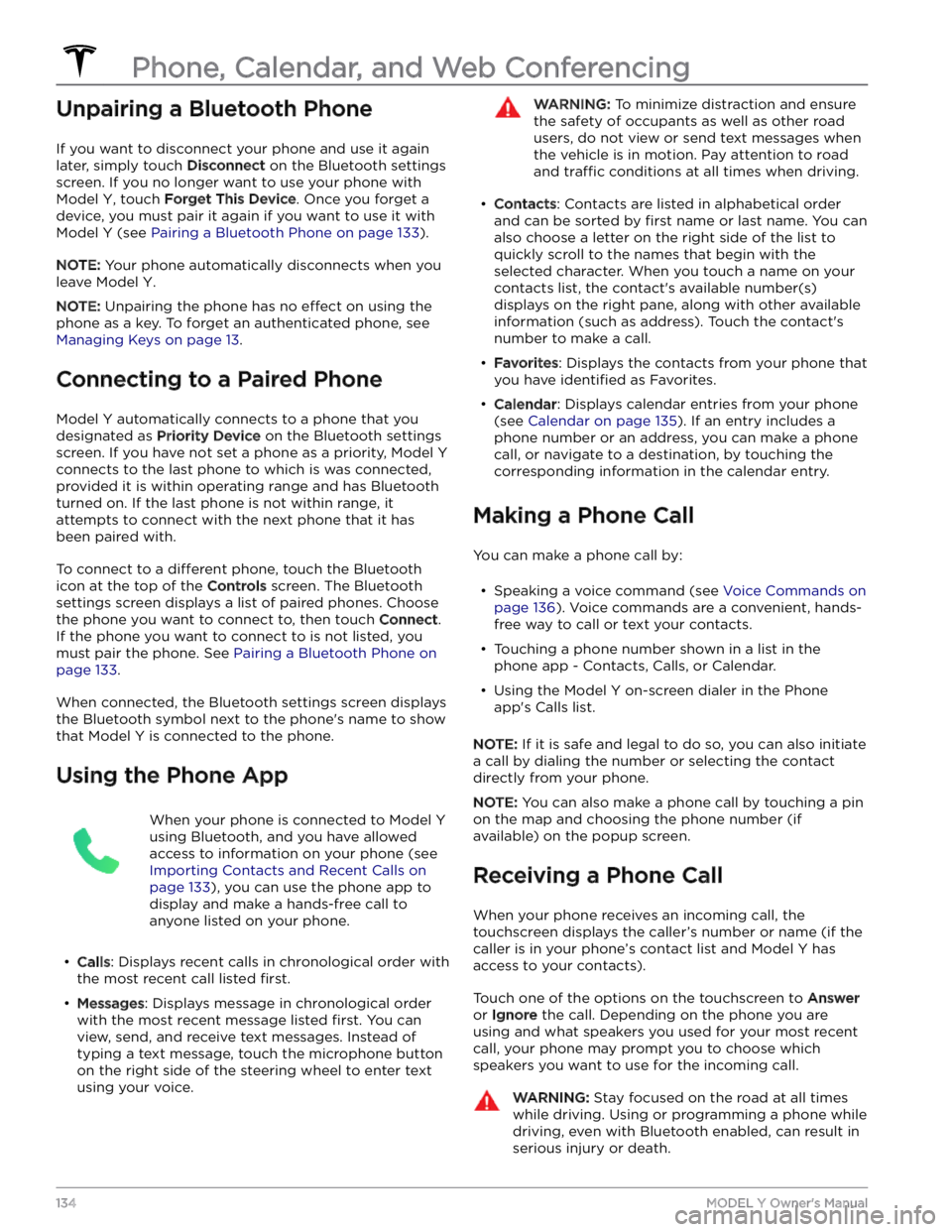
Unpairing a Bluetooth Phone
If you want to disconnect your phone and use it again
later, simply touch
Disconnect on the Bluetooth settings
screen. If you no longer want to use your phone with
Model Y, touch Forget This Device. Once you forget a
device, you must pair it again if you want to use it with
Model Y (see Pairing a Bluetooth Phone on page 133).
NOTE: Your phone automatically disconnects when you
leave
Model Y.
NOTE: Unpairing the phone has no effect on using the
phone as a key. To forget an authenticated phone, see
Managing Keys on page 13.
Connecting to a Paired Phone
Model Y automatically connects to a phone that you
designated as
Priority Device on the Bluetooth settings
screen. If you have not set a phone as a priority,
Model Y
connects to the last phone to which is was connected, provided it is within operating range and has Bluetooth
turned on. If the last phone is not within range, it attempts to connect with the next phone that it has
been paired with.
To connect to a different phone, touch the Bluetooth
icon at the top of the
Controls screen. The Bluetooth
settings screen displays a list of paired phones. Choose
the phone you want to connect to, then touch
Connect.
If the phone you want to connect to is not listed, you
must pair the phone. See
Pairing a Bluetooth Phone on
page 133.
When connected, the Bluetooth settings screen displays the Bluetooth symbol next to the phone
Page 137 of 298
WARNING: Follow all applicable laws regarding the
use of phones while driving, including, but not
limited to, laws that prohibit texting and require
hands-free operation at all times.
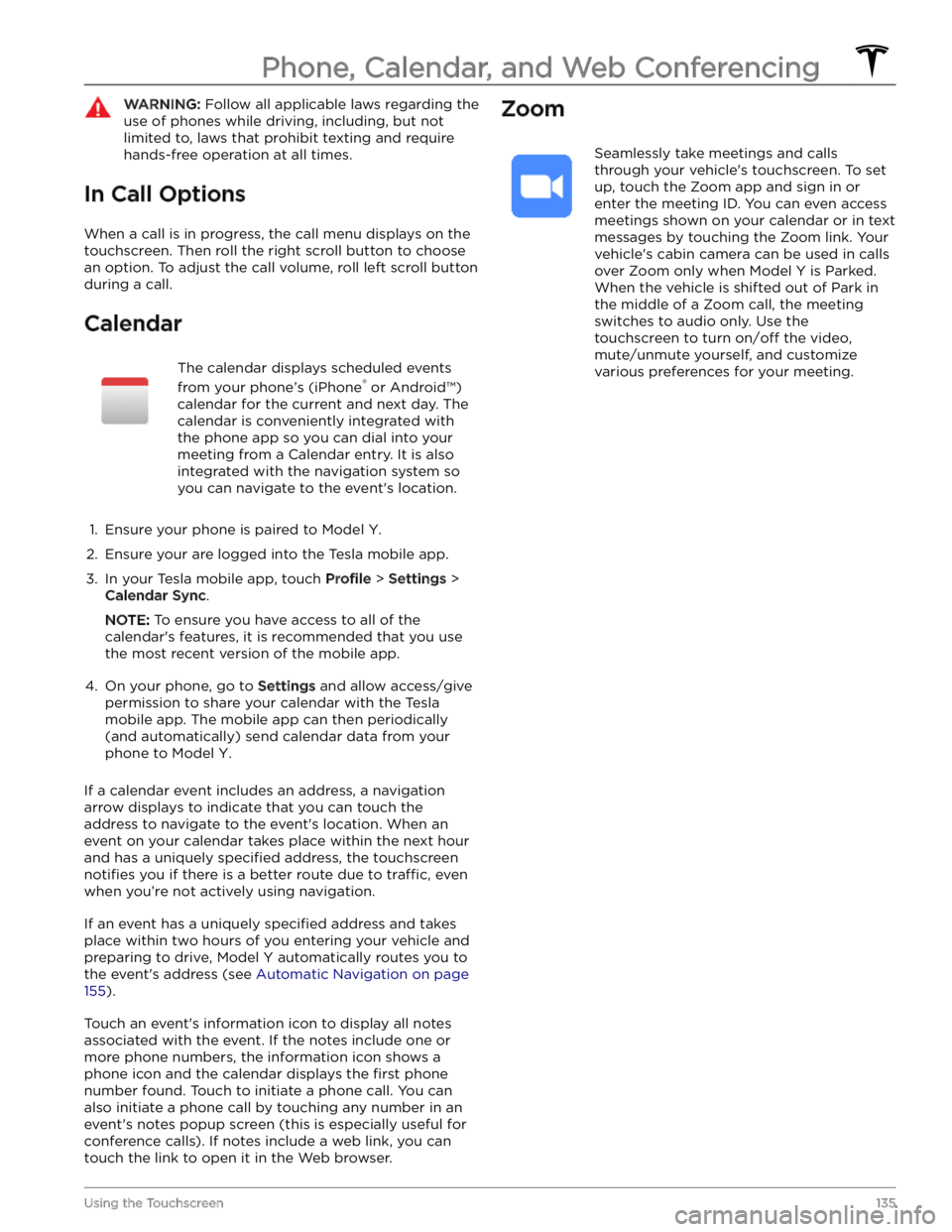
In Call Options
When a call is in progress, the call menu displays on the touchscreen. Then roll the right scroll button to choose an option. To adjust the call volume, roll left scroll button during a call.
Calendar
The calendar displays scheduled events
from your phone
Page 139 of 298

If you have defined a navigation address for your home
or work locations, you can use a voice command to navigate there by saying
"Navigate home" or "Take me
to work".
Contacts
To call or text a contact on your Bluetooth-connected phone (see
Phone, Calendar, and Web Conferencing on
page 133), say:
Page 140 of 298

About the Security System
If Model Y does not detect an authenticated phone, key
fob, or key card and a locked door or trunk is opened, an alarm sounds. The headlights and turn signals also
flash.
To deactivate the alarm, press any button on the mobile
app or tap your key card or key fob against the card reader located
approximately one third the way up of
the driver
Page 153 of 298

The Tesla mobile app allows you to communicate with
Model Y remotely using your iPhone
Page 157 of 298
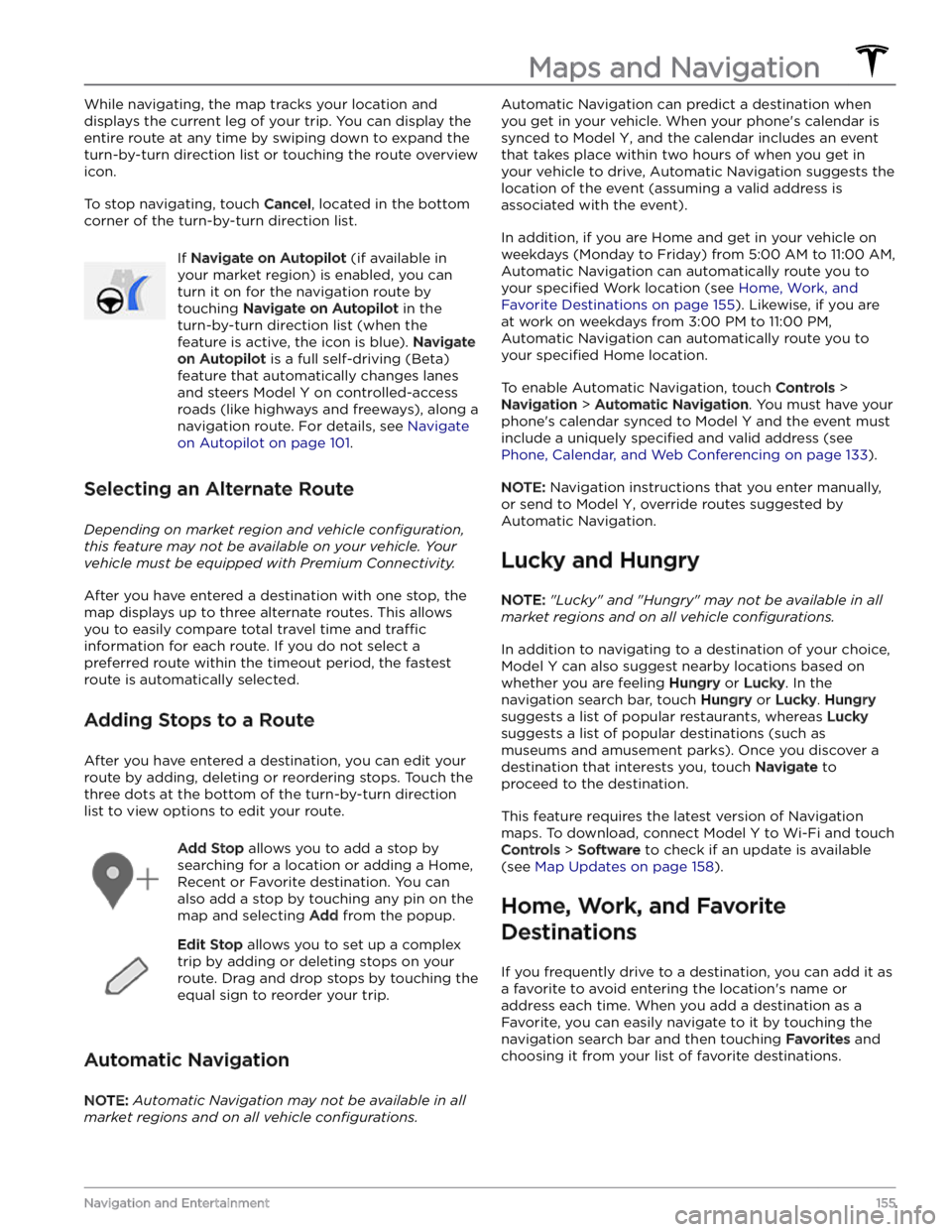
While navigating, the map tracks your location and
displays the current leg of your trip. You can display the
entire route at any time by swiping down to expand the
turn-by-turn direction list or touching the route overview
icon.
To stop navigating, touch Cancel, located in the bottom
corner of the turn-by-turn direction list.
If Navigate on Autopilot (if available in
your market region) is enabled, you can
turn it on for the navigation route by
touching
Navigate on Autopilot in the
turn-by-turn direction list (when the
feature is active, the icon is blue).
Navigate
on Autopilot is a full self-driving (Beta)
feature that automatically changes lanes
and steers
Model Y on controlled-access
roads (like highways and freeways), along a
navigation route. For details, see
Navigate
on Autopilot on page 101.
Selecting an Alternate Route
Depending on market region and vehicle configuration,
this feature may not be available on your vehicle. Your
vehicle must be equipped with Premium Connectivity.
After you have entered a destination with one stop, the
map displays up to three alternate routes. This allows you to easily compare total travel time and
traffic
information for each route. If you do not select a
preferred route within the timeout period, the fastest route is automatically selected.
Adding Stops to a Route
After you have entered a destination, you can edit your
route by adding, deleting or reordering stops. Touch the three dots at the bottom of the turn-by-turn direction
list to view options to edit your route.
Add Stop allows you to add a stop by
searching for a location or adding a Home,
Recent or Favorite destination. You can
also add a stop by touching any pin on the map and selecting
Add from the popup.
Edit Stop allows you to set up a complex
trip by adding or deleting stops on your route. Drag and drop stops by touching the equal sign to reorder your trip.
Automatic Navigation
NOTE: Automatic Navigation may not be available in all
market regions and on all vehicle configurations.
Automatic Navigation can predict a destination when
you get in your vehicle. When your phone
Page 163 of 298

NOTE: Use a USB port located at the front of the center
console. The USB connections at the rear of the console are for charging only.
NOTE: For some vehicles manufactured after
approximately November 1, 2021, the center console USB ports may only support charging devices. Use the USB port inside the glove box for all other functions.
Bluetooth Connected Devices
If you have a Bluetooth-capable device such as a phone that is paired and connected to
Model Y (see Pairing a
Bluetooth Phone on page 133), you can play audio files
stored on it. Choose Media Player
Page 173 of 298
NOTE: To prevent unauthorized unplugging of the
charge cable, the charge cable latch remains locked and
Model Y must be unlocked or able to recognize your
authenticated phone before you can disconnect the
charge cable.
To disconnect the charge cable:
1.
Press and hold the button on the connector handle to release the latch.
NOTE: You can also release the latch using the
lightning icon on the car status overview on the
touchscreen or mobile app, or by pressing and holding the rear trunk button on the key fob.
2.
Pull the connector from the charge port. The charge
port door automatically closes.
To disconnect the charge cable when using an adapter at a public charge station:
1.
Unlock Model Y.
2.
While holding the public charging handle in one hand and the adapter in the other hand, press and hold the button on the public charging handle and pull both
outwards, removing the handle and adapter at the same time.
NOTE: If the charging station handle separates from
the adapter, leaving the adapter in
Model Y, use the
touchscreen to unlock the charge port.
3.
Press and hold the button on the charging handle
again to release the adapter from the public charging handle.
NOTE: The charge port door automatically closes within
approximately 10 seconds of removing the connector from the charge port.
CAUTION: Tesla strongly recommends leaving
Model Y plugged in when not in use. This
maintains the Battery at the optimum level of
charge.
CAUTION: Model Y does not shift out of Park if the
charge port is unable to determine whether a
charging cable is plugged in. Ensure the charging
cable is unplugged and follow the instructions on
the touchscreen to proceed (see Park on page 56).
Charge Settings
Access charge settings by touching Controls > Charging
when Model Y is in Park. You can also touch the battery
icon on the touchscreen to access charge settings.
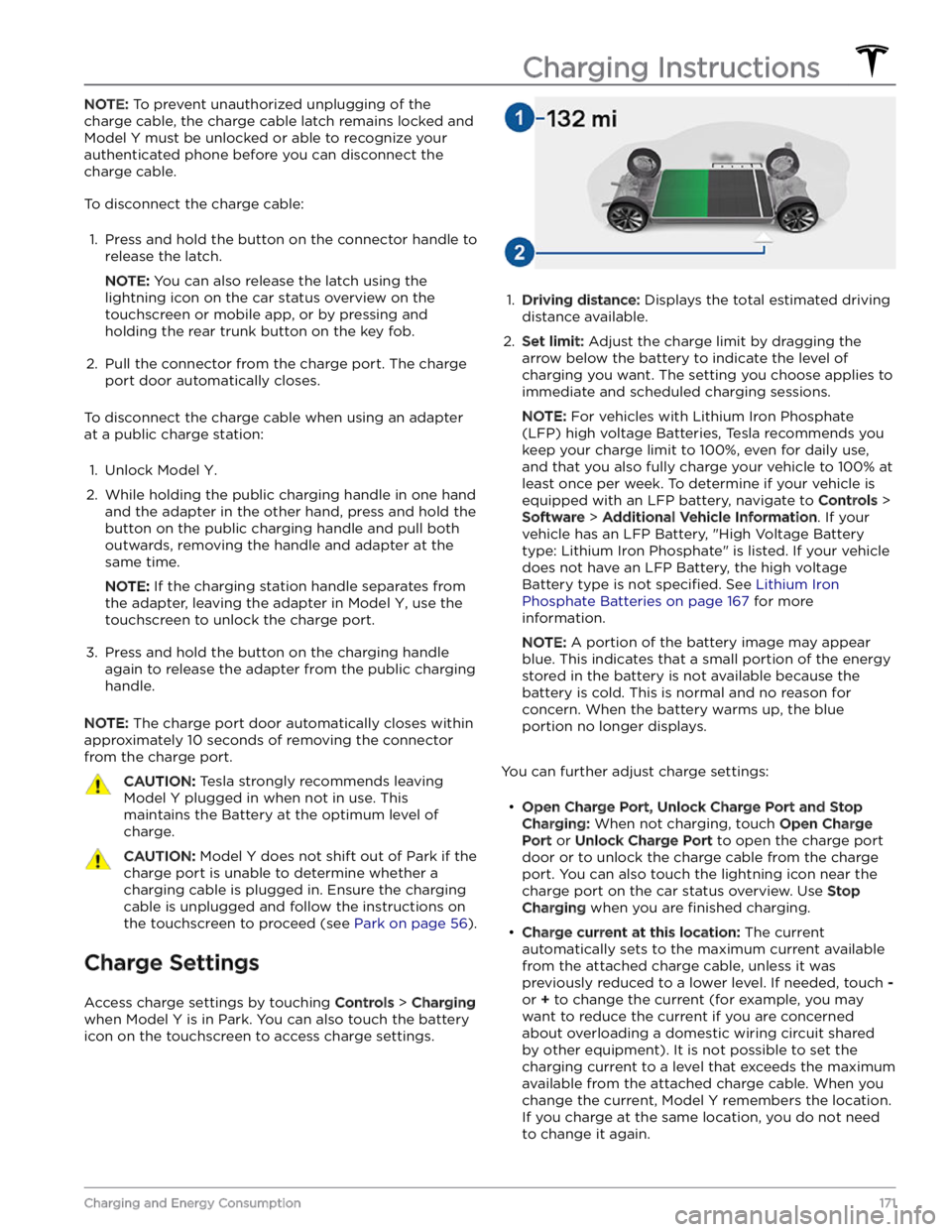
1.
Driving distance: Displays the total estimated driving
distance available.
2.
Set limit: Adjust the charge limit by dragging the
arrow below the battery to indicate the level of charging you want. The setting you choose applies to immediate and scheduled charging sessions.
NOTE: For vehicles with Lithium Iron Phosphate
(LFP) high voltage Batteries, Tesla recommends you keep your charge limit to 100%, even for daily use,
and that you also fully charge your vehicle to 100% at
least once per week. To determine if your vehicle is
equipped with an LFP battery, navigate to
Controls >
Software > Additional Vehicle Information. If your
vehicle has an LFP Battery, "High Voltage Battery type: Lithium Iron Phosphate" is listed. If your vehicle
does not have an LFP Battery, the high voltage Battery type is not
specified. See Lithium Iron
Phosphate Batteries on page 167 for more
information.
NOTE: A portion of the battery image may appear
blue. This indicates that a small portion of the energy
stored in the battery is not available because the battery is cold. This is normal and no reason for concern. When the battery warms up, the blue portion no longer displays.
You can further adjust charge settings:
Page 291 of 298
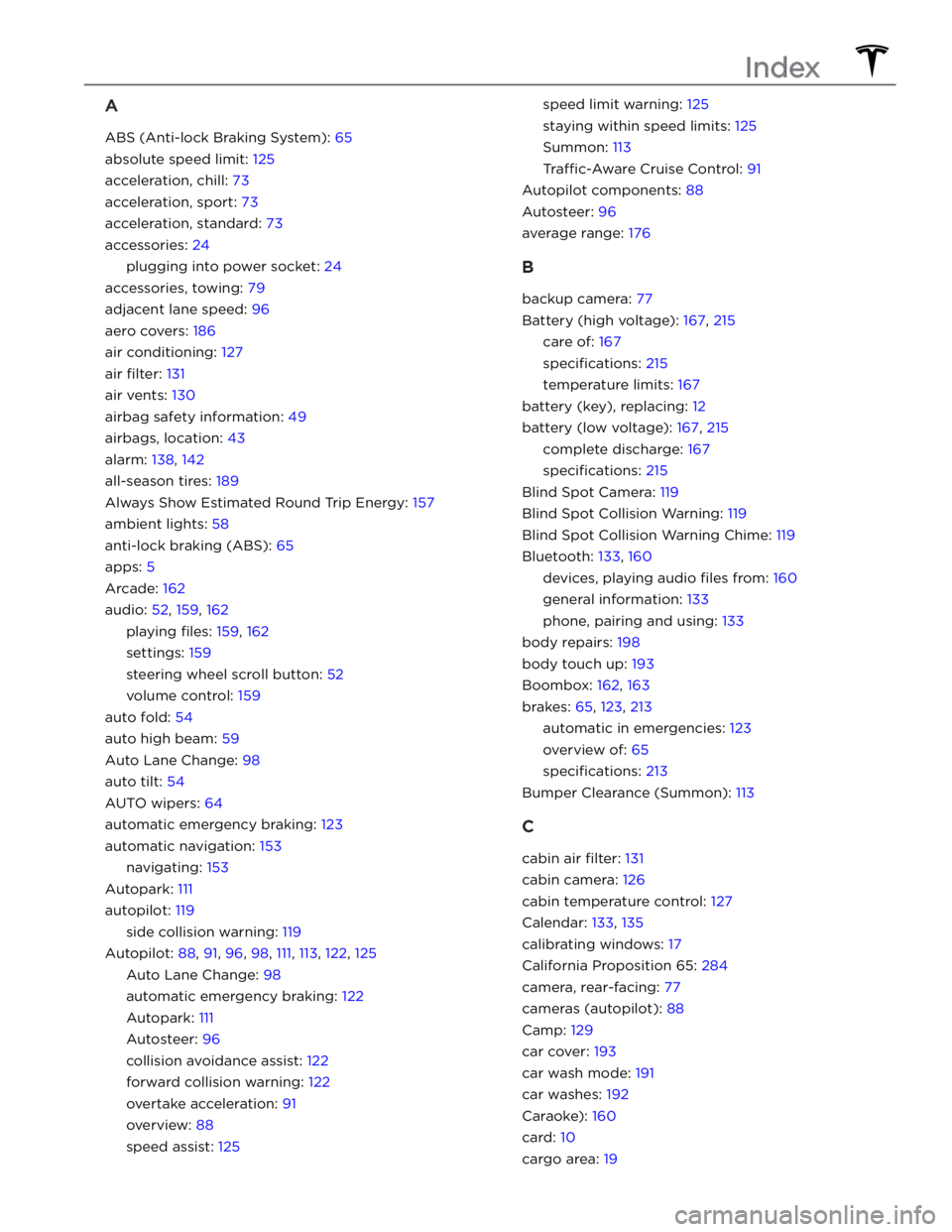
A
ABS (Anti-lock Braking System): 65
absolute speed limit: 125
acceleration, chill: 73
acceleration, sport: 73
acceleration, standard: 73
accessories: 24
plugging into power socket: 24
accessories, towing: 79
adjacent lane speed: 96
aero covers: 186
air conditioning: 127
air filter: 131
air vents: 130
airbag safety information: 49
airbags, location: 43
alarm: 138, 142
all-season tires: 189
Always Show Estimated Round Trip Energy: 157
ambient lights: 58
anti-lock braking (ABS): 65
apps: 5
Arcade: 162
audio: 52, 159, 162
playing files: 159, 162
settings: 159
steering wheel scroll button: 52
volume control: 159
auto fold: 54
auto high beam: 59
Auto Lane Change: 98
auto tilt: 54
AUTO wipers: 64
automatic emergency braking: 123
automatic navigation: 153
navigating: 153
Autopark: 111
autopilot: 119
side collision warning: 119
Autopilot: 88, 91, 96, 98, 111, 113, 122, 125
Auto Lane Change: 98
automatic emergency braking: 122
Autopark: 111
Autosteer: 96
collision avoidance assist: 122
forward collision warning: 122
overtake acceleration: 91
overview: 88
speed assist: 125
speed limit warning: 125
staying within speed limits: 125
Summon: 113
Traffic-Aware Cruise Control: 91
Autopilot components: 88
Autosteer: 96
average range: 176
B
backup camera: 77
Battery (high voltage): 167, 215
care of: 167
specifications: 215
temperature limits: 167
battery (key), replacing: 12
battery (low voltage): 167, 215
complete discharge: 167
specifications: 215
Blind Spot Camera: 119
Blind Spot Collision Warning: 119
Blind Spot Collision Warning Chime: 119
Bluetooth: 133, 160
devices, playing audio files from: 160
general information: 133
phone, pairing and using: 133
body repairs: 198
body touch up: 193
Boombox: 162, 163
brakes: 65, 123, 213
automatic in emergencies: 123
overview of: 65
specifications: 213
Bumper Clearance (Summon): 113
C
cabin air filter: 131
cabin camera: 126
cabin temperature control: 127
Calendar: 133, 135
calibrating windows: 17
California Proposition 65: 284
camera, rear-facing: 77
cameras (autopilot): 88
Camp: 129
car cover: 193
car wash mode: 191
car washes: 192
Caraoke): 160
card: 10
cargo area: 19
Index
Page 294 of 298
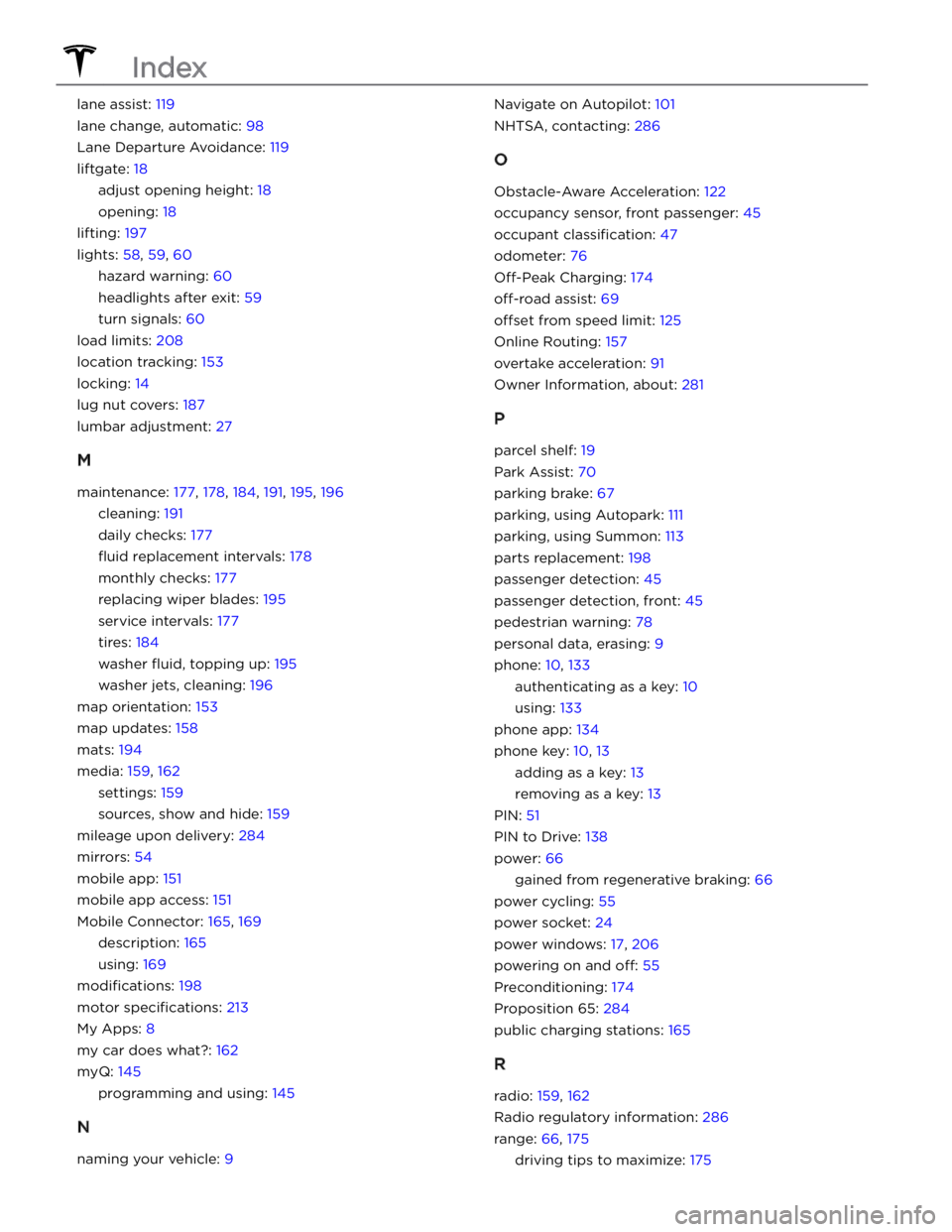
lane assist: 119
lane change, automatic: 98
Lane Departure Avoidance: 119
liftgate: 18
adjust opening height: 18
opening: 18
lifting: 197
lights: 58, 59, 60
hazard warning: 60
headlights after exit: 59
turn signals: 60
load limits: 208
location tracking: 153
locking: 14
lug nut covers: 187
lumbar adjustment: 27
M
maintenance: 177, 178, 184, 191, 195, 196
cleaning: 191
daily checks: 177
fluid replacement intervals: 178
monthly checks: 177
replacing wiper blades: 195
service intervals: 177
tires: 184
washer fluid, topping up: 195
washer jets, cleaning: 196
map orientation: 153
map updates: 158
mats: 194
media: 159, 162
settings: 159
sources, show and hide: 159
mileage upon delivery: 284
mirrors: 54
mobile app: 151
mobile app access: 151
Mobile Connector: 165, 169
description: 165
using: 169
modifications: 198
motor specifications: 213
My Apps: 8
my car does what?: 162
myQ: 145
programming and using: 145
N
naming your vehicle: 9
Navigate on Autopilot: 101
NHTSA, contacting: 286
O
Obstacle-Aware Acceleration: 122
occupancy sensor, front passenger: 45
occupant classification: 47
odometer: 76
Off-Peak Charging: 174
off-road assist: 69
offset from speed limit: 125
Online Routing: 157
overtake acceleration: 91
Owner Information, about: 281
P
parcel shelf: 19
Park Assist: 70
parking brake: 67
parking, using Autopark: 111
parking, using Summon: 113
parts replacement: 198
passenger detection: 45
passenger detection, front: 45
pedestrian warning: 78
personal data, erasing: 9
phone: 10, 133
authenticating as a key: 10
using: 133
phone app: 134
phone key: 10, 13
adding as a key: 13
removing as a key: 13
PIN: 51
PIN to Drive: 138
power: 66
gained from regenerative braking: 66
power cycling: 55
power socket: 24
power windows: 17, 206
powering on and off: 55
Preconditioning: 174
Proposition 65: 284
public charging stations: 165
R
radio: 159, 162
Radio regulatory information: 286
range: 66, 175
driving tips to maximize: 175
Index