reset TOYOTA 4RUNNER 2011 N280 / 5.G User Guide
[x] Cancel search | Manufacturer: TOYOTA, Model Year: 2011, Model line: 4RUNNER, Model: TOYOTA 4RUNNER 2011 N280 / 5.GPages: 680, PDF Size: 12.58 MB
Page 320 of 680
320 3-2. Using the audio system
4RUNNER_U■
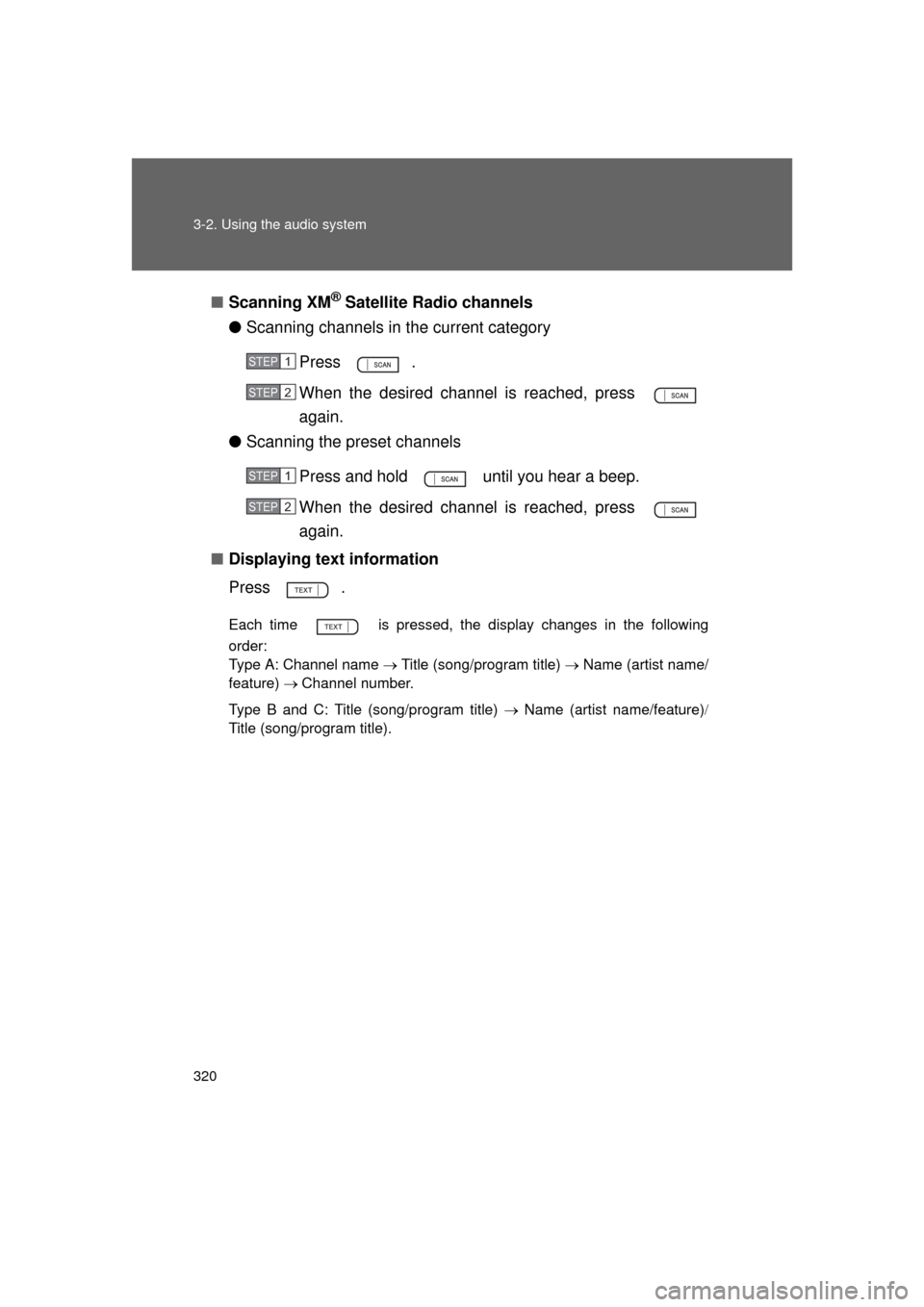
Scanning XM
® Satellite Radio channels
● Scanning channels in the current category
Press .
When the desired channel is reached, press
again.
● Scanning the preset channels
Press and hold until you hear a beep.
When the desired channel is reached, press
again.
■ Displaying text information
Press .
Each time is pressed, the display changes in the following
order:
Type A: Channel name Title (song/program title) Name (artist name/
feature) Channel number.
Type B and C: Title (song/program title) Name (artist name/feature)
Title (song/program title).
STEP 1
STEP 2
STEP 1
STEP 2
Page 321 of 680
321
3-2. Using the audio system
3
Interior features
4RUNNER_U
■
When the battery is disconnected
All preset stations are erased. (type A only)
■ Reception sensitivity
● Type B and C Cargo loaded on the roof luggage carrier, especially
metal objects, may adversely affect the reception of XM
® Satellite Radio.
● Maintaining perfect radio reception at all times is difficult due to the con-
tinually changing position of the antenna, differences in signal strength
and surrounding objects, such as trains, transmitters, etc.
● The radio antenna is mounted on the right-side front fender. The antenna
can be removed from the base by turning it.
■ XM
® Satellite Radio
An XM
® Satellite Radio is a tuner designed exclusively to receive broadcasts
provided under a separate subscription. Availability is limited to the 48 con-
tiguous states and 10 Canadian provinces.
● XM
® subscriptions
For detailed information about XM® Satellite Radio or to subscribe:
U.S.A.
Visit on the web at www.xmradio.com
or call 1-800-967-2346.
Canada
Visit on the web at www.xmradio.ca
or call 1-877-438-9677.
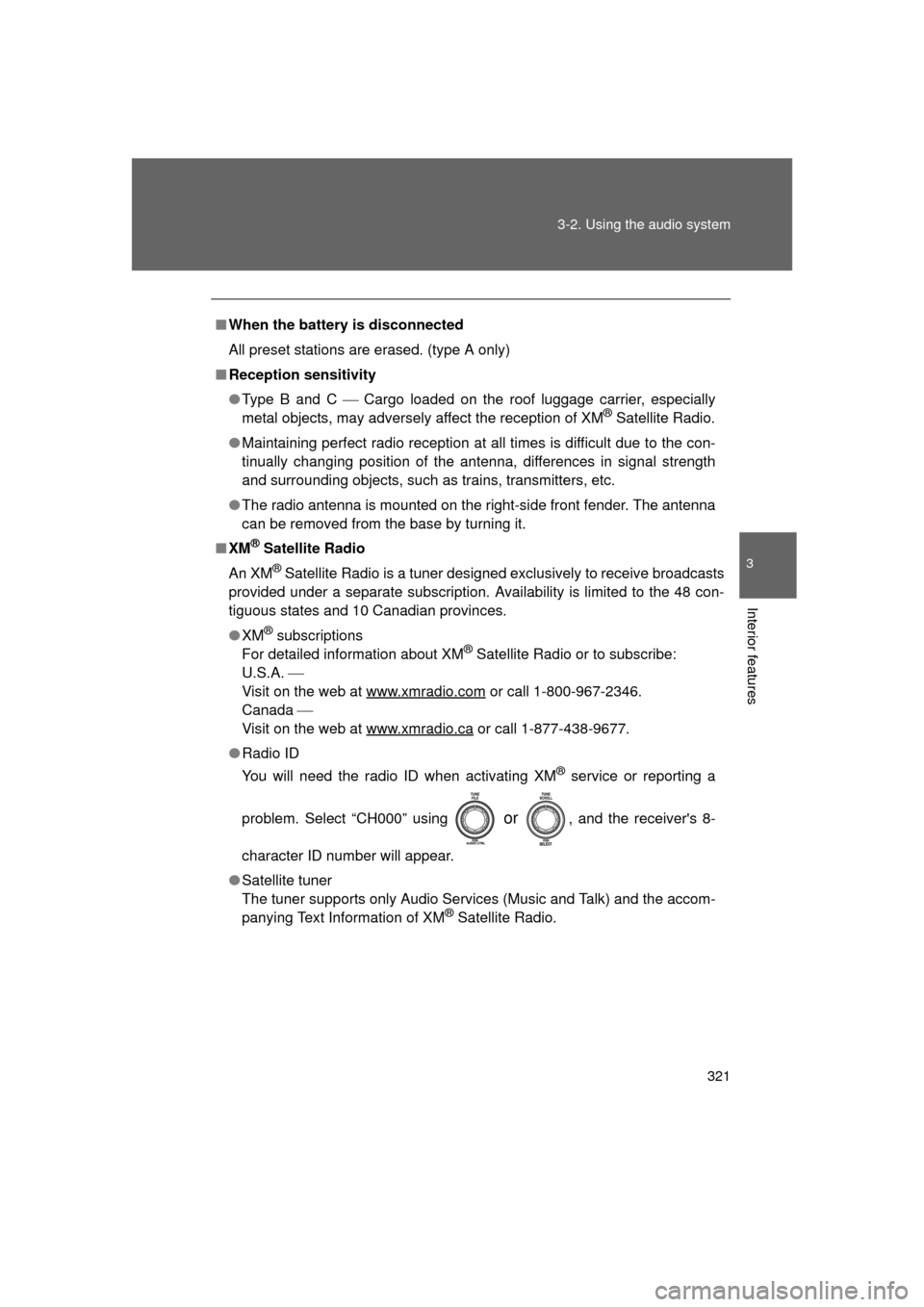
● Radio ID
You will need the radio ID when activating XM
® service or reporting a
problem. Select “CH000” using
or , and the receiver's 8-
character ID number will appear.
● Satellite tuner
The tuner supports only Audio Services (Music and Talk) and the accom-
panying Text Information of XM
® Satellite Radio.
Page 346 of 680
346 3-2. Using the audio system
4RUNNER_U
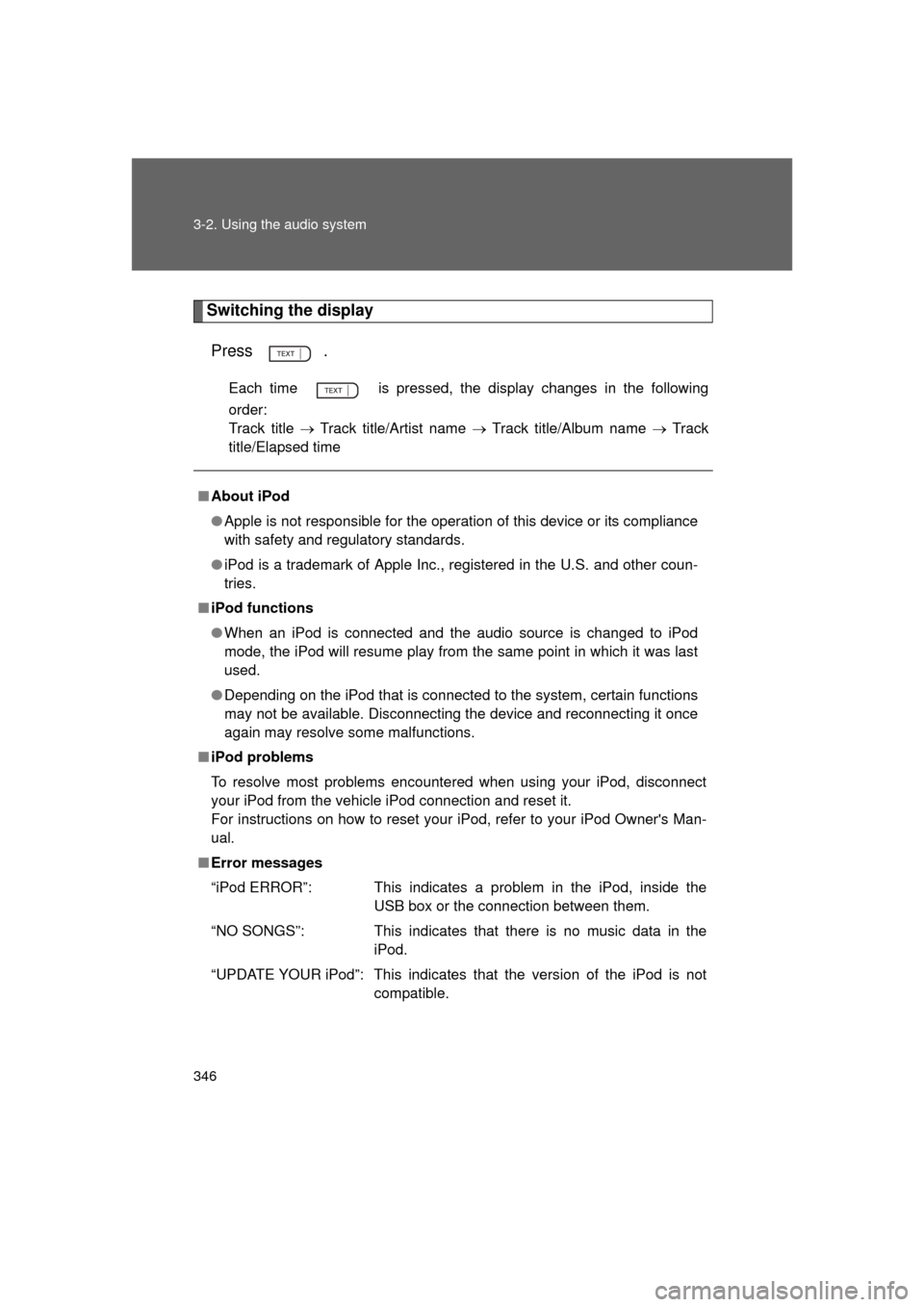
Switching the displayPress .
Each time is pressed, the display changes in the following
order:
Track title Track title/Artist name Track title/Album name Track
title/Elapsed time
■ About iPod
● Apple is not responsible for the operation of this device or its compliance
with safety and regulatory standards.
● iPod is a trademark of Apple Inc., registered in the U.S. and other coun-
tries.
■ iPod functions
● When an iPod is connected and the audio source is changed to iPod
mode, the iPod will resume play from the same point in which it was last
used.
● Depending on the iPod that is connected to the system, certain functions
may not be available. Disconnecting the device and reconnecting it once
again may resolve some malfunctions.
■ iPod problems
To resolve most problems encountered when using your iPod, disconnect
your iPod from the vehicle iPod connection and reset it.
For instructions on how to reset your iPod, refer to your iPod Owner's Man-
ual.
■ Error messages
“iPod ERROR”: This indicates a problem in the iPod, inside the
USB box or the connection between them.
“NO SONGS”: This indicates that there is no music data in the iPod.
“UPDATE YOUR iPod”: This indicates that the version of the iPod is not compatible.
Page 358 of 680
358 3-2. Using the audio system
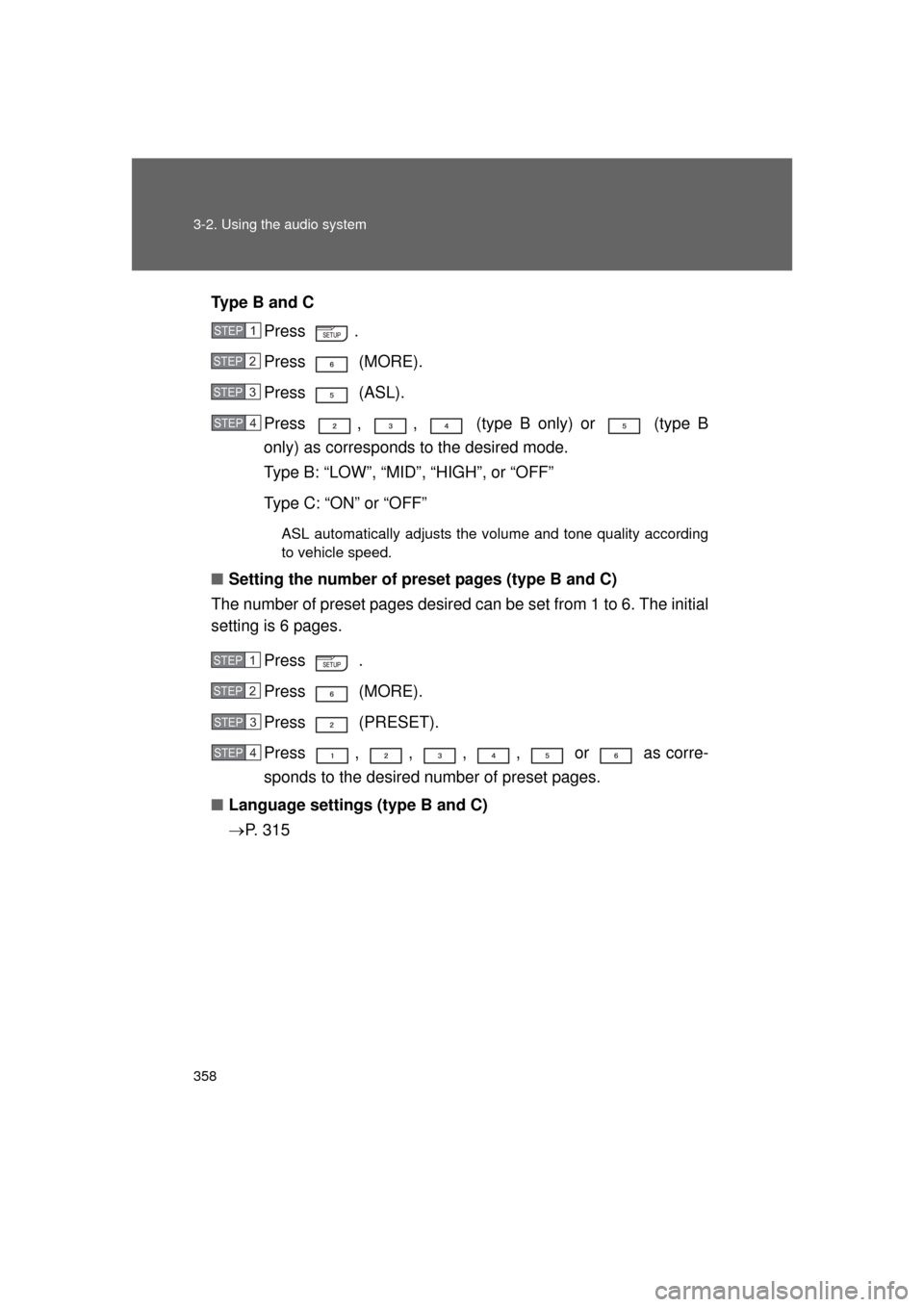
4RUNNER_UType B and C
Press .
Press (MORE).
Press (ASL).
Press , , (type B only) or (type B
only) as corresponds to the desired mode.
Type B: “LOW”, “MID”, “HIGH”, or “OFF”
Type C: “ON” or “OFF”
ASL automatically adjusts the volume and tone quality according
to vehicle speed.
■Setting the number of preset pages (type B and C)
The number of preset pages desired c an be set from 1 to 6. The initial
setting is 6 pages.
Press .
Press (MORE).
Press (PRESET).
Press , , , , or as corre-
sponds to the desired number of preset pages.
■ Language settings (type B and C)
P. 3 1 5
STEP 1
STEP 2
STEP 3
STEP 4
STEP 1
STEP 2
STEP 3
STEP 4
Page 370 of 680
370 3-3. Using the Bluetooth
® audio system
4RUNNER_UInput the passkey into the portable player.
Refer to the manual that comes with the portable player for the oper-
ation of the portable player.
Guidance for registration completion is heard.
If the portable player has a Bluetooth
® phone, the phone can be reg-
istered at the same time. ( P. 386)
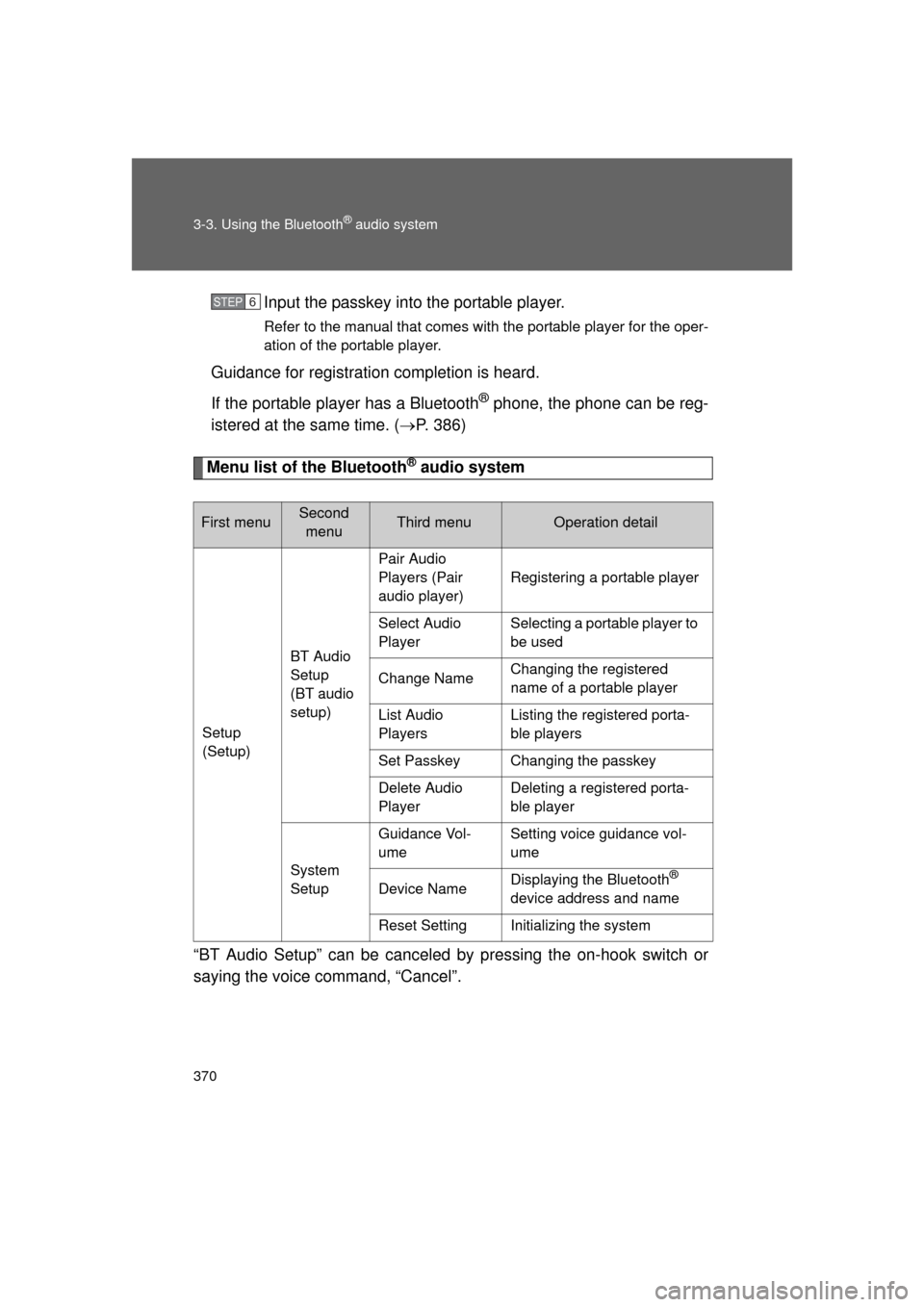
Menu list of the Bluetooth® audio system
“BT Audio Setup” can be canceled by pressing the on-hook switch or
saying the voice command, “Cancel”.
First menuSecond menuThird menuOperation detail
Setup
(Setup) BT Audio
Setup
(BT audio
setup)Pair Audio
Players (Pair
audio player)
Registering a portable player
Select Audio
Player Selecting a portable player to
be used
Change Name Changing the registered
name of a portable player
List Audio
Players Listing the registered porta-
ble players
Set Passkey Changing the passkey
Delete Audio
Player Deleting a registered porta-
ble player
System
Setup Guidance Vol-
ume
Setting voice guidance vol-
ume
Device Name Displaying the Bluetooth
®
device address and name
Reset Setting Initializing the system
STEP 6
Page 389 of 680
389
3-4. Using the hand
s-free phone system (for cellular phone)
3
Interior features
4RUNNER_U
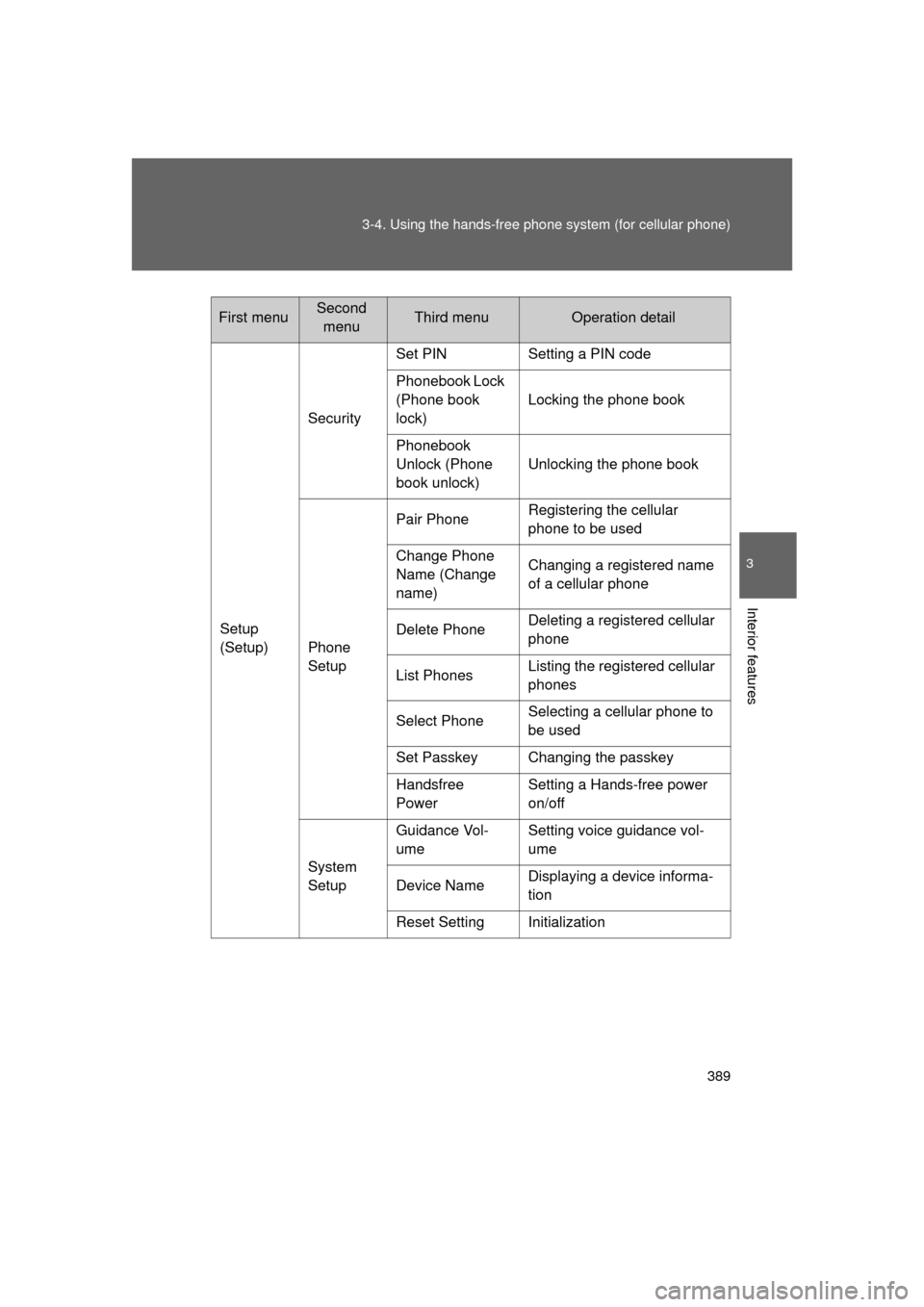
Setup
(Setup)Security
Set PIN Setting a PIN code
Phonebook Lock
(Phone book
lock)
Locking the phone book
Phonebook
Unlock (Phone
book unlock) Unlocking the phone book
Phone
Setup Pair Phone
Registering the cellular
phone to be used
Change Phone
Name (Change
name) Changing a registered name
of a cellular phone
Delete Phone Deleting a registered cellular
phone
List Phones Listing the registered cellular
phones
Select Phone Selecting a cellular phone to
be used
Set Passkey Changing the passkey
Handsfree
Power Setting a Hands-free power
on/off
System
Setup Guidance Vol-
ume
Setting voice guidance vol-
ume
Device Name Displaying a device informa-
tion
Reset Setting Initialization
First menuSecond menuThird menuOperation detail
Page 393 of 680
393
3-4. Using the hand
s-free phone system (for cellular phone)
3
Interior features
4RUNNER_U
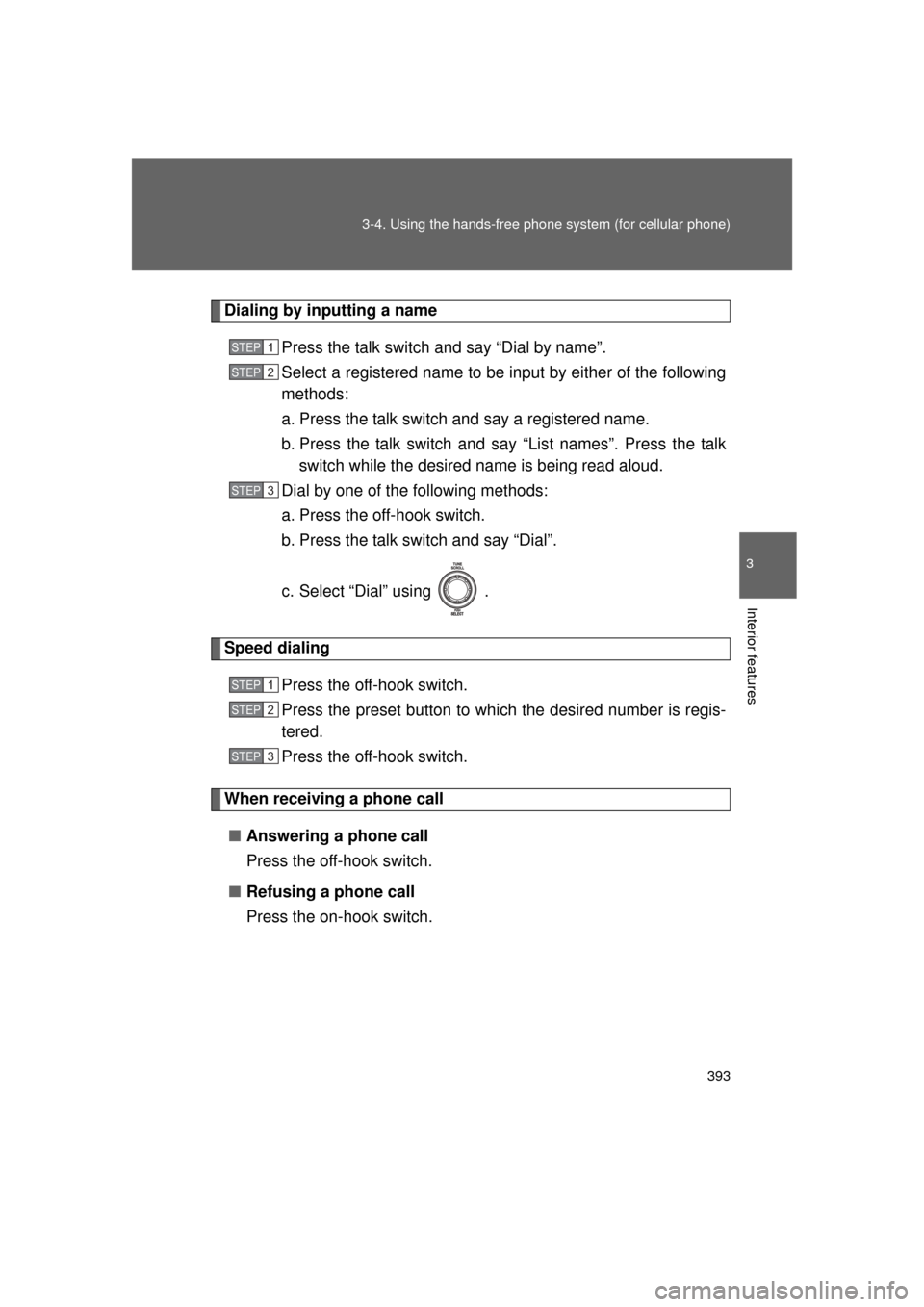
Dialing by inputting a name
Press the talk switch and say “Dial by name”.
Select a registered name to be input by either of the following
methods:
a. Press the talk switch and say a registered name.
b. Press the talk switch and sa y “List names”. Press the talk
switch while the desired name is being read aloud.
Dial by one of the following methods:
a. Press the off-hook switch.
b. Press the talk switch and say “Dial”.
c. Select “Dial” using .
Speed dialing
Press the off-hook switch.
Press the preset button to which the desired number is regis-
tered.
Press the off-hook switch.
When receiving a phone call
■ Answering a phone call
Press the off-hook switch.
■ Refusing a phone call
Press the on-hook switch.
STEP 1
STEP 2
STEP 3
STEP 1
STEP 2
STEP 3
Page 401 of 680

401
3-4. Using the hands-free phone system (for cellular phone)
3
Interior features
4RUNNER_U
Security and system setup
Setting or changing the PIN■ Setting a PIN
Select “Set PIN” using a voice command or .
To enter the menu of each setting, follow the steps below:
■Security setting items and operation procedure
● Setting or changing t he PIN (Personal Identification Number)
1. “Setup (Setup)” 2. “Security” 3. “Set PIN”
● Locking the phone book
1. “Setup (Setup)” 2. “Security” 3. “Phonebook Lock
(Phone book lock)”
● Unlocking the phone book
1. “Setup (Setup)” 2. “Security” 3. “Phonebook Unlock
(Phone book unlock)”
■ System setup items and operation procedure
●Setting voice guidance volume
1. “Setup (Setup)” 2. “System Setup” 3. “Guidance Vol-
ume”
● Initialization
1. “Setup (Setup)” 2. “System Setup” 3. “Reset Settings”
can only be used for system setup operation.
STEP 1
Page 403 of 680
403
3-4. Using the hand
s-free phone system (for cellular phone)
3
Interior features
4RUNNER_U
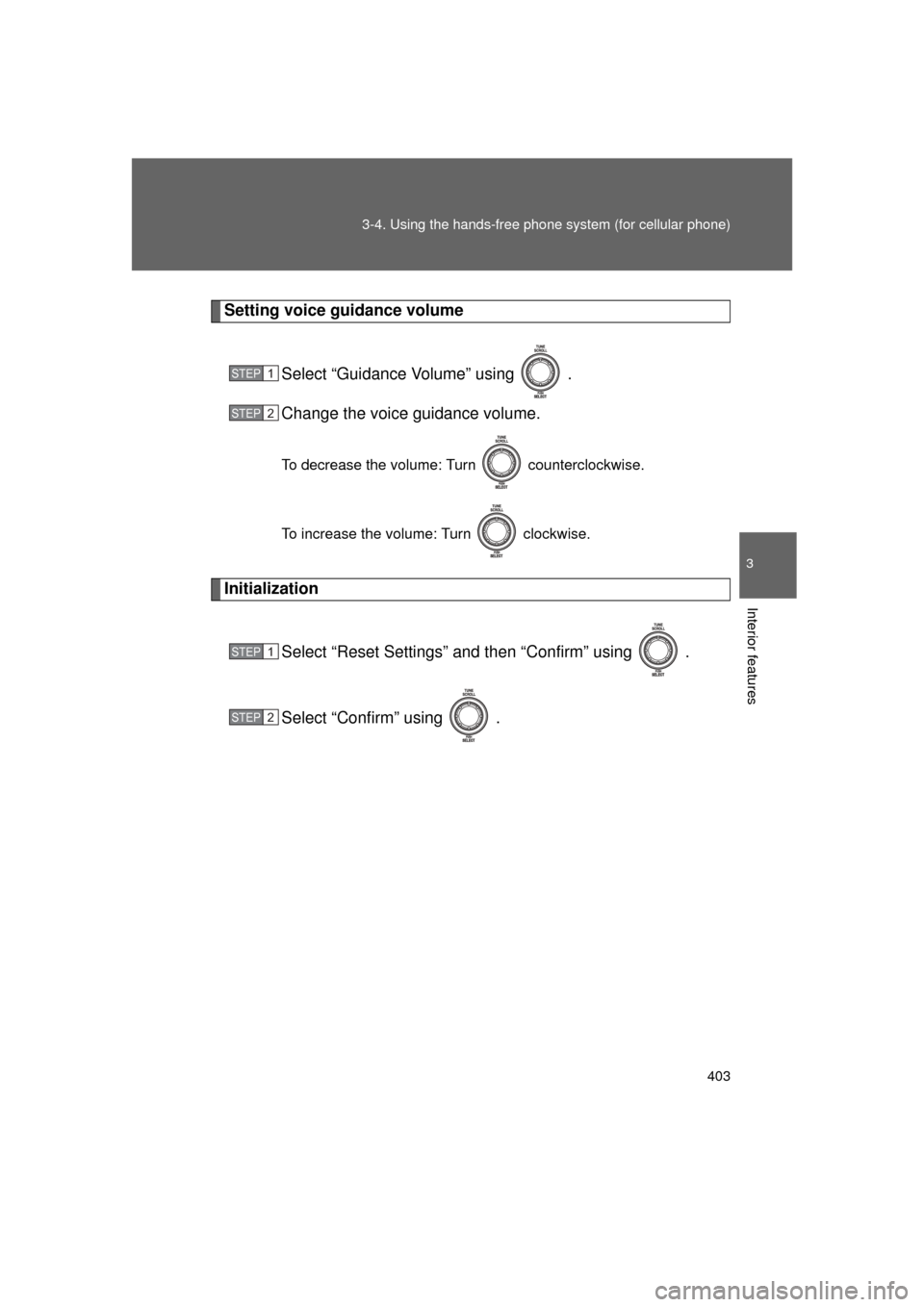
Setting voice guidance volume
Select “Guidance Volume” using .
Change the voice guidance volume.
To decrease the volume: Turn counterclockwise.
To increase the volume: Turn clockwise.
InitializationSelect “Reset Settings” and then “Confirm” using .
Select “Confirm” using .
STEP 1
STEP 2
STEP 1
STEP 2
Page 409 of 680
409
3-4. Using the hand
s-free phone system (for cellular phone)
3
Interior features
4RUNNER_U
Setting speed dials
Select “Speed Dial (Set speed dial)” using a voice command
or .
Select the data to be registered as a speed dial by either of
the following methods:
a. Press the talk switch, say desired number, and select “Con-
firm” using a voice command or
.
b. Press the talk switch, and say “List names”. While the desired name is being read aloud, press the talk switch,
and select “Confirm” using a voice command or .
c. Select the desired data using .
Select the desired preset butt on, and register the data into
speed dial by either of the following methods:
a. Press the desired pres et button, and select “Confirm” using
a voice command or .
b. Press and hold the desired preset button.
STEP 1
STEP 2
STEP 3