USB TOYOTA 4RUNNER 2014 N280 / 5.G Navigation Manual
[x] Cancel search | Manufacturer: TOYOTA, Model Year: 2014, Model line: 4RUNNER, Model: TOYOTA 4RUNNER 2014 N280 / 5.GPages: 298, PDF Size: 19.65 MB
Page 102 of 298

102
3. MEDIA OPERATION
1Select the repeat button to change on/
off.
1Select the random button to change
on/off.
PLAYING A USB AUDIO
REPEATING
The file/track currently being listened
to can be repeated.
RANDOM ORDER
Files/tracks can be automatically and
randomly selected.
Page 116 of 298
116
4. AUDIO/VISUAL REMOTE CONTROLS
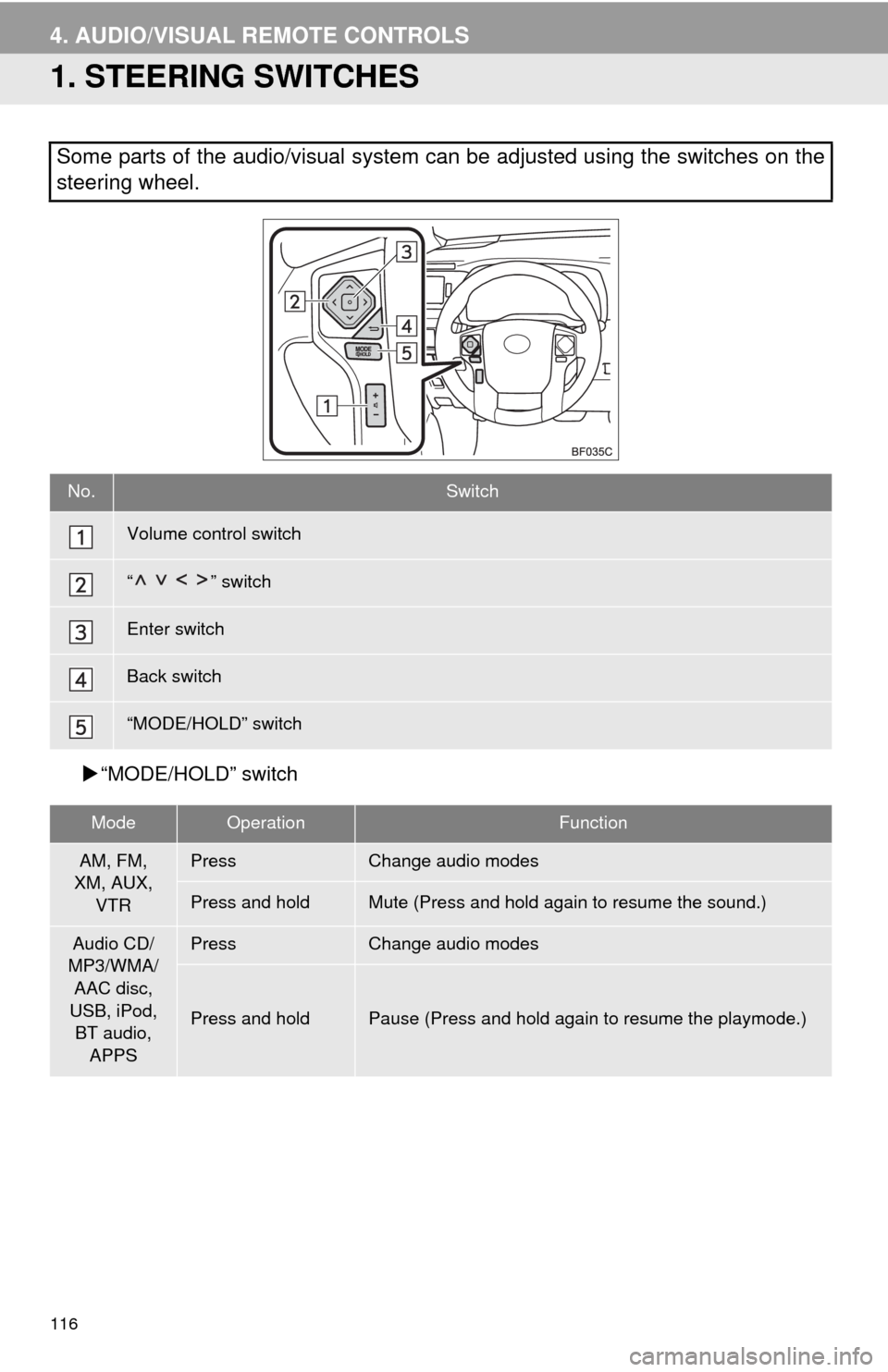
1. STEERING SWITCHES
“MODE/HOLD” switch
Some parts of the audio/visual system can be adjusted using the switches on the
steering wheel.
No.Switch
Volume control switch
“” switch
Enter switch
Back switch
“MODE/HOLD” switch
ModeOperationFunction
AM, FM,
XM, AUX,
VTRPressChange audio modes
Press and holdMute (Press and hold again to resume the sound.)
Audio CD/
MP3/WMA/
AAC disc,
USB, iPod,
BT audio,
APPSPressChange audio modes
Press and holdPause (Press and hold again to resume the playmode.)
Page 117 of 298
117
4. AUDIO/VISUAL REMOTE CONTROLS
3
AUDIO/VISUAL SYSTEM
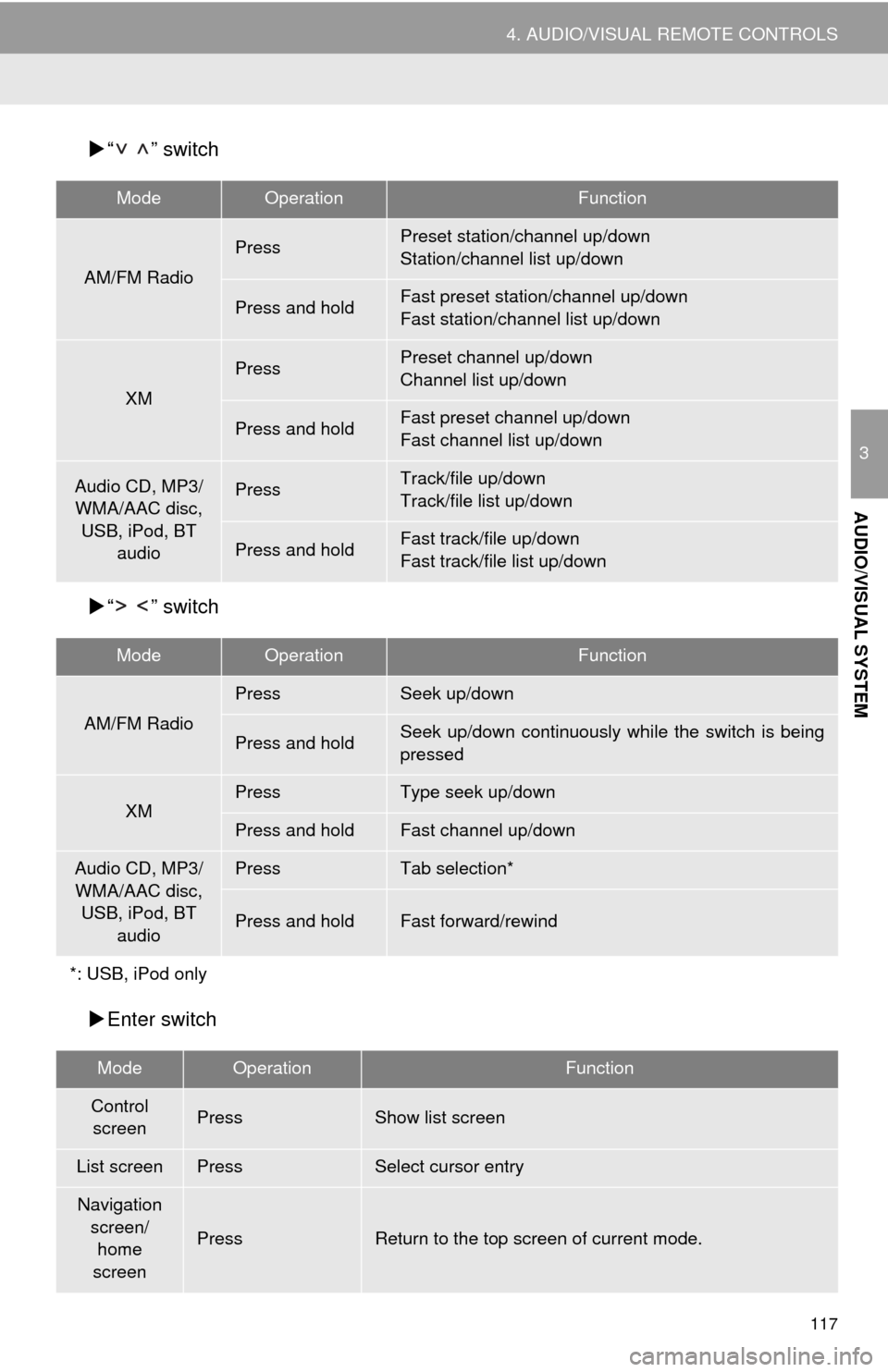
“ ” switch
“ ” switch
Enter switch
ModeOperationFunction
AM/FM Radio
PressPreset station/channel up/down
Station/channel list up/down
Press and holdFast preset station/channel up/down
Fast station/channel list up/down
XM
PressPreset channel up/down
Channel list up/down
Press and holdFast preset channel up/down
Fast channel list up/down
Audio CD, MP3/
WMA/AAC disc,
USB, iPod, BT
audioPressTrack/file up/down
Track/file list up/down
Press and holdFast track/file up/down
Fast track/file list up/down
ModeOperationFunction
AM/FM Radio
PressSeek up/down
Press and holdSeek up/down continuously while the switch is being
pressed
XMPressType seek up/down
Press and holdFast channel up/down
Audio CD, MP3/
WMA/AAC disc,
USB, iPod, BT
audioPressTab selection*
Press and holdFast forward/rewind
*: USB, iPod only
ModeOperationFunction
Control
screenPressShow list screen
List screenPressSelect cursor entry
Navigation
screen/
home
screen
PressReturn to the top screen of current mode.
Page 125 of 298
125
6. TIPS FOR OPERATING THE AUDIO/VISUAL SYSTEM
3
AUDIO/VISUAL SYSTEM
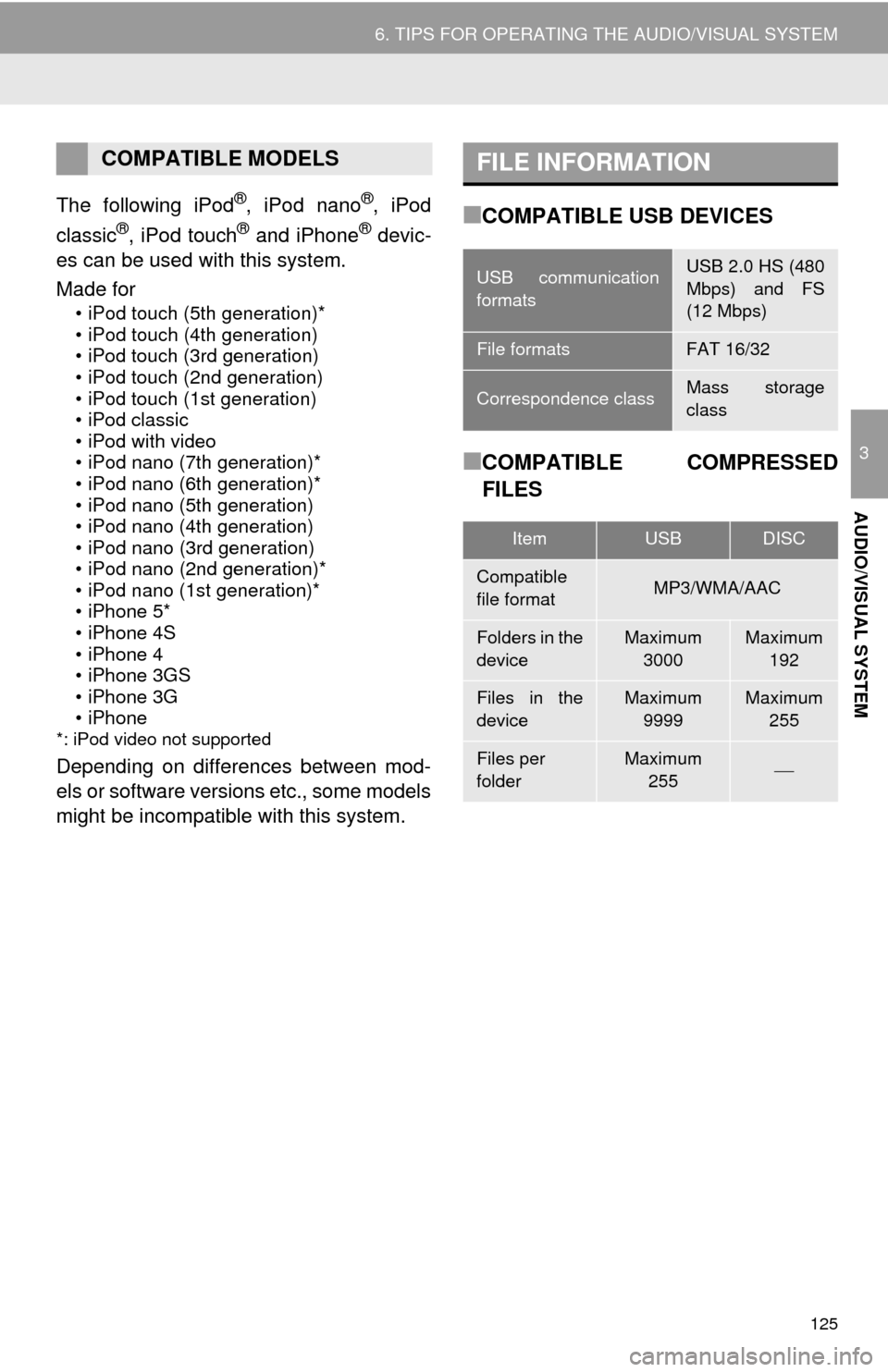
The following iPod®, iPod nano®, iPod
classic®, iPod touch® and iPhone® devic-
es can be used with this system.
Made for
• iPod touch (5th generation)*
• iPod touch (4th generation)
• iPod touch (3rd generation)
• iPod touch (2nd generation)
• iPod touch (1st generation)
• iPod classic
• iPod with video
• iPod nano (7th generation)*
• iPod nano (6th generation)*
• iPod nano (5th generation)
• iPod nano (4th generation)
• iPod nano (3rd generation)
• iPod nano (2nd generation)*
• iPod nano (1st generation)*
• iPhone 5*
• iPhone 4S
• iPhone 4
• iPhone 3GS
• iPhone 3G
• iPhone
*: iPod video not supported
Depending on differences between mod-
els or software versions etc., some models
might be incompatible with this system.
■COMPATIBLE USB DEVICES
■COMPATIBLE COMPRESSED
FILES
COMPATIBLE MODELSFILE INFORMATION
USB communication
formatsUSB 2.0 HS (480
Mbps) and FS
(12 Mbps)
File formatsFAT 16/32
Correspondence classMass storage
class
ItemUSBDISC
Compatible
file formatMP3/WMA/AAC
Folders in the
deviceMaximum
3000Maximum
192
Files in the
deviceMaximum
9999Maximum
255
Files per
folderMaximum
255
Page 126 of 298
126
6. TIPS FOR OPERATING THE AUDIO/VISUAL SYSTEM
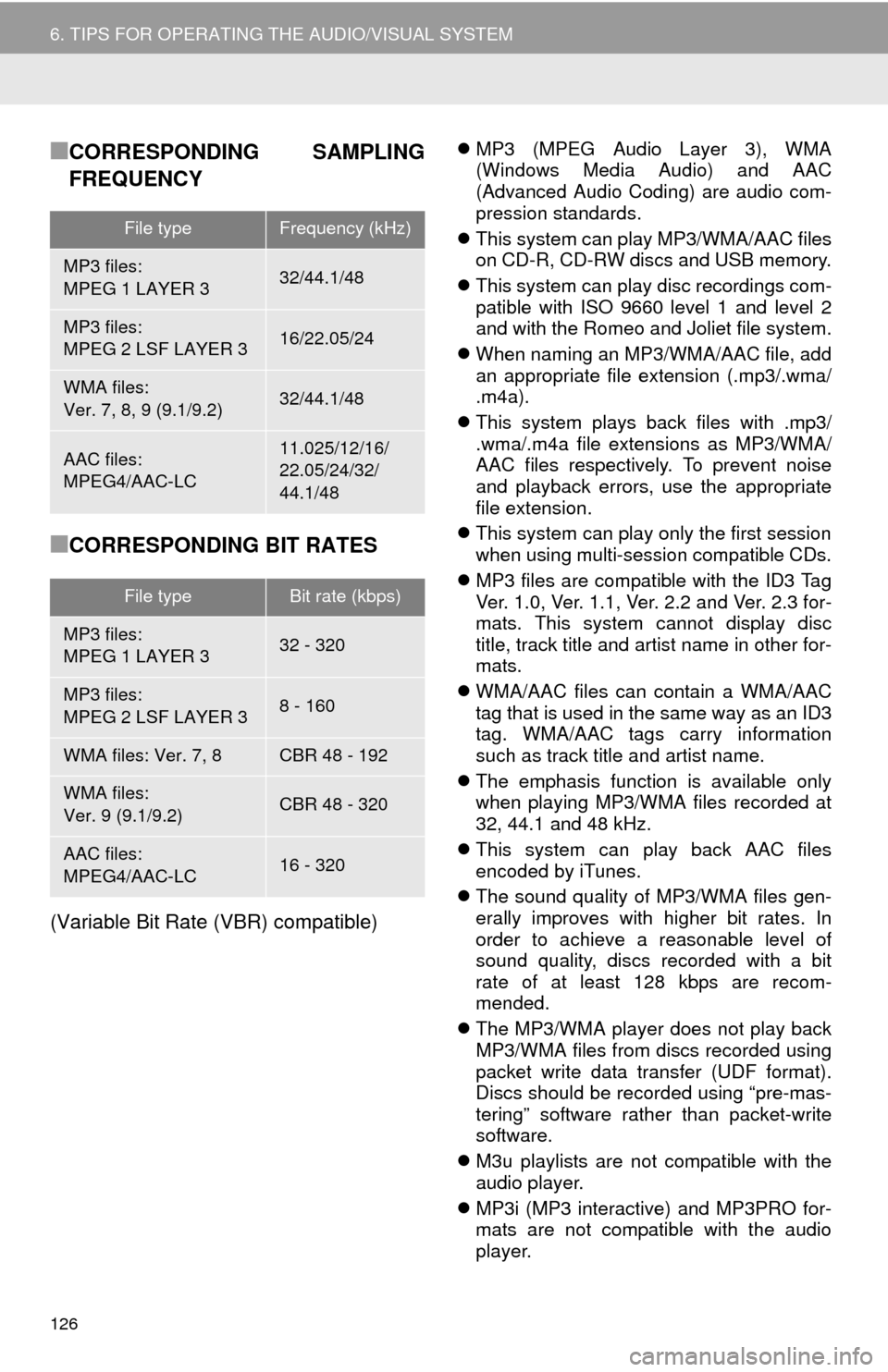
■CORRESPONDING SAMPLING
FREQUENCY
■CORRESPONDING BIT RATES
(Variable Bit Rate (VBR) compatible)
MP3 (MPEG Audio Layer 3), WMA
(Windows Media Audio) and AAC
(Advanced Audio Coding) are audio com-
pression standards.
This system can play MP3/WMA/AAC files
on CD-R, CD-RW discs and USB memory.
This system can play disc recordings com-
patible with ISO 9660 level 1 and level 2
and with the Romeo and Joliet file system.
When naming an MP3/WMA/AAC file, add
an appropriate file extension (.mp3/.wma/
.m4a).
This system plays back files with .mp3/
.wma/.m4a file extensions as MP3/WMA/
AAC files respectively. To prevent noise
and playback errors, use the appropriate
file extension.
This system can play only the first session
when using multi-session compatible CDs.
MP3 files are compatible with the ID3 Tag
Ver. 1.0, Ver. 1.1, Ver. 2.2 and Ver. 2.3 for-
mats. This system cannot display disc
title, track title and artist name in other for-
mats.
WMA/AAC files can contain a WMA/AAC
tag that is used in the same way as an ID3
tag. WMA/AAC tags carry information
such as track title and artist name.
The emphasis function is available only
when playing MP3/WMA files recorded at
32, 44.1 and 48 kHz.
This system can play back AAC files
encoded by iTunes.
The sound quality of MP3/WMA files gen-
erally improves with higher bit rates. In
order to achieve a reasonable level of
sound quality, discs recorded with a bit
rate of at least 128 kbps are recom-
mended.
The MP3/WMA player does not play back
MP3/WMA files from discs recorded using
packet write data transfer (UDF format).
Discs should be recorded using “pre-mas-
tering” software rather than packet-write
software.
M3u playlists are not compatible with the
audio player.
MP3i (MP3 interactive) and MP3PRO for-
mats are not compatible with the audio
player.
File typeFrequency (kHz)
MP3 files:
MPEG 1 LAYER 332/44.1/48
MP3 files:
MPEG 2 LSF LAYER 316/22.05/24
WMA files:
Ver. 7, 8, 9 (9.1/9.2)32/44.1/48
AAC files:
MPEG4/AAC-LC11.025/12/16/
22.05/24/32/
44.1/48
File typeBit rate (kbps)
MP3 files:
MPEG 1 LAYER 332 - 320
MP3 files:
MPEG 2 LSF LAYER 38 - 160
WMA files: Ver. 7, 8CBR 48 - 192
WMA files:
Ver. 9 (9.1/9.2)CBR 48 - 320
AAC files:
MPEG4/AAC-LC16 - 320
Page 129 of 298
129
6. TIPS FOR OPERATING THE AUDIO/VISUAL SYSTEM
3
AUDIO/VISUAL SYSTEM
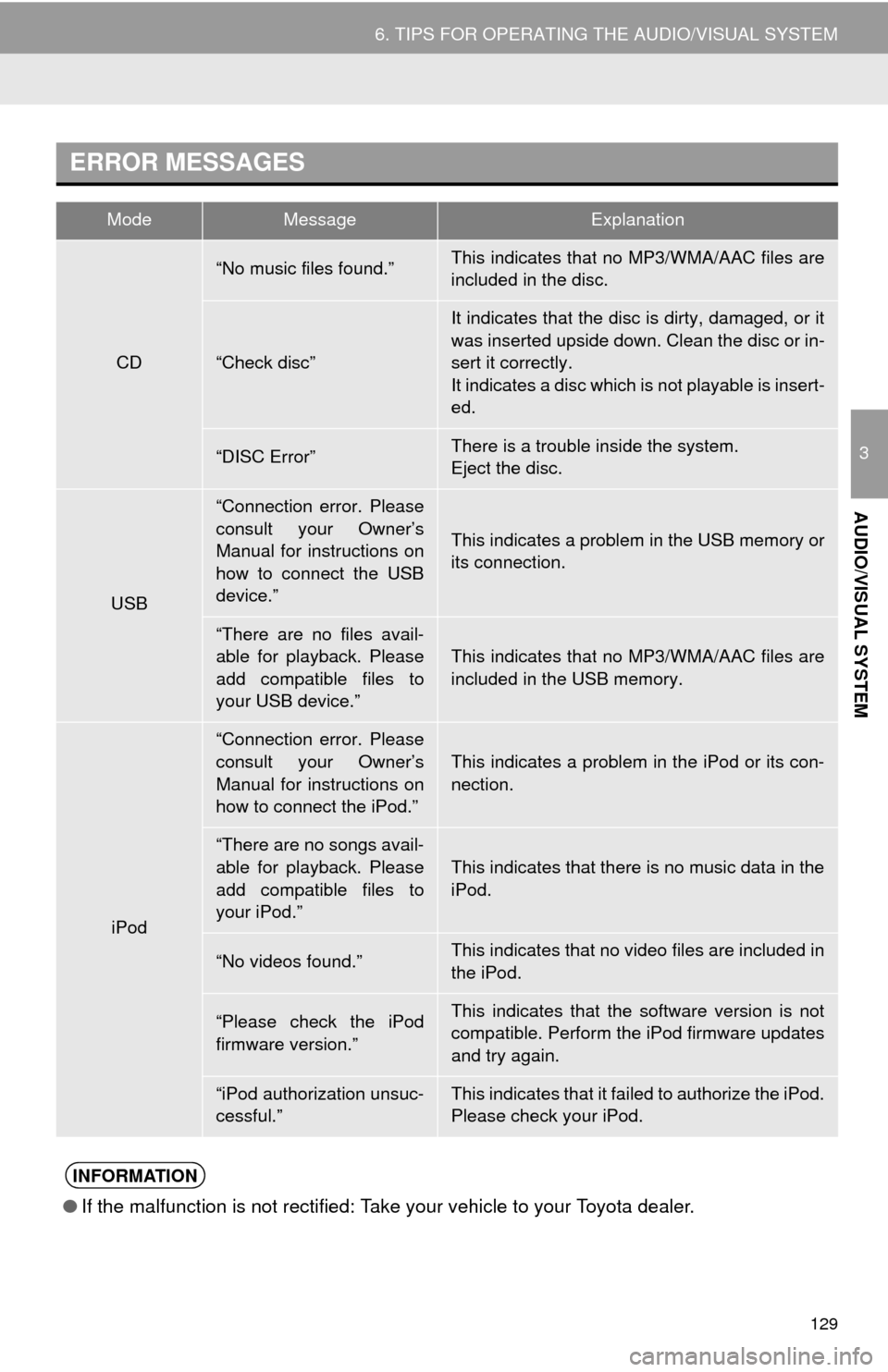
ERROR MESSAGES
ModeMessageExplanation
CD
“No music files found.”This indicates that no MP3/WMA/AAC files are
included in the disc.
“Check disc”
It indicates that the disc is dirty, damaged, or it
was inserted upside down. Clean the disc or in-
sert it correctly.
It indicates a disc which is not playable is insert-
ed.
“DISC Error”There is a trouble inside the system.
Eject the disc.
USB
“Connection error. Please
consult your Owner’s
Manual for instructions on
how to connect the USB
device.”
This indicates a problem in the USB memory or
its connection.
“There are no files avail-
able for playback. Please
add compatible files to
your USB device.”
This indicates that no MP3/WMA/AAC files are
included in the USB memory.
iPod
“Connection error. Please
consult your Owner’s
Manual for instructions on
how to connect the iPod.”
This indicates a problem in the iPod or its con-
nection.
“There are no songs avail-
able for playback. Please
add compatible files to
your iPod.”This indicates that there is no music data in the
iPod.
“No videos found.”This indicates that no video files are included in
the iPod.
“Please check the iPod
firmware version.”This indicates that the software version is not
compatible. Perform the iPod firmware updates
and try again.
“iPod authorization unsuc-
cessful.”This indicates that it failed to authorize the iPod.
Please check your iPod.
INFORMATION
●If the malfunction is not rectified: Take your vehicle to your Toyota dealer.
Page 136 of 298
136
1. VOICE COMMAND SYSTEM OPERATION
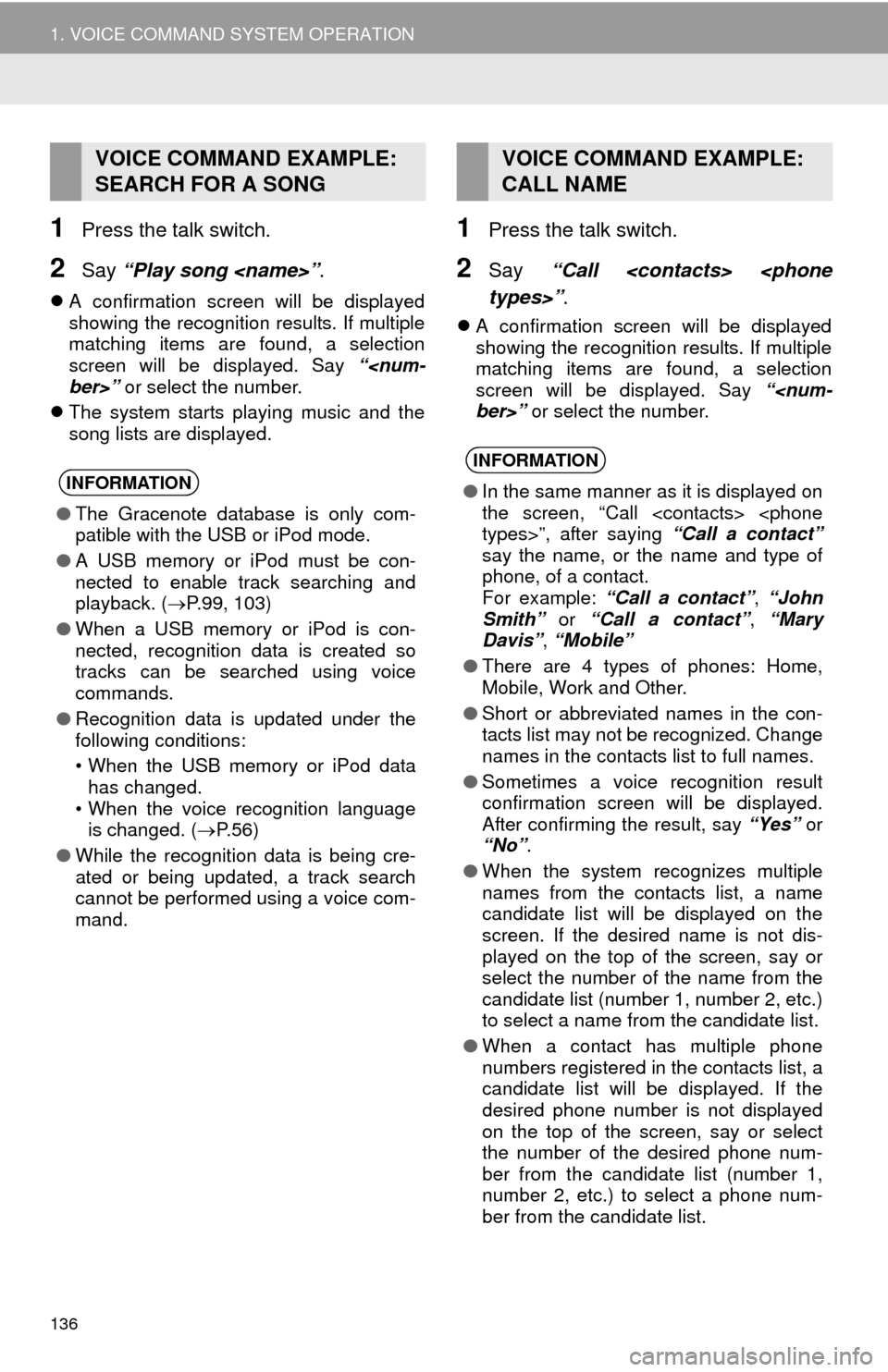
1Press the talk switch.
2Say “Play song
A confirmation screen will be displayed
showing the recognition results. If multiple
matching items are found, a selection
screen will be displayed. Say “
The system starts playing music and the
song lists are displayed.
1Press the talk switch.
2Say “Call
A confirmation screen will be displayed
showing the recognition results. If multiple
matching items are found, a selection
screen will be displayed. Say “
VOICE COMMAND EXAMPLE:
SEARCH FOR A SONG
INFORMATION
●The Gracenote database is only com-
patible with the USB or iPod mode.
●A USB memory or iPod must be con-
nected to enable track searching and
playback. (P.99, 103)
●When a USB memory or iPod is con-
nected, recognition data is created so
tracks can be searched using voice
commands.
●Recognition data is updated under the
following conditions:
• When the USB memory or iPod data
has changed.
• When the voice recognition language
is changed. (P. 5 6 )
●While the recognition data is being cre-
ated or being updated, a track search
cannot be performed using a voice com-
mand.
VOICE COMMAND EXAMPLE:
CALL NAME
INFORMATION
●In the same manner as it is displayed on
the screen, “Call
say the name, or the name and type of
phone, of a contact.
For example: “Call a contact”, “John
Smith” or “Call a contact”, “Mary
Davis”, “Mobile”
●There are 4 types of phones: Home,
Mobile, Work and Other.
●Short or abbreviated names in the con-
tacts list may not be recognized. Change
names in the contacts list to full names.
●Sometimes a voice recognition result
confirmation screen will be displayed.
After confirming the result, say “Yes” or
“No”.
●When the system recognizes multiple
names from the contacts list, a name
candidate list will be displayed on the
screen. If the desired name is not dis-
played on the top of the screen, say or
select the number of the name from the
candidate list (number 1, number 2, etc.)
to select a name from the candidate list.
●When a contact has multiple phone
numbers registered in the contacts list, a
candidate list will be displayed. If the
desired phone number is not displayed
on the top of the screen, say or select
the number of the desired phone num-
ber from the candidate list (number 1,
number 2, etc.) to select a phone num-
ber from the candidate list.
Page 270 of 298
270
1. App Suite OVERVIEW
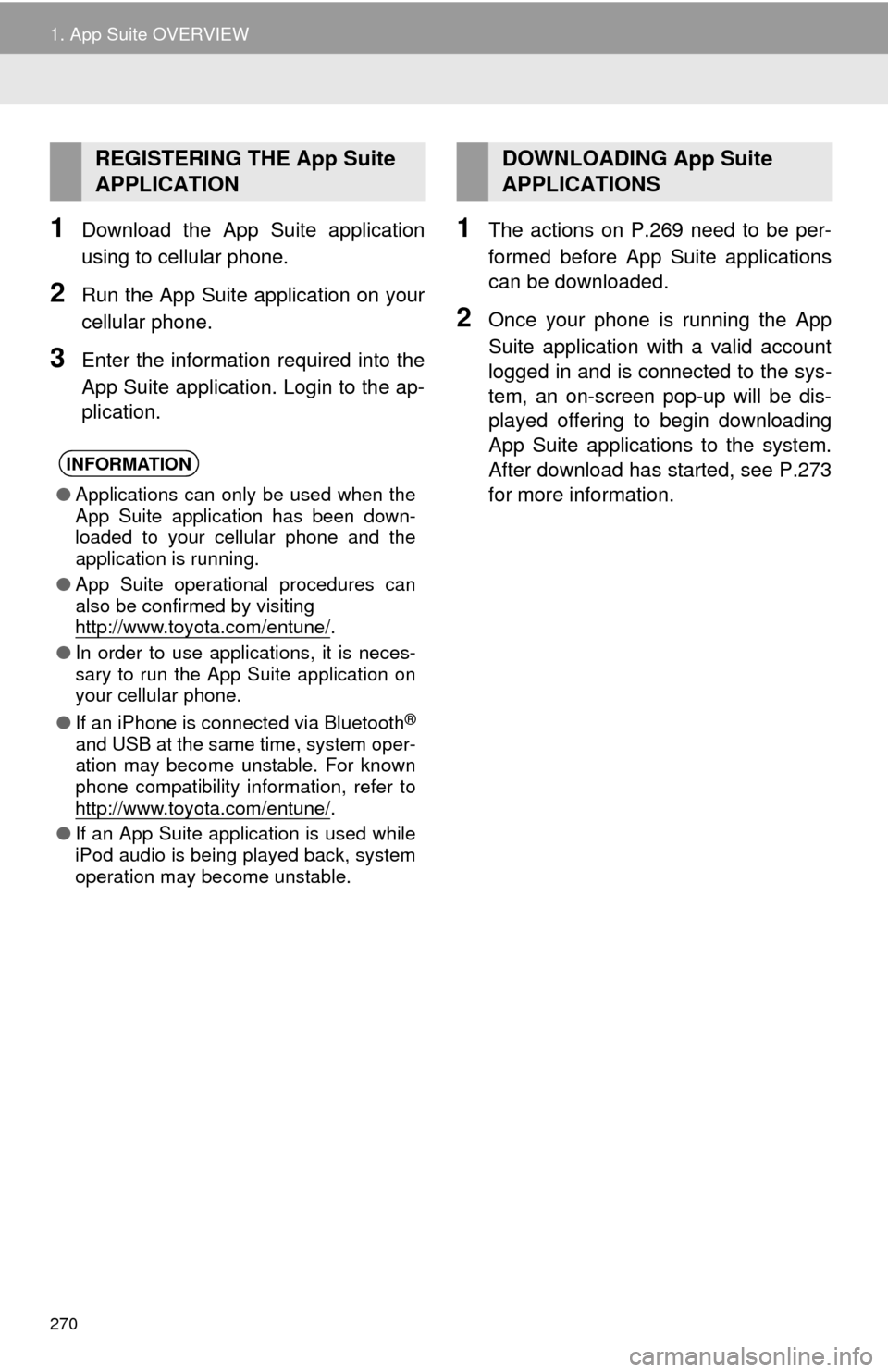
1Download the App Suite application
using to cellular phone.
2Run the App Suite application on your
cellular phone.
3Enter the information required into the
App Suite application. Login to the ap-
plication.
1The actions on P.269 need to be per-
formed before App Suite applications
can be downloaded.
2Once your phone is running the App
Suite application with a valid account
logged in and is connected to the sys-
tem, an on-screen pop-up will be dis-
played offering to begin downloading
App Suite applications to the system.
After download has started, see P.273
for more information.
REGISTERING THE App Suite
APPLICATION
INFORMATION
●Applications can only be used when the
App Suite application has been down-
loaded to your cellular phone and the
application is running.
●App Suite operational procedures can
also be confirmed by visiting
http://www.toyota.com/entune/
.
●In order to use applications, it is neces-
sary to run the App Suite application on
your cellular phone.
●If an iPhone is connected via Bluetooth
®
and USB at the same time, system oper-
ation may become unstable. For known
phone compatibility information, refer to
http://www.toyota.com/entune/
.
●If an App Suite application is used while
iPod audio is being played back, system
operation may become unstable.
DOWNLOADING App Suite
APPLICATIONS
Page 286 of 298

286
ALPHABETICAL INDEX
S
Satellite Radio .......................................... 89
Screen adjustment ................................... 40
Search operation.................................... 216
Searching by address......................... 218
Searching by address book ................ 222
Searching by coordinates ................... 225
Searching by emergency.................... 223
Searching by intersection and
freeway ........................................... 223
Searching by map .............................. 225
Searching by point of interest ............. 219
Searching from previous
destinations..................................... 222
Selecting search area......................... 217
Setting home as destination ............... 217
Setting preset destinations
as destination.................................. 217
Setting Bluetooth
® details ........................ 48
“Bluetooth* Setup” screen .................... 48
Connecting a Bluetooth
® device .......... 51
Deleting a Bluetooth® device ............... 50
Editing the Bluetooth® device
information ........................................ 53
Registering a Bluetooth
® device .......... 49
“System Settings” screen ..................... 54
Setting home as the destination............... 27
“Setup” screen ......................................... 20
Starting route guidance .......................... 226
Steering switches ................................... 116
T
Talking on the Bluetooth® phone ........... 168
Incoming call waiting .......................... 170
Touch screen gestures............................. 34
Touch screen operation ........................... 35
Traffic information .................................. 211
Traffic settings ........................................ 254
Auto avoid traffic ................................. 255
My traffic routes .................................. 256
Screen for traffic settings .................... 254
Troubleshooting ..................................... 188
TUNE/SCROLL button ............................. 12
Typical voice guidance prompts ............. 235
U
USB/AUX port .......................................... 74
USB memory ............................................ 99
Playing a USB audio........................... 102
*: Bluetooth is a registered trademark of Bluetooth SIG, Inc.