ECU TOYOTA 4RUNNER 2021 Accessories, Audio & Navigation (in English)
[x] Cancel search | Manufacturer: TOYOTA, Model Year: 2021, Model line: 4RUNNER, Model: TOYOTA 4RUNNER 2021Pages: 258, PDF Size: 8.9 MB
Page 164 of 258
1645-1. Voice command system operation
4RUNNER_NAVI_(U)
voice command operation,
select “Resume” or press the
talk switch.
●If the system does not respond or
the confirmation screen does not
disappear, press the talk switch
and try again.
●If a voice command cannot be rec-
ognized 3 consecutive times,
voice recognition will be canceled.
●The amount of spoken feedback
received from the system while
using the voice command system
(voice recognition prompts) can
be changed on the voice settings
screen. (P. 6 4 )
●Some voice guidance can be can-
celed by setting voice prompts to
off. Use this setting when it is
desirable to say a command
immediately after pressing the talk
switch and hearing a beep.
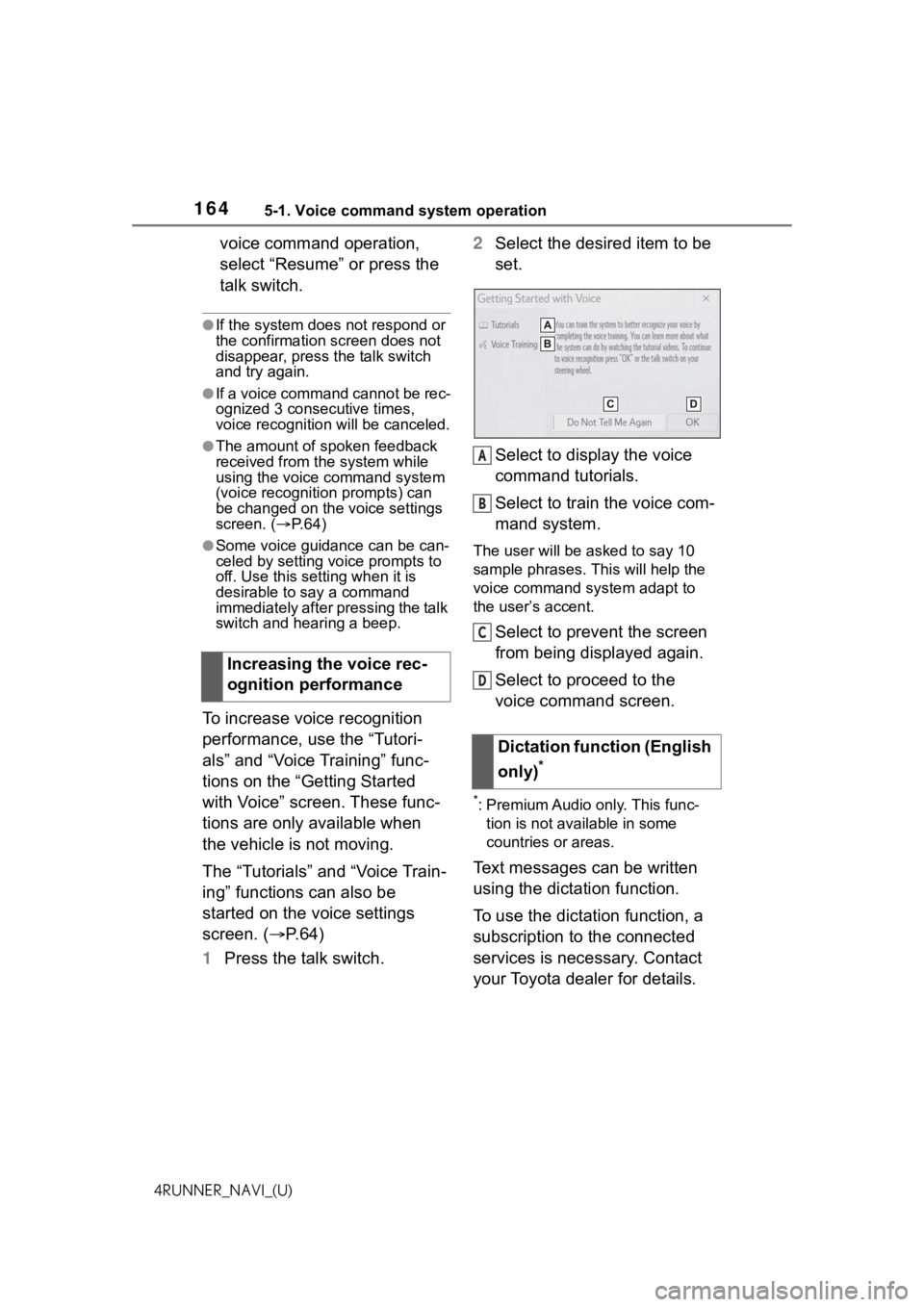
To increase voice recognition
performance, use the “Tutori-
als” and “Voice Training” func-
tions on the “Getting Started
with Voice” screen. These func-
tions are only available when
the vehicle is not moving.
The “Tutorials” and “Voice Train-
ing” functions can also be
started on the voice settings
screen. (P. 6 4 )
1 Press the talk switch. 2
Select the desired item to be
set.
Select to display the voice
command tutorials.
Select to train the voice com-
mand system.
The user will be a sked to say 10
sample phrases. This will help the
voice command system adapt to
the user’s accent.
Select to prevent the screen
from being displayed again.
Select to proceed to the
voice command screen.
*: Premium Audio only. This func- tion is not available in some
countries or areas.
Text messages can be written
using the dictation function.
To use the dictation function, a
subscription to the connected
services is necessary. Contact
your Toyota dealer for details.
Increasing the voice rec-
ognition performance
Dictation function (English
only)
*
A
B
C
D
Page 193 of 258
1938-1. Phone operation (Hands-free system for cellular phones)
8
Phone
4RUNNER_NAVI_(U)
1Display the phone top
screen. ( P.188)
2 Select the desired method to
call from.
■Calling methods from
phone screen
By call history ( P.193)
By favorites ( P.194)
By contacts ( P.194)
By keypad ( P.195)
By message ( P.202)
■Also the following lists are
available from each func-
tion’s screen
By POI call
* ( P.79)
By voice command system
( P.163)
By home screen ( P.196)
*: Premium Audio only
Up to 30 of the latest call history
items (missed, incoming and
outgoing) can be selected.
1 Display the phone top
screen. ( P.188)
2 Select “History” and select
the desired contact.
If the contact which is not reg-
istered on the contact list is
selected, the name is dis-
played as “Unknown Con-
tact”. In this case, select the
number to make a call prop-
erly.
3 Check that the dialing screen
is displayed.
●The icons of call type are dis-
played.
: Missed call
: Incoming call
: Outgoing call
●When making a call to the same
number continuously, only the
most recent call is listed in call his-
tory.
●When a phone number registered
in the contact list is received, the
name is displayed.
●Number-withheld calls are also
memorized in the system.
●International phone calls may not
be made depending on the type of
Bluetooth
® phone you have.
●The list should group together
consecutive entries with the same
phone number and same call
type. For example, two calls from
John’s mobile would be displayed
Placing a call using
the Bluetooth®
hands-free system
After a Bluetooth® phone
has been registered, a call
can be made using the
hands-free system. There
are several methods by
which a call can be made, as
described below.
Calling methods on the
Bluetooth
® phone
By call history
Page 218 of 258

2188-3. What to do if...
4RUNNER_NAVI_(U)
Enable the cellular phone’s
Bluetooth
® connection.
Disable the Wi-Fi
® connection of
the cellular phone.
Stop the cellular phone’s secu-
rity software and close all appli-
cations.
Before using an application
installed on the cellular phone,
carefully check its source and
how its operation might affect
this system.
●For details, refer to the owner’s
manual that came with the cellular
phone.
Page 222 of 258
2229-1. Connected Services overview
4RUNNER_NAVI_(U)
Application server
Provides applications to the system or a smartphone.
Smartphone
*
Using the Toyota mobile application, communication is relayed
between the system, application server and content provider.
Applications
Display usable content from the content providers on the screen
using the data connection of the connected smartphone or DCM.
System
Content received, via a smartphone or DCM, from content pro-
vider servers is displayed on the screen. The system is equippe d
with an application player to run applications.
Via DCM
*: For known compatible phones, refer to https://www.toyota.com/connected-services
in the Unit ed States,
https://www.toyota.ca/connected
in Canada, and
http://www.toyotapr.c om/connected-services
in Puerto Rico.
The required operations to acti-
vate applications and connect a
smartphone to the system, and
the registration steps for the
connected services are
explained in this section.
■Subscription
Toyota apps do not require an
activation fee or monthly
recurring fees.
Services requiring a separate
contract can also be used.
*
*: For details, refer to
https://www.toyota.com/
connected-services or call
1-800-331-4331 in the United
States,
https://www.toyota.ca/connected
or call 1-888-869-6828 in Can-
ada, and
http://www.toyotapr.com/
connected-services
or call 1-877-855-8377 in Puerto
Rico.
■Availability of function
Toyota apps is available in the
contiguous United States,
Washington D.C., Alaska,
Hawaii, the United States Vir-
gin Islands, Puerto Rico and
Canada.
●Data usage fees may apply while
using Toyota apps. Confirm data
usage fees before using this func-
tion.
●For details regarding operation of
the Toyota apps, refer to
https://www.toyota.com/
connected-services
in the United States,
B
C
D
E
F
Before using the function
Page 224 of 258
2249-1. Connected Services overview
4RUNNER_NAVI_(U)
*: Vehicles equipped with DCM
■Subscription
After you have signed the Telemati cs Subscription Service Agree-
ment and are enrolled, you can begin receiving services. A vari ety
of subscription terms are available. Contact your Toyota dealer , or
call 1-800-331-4331 in the United States, 1-888-869-6828 in Can -
ada, and 1-877-855-8377 in Puerto Rico, for further subscription
details. ( P.222)
■Availability of functions
Destination Assist is available in the contiguous United States ,
Washington D.C., Puerto Rico, Hawaii, the United States Virgin
Islands, Canada, and limited areas of Alaska for vehicles that con-
tain the appropriate map data.
Dynamic Navigation is available in the contiguous United States,
Washington D.C. and Alaska.
Type B: Function achiev ed by using DCM and the
system*
The functionality of Destination Assist, Dynamic Navigation,
and Wi-Fi
® hotspot is made possible through the shared work
of the DCM and the system.
Destination Assist and Dynamic Navigation are subscrip-
tion-based telematics services that use Global Positioning
System (GPS) data and embedded cellular technology to pro-
vide safety and security as well as convenience features.
These services are available by subscription on select,
telematics hardware-equipped vehicles and supported by the
Toyota response center, which operates 24 hours a day, 7
days a week.
For details about:
Dynamic Navigation: P.85, 95, 119
Wi-Fi
® hotspot: P. 4 8
Before using the function