ECO mode TOYOTA AURIS HYBRID 2014 Repair Manual
[x] Cancel search | Manufacturer: TOYOTA, Model Year: 2014, Model line: AURIS HYBRID, Model: TOYOTA AURIS HYBRID 2014Pages: 788, PDF Size: 21.16 MB
Page 432 of 788
4325-2. Using the audio system
UK_AURIS/AURIS_HV_EE (OM12G88E)Discs that can be used
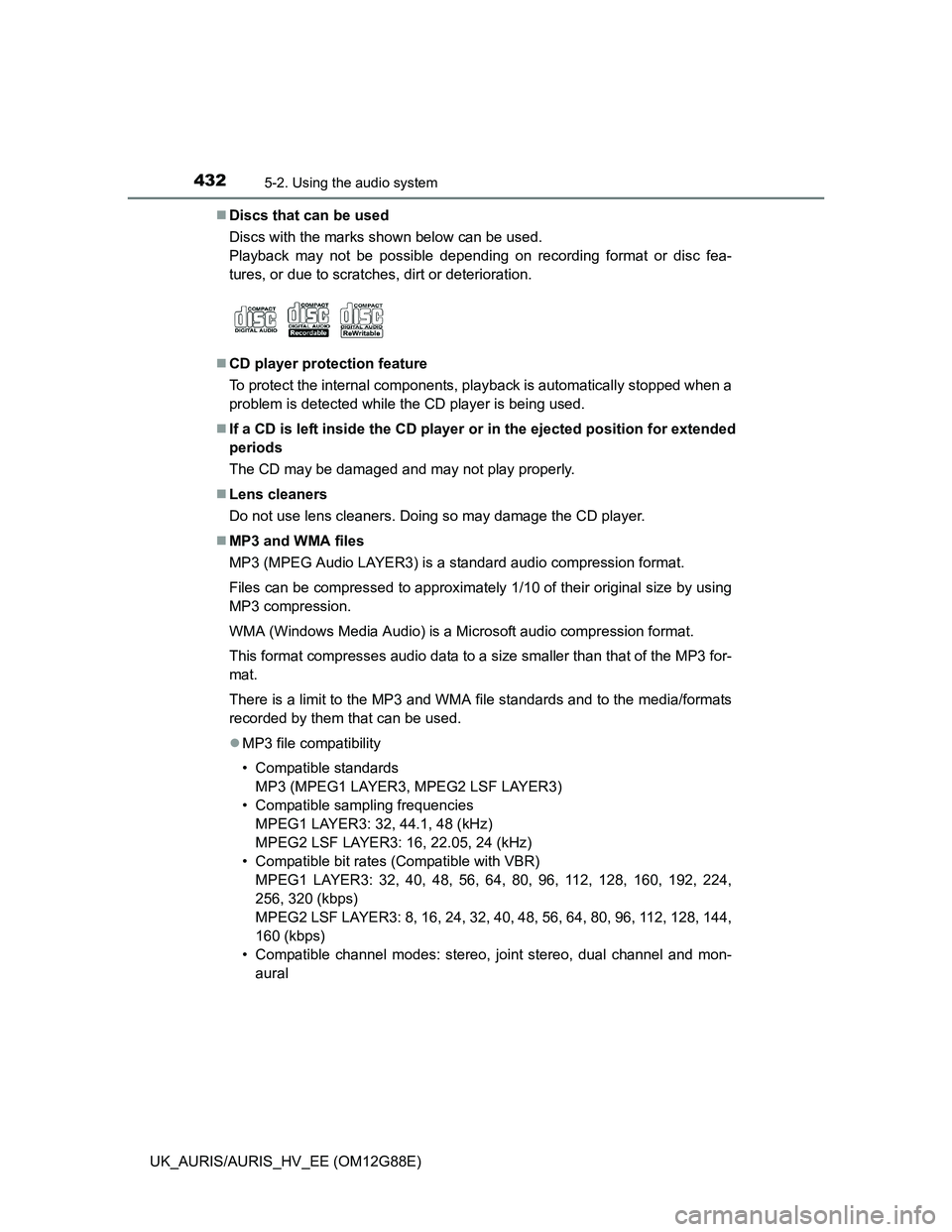
Discs with the marks shown below can be used.
Playback may not be possible depending on recording format or disc fea-
tures, or due to scratches, dirt or deterioration.
CD player protection feature
To protect the internal components, playback is automatically stopped when a
problem is detected while the CD player is being used.
If a CD is left inside the CD player or in the ejected position for extended
periods
The CD may be damaged and may not play properly.
Lens cleaners
Do not use lens cleaners. Doing so may damage the CD player.
MP3 and WMA files
MP3 (MPEG Audio LAYER3) is a standard audio compression format.
Files can be compressed to approximately 1/10 of their original size by using
MP3 compression.
WMA (Windows Media Audio) is a Microsoft audio compression format.
This format compresses audio data to a size smaller than that of the MP3 for-
mat.
There is a limit to the MP3 and WMA file standards and to the media/formats
recorded by them that can be used.
MP3 file compatibility
• Compatible standards
MP3 (MPEG1 LAYER3, MPEG2 LSF LAYER3)
• Compatible sampling frequencies
MPEG1 LAYER3: 32, 44.1, 48 (kHz)
MPEG2 LSF LAYER3: 16, 22.05, 24 (kHz)
• Compatible bit rates (Compatible with VBR)
MPEG1 LAYER3: 32, 40, 48, 56, 64, 80, 96, 112, 128, 160, 192, 224,
256, 320 (kbps)
MPEG2 LSF LAYER3: 8, 16, 24, 32, 40, 48, 56, 64, 80, 96, 112, 128, 144,
160 (kbps)
• Compatible channel modes: stereo, joint stereo, dual channel and mon-
aural
Page 433 of 788
4335-2. Using the audio system
UK_AURIS/AURIS_HV_EE (OM12G88E)
5
Interior features
WMA file compatibility
• Compatible standards
WMA Ver. 7, 8, 9
• Compatible sampling frequencies
32, 44.1, 48 (kHz)
• Compatible bit rates (Only compatible with 2-channel playback)
Ver. 7, 8: CBR 48, 64, 80, 96, 128, 160, 192 (kbps)
Ver. 9: CBR 48, 64, 80, 96, 128, 160, 192, 256, 320 (kbps)
Compatible media
Media that can be used for MP3 and WMA playback are CD-Rs and CD-
RWs.
Playback in some instances may not be possible, depending on the status
of the CD-R or CD-RW. Playback may not be possible or the audio may
jump if the disc is scratched or marked with fingerprints.
Compatible disc formats
The following disc formats can be used.
• Disc formats: CD-ROM Mode 1 and Mode 2
CD-ROM XA Mode 2, Form 1 and Form 2
• File formats: ISO9660 Level 1, Level 2, (Romeo, Joliet)
MP3 and WMA files written in any format other than those listed above
may not play correctly, and their file names and folder names may not be
displayed correctly.
Items related to standards and limitations are as follows.
• Maximum directory hierarchy: 8 levels
• Maximum length of folder names/file names: 32 characters
• Maximum number of folders: 192 (including the root)
• Maximum number of files per disc: 255
File names
The only files that can be recognized as MP3/WMA and played are those
with the extension .mp3 or .wma.
Multi-sessions
As the audio system is compatible with multi-sessions, it is possible to play
discs that contain MP3 and WMA files. However, only the first session can
be played.
Page 437 of 788
4375-2. Using the audio system
UK_AURIS/AURIS_HV_EE (OM12G88E)
5
Interior features
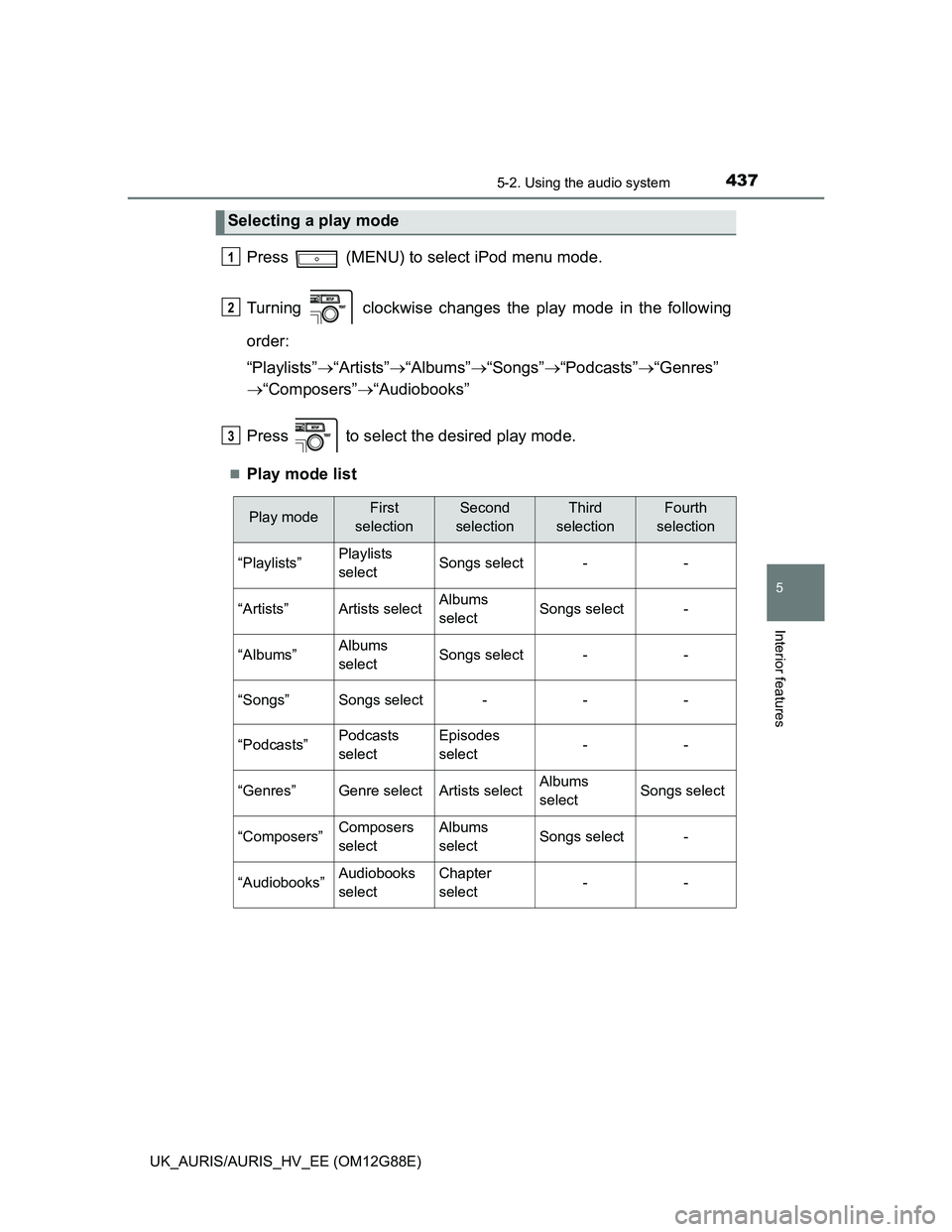
Press (MENU) to select iPod menu mode.
Turning clockwise changes the play mode in the following
order:
“Playlists”“Artists”“Albums”“Songs”“Podcasts”“Genres”
“Composers”“Audiobooks”
Press to select the desired play mode.
Play mode list
Selecting a play mode
1
2
3
Play modeFirst
selectionSecond
selectionThird
selectionFourth
selection
“Playlists”Playlists
selectSongs select--
“Artists”Artists selectAlbums
selectSongs select-
“Albums”Albums
selectSongs select--
“Songs”Songs select---
“Podcasts”Podcasts
selectEpisodes
select--
“Genres”Genre selectArtists selectAlbums
selectSongs select
“Composers”Composers
selectAlbums
selectSongs select-
“Audiobooks”Audiobooks
selectChapter
select--
Page 441 of 788
4415-2. Using the audio system
UK_AURIS/AURIS_HV_EE (OM12G88E)
5
Interior features
iPod functions
When an iPod is connected and the audio source is changed to iPod mode,
the iPod will resume play from the same point in which it was last used.
Depending on the iPod that is connected to the system, certain functions
may not be available. If a function is unavailable due to a malfunction (as
opposed to a system specification), disconnecting the device and recon-
necting it once again may resolve the problem.
While connected to the system, the iPod cannot be operated with its own
controls. It is necessary to use the controls of the vehicle’s audio system
instead.
When the battery level of an iPod is very low, the iPod may not operate. If
so, charge the iPod before use.
Supported models (P. 442)
iPod problems
To resolve most problems encountered when using your iPod, disconnect
your iPod from the vehicle iPod connection and reset it.
For instructions on how to reset your iPod, refer to your iPod Owner’s Man-
ual.
Display
P. 426
Error messages
“iPod ERROR”: This indicates that the data in the iPod cannot be read.
“ERROR 3”: This indicates that the iPod may be malfunctioning.
“ERROR 4”: This indicates that an over current error has occurred.
“ERROR 5”: This indicates that an iPod communication error has
occurred.
“ERROR 6”: This indicates that an authentication error has occurred.
“NO SONGS”: This indicates that there is no music data in the iPod.
“NO PLAYLIST”: This indicates that some available songs are not found in a
selected playlist.
“UPDATE YOUR iPod”: This indicates that the version of the iPod is not com-
patible. Upgrade your iPod software to the latest ver-
sion.
Page 447 of 788
4475-2. Using the audio system
UK_AURIS/AURIS_HV_EE (OM12G88E)
5
Interior features
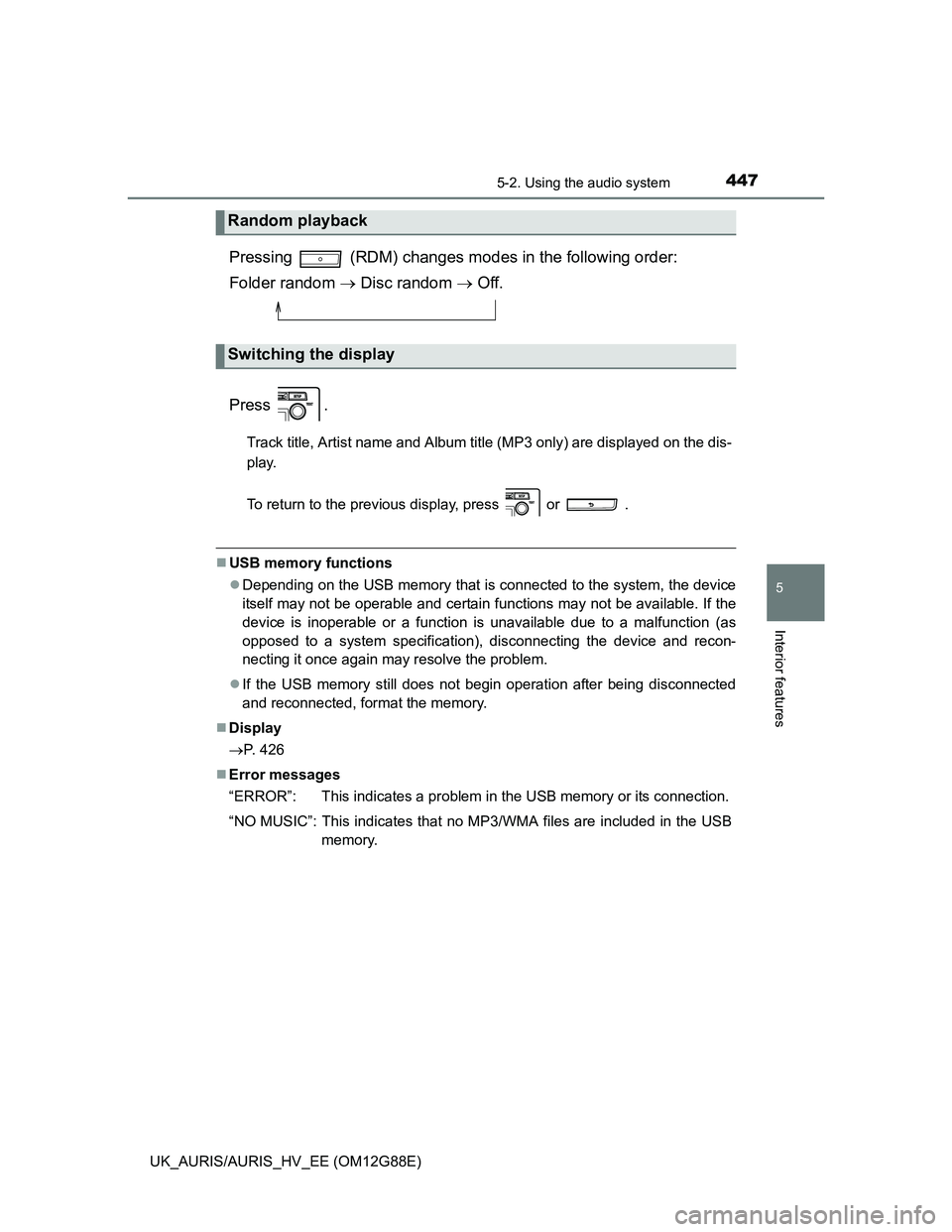
Pressing (RDM) changes modes in the following order:
Folder random Disc random Off.
Press .
Track title, Artist name and Album title (MP3 only) are displayed on the dis-
play.
To return to the previous display, press or .
USB memory functions
Depending on the USB memory that is connected to the system, the device
itself may not be operable and certain functions may not be available. If the
device is inoperable or a function is unavailable due to a malfunction (as
opposed to a system specification), disconnecting the device and recon-
necting it once again may resolve the problem.
If the USB memory still does not begin operation after being disconnected
and reconnected, format the memory.
Display
P. 426
Error messages
“ERROR”: This indicates a problem in the USB memory or its connection.
“NO MUSIC”: This indicates that no MP3/WMA files are included in the USB
memory.
Random playback
Switching the display
Page 448 of 788
4485-2. Using the audio system
UK_AURIS/AURIS_HV_EE (OM12G88E)USB memory
Compatible devices
USB memory that can be used for MP3 and WMA playback
Compatible device formats
The following device formats can be used:
• USB communication formats: USB2.0 FS (12 Mbps)
• File formats: FAT12/16/32 (Windows)
• Correspondence class: Mass storage class
MP3 and WMA files written in any format other than those listed above may
not play correctly, and their file names and folder names may not be dis-
played correctly.
Items related to standards and limitations are as follows:
• Maximum directory hierarchy: 8 levels
• Maximum number of folders in a device: 999 (including the root)
• Maximum number of files in a device: 9999
• Maximum number of files per folder: 255
MP3 and WMA files
MP3 (MPEG Audio LAYER 3) is a standard audio compression format.
Files can be compressed to approximately 1/10 of their original size using
MP3 compression.
WMA (Windows Media Audio) is a Microsoft audio compression format.
This format compresses audio data to a size smaller than that of the MP3
format.
There is a limit to the MP3 and WMA file standards that can be used and to
the media/formats on which the files are recorded.
MP3 file compatibility
• Compatible standards
MP3 (MPEG1 AUDIO LAYERIII, MPEG2 AUDIO LAYERIII, MPEG2.5)
• Compatible sampling frequencies
MPEG1 AUDIO LAYERIII: 32, 44.1, 48 (kHz)
MPEG2 AUDIO LAYERIII: 16, 22.05, 24 (kHz)
MPEG2.5: 8, 11.025, 12 (kHz)
• Compatible bit rates (compatible with VBR)
MPEG1 AUDIO LAYERII, III: 32-320 (kbps)
MPEG2 AUDIO LAYERII, III: 8-160 (kbps)
MPEG2.5: 8-160 (kbps)
• Compatible channel modes: stereo, joint stereo, dual channel and mon-
aural
Page 449 of 788
4495-2. Using the audio system
UK_AURIS/AURIS_HV_EE (OM12G88E)
5
Interior features
WMA file compatibility
• Compatible standards
WMA Ver. 7, 8, 9
• Compatible sampling frequencies
HIGH PROFILE 32, 44.1, 48 (kHz)
• Compatible bit rates
HIGH PROFILE 48-320 (kbps, CBR)
File names
The only files that can be recognized as MP3/WMA and played are those
with the extension .mp3 or .wma.
ID3 and WMA tags
ID3 tags can be added to MP3 files, making it possible to record the track
title, artist name, etc.
The system is compatible with ID3 Ver. 1.0, 1.1, and Ver. 2.2, 2.3, 2.4 ID3
tags. (The number of characters is based on ID3 Ver. 1.0 and 1.1.)
WMA tags can be added to WMA files, making it possible to record the
track title and artist name in the same way as with ID3 tags.
MP3 and WMA playback
• When a device containing MP3 or WMA files is connected, all files in the
USB memory are checked. Once the file check is finished, the first MP3
or WMA file is played. To make the file check finish more quickly, we rec-
ommend that you do not include any files other than MP3 or WMA files or
create any unnecessary folders.
• When the USB memory is connected and the audio source is changed to
USB memory mode, the USB memory will start playing the first file in the
first folder. If the same device is removed and reinserted (and the con-
tents have not been changed), the USB memory will resume play from
the same point in which it was last used.
Extensions
If the file extensions .mp3 and .wma are used for files other than MP3 and
WMA files, they will be skipped (not played).
Playback
• To play MP3 files with steady sound quality, we recommend a fixed bit
rate of at least 128 kbps and a sampling frequency of 44.1 kHz.
• There is a wide variety of freeware and other encoding software for MP3
and WMA files on the market, and depending on the status of the encod-
ing and the file format, poor sound quality or noise at the start of playback
may result. In some cases, playback may not be possible at all.
• Microsoft, Windows, and Windows Media are registered trademarks of
Microsoft Corporation in the U.S.A. and other countries.
Page 487 of 788
4875-5. Other interior features
UK_AURIS/AURIS_HV_EE (OM12G88E)
5
Interior features
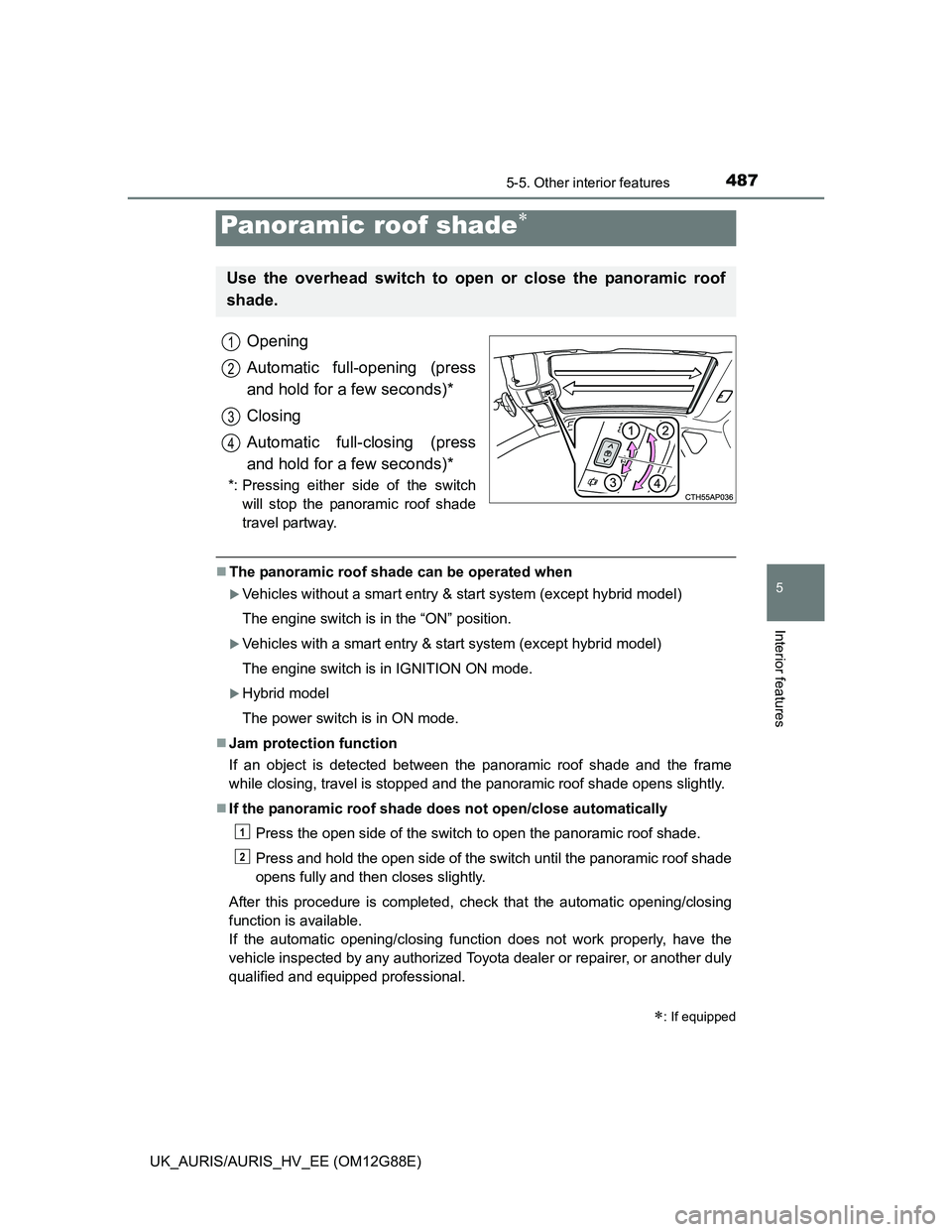
Opening
Automatic full-opening (press
and hold for a few seconds)*
Closing
Automatic full-closing (press
and hold for a few seconds)*
*: Pressing either side of the switch
will stop the panoramic roof shade
travel partway.
The panoramic roof shade can be operated when
Vehicles without a smart entry & start system (except hybrid model)
The engine switch is in the “ON” position.
Vehicles with a smart entry & start system (except hybrid model)
The engine switch is in IGNITION ON mode.
Hybrid model
The power switch is in ON mode.
Jam protection function
If an object is detected between the panoramic roof shade and the frame
while closing, travel is stopped and the panoramic roof shade opens slightly.
If the panoramic roof shade does not open/close automatically
Press the open side of the switch to open the panoramic roof shade.
Press and hold the open side of the switch until the panoramic roof shade
opens fully and then closes slightly.
After this procedure is completed, check that the automatic opening/closing
function is available.
If the automatic opening/closing function does not work properly, have the
vehicle inspected by any authorized Toyota dealer or repairer, or another duly
qualified and equipped professional.
Panoramic roof shade
: If equipped
Use the overhead switch to open or close the panoramic roof
shade.
1
2
3
4
1
2
Page 491 of 788
4916-1. Maintenance and care
UK_AURIS/AURIS_HV_EE (OM12G88E)
6
Maintenance and care
When using a car wash (vehicles with a smart entry & start system)
If the door handle becomes wet while the electronic key is within the effective
range, the door may lock and unlock repeatedly. In that case, follow the fol-
lowing correction procedures to wash the vehicle:
Place the key in a position 2 m (6 ft.) or more separate from the vehicle
while the vehicle is being washed. (Take care to ensure that the key is not
stolen.)
Set the electronic key to battery-saving mode to disable the smart entry &
start system. (P. 163)
Aluminum wheels (if equipped)
Remove any dirt immediately by using a neutral detergent. Do not use hard
brushes or abrasive cleaners. Do not use strong or harsh chemical clean-
ers.
Use the same mild detergent and wax as used on the paint.
Do not use detergent on the wheels when they are hot, for example after
driving for long distance in the hot weather.
Wash detergent from the wheels immediately after use.
Bumpers
Do not scrub with abrasive cleaners.
CAUTION
When washing the vehicle
Do not apply water to the inside of the engine compartment. Doing so may
cause the electrical components etc. to catch fire.
Page 495 of 788
4956-1. Maintenance and care
UK_AURIS/AURIS_HV_EE (OM12G88E)
6
Maintenance and care
Caring for leather areas
Toyota recommends cleaning the interior of the vehicle at least twice a year to
maintain the quality of the vehicle’s interior.
Shampooing the carpets
There are several commercial foaming-type cleaners available. Use a sponge
or brush to apply the foam. Rub in overlapping circles. Do not use water.
Wipe dirty surfaces and let them dry. Excellent results are obtained by keep-
ing the carpet as dry as possible.
Seat belts
Clean with mild soap and lukewarm water using a cloth or sponge. Also
check the belts periodically for excessive wear, fraying or cuts.
CAUTION
Water in the vehicle
Except hybrid model: Do not splash or spill liquid in the vehicle.
Doing so may cause electrical components etc. to malfunction or catch
fire.
Hybrid model: Do not splash or spill liquid in the vehicle, such as on the
floor, in the hybrid battery (traction battery) air vents, and in the luggage
compartment.
Doing so may cause the hybrid battery, electrical components, etc. to mal-
function or catch fire.
Do not get any of the SRS components or wiring in the vehicle interior wet.
(P. 47)
An electrical malfunction may cause the airbags to deploy or not function
properly, resulting in death or serious injury.
Cleaning the interior (especially instrument panel)
Do not use polish wax or polish cleaner. The instrument panel may reflect
off the windshield, obstructing the driver’s view and leading to an accident,
resulting in death or serious injury.