reset TOYOTA AURIS HYBRID 2017 User Guide
[x] Cancel search | Manufacturer: TOYOTA, Model Year: 2017, Model line: AURIS HYBRID, Model: TOYOTA AURIS HYBRID 2017Pages: 664, PDF Size: 27.42 MB
Page 116 of 664
1162. Instrument cluster
AURIS Touring Sports_EE (12L13E)■Brightness of the meters (day mode and night mode)
●The brightness of the meters is changed between day mode and night
mode.
Vehicles without automatic light control system
• Day mode: When the tail lights are off
• Night mode: When the tail lights are on
Vehicles with automatic light control system
• Day mode: When the tail lights are off or when the tail lights are on but
the surrounding area is bright
• Night mode: When the tail lights are on and the surrounding area is dark
●When in night mode, the brightness will be reduced slightly unless the
meters are set to the maximum brightness level.
■Suspension of the settings display
●While driving, the multi-information display cannot be changed to setting
mode. Before changing the settings, stop the vehicle in a safe place.
●In the following situations, operation of some of the settings display may be
temporarily suspended.
• When a warning message appears on the multi-information display
• When the vehicle begins to move
■When disconnecting and reconnecting battery terminals
The drive information data
* will be reset.
*: Except Stop & Start system operation time
■Liquid crystal display
Small spots or light spots may appear on the display. This phenomenon is
characteristic of liquid crystal displays, and there is no problem continuing to
use the display.
■Ending display
When the engine switch is turned off, the following information about the cur-
rent trip will be temporarily displayed on the multi-information display.
●Elapsed time (after start)
●Distance (after start)
●Average fuel economy (after start)
AURIS Touring Sports_OM_Europe_OM12L13E.book 116 ページ 2016年6月27日 月曜日 午後5時21分
Page 119 of 664
1192. Instrument cluster
AURIS Touring Sports_EE (12L13E)
2
Instrument cluster
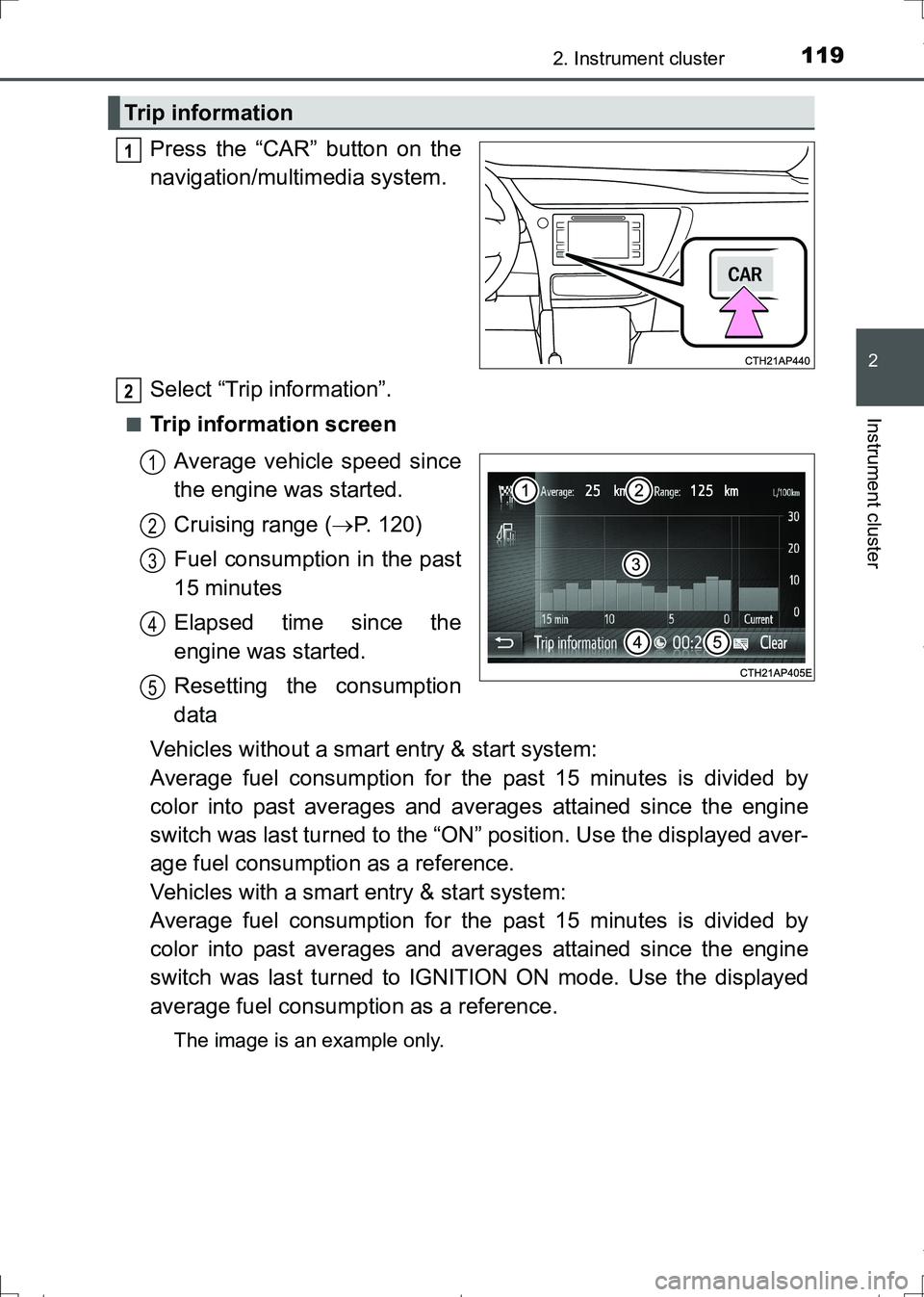
Press the “CAR” button on the
navigation/multimedia system.
Select “Trip information”.
■Trip information screen
Average vehicle speed since
the engine was started.
Cruising range (P. 120)
Fuel consumption in the past
15 minutes
Elapsed time since the
engine was started.
Resetting the consumption
data
Vehicles without a smart entry & start system:
Average fuel consumption for the past 15 minutes is divided by
color into past averages and averages attained since the engine
switch was last turned to the “ON” position. Use the displayed aver-
age fuel consumption as a reference.
Vehicles with a smart entry & start system:
Average fuel consumption for the past 15 minutes is divided by
color into past averages and averages attained since the engine
switch was last turned to IGNITION ON mode. Use the displayed
average fuel consumption as a reference.
The image is an example only.
Trip information
1
2
1
2
3
4
5
AURIS Touring Sports_OM_Europe_OM12L13E.book 119 ページ 2016年6月27日 月曜日 午後5時21分
Page 120 of 664
1202. Instrument cluster
AURIS Touring Sports_EE (12L13E)
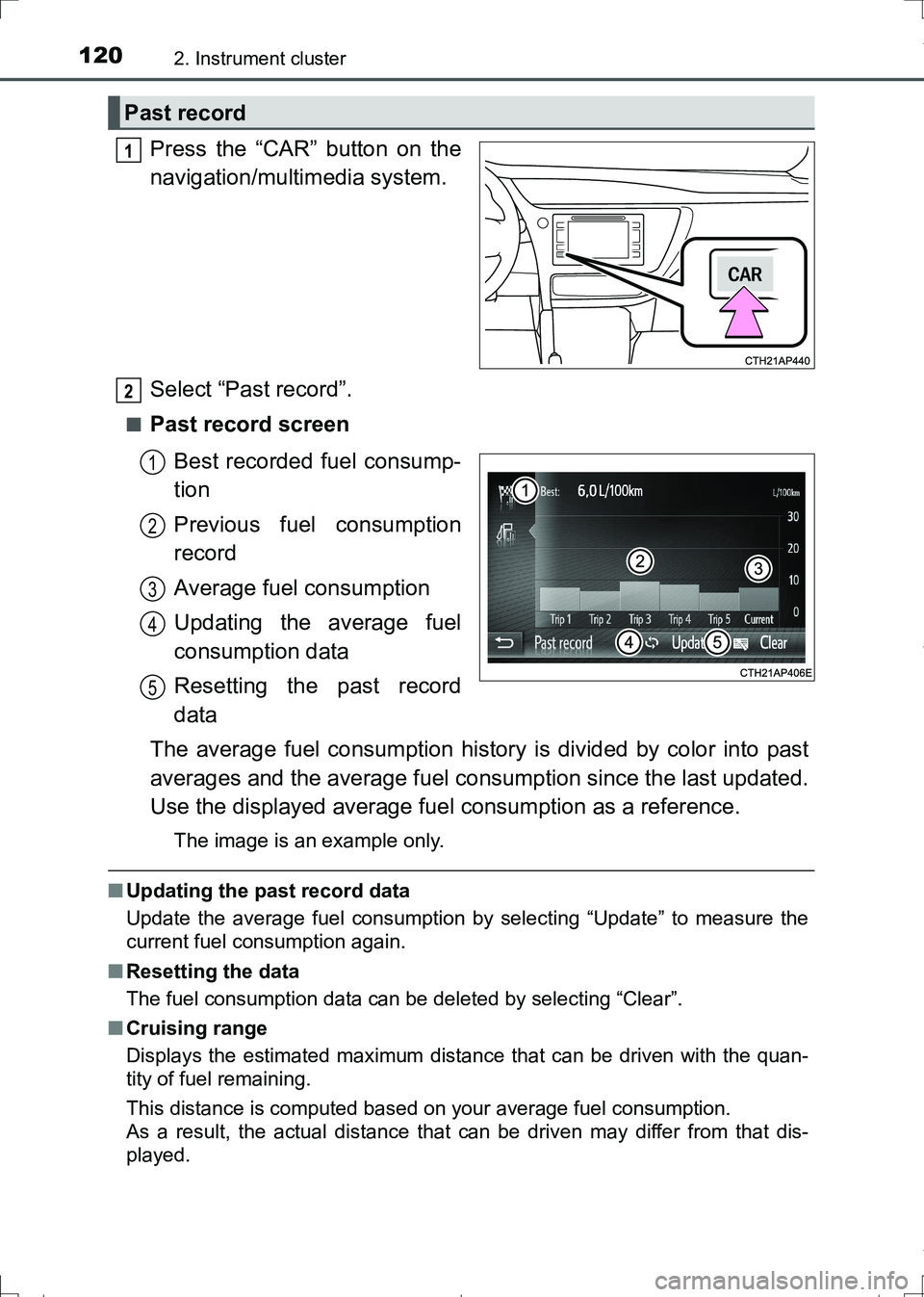
Press the “CAR” button on the
navigation/multimedia system.
Select “Past record”.
■Past record screen
Best recorded fuel consump-
tion
Previous fuel consumption
record
Average fuel consumption
Updating the average fuel
consumption data
Resetting the past record
data
The average fuel consumption history is divided by color into past
averages and the average fuel consumption since the last updated.
Use the displayed average fuel consumption as a reference.
The image is an example only.
■Updating the past record data
Update the average fuel consumption by selecting “Update” to measure the
current fuel consumption again.
■Resetting the data
The fuel consumption data can be deleted by selecting “Clear”.
■Cruising range
Displays the estimated maximum distance that can be driven with the quan-
tity of fuel remaining.
This distance is computed based on your average fuel consumption.
As a result, the actual distance that can be driven may differ from that dis-
played.
Past record
1
2
1
2
3
4
5
AURIS Touring Sports_OM_Europe_OM12L13E.book 120 ページ 2016年6月27日 月曜日 午後5時21分
Page 347 of 664
347
AURIS Touring Sports_EE (12L13E)
5
Audio system
5-3. Using the radio
Search for a desired station by pressing the “
Press and hold a desired station selector button until you hear a
beep.
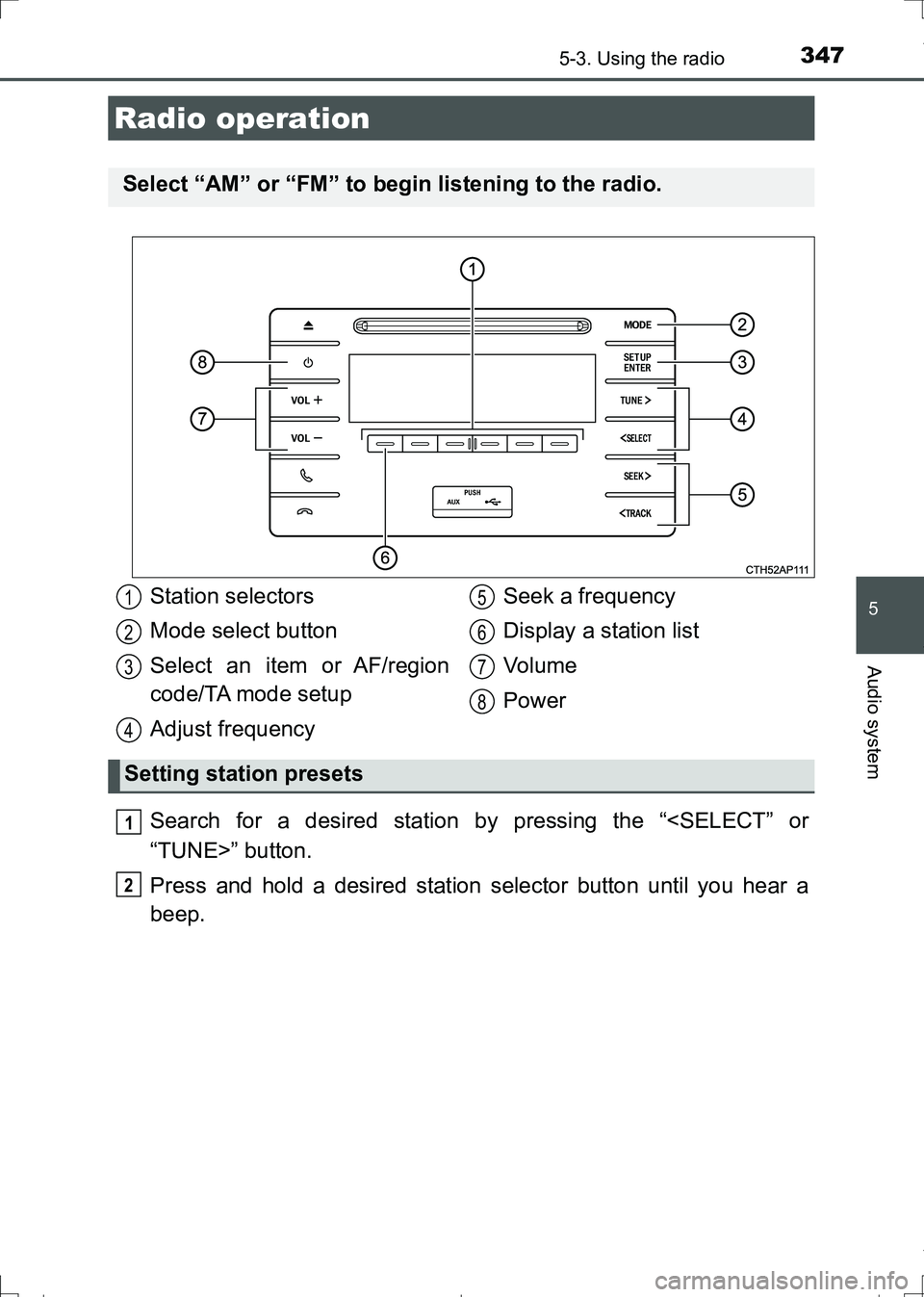
Radio operation
Select “AM” or “FM” to begin listening to the radio.
Station selectors
Mode select button
Select an item or AF/region
code/TA mode setup
Adjust frequencySeek a frequency
Display a station list
Vo l u m e
Power
Setting station presets
1
2
3
4
5
6
7
8
1
2
AURIS Touring Sports_OM_Europe_OM12L13E.book 347 ページ 2016年6月27日 月曜日 午後5時21分
Page 349 of 664
3495-3. Using the radio
AURIS Touring Sports_EE (12L13E)
5
Audio system
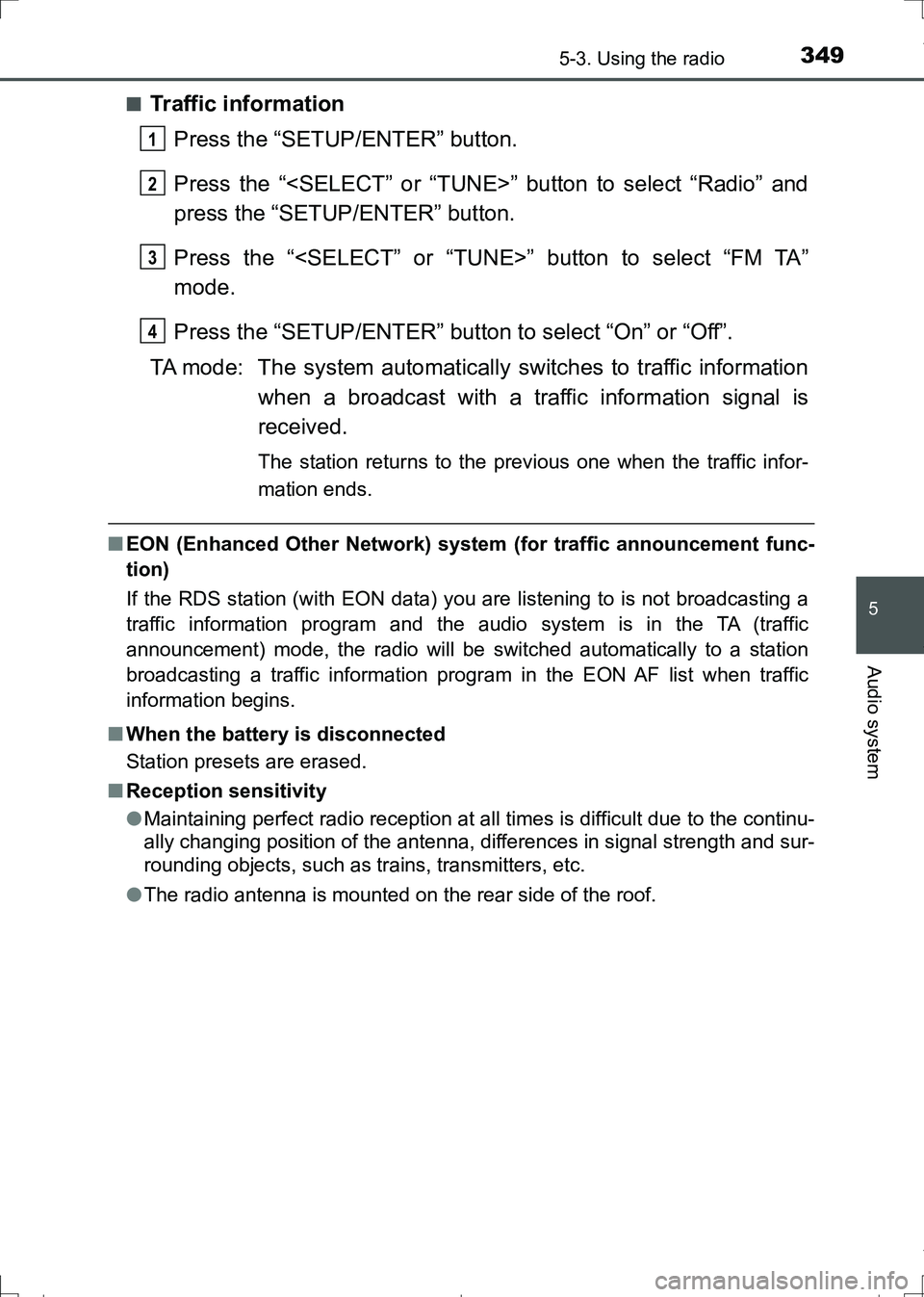
■Traffic information
Press the “SETUP/ENTER” button.
Press the “
press the “SETUP/ENTER” button.
Press the “
mode.
Press the “SETUP/ENTER” button to select “On” or “Off”.
TA mode: The system automatically switches to traffic information
when a broadcast with a traffic information signal is
received.
The station returns to the previous one when the traffic infor-
mation ends.
■EON (Enhanced Other Network) system (for traffic announcement func-
tion)
If the RDS station (with EON data) you are listening to is not broadcasting a
traffic information program and the audio system is in the TA (traffic
announcement) mode, the radio will be switched automatically to a station
broadcasting a traffic information program in the EON AF list when traffic
information begins.
■When the battery is disconnected
Station presets are erased.
■Reception sensitivity
●Maintaining perfect radio reception at all times is difficult due to the continu-
ally changing position of the antenna, differences in signal strength and sur-
rounding objects, such as trains, transmitters, etc.
●The radio antenna is mounted on the rear side of the roof.
1
2
3
4
AURIS Touring Sports_OM_Europe_OM12L13E.book 349 ページ 2016年6月27日 月曜日 午後5時21分
Page 363 of 664
3635-5. Using an external device
AURIS Touring Sports_EE (12L13E)
5
Audio system
■iPod problems
To resolve most problems encountered when using your iPod, disconnect
your iPod from the vehicle iPod connection and reset it.
For instructions on how to reset your iPod, refer to your iPod Owner’s Man-
ual.
■Display
P. 353
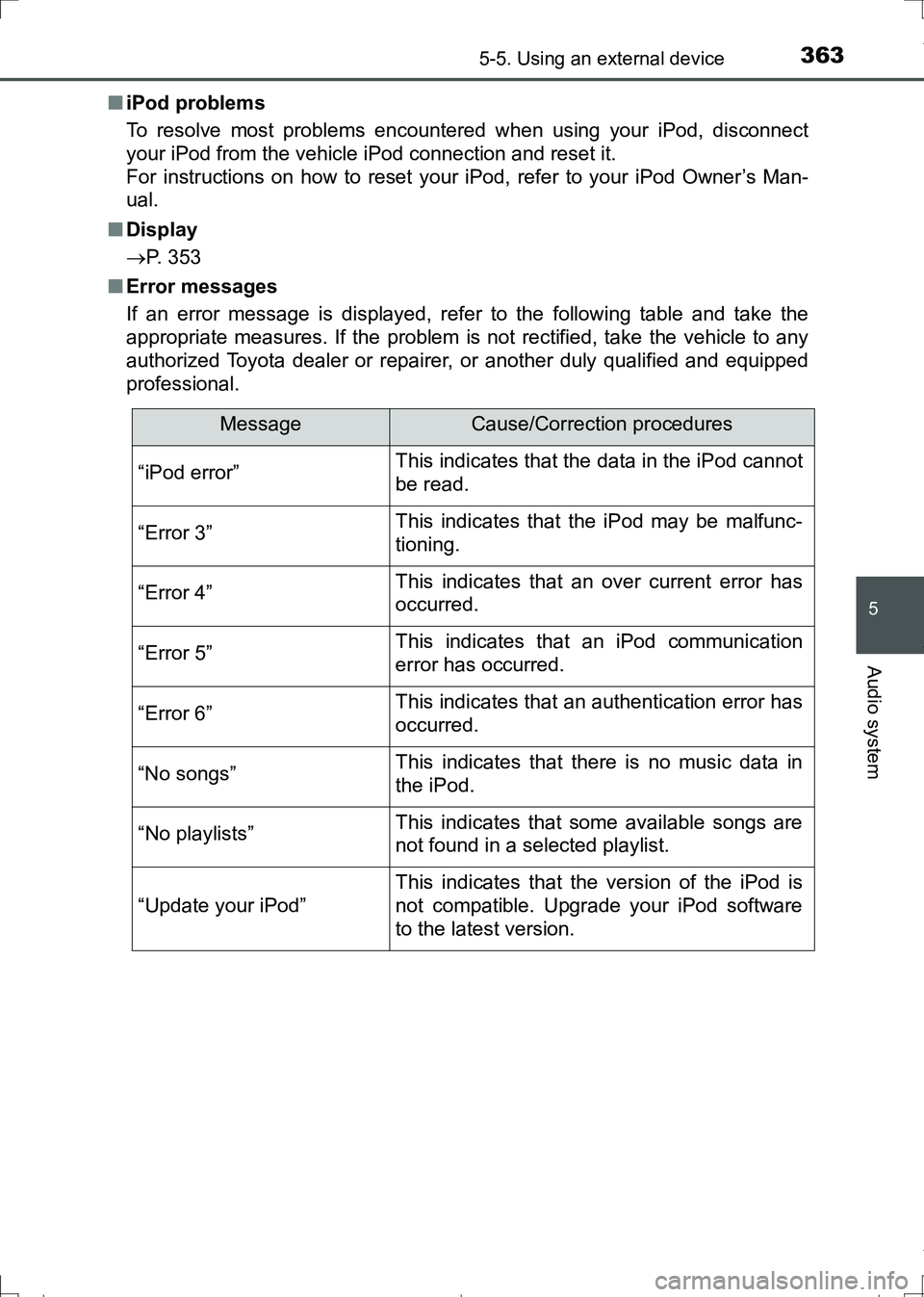
■Error messages
If an error message is displayed, refer to the following table and take the
appropriate measures. If the problem is not rectified, take the vehicle to any
authorized Toyota dealer or repairer, or another duly qualified and equipped
professional.
MessageCause/Correction procedures
“iPod error”This indicates that the data in the iPod cannot
be read.
“Error 3”This indicates that the iPod may be malfunc-
tioning.
“Error 4”This indicates that an over current error has
occurred.
“Error 5”This indicates that an iPod communication
error has occurred.
“Error 6”This indicates that an authentication error has
occurred.
“No songs”This indicates that there is no music data in
the iPod.
“No playlists”This indicates that some available songs are
not found in a selected playlist.
“Update your iPod”
This indicates that the version of the iPod is
not compatible. Upgrade your iPod software
to the latest version.
AURIS Touring Sports_OM_Europe_OM12L13E.book 363 ページ 2016年6月27日 月曜日 午後5時21分
Page 377 of 664
3775-6. Using Bluetooth® devices
AURIS Touring Sports_EE (12L13E)
5
Audio system
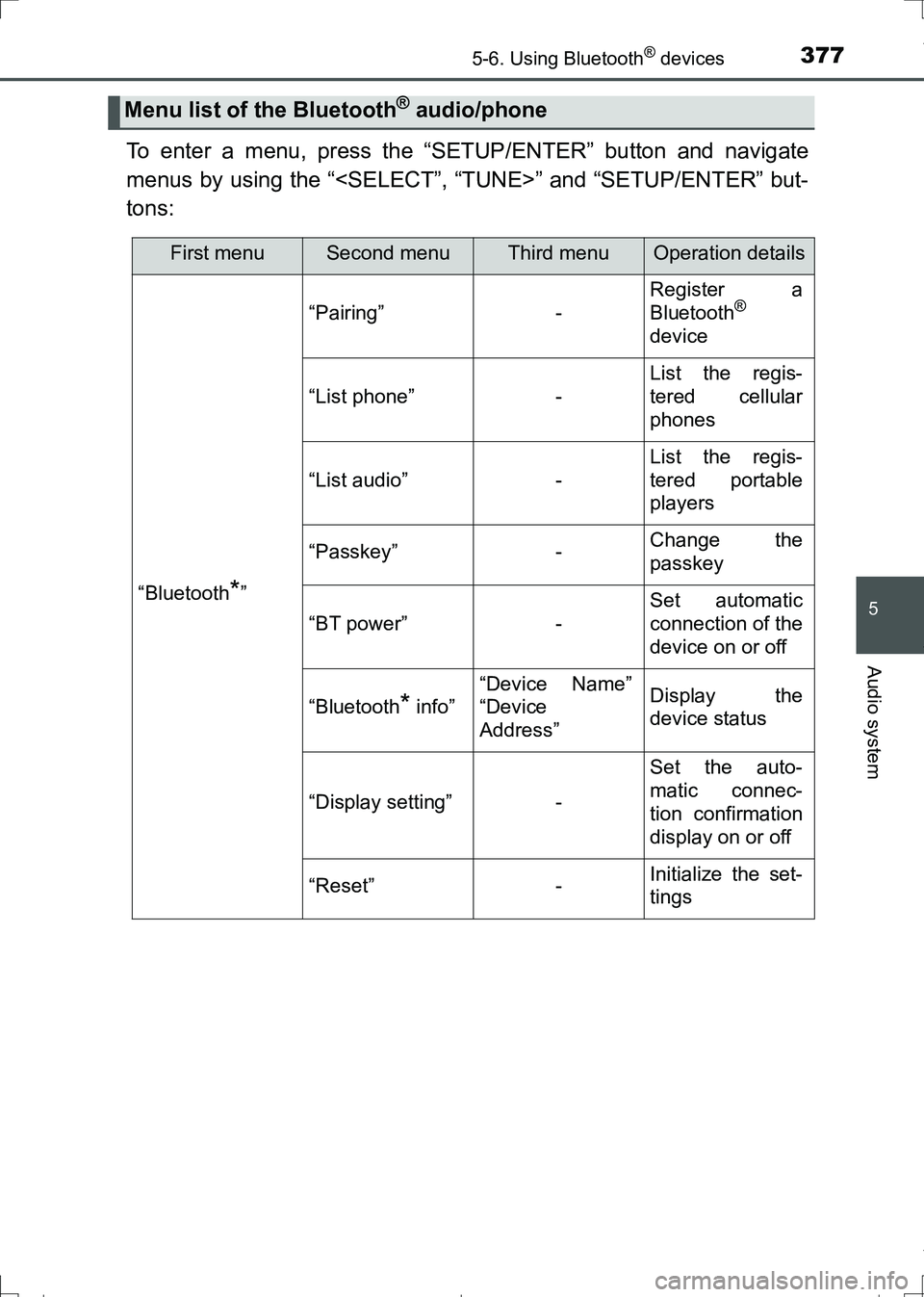
To enter a menu, press the “SETUP/ENTER” button and navigate
menus by using the “
tons:
Menu list of the Bluetooth® audio/phone
First menuSecond menuThird menuOperation details
“Bluetooth*”
“Pairing”-
Register a
Bluetooth®
device
“List phone”-
List the regis-
tered cellular
phones
“List audio”-
List the regis-
tered portable
players
“Passkey”-Change the
passkey
“BT power”-
Set automatic
connection of the
device on or off
“Bluetooth* info”
“Device Name”
“Device
Address”Display the
device status
“Display setting”-
Set the auto-
matic connec-
tion confirmation
display on or off
“Reset”-Initialize the set-
tings
AURIS Touring Sports_OM_Europe_OM12L13E.book 377 ページ 2016年6月27日 月曜日 午後5時21分
Page 385 of 664
3855-7. “SET UP” menu
AURIS Touring Sports_EE (12L13E)
5
Audio system
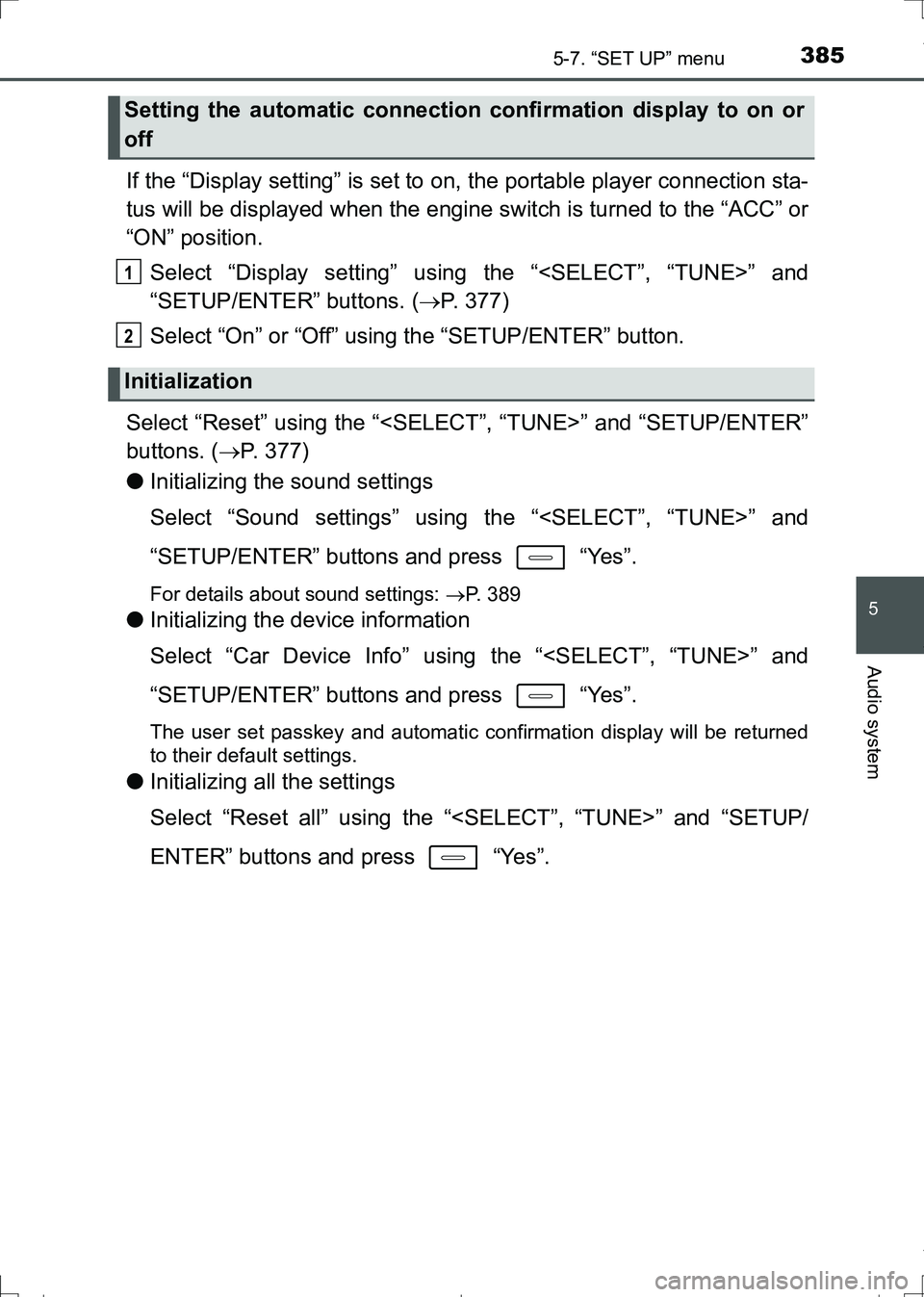
If the “Display setting” is set to on, the portable player connection sta-
tus will be displayed when the engine switch is turned to the “ACC” or
“ON” position.
Select “Display setting” using the “
“SETUP/ENTER” buttons. (P. 377)
Select “On” or “Off” using the “SETUP/ENTER” button.
Select “Reset” using the “
buttons. (P. 377)
●Initializing the sound settings
Select “Sound settings” using the “
“SETUP/ENTER” buttons and press “Yes”.
For details about sound settings: P. 389
●Initializing the device information
Select “Car Device Info” using the “
“SETUP/ENTER” buttons and press “Yes”.
The user set passkey and automatic confirmation display will be returned
to their default settings.
●Initializing all the settings
Select “Reset all” using the “
ENTER” buttons and press “Yes”.
Setting the automatic connection confirmation display to on or
off
Initialization
1
2
AURIS Touring Sports_OM_Europe_OM12L13E.book 385 ページ 2016年6月27日 月曜日 午後5時21分
Page 386 of 664
3865-7. “SET UP” menu
AURIS Touring Sports_EE (12L13E)
Select “Add contacts” using the “
ENTER” buttons. (P. 377)
●Transferring all contacts from the cellular phone
Select “Overwrite all” using the “
ENTER” buttons and press “Yes”.
●Transferring one contact from the cellular phone
Select “Add contact” using the “
ENTER” buttons and press “Yes”.
Select “Add SD” using the “
ENTER” buttons. (P. 377)
Select the desired data using the “
“SETUP/ENTER” buttons.
Press and hold the desired preset button.
For details about setting speed dials from the call history: P. 3 9 5
For details about deleting speed dials: P. 394
Using the “SET UP” menu (“Phone” menu)
Adding a new phone number
Setting speed dials
1
2
3
AURIS Touring Sports_OM_Europe_OM12L13E.book 386 ページ 2016年6月27日 月曜日 午後5時21分
Page 394 of 664
394
AURIS Touring Sports_EE (12L13E)
5-9. Bluetooth® Phone
Select “Phonebook” using the “
ENTER” buttons.
Select the desired name using the “
“SETUP/ENTER” buttons and press the off-hook switch.
By pressing “Add S. Dial” and then one of the speed dial but-
tons while the desired name is selected, the selected item can be reg-
istered as a speed dial.
Press “A-Z” to display the registered names in alphabetical
order of the initial.
Select “Speed dials” using the “
ENTER” buttons.
Press the desired preset button and press the off-hook switch.
To delete a registered speed dial, after selecting the desired preset
button press “Delete” and then press “Yes”.
Select “Dial by number” using the “
“SETUP/ENTER” buttons.
Enter the phone number and press the off-hook switch.
Making a phone call
To enter the “PHONE” or “TEL” mode, press the off-hook switch.
Dialing by selecting a name
Speed dialing
Dialing by entering the number
1
2
1
2
1
2
AURIS Touring Sports_OM_Europe_OM12L13E.book 394 ページ 2016年6月27日 月曜日 午後5時21分