point of interest TOYOTA AVALON 2008 XX30 / 3.G Navigation Manual
[x] Cancel search | Manufacturer: TOYOTA, Model Year: 2008, Model line: AVALON, Model: TOYOTA AVALON 2008 XX30 / 3.GPages: 146, PDF Size: 4.46 MB
Page 38 of 146
BASIC FUNCTIONS
52
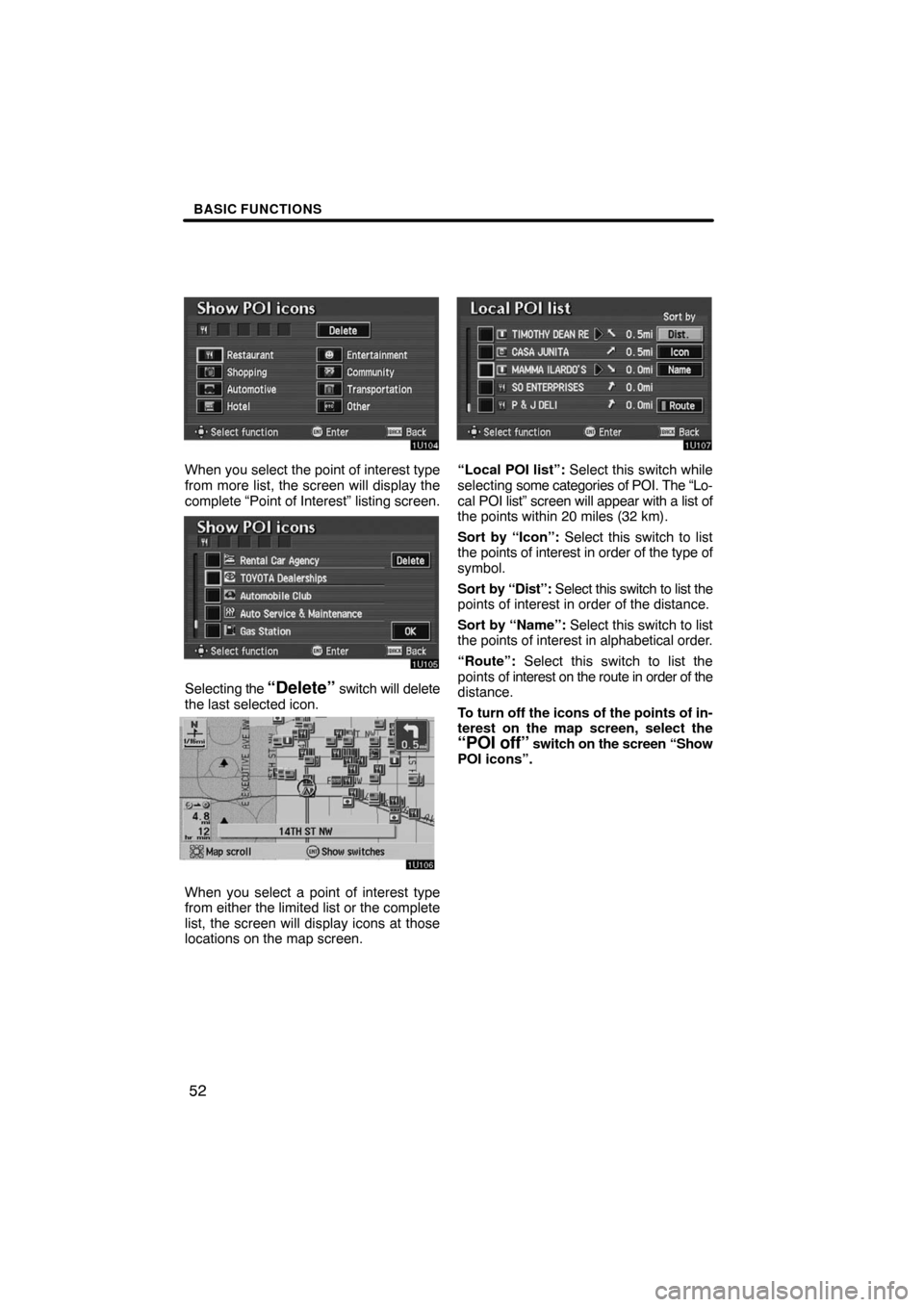
When you select the point of interest type
from more list, the screen will display the
complete “Point of Interest” listing screen.
Selecting the “Delete” switch will delete
the last selected icon.
When you select a point of interest type
from either the limited list or the complete
list, the screen will display icons at those
locations on the map screen.
“Local POI list”: Select this switch while
selecting some categories of POI. The “Lo-
cal POI list” screen will appear with a list of
the points within 20 miles (32 km).
Sort by “Icon”: Select this switch to list
the points of interest in order of the type of
symbol.
Sort by “Dist”: Select this switch to list the
points of interest in order of the distance.
Sort by “Name”: Select this switch to list
the points of interest in alphabetical order.
“Route”: Select this switch to list the
points of interest on the route in order of the
distance.
To turn off the icons of the points of in-
terest on the map screen, select the
“POI off” switch on the screen “Show
POI icons”.
Page 39 of 146
BASIC FUNCTIONS
53
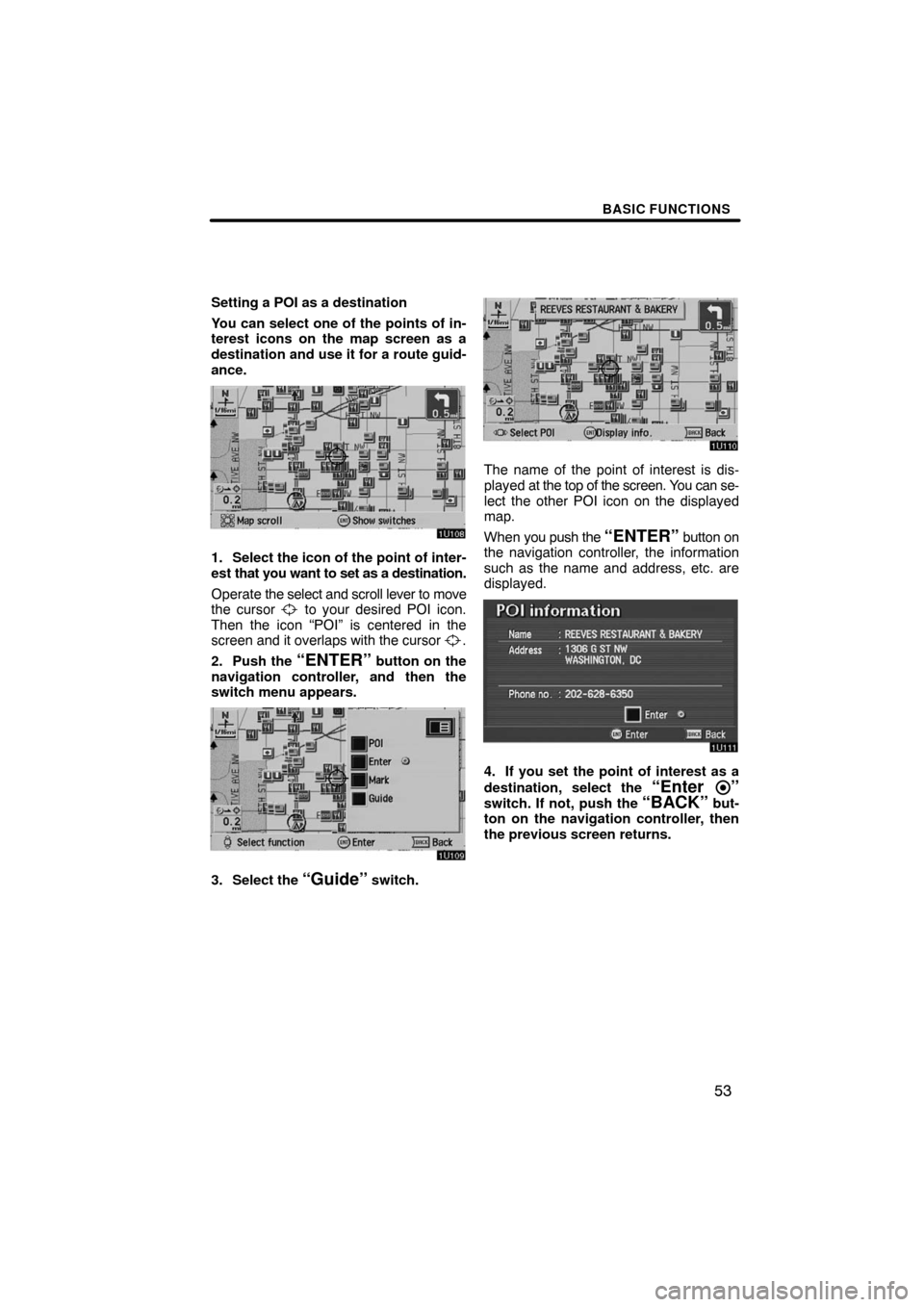
Setting a POI as a destination
You can select one of the points of in-
terest icons on the map screen as a
destination and use it for a route guid-
ance.
1. Select the icon of the point of inter-
est that you want to set as a destination.
Operate the select and scroll lever to move
the cursor
to your desired POI icon.
Then the icon “POI” is centered in the
screen and it overlaps with the cursor
.
2. Push the
“ENTER” button on the
navigation controller, and then the
switch menu appears.
3. Select the “Guide” switch.
The name of the point of interest is dis-
played at the top of the screen. You can se-
lect the other POI icon on the displayed
map.
When you push the
“ENTER” button on
the navigation controller, the information
such as the name and address, etc. are
displayed.
4. If you set the point of interest as a
destination, select the
“Enter ”switch. If not, push the “BACK” but-
ton on the navigation controller, then
the previous screen returns.
Page 56 of 146

BASIC FUNCTIONS
70
END USER NOTICE
PLEASE READ THIS NOTICE
CAREFULLY BEFORE USING
THIS NAVIGATION SYSTEM
The Point Of Interest Data
(“POI” Data) in the navigation
system is in part provided by
infoUSA Inc. (“infoUSA”). By
using the POI Data, you accept
and agree to all terms and con-
ditions set forth below.
1. OWNERSHIP
All rights, title and interest to the
infoUSA POI Data shall be re-
tained by infoUSA.
2. LIMITATIONS ON USE
Except to the extent explicitly
permitted by mandatory laws, you
may not extract or reutilize any
portion of the contents of the
POI Data, nor reproduce, copy,
modify, adapt, translate, disas-
semble, decompile, or reverse
engineer any portion of the POI
Data.3. TRANSFER
You may not transfer the POI
Data to third parties, except to-
gether with the system for which
it was created, provided that you
do not retain any copy of the
POI Data.
4. DISCLAIMER OF WARRANTY
EXCEPT AS STATED HEREIN,
INFOUSA MAKES NO EXPRESS
OR IMPLIED WARRANTIES, IN-
CLUDING, WITHOUT LIMITA-
TION, ANY EXPRESS OR IM-
PLIED WARRANTY OF FITNESS
FOR A PARTICULAR PURPOSE
OR WARRANTY OF MERCHANT-
ABILITY.
5. LIMITATION OF LIABILITY
EITHER INFOUSA OR SUPPLI-
ER OF POI DATA SHALL NOT
BE LIABLE FOR ANY INDIRECT,
CONSEQUENTIAL OR INCIDEN-
TAL DAMAGES MADE OR AL-
LEGED IN CONNECTION WITH
YOUR USE OF THE POI DATA.
Page 70 of 146
ADVANCED FUNCTIONS
84
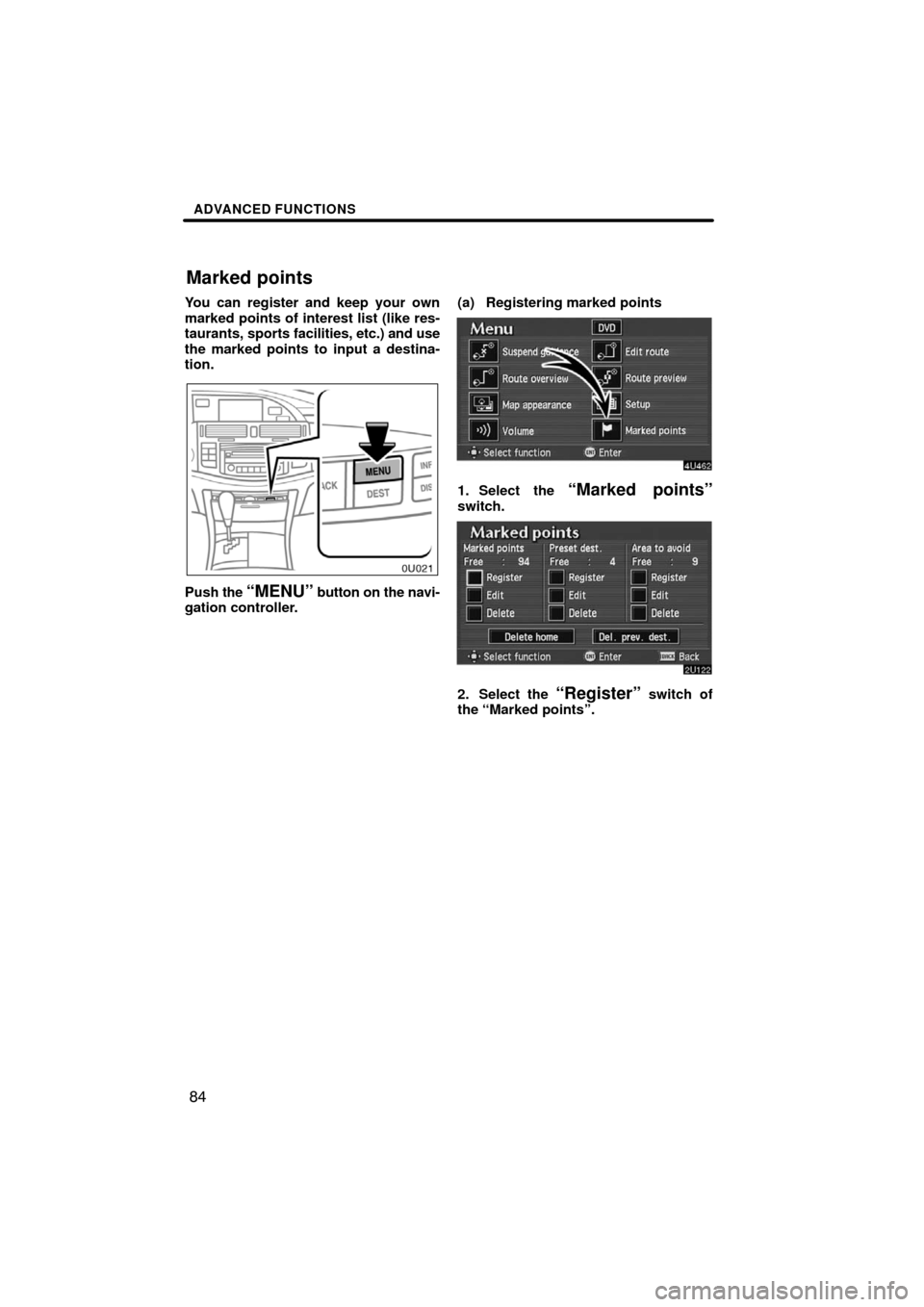
You can register and keep your own
marked points of interest list (like res-
taurants, sports facilities, etc.) and use
the marked points to input a destina-
tion.
Push the “MENU” button on the navi-
gation controller.(a) Registering marked points
1. Select the “Marked points”switch.
2. Select the “Register” switch of
the “Marked points”.
Marked points
Page 89 of 146
ADVANCED FUNCTIONS
103
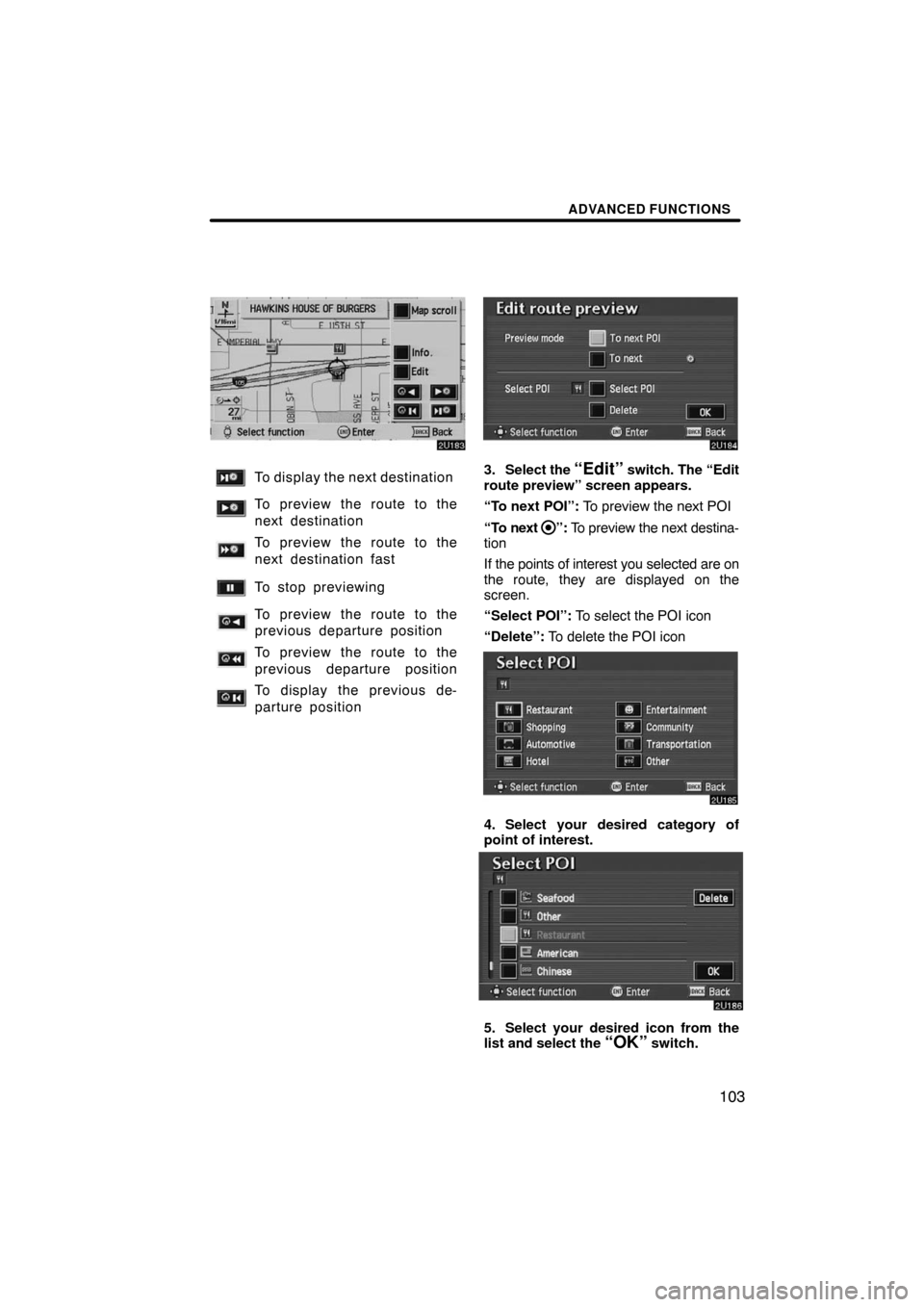
To display the next destination
To preview the route to the
next destination
To preview the route to the
next destination fast
To stop previewing
To preview the route to the
previous departure position
To preview the route to the
previous departure position
To display the previous de-
parture position
3. Select the “Edit” switch. The “Edit
route preview” screen appears.
“To next POI”: To preview the next POI
“To next
”: To preview the next destina-
tion
If the points of interest you selected are on
the route, they are displayed on the
screen.
“Select POI”: To select the POI icon
“Delete”: To delete the POI icon
4. Select your desired category of
point of interest.
5. Select your desired icon from the
list and select the “OK” switch.
Page 127 of 146
APPENDIX
141
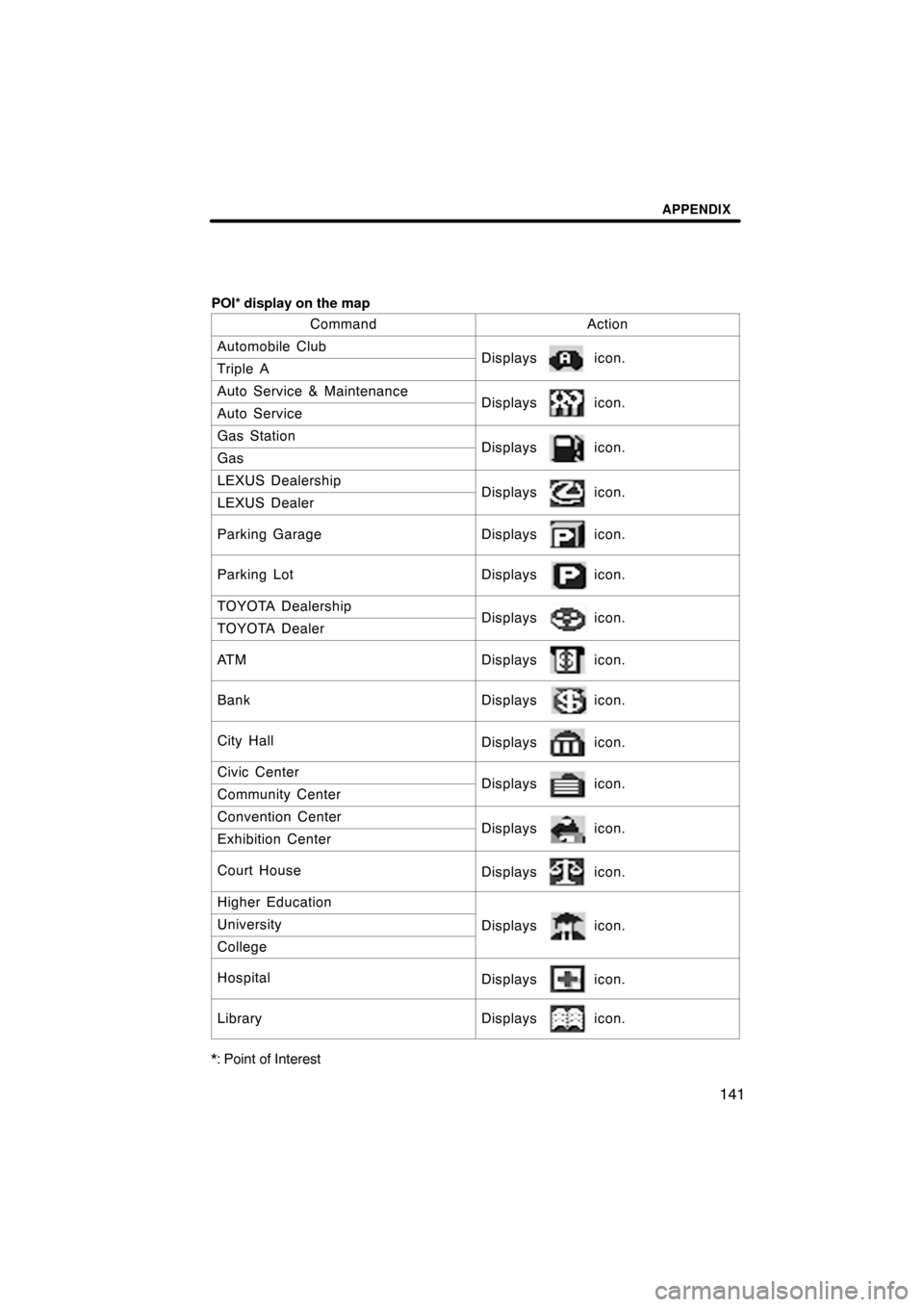
POI* display on the map
Command
Action
Automobile ClubDisplays icon.Triple A
Auto Service & MaintenanceDisplays icon.Auto Service
Gas StationDisplays icon.Gas
LEXUS DealershipDisplays icon.LEXUS Dealer
Parking GarageDisplays icon.
Parking LotDisplays icon.
TOYOTA DealershipDisplays icon.TOYOTA Dealer
AT MDisplays icon.
BankDisplays icon.
City HallDisplays icon.
Civic CenterDisplays icon.Community Center
Convention CenterDisplays icon.Exhibition Center
Court HouseDisplays icon.
Higher Education
Displays icon.University
College
HospitalDisplays icon.
LibraryDisplays icon.
*: Point of Interest
Page 141 of 146

9
*: Point of Interest