USB TOYOTA AVENSIS 2014 Owners Manual (in English)
[x] Cancel search | Manufacturer: TOYOTA, Model Year: 2014, Model line: AVENSIS, Model: TOYOTA AVENSIS 2014Pages: 776, PDF Size: 33.54 MB
Page 4 of 776
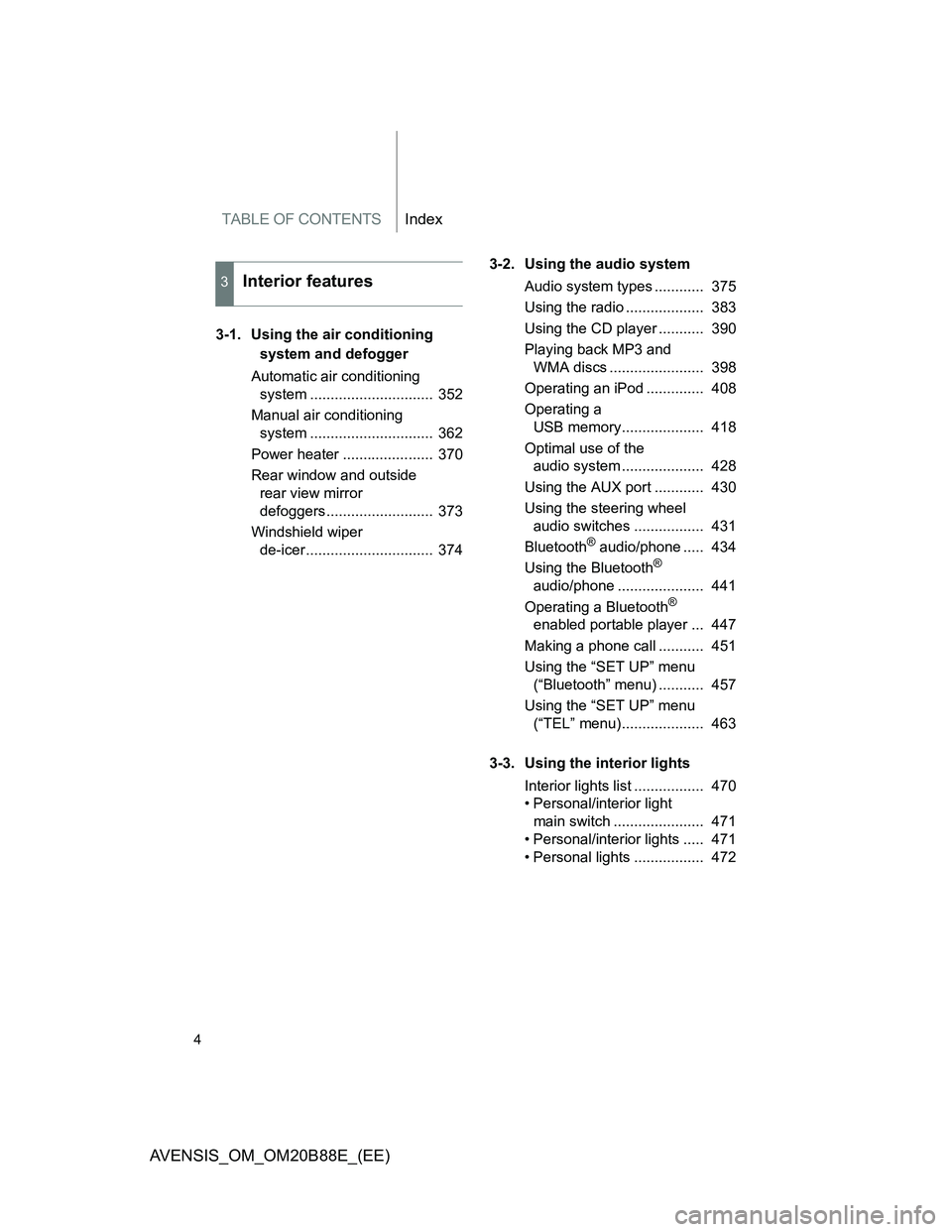
TABLE OF CONTENTSIndex
4
AVENSIS_OM_OM20B88E_(EE)
3-1. Using the air conditioning
system and defogger
Automatic air conditioning
system .............................. 352
Manual air conditioning
system .............................. 362
Power heater ...................... 370
Rear window and outside
rear view mirror
defoggers.......................... 373
Windshield wiper
de-icer............................... 3743-2. Using the audio system
Audio system types ............ 375
Using the radio ................... 383
Using the CD player ........... 390
Playing back MP3 and
WMA discs ....................... 398
Operating an iPod .............. 408
Operating a
USB memory.................... 418
Optimal use of the
audio system .................... 428
Using the AUX port ............ 430
Using the steering wheel
audio switches ................. 431
Bluetooth
® audio/phone ..... 434
Using the Bluetooth®
audio/phone ..................... 441
Operating a Bluetooth
®
enabled portable player ... 447
Making a phone call ........... 451
Using the “SET UP” menu
(“Bluetooth” menu) ........... 457
Using the “SET UP” menu
(“TEL” menu).................... 463
3-3. Using the interior lights
Interior lights list ................. 470
• Personal/interior light
main switch ...................... 471
• Personal/interior lights ..... 471
• Personal lights ................. 472
3Interior features
Page 12 of 776
12
AVENSIS_OM_OM20B88E_(EE)
Power outlet P. 485
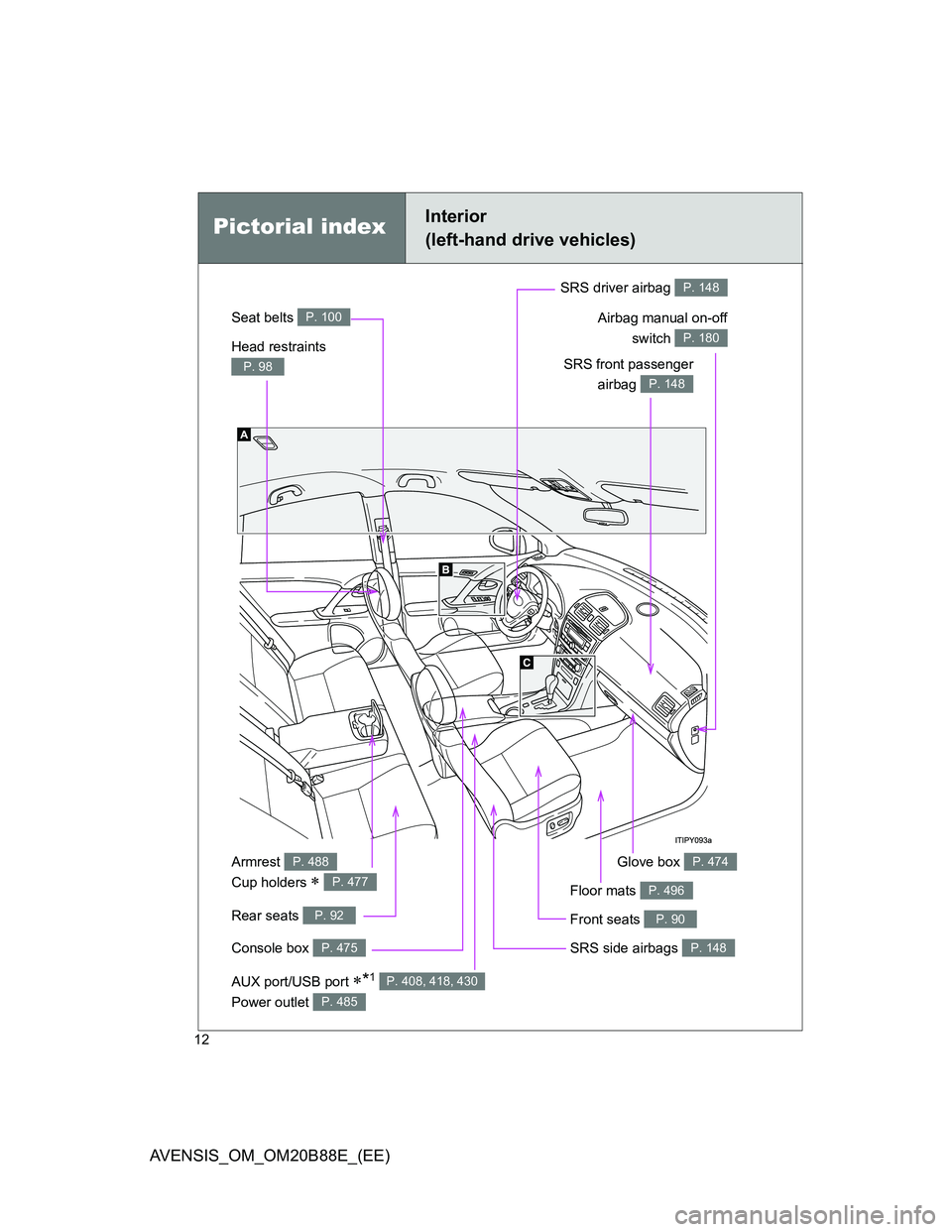
Pictorial indexInterior
(left-hand drive vehicles)
Seat belts P. 100
SRS front passenger
airbag
P. 148
SRS driver airbag P. 148
Head restraints
P. 98
Console box P. 475
Armrest
Cup holders
P. 488
P. 477
Front seats P. 90
SRS side airbags P. 148
Glove box P. 474
Rear seats P. 92
Floor mats P. 496
Airbag manual on-off
switch
P. 180
AUX port/USB port *1 P. 408, 418, 430
Page 20 of 776
20
AVENSIS_OM_OM20B88E_(EE)
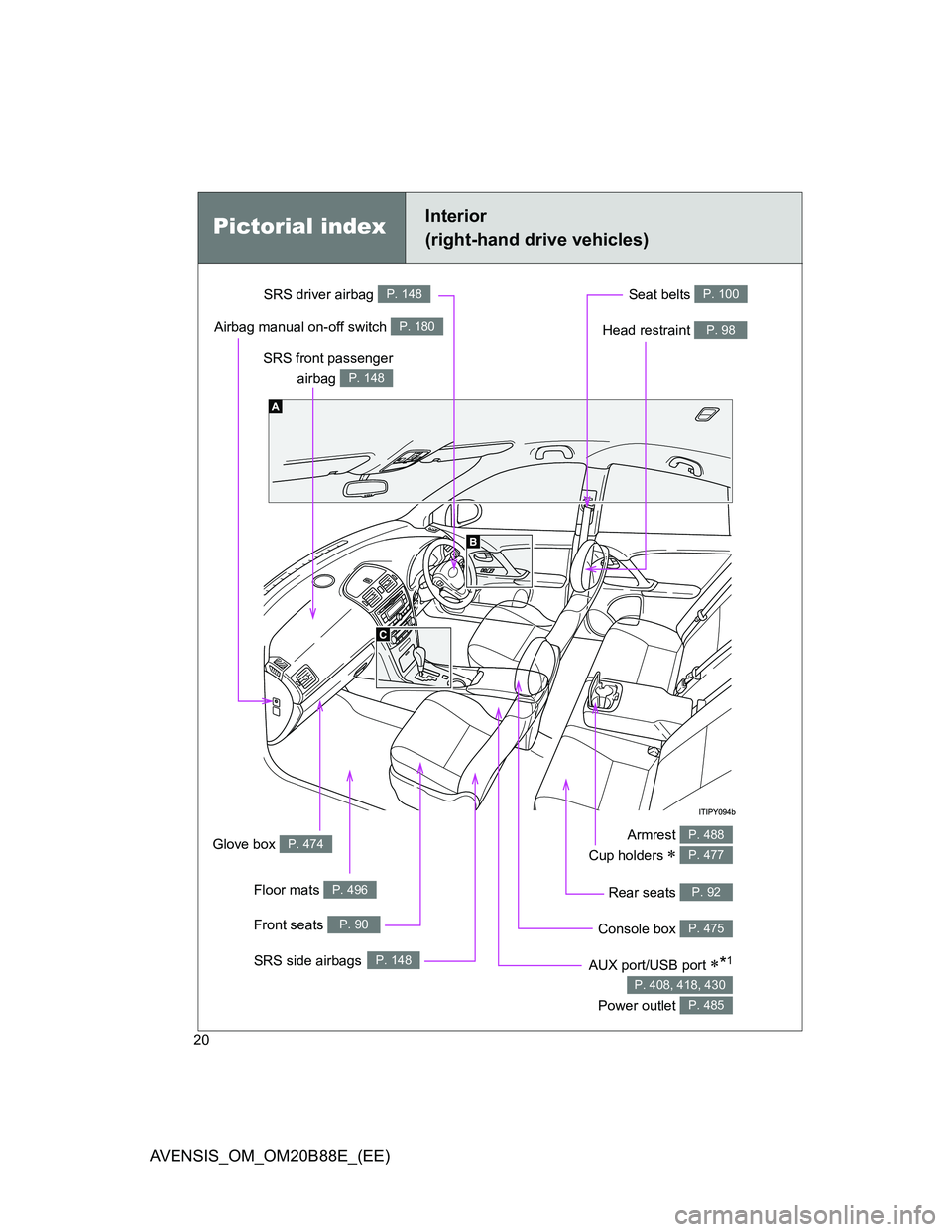
Pictorial indexInterior
(right-hand drive vehicles)
Seat belts P. 100
SRS front passenger
airbag
P. 148
SRS driver airbag P. 148
Head restraint P. 98
Armrest
Cup holders
P. 488
P. 477
Front seats P. 90
SRS side airbagsP. 148
Glove box P. 474
Airbag manual on-off switch P. 180
Floor mats P. 496
Console box P. 475
Rear seats P. 92
AUX port/USB port *1
Power outlet
P. 408, 418, 430
P. 485
Page 351 of 776
3Interior features
351
AVENSIS_OM_OM20B88E_(EE)
3-2. Using the audio system
Audio system types .......... 375
Using the radio ................. 383
Using the CD player ......... 390
Playing back MP3 and
WMA discs...................... 398
Operating an iPod............. 408
Operating a
USB memory .................. 418
Optimal use of the
audio system .................. 428
Using the AUX port ........... 430
Using the steering wheel
audio switches ................ 431
Bluetooth
® audio/phone.... 434
Using the Bluetooth®
audio/phone .................... 441
Operating a Bluetooth
®
enabled portable
player .............................. 447
Making a phone call.......... 451
Using the “SET UP”
menu (“Bluetooth”
menu) ............................. 457
Using the “SET UP”
menu (“TEL” menu) ........ 463
3-3. Using the interior lights
Interior lights list................ 470
• Personal/interior light
main switch ..................... 471
• Personal/interior lights .... 471
• Personal lights ................ 4723-4. Using the storage features
List of storage features ..... 473
• Glove box ....................... 474
• Console box.................... 475
• Overhead console .......... 476
• Cup holders .................... 477
• Bottle holders.................. 478
• Coin box ......................... 480
3-5. Other interior features
Sun visors ......................... 481
Vanity mirror ..................... 482
Ashtray.............................. 483
Cigarette lighter ................ 484
Power outlet ...................... 485
Seat heaters ..................... 486
Armrest ............................. 488
Trunk/luggage
compartment storage
extension ........................ 489
Panoramic roof shade
(wagon)........................... 490
Rear sunshade (sedan) .... 493
Rear side sunshades
(sedan) ........................... 494
Assist grips ....................... 495
Floor mats ......................... 496
Trunk features (sedan) ..... 498
Luggage compartment
features (wagon)............. 500
Page 375 of 776
375
3
Interior features
AVENSIS_OM_OM20B88E_(EE)
3-2. Using the audio system
Audio system types
: If equipped
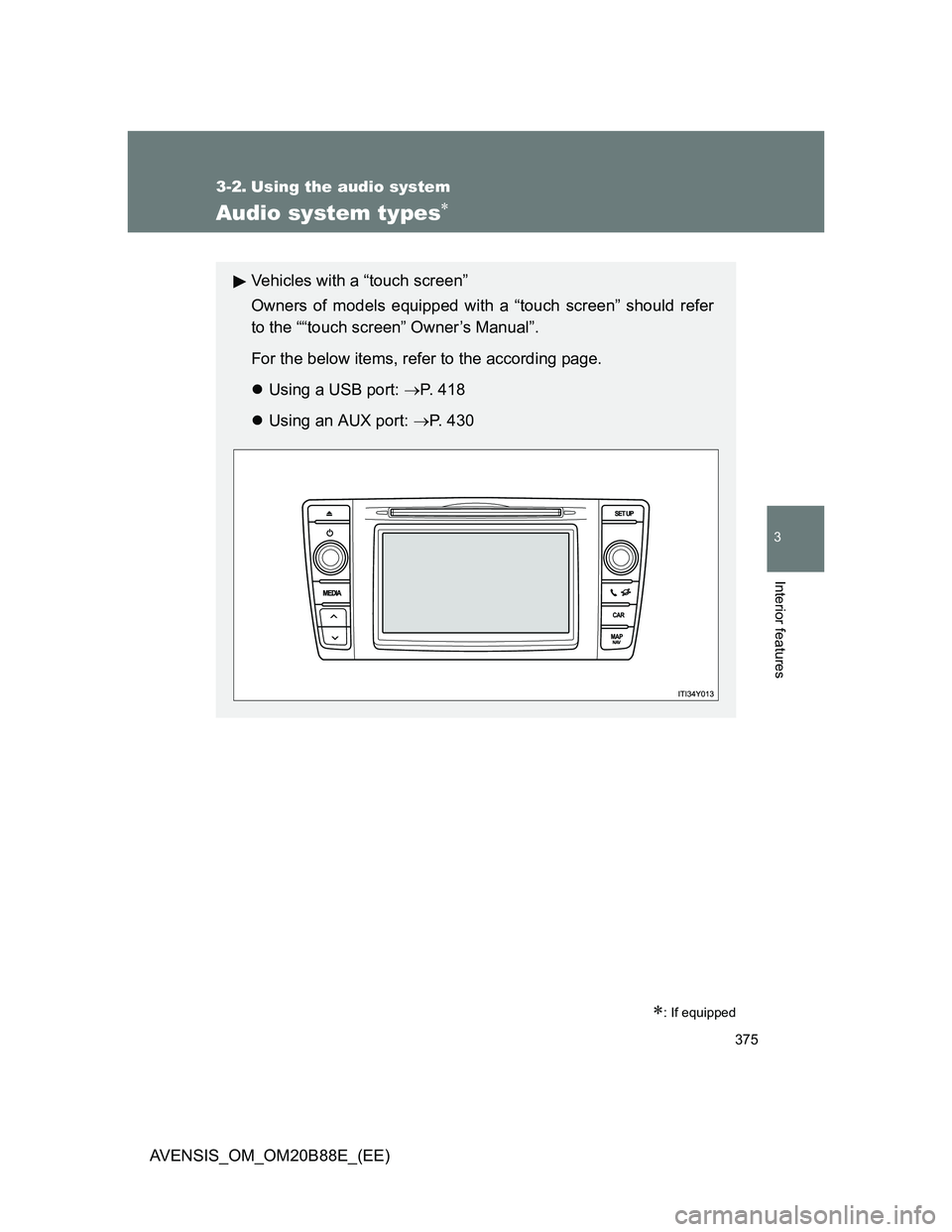
Vehicles with a “touch screen”
Owners of models equipped with a “touch screen” should refer
to the ““touch screen” Owner’s Manual”.
For the below items, refer to the according page.
Using a USB port: P. 418
Using an AUX port: P. 4 3 0
Page 378 of 776
378 3-2. Using the audio system
AVENSIS_OM_OM20B88E_(EE)
Using cellular phones
Interference may be heard through the audio system’s speakers if a cellular
phone is being used inside or close to the vehicle while the audio system is
operating.
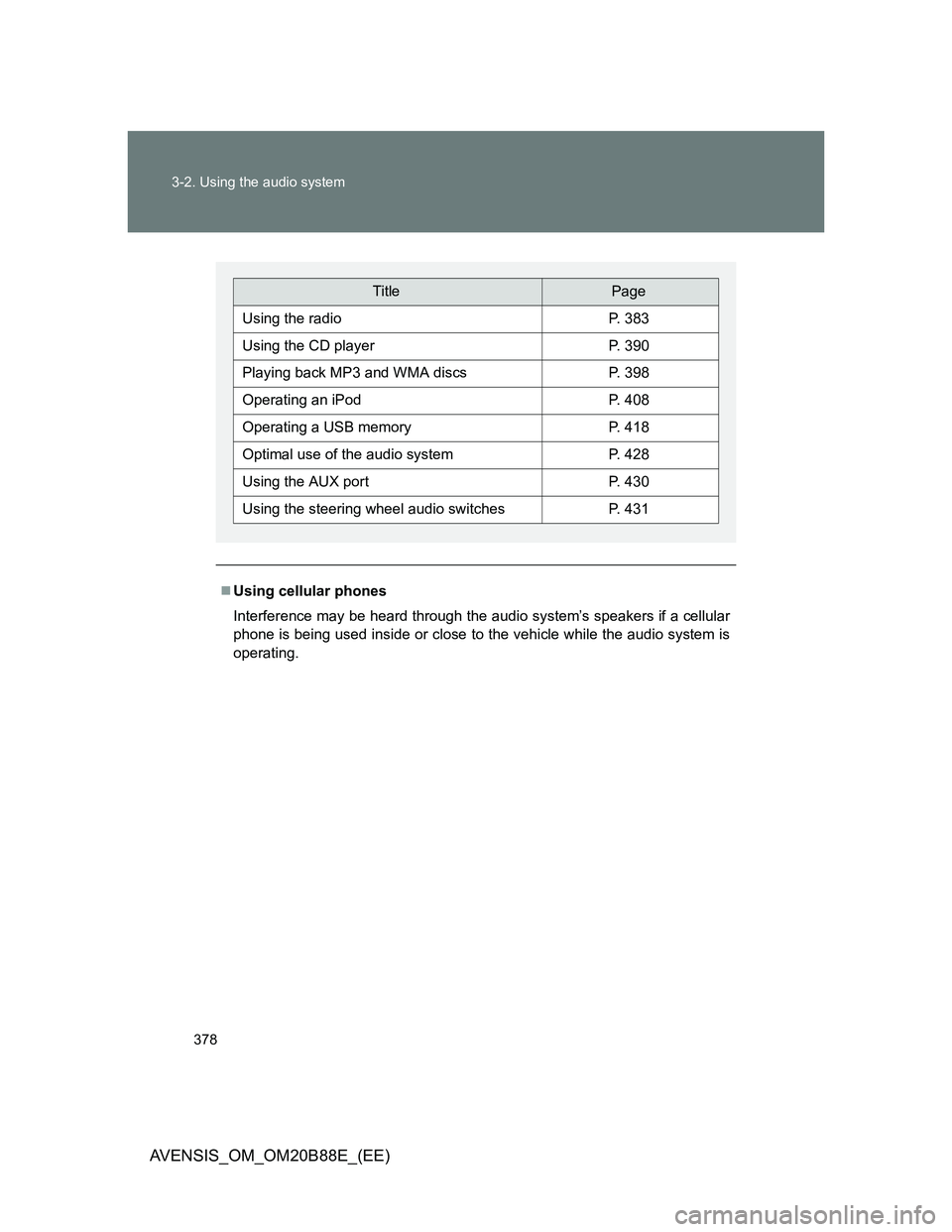
TitlePage
Using the radioP. 383
Using the CD playerP. 390
Playing back MP3 and WMA discsP. 398
Operating an iPodP. 408
Operating a USB memoryP. 418
Optimal use of the audio systemP. 428
Using the AUX portP. 430
Using the steering wheel audio switchesP. 431
Page 418 of 776
418
3-2. Using the audio system
AVENSIS_OM_OM20B88E_(EE)
Operating a USB memor y
: If equipped
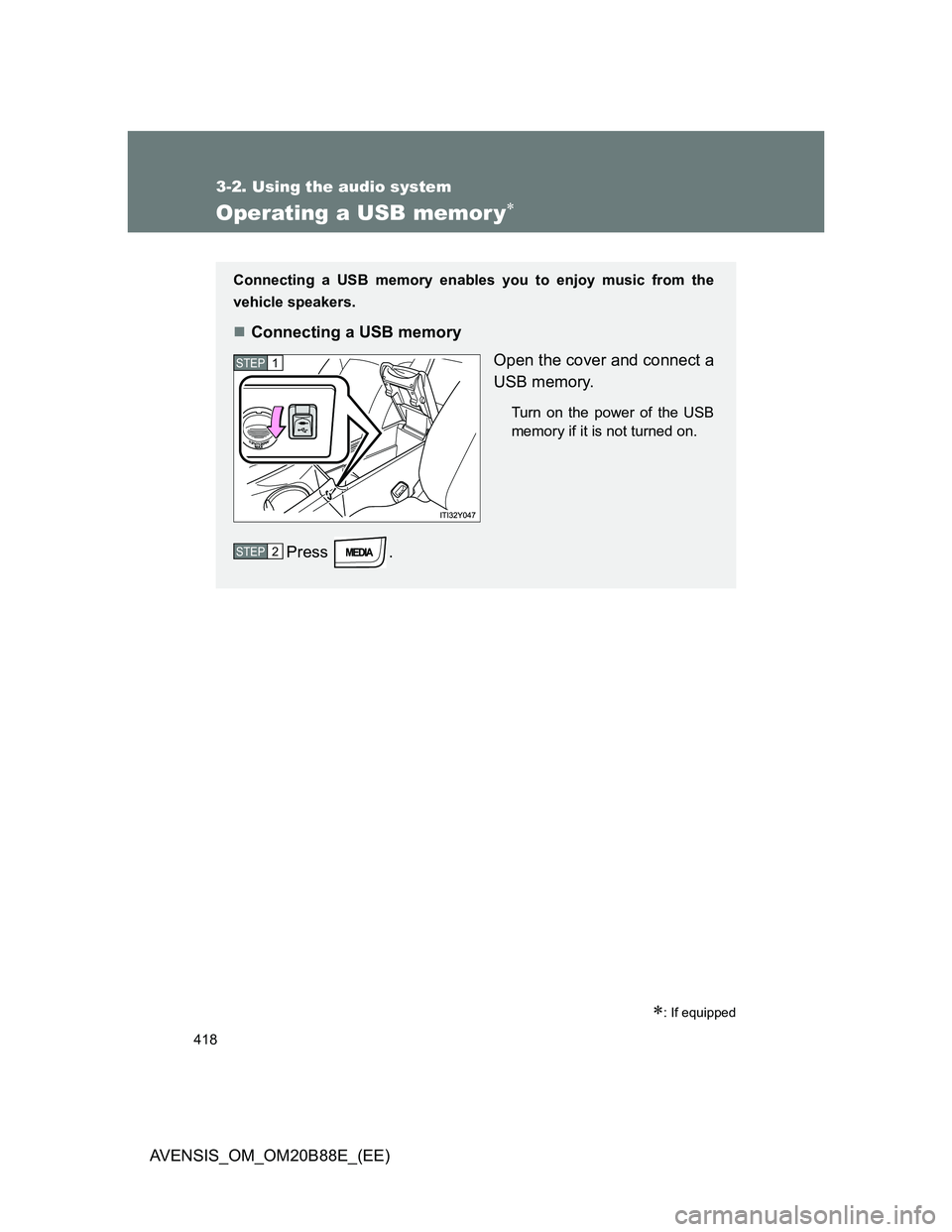
Connecting a USB memory enables you to enjoy music from the
vehicle speakers.
Connecting a USB memory
Open the cover and connect a
USB memory.
Turn on the power of the USB
memory if it is not turned on.
Press .
STEP1
STEP2
Page 423 of 776
423 3-2. Using the audio system
3
Interior features
AVENSIS_OM_OM20B88E_(EE)
Switching the display
Press (type A and B) or (type C).
Track title, Artist name and Album title (MP3 only) are shown on the dis-
play.
To return to the previous display, press (type A and B) or
[BACK] (type C).
USB memory functions
Depending on the USB memory that is connected to the system, the
device itself may not be operable and certain functions may not be avail-
able.
If the device is inoperable or a function is unavailable due to a malfunc-
tion (as opposed to a system specification), disconnecting the device and
reconnecting it once again may resolve the problem.
If the USB memory still does not begin operation after being discon-
nected and reconnected, format the memory.
Display
P. 394
Error messages
“ERROR”: This indicates a problem in the USB memory or its connection.
“NO MUSIC”: This indicates that no MP3/WMA files are included in the USB
memory.
Page 424 of 776
424 3-2. Using the audio system
AVENSIS_OM_OM20B88E_(EE)
USB memory
Compatible devices
USB memory that can be used for MP3 and WMA playback
Compatible device formats
The following device formats can be used:
• USB communication formats: USB2.0 FS (12mbps)
• File formats: FAT16/32 (Windows)
• Correspondence class: Mass storage class
MP3 and WMA files written in any format other than those listed above
may not play correctly, and their file names and folder names may not
be displayed correctly.
Items related to standards and limitations are as follows:
• Maximum directory hierarchy: 8 levels
• Maximum number of folders in a device: 999 (including the root)
• Maximum number of files in a device: 9999
• Maximum number of files per folder: 255
MP3 and WMA files
MP3 (MPEG Audio LAYER 3) is a standard audio compression format.
Files can be compressed to approximately 1/10 of their original size
using MP3 compression.
WMA (Windows Media Audio) is a Microsoft audio compression format.
This format compresses audio data to a size smaller than that of the MP3
format.
There is a limit to the MP3 and WMA file standards that can be used and
to the media/formats on which the files are recorded.
Page 426 of 776
426 3-2. Using the audio system
AVENSIS_OM_OM20B88E_(EE)
ID3 and WMA tags
ID3 tags can be added to MP3 files, making it possible to record the track
title, artist name, etc.
The system is compatible with ID3 Ver. 1.0, 1.1, and Ver. 2.2, 2.3, 2.4 ID3
tags. (The number of characters is based on ID3 Ver. 1.0 and 1.1.)
WMA tags can be added to WMA files, making it possible to record the
track title and artist name in the same way as with ID3 tags.
MP3 and WMA playback
• When a device containing MP3 or WMA files is connected, all files in
the USB memory are checked. Once the file check is finished, the first
MP3 or WMA file is played. To make the file check finish more quickly,
we recommend that you do not include any files other than MP3 or
WMA files or create any unnecessary folders.
• When the USB memory is connected and the audio source is changed
to USB memory mode, the USB memory will start playing the first file in
the first folder.
If the same device is removed and reinserted (and the contents have
not been changed), the USB memory will resume play from the same
point in which it was last used.
Extensions
If the file extensions .mp3 and .wma are used for files other than MP3
and WMA files, they will be skipped (not played).