fuel TOYOTA CAMRY 2013 XV50 / 9.G Navigation Manual
[x] Cancel search | Manufacturer: TOYOTA, Model Year: 2013, Model line: CAMRY, Model: TOYOTA CAMRY 2013 XV50 / 9.GPages: 336, PDF Size: 7.37 MB
Page 257 of 336
257
1. INFORMATION DISPLAY
7
INFORMATION
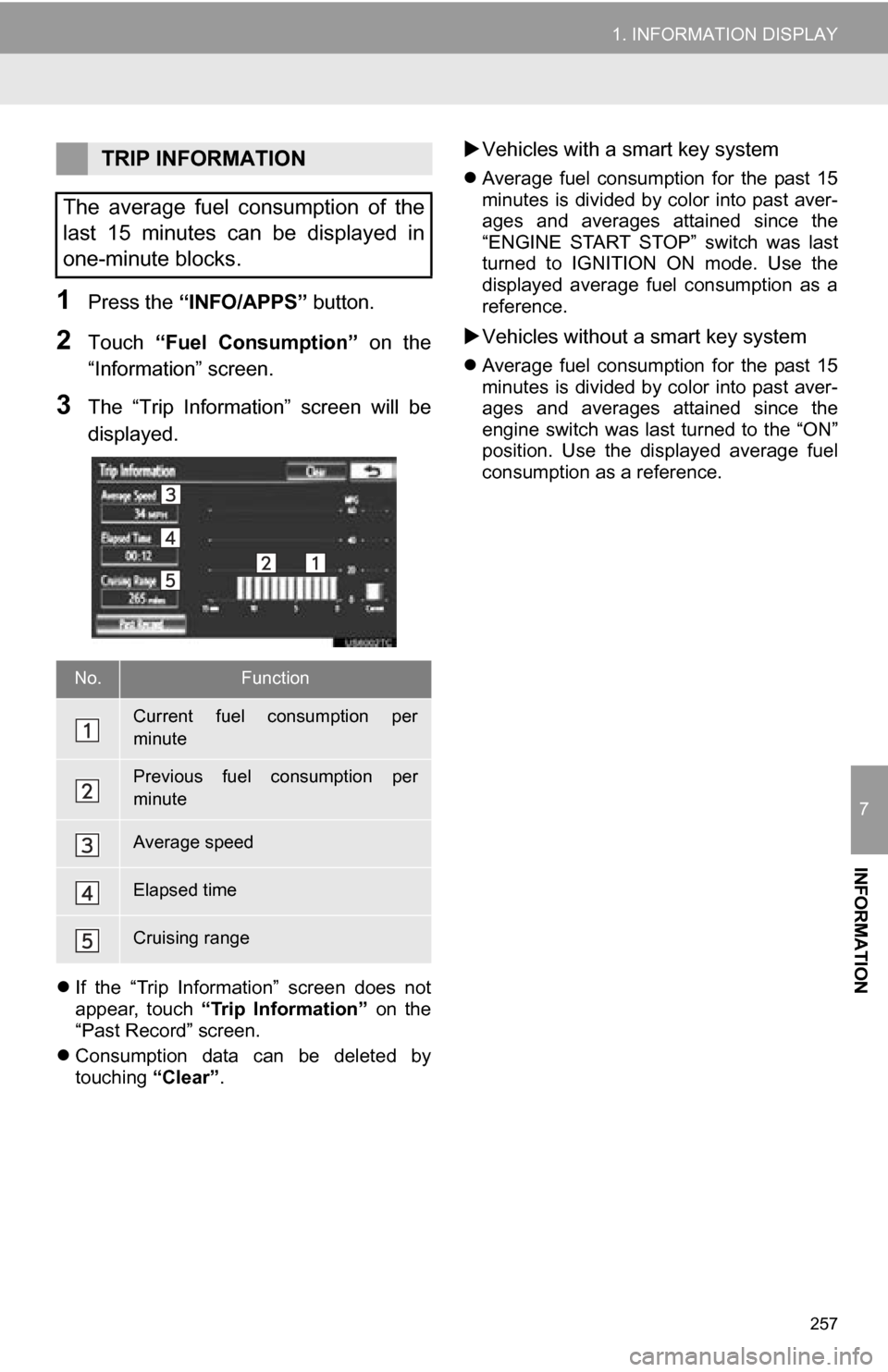
1Press the “INFO/APPS” button.
2Touch “Fuel Consumption” on the
“Information” screen.
3The “Trip Information” screen will be
displayed.
If the “Trip Information” screen does not
appear, touch “Trip Information” on the
“Past Record” screen.
Consumption data can be deleted by
touching “Clear”.
Vehicles with a smart key system
Average fuel consumption for the past 15
minutes is divided by color into past aver-
ages and averages attained since the
“ENGINE START STOP” switch was last
turned to IGNITION ON mode. Use the
displayed average fuel consumption as a
reference.
Vehicles without a smart key system
Average fuel consumption for the past 15
minutes is divided by color into past aver-
ages and averages attained since the
engine switch was last turned to the “ON”
position. Use the displayed average fuel
consumption as a reference.
TRIP INFORMATION
The average fuel consumption of the
last 15 minutes can be displayed in
one-minute blocks.
No.Function
Current fuel consumption per
minute
Previous fuel consumption per
minute
Average speed
Elapsed time
Cruising range
Page 260 of 336
260
2. XM FUNCTION-OVERVIEW
1. XM SERVICES
With an active XM subscription, the follow-
ing features are available:
•XM Sports
*1 (See page 261.)
•XM Stocks
*1 (See page 264.)
• XM Fuel Prices
*2 (See page 266.)
•XM NavWeather™*2 (See page 269.)
•XM NavTraffic®*2 (See page 272.)
*1: Available at no extra charge with an ac- tive XM Satellite Radio subscription.
*2: Available via separate XM subscrip- tion(s).
XM NavTraffic®, XM NavWeather™ and
XM TravelLink require separate XM sub-
scription(s). XM Sports
*, XM Stocks* and
XM Fuel Prices are available with an XM
TravelLink subscription. After a 90-day
trial, you must contact XM and set up the
appropriate XM subscription(s) to continue
receiving these services.
*: XM Sports and XM Stocks are included
with an XM Satellit e Radio subscription.
The XM NavTraffic® service is available in
the contiguous 48 U.S. states and
Canada.
The XM NavWeather
™, XM Sports, XM
Stocks and XM Fuel Prices services are
available in the contiguous 48 U.S. states.
To receive XM NavTraffic
®, XM
NavWeather™, XM Sports, XM Stocks and
XM Fuel Prices services, the XM service
must be activated. To activate the service,
call the XM Listener Care Center at 1-800-
967-2346 (U.S.A.) or 1-877-209-0079
(Canada).
Customers should have their radio ID
ready. The radio ID can be found by
selecting “CH 000” on the radio. For
details, see “DISPLAYING THE RADIO
ID” on page 190.
XM services are subscription-based
XM Satellite Radio services to provide
convenient features to subscribers.
SUBSCRIPTION(S)
AVAILABILITY OF SERVICE(S)
ACTIVATION OF SERVICE(S)
INFORMATION
●For details about the XM service cover-
age areas, refer to www.siriusxm.com
(U.S.A.) or www.xmradio.ca (Canada),
or call XM Listener Care Center at 1-
800-967-2346 (U.S.A.) or 1-877-209-
0079 (Canada).
● For further details about the service,
contact your Toyota dealer.
● XM Satellite Radio is responsible for all
fees and services, which are subject to
change.
Page 266 of 336
266
3. XM FUNCTION OPERATION
3. XM Fuel Prices
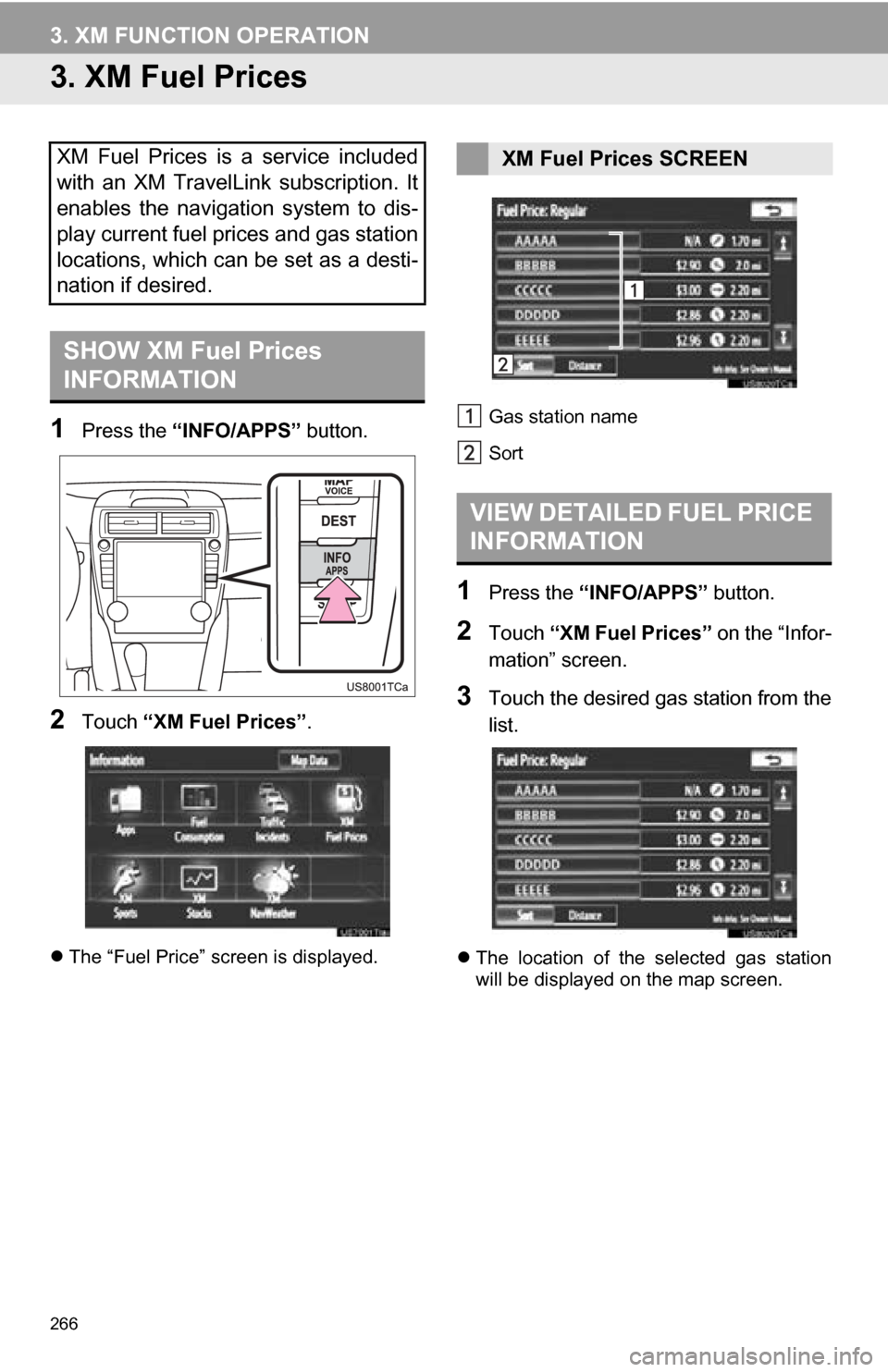
1Press the “INFO/APPS” button.
2Touch “XM Fuel Prices” .
The “Fuel Price” screen is displayed. Gas station name
Sort
1Press the
“INFO/APPS” button.
2Touch “XM Fuel Prices” on the “Infor-
mation” screen.
3Touch the desired gas station from the
list.
The location of the selected gas station
will be displayed on the map screen.
XM Fuel Prices is a service included
with an XM TravelLink subscription. It
enables the navigation system to dis-
play current fuel prices and gas station
locations, which can be set as a desti-
nation if desired.
SHOW XM Fuel Prices
INFORMATION
XM Fuel Prices SCREEN
VIEW DETAILED FUEL PRICE
INFORMATION
Page 267 of 336
267
3. XM FUNCTION OPERATION
7
INFORMATION
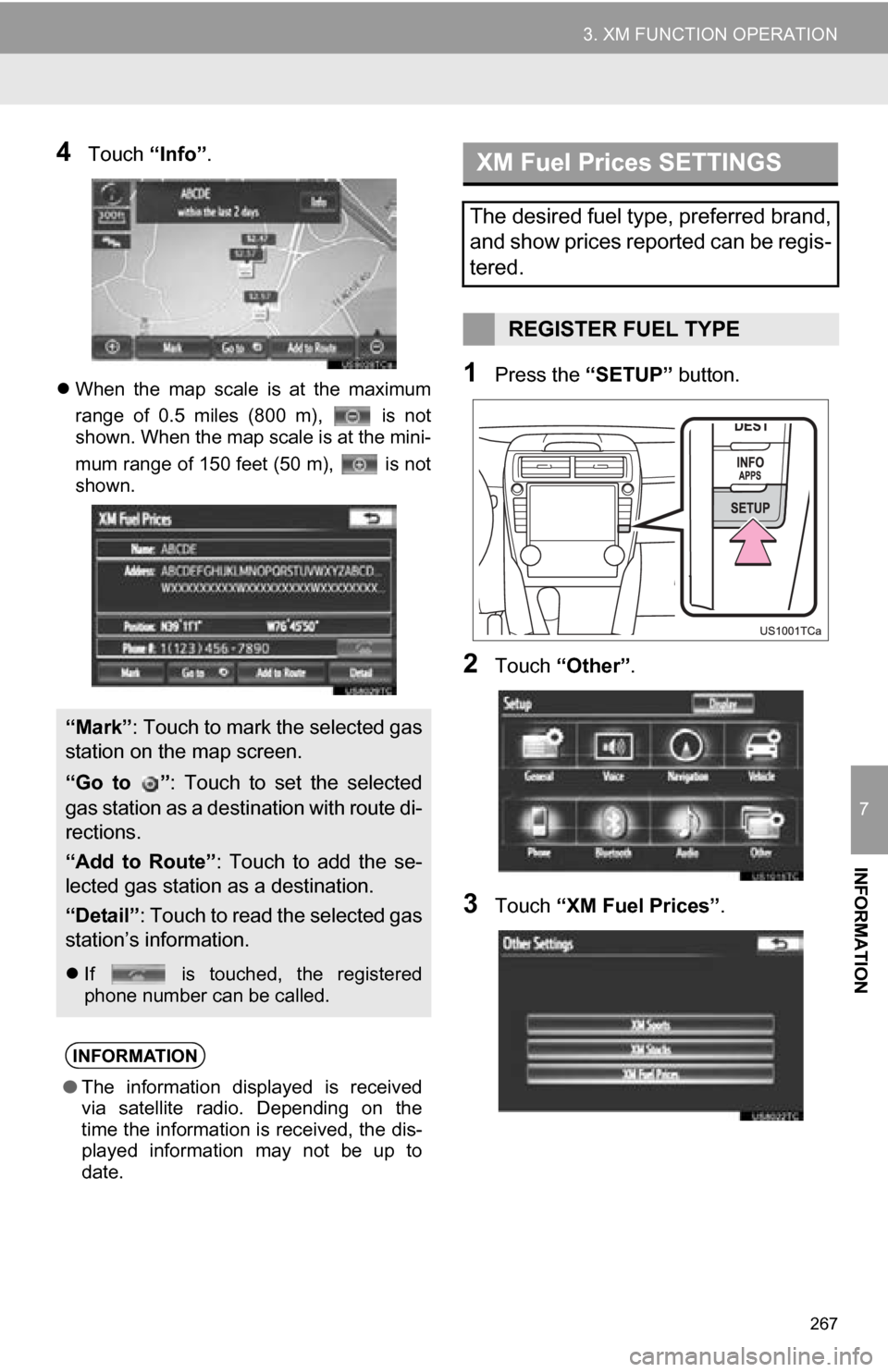
4Touch “Info”.
When the map scale is at the maximum
range of 0.5 miles (800 m), is not
shown. When the map scale is at the mini-
mum range of 150 feet (50 m), is not
shown.1Press the “SETUP” button.
2Touch “Other” .
3Touch “XM Fuel Prices” .
“Mark”: Touch to mark the selected gas
station on the map screen.
“Go to ” : Touch to set the selected
gas station as a destination with route di-
rections.
“Add to Route” : Touch to add the se-
lected gas station as a destination.
“Detail” : Touch to read the selected gas
station’s information.
If is touched, the registered
phone number can be called.
INFORMATION
● The information displayed is received
via satellite radio. Depending on the
time the information is received, the dis-
played information may not be up to
date.
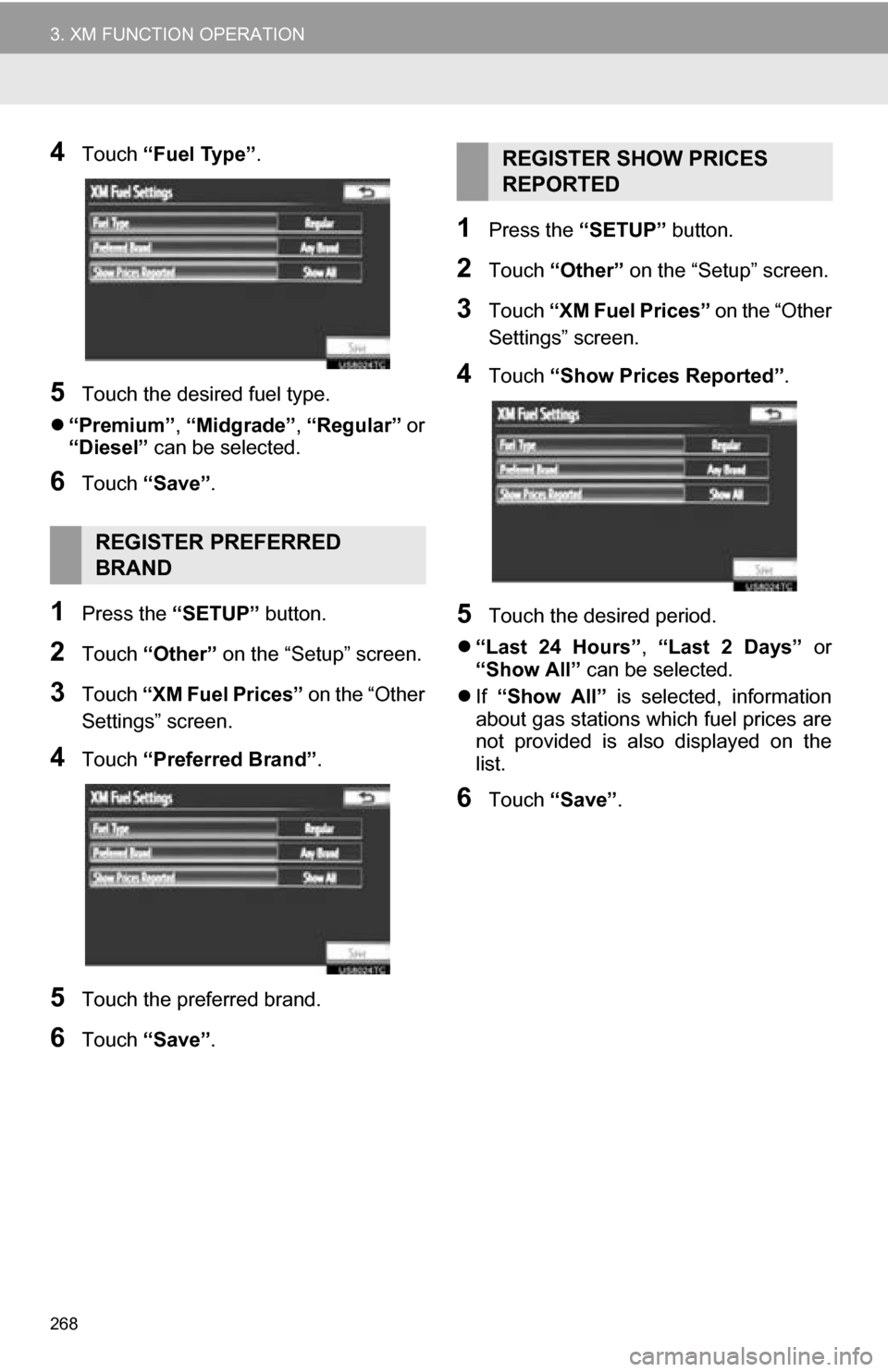
XM Fuel Prices SETTINGS
The desired fuel type, preferred brand,
and show prices reported can be regis-
tered.
REGISTER FUEL TYPE
Page 268 of 336
268
3. XM FUNCTION OPERATION
4Touch “Fuel Type” .
5Touch the desired fuel type.
“Premium”, “Midgrade”, “Regular” or
“Diesel” can be selected.
6Touch “Save” .
1Press the “SETUP” button.
2Touch “Other” on the “Setup” screen.
3Touch “XM Fuel Prices” on the “Other
Settings” screen.
4Touch “Preferred Brand” .
5Touch the preferred brand.
6Touch “Save” .
1Press the “SETUP” button.
2Touch “Other” on the “Setup” screen.
3Touch “XM Fuel Prices” on the “Other
Settings” screen.
4Touch “Show Prices Reported”.
5Touch the desired period.
“Last 24 Hours” , “Last 2 Days” or
“Show All” can be selected.
If “Show All” is selected, information
about gas stations which fuel prices are
not provided is also displayed on the
list.
6Touch “Save” .
REGISTER PREFERRED
BRAND
REGISTER SHOW PRICES
REPORTED
Page 275 of 336
275
7
INFORMATION
4. SETUP
1. XM SETTINGS
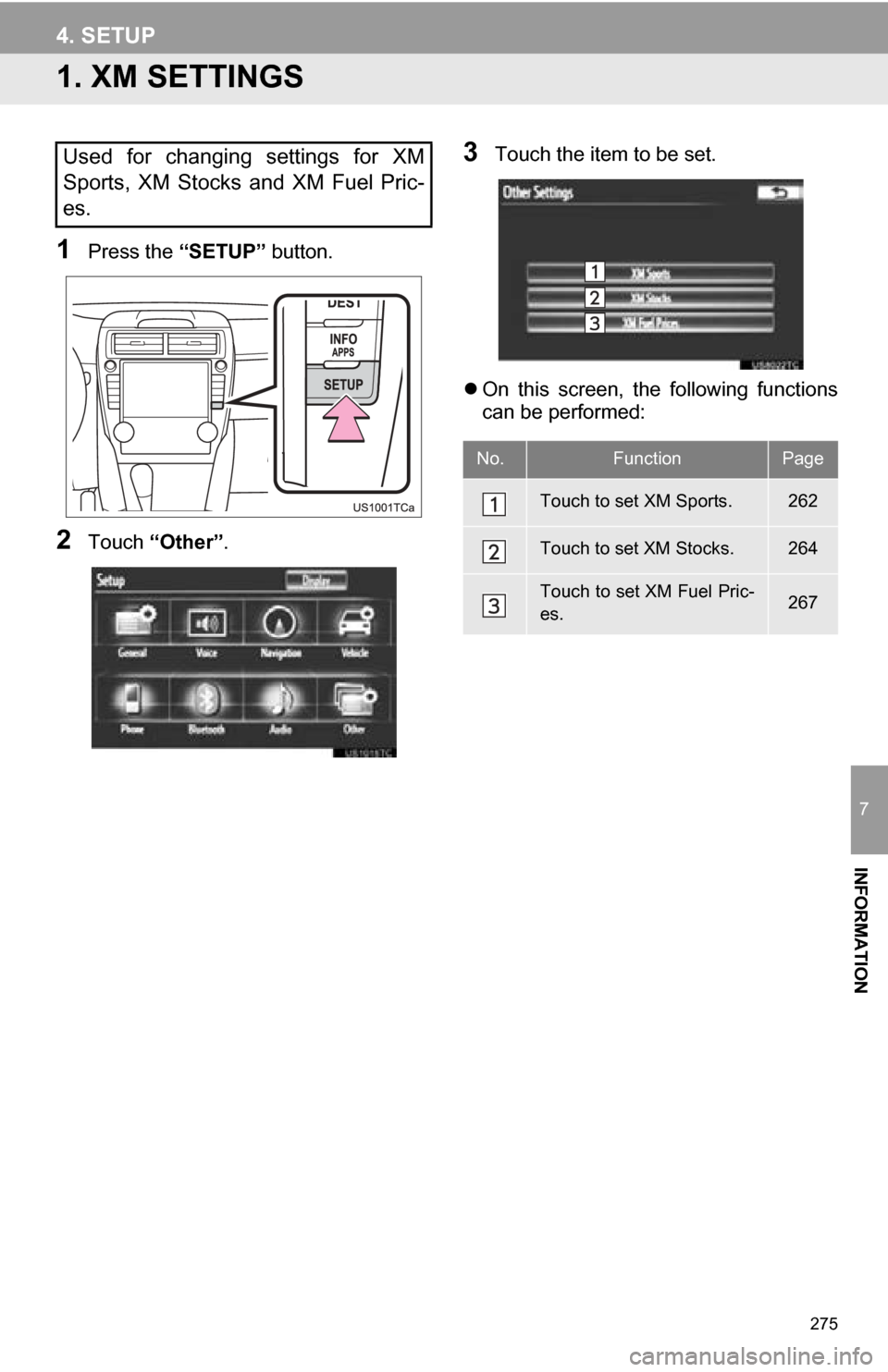
1Press the “SETUP” button.
2Touch “Other” .
3Touch the item to be set.
On this screen, the following functions
can be performed:Used for changing settings for XM
Sports, XM Stocks and XM Fuel Pric-
es.
No.FunctionPage
Touch to set XM Sports.262
Touch to set XM Stocks.264
Touch to set XM Fuel Pric-
es.267
Page 303 of 336
303
By “Previous Destinations” ................... 65
Selecting the search area .................... 56
Detailed navigation settings .................... 105
Detour setting .......................................... 83
Dial.................................................. 131, 135
Distance and time to destination.............. 80
DSP control............................................ 179
DVD ........................................................ 196
DVD player ............................................ 196
DVD options ....................................... 204
DVD player and DVD video disc information ...................................... 212
Ejecting a disc .................................... 196
If the player malfunctions ................... 211
Inserting a disc ................................... 196
Operating a DVD disc ........................ 202
Playing a disc ..................................... 197
Playing a DVD disc ............................ 203
Playing an MP3/WMA disc ................. 199
Playing an audio disc ......................... 197
E
Emergency................................................ 66
Entune .................................................... 278
Expanded voice commands................... 251
F
FM........................................................... 183
Fuel consumption .................................. 256
Function index .......................................... 18
G
General settings....................................... 42
GPS (Global Positioning System) ..... 10, 117
H
HD Radio™............................................. 186
Heading-up screen ................................... 41
Home ...................................... 12, 17, 57, 91
I
INFO/APPS (INFO) button ........................ 10
Information .............................................. 256
“Information” screen ................................. 24
Inputting letters and numbers .................. 30
Internet radio broadcast ......................... 195
iPod ........................................................ 219
Connecting iPod ................................. 219
Playing iPod ....................................... 220
K
Keyboard layout ........................................ 45
L
Language .................................................. 44
Limitations of the navigation system ...... 117
List screen operation................................ 30
M
MAP .......................................................... 69
Map database information and updates............................................... 306
Map database version and coverage area .................................... 258
Map icons.................................................. 41
Map scale................................................. 40
MAP/VOICE button ................................... 10
MEDIA button.......................................... 176
MP3......................................................... 199
N
Natural speech information .................... 250
Navigation system........... .......................... 56
North-up screen ........................................ 41
O
Operation flow: guiding the route ............. 16
Orientation of the map ............................. 41
Overview button and guidance screen..... 10
Page 305 of 336
305
T
Talk on the Bluetooth® phone................ 139
Incoming call waiting .......................... 141
Time zone ................................................. 43
Tire change calibration ........................... 109
Tone........................................................ 206
Tone and balance .................................. 180
Touch screen operation ........................... 29
Traffic incidents....................................... 272
TUNE SCROLL knob .............................. 176
Typical voice guidance prompts .............. 77
U
USB memory ......................................... 214 Connecting a USB memory................ 214
Playing a USB memory ...................... 215
USB port ................................................ 182
V
Vehicle settings...................................... 112 Maintenance....................................... 112
Vehicle customization ........................ 116
Voice command system................. 178, 244 Steering switches for the voice command system ........................... 244
Voice recognition ................................... 134
Voice settings .......................................... 51
Voice volume ............................................ 51
W
WMA ....................................... 199, 236, 238
X
XM Fuel Prices ...................................... 266 Show XM Fuel Prices information ...... 266
View detailed fuel price information ... 266
XM Fuel Prices settings ..................... 267 XM NavTraffic
®...................................... 272
Show traffic event ............................... 272
Show XM NavTraffic
® information...... 273
XM NavWeather™ ................................. 269 Show XM NavWeather™ information ...................................... 269
Weather information ........................... 270
Weather warnings .............................. 271
XM NavWeather™ indicator ............... 271
XM Satellite Radio broadcast................. 190
Channel category ............................... 191
Displaying the radio ID ....................... 190
Displaying the title and name ............. 192
How to subscribe to an XM Satellite Radio................................. 190
If the satellite radio tuner malfunctions.................................... 193
Listening to satellite radio ................... 191
Presetting a channel........................... 191
Selecting a channel ............................ 192
XM Sports .............................................. 261
Receive sports information ................. 261
XM Sports settings ............................. 262
XM Stocks .............................................. 264
Receive stock data ............................. 264
XM Stocks settings ............................. 264
Z
Zoom in button .......................................... 10
Zoom out button ........................................ 10