radio TOYOTA CAMRY 2013 XV50 / 9.G Navigation Manual
[x] Cancel search | Manufacturer: TOYOTA, Model Year: 2013, Model line: CAMRY, Model: TOYOTA CAMRY 2013 XV50 / 9.GPages: 336, PDF Size: 7.37 MB
Page 191 of 336
191
1. AUDIO/VIDEO SYSTEM OPERATION
5
AUDIO/VIDEO SYSTEM
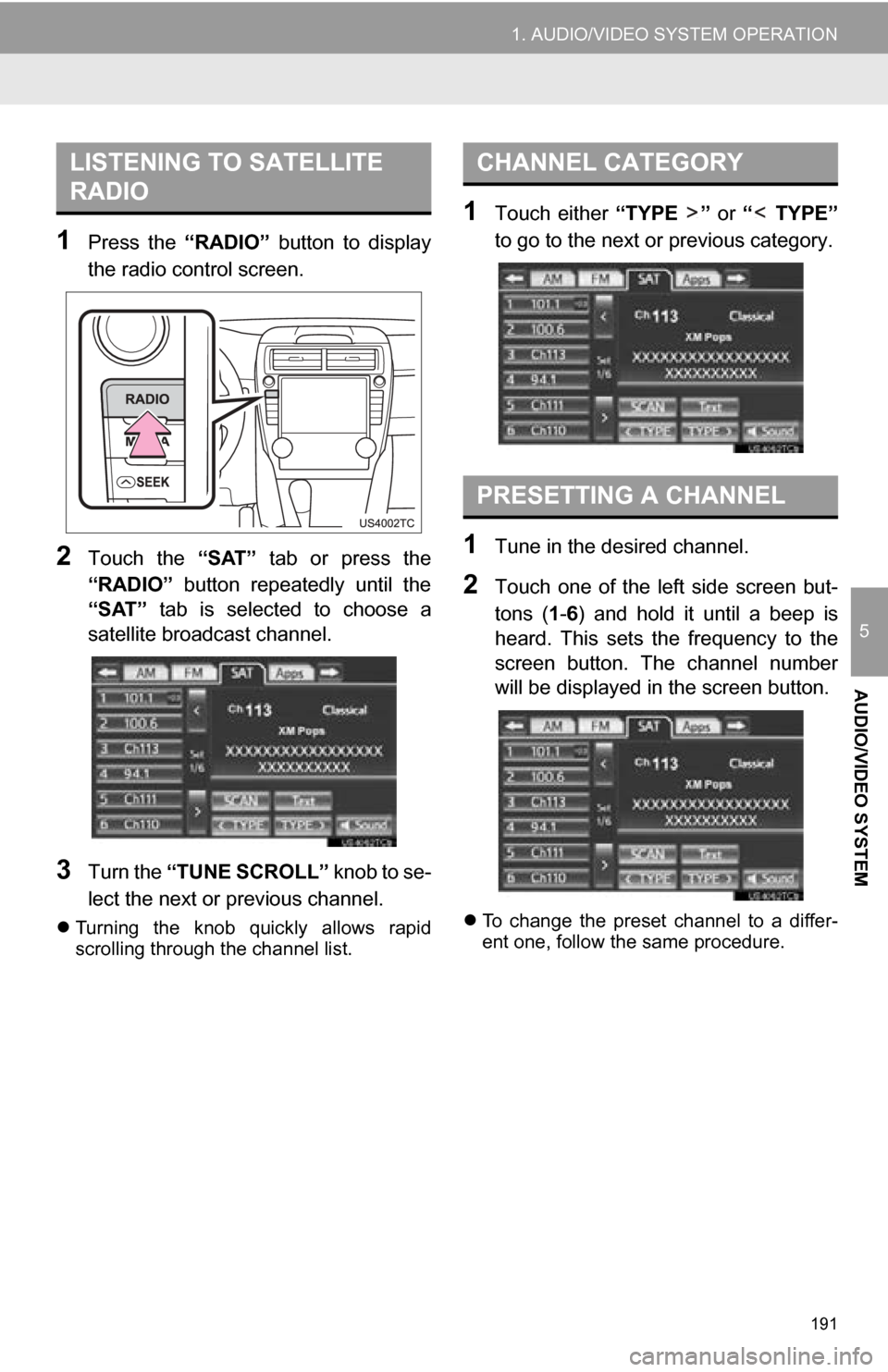
1Press the “RADIO” button to display
the radio control screen.
2Touch the “SAT” tab or press the
“RADIO” button repeatedly until the
“SAT” tab is selected to choose a
satellite broadcast channel.
3Turn the “TUNE SCROLL” knob to se-
lect the next or previous channel.
Turning the knob quickly allows rapid
scrolling through the channel list.
1Touch either “TYPE ” or “ TYPE”
to go to the next or previous category.
1Tune in the desired channel.
2Touch one of the left side screen but-
tons ( 1-6 ) and hold it until a beep is
heard. This sets the frequency to the
screen button. The channel number
will be displayed in the screen button.
To change the preset channel to a differ-
ent one, follow the same procedure.
LISTENING TO SATELLITE
RADIOCHANNEL CATEGORY
PRESETTING A CHANNEL
Page 192 of 336
192
1. AUDIO/VIDEO SYSTEM OPERATION
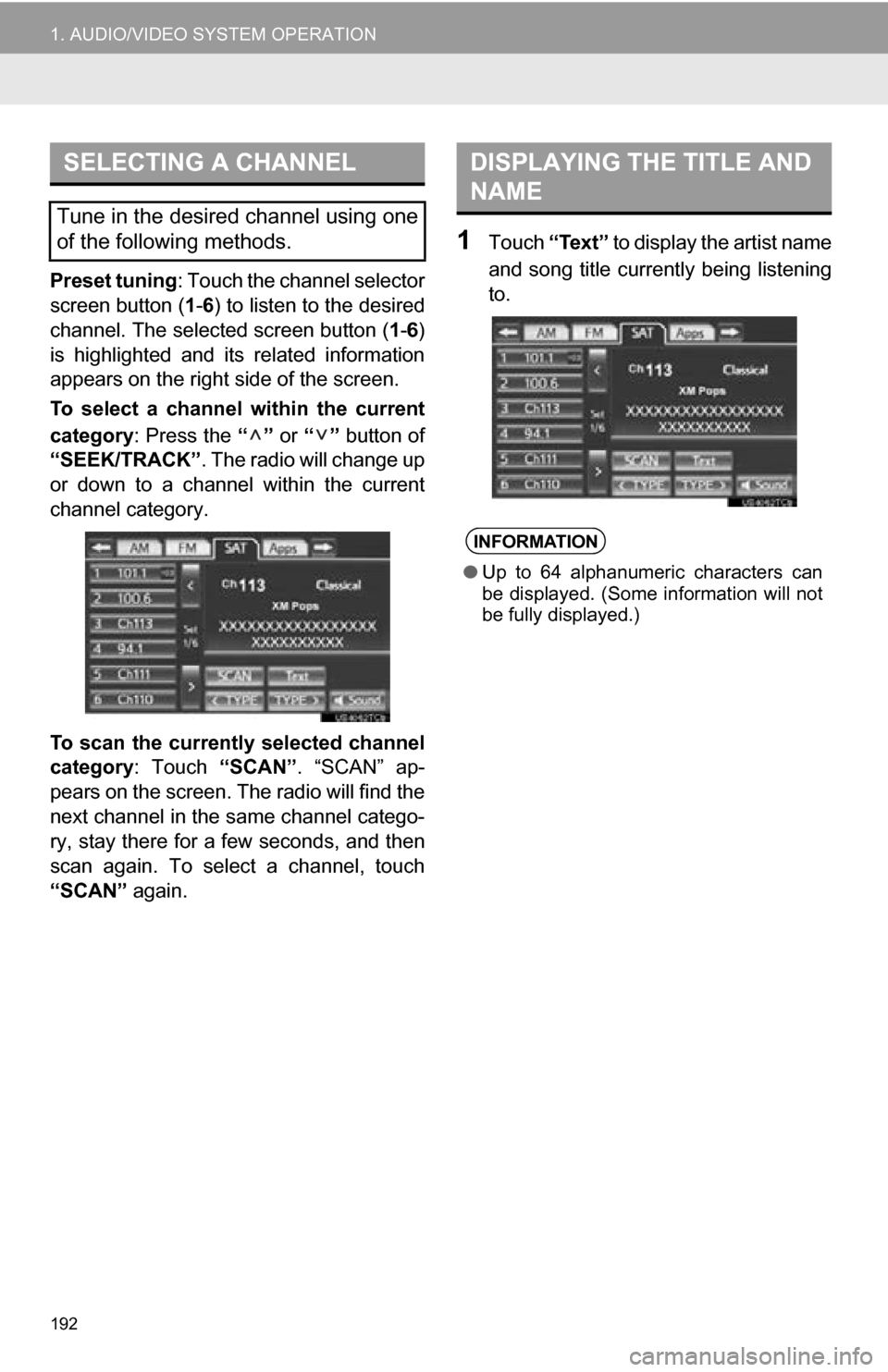
Preset tuning: Touch the channel selector
screen button ( 1-6 ) to listen to the desired
channel. The selected screen button ( 1-6 )
is highlighted and its related information
appears on the right side of the screen.
To select a channel within the current
category: Press the “” or “” button of
“SEEK/TRACK” . The radio will change up
or down to a channel within the current
channel category.
To scan the currently selected channel
category : Touch “SCAN”. “SCAN” ap-
pears on the screen. The radio will find the
next channel in the same channel catego-
ry, stay there for a few seconds, and then
scan again. To select a channel, touch
“SCAN” again.
1Touch “Text” to display the artist name
and song title currently being listening
to.
SELECTING A CHANNEL
Tune in the desired channel using one
of the following methods.
DISPLAYING THE TITLE AND
NAME
INFORMATION
● Up to 64 alphanumeric characters can
be displayed. (Some information will not
be fully displayed.)
Page 193 of 336
193
1. AUDIO/VIDEO SYSTEM OPERATION
5
AUDIO/VIDEO SYSTEM
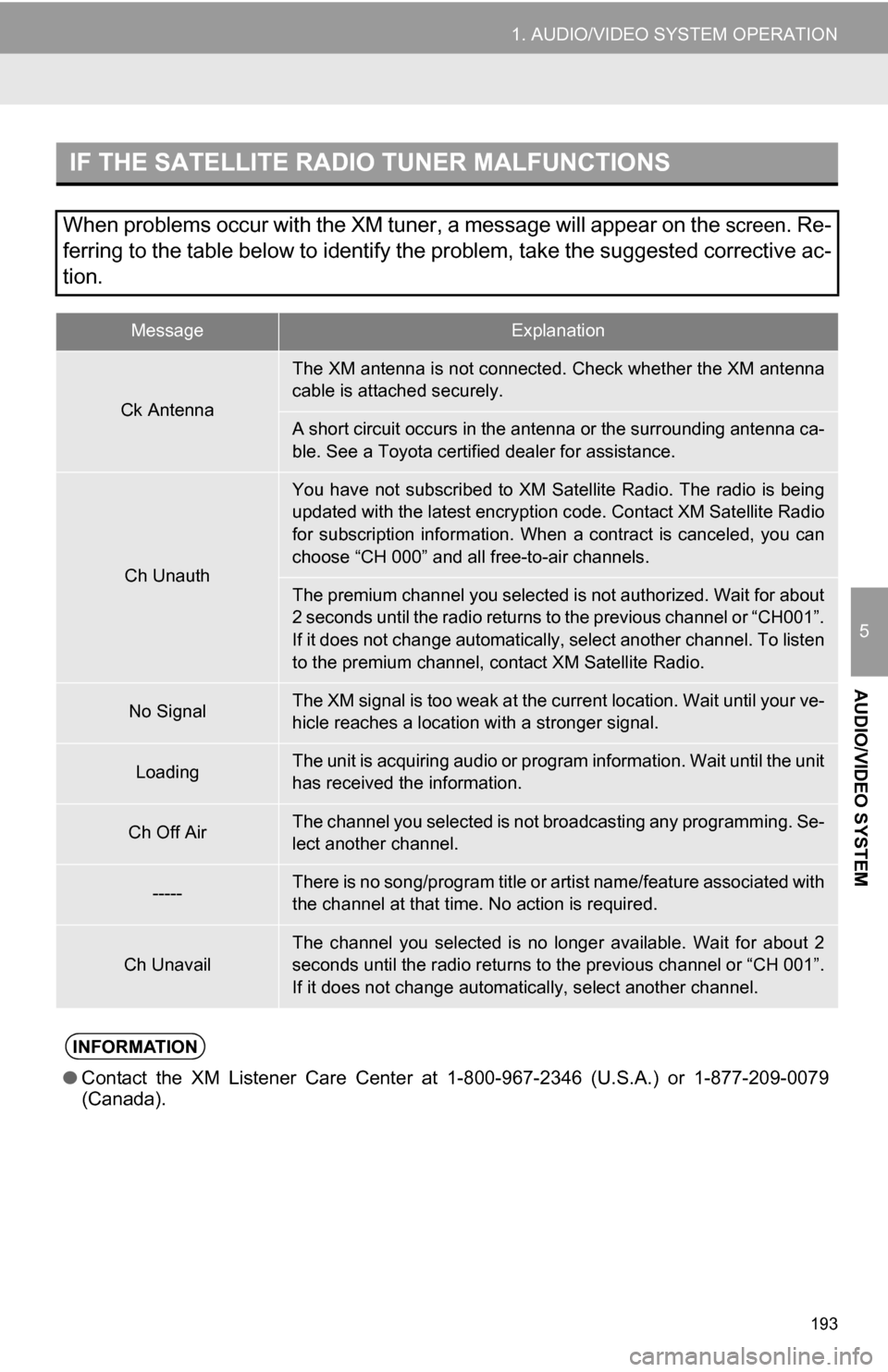
IF THE SATELLITE RADIO TUNER MALFUNCTIONS
When problems occur with the XM tuner, a message will appear on the screen. Re-
ferring to the table below to identify the problem, take the suggested corrective ac-
tion.
MessageExplanation
Ck Antenna
The XM antenna is not connected. Check whether the XM antenna
cable is attached securely.
A short circuit occurs in the antenna or the surrounding antenna ca-
ble. See a Toyota certified dealer for assistance.
Ch Unauth
You have not subscribed to XM Satellite Radio. The radio is being
updated with the latest encryption code. Contact XM Satellite Radio
for subscription information. When a contract is canceled, you can
choose “CH 000” and all free-to-air channels.
The premium channel you selected is not authorized. Wait for about
2 seconds until the radio returns to the previous channel or “CH001”.
If it does not change automatically, select another channel. To listen
to the premium channel, contact XM Satellite Radio.
No SignalThe XM signal is too weak at the current location. Wait until your ve-
hicle reaches a location wi th a stronger signal.
LoadingThe unit is acquiring audio or program information. Wait until the unit
has received the information.
Ch Off AirThe channel you selected is not broadcasting any programming. Se-
lect another channel.
-----There is no song/program title or artist name/feature associated with
the channel at that time. No action is required.
Ch UnavailThe channel you selected is no longe r available. Wait for about 2
seconds until the radio returns to the previous channel or “CH 001”.
If it does not change automatically, select another channel.
INFORMATION
● Contact the XM Listener Care Center at 1-800-967-2346 (U.S.A.) or 1-877-209-0079
(Canada).
Page 194 of 336

194
1. AUDIO/VIDEO SYSTEM OPERATION
NOTICE
●This equipment has been tested and
found to comply with the limits for a
class B digital device, pursuant to Part
15 of the FCC Rules. These limits are
designed to provide reasonable protec-
tion against harmful interference in a
residential installation. This equipment
generates, uses and can radiate radio
frequency energy and, if not installed
and used in accordance with the instruc-
tions, may cause harmful interference to
radio communications. However, there
is no guarantee that interference will not
occur in a particular installation.
● If this equipment does cause harmful
interference to radio or television recep-
tion, which can be determined by turning
the equipment off and on, the user is
encouraged to try to correct the interfer-
ence by one or more of the following
measures:
• Reorient or relocate the receiving
antenna.
• Increase the separation between the equipment and receiver.
• Connect the equipment into an outlet on a circuit different from that to
which the receiver is connected.
• Consult the dealer or an experienced radio/TV technician for help.
● Information to user
• Alternation or modifications carried
out without appropriate authorization
may invalidate the user’s right to
operate the equipment.
INFORMATION
● This XM tuner supports “Audio Services”
(Music and Talk) of only XM Satellite
Radio and “Text Information*” linked to
the respective “Audio Services”.
*: Text Information includes, Station
Name, (Artist) Name, (Song) Title and
Category Name.
Page 195 of 336
195
1. AUDIO/VIDEO SYSTEM OPERATION
5
AUDIO/VIDEO SYSTEM
6. RADIO OPERATION (INTERNET RADIO BROADCAST)
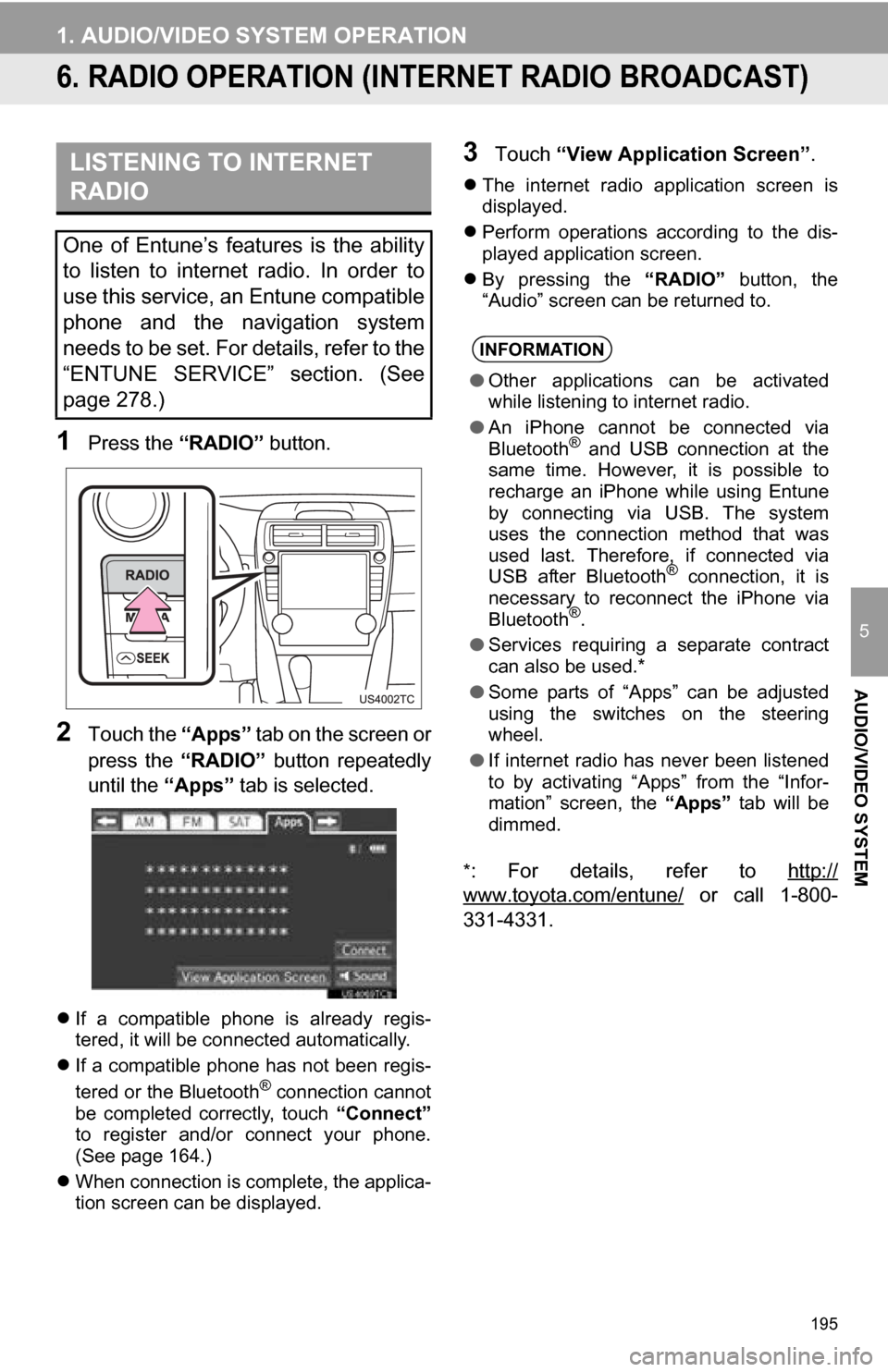
1Press the “RADIO” button.
2Touch the “Apps” tab on the screen or
press the “RADIO” button repeatedly
until the “Apps” tab is selected.
If a compatible phone is already regis-
tered, it will be connected automatically.
If a compatible phone has not been regis-
tered or the Bluetooth
® connection cannot
be completed correctly, touch “Connect”
to register and/or connect your phone.
(See page 164.)
When connection is complete, the applica-
tion screen can be displayed.
3Touch “View Application Screen” .
The internet radio application screen is
displayed.
Perform operations according to the dis-
played application screen.
By pressing the “RADIO” button, the
“Audio” screen can be returned to.
*
: For details, refer to http://
www.toyota.com/entune/ or call 1-800-
331-4331.
LISTENING TO INTERNET
RADIO
One of Entune’s features is the ability
to listen to internet radio. In order to
use this service, an Entune compatible
phone and the navigation system
needs to be set. For details, refer to the
“ENTUNE SERVICE” section. (See
page 278.)
INFORMATION
● Other applications can be activated
while listening to internet radio.
● An iPhone cannot be connected via
Bluetooth
® and USB connection at the
same time. However, it is possible to
recharge an iPhone while using Entune
by connecting via USB. The system
uses the connection method that was
used last. Therefore, if connected via
USB after Bluetooth
® connection, it is
necessary to reconnect the iPhone via
Bluetooth
®.
● Services requiring a separate contract
can also be used.*
● Some parts of “Apps” can be adjusted
using the switches on the steering
wheel.
● If internet radio has never been listened
to by activating “Apps” from the “Infor-
mation” screen, the “Apps” tab will be
dimmed.
Page 223 of 336
223
1. AUDIO/VIDEO SYSTEM OPERATION
5
AUDIO/VIDEO SYSTEM
10. Bluetooth® AUDIO OPERATION
Bluetooth is a trademark owned by
Bluetooth SIG. Inc.
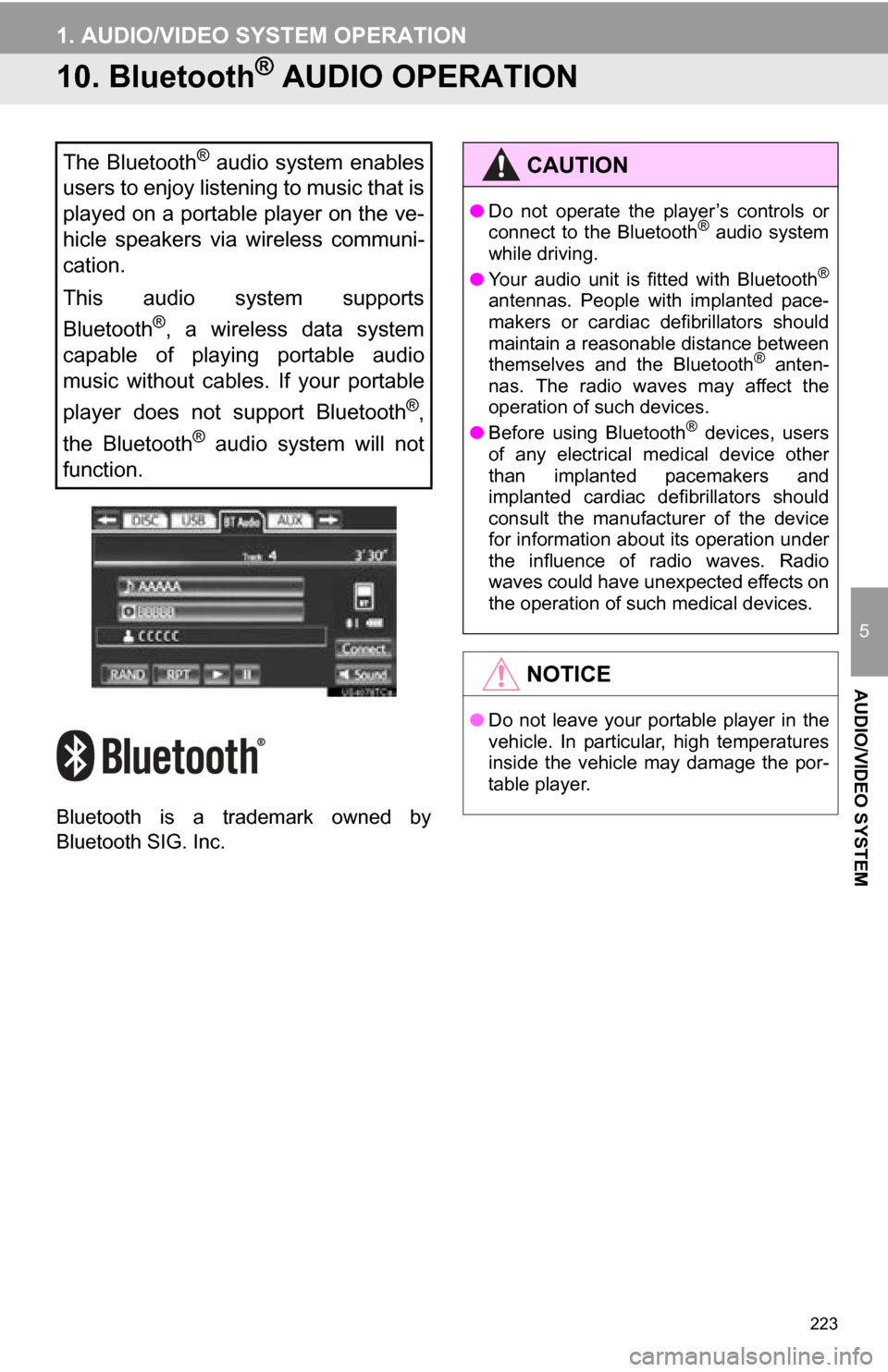
The Bluetooth® audio system enables
users to enjoy listening to music that is
played on a portable player on the ve-
hicle speakers via wireless communi-
cation.
This audio system supports
Bluetooth
®, a wireless data system
capable of playing portable audio
music without cables. If your portable
player does not support Bluetooth
®,
the Bluetooth
® audio system will not
function.
CAUTION
● Do not operate the player’s controls or
connect to the Bluetooth® audio system
while driving.
● Your audio unit is fitted with Bluetooth
®
antennas. People with implanted pace-
makers or cardiac defibrillators should
maintain a reasonable distance between
themselves and the Bluetooth
® anten-
nas. The radio waves may affect the
operation of such devices.
● Before using Bluetooth
® devices, users
of any electrical medical device other
than implanted pacemakers and
implanted cardiac defibrillators should
consult the manufacturer of the device
for information about its operation under
the influence of radio waves. Radio
waves could have unexpected effects on
the operation of such medical devices.
NOTICE
● Do not leave your portable player in the
vehicle. In particular, high temperatures
inside the vehicle may damage the por-
table player.
Page 225 of 336
225
1. AUDIO/VIDEO SYSTEM OPERATION
5
AUDIO/VIDEO SYSTEM
U.S.A.
Canada
Portable player information is registered
when the portable player is connected
to the Bluetooth
® audio system. When
selling or disposing of the vehicle,
remove the Bluetooth
® audio informa-
tion from the system. (See “DELETING
A Bluetooth
® DEVICE” on page 166.)
FCC ID : HYQDNNS059
Type : DNNS059
IC : 1551A-DNNS059 Canada 310
This device complies with part 15 of the
FCC Rules. Operation is subject to the
following two conditions: (1) This device
may not cause harmful interference,
and (2) this device must accept any
interference received, including
interference that may cause undesired
operation.
CAUTION
● FCC WARNING: Changes or
modifications not expressly approved by
the party responsible for compliance
could void the user’s authority to operate
the equipment.
● CAUTION: Radio Frequency Radiation
Exposure
This equipment complies with FCC
radiation exposure limits set forth for
uncontrolled environment and meets the
FCC radio frequency (RF) Exposure
Guidelines in Supplement C to OET65.
This equipment has very low levels of
RF energy that it deemed to comply
without maximum permissive exposure
evaluation (MPE). But it is desirable that
it should be installed and operated with
at least 20 cm and more between the
radiator and person’s body (excluding
extremities: hands, wrists, feet and
ankles).
● Co-location: This transmitter must not be
co-located or operated in conjunction
with any other antenna or transmitter.
CAUTION
● NOTE
Operation is subject to the following two
conditions; (1) this device may not
cause interference, and (2) this device
must accept any interference, including
interference that may cause undesired
operation of the device.
L’utilisation de ce dispositif est autorisée
seulement aux deux conditions
suivantes : (1) il ne doit pas produire de
brouillage, et (2) l’utilisateur du dispositif
doit être prêt à accepter tout brouillage
radioélectrique reçu, même si ce
brouillage est susceptible de
compromettre le fonctionnement du
dispositif.
● CAUTION: Radio Frequency Radiation
Exposure
This equipment complies with IC
radiation exposure limits set forth for
uncontrolled environment and meets
RSS-102 of the IC radio frequency (RF)
Exposure rules. This equipment has
very low levels of RF energy that it
deemed to comply without maximum
permissive exposure evaluation (MPE).
But it is desirable that it should be
installed and operated with at least 20
cm and more between the radiator and
person’s body (excluding extremities:
hands, wrists, feet and ankles).
Cet équipement se conforme aux limites
d’exposition aux radiations établies par
Industrie Canada pour un
environnement non contrôlé ainsi qu’aux
directives d’exposition aux fréquences
radioélectriques (RF) émises par
Industrie Canada dans la norme
CNR-102. Cet équipement émet un
niveau d’énergie RF faible à un point tel
qu’il se conforme sans devoir effectuer
d’évaluation d’exposition maximum
admissible (MPE). Lorsque l’équipement
est utilisé, il est toutefois souhaitable de
laisser au moins 20 cm entre l’antenne
et le corps (à l’exception des
extrémités : mains, poignets, pieds et
chevilles).
Page 231 of 336
231
1. AUDIO/VIDEO SYSTEM OPERATION
5
AUDIO/VIDEO SYSTEM
11. AUDIO/VIDEO REMOTE CONTROLS (STEERING SWITCHES)
Volume control switch
Press the “+” side to increase the volume.
The volume continues to increase while
the switch is being pressed.
Press the “-” side to decrease the vol-
ume. The volume continues to decrease
while the switch is being pressed.
Back switch
Press the back switch to return to the pre-
vious screen. “ ”
switch
When in radio mode
Press the “” or “” switch to change
the station up or down.
Press the “” or “” switch to select the
preset station list.
When in media mode
Press the “” or “” switch to skip to the
next or previous track/file.
Press the “” or “” switch to change
the tab or album/folder.
Press the “” or “” switch to scroll up
or down the items on the list screen.
Enter switch
When in radio mode
Press the enter switch to return to the pre-
set screen.
When in media mode
Press the enter switch to return to the list
screen.
While the list screen is being displayed,
the enter switch can be used to enter
selections.
“MODE/HOLD” switch
Press the “MODE/HOLD” switch to select
an audio mode. Each press changes the
mode sequentially if the desired mode is
ready to use.
To turn the audio/video system on, press
the “MODE/HOLD” switch.
Press and hold the “MODE/HOLD” switch
to mute or pause the current operation.
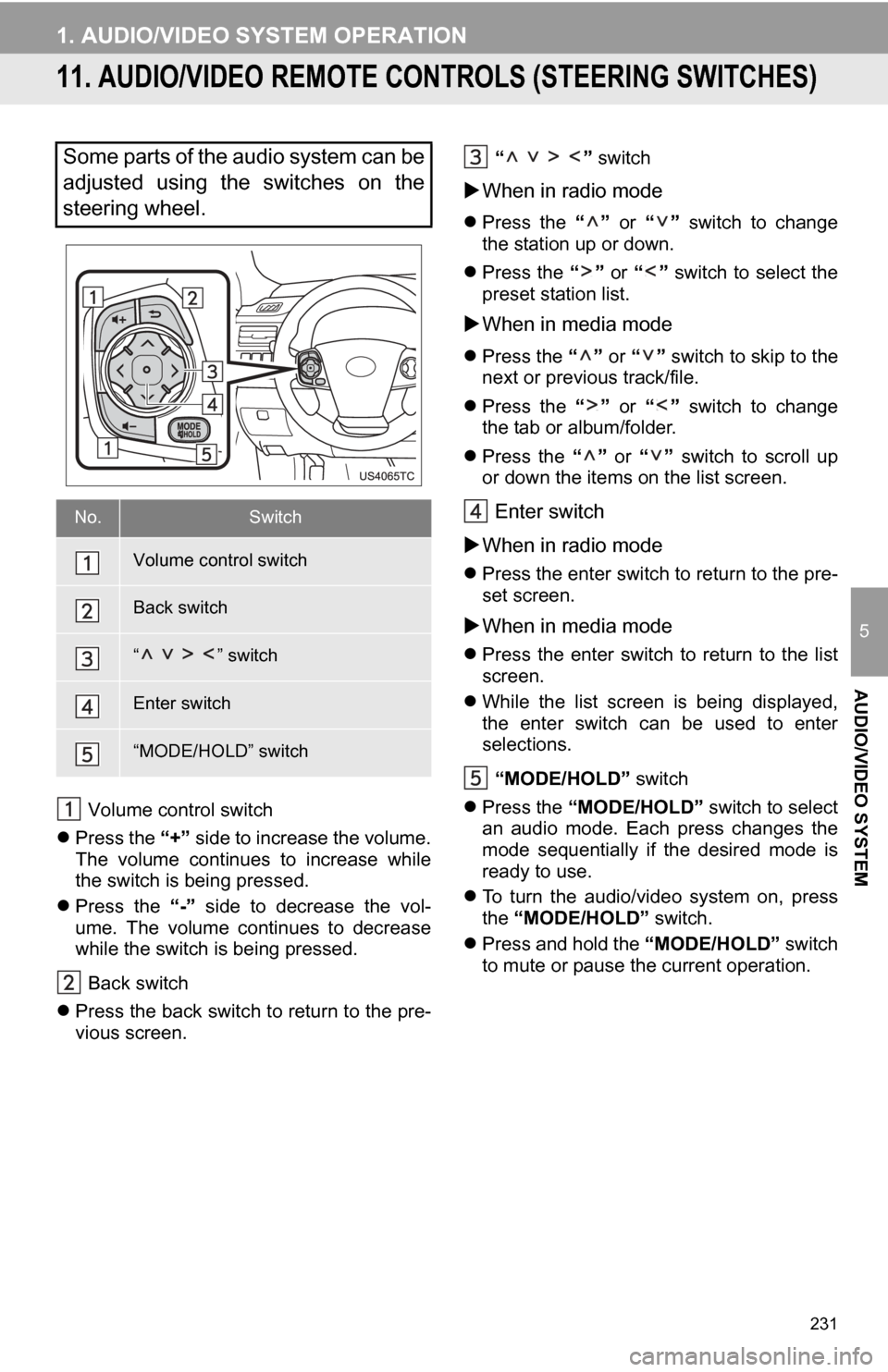
Some parts of the audio system can be
adjusted using the switches on the
steering wheel.
No.Switch
Volume control switch
Back switch
“ ” switch
Enter switch
“MODE/HOLD” switch
Page 232 of 336
232
1. AUDIO/VIDEO SYSTEM OPERATION
12. AUDIO/VIDEO SYST EM OPERATING HINTS
Fading and drifting stations: Generally, the
effective range of FM is about 25 miles (40
km). Once outside this range, you may no-
tice fading and drifting, which increase with
the distance from the radio transmitter.
They are often accompanied by distortion. Multi-path: FM signals are reflective, mak-
ing it possible for two signals to reach the
vehicle’s antenna at the same time. If this
happens, the signals will cancel each other
out, causing a momentary flutter or loss of
reception.
Static and fluttering: These occur when
signals are blocked by buildings, trees or
other large objects. Increasing the bass
level may reduce static and fluttering.
Station swapping: If the FM signal being
listened to is interrupted or weakened, and
there is another strong station nearby on
the FM band, the radio may tune in the
second station until the original signal can
be picked up again.
Fading: AM broadcasts are reflected by
the upper atmosphere — especially at
night. These reflected signals can interfere
with those received directly from the radio
station, causing the radio station to sound
alternately strong and weak.
Station interference: When a reflected sig-
nal and a signal received directly from a ra-
dio station are very nearly the same
frequency, they can interfere with each
other, making it difficult to hear the broad-
cast.
Static: AM is easily affected by external
sources of electrical noise, such as high
tension power lines, lightening or electrical
motors. This results in static.
Cargo loaded on the roof luggage carrier,
especially metal objects, may adversely
affect the reception of XM Satellite Radio.
Alternation or modifications carried out
without appropriate authorization may
invalidate the user’s right to operate the
equipment.
NOTICE
●To avoid damage to the audio/video sys-
tem:
• Be careful not to spill beverages over
the audio/video system.
• Do not put anything other than an appropriate disc into the disc slot.
INFORMATION
● The use of a cellular phone inside or
near the vehicle may cause a noise from
the speakers of the audio/video system
which you are listening to. However, this
does not indicate a malfunction.
RADIO RECEPTION
Usually, a problem with radio reception
does not mean there is a problem with
the radio — it is just the normal result
of conditions outside the vehicle.
For example, nearby buildings and ter-
rain can interfere with FM reception.
Power lines or phone wires can inter-
fere with AM signals. And of course, ra-
dio signals have a limited range. The
farther the vehicle is from a station, the
weaker its signal will be. In addition, re-
ception conditions change constantly
as the vehicle moves.
Here, some common reception prob-
lems that probably do not indicate a
problem with the radio are described.
FM
AM
XM
Page 241 of 336
241
5
AUDIO/VIDEO SYSTEM
1. AUDIO SETTINGS
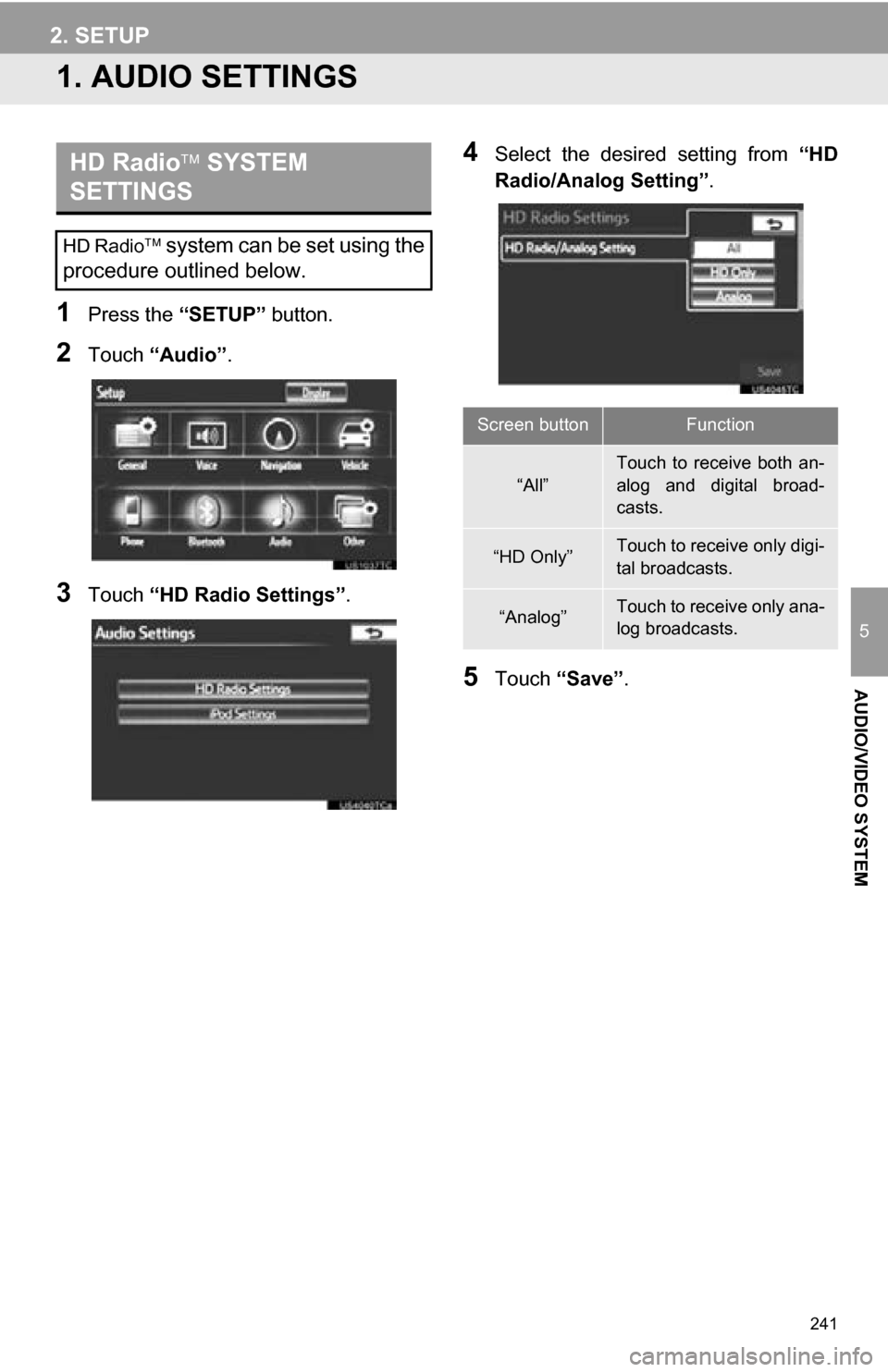
1Press the “SETUP” button.
2Touch “Audio” .
3Touch “HD Radio Settings” .
4Select the desired setting from “HD
Radio/Analog Setting” .
5Touch “Save” .
HD Radio SYSTEM
SETTINGS
HD Radio system can be set using the
procedure outlined below.
Screen buttonFunction
“All”
Touch to receive both an-
alog and digital broad-
casts.
“HD Only”Touch to receive only digi-
tal broadcasts.
“Analog”Touch to receive only ana-
log broadcasts.
2. SETUP