phone TOYOTA CAMRY 2013 XV50 / 9.G Navigation Manual
[x] Cancel search | Manufacturer: TOYOTA, Model Year: 2013, Model line: CAMRY, Model: TOYOTA CAMRY 2013 XV50 / 9.GPages: 336, PDF Size: 7.37 MB
Page 1 of 336
1
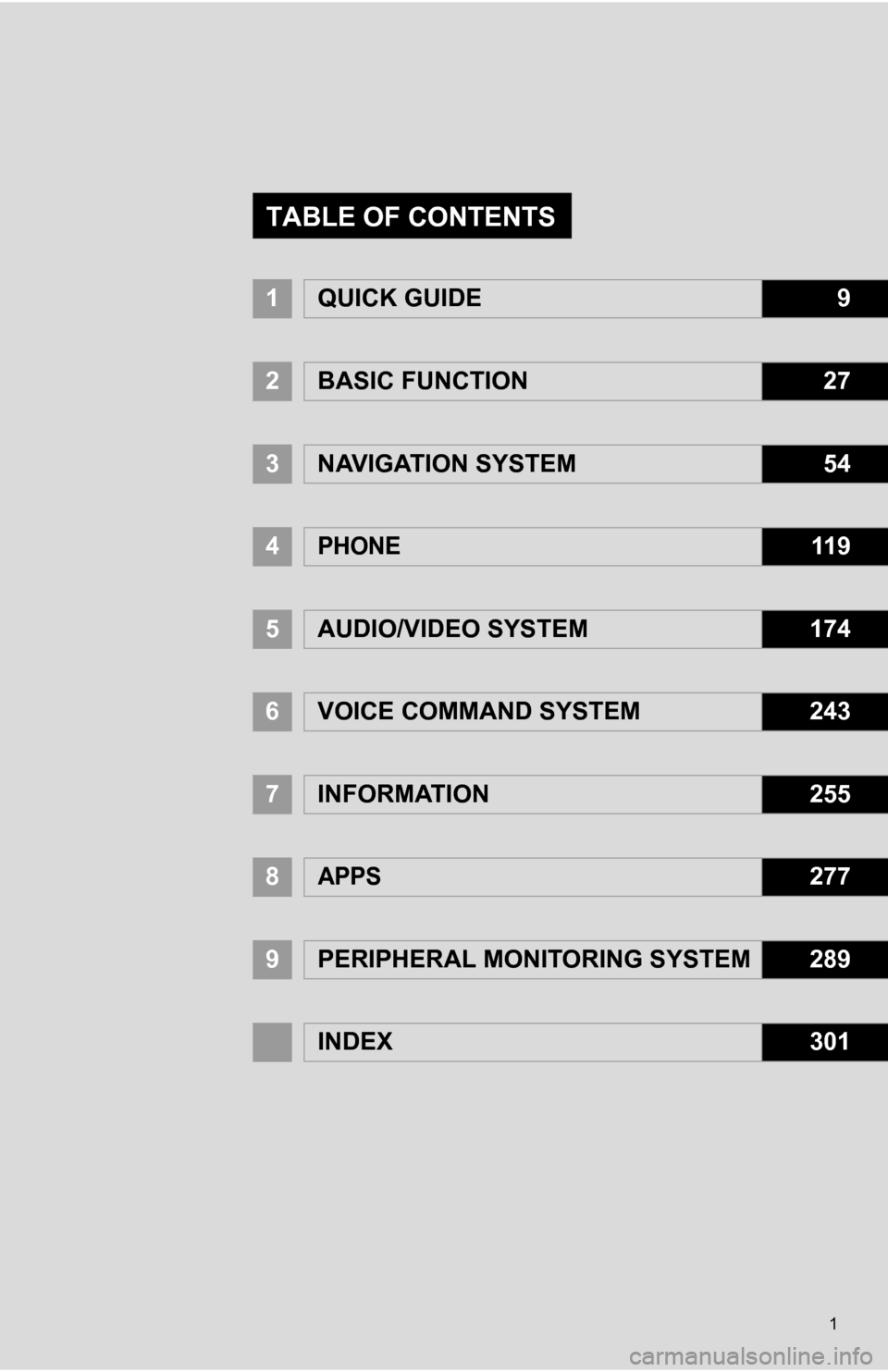
1QUICK GUIDE9
2BASIC FUNCTION27
3NAVIGATION SYSTEM54
4PHONE11 9
5AUDIO/VIDEO SYSTEM174
6VOICE COMMAND SYSTEM243
7INFORMATION255
8APPS277
9PERIPHERAL MONITORING SYSTEM289
INDEX301
TABLE OF CONTENTS
Page 7 of 336
7
1
2
3
4
5
6
7
8
9
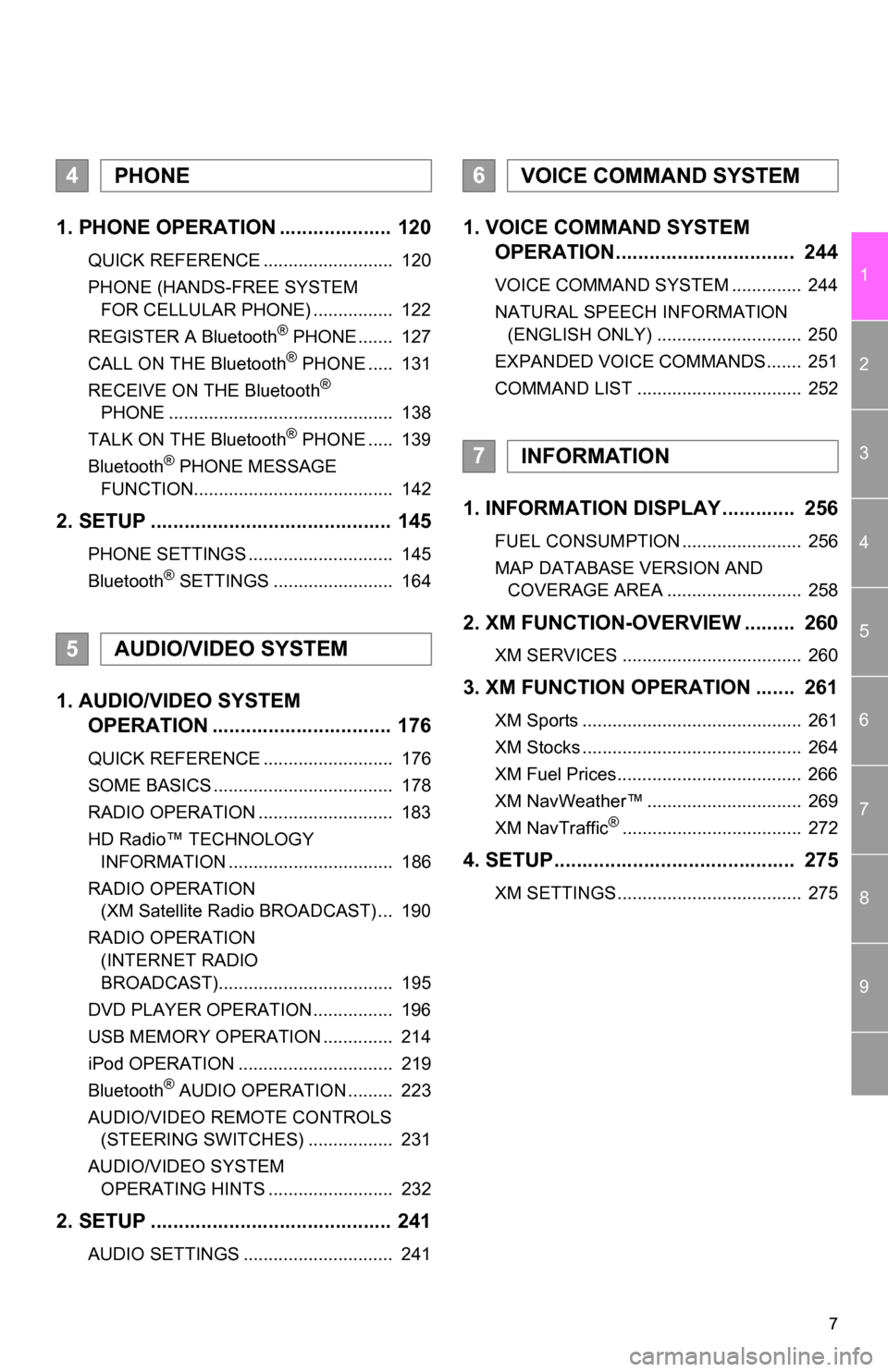
1. PHONE OPERATION .................... 120
QUICK REFERENCE .......................... 120
PHONE (HANDS-FREE SYSTEM FOR CELLULAR PHONE) ................ 122
REGISTER A Bluetooth
® PHONE ....... 127
CALL ON THE Bluetooth® PHONE ..... 131
RECEIVE ON THE Bluetooth®
PHONE ............................................. 138
TALK ON THE Bluetooth
® PHONE ..... 139
Bluetooth® PHONE MESSAGE
FUNCTION........................................ 142
2. SETUP ........................................... 145
PHONE SETTINGS ............................. 145
Bluetooth® SETTINGS ........................ 164
1. AUDIO/VIDEO SYSTEM OPERATION ................................ 176
QUICK REFERENCE .......................... 176
SOME BASICS .................................... 178
RADIO OPERATION ........................... 183
HD Radio™ TECHNOLOGY
INFORMATION ................................. 186
RADIO OPERATION (XM Satellite Radio BROADCAST) ... 190
RADIO OPERATION (INTERNET RADIO
BROADCAST)................................... 195
DVD PLAYER OPERATION ................ 196
USB MEMORY OPERATION .............. 214
iPod OPERATION ............................... 219
Bluetooth
® AUDIO OPERATION ......... 223
AUDIO/VIDEO REMOTE CONTROLS (STEERING SWITCHES) ................. 231
AUDIO/VIDEO SYSTEM OPERATING HINTS ......................... 232
2. SETUP ........................................... 241
AUDIO SETTINGS .............................. 241
1. VOICE COMMAND SYSTEM OPERATION................................ 244
VOICE COMMAND SYSTEM .............. 244
NATURAL SPEECH INFORMATION
(ENGLISH ONLY) ............................. 250
EXPANDED VOICE COMMANDS....... 251
COMMAND LIST ................................. 252
1. INFORMATION DISPLAY ............. 256
FUEL CONSUMPTION ........................ 256
MAP DATABASE VERSION AND COVERAGE AREA ........................... 258
2. XM FUNCTION-O VERVIEW ......... 260
XM SERVICES .................................... 260
3. XM FUNCTION OPERATION ....... 261
XM Sports ............................................ 261
XM Stocks ............................................ 264
XM Fuel Prices..................................... 266
XM NavWeather™ ............................... 269
XM NavTraffic
®.................................... 272
4. SETUP........................................... 275
XM SETTINGS..................................... 275
4PHONE
5AUDIO/VIDEO SYSTEM
6VOICE COMMAND SYSTEM
7INFORMATION
Page 13 of 336
13
1. NAVIGATION OPERATION
1
QUICK GUIDE
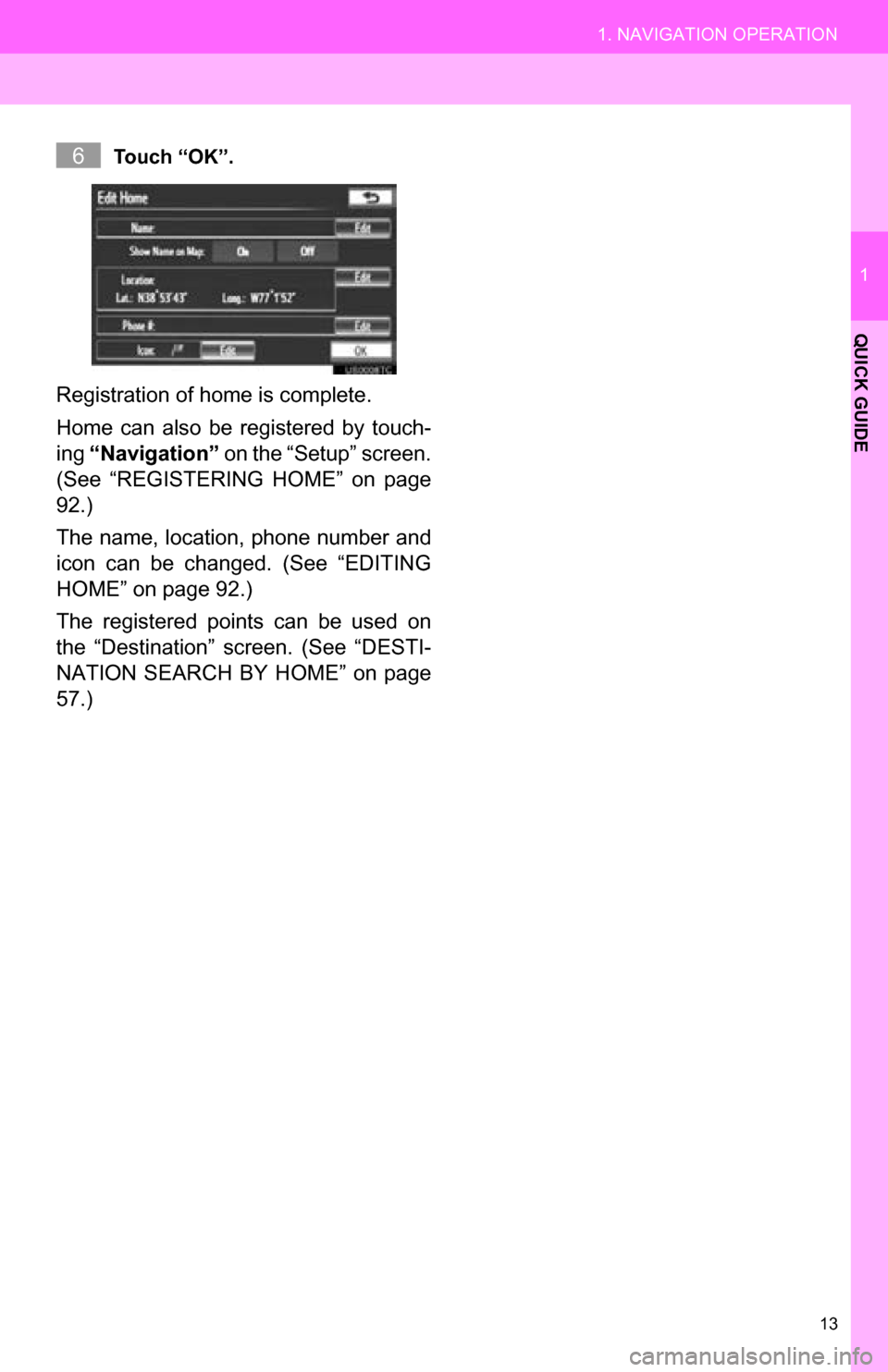
Touch “OK”.
Registration of home is complete.
Home can also be registered by touch-
ing “Navigation” on the “Setup” screen.
(See “REGISTERING HOME” on page
92.)
The name, location, phone number and
icon can be changed. (See “EDITING
HOME” on page 92.)
The registered points can be used on
the “Destination” screen. (See “DESTI-
NATION SEARCH BY HOME” on page
57.)
6
Page 15 of 336
15
1. NAVIGATION OPERATION
1
QUICK GUIDE
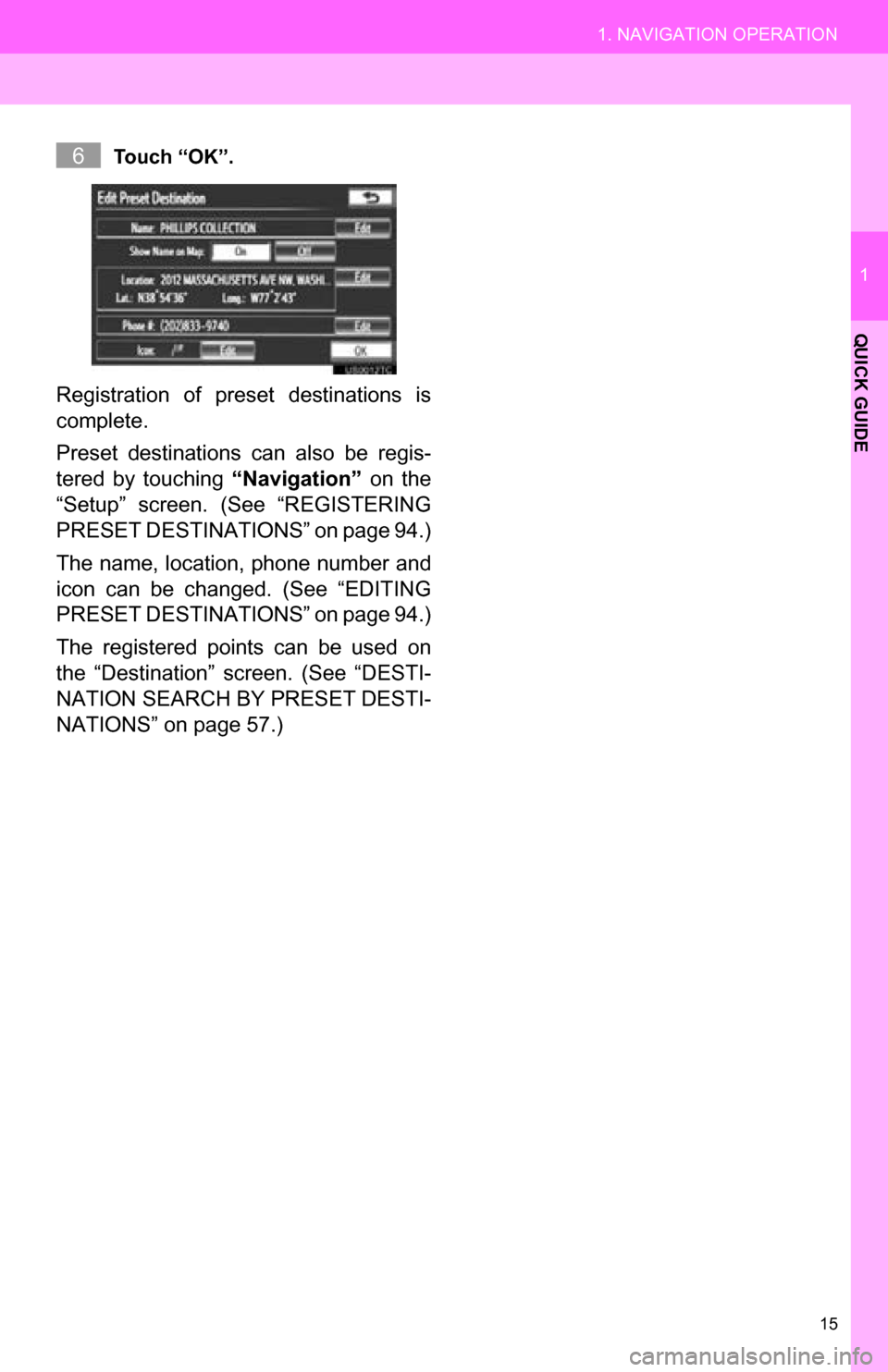
Touch “OK”.
Registration of preset destinations is
complete.
Preset destinations can also be regis-
tered by touching “Navigation” on the
“Setup” screen. (See “REGISTERING
PRESET DESTINAT IONS” on page 94.)
The name, location, phone number and
icon can be changed. (See “EDITING
PRESET DESTINAT IONS” on page 94.)
The registered points can be used on
the “Destination” screen. (See “DESTI-
NATION SEARCH BY PRESET DESTI-
NATIONS” on page 57.)
6
Page 19 of 336
19
2. FUNCTION INDEX
1
QUICK GUIDE
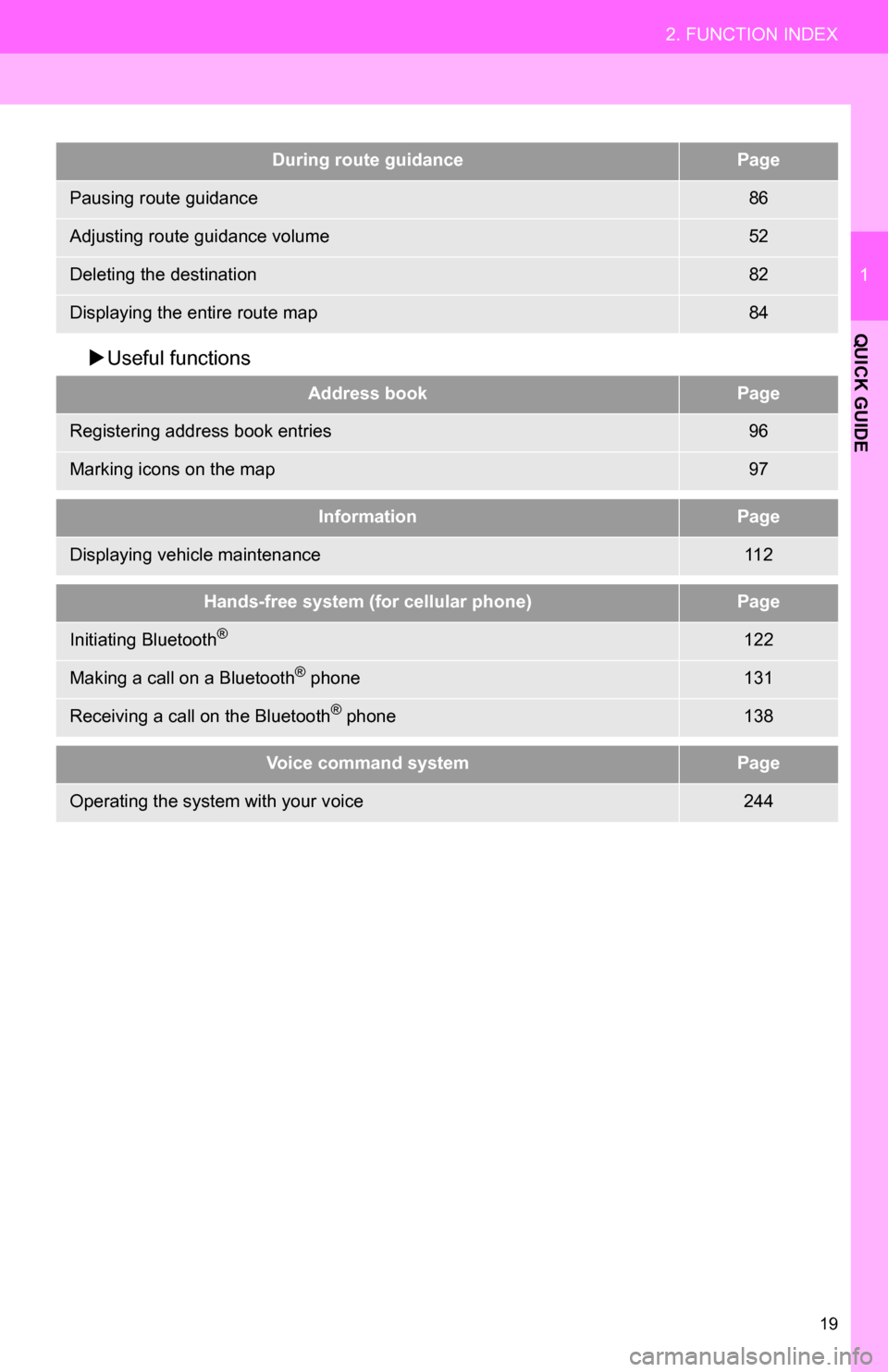
Useful functions
During route guidancePage
Pausing route guidance86
Adjusting route guidance volume52
Deleting the destination82
Displaying the entire route map84
Address bookPage
Registering address book entries96
Marking icons on the map97
InformationPage
Displaying vehicle maintenance11 2
Hands-free system (for cellular phone)Page
Initiating Bluetooth®122
Making a call on a Bluetooth® phone131
Receiving a call on the Bluetooth® phone138
Voice command systemPage
Operating the system with your voice244
Page 23 of 336
23
3. QUICK REFERENCE
1
QUICK GUIDE
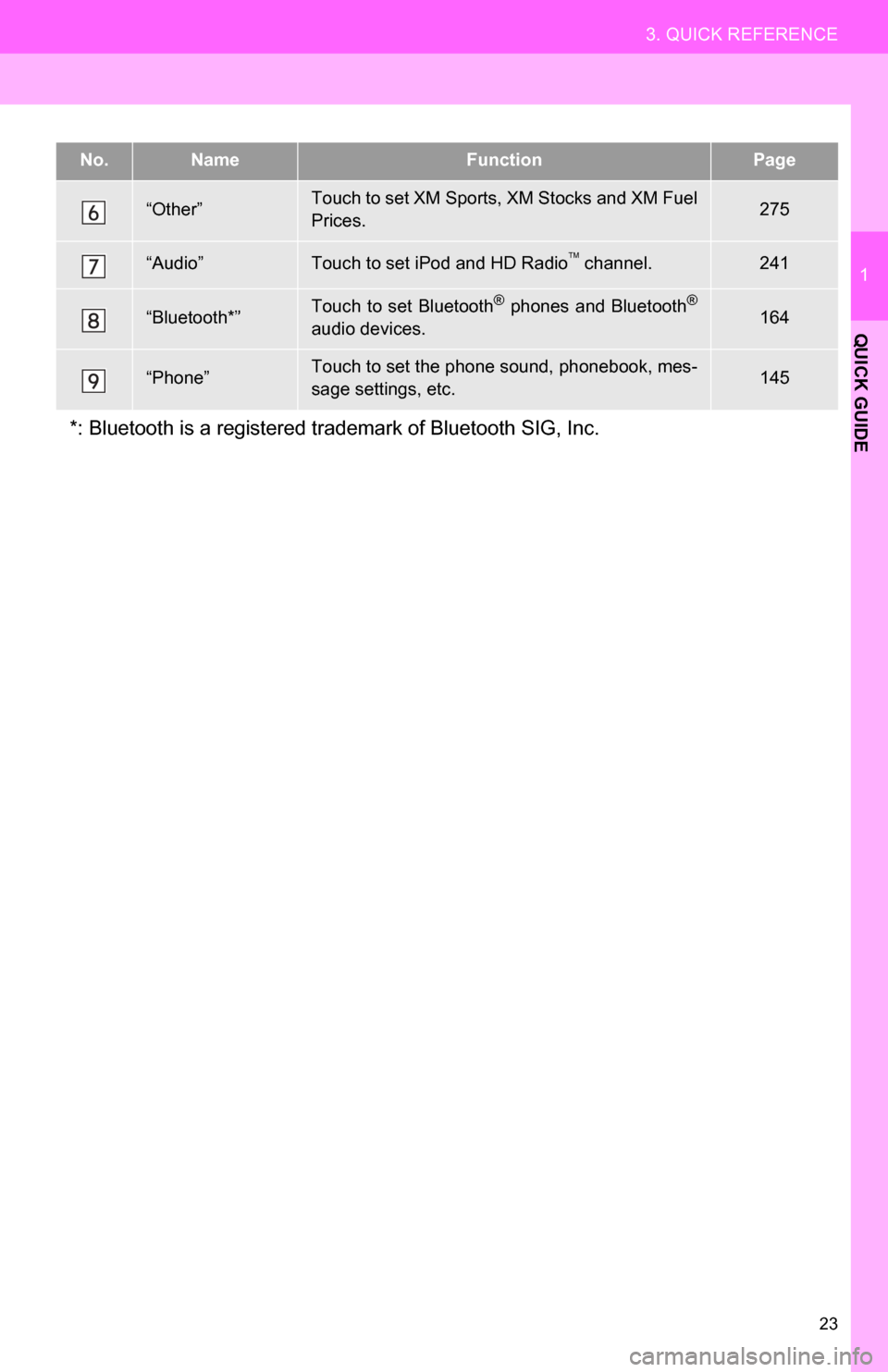
“Other”Touch to set XM Sports, XM Stocks and XM Fuel
Prices.275
“Audio”Touch to set iPod and HD Radio channel.241
“Bluetooth*”Touch to set Bluetooth® phones and Bluetooth®
audio devices.164
“Phone”Touch to set the phone sound, phonebook, mes-
sage settings, etc.145
*: Bluetooth is a registered trademark of Bluetooth SIG, Inc.
No.NameFunctionPage
Page 36 of 336
36
1. BASIC INFORMATION BEFORE OPERATION
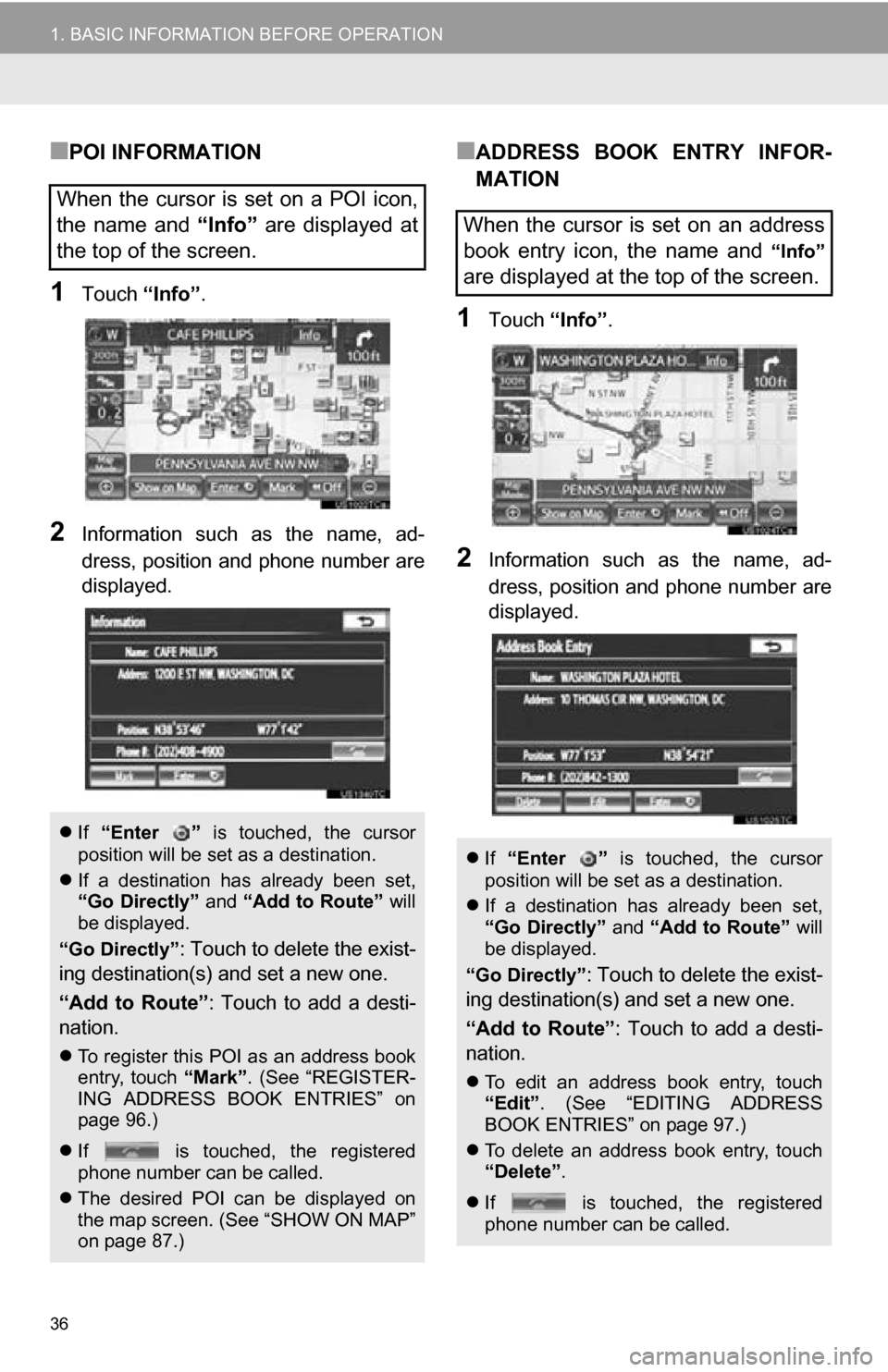
■POI INFORMATION
1Touch “Info”.
2Information such as the name, ad-
dress, position and phone number are
displayed.
■ADDRESS BOOK ENTRY INFOR-
MATION
1Touch “Info”.
2Information such as the name, ad-
dress, position and phone number are
displayed.
When the cursor is set on a POI icon,
the name and “Info” are displayed at
the top of the screen.
If “Enter ” is touched, the cursor
position will be set as a destination.
If a destination has already been set,
“Go Directly” and “Add to Route” will
be displayed.
“Go Directly”
: Touch to delete the exist-
ing destination(s) and set a new one.
“Add to Route” : Touch to add a desti-
nation.
To register this POI as an address book
entry, touch “Mark”. (See “REGISTER-
ING ADDRESS BOOK ENTRIES” on
page 96.)
If is touched, the registered
phone number can be called.
The desired POI can be displayed on
the map screen. (See “SHOW ON MAP”
on page 87.)
When the cursor is set on an address
book entry icon, the name and
“Info”
are displayed at the top of the screen.
If “Enter ” is touched, the cursor
position will be set as a destination.
If a destination has already been set,
“Go Directly” and “Add to Route” will
be displayed.
“Go Directly”
: Touch to delete the exist-
ing destination(s) and set a new one.
“Add to Route” : Touch to add a desti-
nation.
To edit an address book entry, touch
“Edit” . (See “EDITING ADDRESS
BOOK ENTRIES” on page 97.)
To delete an address book entry, touch
“Delete” .
If is touched, the registered
phone number can be called.
Page 37 of 336
37
1. BASIC INFORMATION BEFORE OPERATION
2
BASIC FUNCTION
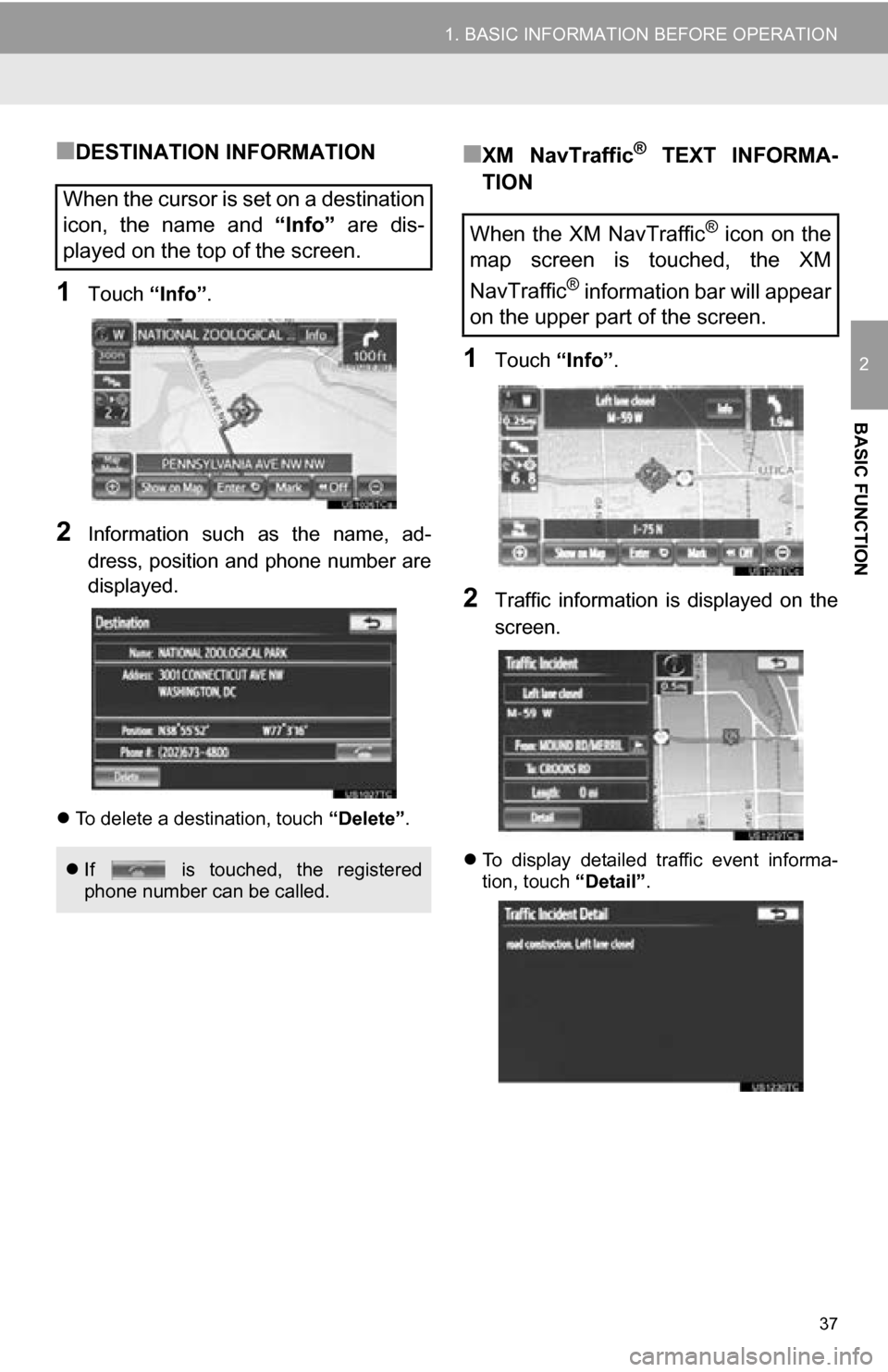
■DESTINATION INFORMATION
1Touch “Info”.
2Information such as the name, ad-
dress, position and phone number are
displayed.
To delete a destination, touch “Delete”.
■XM NavTraffic® TEXT INFORMA-
TION
1Touch “Info”.
2Traffic information is displayed on the
screen.
To display detailed traffic event informa-
tion, touch “Detail”.
When the cursor is set on a destination
icon, the name and “Info” are dis-
played on the top of the screen.
If is touched, the registered
phone number can be called.
When the XM NavTraffic® icon on the
map screen is touched, the XM
NavTraffic
® information bar will appear
on the upper part of the screen.
Page 50 of 336

50
2. SETUP
The following personal data can be
deleted or returned to their default set-
tings:
• Maintenance conditions
• Maintenance information off setting
• Address book
• Areas to avoid
• Previous points
• Route guidance
• Route trace
• Phonebook data
• Call history data
• Speed dial data
•Bluetooth
® phone data
• Phone sound settings
• Phone display settings
• Message settings
• Audio setting
•Bluetooth
® audio setting
• Startup image data
• Screen off image data
• Downloaded Apps
INFORMATION
● This function is not available while driv-
ing.
Page 60 of 336
60
1. DESTINATION SEARCH
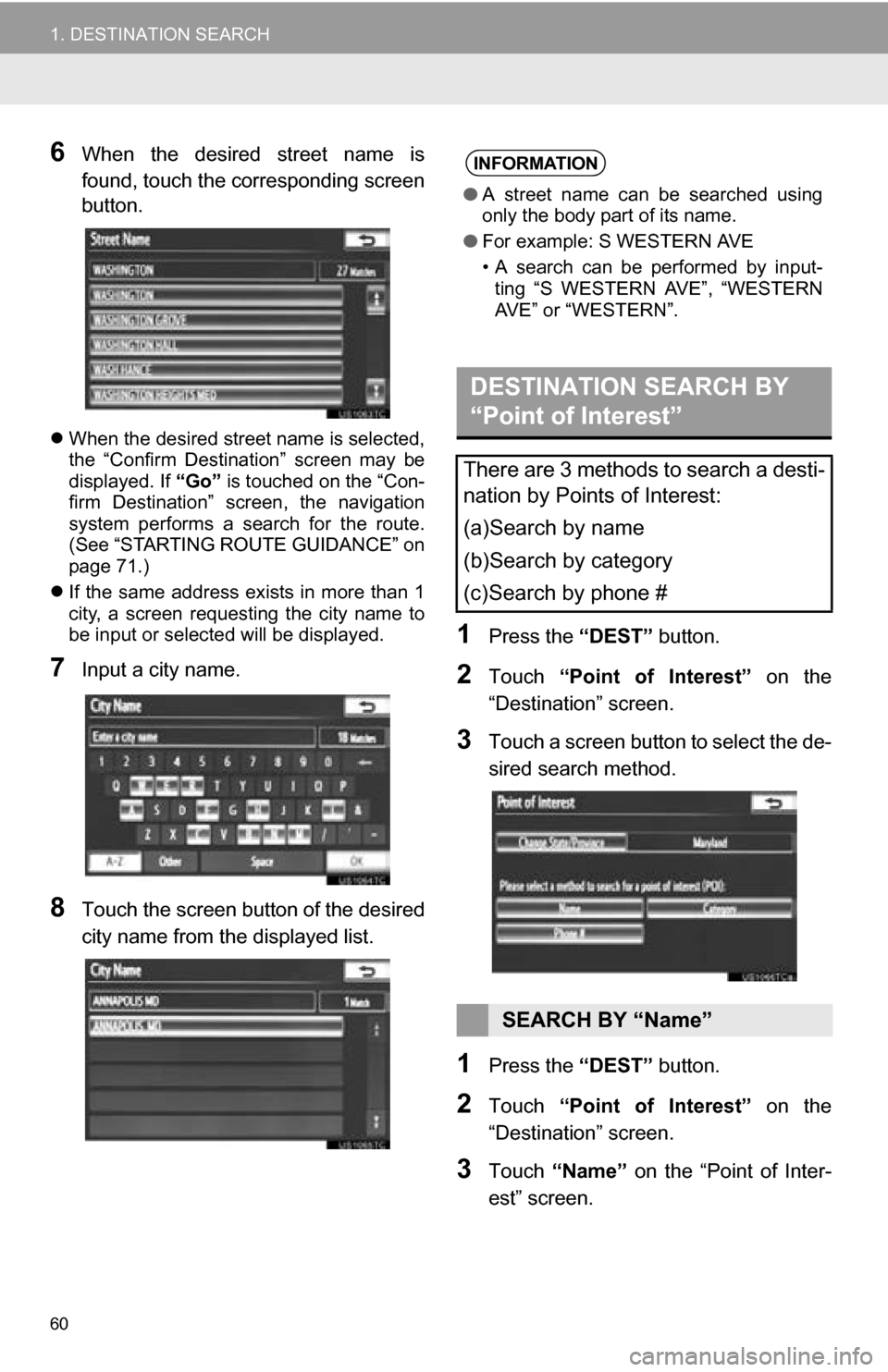
6When the desired street name is
found, touch the corresponding screen
button.
When the desired street name is selected,
the “Confirm Destination” screen may be
displayed. If “Go” is touched on the “Con-
firm Destination” screen, the navigation
system performs a search for the route.
(See “STARTING ROUTE GUIDANCE” on
page 71.)
If the same address exists in more than 1
city, a screen requesting the city name to
be input or selected will be displayed.
7Input a city name.
8Touch the screen button of the desired
city name from the displayed list.
1Press the “DEST” button.
2Touch “Point of Interest” on the
“Destination” screen.
3Touch a screen button to select the de-
sired search method.
1Press the “DEST” button.
2Touch “Point of Interest” on the
“Destination” screen.
3Touch “Name” on the “Point of Inter-
est” screen.
INFORMATION
● A street name can be searched using
only the body part of its name.
● For example: S WESTERN AVE
• A search can be performed by input-
ting “S WESTERN AVE”, “WESTERN
AVE” or “WESTERN”.
DESTINATION SEARCH BY
“Point of Interest”
There are 3 methods to search a desti-
nation by Points of Interest:
(a)Search by name
(b)Search by category
(c)Search by phone #
SEARCH BY “Name”