phone TOYOTA CAMRY 2017 XV50 / 9.G User Guide
[x] Cancel search | Manufacturer: TOYOTA, Model Year: 2017, Model line: CAMRY, Model: TOYOTA CAMRY 2017 XV50 / 9.GPages: 568, PDF Size: 13.15 MB
Page 247 of 568
2475-1. Basic Operations
5
Audio system
CAMRY_U (OM33C64U)
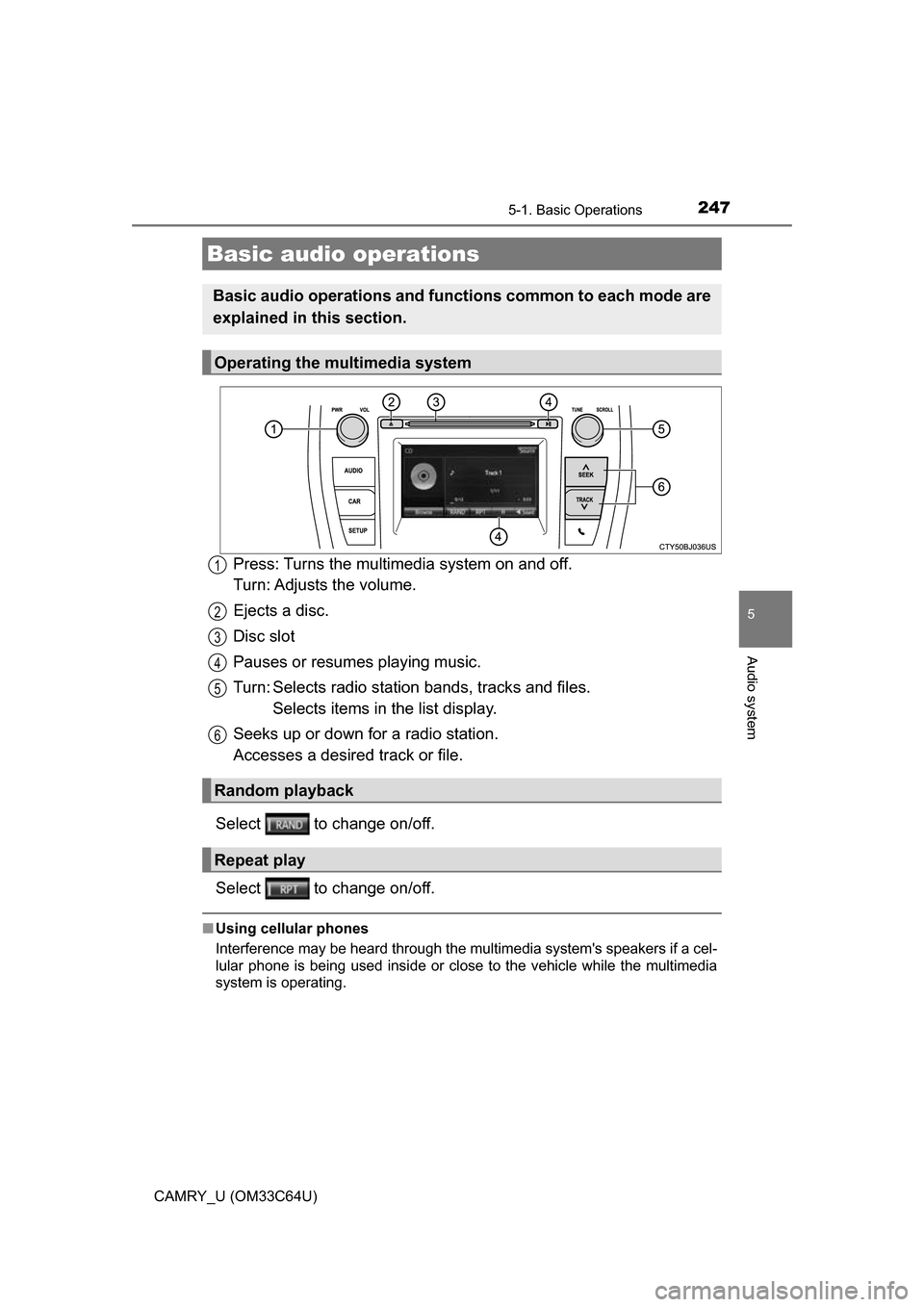
Press: Turns the multimedia system on and off.
Turn: Adjusts the volume.
Ejects a disc.
Disc slot
Pauses or resumes playing music.
Turn: Selects radio station bands, tracks and files. Selects items in the list display.
Seeks up or down fo r a radio station.
Accesses a desired track or file.
Select to change on/off.
Select to change on/off.
■ Using cellular phones
Interference may be heard through the multimedia system's speakers if a cel-
lular phone is being used inside or close to the vehicle while the multimedia
system is operating.
Basic audio operations
Basic audio operations and functi ons common to each mode are
explained in this section.
Operating the multimedia system
Random playback
Repeat play
1
2
3
4
5
6
Page 249 of 568
249
5
Audio system
CAMRY_U (OM33C64U)
5-2.Setup
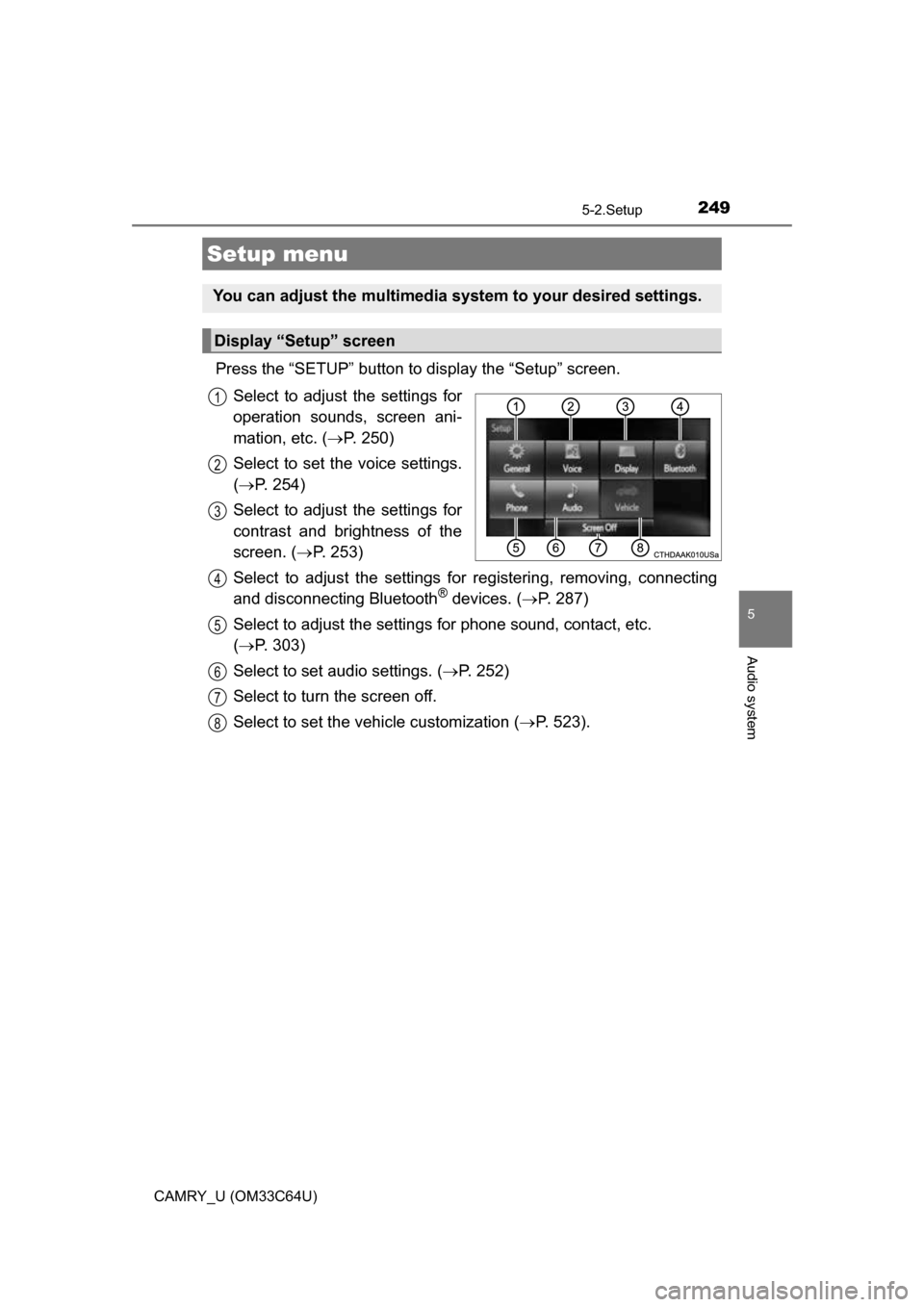
Press the “SETUP” button to display the “Setup” screen.Select to adjust the settings for
operation sounds, screen ani-
mation, etc. ( P. 250)
Select to set the voice settings.
( P. 254)
Select to adjust the settings for
contrast and brightness of the
screen. ( P. 253)
Select to adjust the settings for registering, removing, connecting
and disconnecting Bluetooth
® devices. ( P. 287)
Select to adjust the settings fo r phone sound, contact, etc.
( P. 303)
Select to set audio settings. ( P. 252)
Select to turn the screen off.
Select to set the vehicle customization ( P. 523).
Setup menu
You can adjust the multimedia system to your desired settings.
Display “Setup” screen
1
2
3
4
5
6
7
8
Page 251 of 568
2515-2. Setup
5
Audio system
CAMRY_U (OM33C64U)
Select “Delete Personal Data” on the “General Settings” screen.
Select “Delete”.
Check carefully beforehand, as data cannot be retrieved once deleted.
A confirmation screen will be displayed. Select “Yes”.
The following personal data will be deleted or changed to its default
settings.
• General settings
• Audio settings
• Phone settings
Delete personal data
1
2
3
Page 268 of 568

■About iPod
●“Made for iPod”, “Made for iPhone” and “Made for iPad”\
mean that an elec-
tronic accessory has been designed to conne")
2685-6. Using an external device
CAMRY_U (OM33C64U)
■About iPod
●“Made for iPod”, “Made for iPhone” and “Made for iPad”\
mean that an elec-
tronic accessory has been designed to connect specifically to iPod or
iPhone, or iPad, respectively, and has been certified by the developer to
meet Apple performance standards.
● Apple is not responsible for the operation of this device or its compliance
with safety and regulatory standards. Please note that the use of this acces-
sory with iPod, iPhone or iPad may affect wireless performance.
● iPad, iPhone, iPod, iPod classic, iPod nano, and iPod touch are trademarks
of Apple Inc., registered in the U.S. and other countries. Lightning is a trade-
mark of Apple Inc.
■ iPod cover art
●Depending on the iPod and songs in the iPod, iPod cover art may be dis-
played.
● This function can be changed to on/off. ( P. 252)
● It may take time to display iPod cover art, and the iPod may not be operated
while the cover art display is in process.
● Only iPod cover art that is saved in JPEG format can be displayed.
■ iPod functions
●When an iPod is connected and the audio source is changed to iPod mode,
the iPod will resume play from the same point in which it was last used.
● Depending on the iPod that is connected to the system, certain functions
may not be available. If a function is unavailable due to a malfunction (as
opposed to a system specification), disconnecting the device and recon-
necting it may resolve the problem.
● While connected to the system, the iPod cannot be operated with its own
controls. It is necessary to use the controls of the vehicle's multimedia sys-
tem instead.
● When the battery level of an iPod is very low, the iPod may not operate. If
so, charge the iPod before use.
● Compatible models ( P. 270)
■ iPod problems
To resolve most problems encountered when using your iPod, disconnect
your iPod from the vehicle iPod connection and reset it. For instructions on
how to reset your iPod, refer to your iPod Owner's Manual.
Page 270 of 568
2705-6. Using an external device
CAMRY_U (OM33C64U)■
Compatible models
The following iPod
®, iPod nano®, iPod classic®, iPod touch® and iPhone®
devices can be used with this system.
●Made for
• iPod touch (5th generation)
• iPod touch (4th generation)
• iPod touch (3rd generation)
• iPod touch (2nd generation)
• iPod touch (1st generation)
• iPod classic
• iPod with video
• iPod nano (7th generation)
• iPod nano (6th generation)
• iPod nano (5th generation)
• iPod nano (4th generation)
• iPod nano (3rd generation)
• iPod nano (2nd generation)
• iPod nano (1st generation)
• iPhone 5s
• iPhone 5c
• iPhone 5
• iPhone 4S
• iPhone 4
• iPhone 3GS
• iPhone 3G
• iPhone
Depending on differences between models or software versions etc., some
models might be incompatible with this system.
WARNING
■ While driving
Do not connect an iPod or operate the controls.
NOTICE
■To prevent damage to the iPod or its terminals
● Do not leave the iPod in the vehicle. The temperature inside the vehicle
may become high, resulting in damage to the iPod.
● Do not push down on or apply unnecessary pressure to the iPod while it is
connected.
● Do not insert foreign objects into the port.
Page 276 of 568
276
CAMRY_U (OM33C64U)
5-7.Connecting Bluetooth®
■About Bluetooth®
Preparations to use wireless communica-
tion
The following can be performed using Bluetooth® wireless com-
munication:
■A portable audio player can be operated and listened to via
multimedia system
■Hands-free phone calls can be made via a cellular phone
In order to use wireless communication, register and connect a
Bluetooth
® device by performing the following procedures.
Bluetooth is a registered trademark of
Bluetooth SIG, Inc.
Page 278 of 568
2785-7. Connecting Bluetooth®
CAMRY_U (OM33C64U)
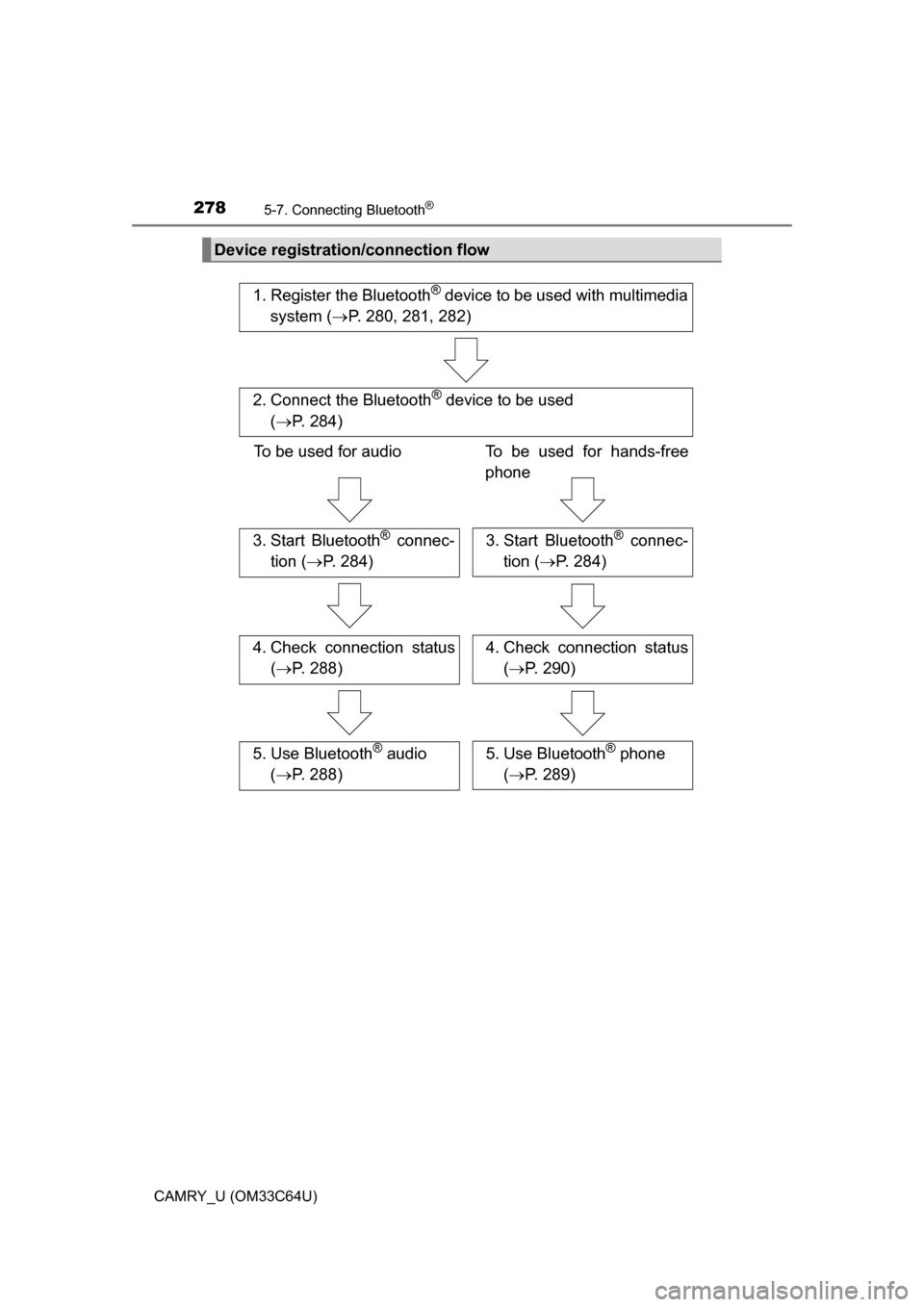
Device registration/connection flow
1. Register the Bluetooth® device to be used with multimedia
system ( P. 280, 281, 282)
2. Connect the Bluetooth® device to be used
( P. 284)
To be used for audio To be used for hands-free
phone
3. Start Bluetooth® connec-
tion ( P. 284)3. Start Bluetooth® connec-
tion ( P. 284)
4. Check connection status
( P. 288)4. Check connection status
( P. 290)
5. Use Bluetooth® audio
( P. 288)5. Use Bluetooth® phone
( P. 289)
Page 281 of 568
2815-7. Connecting Bluetooth®
5
Audio system
CAMRY_U (OM33C64U)
Turn the Bluetooth® connection setting of your cellular phone on.
Press the “ ” button.
Select “OK” to register a phone.
Follow the steps in “How to registering a Bluetooth
® device” from
step . ( P. 282)
Registering a Bluetooth® phone for the first
time
To use the hands-free system, it is necessary to register a
Bluetooth® phone with the system.
Once the phone has been registered, it is possible to use the
hands-free system.
For details about registering a Bluetooth
® device ( P. 282)
1
2
3
4
3
Page 282 of 568
2825-7. Connecting Bluetooth®
CAMRY_U (OM33C64U)
Display the “Bluetooth* Setup” screen. (P. 279)
Select “Add”.
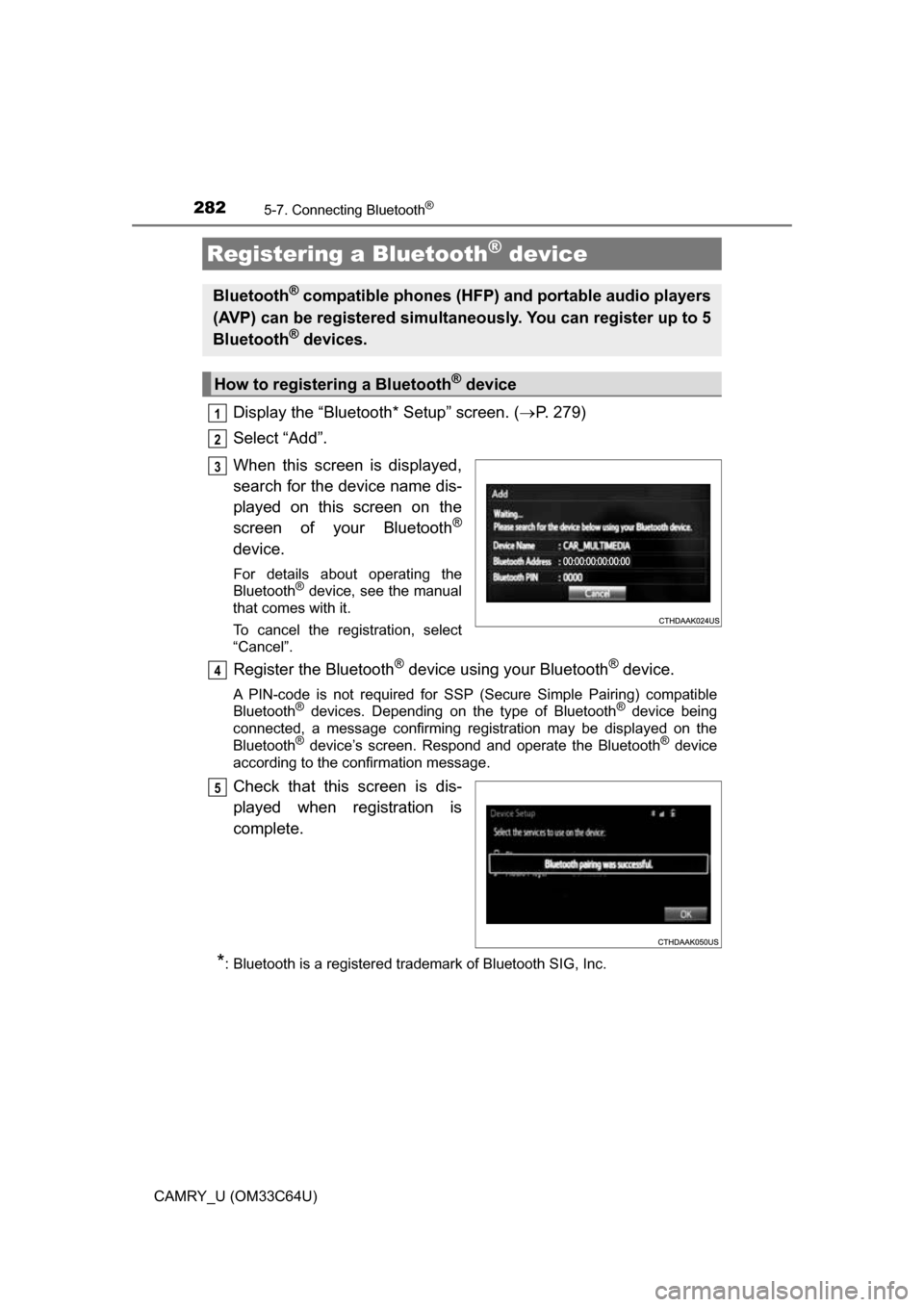
When this screen is displayed,
search for the device name dis-
played on this screen on the
screen of your Bluetooth
®
device.
For details about operating the
Bluetooth® device, see the manual
that comes with it.
To cancel the registration, select
“Cancel”.
Register the Bluetooth® device using your Bluetooth® device.
A PIN-code is not required for SSP (Secure Simple Pairing) compatible
Bluetooth® devices. Depending on the type of Bluetooth® device being
connected, a message confirming registration may be displayed on the
Bluetooth
® device’s screen. Respond and operate the Bluetooth® device
according to the confirmation message.
Check that this screen is dis-
played when registration is
complete.
*: Bluetooth is a registered trademark of Bluetooth SIG, Inc.
Registering a Bluetooth® device
Bluetooth® compatible phones (HFP) and portable audio players
(AVP) can be registered simultaneously. You can register up to 5
Bluetooth
® devices.
How to registering a Bluetooth® device
1
2
3
4
5
Page 284 of 568
2845-7. Connecting Bluetooth®
CAMRY_U (OM33C64U)
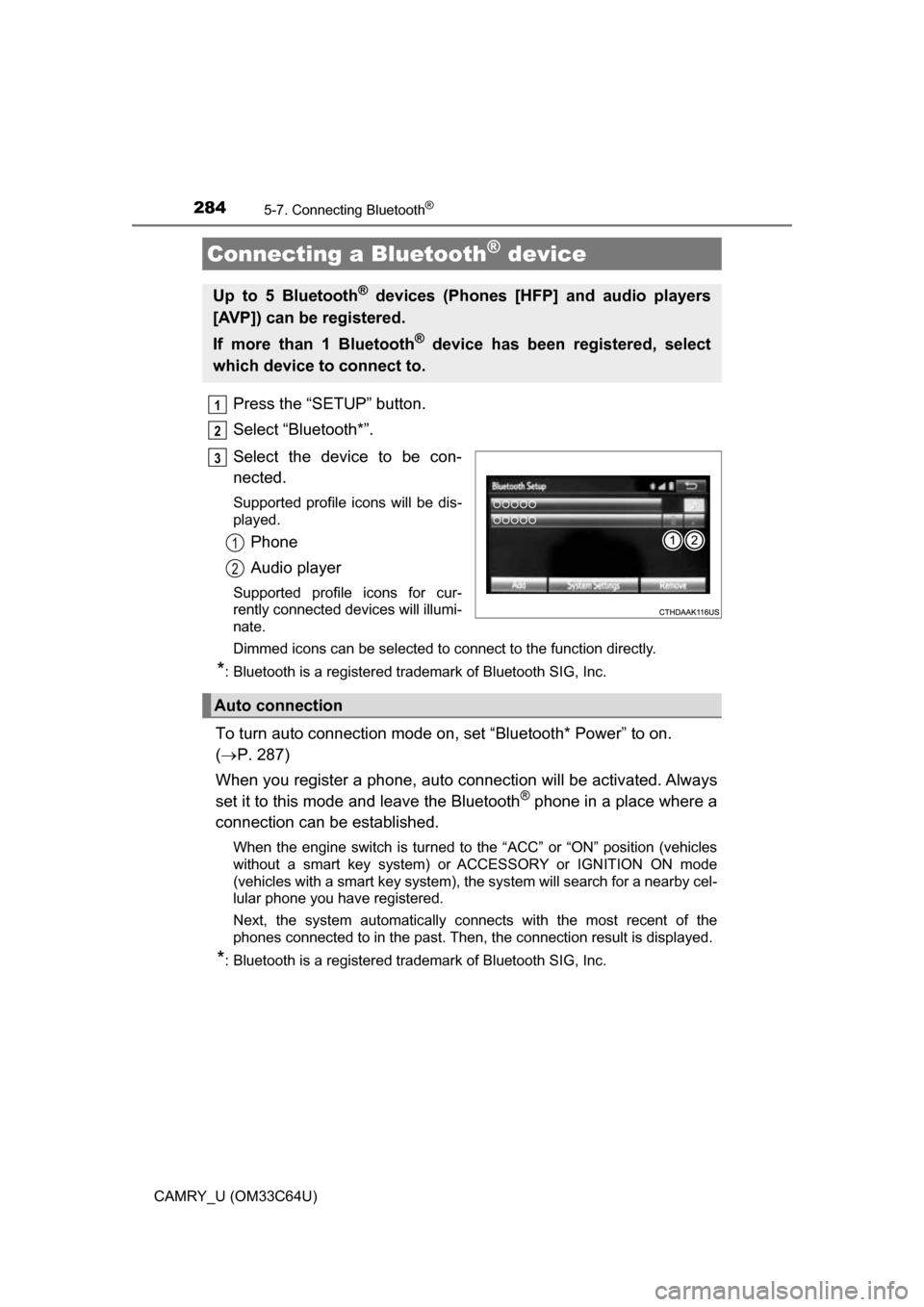
Press the “SETUP” button.
Select “Bluetooth*”.
Select the device to be con-
nected.
Supported profile icons will be dis-
played.
Phone
Audio player
Supported profile icons for cur-
rently connected devices will illumi-
nate.
Dimmed icons can be selected to connect to the function directly.
*: Bluetooth is a registered trademark of Bluetooth SIG, Inc.
To turn auto connection mode on, set “Bluetooth* Power” to on.
( P. 287)
When you register a phone, auto connection will be activated. Always
set it to this mode and leave the Bluetooth
® phone in a place where a
connection can be established.
When the engine switch is turned to the “ACC” or “ON” position (vehicles
without a smart key system) or ACCESSORY or IGNITION ON mode
(vehicles with a smart key system), the system will search for a nearby cel-
lular phone you have registered.
Next, the system automatically connects with the most recent of the
phones connected to in the past. Then, the connection result is displayed.
*: Bluetooth is a registered trademark of Bluetooth SIG, Inc.
Connecting a Bluetooth® device
Up to 5 Bluetooth® devices (Phones [HFP] and audio players
[AVP]) can be registered.
If more than 1 Bluetooth
® device has been registered, select
which device to connect to.
1
2
3
1
2
Auto connection