pairing phone TOYOTA CAMRY HYBRID 2018 Owners Manual (in English)
[x] Cancel search | Manufacturer: TOYOTA, Model Year: 2018, Model line: CAMRY HYBRID, Model: TOYOTA CAMRY HYBRID 2018Pages: 48, PDF Size: 1.89 MB
Page 3 of 48
OVERVIEW
FEATURES & OPERATIONS
TOYOTA SAFETY SENSE
SAFETY & EMERGENCY FEATURES
1
INDEX
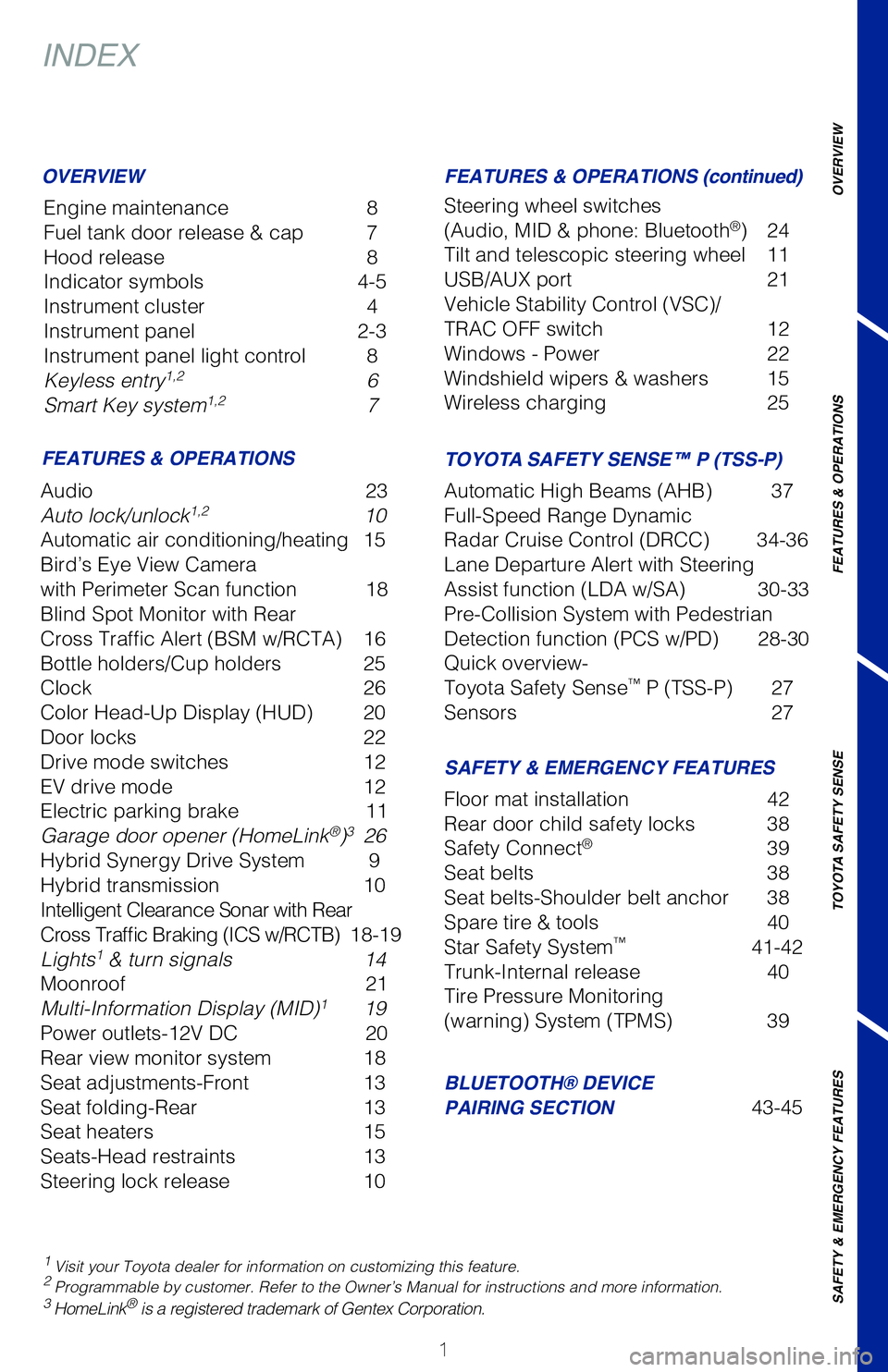
Engine maintenance 8
Fuel tank door release & cap 7
Hood release 8
Indicator symbols 4-5
Instrument cluster 4
Instrument panel 2-3
Instrument panel light control 8
Keyless entry
1,2 6
Smart Key system1,2 7
1 Visit your Toyota dealer for information on customizing this feature.2 Programmable by customer. Refer to the Owner’s Manual for instructions and more information.3 H omeLink® is a registered trademark of Gentex Corporation.
OVERVIEW
FEATURES & OPERATIONS
SAFETY & EMERGENCY FEATURES
BLUETOOTH® DEVICE
PAIRING SECTION
43-45
Audio 23
Auto lock/unlock
1,2 10
Automatic air conditioning/heating 15
Bird’s Eye View Camera
with Perimeter Scan function 18
Blind Spot Monitor with Rear
Cross Traffic Alert (BSM w/RCTA) 16
Bottle holders/Cup holders 25
Clock 26
Color Head-Up Display (HUD) 20
Door locks 22
Drive mode switches 12
EV drive mode 12
Electric parking brake 11
Garage door opener (HomeLink
®)3 26
Hybrid Synergy Drive System 9
Hybrid transmission 10
Intelligent Clearance Sonar with Rear
Cross Traffic Braking (ICS w/RCTB) 18-19
Lights
1 & turn signals 14
Moonroof 21
Multi-Information Display (MID)
1 19
Power outlets-12V DC 20
Rear view monitor system 18
Seat adjustments-Front 13
Seat folding-Rear 13
Seat heaters 15
Seats-Head restraints 13
Steering lock release 10Floor mat installation
42
Rear door child safety locks 38
Safety Connect
® 39
Seat belts 38
Seat belts-Shoulder belt anchor 38
Spare tire & tools 40
Star Safety System
™ 41-42
Trunk-Internal release 40
Tire Pressure Monitoring
(warning) System (TPMS) 39
FEATURES & OPERATIONS (continued)
TOYOTA SAFETY SENSE™ P (TSS-P)
Steering wheel switches
(Audio, MID & phone: Bluetooth®) 24
Tilt and telescopic steering wheel 11
USB/AUX port 21
Vehicle Stability Control (VSC)/
TRAC OFF switch 12
Windows - Power 22
Windshield wipers & washers 15
Wireless charging 25
Automatic High Beams (AHB) 37
Full-Speed Range Dynamic
Radar Cruise Control (DRCC) 34-36
Lane Departure Alert with Steering
Assist function (LDA w/SA) 30-33
Pre-Collision System with Pedestrian
Detection function (PCS w/PD) 28-30
Quick overview-
Toyota Safety Sense
™ P (TSS-P) 27
Sensors 27
2018_CamryHV_QRG_V4-JA.indd 16/27/17 8:41 PM
Page 26 of 48
 24
Audio switches
Multi-Information Display (MID) control switches
Phone switches
Bluetooth® technology allows dialing or receipt of calls without taking your hands\
off
the steering wheel or using")
24
Audio switches
Multi-Information Display (MID) control switches
Phone switches
Bluetooth® technology allows dialing or receipt of calls without taking your hands\
off
the steering wheel or using a cable to connect the compatible telephone \
and the
system.
Refer to the Navigation Owner’s Manual or 2018 Entune
™ Audio Quick Reference
Guide, for more information about phone connections and compatibility.
Refer to “Bluetooth
®Device Pairing Section” at the end of this booklet, to connect
your smart phone to the Entune™ touch screen system.
FEATURES & OPERATIONS
Volume controls
Return to
previous screen
Voice command
switch
Select/enter
Seek
Steering wheel switches
(Audio, MID & phone: Bluetooth®)
Microphone
“MODE” Push to turn audio ON and select an audio
mode. Push and hold to turn the audio OFF.
Receive/end call
NOTE: Concentrating on the road should always be your first priority whi\
le driving. Do not
use the hands-free phone system if it will distract you.
“/” or “/”
press to scroll screens,
change the displayed
content and move the
cursor.
Page 46 of 48
44
BLUETOOTH® DEVICE PAIRING
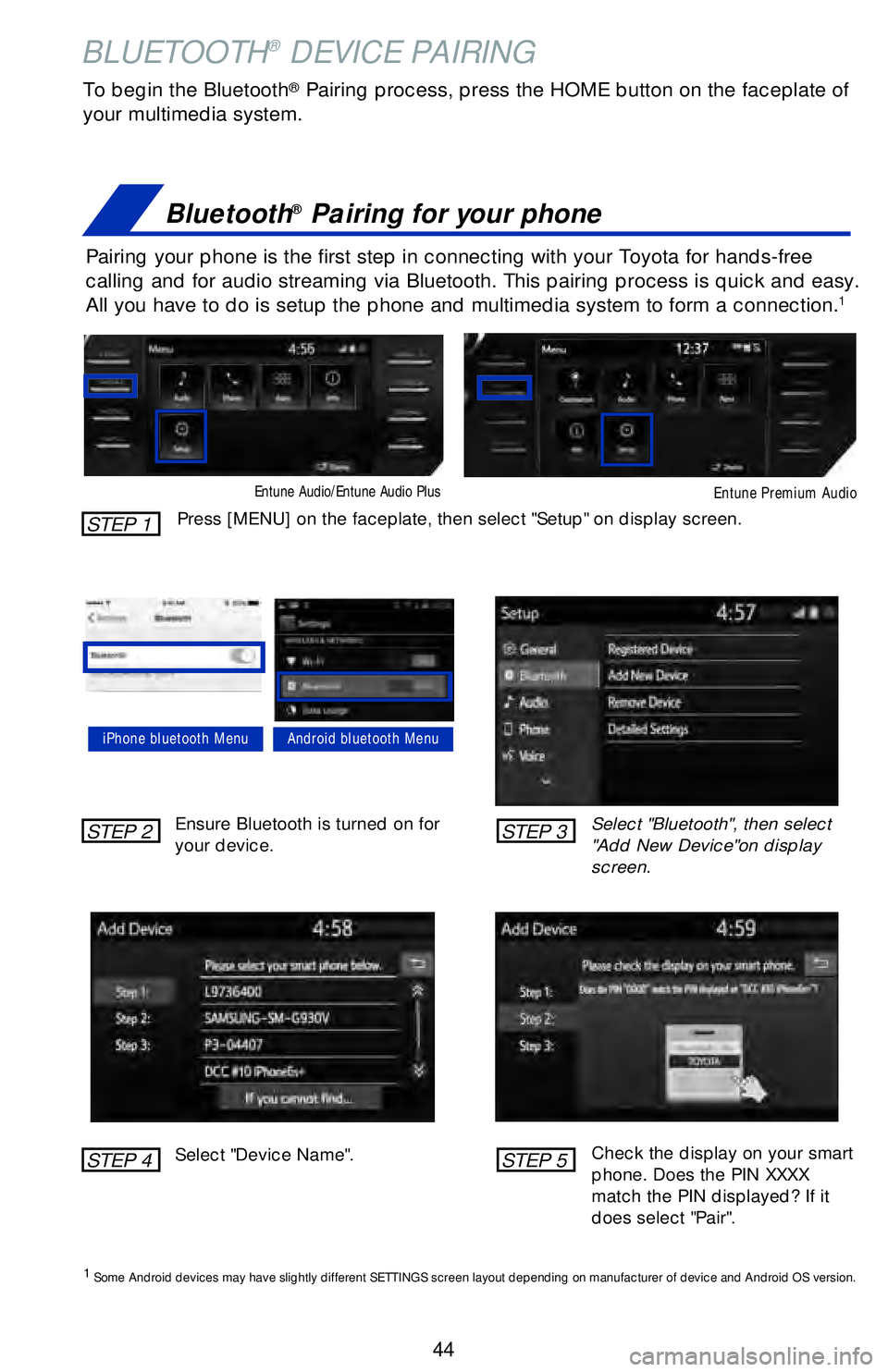
To begin the Bluetooth® Pairing process, press the HOME button on the faceplate of
your multimedia system.
Bluetooth® Pairing for your phone
Pairing your phone is the first step in connecting with your Toyota for \
hands-free
calling and for audio streaming via Bluetooth. This pairing process is q\
uick and easy.
All you have to do is setup the phone and multimedia system to form a co\
nnection.
1
Select "Bluetooth", then select
"Add New Device"on display
screen.
Ensure Bluetooth is turned on for
your device.
Select "Device Name".
iPhone bluetooth MenuAndroid bluetooth Menu
1
Some Android devices may have slightly different SETTINGS screen layout\
depending on manufacturer of device and Android OS version.
Check the display on your smart
phone. Does the PIN XXXX
match the PIN displayed? If it
does select "Pair".
Press [MENU] on the faceplate, then select "Setup" on display screen.
Entune Audio/Entune Audio Plus Entune Premium Audio
STEP 1
STEP 2
STEP 4
STEP 3
STEP 5
Page 47 of 48
45
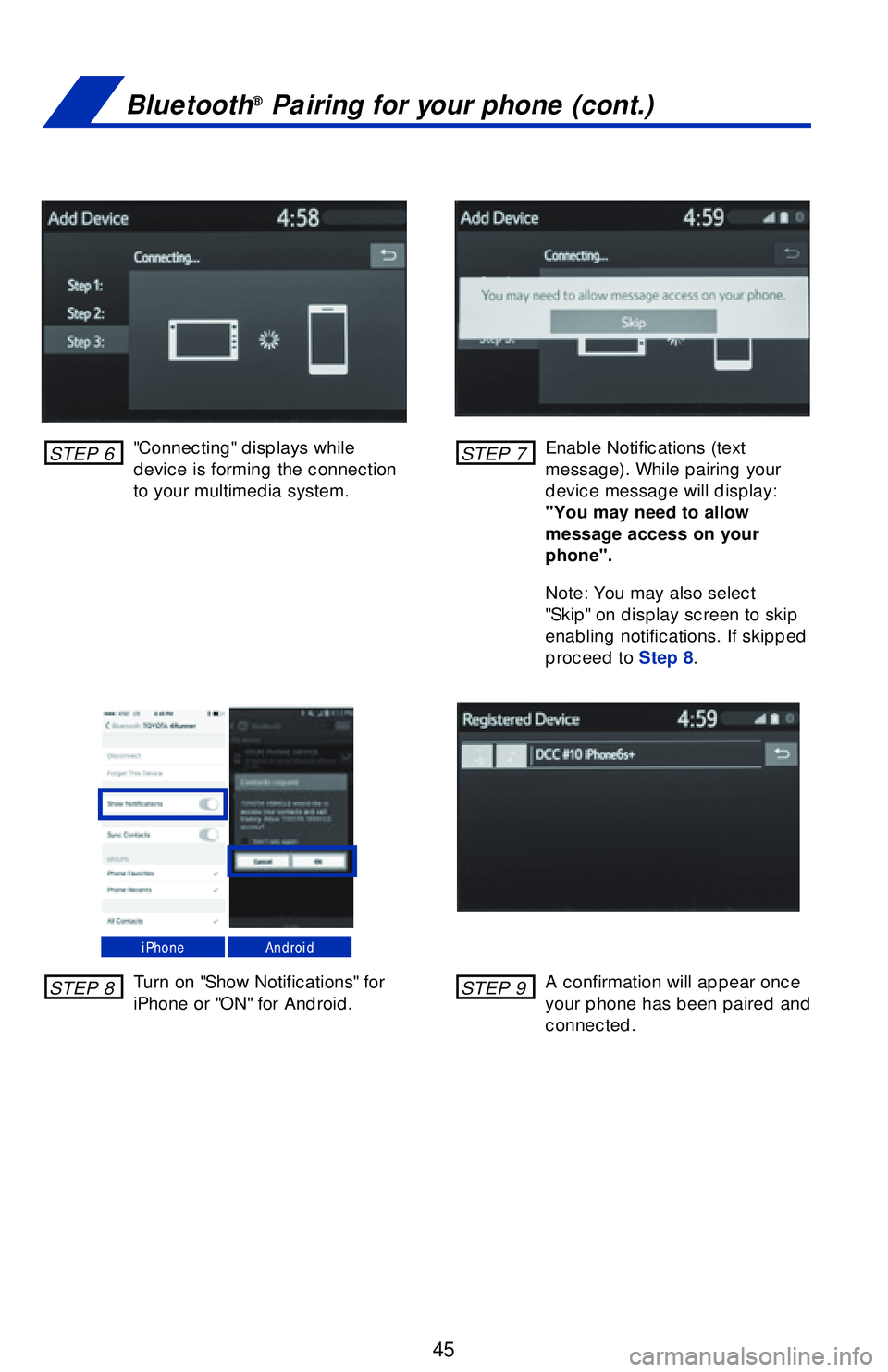
"Connecting" displays while
device is forming the connection
to your multimedia system.Enable Notifications (text
message). While pairing your
device message will display:
"You may need to allow
message access on your
phone".
Note: You may also select
"Skip" on display screen to skip
enabling notifications. If skipped
proceed to Step 8.
Turn on "Show Notifications" for
iPhone or "ON" for Android.
A confirmation will appear once
your phone has been paired and
connected.
iPhoneAndroid
Bluetooth® Pairing for your phone (cont.)
STEP 6
STEP 8
STEP 7
STEP 9