oil TOYOTA CAMRY HYBRID 2023 User Guide
[x] Cancel search | Manufacturer: TOYOTA, Model Year: 2023, Model line: CAMRY HYBRID, Model: TOYOTA CAMRY HYBRID 2023Pages: 624, PDF Size: 10.51 MB
Page 279 of 624

2794-5. Using the driving support systems
4
Driving
• The dynamic radar cruise control with full-speed range is operating in
vehicle-to-vehicle distance control mode.
• Width of traffic lane is approximately 10 to 13 ft. (3 to 4 m).
• Turn signal lever is not operated.
• Vehicle is not being driven around a sharp curve.
• No system malfunctions are detected. ( P. 281)
• Vehicle does not accelerate or decelerate by a fixed amount or more.
• Steering wheel is not operated with a steering force level suitable for
changing lanes.
• ABS, VSC, TRAC and PCS are not operating.
• TRAC or VSC is not turned off.
• Hands off steering wheel warning is not displayed. ( P. 2 8 0 )
• The vehicle is being driven in the center of a lane.
• Steering assist function is not operating.
■ Temporary cancelation of functions
●When operation conditions are no longer met, a function may be temporarily
canceled. However, when the operation conditions are met again, operation
of the function is automatically restored. ( P. 278)
● If the operation conditions ( P. 278) are no longer met while the lane cen-
tering function is operating, the buzzer may sound to indicate that the func-
tion has been temporarily canceled.
■ Steering assist function/lane centering function
●Depending on the vehicle speed, lane departure situation, road conditions,
etc., the driver may not feel the function is operating or the function may not
operate at all.
● The steering control of the function is overridden by the drive r’s steering
wheel operation.
● Do not attempt to test the operation of the steering assist fun ction.
■ Lane departure alert function
●The warning buzzer may be difficult to hear due to external noi se, audio
playback, etc.
● If the edge of the course
* is not clear or straight, the lane departure alert
function may not operate.
● Vehicle with BSM: It may not be possible for the system to determine if there
is a danger of a collision with a vehicle in an adjacent lane.
● Do not attempt to test the operation of the lane departure aler t function.
*: Boundary between asphalt and the side of the road, such as gra ss, soil, or
a curb
Page 360 of 624
3604-6. Driving tips
●Use fluids that are appropriate t o the prevailing outside tempera-
tures. • Engine oil
• Engine/power control unit coolant
• Washer fluid
● Have a service technician inspect the condition of the 12-volt bat-
tery.
● Have the vehicle fitted with four snow tires or purchase a set of tire
chains for the front tires.
Ensure that all tires are the specified size and brand, and tha t chains
match the size of the tires.
Perform the following according to the driving conditions:
● Do not try to forcibly open a window or move a wiper that is fr ozen.
Pour warm water over the frozen area to melt the ice. Wipe away
the water immediately to p revent it from freezing.
● To ensure proper operation of the climate control system fan,
remove any snow that has accumulated on the air inlet vents in
front of the windshield.
● Check for and remove any excess ic e or snow that may have accu-
mulated on the exterior lights, vehicle’s roof, chassis, around the
tires or on the brakes.
● Remove any snow or mud from the bottom of your shoes before
getting in the vehicle.
Winter driving tips
Carry out the necessary preparations and inspections before
driving the vehicle in winter. Always drive the vehicle in a ma n-
ner appropriate to the prevailing weather conditions.
Preparation for winter
Before driving the vehicle
Page 392 of 624
3925-4. Other interior features
A portable device, such as a smartphone or mobile battery, can be
charged by just placing it on th e charging area, provided the d evice is
compatible with the Qi wireless charging standard created by th e
Wireless Power Consortium.
The wireless charger cannot be used with a portable device that is
larger than the charging area. Additionally, depending on the p ortable
device, the wireless charger may not operate properly. Refer to the
operation manual of the portable device.
■The “Qi” logo
The “Qi” logo is a trademark of t he Wireless Power Consortium.
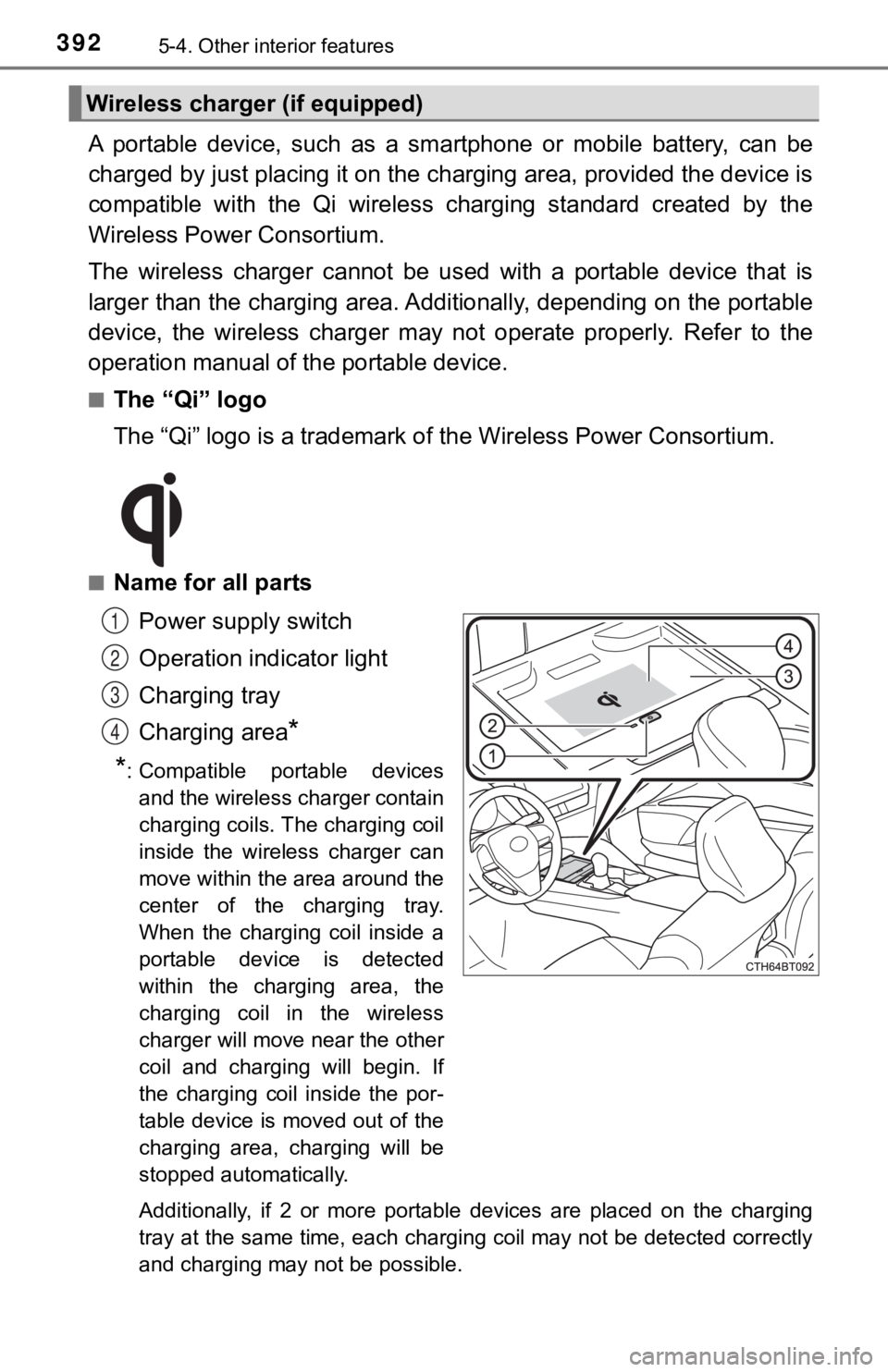
■Name for all parts
Power supply switch
Operation indicator light
Charging tray
Charging area
*
*
: Compatible portable devices and the wireless charger contain
charging coils. The charging coil
inside the wireless charger can
move within the area around the
center of the charging tray.
When the charging coil inside a
portable device is detected
within the charging area, the
charging coil in the wireless
charger will move near the other
coil and charging will begin. If
the charging coil inside the por-
table device is moved out of the
charging area, charging will be
stopped automatically.
Additionally, if 2 or more portable devices are placed on the c harging
tray at the same time, each charging coil may not be detected correctly
and charging may not be possible.
Wireless charger (if equipped)
1
2
3
4
Page 393 of 624
3935-4. Other interior features
5
Interior features
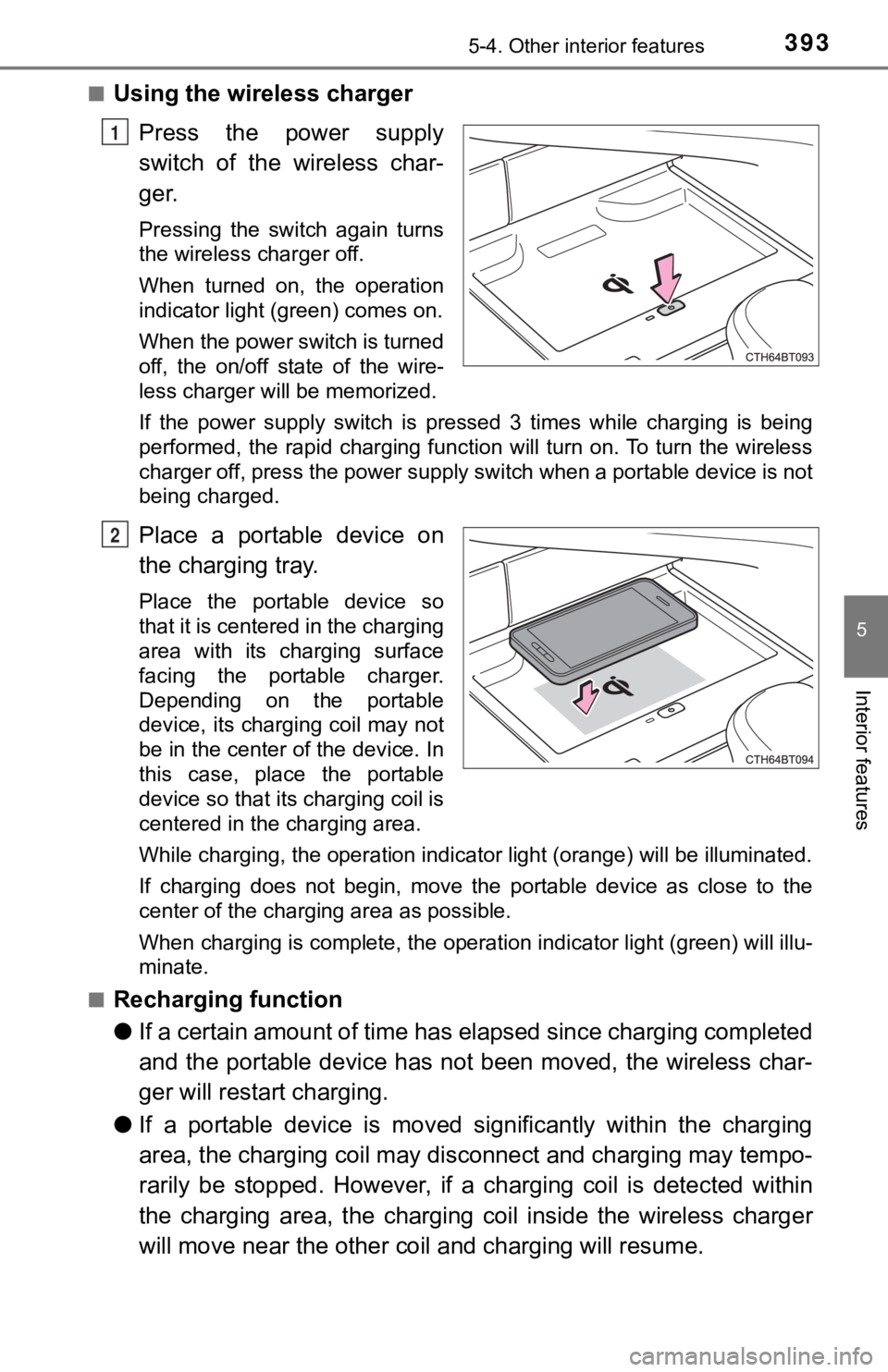
■Using the wireless charger
Press the power supply
switch of the wireless char-
ger.
Pressing the switch again turns
the wireless charger off.
When turned on, the operation
indicator light (green) comes on.
When the power switch is turned
off, the on/off state of the wire-
less charger will be memorized.
If the power supply switch is pressed 3 times while charging is being
performed, the rapid charging function will turn on. To turn th e wireless
charger off, press the power supply switch when a portable devi ce is not
being charged.
Place a portable device on
the charging tray.
Place the portable device so
that it is centered in the charging
area with its charging surface
facing the portable charger.
Depending on the portable
device, its charging coil may not
be in the center of the device. In
this case, place the portable
device so that its charging coil is
centered in the charging area.
While charging, the operation indicator light (orange) will be illuminated.
If charging does not begin, move the portable device as close t o the
center of the charging area as possible.
When charging is complete, the operation indicator light (green ) will illu-
minate.
■
Recharging function
● If a certain amount of time has elapsed since charging complete d
and the portable device has not been moved, the wireless char-
ger will restart charging.
● If a portable device is moved significantly within the charging
area, the charging coil may disconnect and charging may tempo-
rarily be stopped. However, if a charging coil is detected within
the charging area, the charging coil inside the wireless charge r
will move near the other coil and charging will resume.
1
2
Page 395 of 624

3955-4. Other interior features
5
Interior features
●If the operation indi cator light blinks
If an error is detected, the operation indicator light will bli nk
(orange). Take the appropriate measures according to the table
below.
Operation indi- cator lightSuspected causesMeasure
Continuously
blinks 1 time
per second Communication malfunc-
tion between the wire-
less charger and smart
key system If the hybrid system is oper-
ating, stop the hybrid sys-
tem and then restart it.
If the power switch is in
ACCESSORY mode, start
the hybrid system.
(
P. 206)
Continuously
flashes 3 times
(orange) Foreign matter detected
If a metallic foreign object is
detected in the charge
area, the overheat preven-
tion function of the charging
coil will operate
Remove the foreign object
from the charge area.
Portable device not
aligned correctly
If the charging coil of a por-
table device is not properly
positioned on the charging
area, the overheat preven-
tion function of the charging
coil will operate Remove the portable
device from the charging
tray, check that the opera-
tion indicator light changes
back to green, and then
place the portable device
so that it is near the center
of the charging tray.
Also, if a case or cover is
installed to the portable
device, remove it.
Continuously
flashes 4 times
(orange) Temperature inside wire-
less charger exceeded a
certain amount Stop charging, remove the
portable device from the
charging tray, and wait for
the temperature to
decrease before attempt-
ing to begin charging again.
Page 397 of 624

3975-4. Other interior features
5
Interior features
■Sound generated during operation
Operation sounds may be heard when the power supply switch is p ressed to
turn the wireless charger on, when the power switch is pressed to change to
ACCESSORY or ON mode while the wireless charger is on, or when a porta-
ble device is being detected. This does not indicate a malfunct ion.
■ Situations in which the wireless charger may not operate correctly
In the following situations, the wireless charger may not opera te correctly:
● When a portable device is fully charged
● When a portable device is being charged by a wired connection.
● When there is foreign matter between the charging area and portable device
● When the temperature of a portable device becomes high while ch arging
● When the temperature near the charging tray is 95°F (35°C) or m ore due to
being in direct sunlight, etc.
● When a portable device is placed with its charging surface faci ng up
● When a portable device is not centered on the charging area
● When a portable device is larger than the charging tray
● When a foldable portable device is placed outside of the chargi ng area
● When the vehicle is near a TV tower, electric power plant, fuel station, radio
station, large display, airport, or other facility that generat es strong radio
waves or electrical noise
● When the any of the following objects, with a thickness of 0.08 in. (2 mm) or
more, are between the charging surface of a portable device and the
charging area:
• Thick cases or covers
• Thick decorations
• Accessories, such as finger rings, straps, etc.
● When the portable device is in contact with, or is covered by a ny of the fol-
lowing metallic objects:
• Cards covered with metal, such as aluminum foil
• Cigarette boxes that have aluminum foil inside
• Metallic wallets or bags
• Coins
• Heat packs
• Recorded media such as CDs and DVDs
• Metallic decorations
• Metallic cases or covers
● When wireless keys (that emit radio waves) other than those of your vehicle
are being used nearby
● When 2 or more portable devices are placed on the charging tray at the
same time
In situations other than above, if the wireless charger does no t operate prop-
erly or the operation indicator light blinks continuously, the wireless charger
may be malfunctioning.
Contact your Toyota dealer.
Page 412 of 624
4126-1. Maintenance and care
●Working from top to bottom, liberally apply water to the vehicl e
body, wheel wells and underside of the vehicle to remove any di rt
and dust.
● Wash the vehicle body using a sponge or soft cloth, such as a
chamois.
● For hard-to-remove marks, use car wash soap and rinse thoroughl y
with water.
● Wipe away any water.
● Wax the vehicle when the wate rproof coating deteriorates.
If water does not bead on a clean surface, apply wax when the vehicle
body is cool.
■Automatic car washes
●Fold the mirrors before washing the vehicle. Start washing from the front of
the vehicle. Make sure to extend the mirrors before driving.
● Brushes used in automatic car washes may scratch the vehicle su rface,
parts (wheel, etc.) and harm your vehicle's paint.
● Vehicles with a rear spoiler: In certain automatic car washes, the rear spoiler
may interfere with machine operation. This may prevent the vehicle from
being cleaned properly or result in damage to the rear spoiler.
■ High pressure car washes
As water may enter the cabin, do not bring the nozzle tip near the gaps
around the doors or perimeter of the windows, or spray these ar eas continu-
ously.
Cleaning and prot ecting the vehicle
exterior
Perform the following to protect the vehicle and maintain it in
prime condition:
Page 413 of 624

4136-1. Maintenance and care
6
Maintenance and care
■When using a car wash
If the door handle becomes wet while the electronic key is within the effective
range, the door may lock and unlock repeatedly. In that case, f ollow the fol-
lowing correction procedures to wash the vehicle:
● Place the key in a position 6 ft. (2 m) or more separate from t he vehicle
while the vehicle is being washed. (Take care to ensure that th e key is not
stolen.)
● Set the electronic key to battery-saving mode to disable the sm art key sys-
tem. ( P. 166)
■ Wheels and wheel ornaments
●Remove any dirt immediately by using a neutral detergent.
● Wash detergent off with water immediately after use.
● To protect the paint from damage, make sure to observe the following pre-
cautions.
• Do not use acidic, alkaline or abrasive detergent
• Do not use hard brushes
• Do not use detergent on the wheels when they are hot, such as after driv-
ing or parking in hot weather
■ Brake pads and calipers
Rust may form if the vehicle is parked with wet brake pads or d isc rotors,
causing them to stick. Before parking the vehicle after it is w ashed, drive
slowly and apply the brakes several times to dry the parts.
■ Bumpers
Do not scrub with abrasive cleaners.
■ Plated portions
If dirt cannot be removed, clean the parts as follows:
●Use a soft cloth dampened with an approximately 5% solution of neutral
detergent and water to clean the dirt off.
● Wipe the surface with a dry, soft cloth to remove any remaining moisture.
● To remove oily deposits, use alcohol wet wipes or a similar pro duct.
Page 414 of 624

4146-1. Maintenance and care
WARNING
■When washing the vehicle
Do not apply water to the inside of the engine compartment. Doing so may
cause the electrical components, etc. to catch fire.
■ Precautions regarding the exhaust pipes
Exhaust gasses cause the exhaust pipes to become quite hot.
When washing the vehicle, be careful not to touch the pipes unt il it has
cooled sufficiently, as touching a hot exhaust pipes can cause burns.
■ Precaution regarding the rear bumper with Blind Spot Monitor (i f
equipped)
If the paint of the rear bumper is chipped or scratched, the system may mal-
function. If this occurs, avoid using the system and consult your Toyota
dealer.
NOTICE
■ To prevent paint deterioration an d corrosion on the body and compo-
nents (aluminum wheels, etc.)
● Wash the vehicle immediately in the following cases:
• After driving near the sea coast
• After driving on salted roads
• If coal tar or tree sap is present on the paint surface
• If dead insects, insect droppings or bird droppings are present on the
paint surface
• After driving in an area contaminated with soot, oily smoke, mine dust,
iron powder or chemical substances
• If the vehicle becomes heavily soiled with dust or mud
• If liquids such as benzene and gasoline are spilled on the pai nt surface
● If the paint is chipped or scratched, have it repaired immediately.
● To prevent the wheels from corroding, remove any dirt and store in a place
with low humidity when storing the wheels.
■ Cleaning the exterior lights
● Wash carefully. Do not use organic substances or scrub with a h ard brush.
This may damage the surfaces of the lights.
● Do not apply wax to the surfaces of the lights.
Wax may cause damage to the lenses.
Page 421 of 624

4216-2. Maintenance
6
Maintenance and care
WARNING
■If your vehicle is no t properly maintained
Improper maintenance could result in serious damage to the vehi cle and
possible death or serious injury.
■ Important health and safety information
● Engine exhaust, some of its constituents, and a wide variety of automobile
components contain or emit chemicals known to the State of Cali fornia to
cause cancer and birth defects and other reproductive harm. Work in a
well ventilated area.
● Oils, fuels and fluids contained in vehicles as well as waste produced by
component wear contain or emit chemicals known to the State of
California to cause cancer and birth defects or other reproduct ive harm.
Avoid exposure and wash any affected area immediately.
● 12-volt battery posts, terminals and related accessories contain lead and
lead compounds which are known to cause brain damage. Wash your
hands after handling. ( P. 440)