ECO mode TOYOTA COROLLA 2009 10.G User Guide
[x] Cancel search | Manufacturer: TOYOTA, Model Year: 2009, Model line: COROLLA, Model: TOYOTA COROLLA 2009 10.GPages: 468, PDF Size: 9.31 MB
Page 148 of 468
148 2-2. Instrument cluster
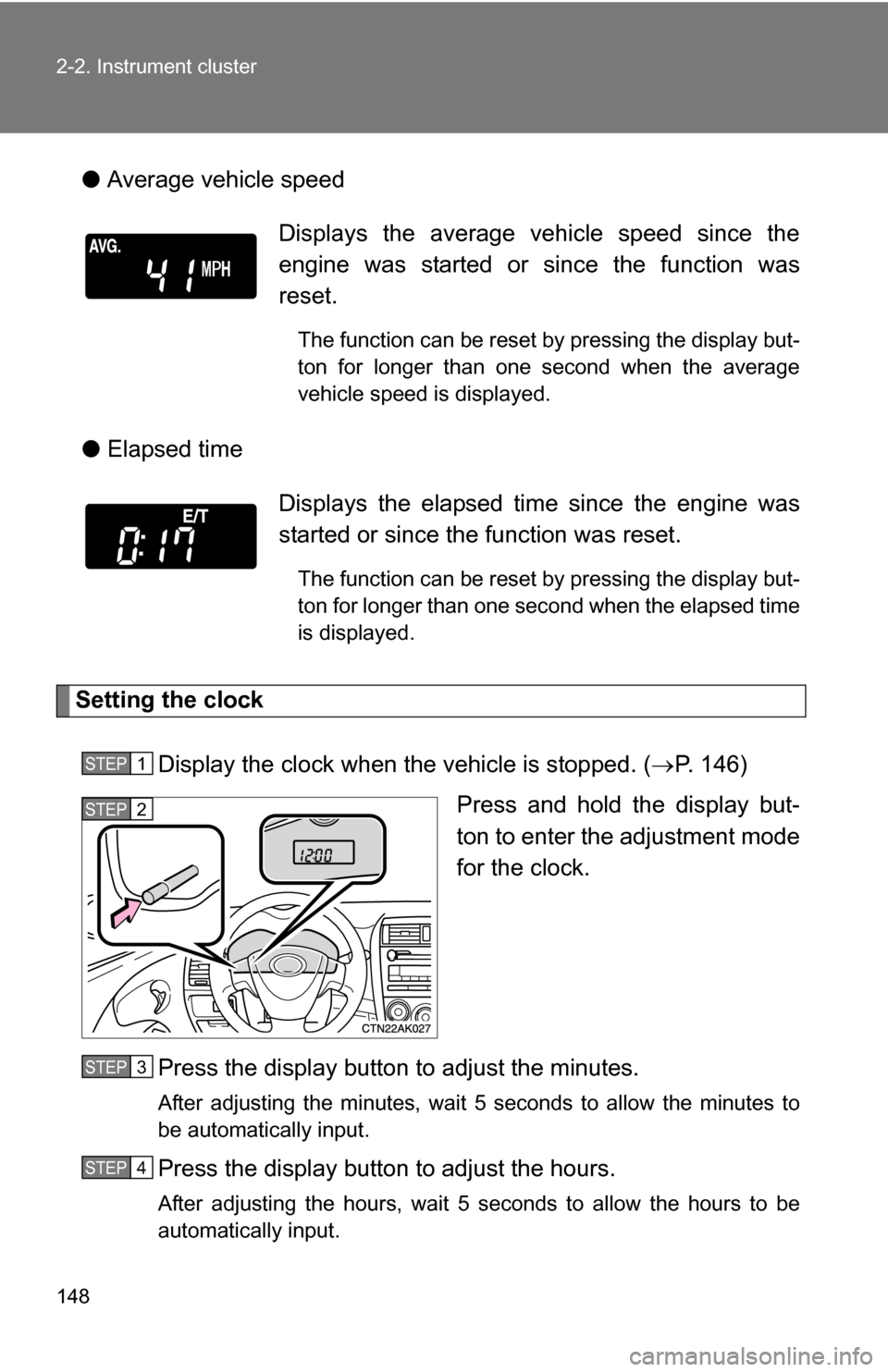
●Average vehicle speed
● Elapsed time
Setting the clock
Display the clock when the vehicle is stopped. ( P. 146)
Press and hold the display but-
ton to enter the adjustment mode
for the clock.
Press the display button to adjust the minutes.
After adjusting the minutes, wait 5 seconds to allow the minutes to
be automatically input.
Press the display button to adjust the hours.
After adjusting the hours, wait 5 seconds to allow the hours to be
automatically input.
Displays the average vehicle speed since the
engine was started or since the function was
reset.
The function can be reset by pressing the display but-
ton for longer than one second when the average
vehicle speed is displayed.
Displays the elapsed ti me since the engine was
started or since the function was reset.
The function can be reset by pressing the display but-
ton for longer than one second when the elapsed time
is displayed.
STEP1
STEP2
STEP3
STEP4
Page 154 of 468
154 2-3. Operating the lights and wipers
■The windshield wipers and washers can be operated when
Vehicles with smart key system
The “ENGINE START STOP” switch is in IGNITION ON mode.
Vehicles without smart key system
The engine switch is in the “ON” position.
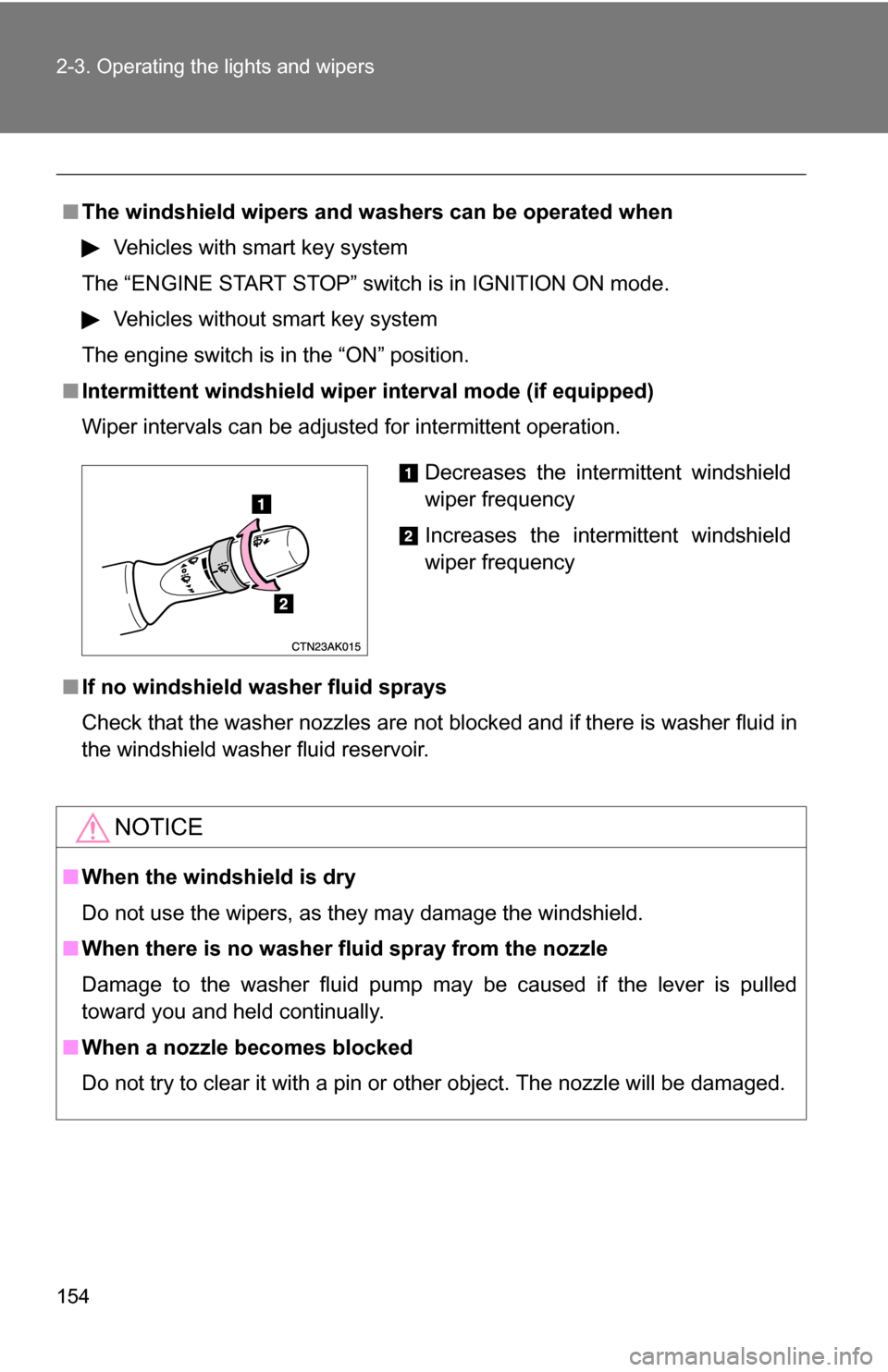
■ Intermittent windshield wiper interval mode (if equipped)
Wiper intervals can be adjusted for intermittent operation.
■ If no windshield washer fluid sprays
Check that the washer nozzles are not blocked and if there is washer fluid in
the windshield washer fluid reservoir.
NOTICE
■When the windshield is dry
Do not use the wipers, as they may damage the windshield.
■ When there is no washer fluid spray from the nozzle
Damage to the washer fluid pump may be caused if the lever is pulled
toward you and held continually.
■ When a nozzle becomes blocked
Do not try to clear it with a pin or other object. The nozzle will be damaged.
Decreases the intermittent windshield
wiper frequency
Increases the intermittent windshield
wiper frequency
Page 201 of 468
201
3-2. Using the audio system
3
Interior features
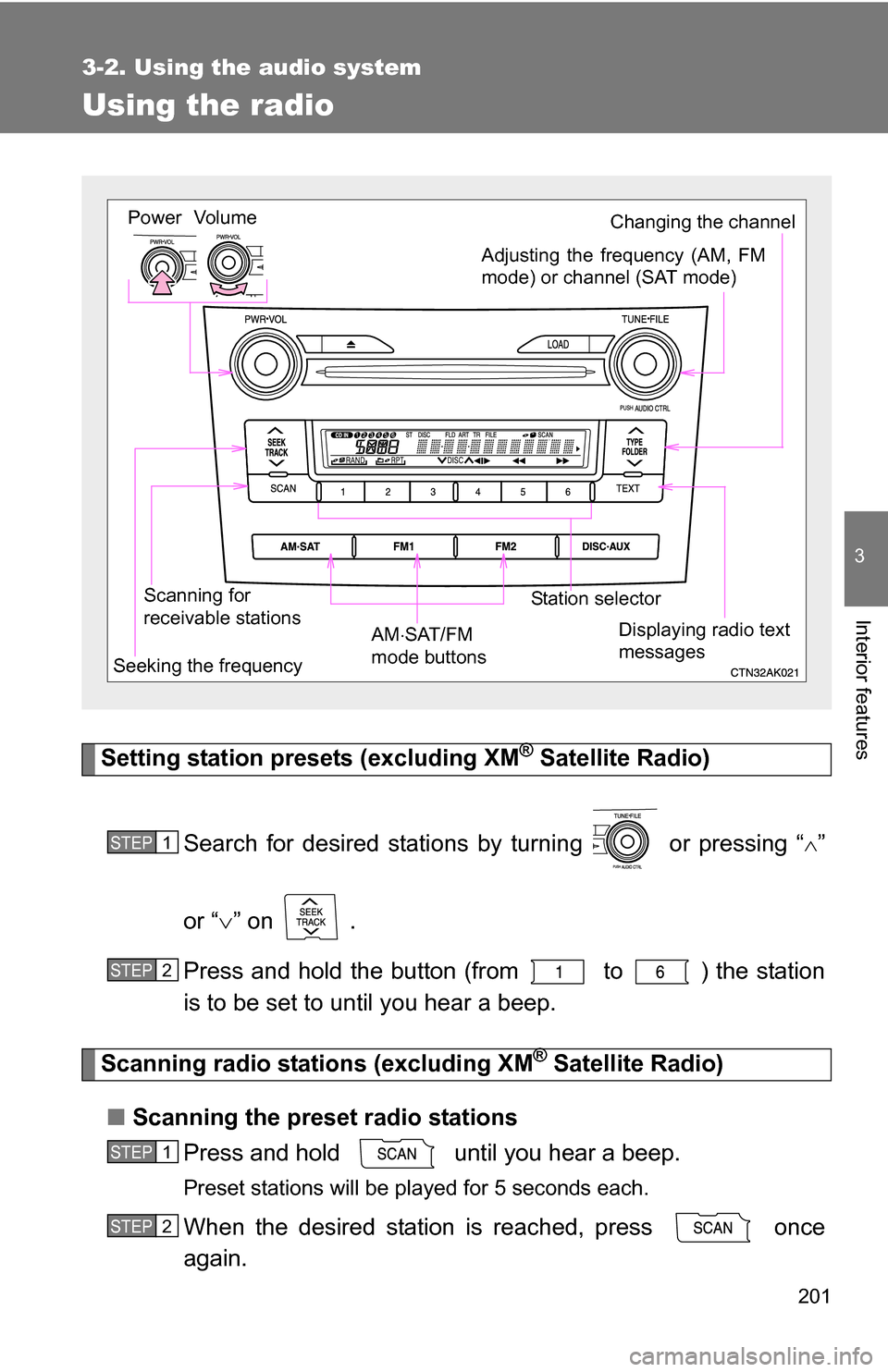
Using the radio
Setting station presets (excluding XM® Satellite Radio)
Search for desired stations by turning or pressing “
”
or “ ” on .
Press and hold the button (from to ) the station
is to be set to until you hear a beep.
Scanning radio stations (excluding XM® Satellite Radio)
■ Scanning the preset radio stations
Press and hold until you hear a beep.
Preset stations will be played for 5 seconds each.
When the desired station is reached, press once
again.
Vol um e
Scanning for
receivable stations Station selector
Seeking the frequency Adjusting the frequency (AM, FM
mode) or channel (SAT mode)
AM SAT/FM
mode buttonsPower
Displaying radio text
messages
Changing the channel
STEP1
STEP2
STEP1
STEP2
Page 218 of 468
218 3-2. Using the audio system
■MP3 and WMA files
MP3 (MPEG Audio LAYER3) is a standard audio compression format.
Files can be compressed to approximately 1/10 of their original size by using
MP3 compression.
WMA (Windows Media
TM Audio) is a Microsoft audio compression format.
This format compresses audio data to a size smaller than that of the MP3
format.
There is a limit to the MP3 and WMA file standards and to the media/formats
recorded by them that can be used.
● MP3 file compatibility
• Compatible standards
MP3 (MPEG1 LAYER3, MPEG2 LSF LAYER3)
• Compatible sampling frequencies MPEG1 LAYER3: 32, 44.1, 48 (kHz)
MPEG2 LSF LAYER3: 16, 22.05, 24 (kHz)
• Compatible bit rates (compatible with VBR) MPEG1 LAYER3: 64, 80, 96, 112, 128, 160, 192, 224, 256, 320 (kbps)
MPEG2 LSF LAYER3: 64, 80, 96, 112, 128, 144, 160 (kbps)
• Compatible channel modes: stereo, joint stereo, dual channel and monaural
● WMA file compatibility
• Compatible standards
WMA Ver. 7, 8, 9
• Compatible sampling frequencies 32, 44.1, 48 (kHz)
• Compatible bit rates (only compatible with 2-channel playback) Ver. 7, 8: CBR 48, 64, 80, 96, 128, 160, 192 (kbps)
Ver. 9: CBR 48, 64, 80, 96, 128, 160, 192, 256, 320 (kbps)
● Compatible media
Media that can be used for MP3 and WMA playback are CD-Rs and CD-
RWs.
Playback in some instances may not be possible, depending on the status
of the CD-R or CD-RW. Playback may not be possible or the audio may
jump if the disc is scratched or marked with fingerprints.
Page 219 of 468
219
3-2. Using the audio system
3
Interior features
●
Compatible disc formats
The following disc formats can be used.
• Disc formats: CD-ROM Mode 1 and Mode 2
CD-ROM XA Mode 2, Form 1 and Form 2
• File formats: ISO9660 Level 1, Level 2, (Romeo, Joliet) MP3 and WMA files written in any format other than those listed above
may not play correctly, and their file names and folder names may not
be displayed correctly.
Items related to standards and limitations are as follows.
• Maximum directory hierarchy: 8 levels
• Maximum length of folder names/file names: 32 characters
• Maximum number of folders: 192 (including the root)
• Maximum number of files per disc: 255
● File names
The only files that can be recognized as MP3/WMA and played are those
with the extension .mp3 or .wma.
● Multi-sessions
As the audio system is compatible with multi-sessions, it is possible to play
discs that contain MP3 and WMA files. However, only the first session can
be played.
● D3 and WMA tags
ID3 tags can be added to MP3 files, making it possible to record the track
title and artist name, etc.
The system is compatible with ID3 Ver. 1.0, 1.1, and Ver. 2.2, 2.3 ID3 tags.
(The number of characters is based on ID3 Ver. 1.0 and 1.1.)
WMA tags can be added to WMA files, making it possible to record the
track title and artist name in the same way as with ID3 tags.
● MP3 and WMA playback
When a disc containing MP3 or WMA files is inserted, all files on the disc
are first checked. Once the file check is finished, the first MP3 or WMA\
file
is played. To make the file check finish more quickly, we recommend you
do not write in any files other than MP3 or WMA files or create any unnec-
essary folders.
If the discs contain a mixture of music data and MP3 or WMA format data,
only music data can be played.
Page 235 of 468
235
3-3. Using the hand
s-free phone system (for cellular phone)
3
Interior features
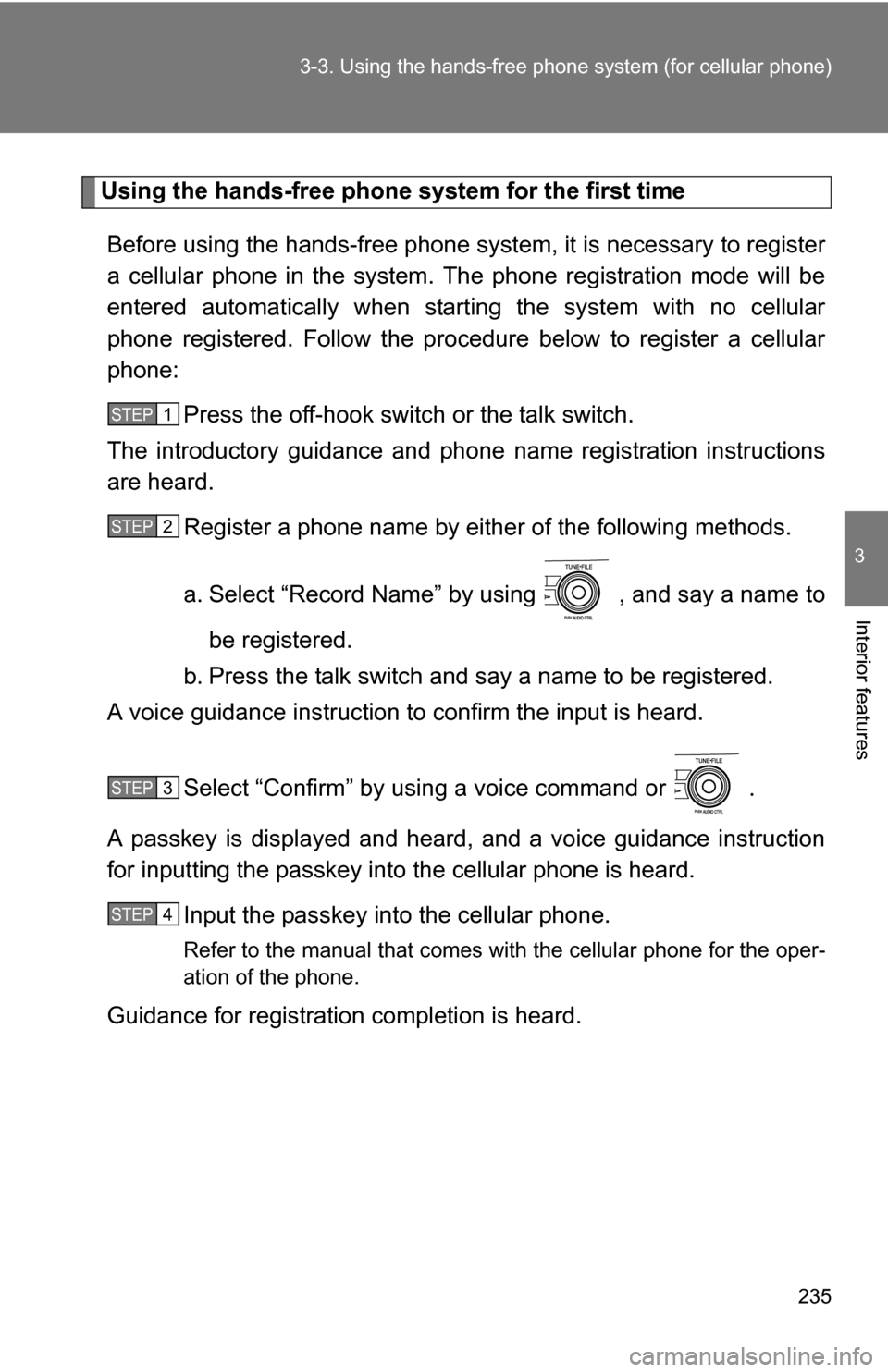
Using the hands-free phone system for the first time
Before using the hands-free phone system, it is necessary to register
a cellular phone in the system. Th e phone registration mode will be
entered automatically when starting the system with no cellular
phone registered. Follow the procedure below to register a cellular
phone:
Press the off-hook switch or the talk switch.
The introductory guidance and phone name registration instructions
are heard.
Register a phone name by either of the following methods.
a. Select “Record Name” by using , and say a name to
be registered.
b. Press the talk switch and say a name to be registered.
A voice guidance instruction to confirm the input is heard.
Select “Confirm” by using a voice command or .
A passkey is displayed and heard, and a voice guidance instruction
for inputting the passkey into the cellular phone is heard. Input the passkey into the cellular phone.
Refer to the manual that comes with the cellular phone for the oper-
ation of the phone.
Guidance for registration completion is heard.
STEP1
STEP2
STEP3
STEP4
Page 303 of 468
303
4-3. Do-it-yourself maintenance
4
Maintenance and care
CAUTION
The engine compartment contains many mechanisms and fluids that may
move suddenly, become hot, or become electrically energized. To avoid death
or serious injury observe the following precautions.
■
When working on the engine compartment
●Keep hands, clothing, and tools away from the moving fan and engine
drive belt.
● Be careful not to touch the engine, radiator, exhaust manifold, etc. right
after driving as they may be hot. Oil and other fluids may also be hot.
● Do not leave anything that may burn easily, such as paper or rags, in the
engine compartment.
● Do not smoke, cause sparks or expose an open flame to fuel or the bat-
tery. Fuel and battery fumes are flammable.
● Be extremely cautious when working on the battery. It contains poisonous
and corrosive sulfuric acid.
● Take care because brake fluid can harm your hands or eyes and damage
painted surfaces.
If fluid gets on your hands or in your eyes, flush the affected area with
clean water immediately.
If you still experience discomfort, see a doctor.
■ When working near the electric c ooling fans or radiator grille
Vehicles with smart key system: Be sure the “ENGINE START STOP” switch
is OFF. With the “ENGINE START STOP” switch in IGNITION ON mode, the
electric cooling fans may automatically start to run if the air conditioning is on
and/or the coolant temperature is high. ( P. 318)
Vehicles without smart key system: Be sure the engine switch is OFF. With
the engine switch in the “ON” position, the electric cooling fans may auto-
matically start to run if the air conditioning is on and/or the coolant tempera-
ture is high. ( P. 318)
■ Safety glasses
Wear safety glasses to prevent flying or falling material, fluid spray, etc. from
getting in the eyes.
Page 333 of 468
333
4-3. Do-it-yourself maintenance
4
Maintenance and care
CAUTION
■
When inspecting or replacing tires
Observe the following precautions to prevent accidents. Failure to do so
may cause damage to parts of the drive train, as well as dangerous han-
dling characteristics, which may le ad to fatal or injury accidents.
●Do not mix tires of different makes, models, tread patterns or tread-
wear.
●Do not use tire sizes other than those recommended by Toyota.
●Do not mix radial, bias-belted, or bias-ply tires.
●Do not mix summer, all season and winter tires.
■When initializing the tire pressure warning system
Do not push the tire pressure warnin g reset switch without first adjusting
the tire inflation pressure to the spec ified level. Otherwise, the tire pres-
sure warning light may not come on ev en if the tire inflation pressure is
low, or it may come on when the tire inflation pressure is actually normal.
Page 386 of 468
386 5-2. Steps to take in an emergency
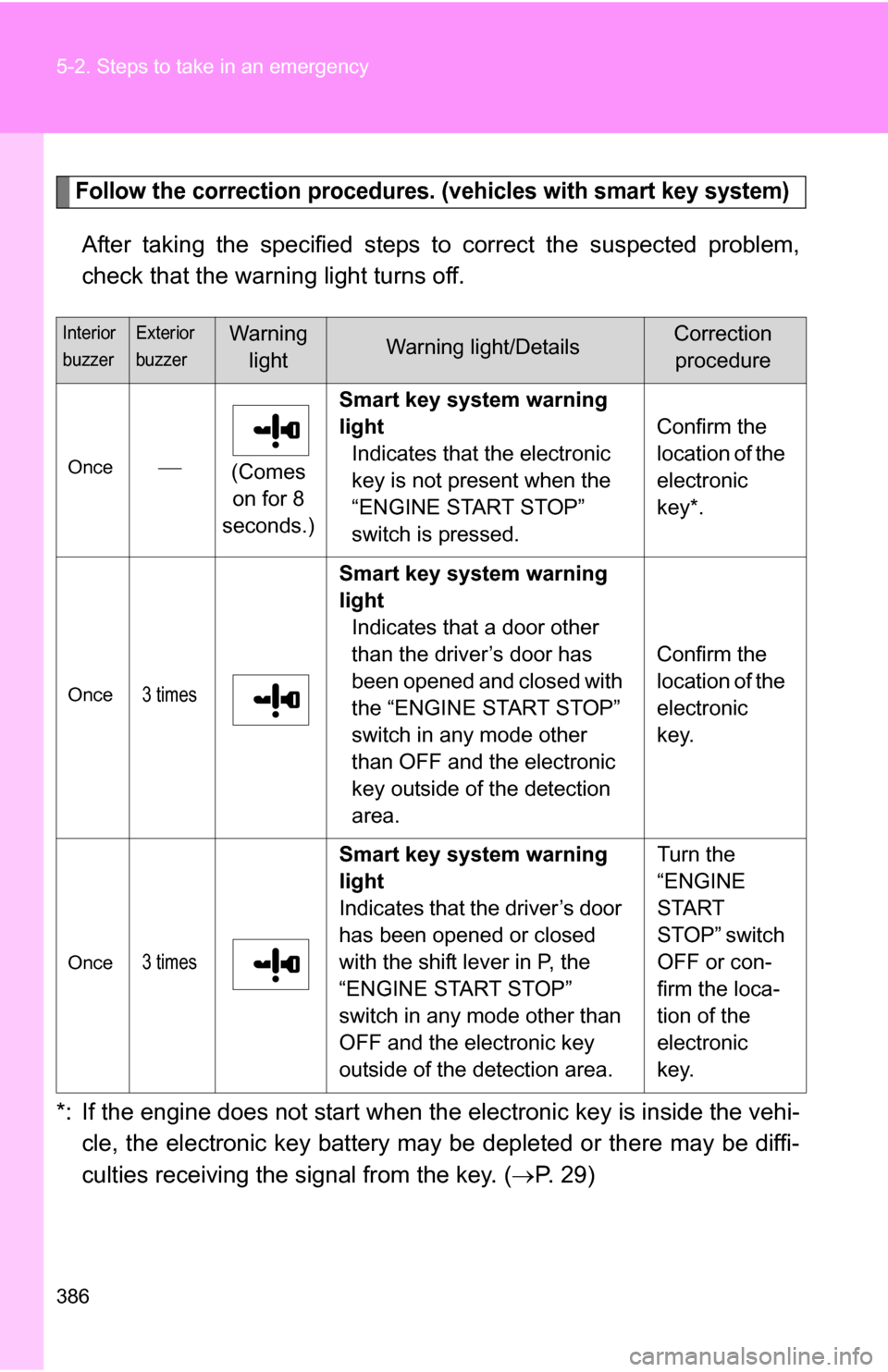
Follow the correction procedures. (vehicles with smart key system)
After taking the specified steps to correct the suspected problem,
check that the warning light turns off.
*: If the engine does not start when the electronic key is inside the vehi- cle, the electronic key battery may be depleted or there may be diffi-
culties receiving the si gnal from the key. (P. 2 9 )
Interior
buzzerExterior
buzzerWarning
lightWarning light/DetailsCorrection procedure
Once (Comes
on for 8
seconds.) Smart key system warning
light
Indicates that the electronic
key is not present when the
“ENGINE START STOP”
switch is pressed. Confirm the
location of the
electronic
key*.
Once3 times
Smart key system warning
light
Indicates that a door other
than the driver’s door has
been opened and closed with
the “ENGINE START STOP”
switch in any mode other
than OFF and the electronic
key outside of the detection
area. Confirm the
location of the
electronic
key.
Once3 times
Smart key system warning
light
Indicates that the driver’s door
has been opened or closed
with the shift lever in P, the
“ENGINE START STOP”
switch in any mode other than
OFF and the electronic key
outside of the detection area. Turn the
“ENGINE
START
STOP” switch
OFF or con-
firm the loca-
tion of the
electronic
key.
Page 400 of 468
400 5-2. Steps to take in an emergency
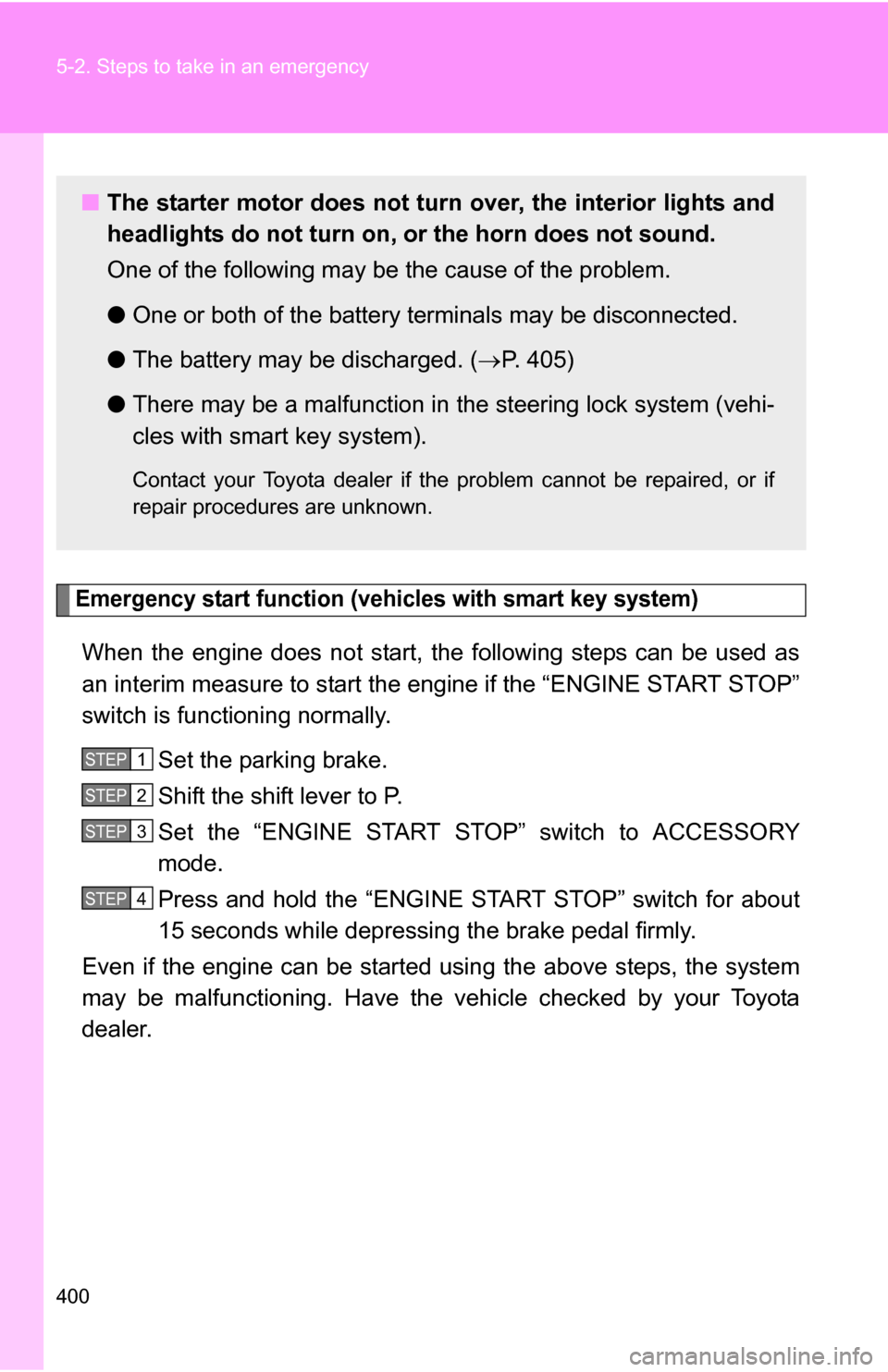
Emergency start function (vehicles with smart key system)
When the engine does not start, the following steps can be used as
an interim measure to start the engine if the “ENGINE START STOP”
switch is functioning normally.Set the parking brake.
Shift the shift lever to P.
Set the “ENGINE START ST OP” switch to ACCESSORY
mode.
Press and hold the “ENGINE START STOP” switch for about
15 seconds while depressing the brake pedal firmly.
Even if the engine can be start ed using the above steps, the system
may be malfunctioning. Have the vehicle checked by your Toyota
dealer.
■ The starter motor does not turn over, the interior lights and
headlights do not turn on, or the horn does not sound.
One of the following may be the cause of the problem.
● One or both of the battery terminals may be disconnected.
● The battery may be discharged. ( P. 405)
● There may be a malfunction in the steering lock system (vehi-
cles with smart key system).
Contact your Toyota dealer if the problem cannot be repaired, or if
repair procedures are unknown.
STEP1
STEP2
STEP3
STEP4