audio TOYOTA COROLLA 2009 10.G Owner's Guide
[x] Cancel search | Manufacturer: TOYOTA, Model Year: 2009, Model line: COROLLA, Model: TOYOTA COROLLA 2009 10.GPages: 468, PDF Size: 9.31 MB
Page 219 of 468
219
3-2. Using the audio system
3
Interior features
●
Compatible disc formats
The following disc formats can be used.
• Disc formats: CD-ROM Mode 1 and Mode 2
CD-ROM XA Mode 2, Form 1 and Form 2
• File formats: ISO9660 Level 1, Level 2, (Romeo, Joliet) MP3 and WMA files written in any format other than those listed above
may not play correctly, and their file names and folder names may not
be displayed correctly.
Items related to standards and limitations are as follows.
• Maximum directory hierarchy: 8 levels
• Maximum length of folder names/file names: 32 characters
• Maximum number of folders: 192 (including the root)
• Maximum number of files per disc: 255
● File names
The only files that can be recognized as MP3/WMA and played are those
with the extension .mp3 or .wma.
● Multi-sessions
As the audio system is compatible with multi-sessions, it is possible to play
discs that contain MP3 and WMA files. However, only the first session can
be played.
● D3 and WMA tags
ID3 tags can be added to MP3 files, making it possible to record the track
title and artist name, etc.
The system is compatible with ID3 Ver. 1.0, 1.1, and Ver. 2.2, 2.3 ID3 tags.
(The number of characters is based on ID3 Ver. 1.0 and 1.1.)
WMA tags can be added to WMA files, making it possible to record the
track title and artist name in the same way as with ID3 tags.
● MP3 and WMA playback
When a disc containing MP3 or WMA files is inserted, all files on the disc
are first checked. Once the file check is finished, the first MP3 or WMA\
file
is played. To make the file check finish more quickly, we recommend you
do not write in any files other than MP3 or WMA files or create any unnec-
essary folders.
If the discs contain a mixture of music data and MP3 or WMA format data,
only music data can be played.
Page 220 of 468
220 3-2. Using the audio system
●IExtensions
If the file extensions .mp3 and .wma are used for files other than MP3 and
WMA files, they will be mistakenly recognized and played as MP3 and
WMA files. This may result in large amounts of interference and damage
to the speakers.
● Playback
• To play MP3 files with steady sound quality, we recommend a fixed bit
rate of 128 kbps and a sampling frequency of 44.1 kHz.
• CD-R or CD-RW playback may not be possible in some instances, depending on the characteristics of the disc.
• There is a wide variety of freeware and other encoding software for MP3 and WMA files on the market, and depending on the status of the
encoding and the file format, poor sound quality or noise at the start of
playback may result. In some cases, playback may not be possible at
all.
• When files other than MP3 or WMA files are recorded on a disc, it may take more time to recognize the disc. In some cases, playback may not
be possible at all.
• Microsoft, Windows, and Windows Media are the registered trade- marks of Microsoft Corporation in the U.S. and other countries.
NOTICE
■ CDs and adapters that cannot be used ( P. 212)
■ CD player precautions ( P. 213)
Page 221 of 468
221
3-2. Using the audio system
3
Interior features
Optimal use of the audio system
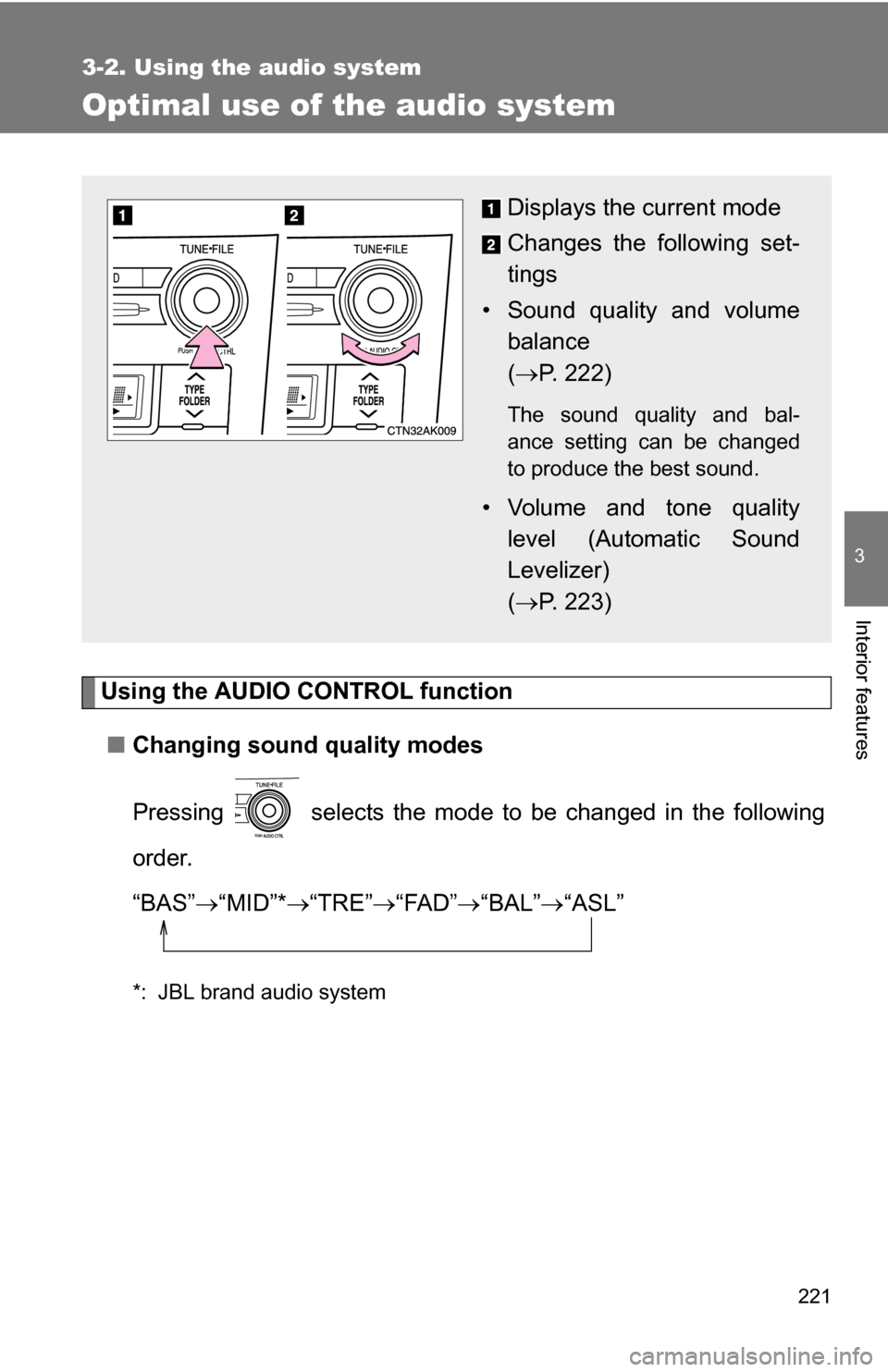
Using the AUDIO CONTROL function■ Changing sound quality modes
Pressing selects the mode to be changed in the following
order.
“BAS” “MID”* “TRE” “FAD” “BAL” “ASL”
*: JBL brand audio system
Displays the current mode
Changes the following set-
tings
• Sound quality and volume balance
( P. 222)
The sound quality and bal-
ance setting can be changed
to produce the best sound.
• Volume and tone quality
level (Automatic Sound
Levelizer)
( P. 223)
Page 222 of 468
222 3-2. Using the audio system
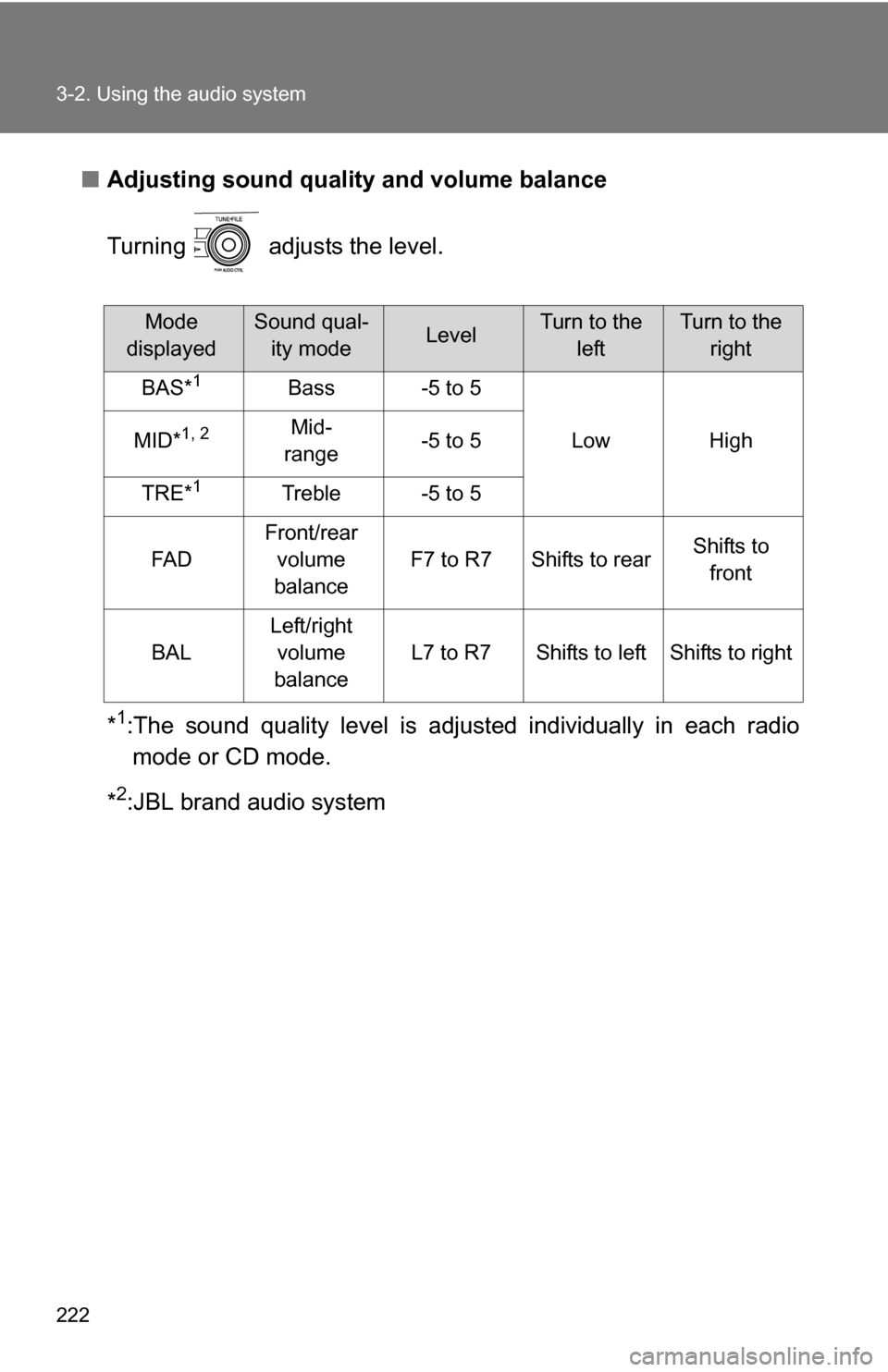
■Adjusting sound quality and volume balance
Turning adjusts the level.
*
1:The sound quality level is adjusted individually in each radio
mode or CD mode.
*
2:JBL brand audio system
Mode
displayedSound qual- ity modeLevelTurn to the leftTurn to the right
BAS*1Bass-5 to 5
LowHighMID*1, 2Mid-
range-5 to 5
TRE*1Treble-5 to 5
FA D
Front/rear volume
balance
F7 to R7Shifts to rearShifts to front
BAL
Left/right volume
balance
L7 to R7Shifts to leftShifts to right
Page 223 of 468
223
3-2. Using the audio system
3
Interior features
■
Adjusting the Automatic Sound Levelizer (ASL)
Except JBL brand audio system
When “ASL” is selected, turning to the right changes the
“ASL” level in the order of “LOW”, “MID” and “HIGH”.
Turning to the left turns “ASL” off.
ASL automatically adjusts the volume and tone quality according to vehi-
cle speed.
JBL brand audio system
When “ASL” is selected, turning to the right turns “ASL” on,
and turning to the left turns “ASL” off.
ASL automatically adjusts the volume and tone quality according to vehi-
cle speed.
Page 224 of 468
224
3-2. Using the audio system
Using the AUX adapter
■Operating portable audio devices connected to the audio system
The volume can be adjusted using the vehicle's audio controls. All other
adjustments must be made on the portable audio device itself.
■ When using a portable audio devi ce connected to the power outlet
Noise may occur during playback. Use the power source of the portable
audio device.
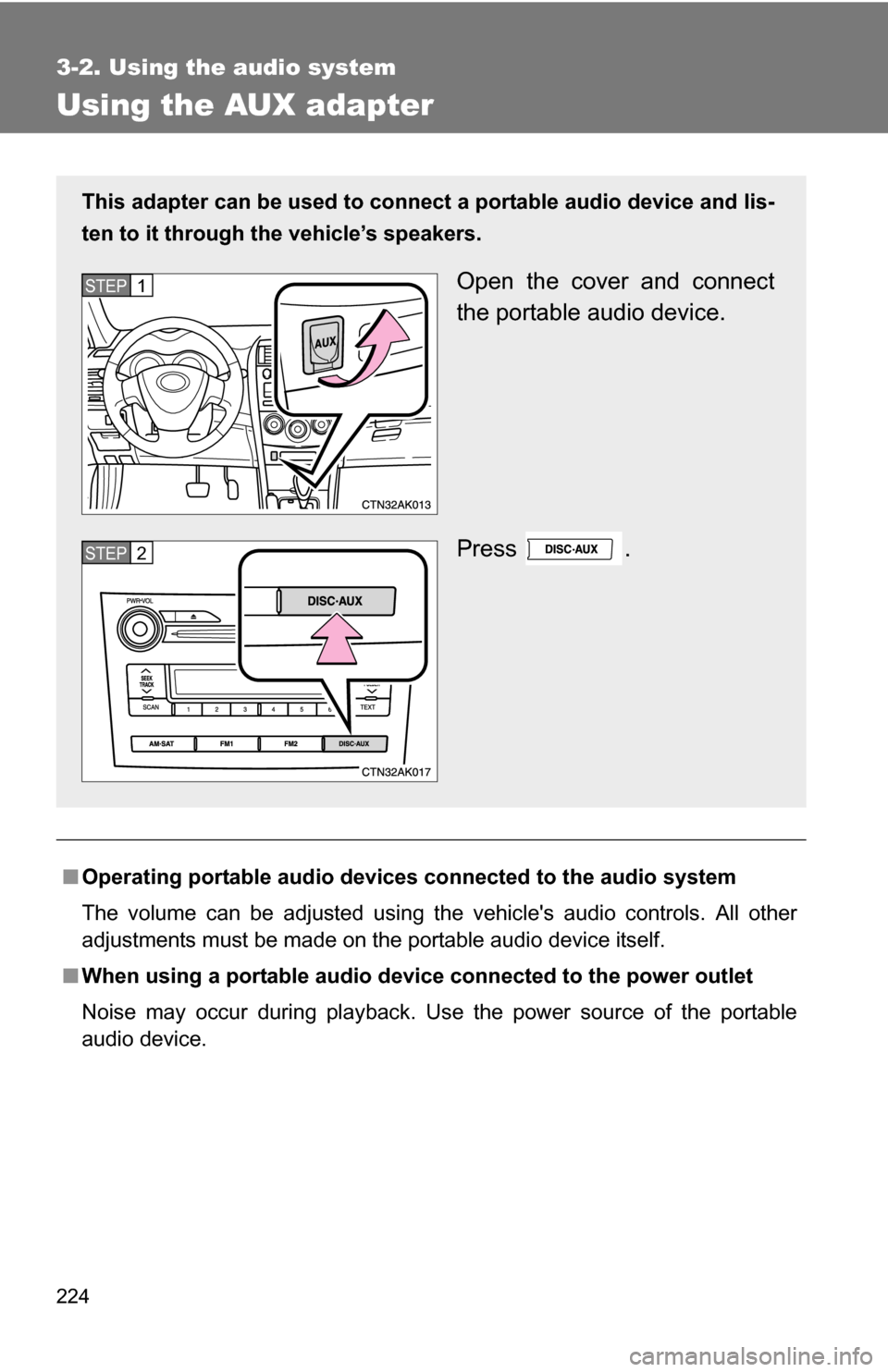
This adapter can be used to connect a portable audio device and lis-
ten to it through the vehicle’s speakers.
Open the cover and connect
the portable audio device.
Press .STEP1
STEP2
Page 225 of 468
225
3-2. Using the audio system
3
Interior features
Using the steering wheel audio switches (if equipped)
Turning on the powerPress when the audio system is turned off.
The audio system can be turned off by holding down until you
hear a beep.
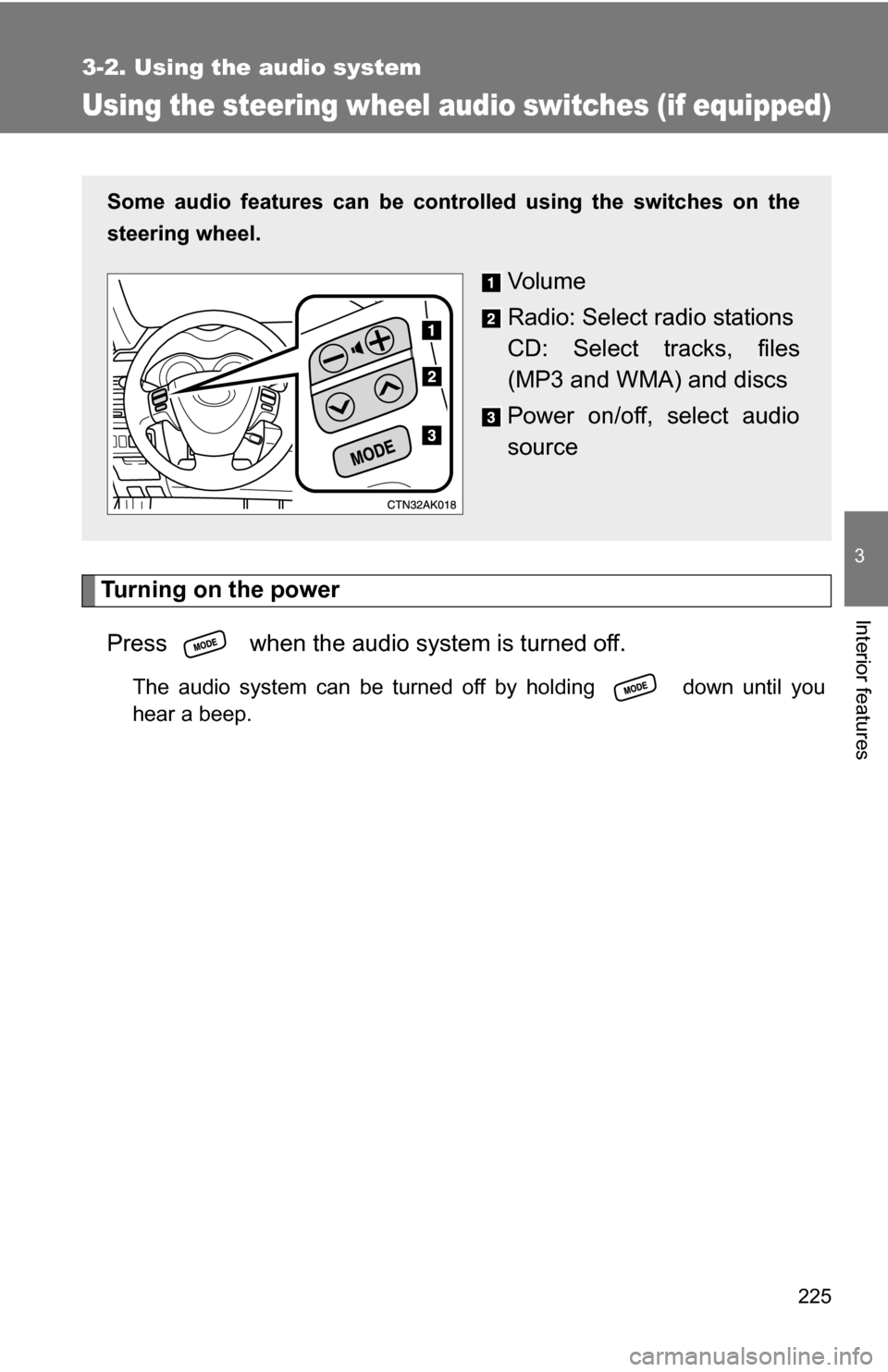
Some audio features can be cont rolled using the switches on the
steering wheel.
Vo l u m e
Radio: Select radio stations
CD: Select tracks, files
(MP3 and WMA) and discs
Power on/off, select audio
source
Page 226 of 468
226 3-2. Using the audio system
Changing the audio sourcePress when the audio system is turned on. The audio source
changes as follows each time is pressed.
Type A:
FM1FM2CDCD changer*1AUXAMSAT1*2SAT2*2SAT3*2
Type B:
FM1 FM2 CD changer AUXAMSAT1*2SAT2*2SAT3*2
*1: If installed with a CD changer
*
2: Except JBL brand audio system
Use of XM® Satellite Radio requires XM® tuner and service.
Contact your Toyota dealer.
Adjusting the volume
Press “+” on to increase the vo lume and “-” to decrease the
volume.
Press and hold the switch to continue increasing or decreasing the vol-
ume.
Selecting a radio station
Press to select the radio mode.
Press to select a preset station.
To scan for receivable stations, press and hold the switch until you
hear a beep.
STEP1
STEP2
Page 227 of 468
227
3-2. Using the audio system
3
Interior features
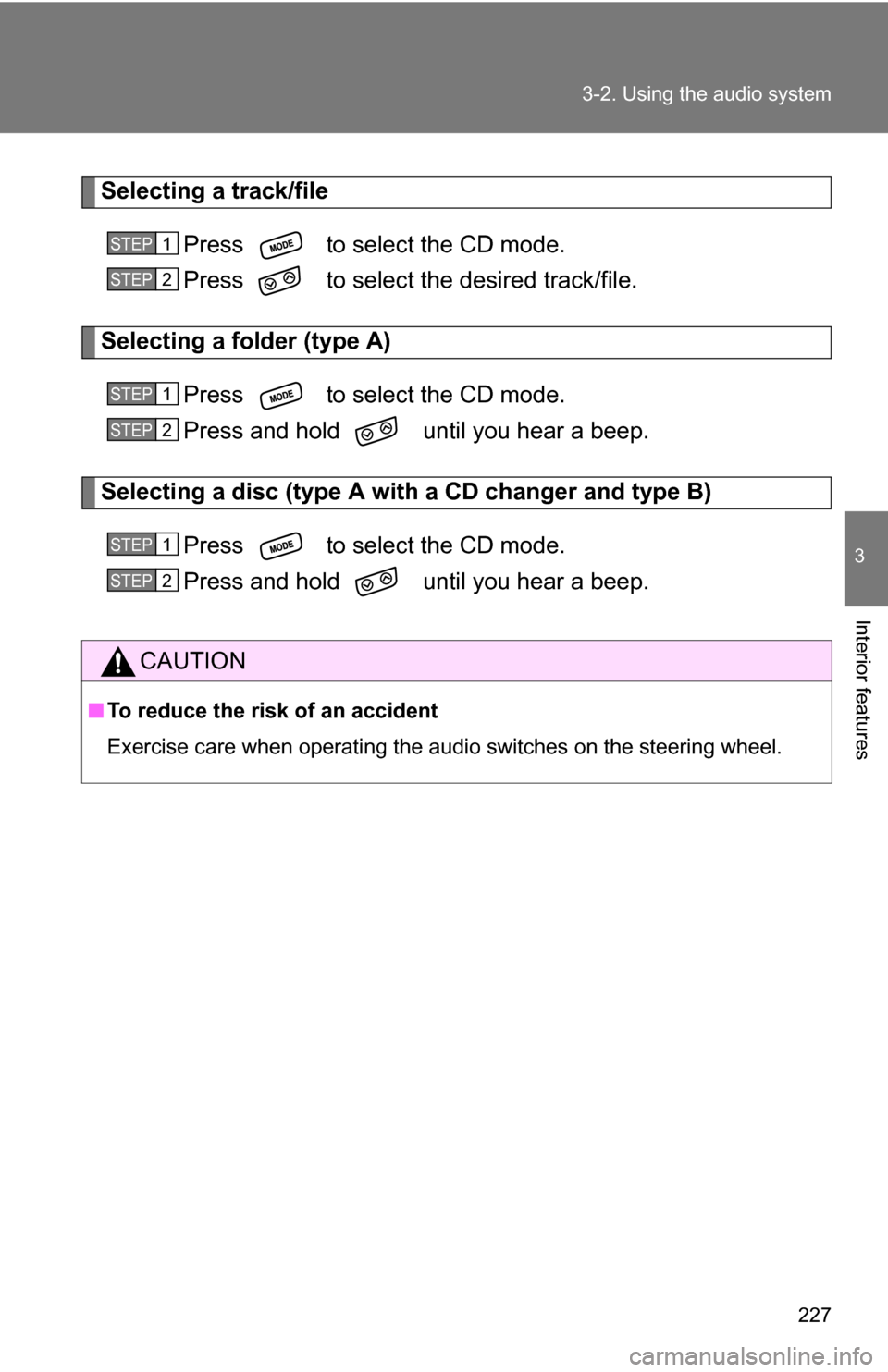
Selecting a track/file
Press to select the CD mode.
Press to select the desired track/file.
Selecting a folder (type A)Press to select the CD mode.
Press and hold until you hear a beep.
Selecting a disc (type A with a CD changer and type B)
Press to select the CD mode.
Press and hold until you hear a beep.
CAUTION
■ To reduce the risk of an accident
Exercise care when operating the audio switches on the steering wheel.
STEP1
STEP2
STEP1
STEP2
STEP1
STEP2
Page 231 of 468
231
3-3. Using the hands-free phone system (for cellular phone)
3
Interior features
Using the hands-free phone system (for cellular phone) (if equipped)
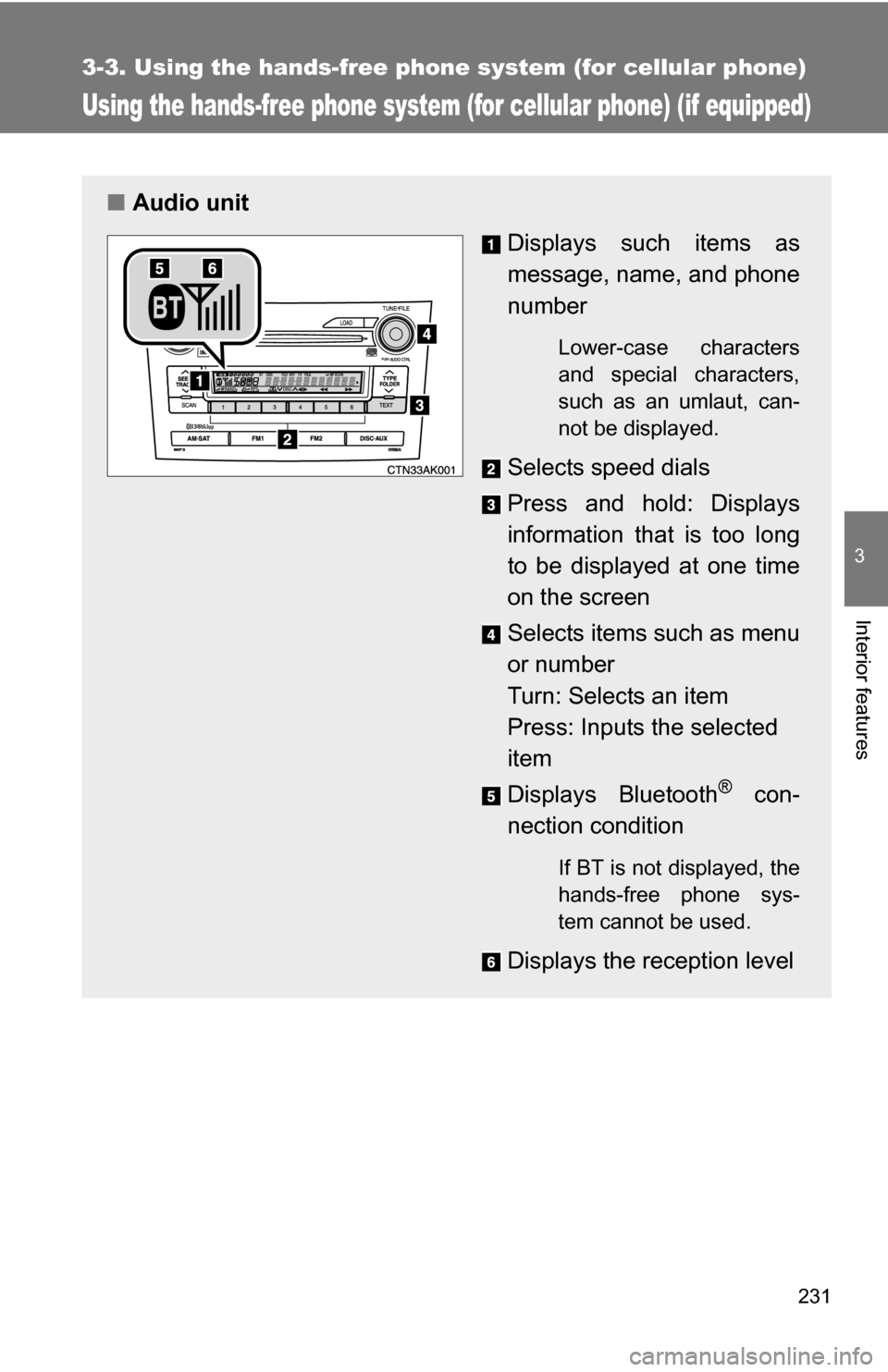
■Audio unit
Displays such items as
message, name, and phone
number
Lower-case characters
and special characters,
such as an umlaut, can-
not be displayed.
Selects speed dials
Press and hold: Displays
information that is too long
to be displayed at one time
on the screen
Selects items such as menu
or number
Turn: Selects an item
Press: Inputs the selected
item
Displays Bluetooth
® con-
nection condition
If BT is not displayed, the
hands-free phone sys-
tem cannot be used.
Displays the reception level